Sales and document add-ons
Cost, image and list price on the quotation line; a discount cap; quotations that leave only through Send; the customer's order code; currency conversion; an internal note that is never printed; a company-specific print layout.
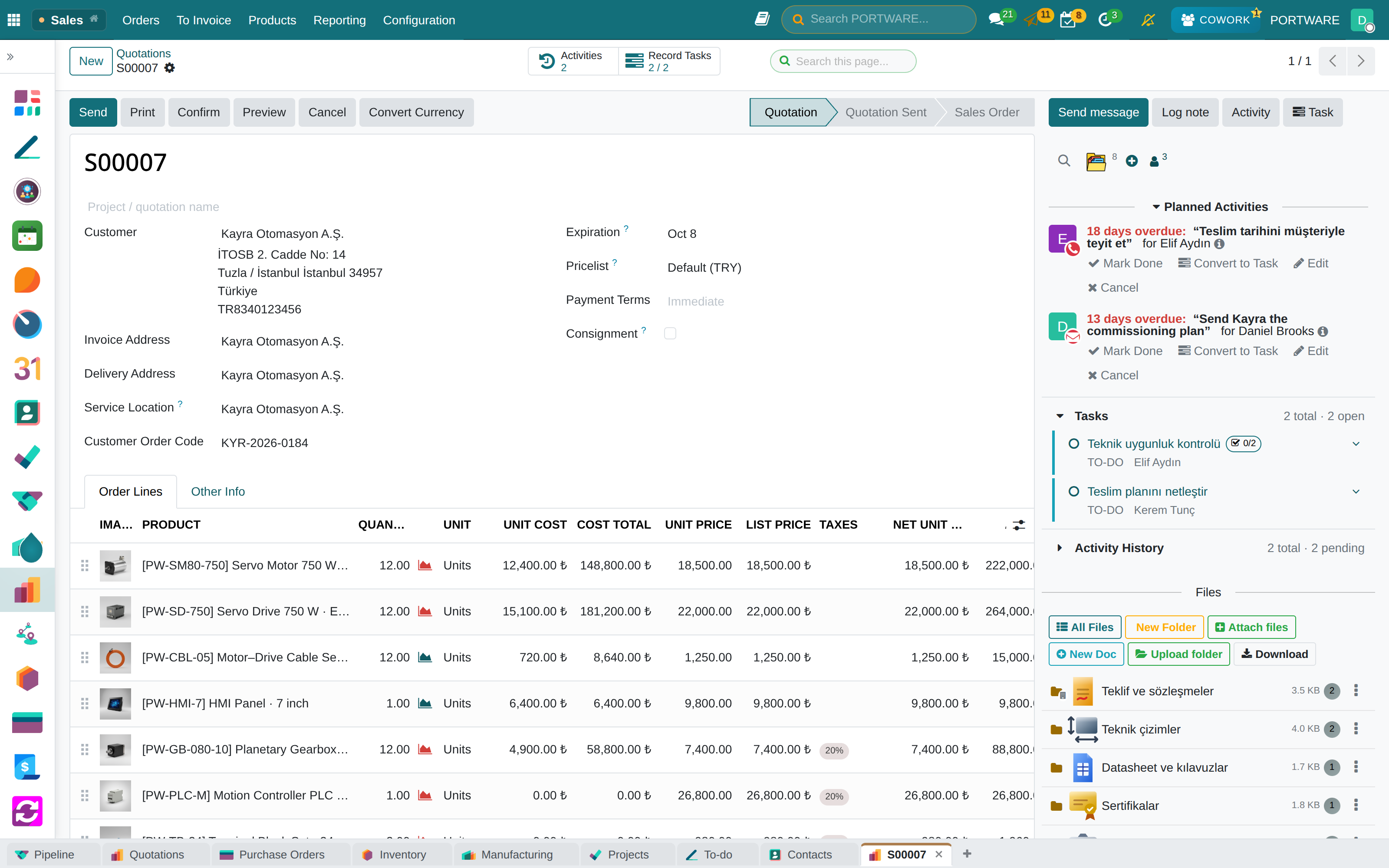
- Profit is visible while quotingCost, unit price and list price side by side on the line.
- The discount is limited by a capA discount on a quotation line cannot exceed the set upper limit.
- A draft never leaksA quotation reaches the customer only through Send.
- The document is your company'sA company-specific print layout and quotations with product images.
Where it appears: The quotation, order and purchase forms · printed PDF documents · shipments and delivery notes · sharing opportunities and projects
The sales screen shows more than the standard core gives. Every added column has a single reason: to make the decision on the screen, without looking anywhere else.
What is on the line
| Column | What it says |
|---|---|
| Image | The fastest way to notice the wrong product |
| Unit cost · Cost amount | What this line costs |
| Unit price | The price applied |
| List price | For information: how far it departs from the list |
Below the total, the total cost appears; no calculator is needed to work out the margin.
Discount cap
A discount can be given on the total, but it is limited by a cap and, where needed, by approval.
The discount is limited to the range 0–100 and the constraint runs when the record is written; a request that bypasses the interface cannot bypass the cap either.
Print layout
Quotations, order confirmations, invoices and delivery notes carry the company's own layout: three logos, a terms table, bank details and contact information. The same template serves more than one company identity; the logos, IBANs and terms change depending on which company you print from.
The layout carries its own paper format (margins, scale); choosing the layout chooses the format too, and documents are always printed with the right margins.
Notes on shipment lines
Not the whole of a product's long technical description goes onto the delivery note; only the part relevant to that operation is printed. A shipping document is not a product catalogue.
A quotation reaches the customer only through Send
A draft quotation stays inside the company until you press Send (the quotation or pro-forma wizard):
- Chatter notifications on the draft reach internal users only.
- A direct message to the customer from the draft is refused, with a pointer to Send.
- The portal page and the PDF stay closed to the customer until Send.
A portal user or website visitor is also never a salesperson. When a request from the website would make the visitor the salesperson, the field is left empty (opportunity) or given to the internal user preparing the quotation (order).
The customer's order code
Some customers issue their own purchase order number and expect it on every document. The customer order code shows in the quotation header and as a list column, and travels to the delivery and the invoice, where it is searchable too. When the customer asks "what happened to PO-4711?", searching the code opens the right document.
A customer can be marked as requiring the code; their orders cannot be confirmed without it. A company setting switches the feature off; it is on by default.
Converting a quotation to another currency
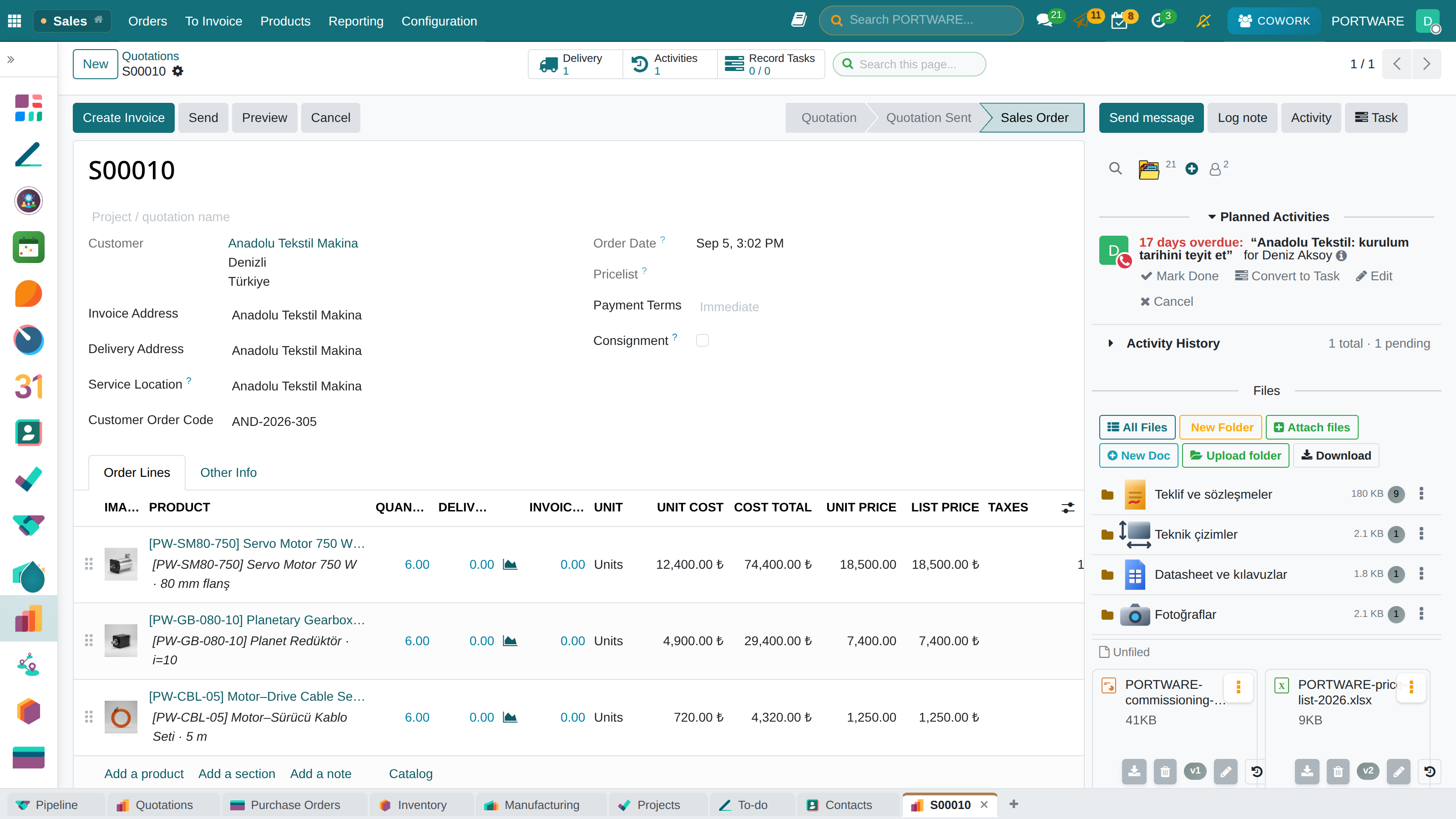
The vendor quotes in USD, the customer wants TRY, the budget is in EUR. Convert Currency on quotations and requests for quotation asks for the target currency and the rate; the system's daily rate is proposed, the agreed rate can be typed. While you try rates every line and total shows in both currencies; the lines are re-priced only on Apply.
Converted prices count as set by hand: a later quantity change does not quietly re-price them at the daily rate. Every conversion is posted to the order's chatter and kept in an audit log (who, when, at what rate, totals before and after), listed under Sales and Purchase reporting.
An internal note that is never printed
Quotations, orders, purchase orders and invoices have a second box beside Terms and Conditions: the internal note. The accepted margin, a stock risk or the engineer to call at the vendor goes there.
- The internal note is printed on no PDF and shown on no portal page.
- Only internal users can read it.
- The two boxes are separate cards with a "printed / not printed" badge, so they cannot be confused.
- Like the terms, it keeps a version history.
Delivery note
The delivery note carries both parties' tax identities, the place of delivery when it differs from the invoicing address, the actual dispatch date and time, the carrier (vehicle and trailer plates, driver), the Incoterm, the number of packages, gross and net weight and volume; per line, the customs tariff code, country of origin and lot or serial number. Fields the standard core does not hold (plates, driver, package count, gross weight, dispatch time) are entered on the transfer itself.
The purchase order, at the quotation's standard
The purchase order now reads like the sales quotation:
- The project name and code under the order number.
- Lines read like a sales order; the manufacturer code and description (from the vendor pricelist, editable per line), the stock code and the product picture are optional columns.
- The PDF has supplier and buyer blocks, an order information table, a line table with codes and pictures, totals and terms; Print RFQ prints the same document titled "Request for Quotation".
The product picture on a line follows the product: when the product's image changes, old orders show the new one without editing the line.
Sharing an opportunity or a project between companies
When two companies of a group work on the same opportunity or project, add the other company to Shared with Companies beside the Company field. The accounting company stays one; users of the listed companies also see the record and, for a project, its tasks, milestones and updates.
| Module | What it does | Version |
|---|---|---|
| PORTWARE Sale Cost Columns | Cost columns, net unit price and a below-cost warning on sale orders | 19.0.2.1.0 live |
| PORTWARE Sale Line Product Image | Product thumbnail column on sale order lines | 19.0.1.2.0 live 19.0.1.1.0 |
| PORTWARE Sale List Price Column | Informational product list price column on sale order lines | 19.0.1.2.1 live 19.0.1.2.0 |
| Sale Discount on Total Amount | Discount on Total in Sale and Invoice With Discount Limit and Approval | 19.0.1.1.0 |
| SMB Report Layout | PORTWARE custom report layout with triple logos and terms table | 19.0.1.46.0 live 19.0.1.38.0 |
| PORTWARE Picking Description Limit | Bound the Internal Notes printed on receipt and internal transfer lines | 19.0.1.1.0 live |
| PORTWARE Quotation Release | A quotation reaches the customer only through Send, and a customer is never the salesperson | 19.0.1.0.0 |
| PORTWARE Customer Order Code | Carry the customer's own order code from quotation to delivery and invoice | 19.0.1.0.0 |
| PORTWARE Order Currency Conversion | Convert a quotation or RFQ into another currency at a rate you enter | 19.0.1.0.0 |
| PORTWARE Internal Notes | A second, never-printed note field beside Terms and Conditions | 19.0.1.1.0 |
| SMB Delivery Note | Delivery note carrying what Turkish and European shipping practice expects | 19.0.1.0.0 |
| SMB Purchase Order UX | Purchase order form and PDF at the standard of the SMB quotation | 19.0.1.8.0 |
| PORTWARE Shared Companies | Share CRM opportunities and projects with more than one company | 19.0.1.0.0 |