The interface layer
The tab strip, the side panel, application memory, two search layers, mobile fit and a shared icon library.
- No getting lost between screensThe tab strip keeps every screen where you left it.
- You find what you look forTwo separate search layers for menus and records.
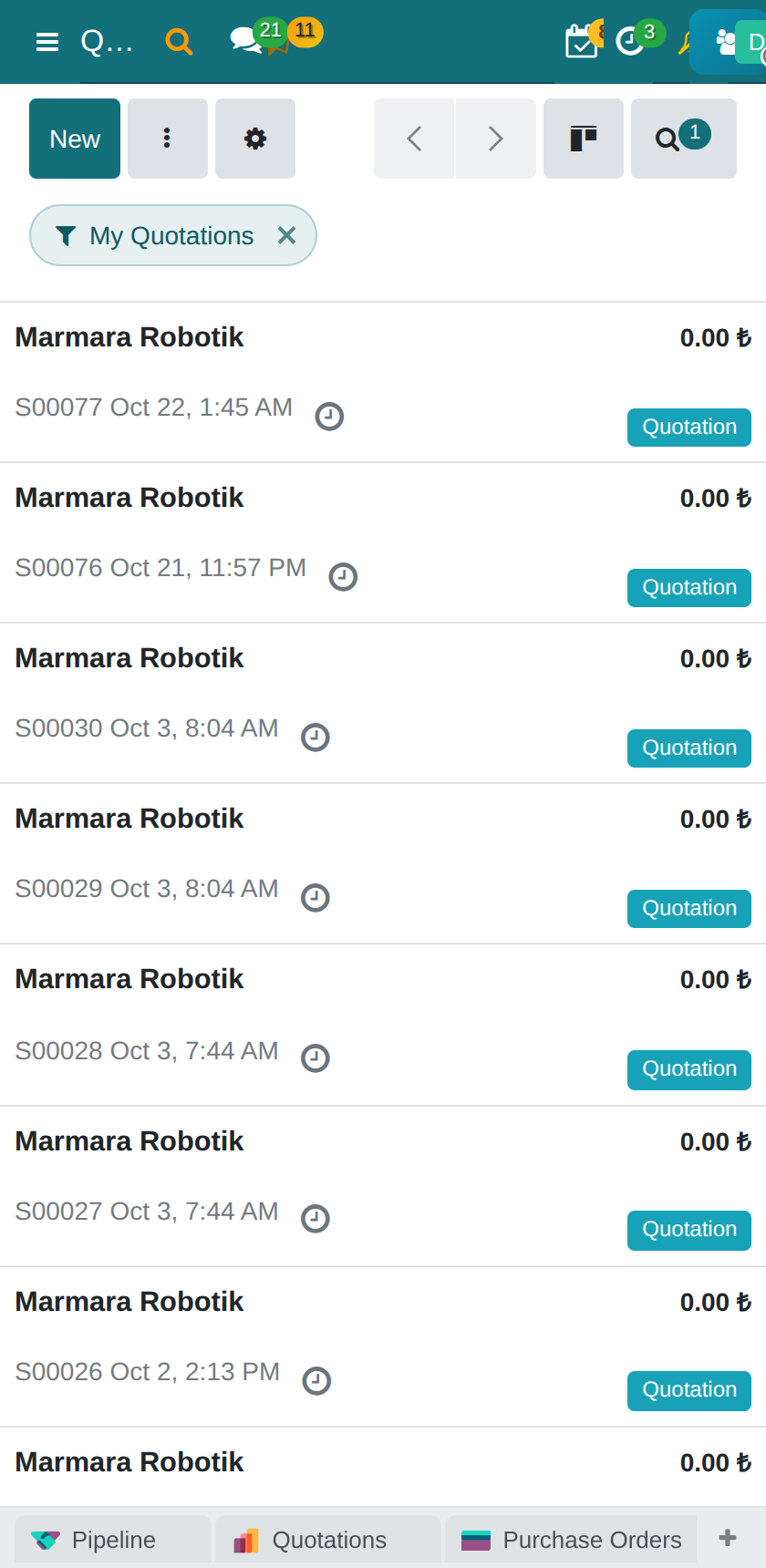
- The same system on the phoneThe top bar and forms fit the small screen.
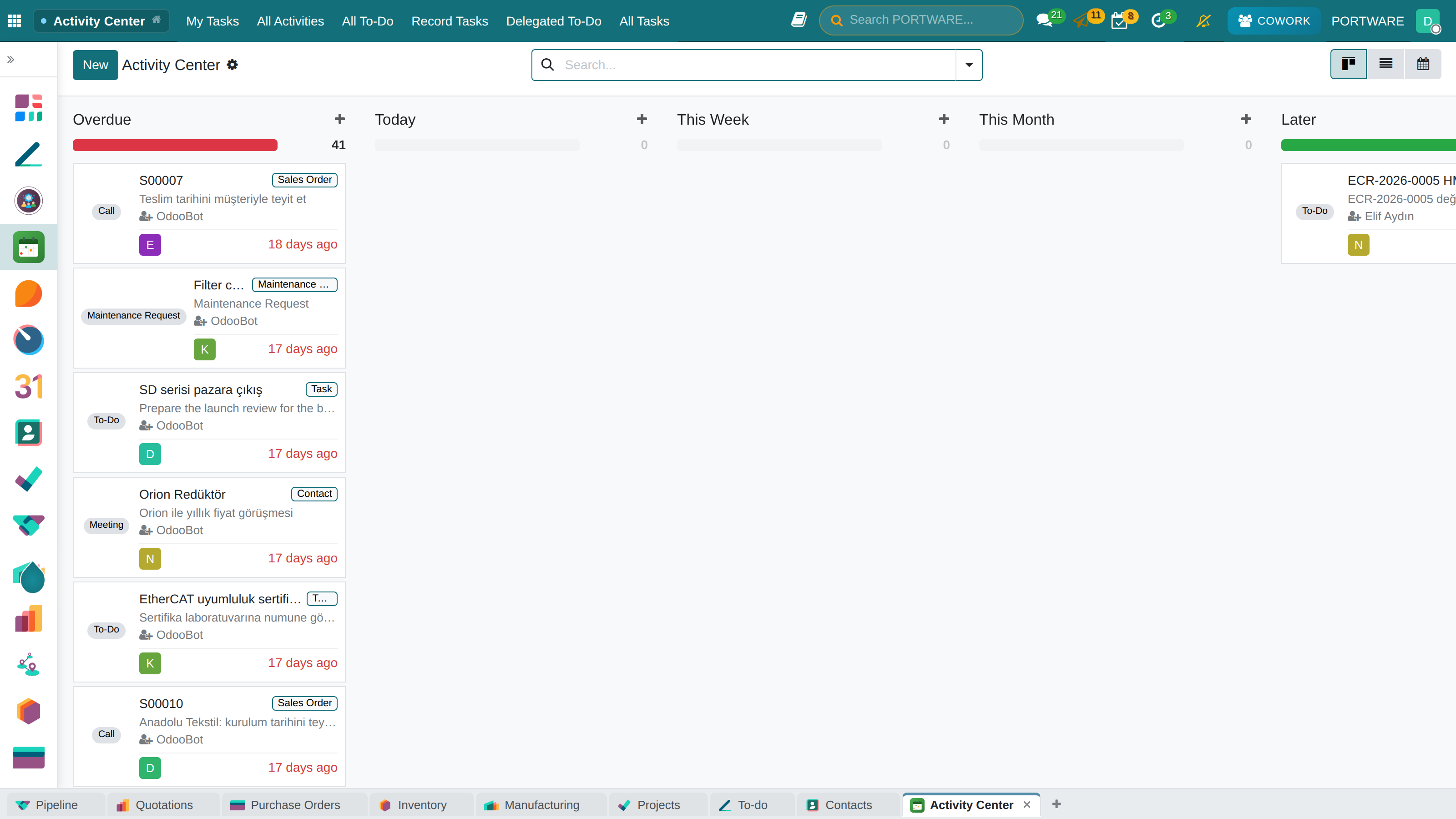
Where it appears: The top bar, the bottom strip and the application panel — on every screen
All the differences from the standard core come from a single observation: people work on several screens at once all day and do not want to start from a lost place every time they come back.
The tab strip
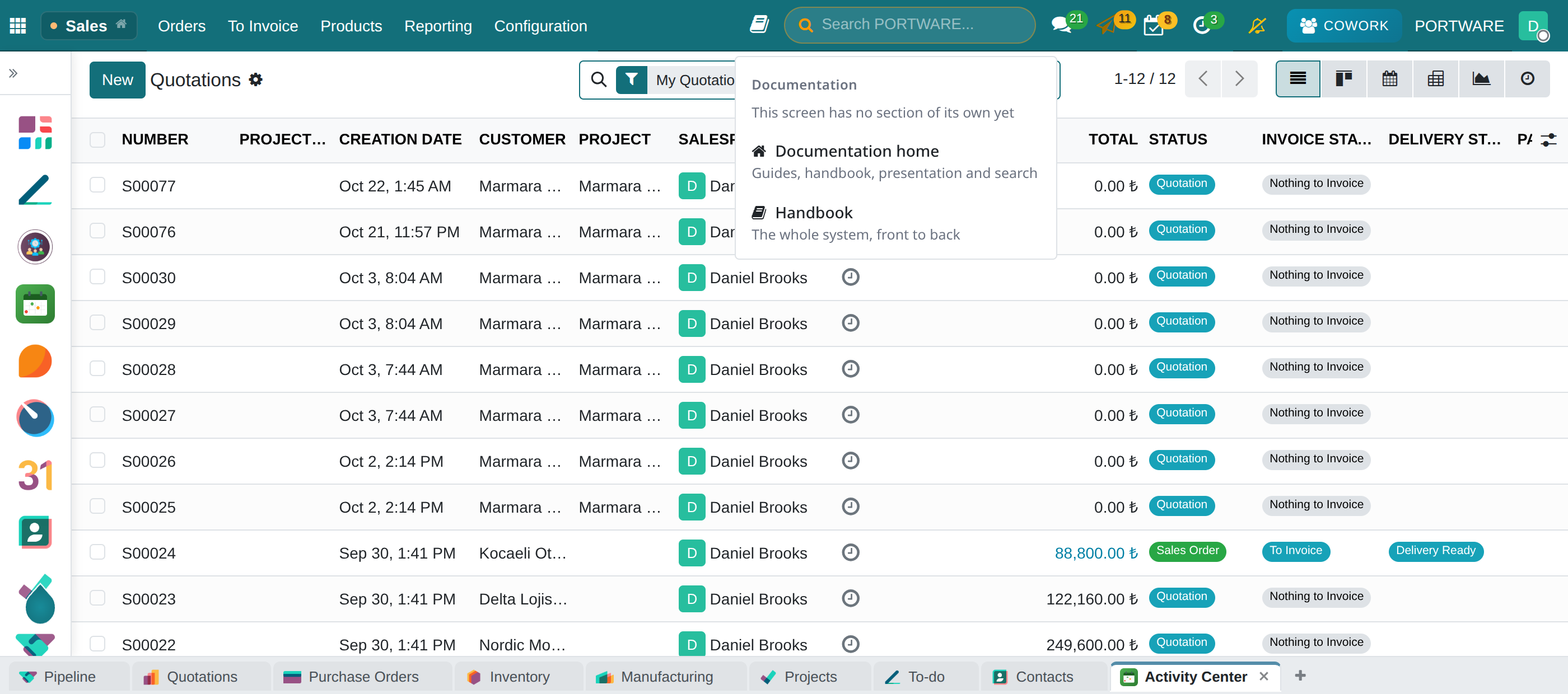
The strip at the bottom of the screen is the in-system equivalent of browser tabs. The + at the end of the strip opens the current screen as a second tab.
A tab carries not only the screen but the filters too: if you close a facet, switch to another tab and come back, the facet you closed is still closed. Every tab remembers its place, and this is kept on the server per user — reloading the page does not break the tabs.
Tabs are independent: clicking an application in the side panel takes the tab you are in there; it does not jump you to another tab.
The application panel
The applications menu is not a drop-down box but a fixed panel that opens to the left, and it pushes the content to the right instead of covering it. It can be pinned, it has an application search inside, everyone starts with the same home default and every user can change it for themselves. It does not come into play on small screens.
Application memory
The application name in the top bar is not decoration but a button: a small dot and a thin frame say that it is clickable, and when clicked it returns to that application's main screen. The dot's colour is the application's own colour.
Two searches
| Where | What it searches | |
|---|---|---|
| Global search | In the top bar | System-wide: records, menus, applications |
| Module search | In the form control bar | Only the records of the model you are on |
Above these, every list screen has its own search box, filters and grouping — that is the most powerful one.
Icon library
Icons are not scattered files but live in a library shared across the company; if the same image is uploaded twice, it is de-duplicated by its digest. Record pickers, chatter folders, SOTION pages and the media box use the same picker.
| Module | What it does | Version |
|---|---|---|
| PORTWARE Tabs | Keep several screens open at once and switch between them from a strip along the bottom, the way a browser does. | 19.0.1.8.4 live 19.0.1.7.2 |
| Web Apps Side Panel | Open the apps menu as a left side panel that pushes content, with a session pin and a divider. | 19.0.1.9.0 live |
| App Icons in Menu | Display app icons in the navbar apps dropdown menu + PORTWARE Settings/Apps icons | 19.0.1.1.0 live |
| PORTWARE App Sidebar Search | Search box in app sidebar for quick navigation | 19.0.1.0.0 live |
| PORTWARE App Resume | Each app reopens on the screen you left it on, and the app name in the top bar is visibly the way back to its home screen. | 19.0.1.5.1 live 19.0.1.5.0 |
| PORTWARE Search | Global and module-level search bars for PORTWARE | 19.0.1.6.1 live 19.0.1.6.0 |
| PORTWARE Mobile & PWA | Mobile layout contract for the shared navbar and chatter bars, plus PWA install and push-notification onboarding. | 19.0.1.12.0 live 19.0.1.6.3 |
| PORTWARE Icon Library | Shared, reusable icon/logo library with a unified icon picker | 19.0.6.1.0 live 19.0.2.0.0 |