PORTWARE from Claude, ChatGPT and Cursor (MCP)
Connect the AI you already use to PORTWARE with one address. It works as you, with your rights; every change is approved and can be undone, and critical work such as invoices and payments waits for your approval in PORTWARE.
- With your own rightsThe client sees what you see and changes only what you could change.
- One addressClaude, ChatGPT, Cursor and others connect to the same address.
- Every change can be undoneWrites appear in the Cowork panel with an undo button.
- Critical work stays in PORTWAREInvoices, payments and approvals never run on a client's say-so.
Where it appears: My Profile · Security · AI clients (MCP) · Settings · AI clients (MCP)
What it is for
Ask Claude, ChatGPT or Cursor about your work in PORTWARE, or have them do it: "List my quotations from this week", "Summarise the late tasks of the Kayra project", "Move the deadline of the photo shoot task to 30 October". The client connects to PORTWARE through MCP (Model Context Protocol) and uses the same tools as Cowork.
The connection works as you: it sees what you can see and changes only what you could change yourself. You never hand over your password.
Connect in three steps
1. Take the address. Add /mcp to your PORTWARE address:
| Installation | MCP address |
|---|---|
| smb-hkt.com | https://smb-hkt.com/mcp |
| portware.io | https://portware.io/mcp |
| Your own server | https://<your-portware-address>/mcp |
The address ends in /mcp directly, not /portware/mcp.
2. Add it in the client.
| Client | Where | Authentication |
|---|---|---|
| Claude (claude.ai, Desktop) | Settings → Connectors → Add custom connector | Automatic (OAuth) |
| ChatGPT | Settings → Apps → Create (Developer mode on) | OAuth; the registration method can stay as it is |
| Claude Code | claude mcp add --transport http portware <address>, then /mcp | Automatic (OAuth) |
| Cursor, VS Code, Windsurf | "Clients that connect with a key" below | A PORTWARE key |
3. Allow it in PORTWARE. The client opens PORTWARE in your browser. Sign in, check the client's name and choose what it may do:
- Read only: searches, reads and summarises records and documents.
- Read and write: also creates and updates records; the client asks you before every write.
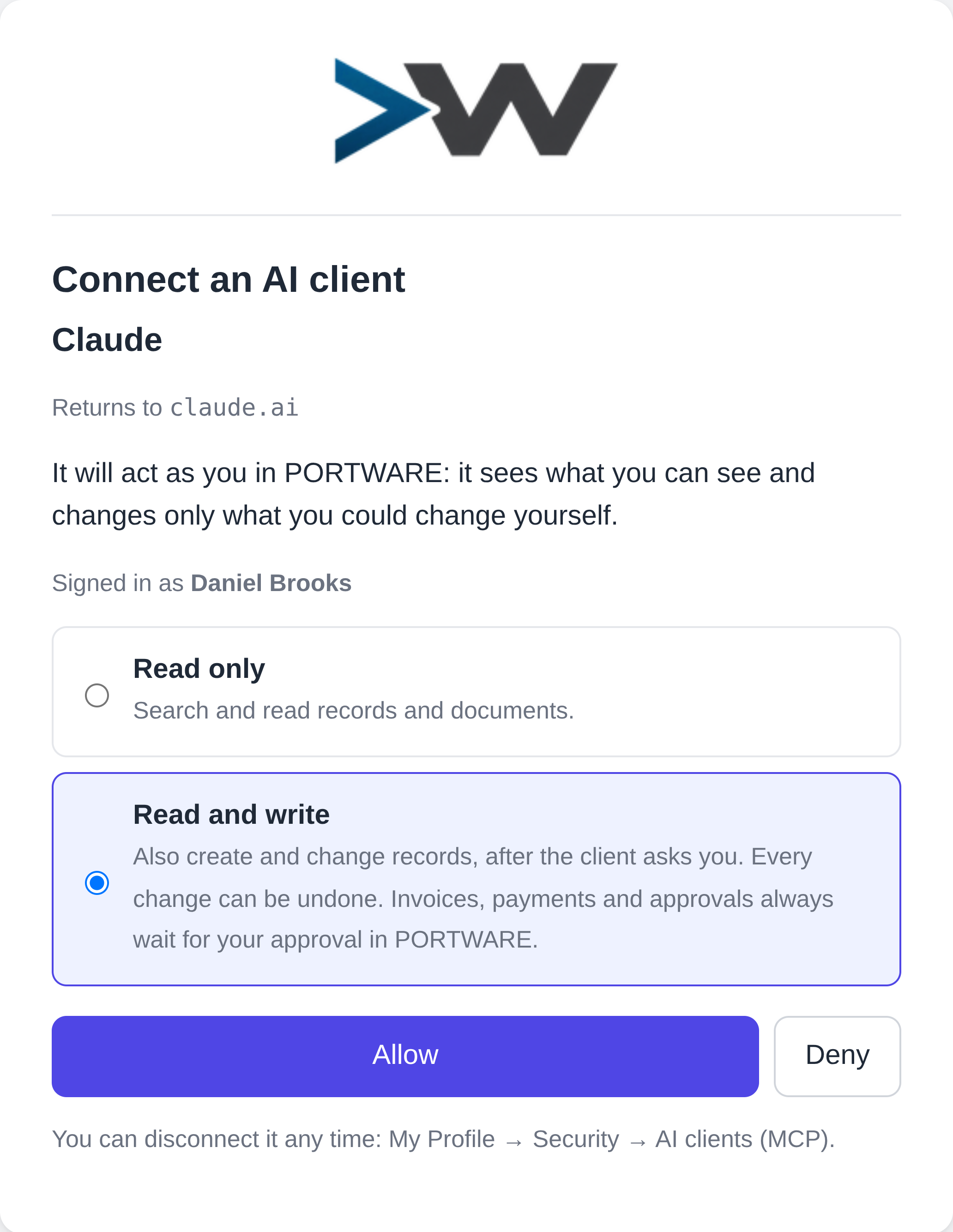
The connection is ready. Ask the client your first question about PORTWARE.
See your connected clients
My Profile → Security → AI clients (MCP) lists every client working as you: its name, how it connected, whether it may read or also write, and when it last worked.
 123
123The list in the profile: Claude and ChatGPT connected through the browser, Cursor with a key
- A client that signed in through the browser (Claude).
- A client allowed to read only (ChatGPT).
- The button for a new client that connects with a key.
Click a row and Revoke to end a connection; the client is refused at its next request.
Clients that connect with a key
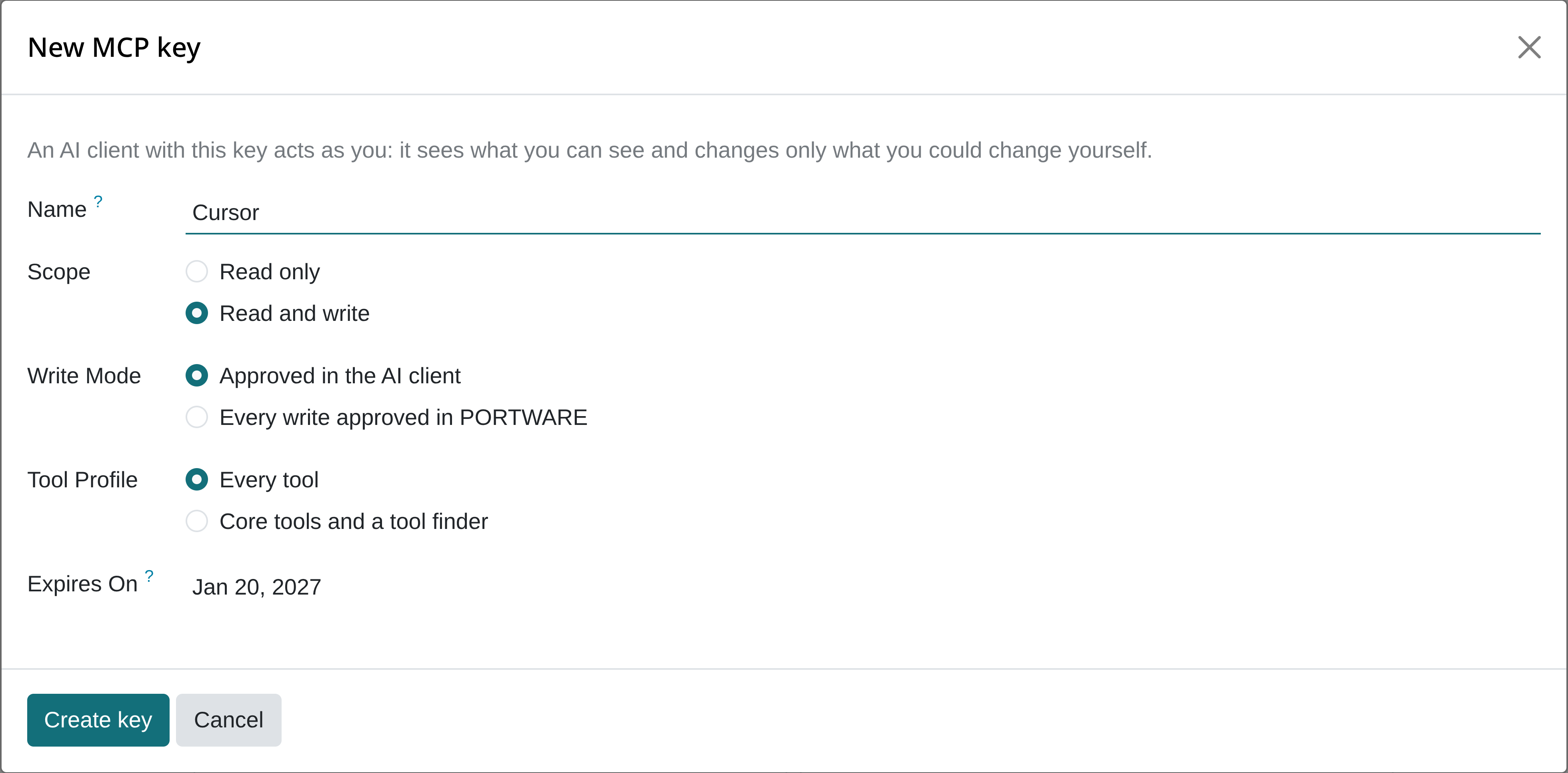
Cursor, VS Code and Windsurf do not sign in through the browser; they connect with a key PORTWARE gives you. My Profile → Security → Connect an AI client:
 12
12The new key window: the client's name, read only or read and write
- Name the client (for example "Cursor — laptop").
- Choose what it may do.
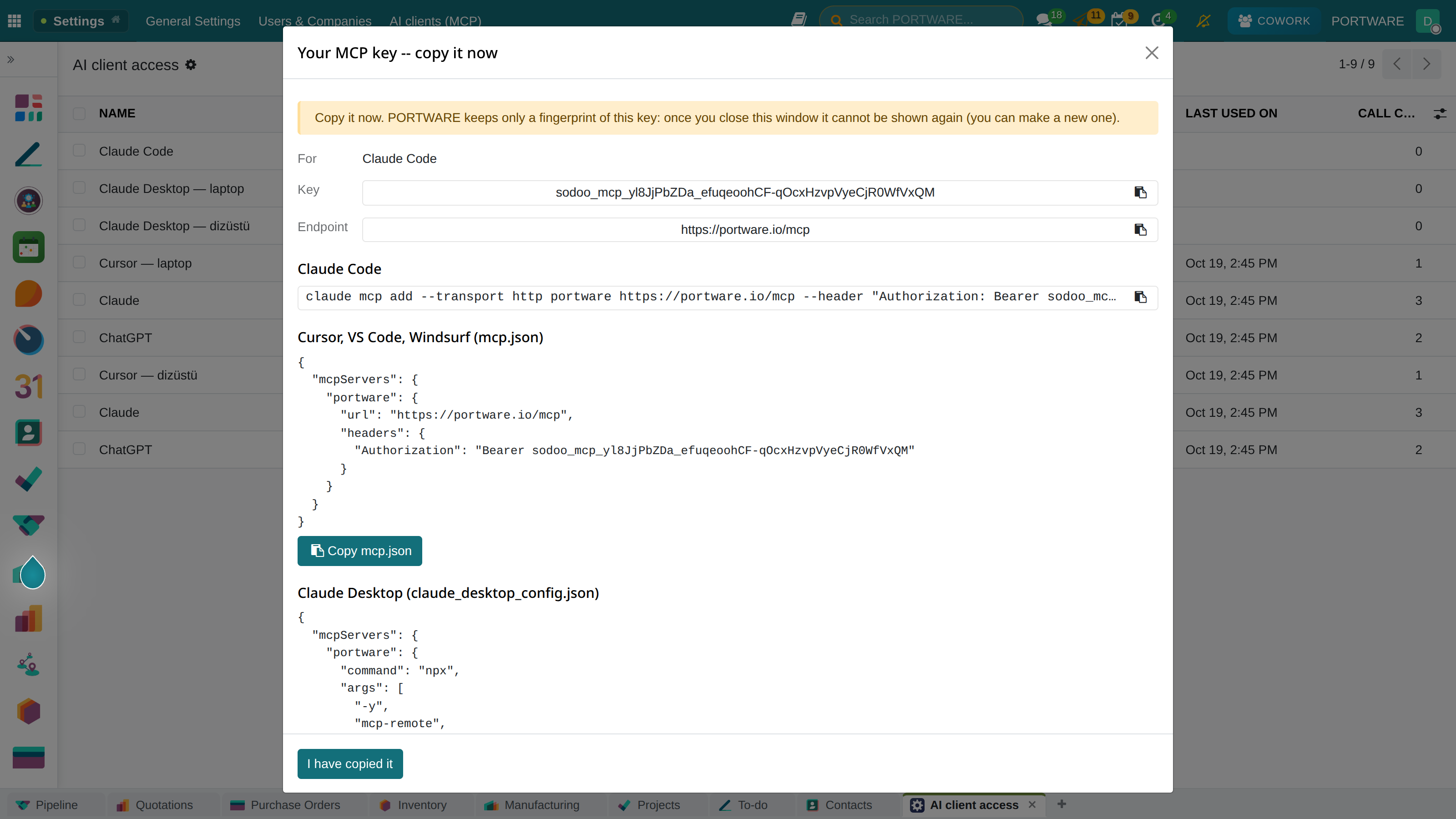
Create key shows the key and the configuration to paste into the client once. Copy it; PORTWARE keeps only the key's fingerprint.
What you can ask
| Area | Example |
|---|---|
| Sales | "List the quotations sent this month that are not confirmed" |
| Projects | "Show the late tasks of the Kayra project and who owns them" |
| Inventory | "Which products are below their minimum?" |
| Agenda | "What is on today and tomorrow?" |
| Records | "Move the deadline of the photo shoot task to 30 October" |
| Documents | "Find the price list Excel; what changed since yesterday?" |
| Links | "Give me a link to open this quotation in PORTWARE" |
The client cannot open your screen; when you need to look at a record it gives you a link into PORTWARE.
See and undo changes
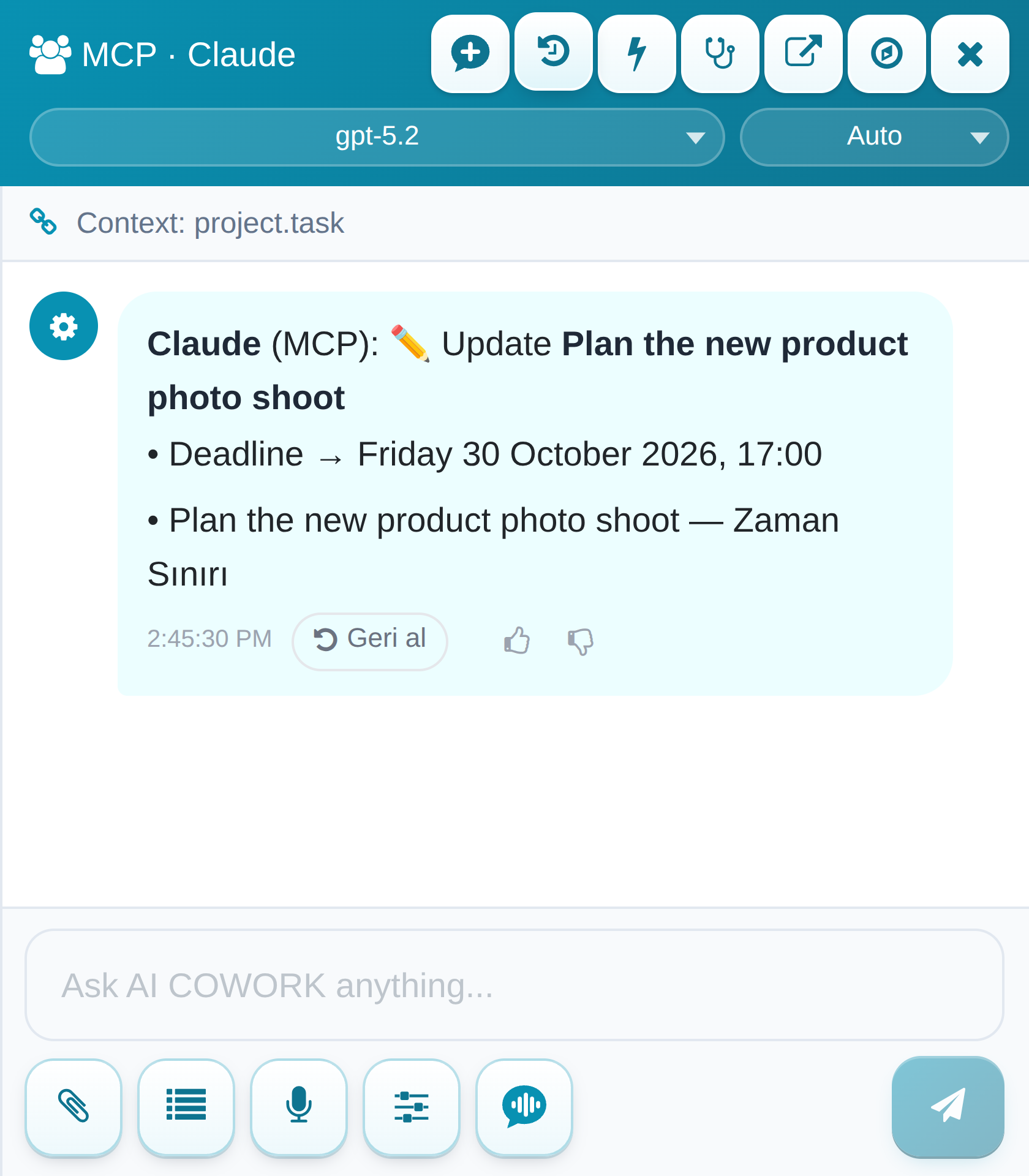
Every change a client makes lands in a Cowork conversation named after the client: what changed, from what to what, and an Undo button.
 12
12The Cowork panel: the change Claude made and its undo button
- The client that made the change, and the field that changed.
- Undo in one click.
If you have that record or its list open at that moment, your screen refreshes by itself. If you have unsaved edits it does not; a notice tells you instead.
Critical work waits for approval in PORTWARE. Issuing an invoice, recording a payment, confirming a sale or purchase, sending an e-invoice: a client cannot do these on its own. An approval opens for you in PORTWARE, and nothing changes until you press Approve and run.
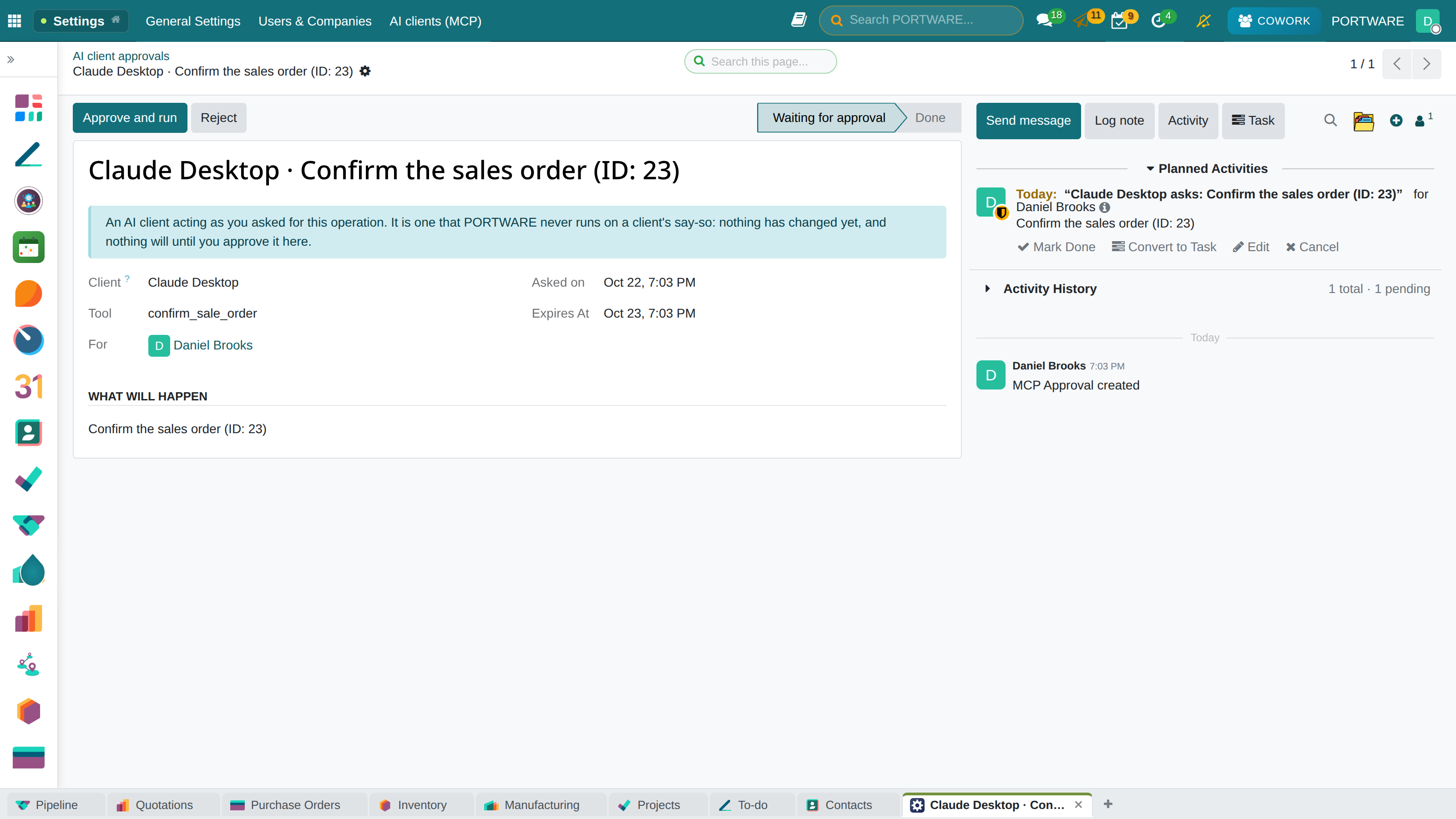
The moment an approval opens you get a notification in your inbox and on your phone; the client follows the outcome itself with portware_approval_status and says "approved" or "rejected".
Who, when, from where
Every record a client changes says so in its own history (the chatter). The person, the time and the old → new value are written as always; a badge with the client's name is added beside them.
 123
123The task's history: the deadline Claude moved over MCP
- On whose behalf, and when.
- Old → new value.
- The source badge: MCP · Claude. Click it to open the record of that call.
The same line says "via PORTWARE Cowork" for Cowork and "via the digital team — the assistant's name" for the digital team. When a field the history does not track changes, the record gets a one-line internal note: "Fields changed: …". Deleted records, and records without a history, stay in the call log and in the AI Changes list with their source. Only PORTWARE itself sets this stamp; a browser cannot fake it.
PORTWARE Office documents
Claude or ChatGPT works with the Word, Excel and PowerPoint files stored in PORTWARE without opening an editor:
| Ask | What happens |
|---|---|
| "Find the quotation files" | Finds documents by name, type or the record they belong to; says their version and who has them open |
| "Read this table" | Excel sheets, Word tables and text are read with their structure |
| "Put 120 in B7", "Update the conclusion section" | Excel cells and Word sections are written |
| "Change 2025 to 2026 in the deck" | A text is replaced everywhere in Word, Excel and PowerPoint |
| "List the slides of the deck" | Order, title and every text box |
| "Copy slide 3", "move the last slide to the front", "delete slide 4", "change the title" | A PowerPoint slide is added, moved or deleted, or a box's text is written; the look is kept |
| "Who changed it and when?" | The version history: number, date, author |
| "What changed since yesterday?" | Every cell, paragraph and slide difference between two versions |
| "Bring back yesterday's version" | The old version returns as a new one |
Every write is a new version; no version is deleted. While someone has the document open in PORTWARE Office nothing is written from the server, because the editor's next save would overwrite it. The client says who has it open; the change is made once it is closed.
For administrators
The PORTWARE AI → MCP menu (also Settings → AI clients (MCP)) shows the whole company: connections, connection attempts, the call log, approvals, OAuth clients and tool policies.
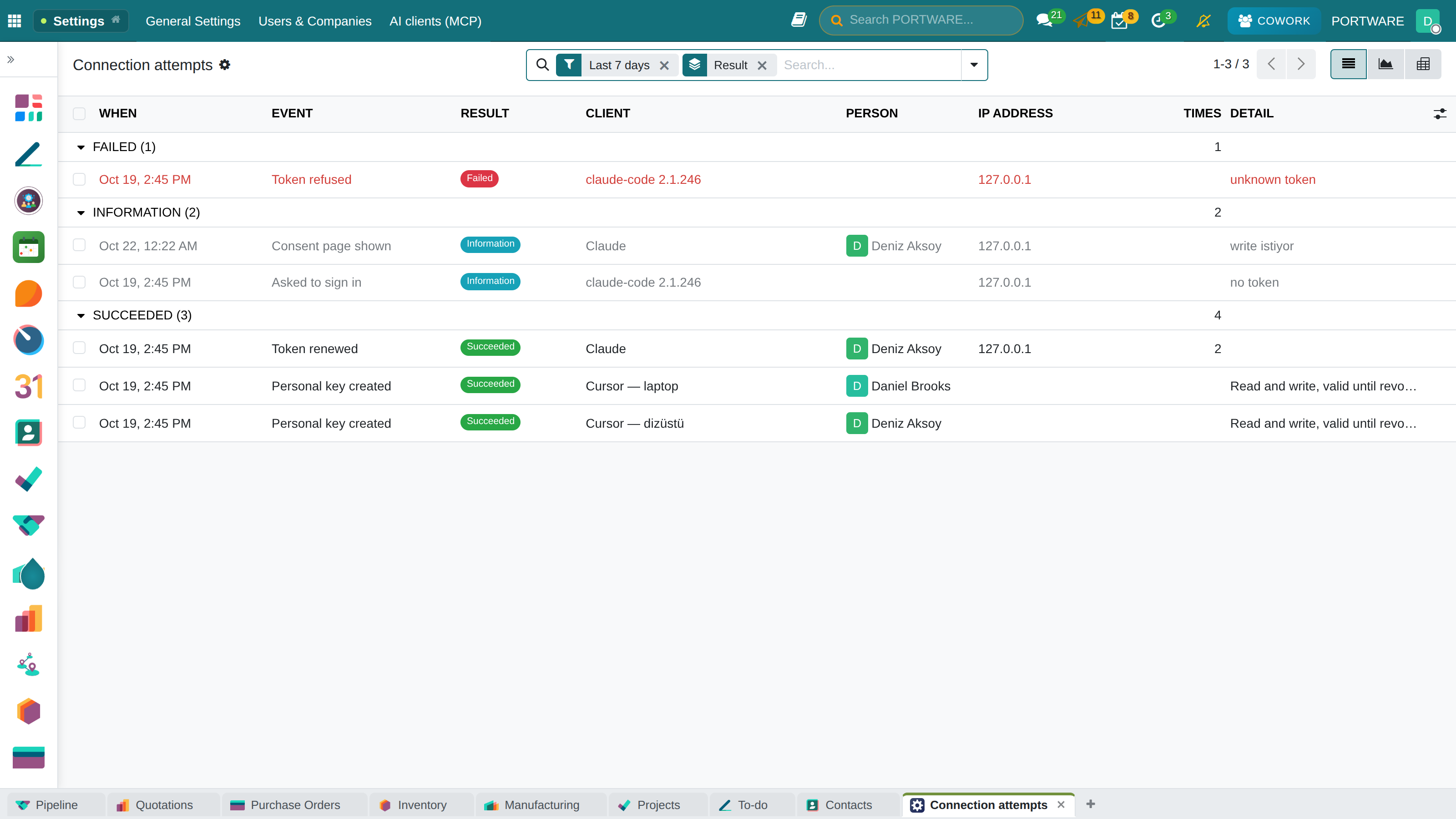
Connection attempts: a client registering, asking for access, receiving or renewing a token, and every token PORTWARE refuses is listed here. The token itself is never written. The same attempt repeated within a minute is counted on one row; rows are kept for 180 days.
 123
123Connection attempts, grouped as failed, information and succeeded
- What happened: registration, consent, token, renewal, refusal.
- Failed attempts are red.
- The address the request came from.
If one client fails 10 times in 15 minutes from the same address, administrators are notified (at most once an hour; the threshold is in Settings). Everyone sees their own attempts under My Profile → Security → AI clients → Recent attempts.
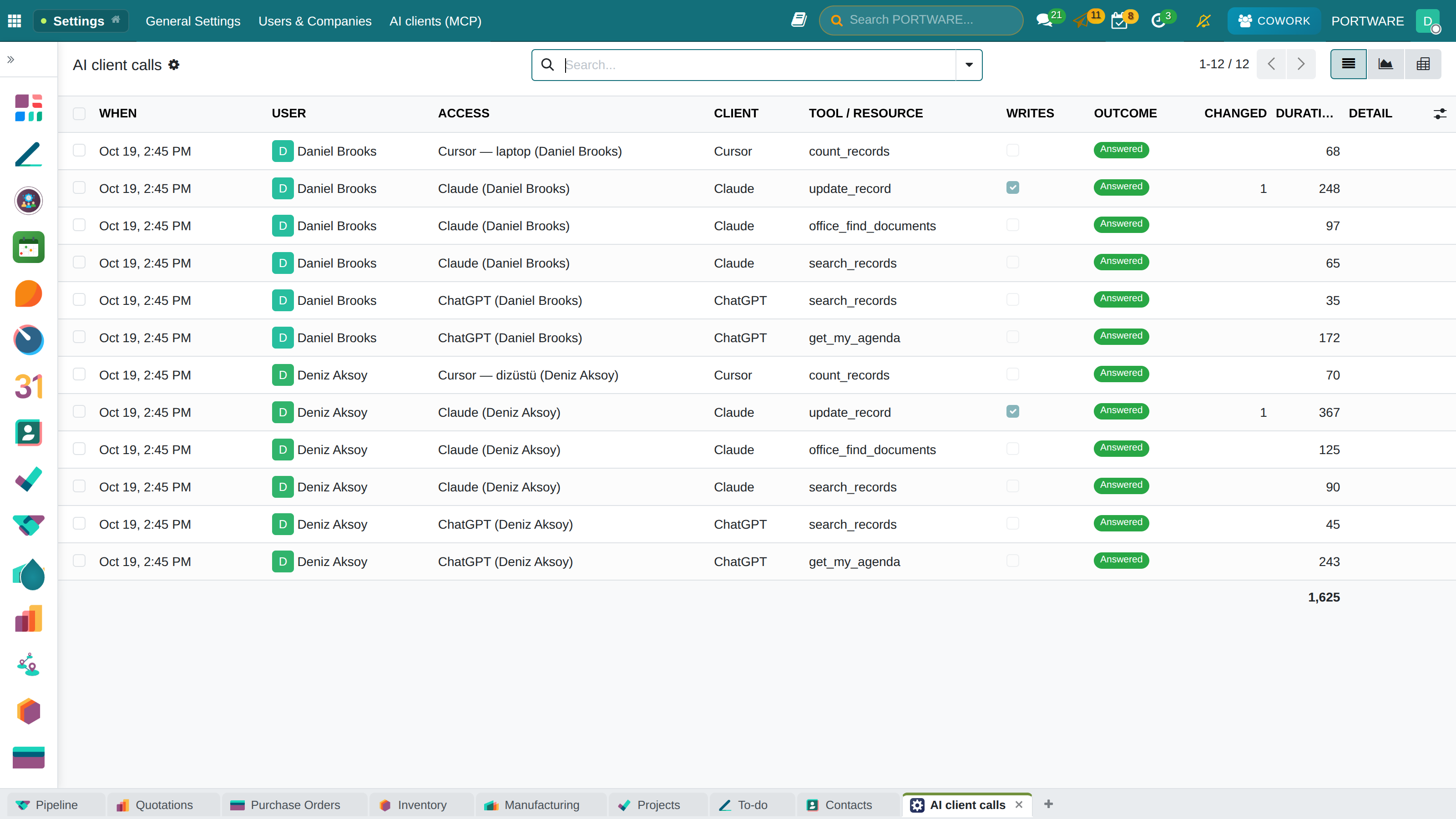
Call log: every call is recorded: who, with which client, which tool, read or write, the outcome, how long it took and the records it changed (deletions included).
 123
123The call log: person, client, tool and outcome
- The client that made the call.
- The tool that ran.
- The outcome.
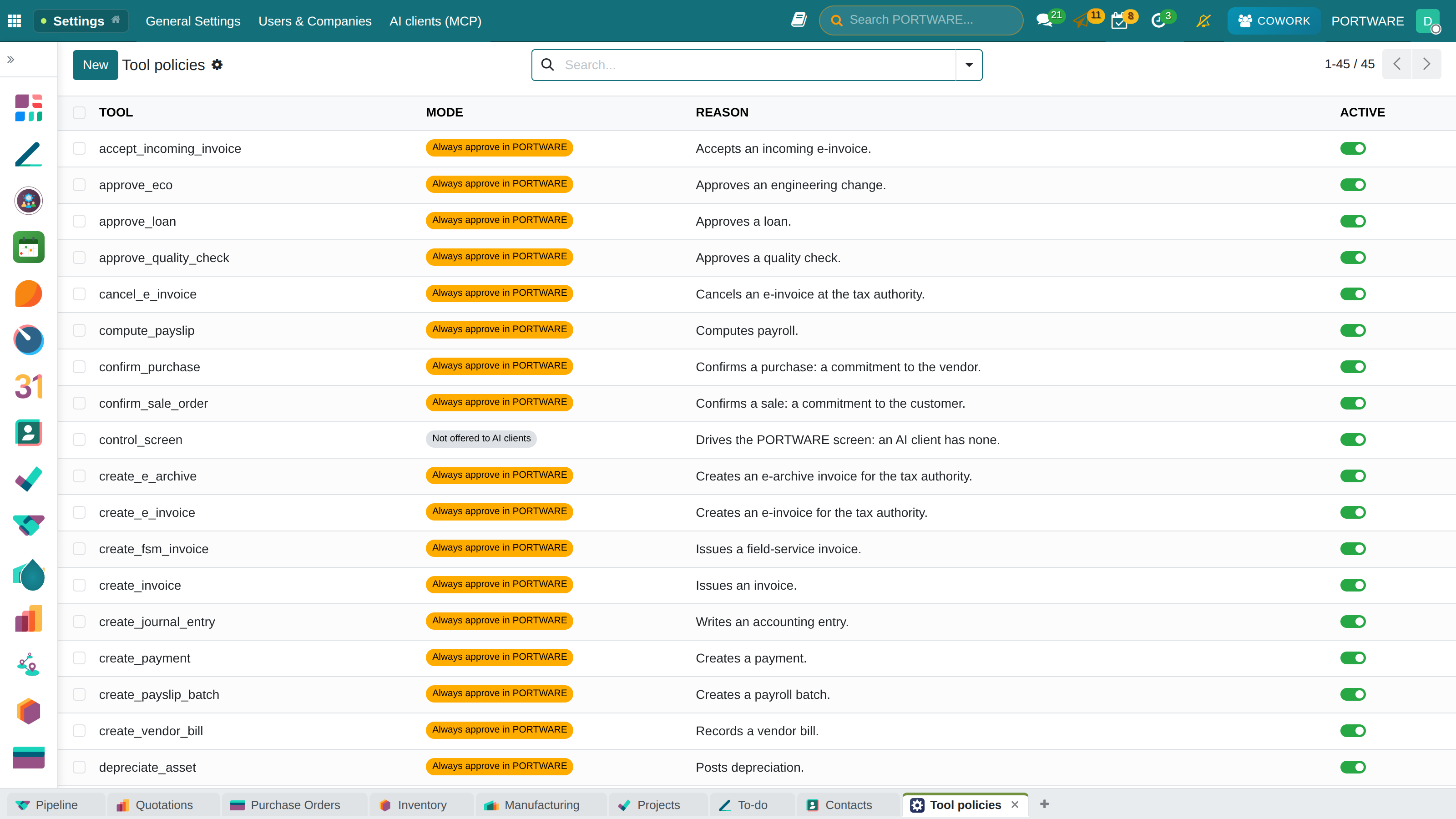
Tool policies: which operations always wait for approval in PORTWARE and which are never offered to clients is a list, a setting rather than code. A company adds or relaxes its own rows.
 12
12Tool policies: critical operations wait for approval in PORTWARE, screen tools are not offered
- The tool.
- The mode: approve in PORTWARE, or not offered.
Each access also has a per-minute and a per-day call limit. Digital team assistants and portal users cannot connect through MCP. A week before a personal key expires its owner is notified; clients that sign in through the browser (OAuth) renew their tokens themselves every 30 days. PORTWARE AI → Spend dashboard shows MCP calls separately: clients run on their own model, so they cost no provider spend.
Troubleshooting
| You see | What to do |
|---|---|
| ChatGPT: "OAuth state not found" | Check the address: /mcp, not /portware/mcp. Set it up on chatgpt.com rather than the desktop app, in the browser where you are signed in to PORTWARE |
| ChatGPT: "issuer does not match" | ChatGPT keeps the old settings; add the app again under a new name |
| The client does not see new tools | PORTWARE tells the client about the change; its list refreshes within a minute. If not, refresh the connection in the client |
| "The document is open in PORTWARE Office" | Ask again once the person who has it open closes it |
| The client says it is not authorised | The access was revoked or expired; connect again |
| The operation says "waiting for approval" | Open the approval in your PORTWARE activities and approve it |
Technical details
- Resources: company identity, "me", my agenda, any record (
portware://record/<model>/<id>), the text of a document (PDF and Office). - Ready prompts: draft a quotation, find stock shortages, summarise a task, my day.
- Protocol: MCP 2026-07-28 and the earlier
initializerevisions; sign-in with OAuth 2.1 and PKCE; ChatGPT's signed client identity (CIMD) is supported.
| Module | What it does | Version |
|---|---|---|
| PORTWARE MCP Server | PORTWARE for every AI client (Claude, ChatGPT, Cursor...) over the Model Context Protocol, with the user's own rights | 19.0.1.3.1 |
| PORTWARE MCP Server: Cowork tools | Every Cowork tool for every MCP client, under Cowork's own write safety | 19.0.1.1.1 |
| PLM MCP Server | Answer questions about the engineering data over the Model Context Protocol. | 19.0.2.0.1 |