I · The system · Chapter 2
Getting to know the interface
The side panel, tab strip, search, app memory, help button and mobile shell — how the screen differs from the standard core, and why.
PORTWARE's screen looks like familiar business software but it is not the same. Every difference comes from one observation: people work on several screens at the same time throughout the day, and they do not want to start from a lost place every time they come back.
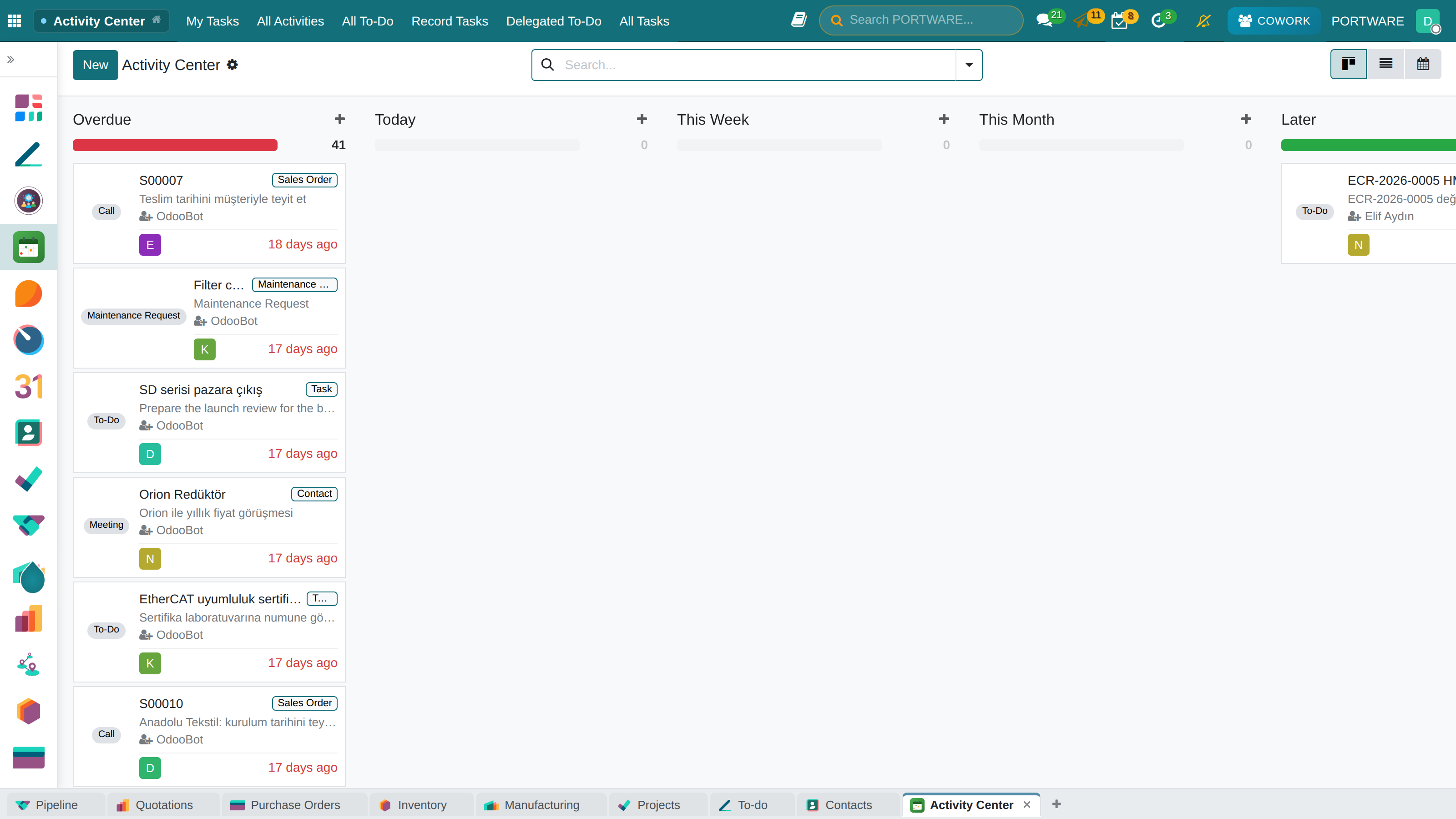
The PORTWARE demo company. Every screenshot in this book is taken from this fictional company; none of them belongs to a real customer or person.
The top bar
From left to right: the apps button, the name of the application you are in, the menus; on the right, search, help, activities, messages and the user menu.
The application name is not decoration, it is a button: a small dot and a thin frame say it can be clicked, and clicking it returns to that application's home screen. The dot has the application's own colour, so two applications are never confused.
The app panel: a side panel, not a drop-down
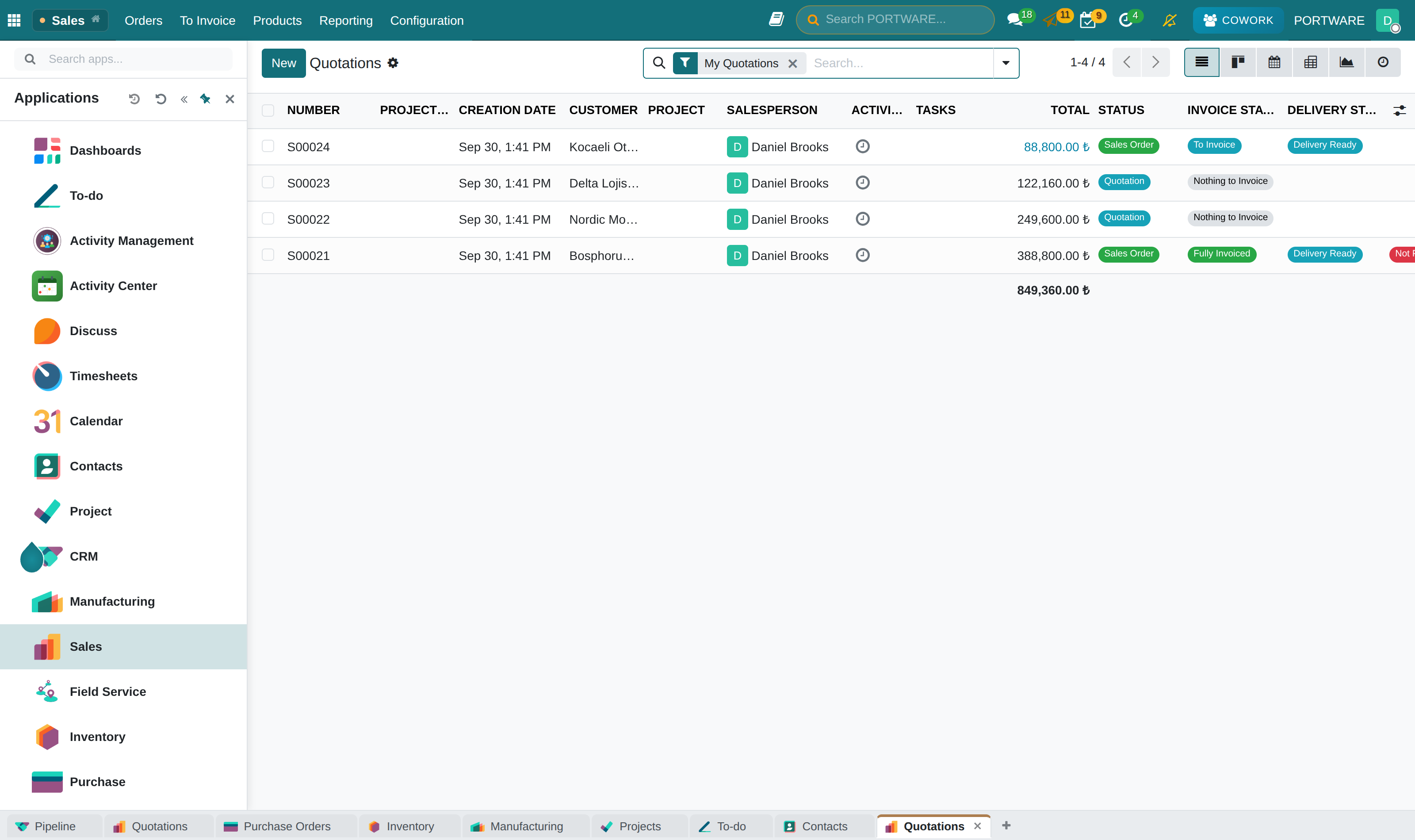
The applications menu is not a box that drops over the screen but a fixed panel that opens to the left, and when it opens it does not cover the content, it pushes it to the right. The dividing line shows where the panel ends.
- The panel can be pinned (it stays open for the session).
- It contains an application search; the list narrows as you type.
- Everyone starts with the same home default: a narrow icon rail and a deliberate application order. Each user can change it for themselves.
- On small screens the panel is not used; the core's own behaviour remains.
The tab strip
The strip at the bottom of the screen is the system's equivalent of browser tabs. The + at the end of the strip opens the current screen as a second tab.
A tab carries not only the screen but the filters as well: if you remove criteria from the search box, switch to another tab and come back, the filter you removed is still removed. Each tab remembers its place and this is kept on the server, per user — reloading the page does not break the tabs.
Tabs are independent. Clicking an application in the side panel takes the tab you are in there; it does not jump you to another tab. So three quotations or two projects can sit side by side and each stays where you left it.
Comparing two quotations
- Situation
- The lines of two quotations given to the same customer need to be compared.
- What was done
- With the first quotation open, a second tab was opened with the + on the strip and the second quotation was opened there. The user moved between the two tabs with a single click.
- Result
- No new browser tab, no copy of the session, no filters lost to the "back" button. Both screens stayed as they were.
Search
There are two separate searches and they should not be confused.
| Where | What it searches | |
|---|---|---|
| Global search | In the top bar | The whole system: records, menus, applications |
| Module search | In the control bar of a form screen | Only the records of the model you are on |
In addition, every list screen has its own search box, filters and grouping options — that is the core's own search, and it is the most powerful. Chapter 6 covers all three.
Mobile
On a phone it is not the screen itself that causes trouble but two shared bars: the right-hand part of the top bar and the chatter's top bar. Several modules place controls there, and none of them says what should happen when the total width does not fit a phone.
PORTWARE defines this contract in one place: the bars shrink, global search collapses into an icon and every control the bars carry becomes a real 44-pixel touch target.
The system can also be installed on a phone as an app (PWA) and can send notifications. The installation invitation and the notification permission are asked in a simple flow that greets the user once.
The visual language: icons, pictures and logos
People recognise a card before they read it. In the standard core, kanban cards, tabs and menus are mostly plain text; PORTWARE puts a picture everywhere, because to find the right card a glance is enough instead of reading a line.
- Icons and logos on cards. Projects, tasks and CRM opportunities carry their own emoji or logo; the customer logo appears on the opportunity card and the project icon on the task card.
- Application icons in the menu and tabs. The app panel, the drop-down menu and the tab strip at the bottom show every screen with its application's icon.
- Product pictures on lines. Quotation, order and purchase lines show a small picture of the product; it is the fastest way to notice the wrong product. The picture is printed on the PDF as well.
- Folder icons. Chatter folders carry their own icon or logo (chapter 4).
The shared icon library
Icons do not sit in scattered files but in a library shared across the company. If the same picture is uploaded twice, it is de-duplicated by its hash. Emoji, Font Awesome, a ready-made SVG or an uploaded logo — all are chosen from one picker. Record pickers, chatter folders, SOTION pages, the media box inside the editor and PORTWARE banners use the same picker; a logo you upload in one place is ready everywhere.
Theme and language
The interface can be used in Turkish and English; you choose the language yourself in My Preferences, and the same data appears on the same screens in both languages. If you do not see a text in the language you expect, tell your system administrator — a missing translation is completed quickly.