II · Daily work · Chapter 4
Anatomy of a record
Form, list, conversation stream, attachments, version history and archive — the common structure every record in the system shares.
The shortcut to learning the system is this: every record has the same structure. A customer, a quotation, a work order and an employee all carry the same skeleton. Once you have read this chapter, you will know what to do even on a screen you have never seen.
List and form
Every model has a list view and a form view. The list is the place for searching, filtering, grouping and bulk actions; the form is the detail of a single record.
Three things in the list that make your work easier:
- Column selector (top right): you switch on and off the fields you want to see. Your choice is personal and permanent.
- Grouping: for example stacking orders by customer or status; the total of each group appears at the top.
- Bulk editing: you can select several records and change the same field in one go.
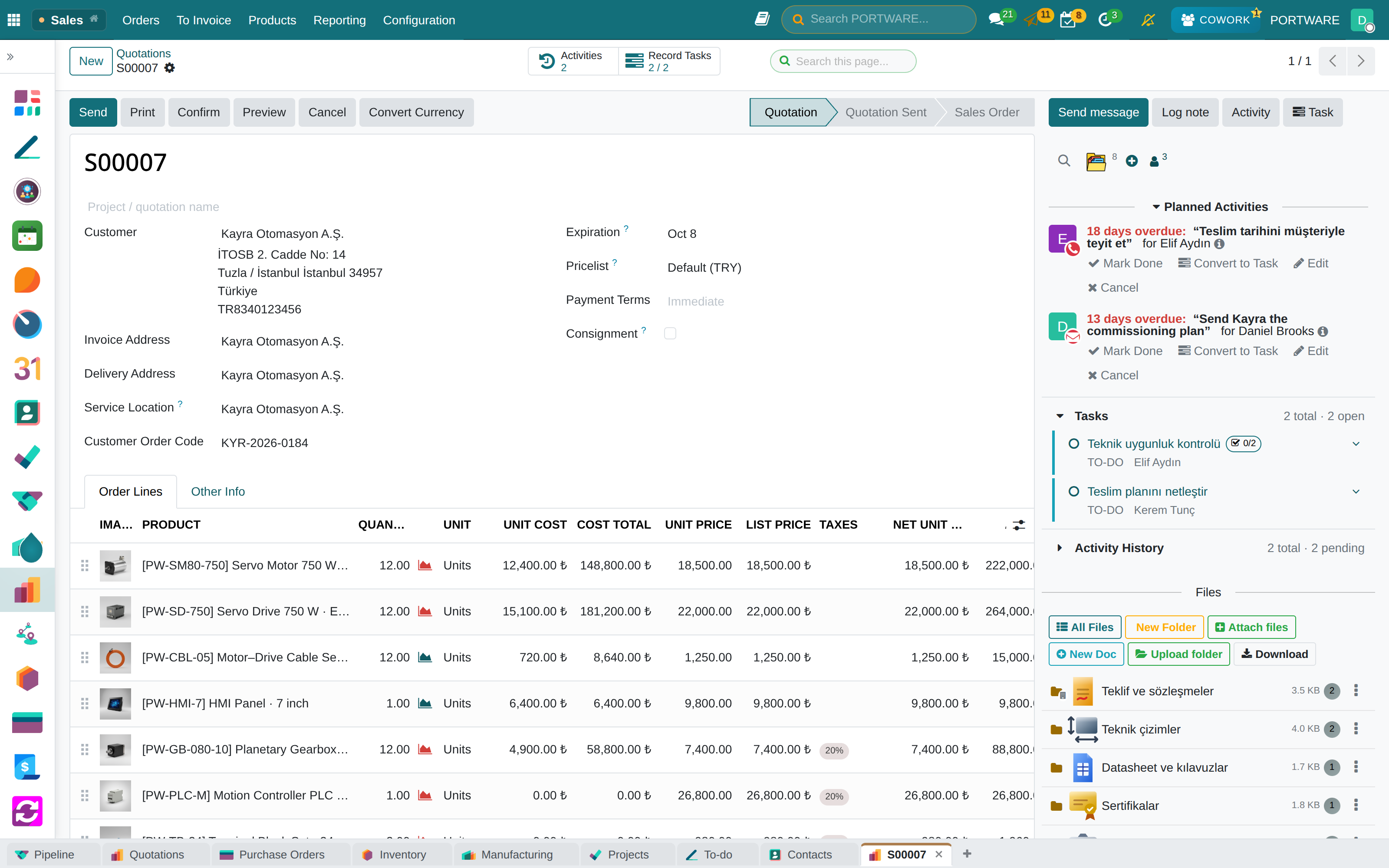
On the form there is a status bar at the top (where there is one), the fields in the middle, and buttons at the top for the actions possible on that record. The smart buttons at the top right take you to the other records it is related to: a customer's orders, an order's deliveries and so on.
The conversation stream (chatter)
The section below the form is the record's memory. Three different things sit in the same place and must not be confused:
| Who it goes to | When to use it | |
|---|---|---|
| Note | Nobody; followers see it | Internal assessment, reasoning, reminders |
| Message | Goes to followers by e-mail | Correspondence with the customer / outside |
| Log | Automatic | Field changes, status transitions |
The chatter is live
In the standard core, when you write a message on a record, the other people looking at that record do not see it; only the bell counter goes up. In PORTWARE it is different: messages, edits, deletions, reactions and attachments coming and going are reflected instantly in every open chatter. There is also a strip that shows who has the record open and who is typing.
Attachments and folders
Attachments are uploaded through the chatter. Once there are more than a few files a flat list quickly becomes impractical; so attachments can be split into folders.
- Folders can have their own icon (from the shared icon library).
- Upload folder uploads a folder from your computer with its sub-folders and files; the structure is created with the same names. Dragging the folder onto the chatter or onto a folder row works too.
- The Download menu downloads a folder, the folders you choose, or every file as a single ZIP with the same structure; in Chrome and Edge it can also save straight into a folder.
- Instead of deleting there are archive and trash states; they make losing something by mistake harder.
- Office files (Word, Excel, presentations) open in the browser when clicked (chapter 8). So do CAD files: STEP, DXF and STL are displayed without downloading (chapter 11).
- The upload limit is 256 MB.
Folder permissions
In the standard core, anyone who can see a record can see its attachments. A quotation's cost sheet and the PDF sent to the customer are protected by the same permission. In PORTWARE every folder has its own visibility:
| Visibility | Who can open it |
|---|---|
| Same as the record | Anyone who can see the record (the default behaviour) |
| All employees | Internal users only; portal users and dealers cannot see it |
| Restricted | Only the Allowed Groups and Allowed People |
| Private | Only the folder's owner |
| Inherit from parent | The setting of the nearest parent folder |
A restricted folder shows with a lock badge in the list; someone without permission cannot open the file but can ask the owner for access with Request access.
Document access log
Every attachment's life leaves a trace: upload, move, copy, rename, permission change, archive, trash, restore, permanent deletion, download, denied access and access request — who, when, from which IP, from which folder to which. "Who downloaded this drawing?" or "why did this file disappear?" is answered with a list (Document Access Log).
The history of the texts you write
Free-text fields (product internal notes, opportunity notes, quotation and purchase terms, invoice note, project description, transfer note) carry a version history. Every revision records who wrote it and when; it can be previewed, compared with the current text and restored.
This takes a feature the core offers only on project tasks to every place where people really write free text.
What rich text can contain
When you type / in a text field, a list of commands opens. Next to the standard formatting, PORTWARE's own elements are here:
/sodraw— inserts a drawing/diagram (draw.io)./status— a status tracker that shows the stages of a job as a timeline. Stages flow in rows of five, are sorted by date, and every addition is also written to a ledger that cannot be changed: if the text is changed from outside (SQL, API, a manual paste) the element says so on itself.- Tables can be edited like Excel (exTable).
- Pictures are not embedded in the field; they are stored as separate attachments, so the record does not bloat.
Archive, delete and undo
Almost every record can be archived. An archived record drops out of lists but it remains; it is found with a filter and brought back. Deleting cannot be undone and is usually blocked anyway — if other records are linked to a record, the system does not allow it.
Followers
The record's followers are listed above the chatter. Being a follower means being informed of messages written on that record. You can add and remove yourself, and add the people concerned.
If someone is concerned by a record, the right move is to make them a follower; not to type their e-mail address into the message.