II · Daily work · Chapter 6
Searching and finding
Three separate search layers, filters, grouping, saved favourites and where to look when you cannot find a record.
The thing done most often in an ERP is searching for records, and what wastes the most time is searching in the wrong place. There are three separate searches in the system.
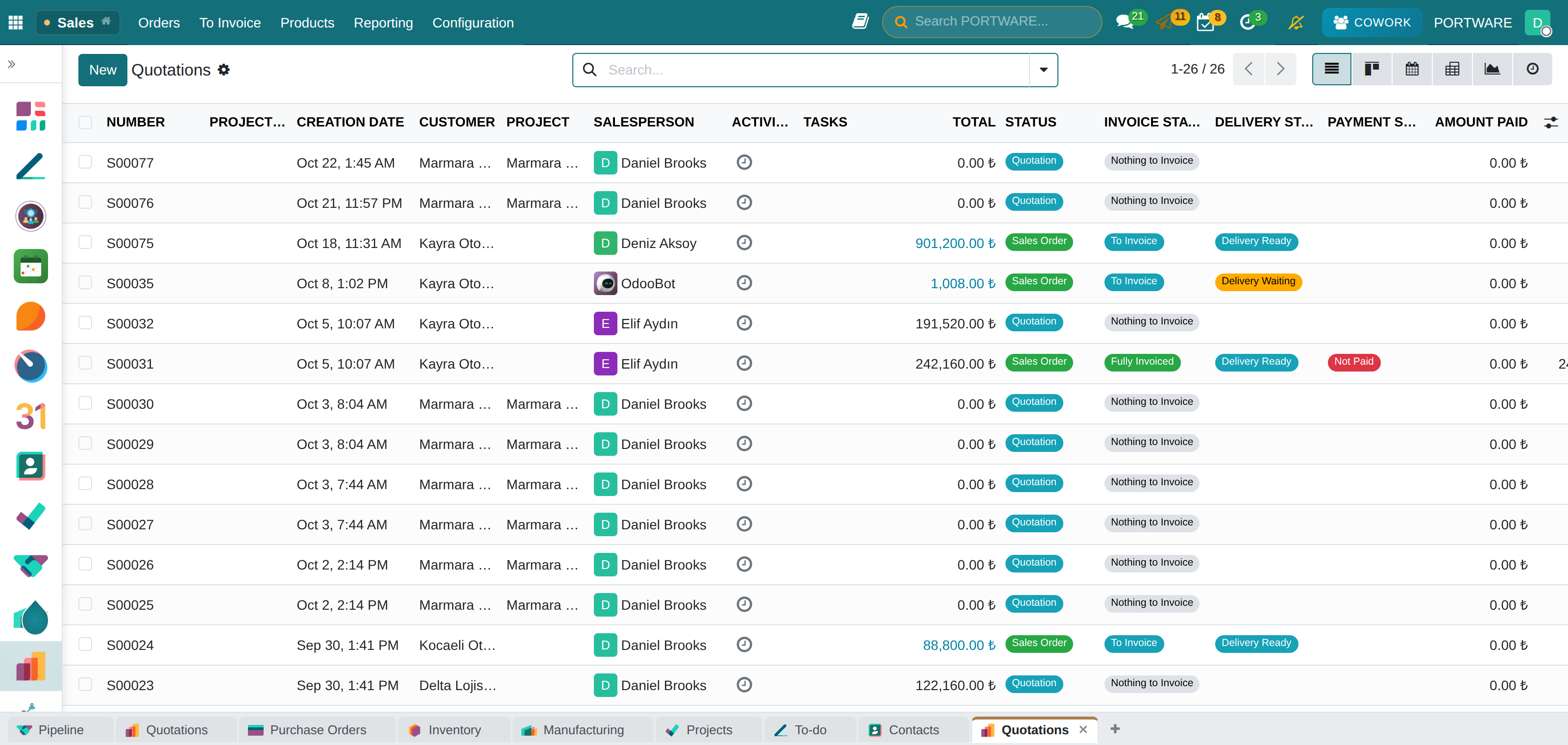
1. List search — the most powerful
The box at the top of every list screen searches that model's records, and this is where the real power is. When you start typing, the system asks you what to search in: options such as "Customer", "Reference" and "Tag" open; when you pick one, the search settles into the box as a criterion (facet).
Criteria accumulate:
- Two criteria on the same field are combined with or ("Ahmet or Mehmet").
- Criteria on different fields are combined with and ("Ahmet and draft").
The arrow at the right of the box opens three sections:
| Section | What it does |
|---|---|
| Filters | Ready-made conditions: draft, mine, this month, overdue… |
| Group by | Stacks records by a field; the total of each stack is shown |
| Favourites | Saves the search layout you have built |
Grouping looks small but is the most useful tool: group orders by customer and you see who bought how much; group invoices by status and you see how much is still open — on one screen, without writing a report.
2. Module search
The box in the control bar of a form screen searches only the records of the model you are on. It is the quick way to jump to "another record of the same kind" while you are inside a record.
3. Global search
The box in the top bar searches the whole system: records, menus and applications. Start here when you do not remember which application something is in. On a phone this box collapses into an icon to save space; press the icon to open it.
When you cannot find a record
The order is worth memorising; almost every "the record has disappeared" case is one of these five.
Look at the company selector. The record may belong to another company; if that company is not selected it does not appear in the list.
Clear leftover filters. A forgotten criterion on the screen (especially "Mine" or a date range) may be hiding the record.
Show archived records. The Archived option in the Filters menu. A record you think was deleted is usually in the archive.
Think about your permissions. Record rules may keep a record from you; someone else sees it in the same list.
Are you on the right model? Quotation and order, invoice and payment are separate models and live in separate lists.
A note on the last point: "the same model" and "the same screen" are not the same thing. Quotations and Orders are two screens of the same model; a column added to one of them does not appear on the other by itself.
Exporting
In a list you can select records and get Excel or CSV with Export. You can save the export layout and repeat it next time with the same columns.