V · Commercial processes · Chapter 16
From CRM to invoice
The route a deal takes from lead to collection, which record is created at each stop and PORTWARE's additions on the sales screen.
The commercial process is a single chain and each link is a separate record. Seeing the chain once ends most "where is this information?" questions.
Lead  →  Opportunity  →  Quotation  →  Order  →  Delivery  →  Invoice  →  Payment
 CRM        CRM           Sales        Sales     Inventory    Accounting  Accounting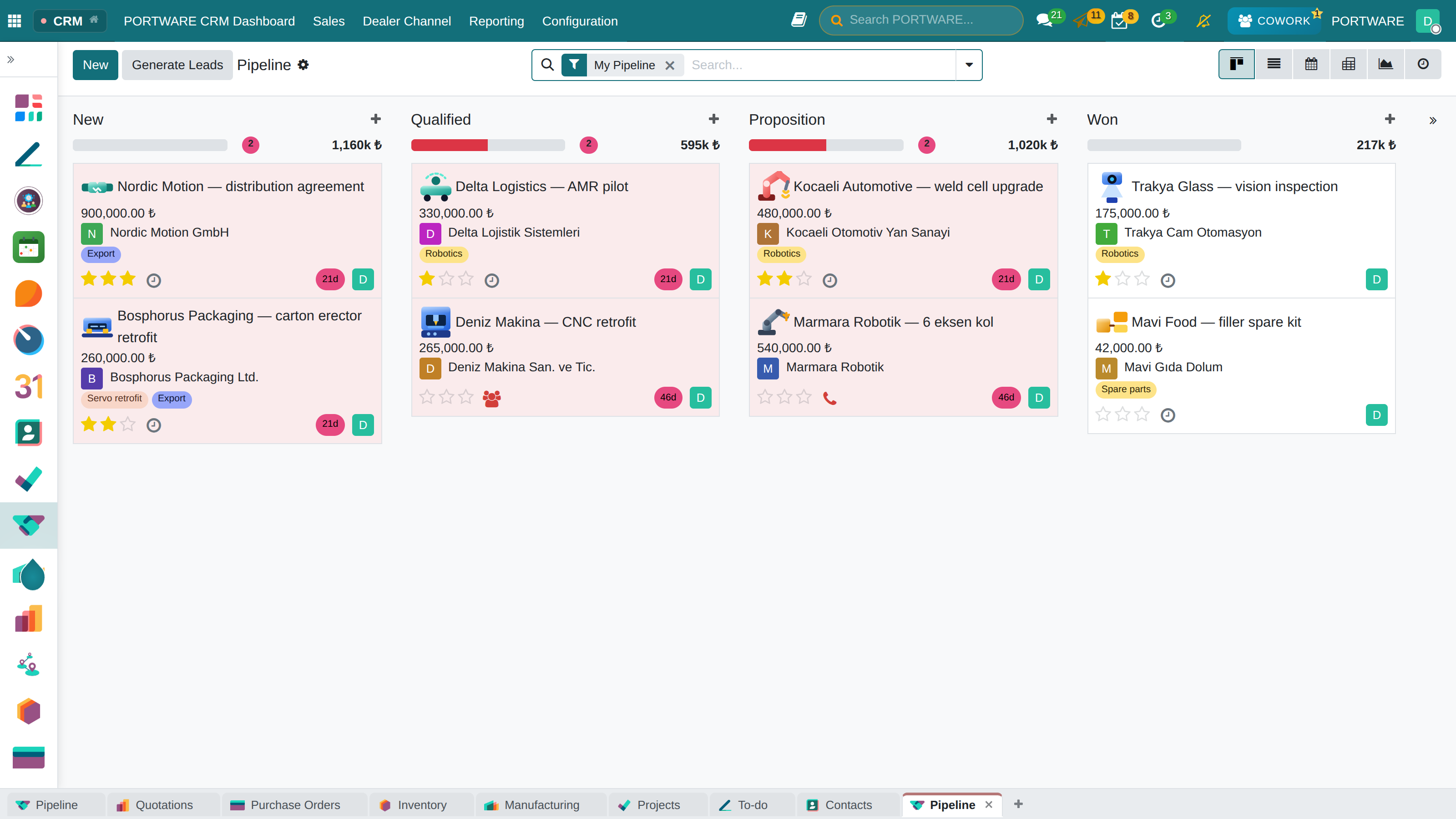
Lead and opportunity
A lead is a contact that has not been qualified yet: it comes from a web form, a trade fair or an e-mail. An opportunity is a real chance of a sale; it is tied to a customer, an amount and a closing date.
The contact and quotation forms on the website produce leads directly; the form's content is written into the body of the record and the sales team is notified.
Opportunities move through the stages of a pipeline. Stages are defined for the company's own process; the activity on the record says what needs to be done at each stage (chapter 5).
Quotation
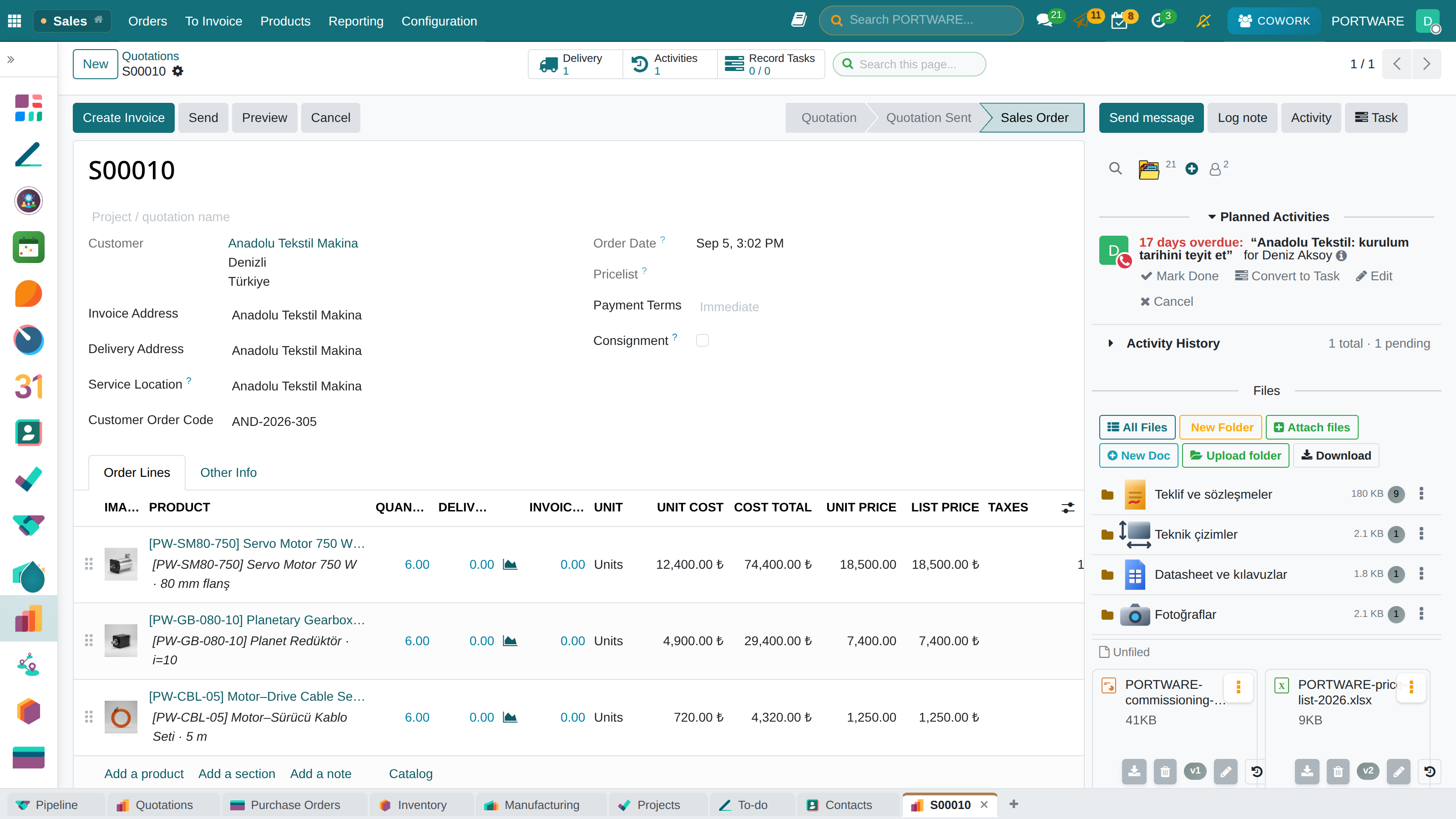
A quotation is produced from the opportunity and consists of lines: product, quantity, unit price, discount, tax. PORTWARE adds a few things to this screen:
- The product picture appears on the line; the fastest way to notice the wrong product.
- The list price sits in a separate column for information; it is compared with the price applied.
- Cost columns and the net unit price are shown.
- Below-cost warning: when a line drops below cost the screen says so.
- Discount on the total is limited by a cap and, when needed, by approval.
The quotation document
The quotation is printed as a PDF and carries the company's own layout: logos, the terms table, bank details, contact. The same template serves more than one company identity; the content changes with the company you print from (chapter 7).
Word and Excel files attached to the quotation are opened and edited on the record (chapter 8), and the quotation's terms text carries a version history (chapter 4).
Terms and internal notes: two separate boxes
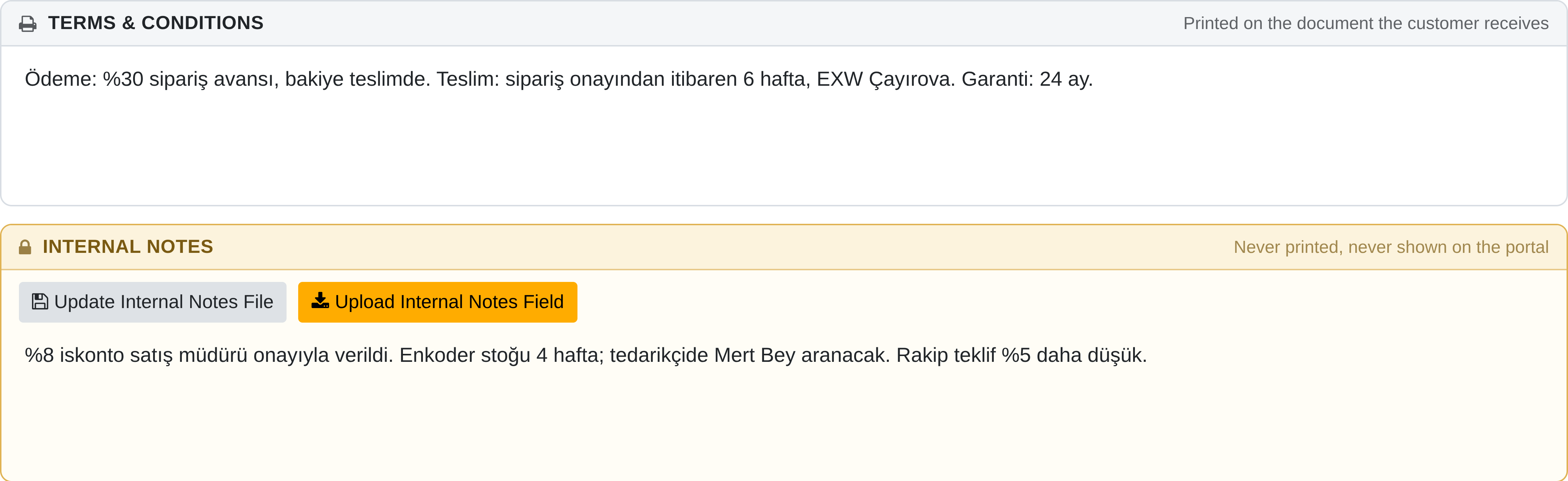
On the quotation, order, request for quotation, purchase order, customer invoice and vendor bill, two text boxes sit side by side in two separate frames; so internal notes such as the accepted margin, a stock risk or who to call at the vendor do not mix with the box the customer reads:
- Terms and Conditions — printed on the document sent to the customer: payment, delivery and warranty terms.
- Internal Notes — never printed, never shown on the portal: the reasoning behind a price, a stock or delivery risk, who to talk to. Only internal users see it.
The same two boxes exist on the purchase order (printed on the document sent to the vendor) and on the invoice. The purchase order follows the quotation's standard too: the project name and code under the number, lines that read like a sales order (a description next to the product), optional manufacturer code, internal reference and product picture columns; framed vendor/buyer and order information tables in the PDF.
Tasks tied to the record
Work to be done for a quotation or an opportunity — a technical fit check, a site survey, a delivery plan — is raised on the record with the Task button in the conversation stream; Record Tasks at the top right of the form says how many are open (chapter 5).
Order
When a quotation is confirmed it becomes an order. This transition is critical: the order triggers the delivery and the invoice.
Three things to follow on the order screen:
- Delivery status — how much has gone out, what is waiting.
- Invoicing status — how much has been invoiced.
- Amount due — how much has been collected.
Delivery
When the order is confirmed a transfer is created on the inventory side. The warehouse picks, packs and ships. The delivery note is printed.
The internal notes printed on delivery lines are limited: the product's whole long technical description does not go onto the delivery note; only the part that concerns that operation appears.
Invoice
The invoice is produced from the order. In Turkey this step continues through the e-Invoice/e-Archive chain; chapter 19 describes it.
Who sees what
Sales teams and record rules decide which opportunities and orders a user sees. Most "an order is not visible" cases are a permission matter, not a loss (chapter 6).
Sharing with several companies
The standard core gives an opportunity and a project one company, and multi-company rules hide the record from other companies; group companies working together on the same customer or project cannot see each other's records.
The opportunity and project forms have a Shared Companies field next to the owning company. Users of the companies added here see the record from their own company — the opportunity with its activity analysis, the project with its tasks, milestones, updates and task analysis. A salesperson with "own documents only" permission also sees opportunities shared with their company.