V · Commercial processes · Chapter 21
Finance II — Budget: plan, control, drivers and cash
The life of a budget, the grid's six modes, scenario comparison, control that stops documents, driver-based planning, volume/price variance and 13-week cash.
Chapter 20 set up the single definition of a figure. This chapter extends that definition into the future: what we agreed to do, what we spent, what is left, and will there be money in the bank next week.
The life of a budget
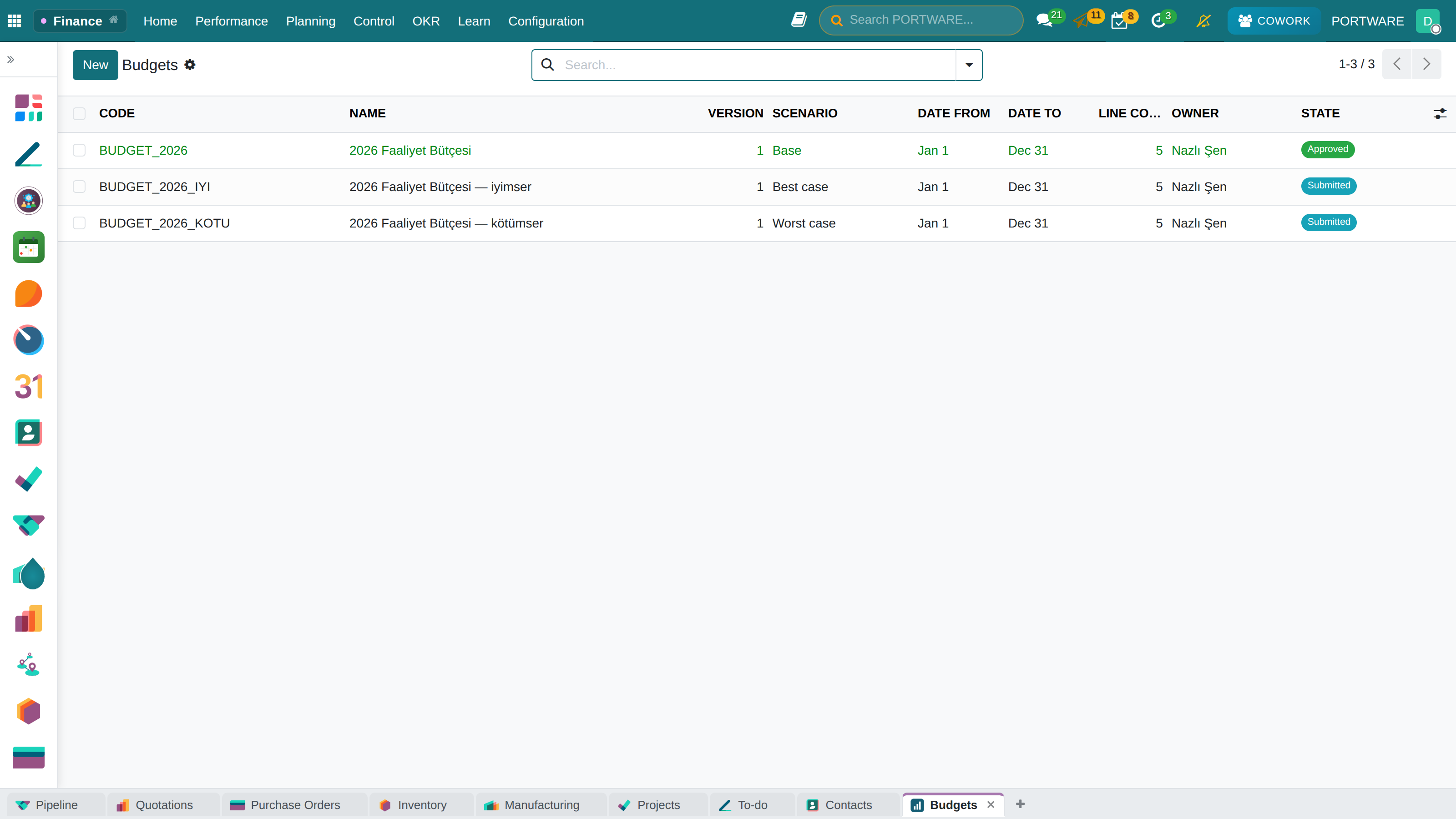
Finance › Budgets. A budget is the combination of four things: period + scenario + version + approval.
Draft  →  Submitted  →  Approved  →  Closed
              ↓ (send back)
            Draft
Finance › Budgets › New: code (for example
BUDGET_2027), name, start and end date.Choose the scenario: Base / Optimistic / Pessimistic.
Add the lines. Each line picks a measure (for example Marketing Expenses) and optionally a cost centre (analytic account).
Enter the monthly amounts in the Budget Grid.
Submit → the finance manager Approves.
Three rules to learn:
- An approved budget is read-only. For a change a New revision is opened; the old version stays as evidence (v1, v2…). A budget is not a forecast but an agreement, and agreements are not deleted in place.
- There can be one approved budget for the same company, period and scenario.
- A line targets a measure, not an account. The Y in "we budgeted X for marketing and spent Y" is the same figure as the Y in the income statement.
The Budget Grid — six modes
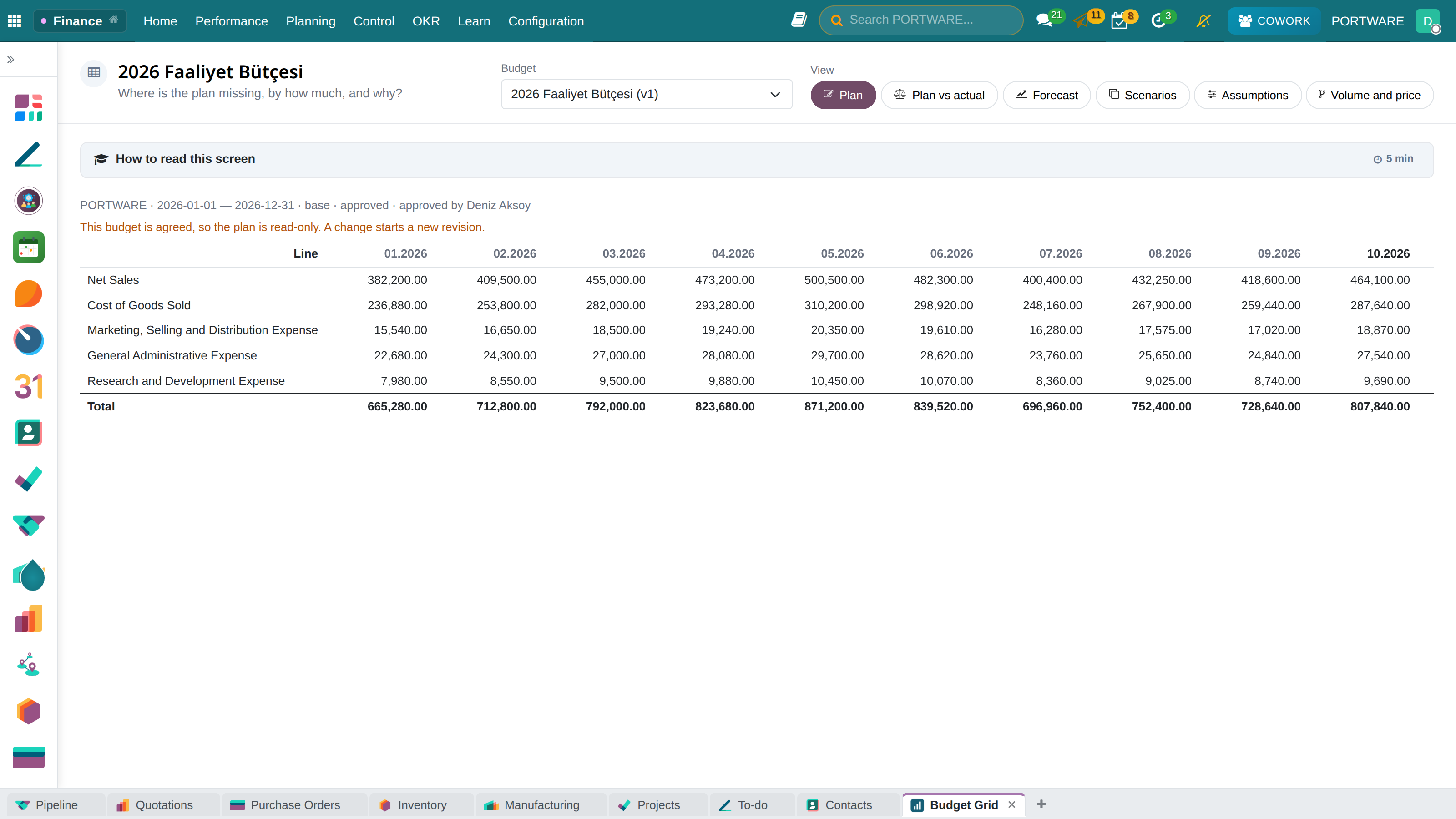
Finance › Budget Grid, or Open grid on the budget form. Months across, lines down. The mode buttons at the top change what the screen tells you:
| Mode | What it shows | What you do |
|---|---|---|
| Plan | Planned monthly amounts | Type into the cell while in draft; the ↔ button spreads the annual total over the months |
| Plan / actual | Actuals and variance | Clicking a cell opens the journal items; + writes a variance explanation |
| Forecast | Actuals for closed months, plan for future months | Rolling forecast |
| Scenarios | The base, optimistic and pessimistic plans of the same period, next to the actuals so far | The Scenarios heading below |
| Assumptions | Driver values and line formulas | The Drivers heading below |
| Volume and price | Revenue variance split into a volume effect and a price effect | The Volume and price heading below |
Each mode button carries an icon; states are also written with colour and icon — so the screen says the same thing to colour blindness and in black-and-white print.
The grid's other three behaviours:
- The Commitment column shows purchase orders approved but not invoiced yet. Spending starts at the order, not at the invoice.
- If there is a line narrowed to a cost centre, the grid writes what percentage of the journal lines carry a cost centre and offers the Define distribution rules button. A figure whose coverage is unknown is shown with its coverage stated.
- If two lines claim the same accounts equally, an ambiguous coverage warning appears — you may have budgeted the same spending twice.
Budget control — the budget can stop a document
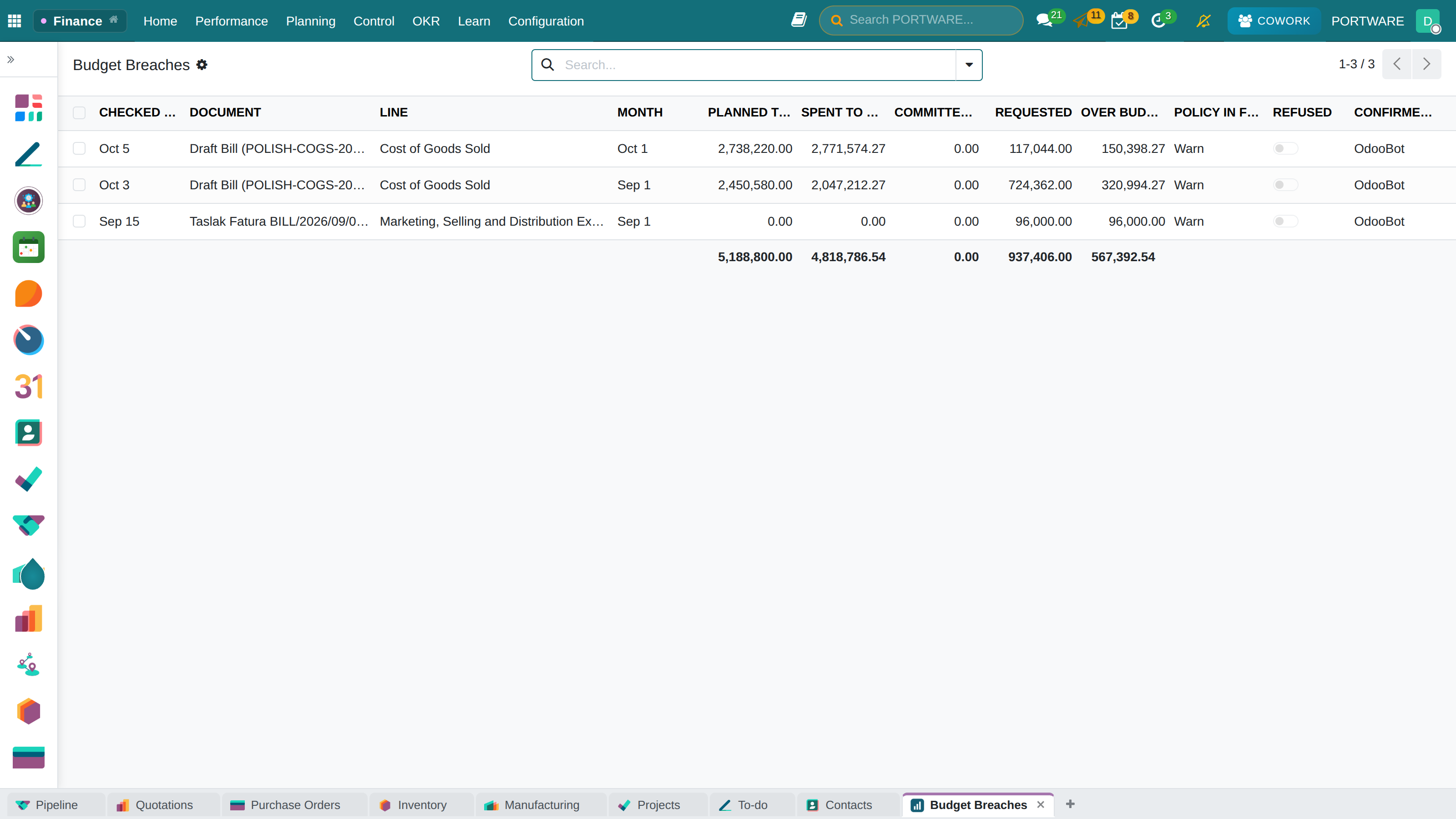
A budget is not just a table; it can stop documents. The Control Policy on the budget form decides this:
| Policy | If a purchase / vendor bill / expense exceeds the budget |
|---|---|
| Off | Nothing happens; the budget is only a plan |
| Warn (default) | The document passes, the overrun is recorded, a note lands in the document's chatter |
| Block | The document is not approved; the message states the plan, the spent, the commitment, the request and the overrun |
The three moments checked: purchase order approval, vendor bill posting, expense approval.
The Block policy stops an order
- Situation
- A buyer wants to approve an order of 1,000 TL. The budget has a plan of 300 up to the end of March, 0 spent, 0 committed. The policy is Block.
- What was done
- The order was not approved; the message said "300 left, this document asks for 1,000 — 700 too much".
- Result
- Had the policy been Warn, the order would have passed and the overrun would have gone to the Budget Overruns list. The way forward for a blocked document is to open a budget revision and have it approved — the rule does not change, the plan does.
Rules to explain:
- It is cumulative. "Remaining" is computed from the start of the year up to that month. A purchase in March can use January's unspent budget.
remaining = plan(period start→month) − actual − commitment - Only the approved base budget controls. The optimistic scenario stops nobody.
- An account that is not budgeted or is ambiguous never blocks. Stopping work because of an ambiguous plan punishes the wrong person.
- Only the finance manager changes the policy, and the change is tracked.
- Finance › Budget Overruns keeps every overrun with the policy of the moment — blocked ones included. Loosening the policy later does not change history.
Budget Drivers — "what if we sell twenty percent less?"
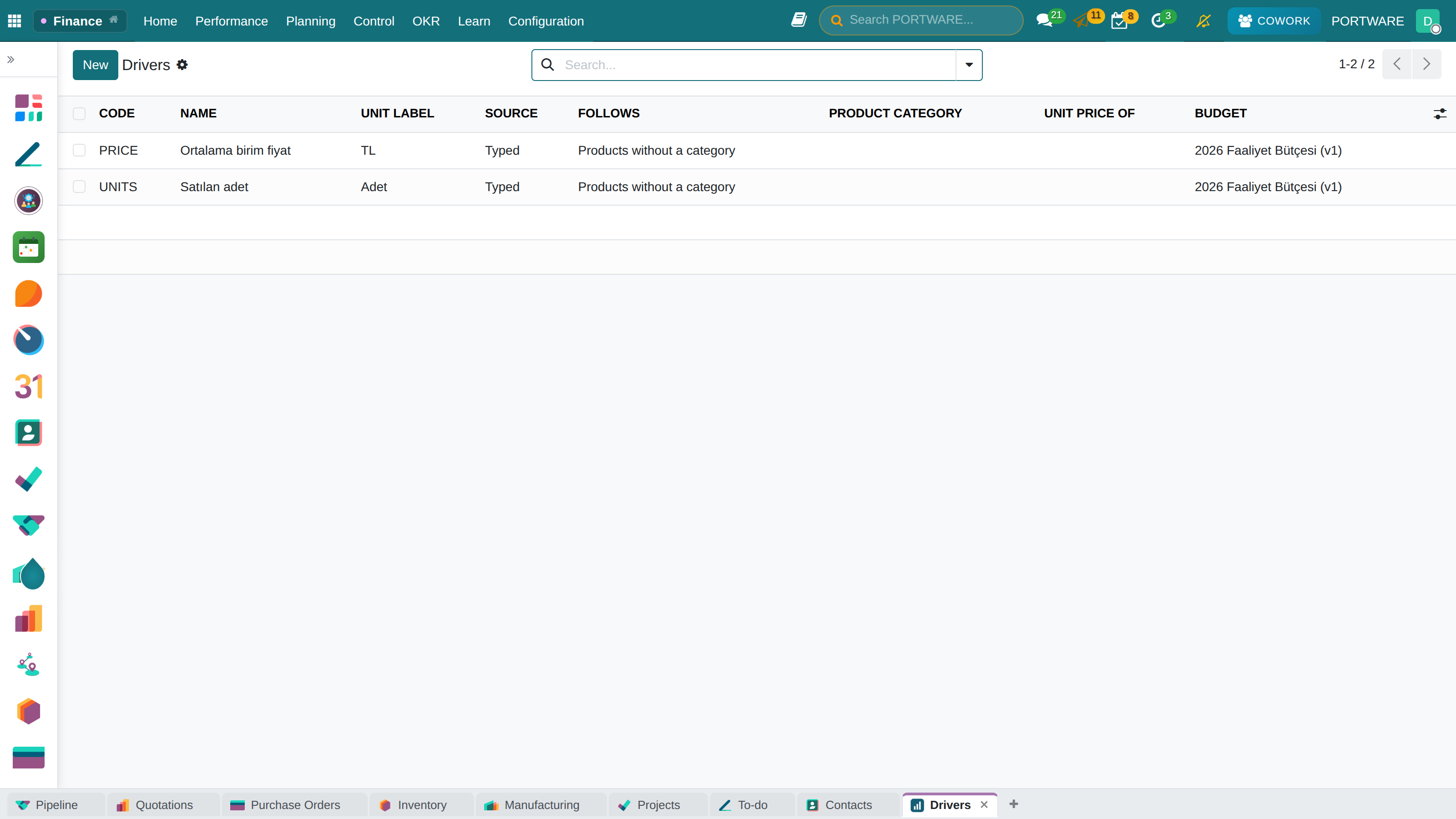
Finance › Budget Drivers and the grid's Assumptions mode.
A driver is an assumption entered month by month: UNITS (quantity), PRICE (unit price), HEADS (people), RATE (cost per head). A formula is written on the budget line — UNITS * PRICE — and Apply assumptions computes the plan.
What this gives you is not a figure but the ability to ask a question: what happens to the plan if units fall by 20%? In a budget without drivers the question is recomputed by hand; in a driver-based budget one cell changes.
Open the Drivers page on the budget, or the Assumptions mode in the grid.
Add a driver: code
UNITS, unit label "Units".If the source From sales quantity is chosen and a product is given, Fill from history brings the same months of last year. The figures can be edited freely afterwards.
Enter the
PRICEdriver by hand.Write the formula on the related budget line:
UNITS * PRICE.Apply assumptions → it says what it wrote and what it skipped and why.
Its rules:
- A month without an assumption is not set to zero; it is left as it is. "Not decided" and "we will sell nothing" are not the same thing; the grid shows a dash.
- Division by zero is skipped.
- Applying is not automatic. So as not to delete a figure corrected by hand without warning, the button has to be pressed.
What a sales driver follows
The Follows field of a driver sourced from sales quantity or sales revenue chooses which confirmed sales lines the history and actuals are read from:
| Follows | When |
|---|---|
| A product category | A product family, with its sub-categories. A business selling forty servo drive variants plans servo drives, not forty products |
| A single product | A product meaningful on its own |
| Uncategorised products | Sales in no category — in real catalogues project and machine sales are often like this; without this option the largest revenue stream would fall outside the plan |
On a price driver the Unit Price Of field points to the sales quantity driver it prices (for example MOTOR_PRICE → MOTOR_UNITS). This pairing feeds the Volume and price mode below. The system refuses a driver pricing itself, pricing a driver that is not a sales quantity, and pairing with a driver in another budget.
Scenarios — "which plan are we living?"
Each scenario is a separate budget: defended, versioned and approved separately. But nobody decides by opening three budgets in three tabs. The grid's Scenarios mode shows the three plans of the same company and period in one table:
- Lines are matched across scenarios by what they budget (measure + cost centre).
- If a scenario has several versions, the approved one speaks, otherwise the newest version. The budget you opened always represents its own scenario.
- Actual so far is read from the same measure as every other figure.
- The Closest tracked column names which of the plans, prorated to the part of the year that has passed, the actuals are closest to.
- A scenario with no budget yet is written by name; no empty column is invented.
Volume and price — inside the revenue variance
"We are 16 above plan" can hide two different stories: we sold more, or we sold the same quantity at a higher price. For every stream whose unit price is paired with a sales quantity, the Volume and price mode separates the variance:
volume effect = (actual units − plan units) × plan price
price effect  = actual revenue − actual units × plan price
variance      = volume effect + price effect
Each pairing is a card: planned and actual revenue, volume effect, price effect and variance tiles, with a month-by-month table below. In this mode a positive figure means more revenue than planned. A month whose plan is not decided says plan not decided, a future month says not realised yet, and neither enters the total.
The two effects always add up to the variance
- Situation
- Plan 10 units × 5 = 50. Actual 12 units, revenue 66 (average price 5.5). (The figures are an example.)
- What was done
- Volume effect (12 − 10) × 5 = +10. Price effect 66 − 12 × 5 = +6.
- Result
- 10 of the variance came from selling more, 6 from a better price. The two add up to 16 and always equal the whole variance — no unexplained remainder is left.
Cash Projection and Cash Panel — 13 weeks
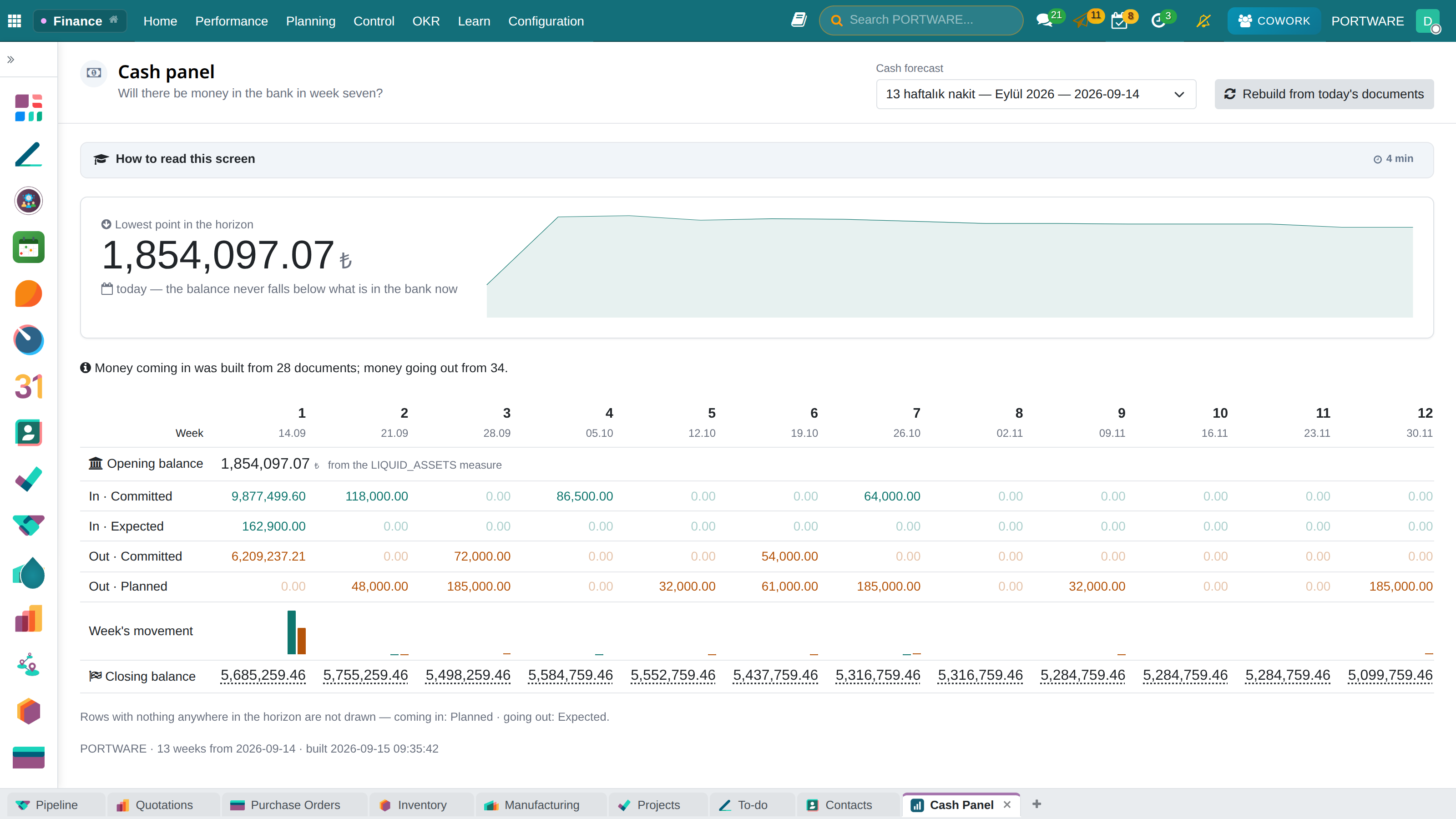
The question that sinks a company in a profitable year is this: will there be money in the bank in week 7? Profit is an opinion, cash is a fact.
Finance › Cash Projection and Cash Panel:
- The opening balance comes from the measure registry (Cash and Cash Equivalents) — that is, it is the same figure as on the balance sheet.
- Inflows: open customer invoices (by due date) and open sales orders.
- Outflows: open vendor bills and purchase orders.
- Manual lines: large outflows with no document in the system, such as tax, payroll and loan instalments.
The panel writes what the projection is built from above the table. Hiding the inputs of a forecast makes it look more reliable than it is.
Summary of this chapter
- Budget = period + scenario + version + approval; an approved budget changes by revision.
- The grid's six modes show the same lines for six different questions.
- Scenarios are separate budgets but are read in one table, next to the actuals.
- Revenue variance splits into a volume and a price effect; the two add up to the variance itself.
- A positive variance is always worse than plan.
- The control policy can stop a document; the remaining amount is cumulative; an ambiguous plan does not block.
- Drivers make the budget able to answer "what if?".
- The cash projection is an upper bound when outflows are not entered, and says so.
The next chapter ties these figures to objectives: OKR.