III · Documents · Chapter 10
HTML documents and page design
The system's own document format: HTML documents that live in the chatter and can be designed, drawn on and versioned.
Word is not right for every job. For a brochure, a quotation attachment, an internal procedure or a report produced by AI the system has its own document format: the HTML document. It lives as an attachment of the record, and is edited, designed, downloaded and printed to PDF in the browser.
Why a separate format
- It needs no office server; it opens everywhere.
- The system's own components go inside it: status tracking, drawings, tables, badges.
- Content produced by AI is naturally in this format.
- Its version history and design sit in the record's fields and are not lost when the body is rewritten.
Designing the page itself
The document's page can be designed too, not just the text in it.
- Background: a flat colour, a gradient, a pattern drawn in pure CSS (dots, grid, blueprint, squared/lined paper) or an uploaded picture — a tint can be applied over the picture for readability.
- Ink: the page's overall text colour.
- Margin and the width the page is measured at.
- 12 ready-made backgrounds.
A single value gives the same result in four places: the page in the editor, the mirrored file, the download and the PDF.
The workspace: page, insert, design, info, contents
The editor's right-hand panel has five tabs and they all speak the same language: colour-coded, collapsible sections.
- Page — paper size and orientation (below), background, ink, margin.
- Insert — the block gallery and the
/commands in one search: ready-made block cards are drawn as they look, commands are listed before you start typing. 78 templates for business, education and daily life are filtered by topic, style and colour. You can save a layout as your own template — personal or company-wide; a document opened from a template is a copy, so changing the template later does not change documents others have written. - Design — the settings of the selected element; Text, Background, Box, Position, Effects and Layout sections. Colours suggest the document's own colours first, then the brand palette.
- Info — last change and creation (who, when) and the numbers an author checks: words, characters, reading time, headings, pictures, tables, links, pages.
- Contents — the outline; it marks the heading being read.
Below 1,200 pixels the panels turn into drawers that open over the paper.
Placing and moving blocks
While you drag a block a drop line appears between two blocks; the handle at the edge moves the block when dragged and selects it when clicked; Alt/Ctrl+Shift+↑/↓ moves the block up or down with the keyboard. This works in nested structures too: a heading, list or picture inside a coloured box is held separately and can be dropped into a box. If a container cannot hold what is dragged (a list cannot hold a heading, for example), the drop goes to the parent container that can. An inserted block goes after the block the cursor is in, not at the start of the document.
Alignment is one button
The bar next to a block asks for the alignment and writes the right property for the kind of element: centring a paragraph is text alignment, centring a table is a margin, centring a picture is the alignment of the block that wraps it. The user does not need to know this. The same alignment row is in the Design panel too.
What you click brings its own settings
Clicking any cell of a table opens the table section: grid lines, cell fill, header row, striped rows, full width. A picture has width presets (25/50/75/100%/auto) and a fit behaviour.
The format painter
Copy style / Paste style (Ctrl+Alt+C / Ctrl+Alt+V) works as in Word and Google Docs: it does not half-mix the target's appearance, it replaces it.
The page has a size
A4, A3, A5, Letter, Legal and 16:9 and 4:3 slides; each portrait or landscape. When a paper is chosen the editor draws the page boundaries and the PDF uses the same height: where the page ends on screen it ends on paper too. Fit, wide and custom are not papers; they are flowing surfaces, and no boundary is drawn.
Selecting and formatting elements
Click an element and change settings such as font, colour, border, alignment, padding, minimum height and transparency in the panel on the right. There are also position controls: layout mode, offsets in four directions, stacking order, rotation, scale, and fill behaviour for pictures.
Some settings are meaningless for some elements: an inline element has no box, a table cell has no margin, a picture has no font. The panel says so and disables those controls; it does not pretend they work.
Drawing on the page
Free drawing can be done on the document's background: rectangle, ellipse, triangle, star, cloud, line, arrow, polygon, freehand, text and a placed picture. Shapes are created by dragging, moved by dragging, resized with eight handles and nudged with the arrow keys; they can be ordered, copied and deleted. There are six ready-made pieces (corner band, title strip, bottom band, blobs, frame, side column).
The drawing is kept not as a picture but as shapes — so weeks later it is still possible to grab a circle and stretch it.
A line is two points: its ends are handles and its direction is kept; within 4 degrees of 0/45/90 it straightens, Shift locks it to 15-degree steps, and the indicator turns green when the angle is exact. Length and angle can be typed. Shapes are drawn in proportion with Shift and from the centre with Alt, and carry a rotation handle. Bring to front / send to back are labelled and sit in the right-click menu; a shape can be put in front of or behind the text. The PDF prints what is seen on screen.
Pictures
Pictures pasted into a text field are not embedded in the field; they are stored as separate attachments. So the record does not bloat and lists and search stay fast.
Status tracking: a stage timeline inside the note
A component of PORTWARE's own. Type /status in the note of an opportunity, a task or a document and a stage timeline goes into it. Each stage has a title, a person, a date, a status (Planned, In progress, Waiting, Done, Blocked, Cancelled) and a short description. Cards run five to a row and drop to the next row with an arrow; the order follows the date or is set by hand. The bar on top shows the share of finished stages.
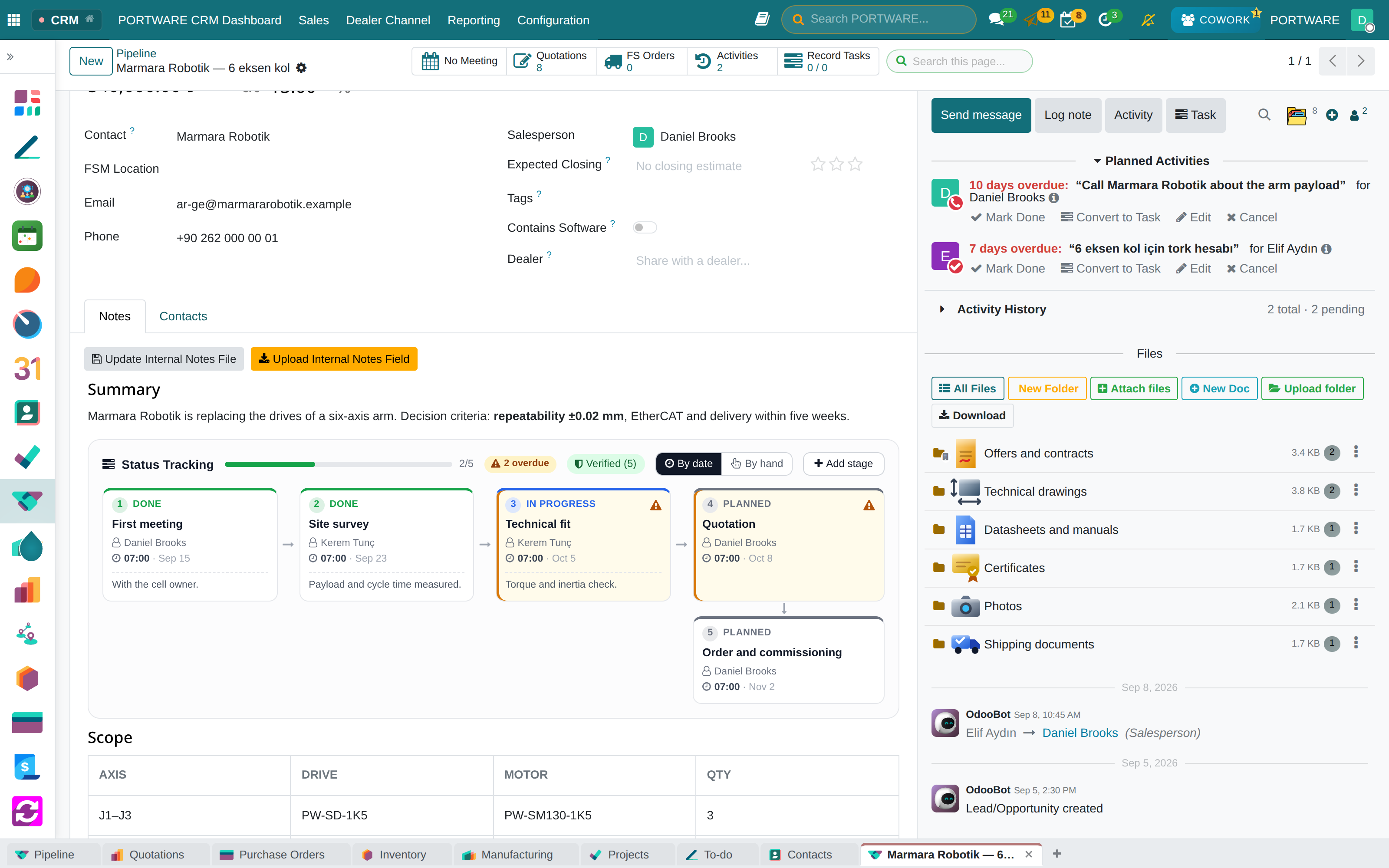
Every addition, edit and deletion is also written to a sealed ledger. The Verified mark in the header says the stages in the note match the ledger exactly; a change made outside the editor (in the database, through the API or with hand-edited HTML) shows on the element itself. Because the stages live inside the field, the note's version history shows the timeline as it was.
In status tracking, lateness is a separate warning
In the /status component, when a stage's date has passed and its state is not Done or Cancelled, the card appears overdue (warm background, amber border, triangle) and the header counts "N overdue". The warning is computed on every draw, not stored: it updates in the same frame the moment the date or state changes; a minute clock catches a stage that falls late while the page is open.
The sealed ledger's "this stage does not match the record" mark is separate from the lateness warning: a small grey shield, with its verdict in words.
Mentioning people. Typing @ in any HTML field in the back office opens the core's person picker and inserts a permanent link to the person. The visible text is the person's name; so the name stays readable in the saved HTML, in exports and in the PDF.
Editor components
PORTWARE components added to the rich-text editor with / commands:
| Command | What it inserts |
|---|---|
/status | Staged status tracking (with a sealed ledger) |
/sodraw | A draw.io diagram |
| Table | An editable table like Excel |
| Badge / banner | Protocol badges and title strips |
Since all of them live inside the HTML field, the field's version history covers them too: when an old revision is opened the component is drawn as it was that day.