I · The system · Chapter 3
The first day
Getting your account, looking at the right company, seeing what your permissions mean and opening your first record.
Account and first sign-in
An administrator opens your account. When it is opened you receive a user name (usually your company e-mail address) and an initial password.
Sign in with the address you were given.
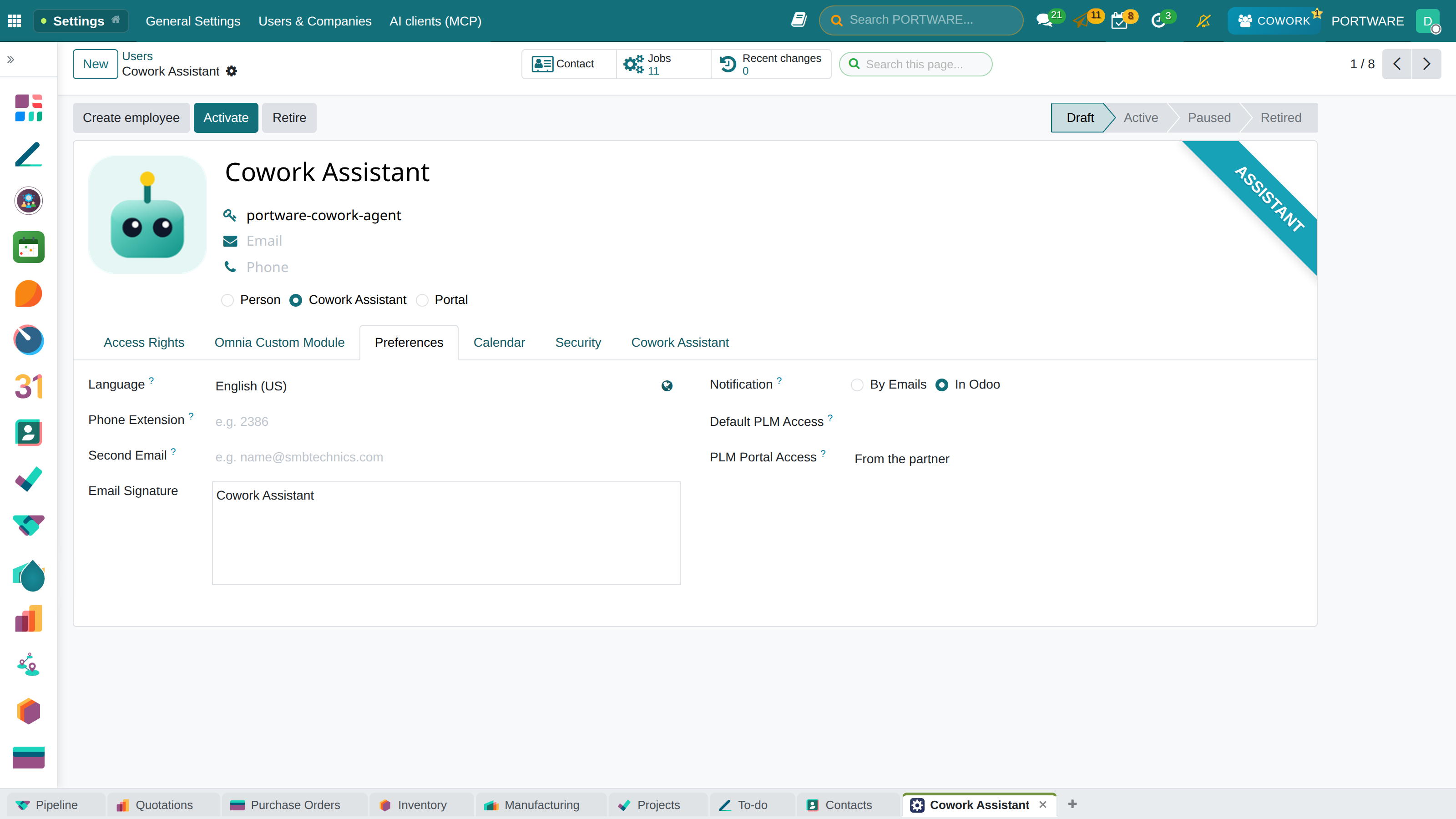
Open My Preferences from the user menu at the top right.
Change your password. From the moment it is given to you, the initial password is your responsibility.
Set your Language, Time zone and Notification preference. If the time zone is wrong, activity and meeting times shift; this is the confusion new users run into most often.
Check your signature — it is added to the bottom of e-mails that go out.
Which company you are looking at
The system holds more than one company. If a company selector appears in the top bar, it determines which company's data you are looking at. This choice matters:
- A record you open is written to the selected company.
- Lists show only the records of the selected company or companies.
- Price lists, the chart of accounts and document layouts differ per company.
A good share of "I can't find the record" situations are actually the wrong company being selected. Looking at the company selector before searching should become a habit.
What permissions mean
Permissions work on two levels and it helps to keep them apart:
- Access rights concern the whole model: "can you read sales orders?"
- Record rules decide which records you see: "you see your own team's orders."
So "I can read this model" and "I can see this record" are not the same thing. Chapter 31 explains this distinction and the common trap in detail.
The screen as you like it
The system remembers you. From the first day the following are personal and can be changed freely:
- The application order in the side panel and whether the panel is pinned.
- Which columns are shown in lists (from the column selector at the top right of the list).
- Your saved search filters — a filter you use often can be kept with Add to favourites.
- The tabs you leave open and the screen each one is on.
Your first record
Whichever department you work in, the first record is opened to the same pattern:
Open the application from the side panel.
Press the New button above the list.
Fill in the required fields — when you try to save, the system marks what is missing.
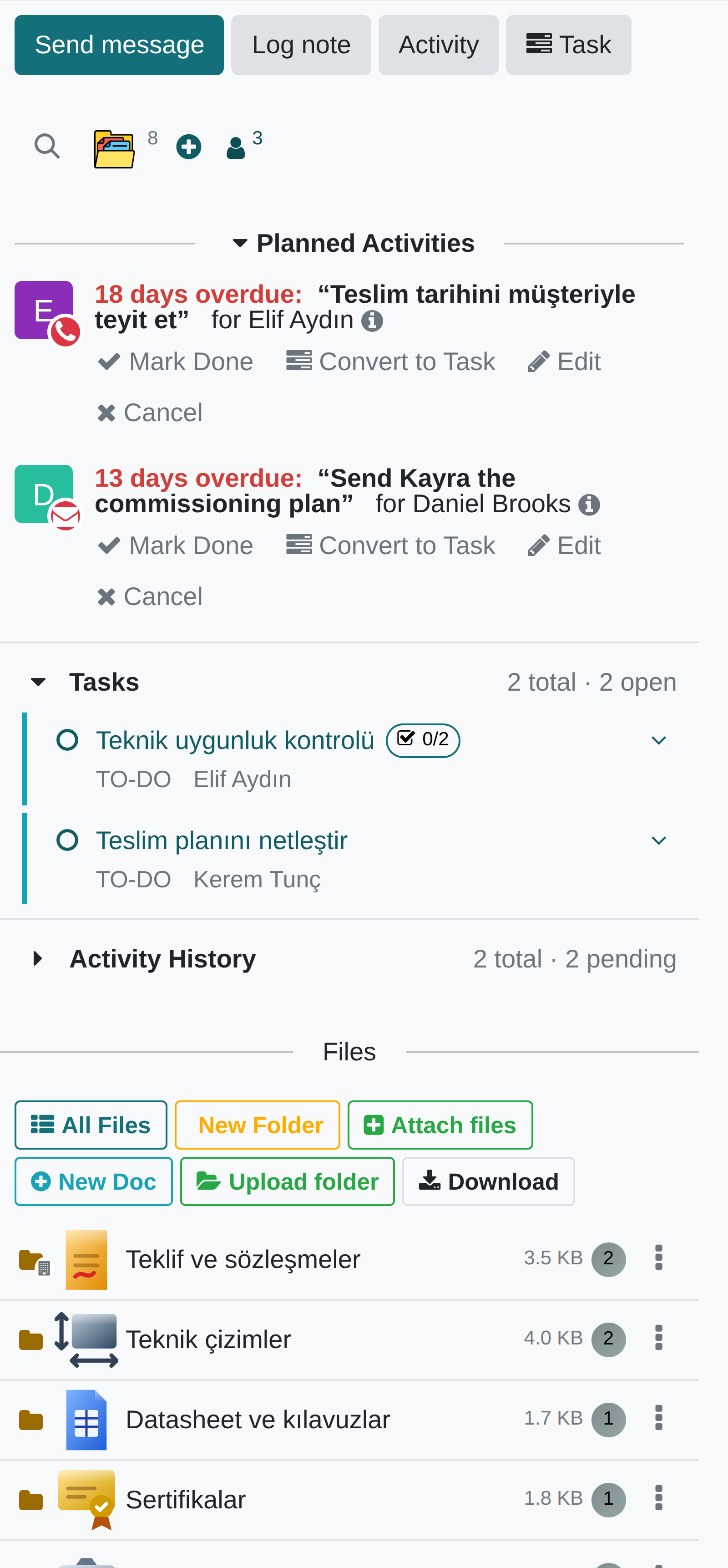
Save. The moment you save, a conversation stream (the chatter) appears below the record: notes, messages, attachments and the whole change history land there.
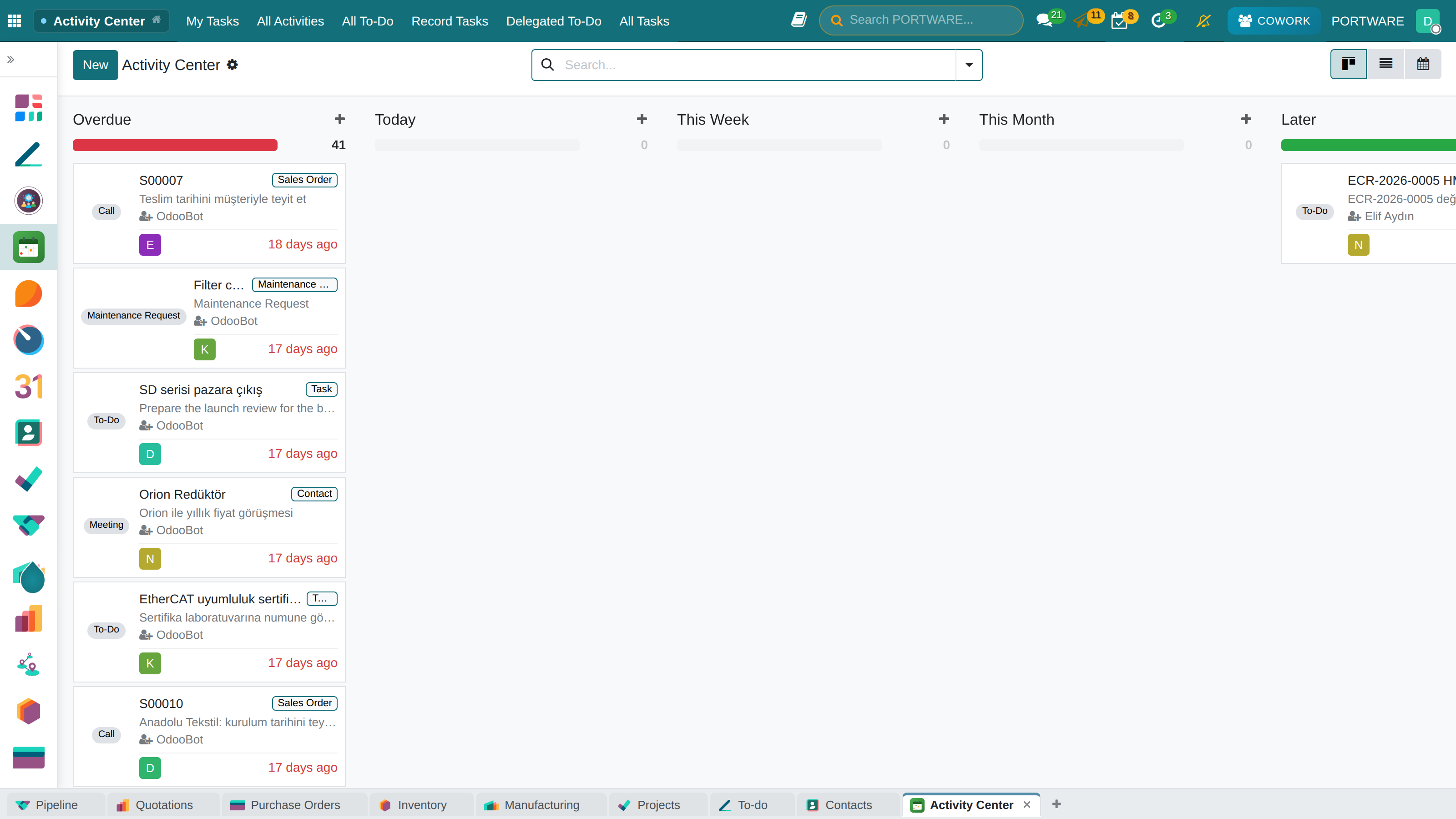
If needed, schedule an activity for yourself or a colleague — that is how work to be done is followed in the system.
Chapter 4 explains every part of this screen one by one; if you are new to the system, it is the next chapter to read.
Five things worth knowing on the first day
- Do not leave without saving. When you try to move to another screen with unsaved changes the system asks; "discard" cannot be undone.
- Archive instead of deleting. Almost every record can be archived. A deleted record is gone; an archived record can be searched for and brought back.
- Write in the chatter. A note explaining why a record is the way it is, is written for the person who opens that record six months later.
- Assign activities, do not say it out loud. Work in the system is visible, reminded and leaves a trace when completed.
- When you do not understand something, press the ? button. That screen's guide is one click away.