Inventory & Warehouse
Complete stock management, multi-warehouse operations, real-time tracking, automated reordering and full traceability — all in one integrated platform.
- One truth for stockEvery movement from sales to production reads the same records.
- Where, and how muchLive quantities by warehouse, location and lot.
- No surprise shortagesMin/max rules suggest the reorder.
Inventory & Warehouse
Complete stock management, multi-warehouse operations, real-time tracking, automated reordering and full traceability — all in one integrated platform.
Introduction
SODOO Inventory is a powerful, fully integrated stock management system designed for businesses of all sizes. Whether you manage a single warehouse or a complex multi-location supply chain, SODOO Inventory gives you complete visibility and control over your stock — from the moment goods arrive to the moment they leave.
Built on a double-entry inventory system (similar to double-entry accounting), every stock movement in SODOO is fully traceable. Products never disappear from the system — they simply move from one location to another, giving you a complete audit trail for every unit.
What You Will Learn
- How to configure warehouses, locations, and routing rules
- How to manage products, variants, and units of measure
- How to process receipts, deliveries, and internal transfers
- How to set up lot/serial number traceability
- How to automate procurement with reordering rules
- How to use barcode scanning for warehouse operations
- How to analyze stock performance with built-in reports
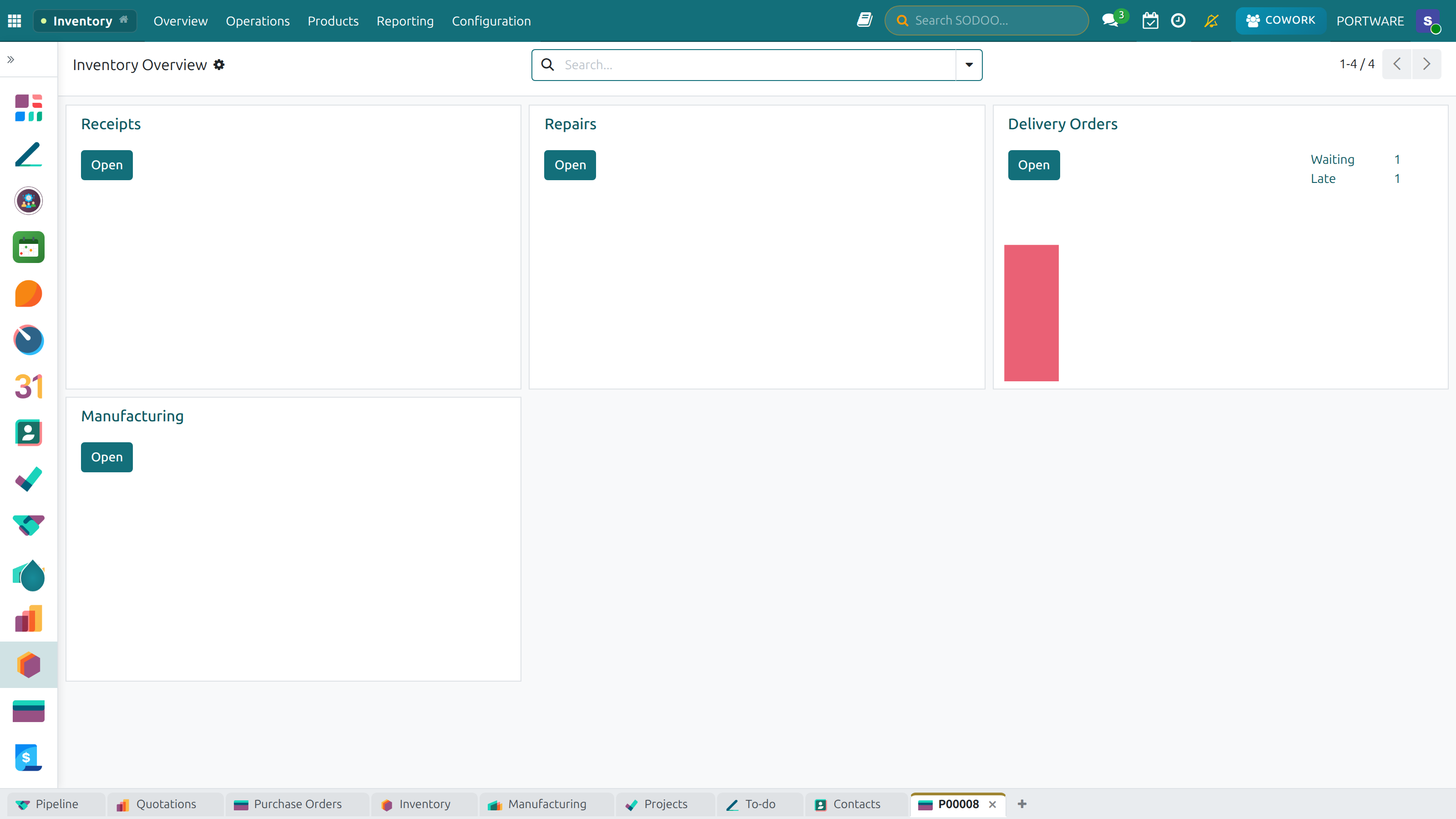
Inventory Dashboard — stock levels and an operations summary
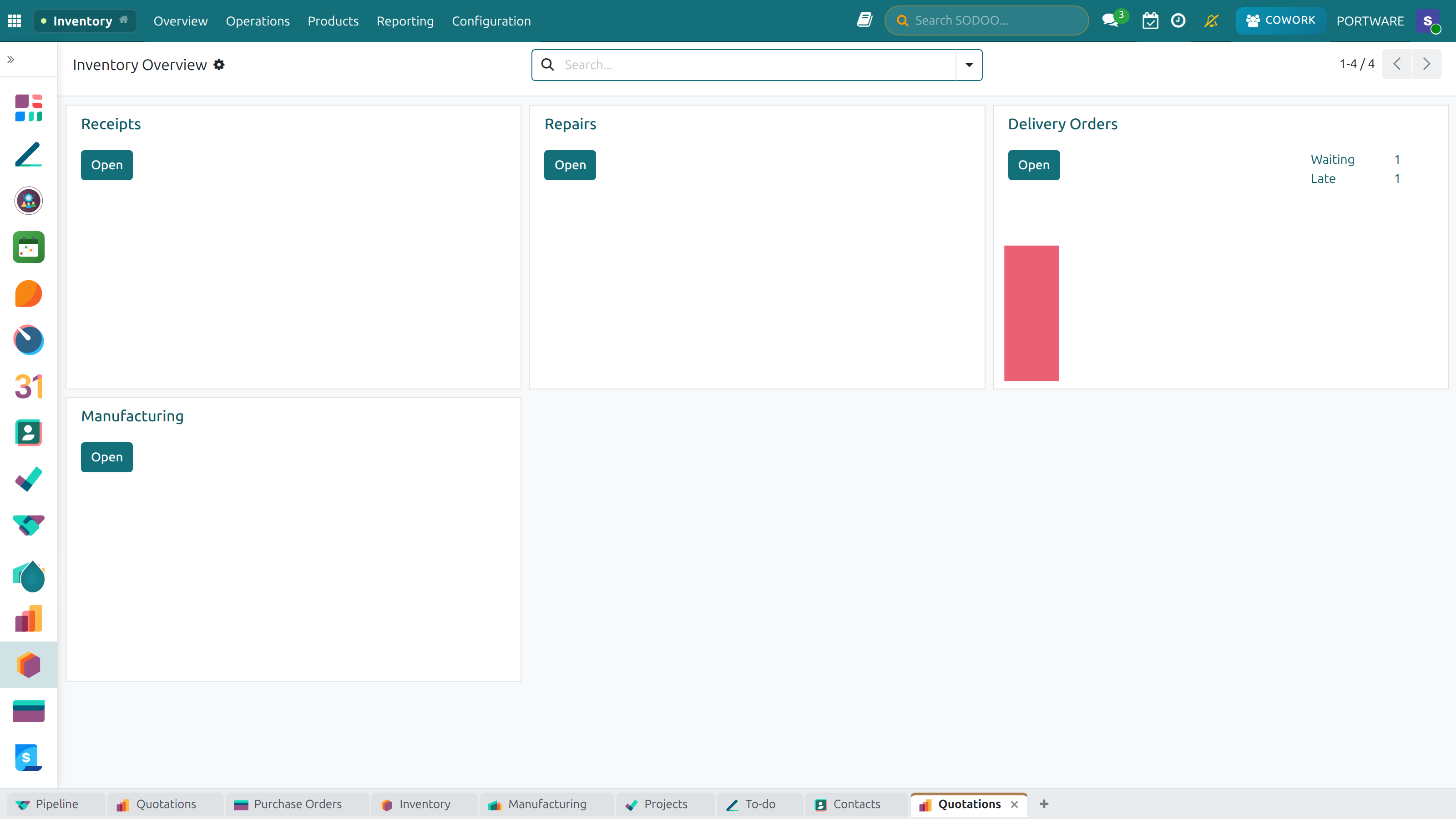
Product Detail — the form view and attributes of a storable product
Why Inventory Management?
Effective inventory management is the backbone of any product-based business. Poor stock visibility leads to stockouts that disappoint customers, overstocking that ties up cash, and errors that erode profitability. SODOO Inventory solves these problems with real-time stock tracking and intelligent automation.
Real-Time Visibility
See exactly what you have, where it is, and what is on order — at any moment, across all locations.
Automation
Automatic reorder points, procurement triggers, and putaway rules eliminate manual work and reduce errors.
Integration
Seamlessly connected with Sales, Purchase, Manufacturing, and Accounting for end-to-end business flow.
Full Traceability
Track every product by lot or serial number from supplier to customer, essential for quality and compliance.
Core Concepts
Before diving into operations, it is important to understand the foundational concepts of SODOO's inventory system.
Double-Entry Inventory
Like double-entry accounting, SODOO uses a double-entry inventory model. Every stock movement involves a source location (from) and a destination location (to). This means stock is never created or destroyed — it is only transferred. This model provides complete traceability and makes it impossible to have unexplained stock differences.
Virtual Locations
SODOO uses virtual locations to represent the "outside world" — places that exist outside your warehouses. When you receive goods from a supplier, stock comes from a virtual Suppliers location into your warehouse. When you deliver to a customer, stock moves from your warehouse to a virtual Customers location. This maintains the double-entry principle at all times.
Warehouse
A physical facility where goods are stored. SODOO supports multiple warehouses with independent routing.
Location
A specific area within a warehouse (shelf, bay, bin). Locations are hierarchical and fully configurable.
Stock Move
The fundamental unit of inventory: a quantity of a product moving from one location to another.
Picking / Transfer
A document grouping one or more stock moves that are performed together as a single operation.
Route
A sequence of rules defining how products flow through your warehouse (e.g., Receive → QC → Store).
Lot / Serial Number
A tracking identifier assigned to products for full traceability — lots for batches, serials for individual units.
Product Management
Product Types
In SODOO, each product has a type that determines how it is handled in inventory. Understanding product types is essential for correct stock behavior.
| Type | Description | Stock Impact | Typical Use |
|---|---|---|---|
| Storable Product | Physical goods tracked in stock | Full stock movements, valuation | Raw materials, finished goods |
| Consumable | Physical goods not tracked (always available) | No stock movements generated | Office supplies, packaging |
| Service | Intangible, no physical stock | No stock impact | Labor, consulting, subscriptions |
How to Create a Product
Navigate to:
- Click New
- Enter the product name in the Product Name field
- Set Product Type to Goods and check Is Storable for physical tracked goods
- Set Unit of Measure and Purchase UoM
- Configure Sales Price and Cost
- Go to the Inventory tab to configure routes and tracking
- Click Save
Product Variants & Attributes
Product variants allow you to manage multiple variations of a single product (e.g., different sizes, colors, or materials) under one product record. This reduces catalog complexity while maintaining precise stock tracking per variant.
How Variants Work
You define Attributes (e.g., Color, Size) and their Values (e.g., Red/Blue, S/M/L). SODOO automatically generates all combinations as separate variants, each with its own stock, barcode, and pricing.
Example: T-Shirt with Variants
A clothing retailer sells T-shirts in 3 colors (White, Black, Red) and 3 sizes (S, M, L). Instead of creating 9 separate products, they create one product with two attribute sets.
- Create product "T-Shirt"
- Add attribute Color with values: White, Black, Red
- Add attribute Size with values: S, M, L
- SODOO generates 9 variants automatically
- Each variant has its own SKU, barcode, and stock level
Units of Measure
Units of Measure (UoM) allow you to buy, sell, and stock products in different quantities. SODOO automatically handles conversions between compatible units.
Length
mm, cm, m, km, inch, foot, yard — for products sold by dimension.
Weight
g, kg, ton, oz, lb — for bulk products sold by weight.
Volume
ml, L, fl oz, gallon — for liquid or granular products.
Unit
Unit, dozen, pair, set — for counting discrete items.
Product Categories
Product categories define accounting properties (stock valuation method and accounts) that apply to all products in the category. They also help organize your product catalog.
Costing Methods
| Method | Description | Best For |
|---|---|---|
| Standard Price | Fixed cost set manually; variances are posted to accounts | Manufactured goods with stable costs |
| Average Cost (AVCO) | Cost updates automatically with each receipt | Traded goods with fluctuating purchase prices |
| First In First Out (FIFO) | Stock consumed in receipt order; cost matches receipt cost | Perishable goods, accurate margin tracking |
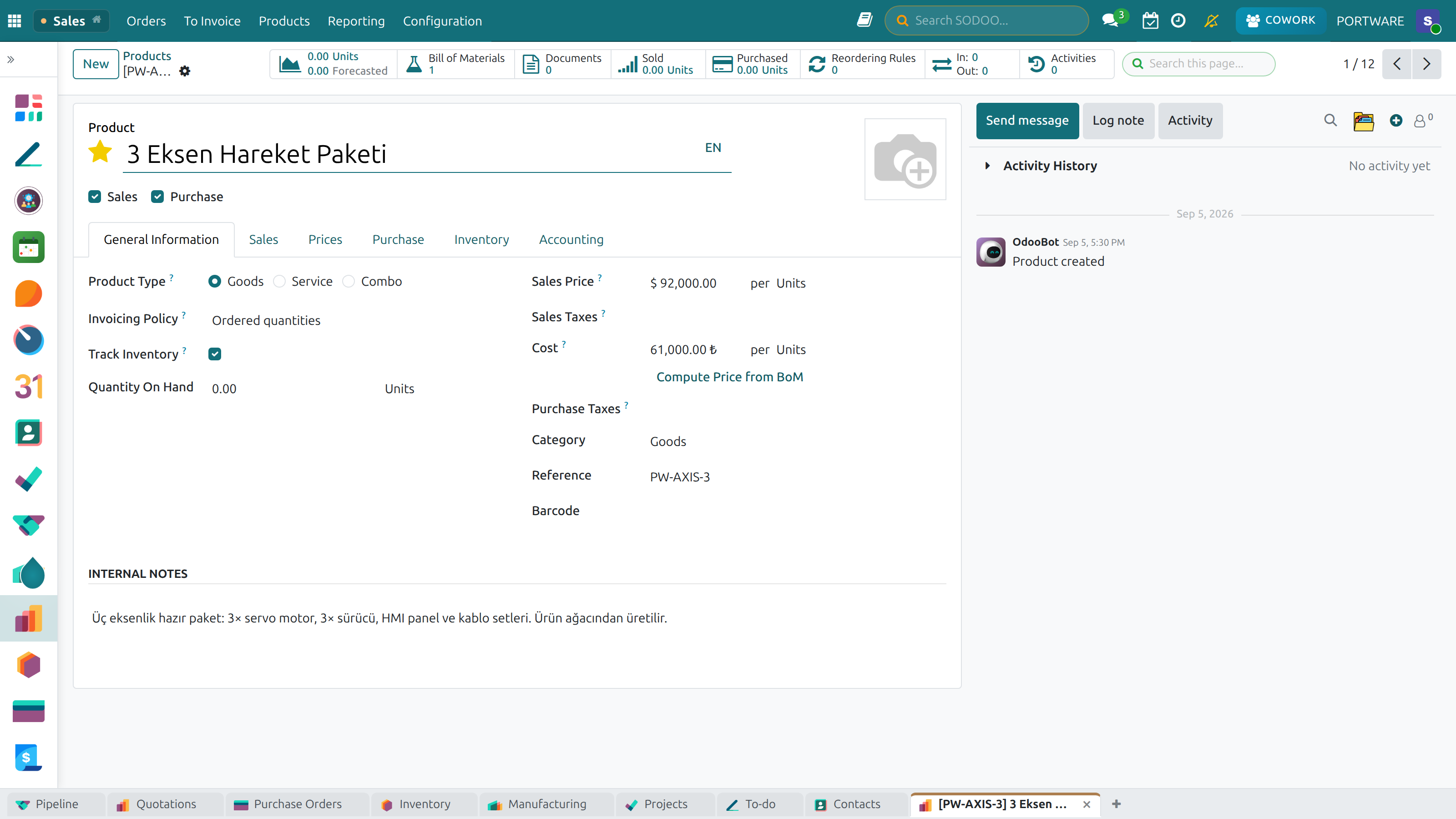
Creating a Product — name, type and the basics
Warehouse Management
Warehouses
A warehouse in SODOO represents a physical storage facility. Each warehouse automatically creates a set of standard locations (Input, Quality Control, Stock, Packing, Output, Shipping) and operation types (Receipts, Internal Transfers, Deliveries) when created.
Multi-Warehouse Setup
SODOO fully supports multiple warehouses. You can define inter-warehouse transfer rules so that a sales order in Warehouse A can trigger a resupply from Warehouse B automatically. Each warehouse can have independent routing, replenishment, and valuation settings.
How to Create a Warehouse
Navigate to:
- Click New
- Enter the warehouse Name and a short Short Name (used in location/operation names)
- Set the Address for the warehouse
- Choose the Incoming / Outgoing Shipments routes
- Save — SODOO creates all sub-locations and operation types automatically
Locations
Locations are organized in a hierarchical tree. A typical warehouse hierarchy looks like this:
Location Hierarchy Example
- Physical Locations (root)
- WH (your warehouse)
- Input
- Quality Control
- Stock
- Shelf A / Bay 1 / Bin 01
- Shelf A / Bay 1 / Bin 02
- Packing Zone
- Output
- WH (your warehouse)
- Virtual Locations
- Suppliers (source of received goods)
- Customers (destination of delivered goods)
- Inventory Loss (adjustments)
- Scrap (damaged/scrapped goods)
Routes & Procurement Rules
Routes define the path a product takes through your warehouse. When a demand is created (from a sales order, manufacturing order, or reorder rule), SODOO uses routes to determine how to fulfill it.
Common Standard Routes
| Route | Flow | Use Case |
|---|---|---|
| Receive in 1 Step | Supplier → Stock | Simple receiving, no QC needed |
| Receive in 2 Steps | Supplier → Input → Stock | Receive then putaway |
| Receive in 3 Steps | Supplier → Input → QC → Stock | Quality inspection before stocking |
| Deliver in 1 Step | Stock → Customer | Direct pick and ship |
| Deliver in 2 Steps | Stock → Packing → Customer | Pick then pack then ship |
| Deliver in 3 Steps | Stock → Picking → Packing → Shipping | Large warehouses with separate zones |
| Dropship | Supplier → Customer (direct) | Supplier ships directly to customer |
Putaway Strategies
Putaway strategies automatically determine where incoming products should be stored. Instead of manually deciding "put this in Shelf A", you define rules and SODOO applies them automatically when goods are received.
Putaway Rule Types
- By Product — A specific product always goes to a specific location (e.g., Fragile Items → Shelf B-Protected)
- By Product Category — All electronics go to Aisle 3, all chemicals go to Hazmat zone
- By Capacity — Find the first location with enough space (storage capacity rules)
Stock Operations
Receipts (Incoming Shipments)
Receipts are created automatically when a Purchase Order is confirmed. They document the physical arrival of goods at your warehouse. Validating a receipt moves stock into your inventory and triggers valuation entries in accounting.
Partial Receipts
If only part of an order arrives, validate what you received. SODOO automatically creates a Backorder for the remaining quantity, which stays open until the remaining goods arrive.
How to Validate a Receipt
- Go to
- Open the ready receipt linked to your purchase order
- Enter the actual received quantities in the Done column
- Assign lots or serial numbers if tracking is enabled
- Click Validate
- If quantities differ, choose to create a backorder or not
Deliveries (Outgoing Shipments)
Delivery orders are generated from confirmed Sales Orders. They represent the physical shipment of goods from your warehouse to the customer. Validating a delivery reduces your stock and marks the SO as delivered.
Availability Check
Before picking, SODOO checks stock availability. A delivery can be in one of these states:
- Waiting — Waiting for another operation (e.g., incoming receipt)
- Ready — All products available and reserved
- Partially Available — Some products available, some not
Internal Transfers
Internal transfers move stock between locations within the same company — between warehouses, between zones within a warehouse, or to a specific bin. They have no accounting impact (no cost change) but are essential for warehouse organization.
Common Use Cases
- Moving goods from Receiving dock to stock shelves
- Replenishing a picking zone from bulk storage
- Transferring stock between warehouse A and warehouse B
- Moving damaged goods to Scrap location
- Relocating products during warehouse reorganization
Stock Adjustments (Physical Inventory)
Physical inventory counts are used to reconcile the theoretical stock in SODOO with the actual stock on your shelves. Discrepancies are corrected through inventory adjustments, which post accounting entries for the difference.
Inventory Adjustment Methods
- Full Count — Count all products in a location (annual inventory)
- Cyclic Count — Count specific products or locations on a rotating schedule
- Immediate Adjustment — Fix a known discrepancy for a single product immediately
How to Perform a Stock Adjustment
- Go to
- Filter by location or product category as needed
- Enter the actual counted quantity in the Counted Quantity column
- SODOO calculates the difference automatically
- Click Apply All to post the adjustment
- Accounting entries are created for the stock value difference
Receipt Additional Info — product details, units of measure and lot/serial numbers
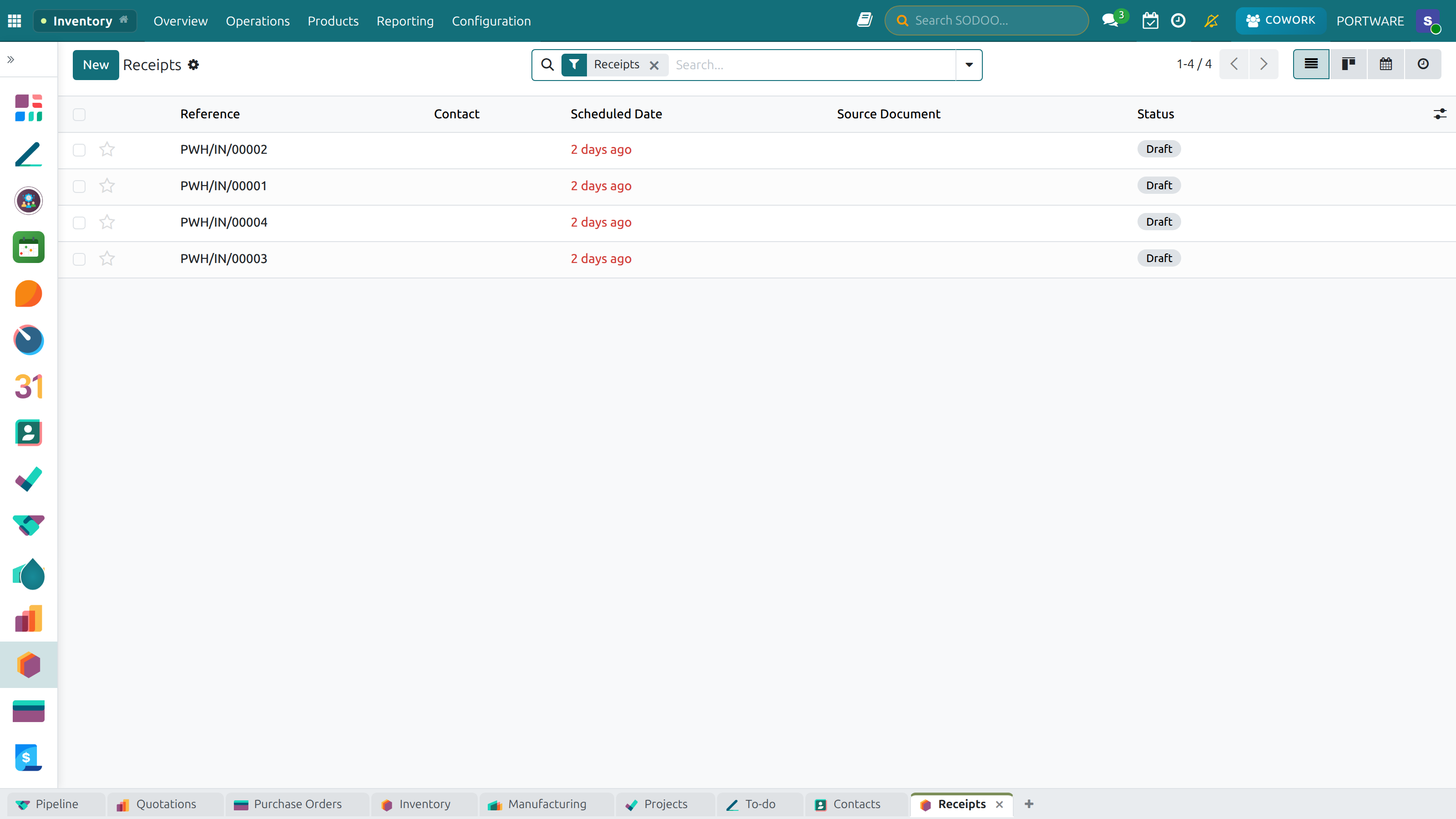
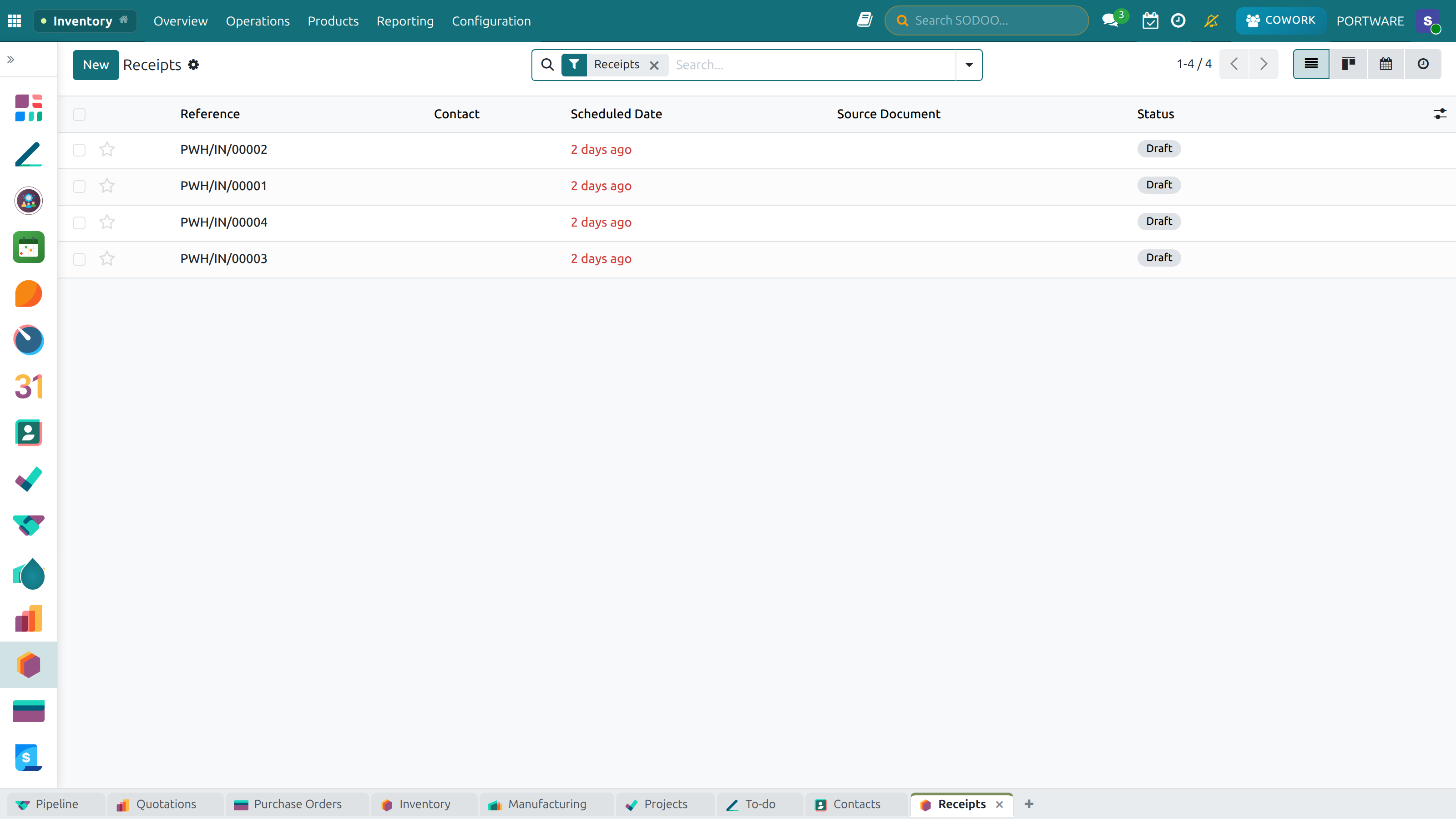
Receipts List — warehouse operations and transfer status
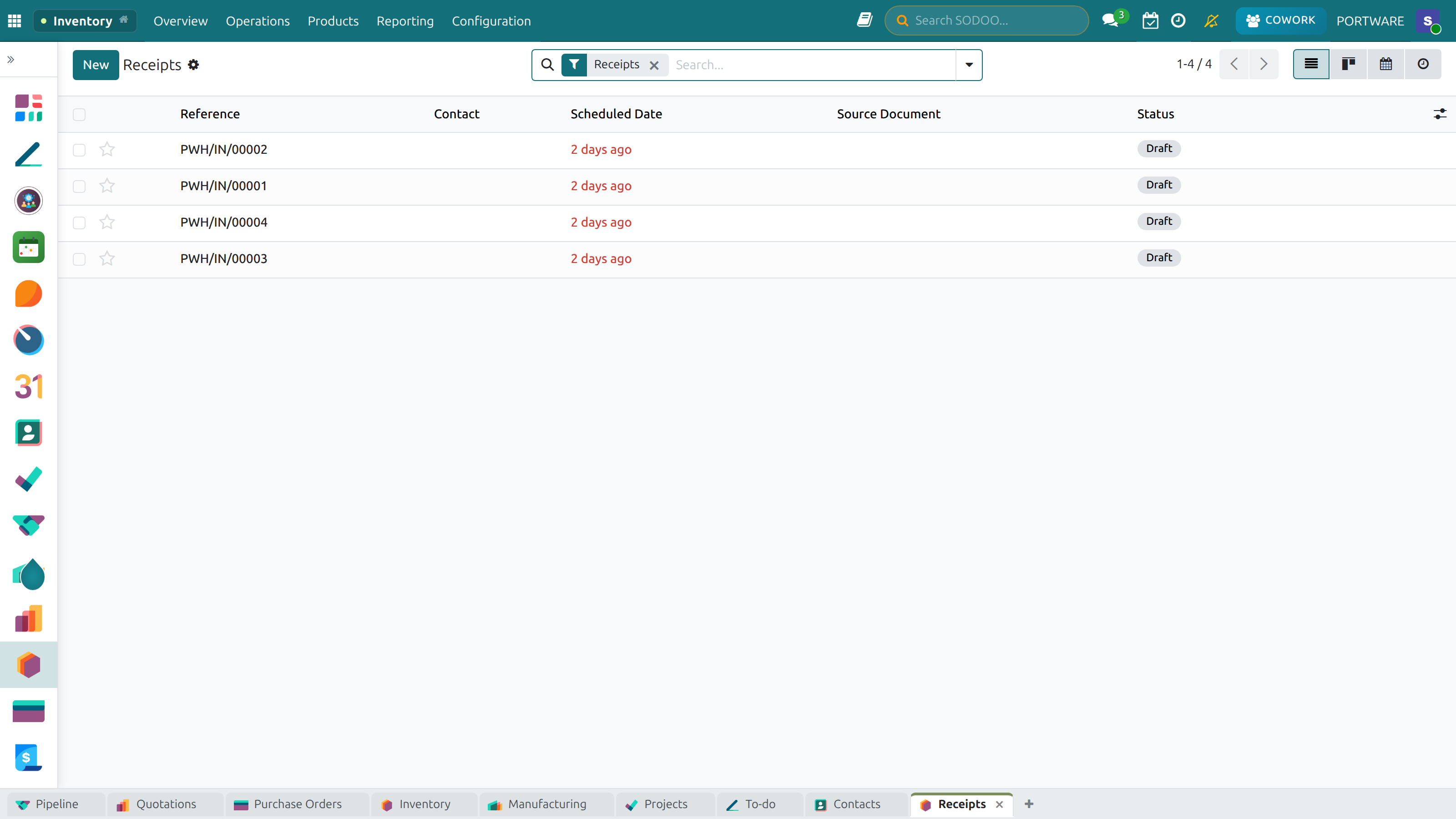
Receipts — pending goods-in operations and their status
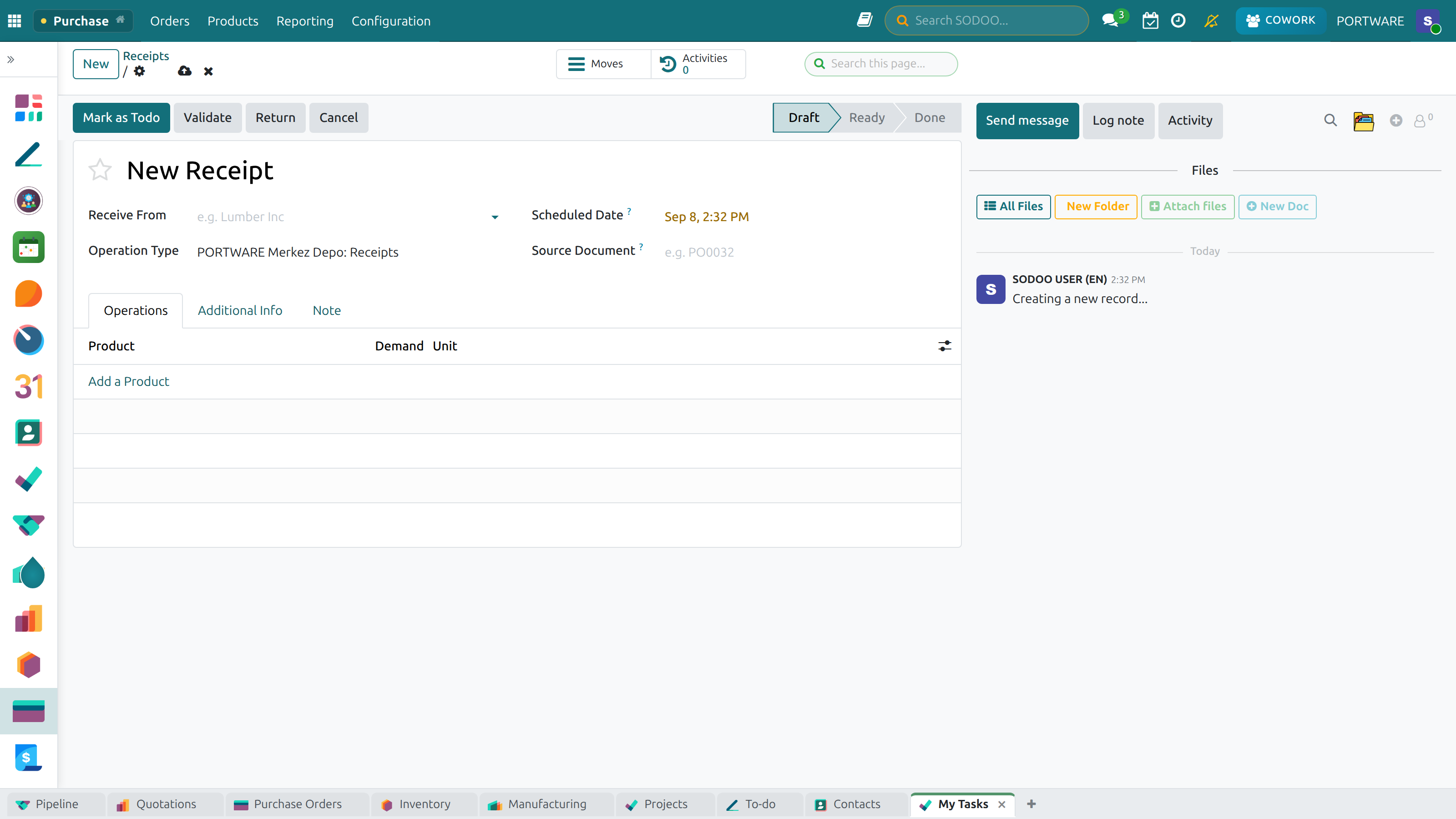
New Receipt — starting a goods-in from a vendor
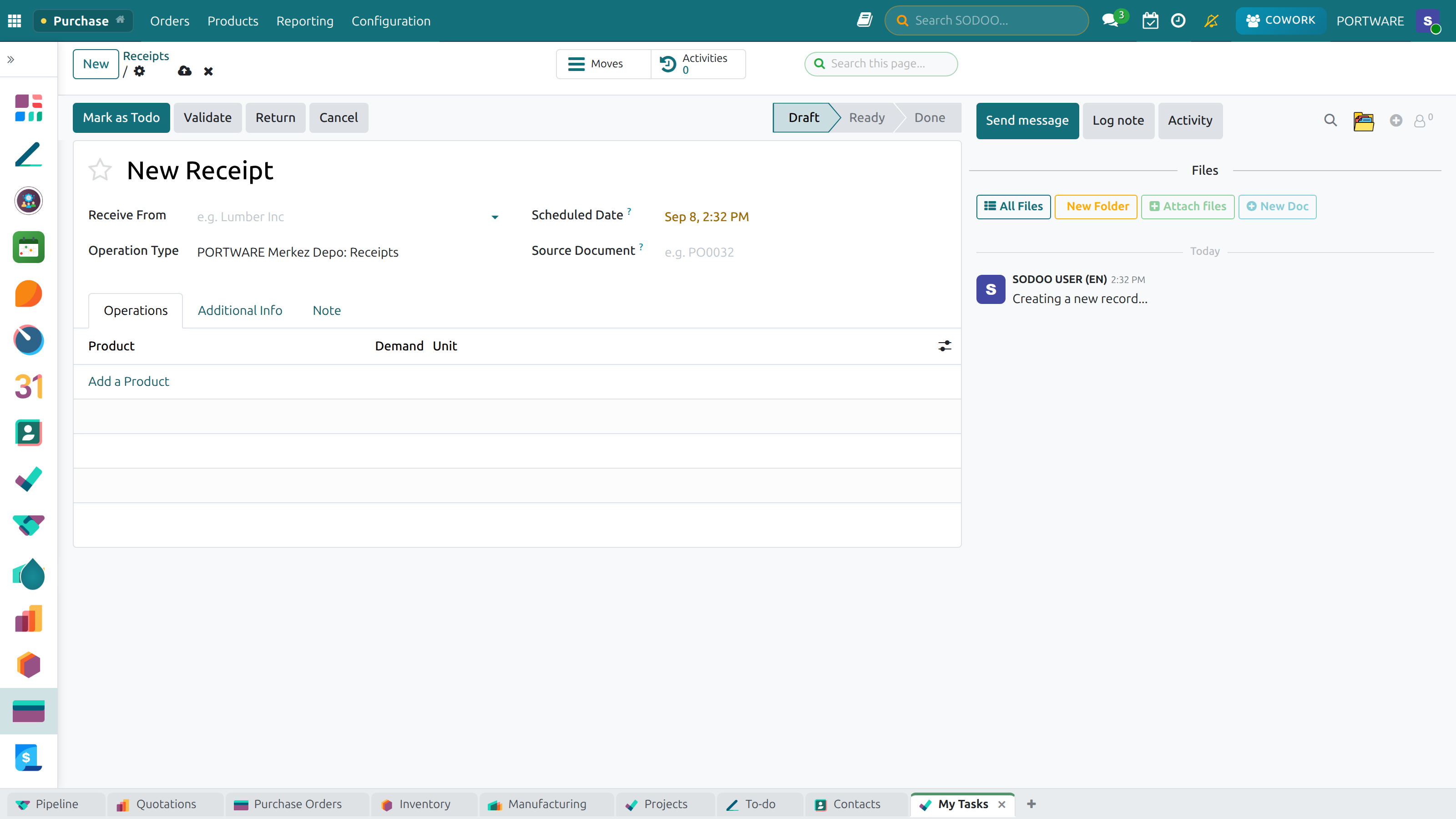
Creating a Receipt — adding products and setting quantities
Transfers List — picking and shipping operations in detail
Barcode Operations
SODOO's built-in barcode scanner interface allows warehouse staff to perform all stock operations using barcode scanners or mobile devices — without touching a desktop computer. This dramatically speeds up operations and reduces errors.
Supported Operations via Barcode
Receive
Scan products as they arrive. Scan supplier barcodes or product barcodes to record quantities.
Deliver
Scan items during picking to confirm correct products and quantities are selected.
Transfer
Scan source and destination locations to initiate and validate internal transfers.
Inventory Count
Scan products during physical inventory to record actual quantities efficiently.
Setting Up Barcodes
Each product can have one or more barcodes assigned (EAN-13, UPC-A, QR, custom). Location barcodes enable scan-to-confirm workflows. Packaging barcodes allow scanning a case to receive its contents automatically.
Quality Control
SODOO's Quality module integrates with Inventory to enforce quality checks at defined points in the stock flow. Quality control prevents defective goods from reaching customers and creates a documented audit trail.
Quality Control Points
A Quality Control Point (QCP) defines: which product, at which operation, should trigger a quality check, and what type of check to perform.
| Check Type | Description |
|---|---|
| Pass / Fail | Simple binary result — inspector marks pass or fail |
| Measure | Record a numeric measurement; tolerance range defines pass/fail |
| Take a Picture | Capture a photo as evidence of the product's condition |
| Instructions | Display instructions the inspector must follow |
Quality Alerts
When a quality check fails, a Quality Alert is raised. Alerts can trigger a notification to the quality team, block further processing until resolved, and generate a corrective action request. All alerts are logged for compliance reporting.
Scenario: Incoming Goods Inspection
A manufacturing company requires a dimensional check on all received metal components before they enter stock.
- Create a QCP for operation type "Receipts", product category "Metal Components", check type "Measure"
- Set tolerance: dimension between 49.8mm and 50.2mm
- When a receipt is validated, a quality check is automatically created
- Inspector measures and enters the value; system auto-passes or fails
- Failed checks trigger an alert and block goods from entering stock
- QC team reviews and decides: rework, return to supplier, or accept with deviation
Traceability
Traceability in SODOO allows you to track every product movement using Lot Numbers (for batches) or Serial Numbers (for individual units). This is essential for regulated industries, product recalls, warranty management, and quality assurance.
Lot vs Serial Number
| Feature | Lot Number | Serial Number |
|---|---|---|
| Quantity per number | Multiple units share one lot | Exactly 1 unit per serial |
| Use case | Food, chemicals, pharmaceuticals | Electronics, machinery, vehicles |
| Tracking granularity | Batch level | Individual unit level |
| Expiry date | Yes (per lot) | Optional (per unit) |
Traceability Report
For any lot or serial number, you can open its full traceability history showing every movement — from the original receipt from the supplier, through any internal transfers, to the final delivery to the customer. This is invaluable for product recall investigations and warranty claims.
How to View Traceability
- Go to
- Search for the lot or serial number
- Open the record and click Traceability
- View the complete movement history with dates, locations, and references
Reordering Rules
Reordering rules automate procurement by triggering purchase orders or manufacturing orders when stock falls below a defined minimum. This prevents stockouts while avoiding excess inventory through configurable minimum and maximum quantities.
Rule Types
| Type | Trigger | Best For |
|---|---|---|
| Fixed | Stock falls below min qty → order up to max qty | Regular items with predictable demand |
| Make to Order (MTO) | Order triggered by each sales order demand | Custom or expensive items, no safety stock |
| Make to Stock (MTS) | Produce/order based on forecasted demand | High-volume standard products |
Example: Automatic Reorder Rule
A distributor wants to ensure they always have between 50 and 200 units of Product A in stock, ordering in multiples of 50.
- Go to Inventory > Configuration > Reordering Rules
- Create rule for Product A: Min Qty = 50, Max Qty = 200, Quantity Multiple = 50
- Set route to "Buy" and select preferred vendor
- When stock drops to 45 units, the scheduler creates a PO for 155 units (to reach 200)
- PO is automatically confirmed if vendor lead time allows
Reports & Analytics
SODOO Inventory provides comprehensive reporting tools to analyze stock levels, movements, value, and operational efficiency. All reports support grouping, filtering, and export.
Stock Levels
Current on-hand, forecasted, reserved, and incoming quantities per product/location
Stock Valuation
Total inventory value by category, product, or location using your costing method
Inventory Forecast
Projected stock levels accounting for confirmed orders, transfers, and reorder rules
Operation Analysis
Transfer completion times, backorder rates, and warehouse efficiency metrics
Inventory Turnover
How quickly products move through stock — identify slow-moving items
Expiry & Alerts
Products approaching expiry date, lots nearing removal date, low stock alerts
Key Reports
- Inventory Valuation Report — Full stock value with accounting journal entries
- Stock Moves Analysis — Historical movements grouped by product, partner, or operation type
- Lot Traceability Report — Full audit trail for any lot or serial number
- Forecast Report — Projected stock levels by date considering all pending documents
- Dead Stock Report — Products with no movement for a configurable period
- Putaway Efficiency — Analysis of storage utilization by location
Best Practices
Follow these best practices to get maximum value from SODOO Inventory and maintain accurate, reliable stock data.
Initial Setup
- Plan your location hierarchy before creating warehouses
- Choose the right costing method early — it is hard to change later
- Set up product categories with correct accounting accounts
- Define routes before processing first receipts
- Enable tracking (lot/serial) for all products that require it from day one
Daily Operations
- Always validate receipts on the same day goods physically arrive
- Reserve stock before picking to avoid conflicts
- Use backorders for partial deliveries — never force full validation
- Perform regular cycle counts (weekly/monthly) rather than annual full counts
- Investigate and correct stock discrepancies immediately
Ongoing Management
- Review slow-moving stock monthly and adjust reorder rules
- Monitor inventory turnover ratios by category
- Set up expiry date alerts for perishable goods
- Regularly audit putaway rules for efficiency gains
- Keep product barcodes up to date for accurate scanning
Pro Tips
- Use Scrap locations wisely — Never delete damaged stock; move it to Scrap to maintain full accounting integrity.
- Multi-step routes improve accuracy but add complexity. Start with 1-step and upgrade when your team is ready.
- Product packaging — Define packaging (pallet, box, unit) to allow barcode scanning at different granularities.
- Replenishment lead times — Always set vendor lead times on products so SODOO can schedule reorders in advance.
- Inter-company routes — If you have multiple companies in SODOO, use inter-company routes for automatic cross-company transfers.