Productivity
Modern teams work across different locations, time zones, and devices. Documents buried in email threads, confusion about which version is current, endless "can you send me the latest?"…
- Documents inside the systemWord, Excel and slides open on the record and are versioned.
- Knowledge in one placeThe SOTION knowledge base, HTML documents and diagrams.
- Work and communication togetherActivities, calendar and messaging on the same record.
Why Collaboration Tools?
Learning Objectives
- Understand the business value of modern collaboration tools
- Learn how SODOO++ tools differ from traditional methods
- Identify which tool solves which business problem
- Discover SODOO AI COWORK as your ERP copilot
Modern teams work across different locations, time zones, and devices. Documents buried in email threads, confusion about which version is current, endless "can you send me the latest?" messages - sound familiar?
SODOO's Productivity suite eliminates these pain points with a comprehensive set of integrated tools: AI-powered ERP management, Notion-like knowledge management, full Office document editing, diagram creation, and team communication - all within your ERP system.
Traditional vs. SODOO++ Approach
Traditional Approach
- Documents circulate as email attachments
- File names like "Report_v3_FINAL_USE_THIS.docx"
- Knowledge trapped in individuals' heads
- Separate software required for diagrams
- "Ask John, he knows that" situations
- No version control, overwrite risk
- Manual ERP data entry and queries
With SODOO++
- Single source of truth for all content
- Automatic version history
- Knowledge accessible in wiki pages
- Diagrams embedded directly in content
- Institutional knowledge preserved
- Real-time co-editing built in
- AI COWORK handles ERP in natural language
The Collaboration Lifecycle
An effective digital collaboration workflow follows these stages:
Digital Collaboration — knowledge management and teamwork with SOTION
What is SODOO++?
Beyond Standard Odoo
SODOO++ contains premium tools developed exclusively for SODOO that are not available in standard Odoo Community Edition. These tools accelerate daily workflows, increase team productivity, and give your team an AI-powered ERP copilot.
The SODOO++ Tool Family
AI COWORK
AI-powered ERP management in natural language. Create records, query data, and automate tasks by chatting with the system.
- 7 AI providers (Claude, GPT-4, Gemini...)
- 120+ ERP actions available
- Real-time streaming responses
- Web search integration
- Cross-session memory & learning
SOTION
Notion-inspired knowledge management system. Build your company wiki with hierarchical pages, variables, and status labels.
- Hierarchical page structure
-
{{variable}}dynamic system -
[[status]]property labels - Real-time synchronization
SODOOC
Edit Office documents directly in the browser. Word, Excel, and PowerPoint formats with real-time collaboration.
- DOCX, XLSX, PPTX support
- Real-time co-editing
- Track changes
- Version history
SODRAW
Draw.io-based diagram editor. Create flowcharts, org charts, and technical diagrams embedded in any HTML field.
-
/sodrawcommand for quick access - 100+ shape templates
- PNG/SVG export
- Embedded diagrams in content
SODOO AI COWORK - AI-Powered ERP
Learning Objectives
- Understand how to use natural language to manage your ERP
- Learn which AI provider to use for different tasks
- Discover the 120+ ERP actions available
- Use real-time streaming and web search capabilities
- Leverage AI memory for smarter cross-session assistance
AI COWORK is SODOO's flagship feature — an intelligent ERP copilot that understands natural language commands. Instead of navigating menus and forms, you simply tell the AI what you want to do.
Your AI-Powered ERP Copilot
AI COWORK connects to your Odoo data and can perform over 120 actions across Sales, CRM, Inventory, Manufacturing, Accounting, HR, and more. It supports 7 AI providers with automatic smart selection.
Example Commands
Supported AI Providers
AI COWORK supports 7 leading AI providers. You can select a specific provider or use Auto Mode which intelligently routes your request to the most cost-effective and capable provider.
| Provider | Best For | Speed | Cost Level |
|---|---|---|---|
| Claude (Anthropic) | Complex reasoning, long documents, Turkish content | Medium | Premium |
| GPT-4 (OpenAI) | General tasks, coding, analysis | Medium | Standard |
| Gemini (Google) | Multimodal, long context, search | Fast | Standard |
| DeepSeek | Math, logic, code (R1 Reasoner) | Medium | Budget (10x cheaper) |
| Mistral AI | European GDPR-compliant workloads | Fast | Standard |
| LLaMA (Together.ai) | Open-source, 70B/405B models | Fast | Budget |
| Groq | Ultra-fast inference, simple queries | Very Fast (~500 tokens/s) | Budget |
120+ ERP Actions
AI COWORK can perform actions across all major SODOO modules. Actions are categorized as read-only (safe to auto-execute) or write operations (require your confirmation before executing).
Sales & CRM
Create leads/opportunities, update pipeline stages, generate quotations, track follow-ups, analyze sales performance.
Inventory
Check stock levels, create transfers, validate pickings, manage reorder rules, generate inventory adjustments.
Accounting
View overdue invoices, create vendor bills, check payment status, generate financial summaries.
Manufacturing
Create production orders, check work order status, manage BOM components, track production progress.
HR & Payroll
View employee data, manage leave requests, check payroll status, generate HR reports.
Projects
Create tasks, update project stages, assign team members, check deadlines and progress.
Reports & KPIs
Create dashboards, add widgets, generate reports, schedule reports, define KPI alerts.
Web Search
Search the web for company information, weather, news, and external data to enrich ERP insights.
Streaming Responses & Memory
Real-time Token Streaming
Responses from AI COWORK appear in real-time as the AI generates them — no waiting for the complete response before reading. Streaming is supported for 5 providers: OpenAI, Anthropic, DeepSeek, Mistral, and Groq.
Cross-session Memory & Learning
AI COWORK remembers your preferences, frequent queries, and important context across sessions. The system learns from your usage patterns to provide increasingly relevant suggestions over time.
Multi-Model Pipeline
For Turkish content in Auto mode, the system uses a cost-optimized pipeline: translate to English (Groq, ~$0.05/M tokens) → process with capable model → translate back to Turkish. This can be up to 60x cheaper than using premium models directly for Turkish queries.
Agentic Loop
AI COWORK uses a 3-phase agentic execution loop:
Practical Examples by Department
Scenario: Sales Manager Morning Review
Situation: A sales manager starts their day and wants a quick overview of pipeline health, overdue activities, and this week's targets.
- Ask: "Show me all leads that haven't been contacted in the last 7 days"
- Ask: "What is our total pipeline value in Won stage vs Lost this month?"
- Ask: "Create a follow-up activity for each opportunity in Proposition stage due today"
- Ask: "Generate a sales performance report for my team this week"
Scenario: Inventory Manager Stock Check
Situation: Production is about to start and the inventory manager needs to verify component availability and flag shortages.
- Ask: "What is the stock level of Steel Bolt M8 in warehouse WH/Main?"
- Ask: "Which products are below their reorder point right now?"
- Ask: "Create purchase requests for all products with stock below minimum"
- Ask: "Show me all incoming transfers expected this week"
More Example Commands
| Department | Example Command |
|---|---|
| Accounting | "Show all unpaid customer invoices older than 30 days" |
| Accounting | "What is our total receivables balance as of today?" |
| Manufacturing | "Create a production order for 50 units of Product A, scheduled for next Monday" |
| HR | "Which employees have pending leave requests this week?" |
| CRM | "Move all leads from 'New' to 'Qualified' where expected revenue is over $10,000" |
| Projects | "Show all overdue tasks across all active projects" |
| Purchasing | "Create an RFQ for 100 units of Component XYZ from our preferred vendor" |
| Research | "Search the web for information about ABC Corp and summarize their business" |
How to Access AI COWORK
Method 1: Main Menu
- Navigate to in the main menu
- Start a new conversation session or continue an existing one
- Type your request in natural language and press Enter
Method 2: Inline Assistant
- The AI assistant is available on any screen via the floating button
- Click the AI button
- The AI has context awareness of the current record you are viewing
Configuring AI Providers
- Go to
- Enter API keys for the providers you want to use
- Set the default provider or select "Auto" for smart routing
SOTION - Knowledge Management
Learning Objectives
- Build a company wiki with SOTION's hierarchical page structure
- Use workspaces to organize content by team or topic
- Master the variable system for dynamic, reusable content
- Create status labels with the Select Property system
SOTION is SODOO's Notion-inspired knowledge management system. Build your company wiki, project documentation, meeting notes, procedures, onboarding guides, and more — all organized in a hierarchical structure, accessible to your entire team.
Scenario: New Employee Onboarding
Situation: A new sales representative joins. They need to learn company policies, product catalog, sales processes, and CRM workflows.
Without SOTION:
- Scattered PDFs sent via email
- "Ask Maria, she knows that" redirections
- Outdated Word documents from 2020
- Onboarding takes weeks
With SOTION:
- Open the "New Starters" workspace with structured learning path
- All onboarding content organized in hierarchical pages
- Embedded videos, diagrams, and checklists
- New employee learns self-sufficiently at their own pace
- Content is always up to date — one update reaches everyone
Page Management
Everything in SOTION is organized around "pages". Pages are structured hierarchically — like chapters and sections of a book — and can contain rich text, images, diagrams, tables, and embedded content.
| Workspace Type | Access Level | Typical Use |
|---|---|---|
| Workspace | All team members | Company wiki, procedures, shared knowledge |
| Private | Individual user | Personal notes, drafts, private planning |
| Favorites | Individual user | Pinned frequently accessed pages |
Creating and Managing Pages
Create a New Page
- Navigate to
- Click + New Page in the sidebar
- Enter a title and optionally choose an emoji icon
- Start writing — the editor supports rich formatting
Organize with Hierarchy
- Drag pages in the sidebar to rearrange
- Drop a page onto another to make it a child page
- Use the breadcrumb navigation to move up levels
Add Cover Images and Icons
- Click the emoji icon at the top of any page to change it
- Click Add Cover to add a visual header
- Choose from colors, gradients, or upload a custom image
Variable System
The variable system allows you to define reusable dynamic values in your pages.
Use the {{variable_name}} syntax to insert a variable anywhere in your content.
When the variable value is updated, all occurrences are updated automatically.
How Variables Work
- Define a variable: name = "Project Manager", value = "Sarah Johnson"
- Write
{{Project Manager}}anywhere in the page - It renders as "Sarah Johnson" in the document
- When Sarah is replaced by Tom, update the variable — all references update instantly
Contact Details
Store account manager names, phone numbers, and emails as variables. Update once when staff changes.
Dates & Deadlines
Define project milestone dates as variables. Reference them throughout all related pages.
Pricing
Store standard rates and prices as variables. Instant quote template updates across all pages.
Company Info
Tax number, bank details, legal address — define once, use in templates throughout.
Select Property System
Select Properties add structured status labels to your pages using the
[[Property Name]] syntax. Perfect for tracking document status,
approval stages, priority levels, and more.
| Syntax | Example | Options |
|---|---|---|
[[Status]] |
Document approval tracking | Draft → Review → Approved → Published |
[[Priority]] |
Task prioritization | Low → Medium → High → Critical |
[[Phase]] |
Project phase tracking | Planning → Development → Testing → Done |
Each property can have up to 12 color-coded options. The selected value is highlighted throughout the document, making status visible at a glance. Changing the selection in the sidebar updates the highlight color everywhere.
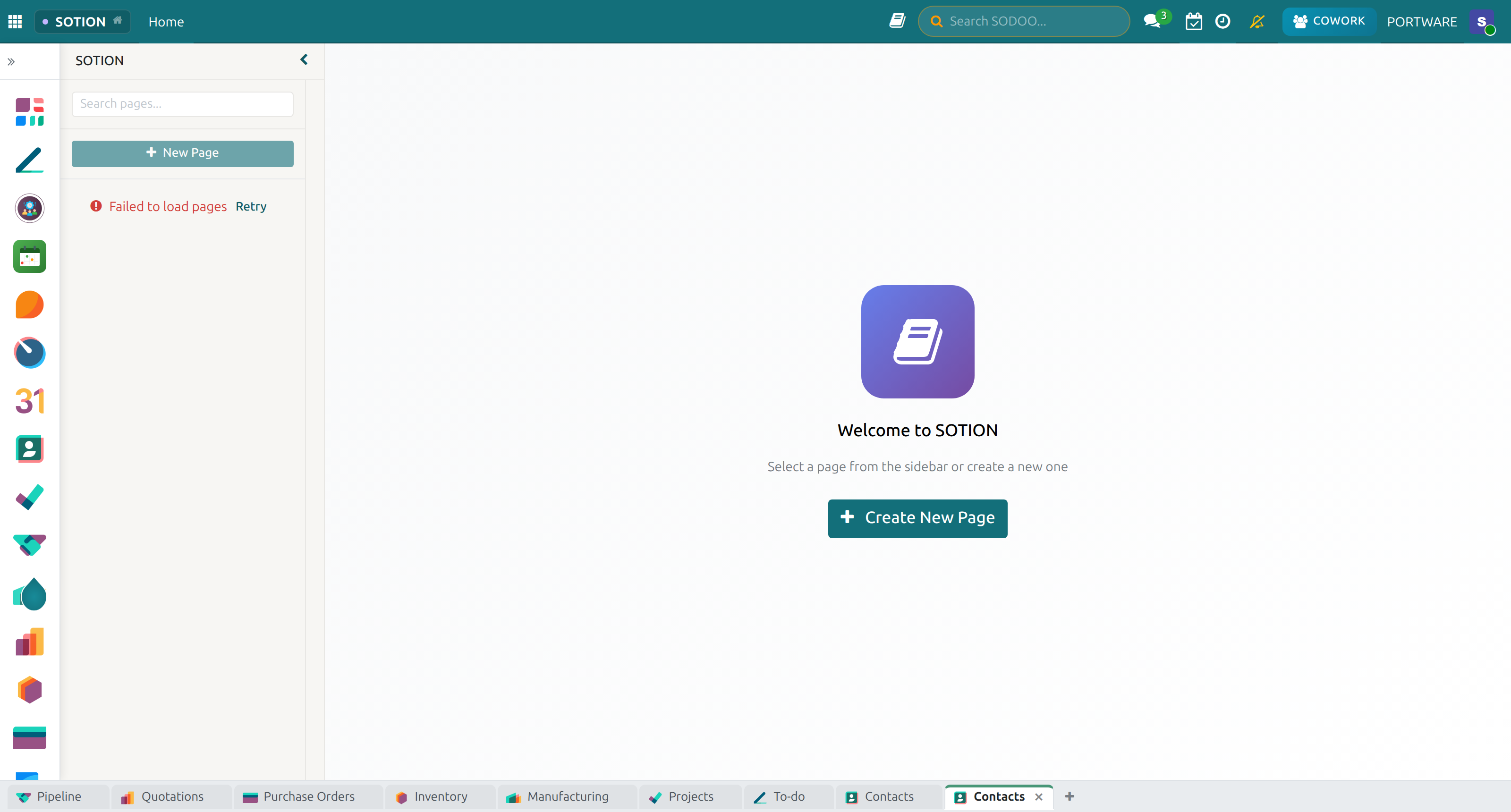
SOTION Home — knowledge management and page organisation
SOTION Pages — the hierarchy and how it is organised
Workspace Detail — the contents of a workspace
Variables Panel — managing a page's variables
Using Variables — a variable rendered inside page content
Select Properties — status labels and colour options
Page Detail — rich content and formatting
A published page — content ready to share
Workspaces — how workspaces are organised
Workspace Settings — configuring a workspace
Rules Table — the content configuration rules
SODOOC - Office Document Editing
Learning Objectives
- Edit Word, Excel, and PowerPoint files directly in the browser
- Collaborate in real-time with colleagues on the same document
- Use track changes and version history effectively
- Configure SODOOC for your organization
SODOOC (powered by OnlyOffice Document Server) enables full Office document editing directly within SODOO. No need to download files, edit locally, and re-upload — everything happens in the browser, seamlessly integrated with SODOO's attachment system.
Full Office Compatibility
SODOOC supports all major Office formats: DOCX, DOC, ODT (Word-compatible), XLSX, XLS, ODS (Excel-compatible), PPTX, PPT, ODP (PowerPoint-compatible). Open and save directly — no conversion needed.
Word Document Editing
Edit DOCX files with a full-featured word processor: styles, tables, headers, footnotes, mail merge, and all standard formatting options. Changes are saved automatically back to the SODOO attachment.
Key Features
- Track Changes: Review mode shows who changed what and when
- Comments: Inline comments with reply threads
- Compare Documents: Side-by-side comparison with revision tracking
- Templates: Reuse standard document templates
- PDF Export: Export to PDF directly from the editor
Opening a Document in SODOOC
- Attach a DOCX/XLSX/PPTX file to any SODOO record (e.g., a project task or sale order)
- In the Chatter attachment panel, click the Edit icon on the file
- SODOOC opens in a new tab with the full document editor
- Edit the document — changes auto-save every 2 seconds
- Close the tab when finished — the updated file is saved in SODOO
Spreadsheet Editing
Full Excel-compatible spreadsheet editing with 400+ formulas, pivot tables, charts, conditional formatting, and data validation. Collaborate with your team on financial models, budgets, and data analysis files.
Supported Excel Features
| Feature | Support Level |
|---|---|
| Basic formulas (SUM, IF, VLOOKUP, INDEX/MATCH) | Full support |
| Pivot Tables | Full support |
| Charts (bar, line, pie, scatter) | Full support |
| Conditional Formatting | Full support |
| Data Validation | Full support |
| VBA Macros | Not supported |
Presentation Editing
Create and edit PowerPoint-compatible presentations with slide layouts, animations, speaker notes, and embedded media. Perfect for preparing client presentations directly in the context of your CRM opportunity.
Real-time Collaboration
Multiple team members can edit the same document simultaneously. SODOOC offers two co-editing modes:
Fast Mode
- Changes visible to all editors in real-time (1-2 second delay)
- Best for active collaboration sessions
- Each user's cursor is visible
- Ideal for brainstorming and co-writing
Strict Mode
- Changes saved in batches, more control
- Best for independent editing with less conflict
- Lock sections while editing
- Ideal for structured review workflows
Version History
SODOOC automatically saves the last 10 versions of every document. Access version history from the attachment panel to restore any previous version. Old versions beyond the last 10 are automatically cleaned up.
SODRAW - Diagram Editor
Learning Objectives
- Create diagrams directly within any SODOO HTML field
- Use the
/sodrawcommand to insert diagrams - Export diagrams for use in documents and presentations
- Choose the right diagram type for your communication need
SODRAW integrates the powerful Draw.io diagram editor directly into SODOO. Insert diagrams into any rich text field — SOTION pages, project descriptions, task notes, product descriptions — with a single slash command.
Flowcharts & Process Maps
Document business processes, approval workflows, and system flows visually. Flowcharts are far more effective than written descriptions for communicating how multi-step processes work.
Example: Order Approval Workflow
Create a flowchart showing: Sales rep creates quote → Manager approval for orders >$5K → Finance approval for orders >$50K → Customer confirmation → Production starts.
- In any SOTION page or rich text field, type
/sodraw - The diagram editor opens in the browser
- Drag flowchart shapes onto the canvas and connect them
- Add labels, conditions, and decision branches
- Click Save — the diagram is embedded in the page
Organization Charts
Create org charts for departments, project teams, and reporting structures. SODRAW's built-in org chart layout automatically arranges hierarchical relationships cleanly and professionally.
Technical Diagrams
Document system architectures, network topologies, database schemas, and infrastructure layouts. SODRAW includes specialized shape libraries for AWS, Azure, network equipment, UML, and more.
| Diagram Type | Best Use Case | Available Shapes |
|---|---|---|
| Flowchart | Process documentation, workflows | Start/End, Decision, Process, Data |
| Org Chart | Team structure, reporting lines | Person, Department, Role |
| Network | IT infrastructure, topology | Router, Switch, Server, Cloud |
| UML | Software design, class diagrams | Class, Interface, Actor, Component |
| BPMN | Business process modeling | Events, Gateways, Tasks, Pools |
| Mind Map | Brainstorming, idea organization | Central idea, branches, leaves |
exTable - Advanced HTML Tables
Learning Objectives
- Use Excel-like table editing within HTML fields
- Multi-cell selection and bulk formatting
- Keyboard navigation for rapid data entry
exTable transforms the standard HTML table editor into an Excel-like experience. Select multiple cells, paste from spreadsheets, navigate with keyboard shortcuts, and format cells with visual controls.
Key Features
Multi-cell Selection
Click and drag to select a range of cells. Apply formatting to the entire selection at once.
Clipboard Support
Copy data from Excel or Google Sheets and paste directly into exTable fields. Column mapping is preserved.
Keyboard Navigation
Use Tab/Shift+Tab, arrow keys, and Enter to navigate cells without touching the mouse.
Cell Formatting
Bold, italic, background colors, text alignment, and borders — all accessible from the toolbar.
Discuss - Team Messaging
Learning Objectives
- Communicate with team members through channels and direct messages
- Use mentions to notify specific people
- Integrate messaging with ERP records via the Chatter
Discuss is SODOO's internal messaging system. Unlike external chat tools, Discuss is deeply integrated with your business data — conversations happen in context of the ERP records they relate to.
Core Features
Channels
Create public or private channels for departments, projects, or topics. #sales, #support, #project-alpha, etc.
Direct Messages
One-on-one or small group conversations. Faster than email for quick clarifications.
Mentions
Use @username to notify specific people. They receive a notification and can respond in context.
File Sharing
Share files directly in conversations. Attachments are searchable and linked to the conversation.
The Chatter: In-context Collaboration
Every SODOO record (sale order, invoice, project task, opportunity) has a Chatter — a conversation thread attached to that specific record. Team members can discuss, assign activities, and track the history of any record without leaving the context.
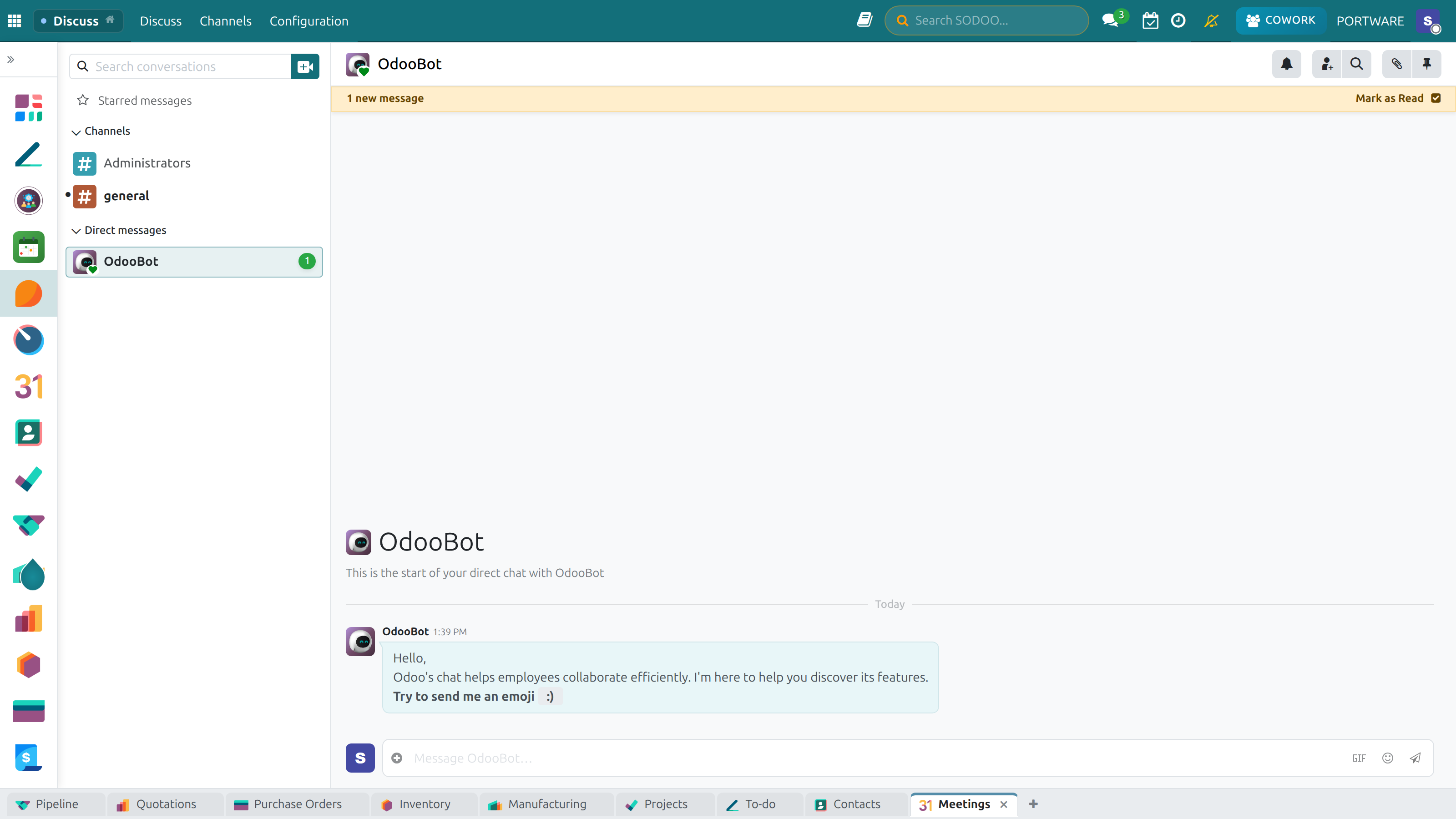
Discuss Home — team communication and messaging
The General channel — company-wide chat and sharing
Channels, Kanban View — organising channels visually
Channels in Kanban — detailed channel cards
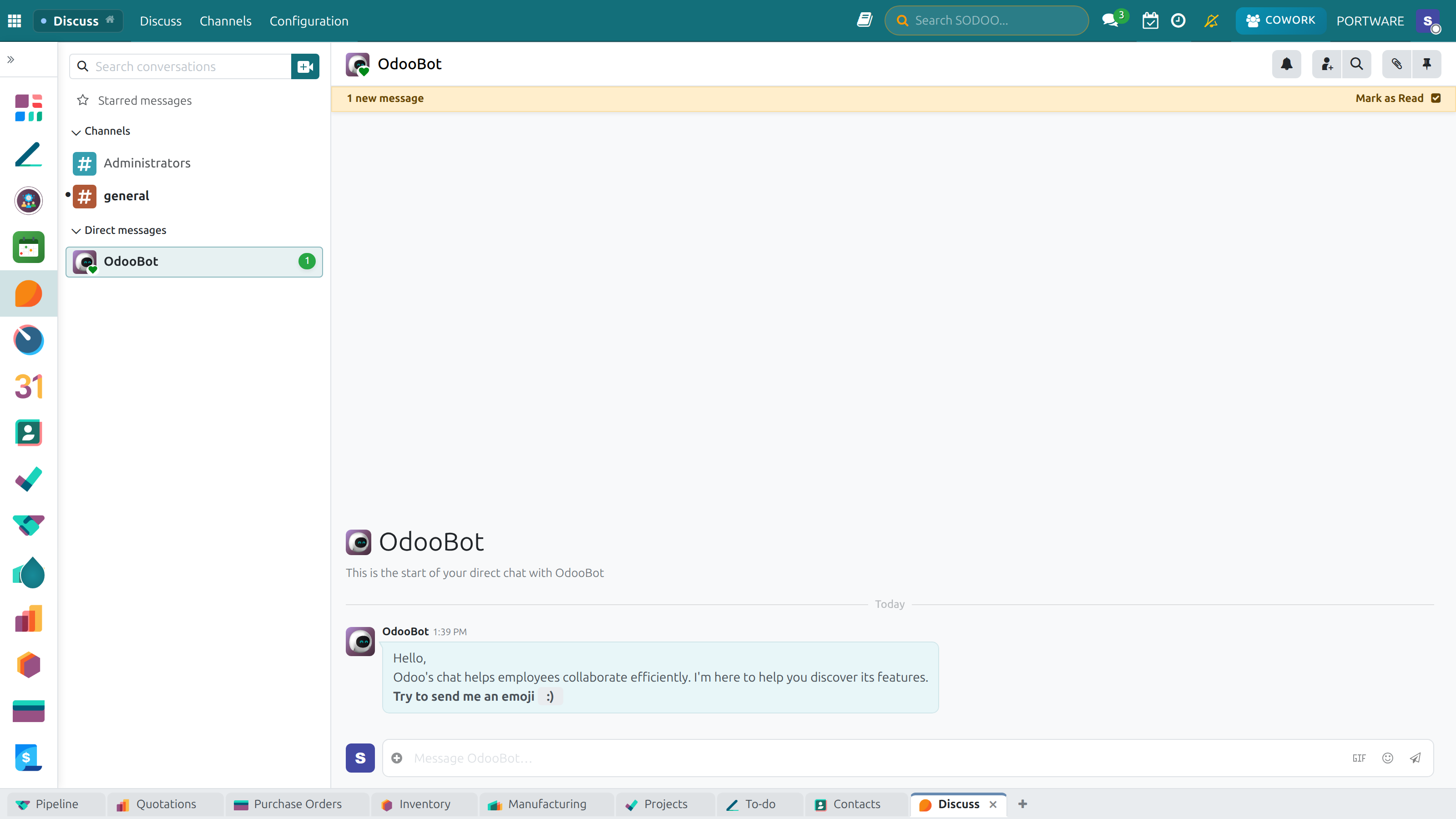
Channels List — managing every communication channel
Voice and Video Settings — configuring microphone and camera
Call Settings — choosing a device and testing it
Advanced Call Settings — audio and video configuration
Announcement draft — the preview before publishing
The new announcement form
Calendar & Appointments
Learning Objectives
- Schedule and manage meetings with multiple attendees
- Switch between day, week, month, and list views
- Synchronize with Google Calendar or Microsoft Outlook
- Use the Appointments feature for online booking
SODOO's Calendar provides comprehensive scheduling capabilities integrated with CRM activities, project milestones, and team collaboration. Share availability, schedule resources, and track all team events in one view.
Calendar Views
| View | Best For |
|---|---|
| Day | Detailed hour-by-hour planning, back-to-back meetings |
| Week | Weekly overview, spotting scheduling conflicts |
| Month | Monthly planning, holidays, key deadlines |
| List | Chronological event list, filtering by type or attendee |
Creating Meetings
Appointments Module
The Appointments feature lets customers book time slots directly through a public booking page. Define availability, meeting types, and duration — SODOO automatically blocks calendar slots and creates CRM activities.
Week View — an overview of the week's events
Creating an Event — meeting details and invitees
Meeting Agenda — setting the agenda items for an event
Public Event — a meeting visible across the company
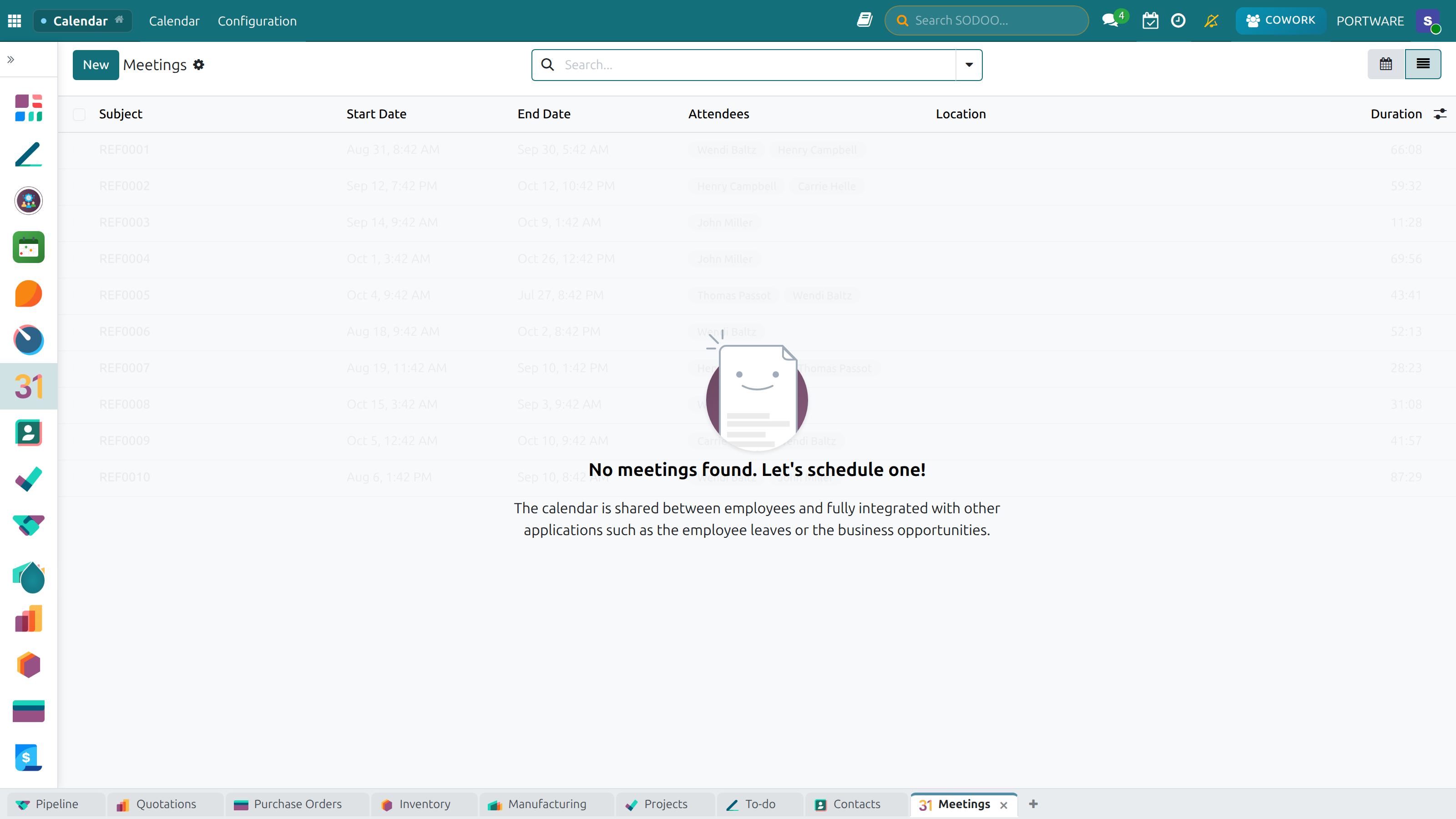
Meetings List — every event in list view
Event form — the detailed meeting settings
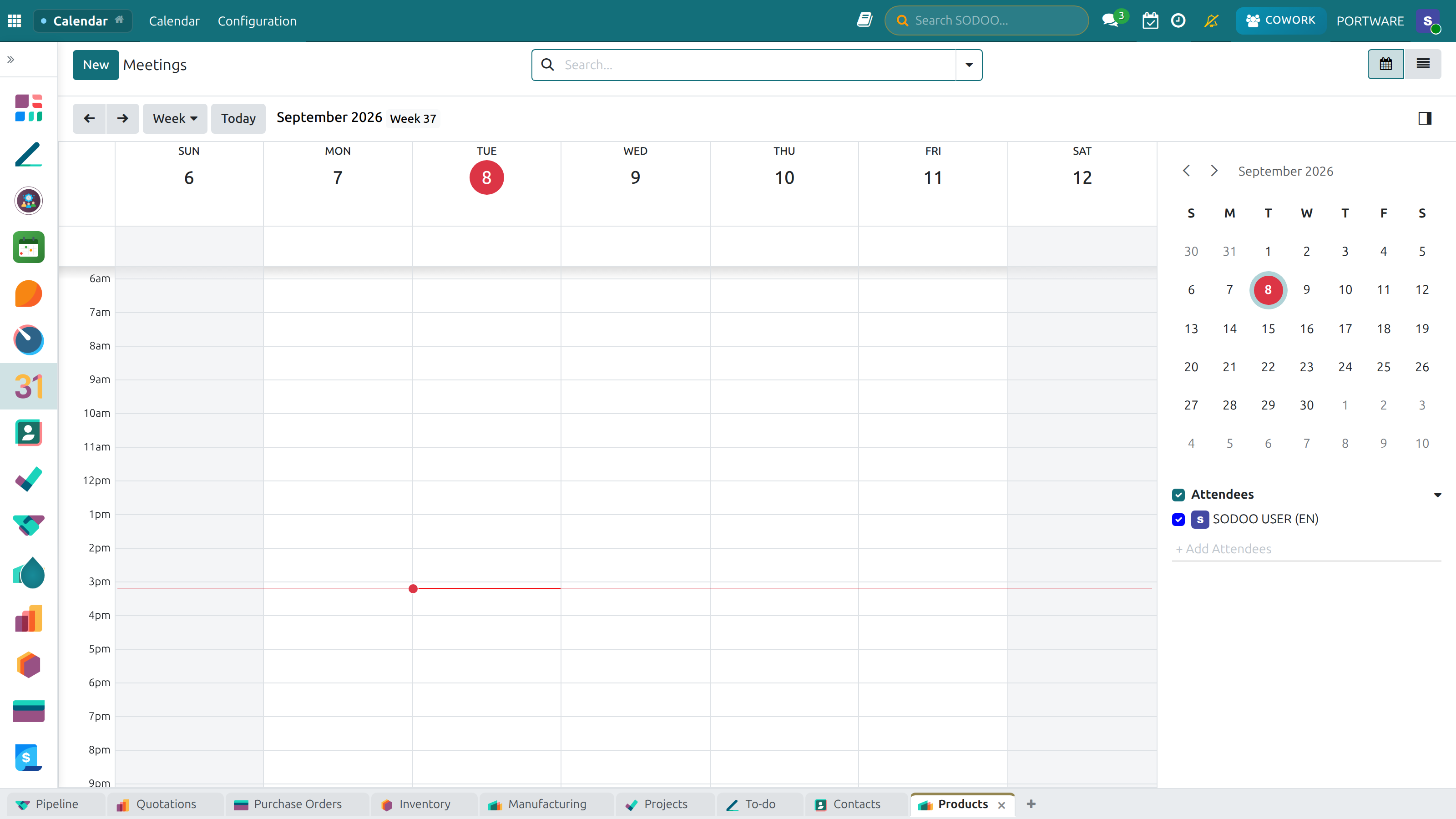
Kanban View — organise events by dragging and dropping
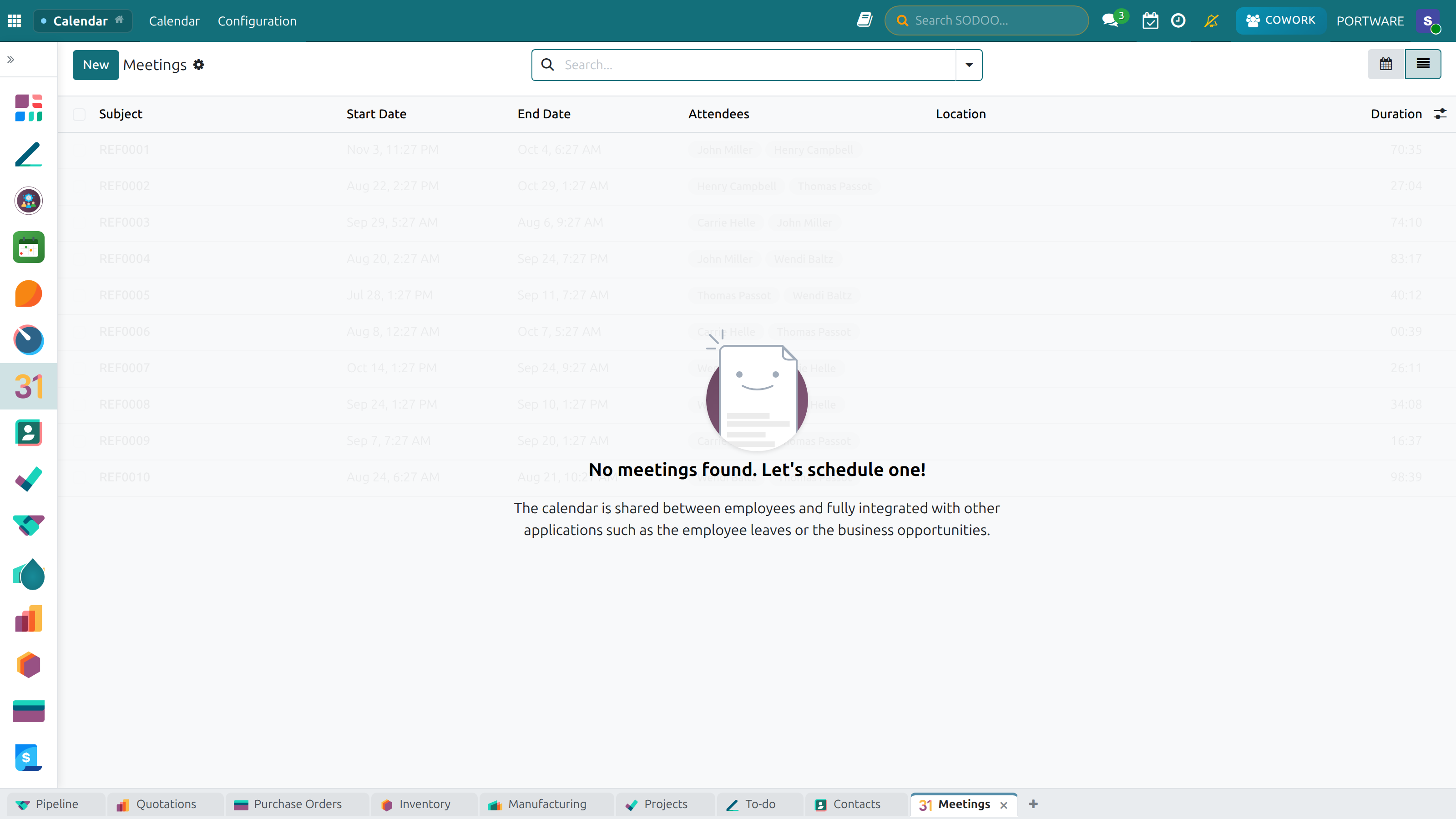
List View — every event in chronological order
To-Do & Tasks
Learning Objectives
- Manage personal tasks with kanban and list views
- Create custom stages to match your workflow
- Filter tasks by priority, deadline, and status
The To-Do module provides a lightweight personal task manager. Create tasks, assign deadlines, set priorities, and organize them through custom stages. Unlike project tasks (which belong to a project), To-Do tasks are personal.
Task Views
Kanban View
Drag-and-drop tasks between stages. Visual overview of your personal workflow. Perfect for GTD (Getting Things Done) methodology.
List View
Detailed list of all tasks with inline editing. Sort by deadline, priority, or stage. Bulk actions available.
Custom Stages
Create personal workflow stages that match how you work. Examples:
- Research → In Progress → Review → Done
- This Week → Today → Doing Now → Complete
- Backlog → Planned → Active → Delivered
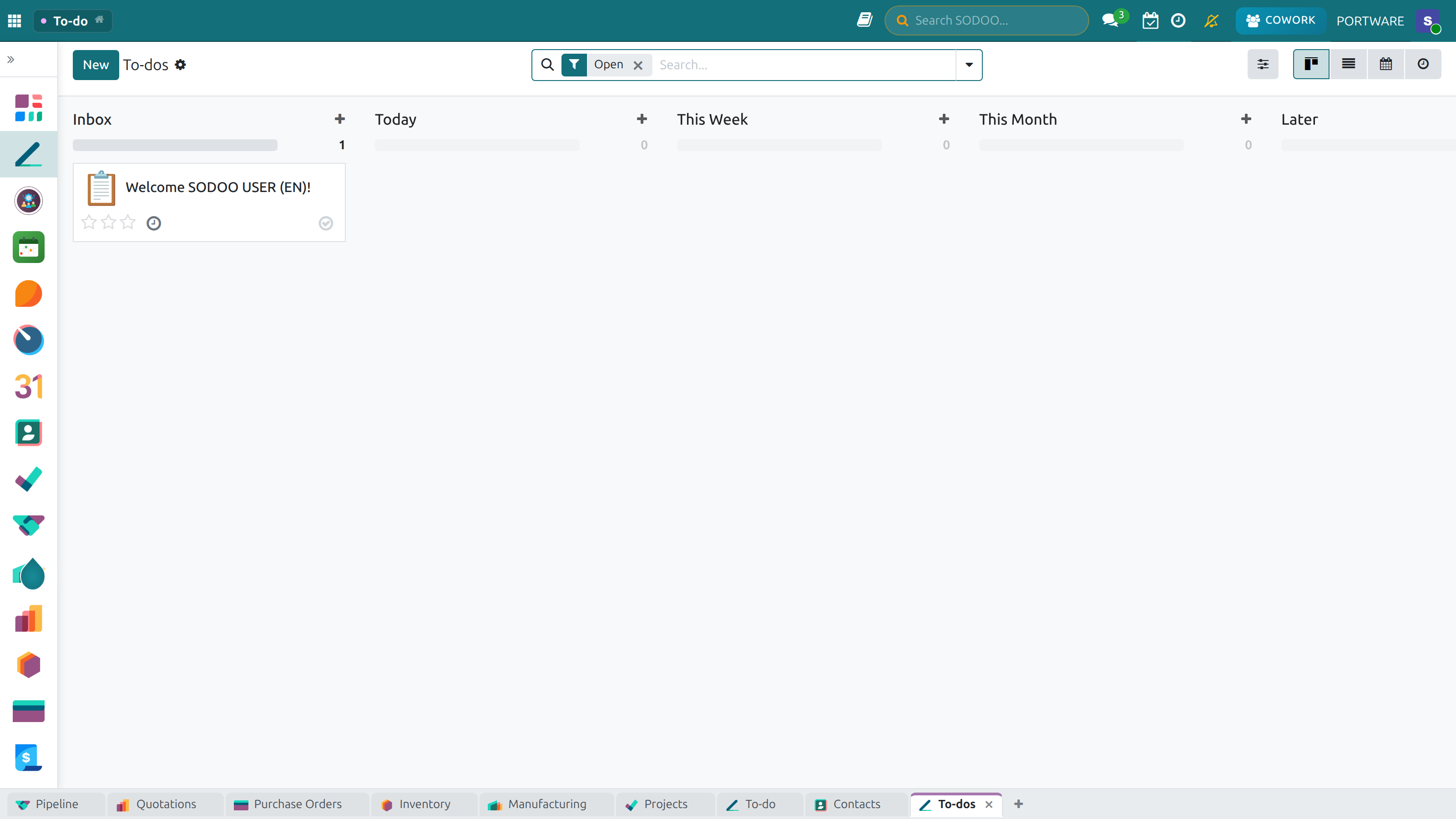
Kanban View — manage tasks by dragging and dropping
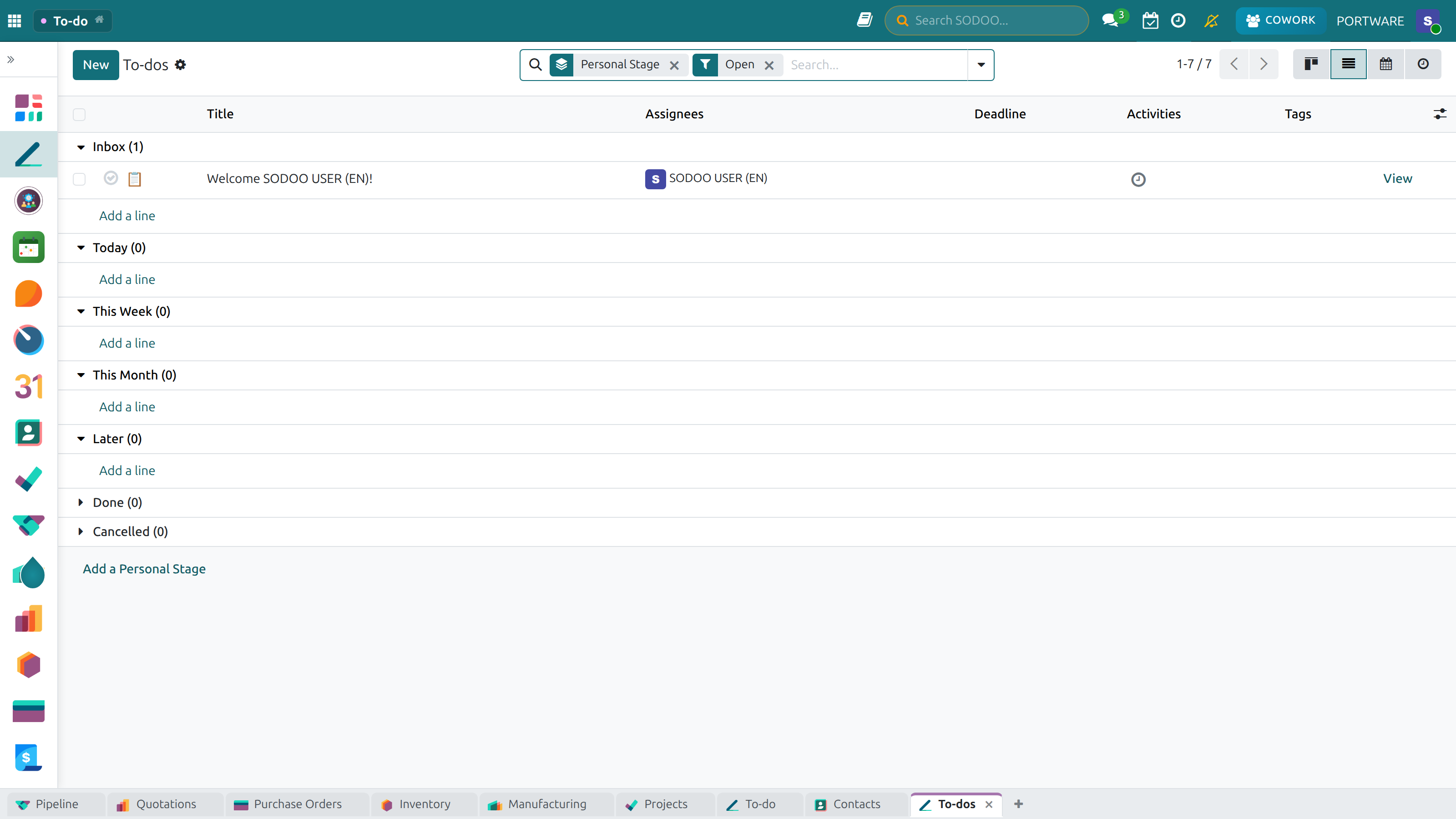
List View — a detailed list of every task
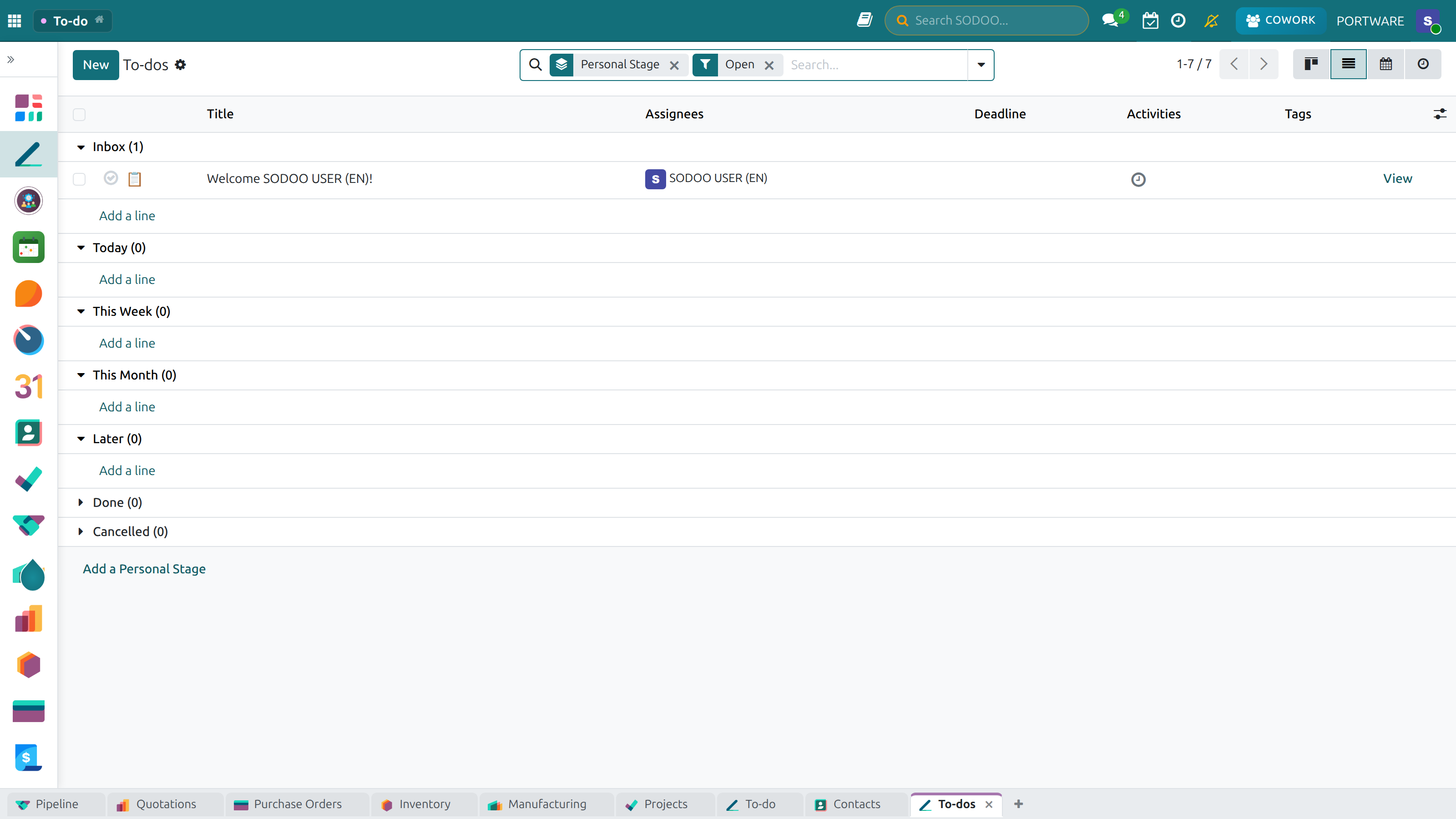
Task filtering — by priority and status
Personal Stages — build your own workflow
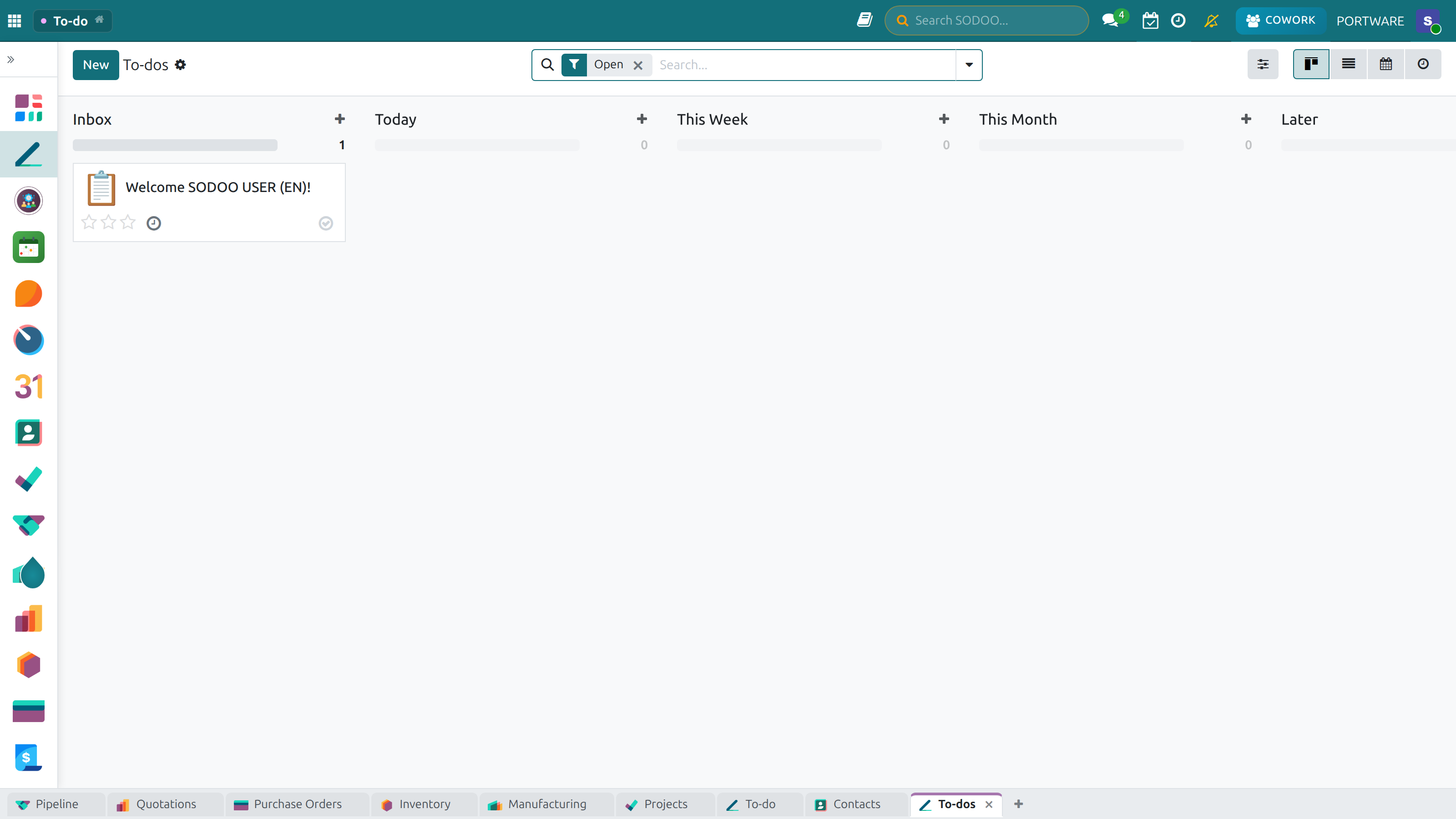
Kanban Filtering — filtering tasks by category
Activity Center
Learning Objectives
- Track all activities across SODOO from a single dashboard
- Distinguish between "My Tasks" and "All Tasks" views
- Filter activities by date, type, and overdue status
- Use the Activity Center as your daily work hub
The Activity Center is your command center for all activities across SODOO. CRM follow-ups, project tasks, sales activities, scheduled calls, meetings — everything visible in one place, regardless of which module they belong to.
Activity Center Views
| View | What You See | Best For |
|---|---|---|
| My Tasks | Tasks assigned specifically to you | Daily personal planning |
| All Tasks | Tasks for the entire organization | Manager oversight, workload balancing |
| All Activities | CRM activities, calls, meetings, emails | Comprehensive activity tracking |
Filtering & Overdue Tracking
Filter activities by date, type, responsible person, and overdue status. Overdue activities are highlighted in red — immediately visible for urgent action.
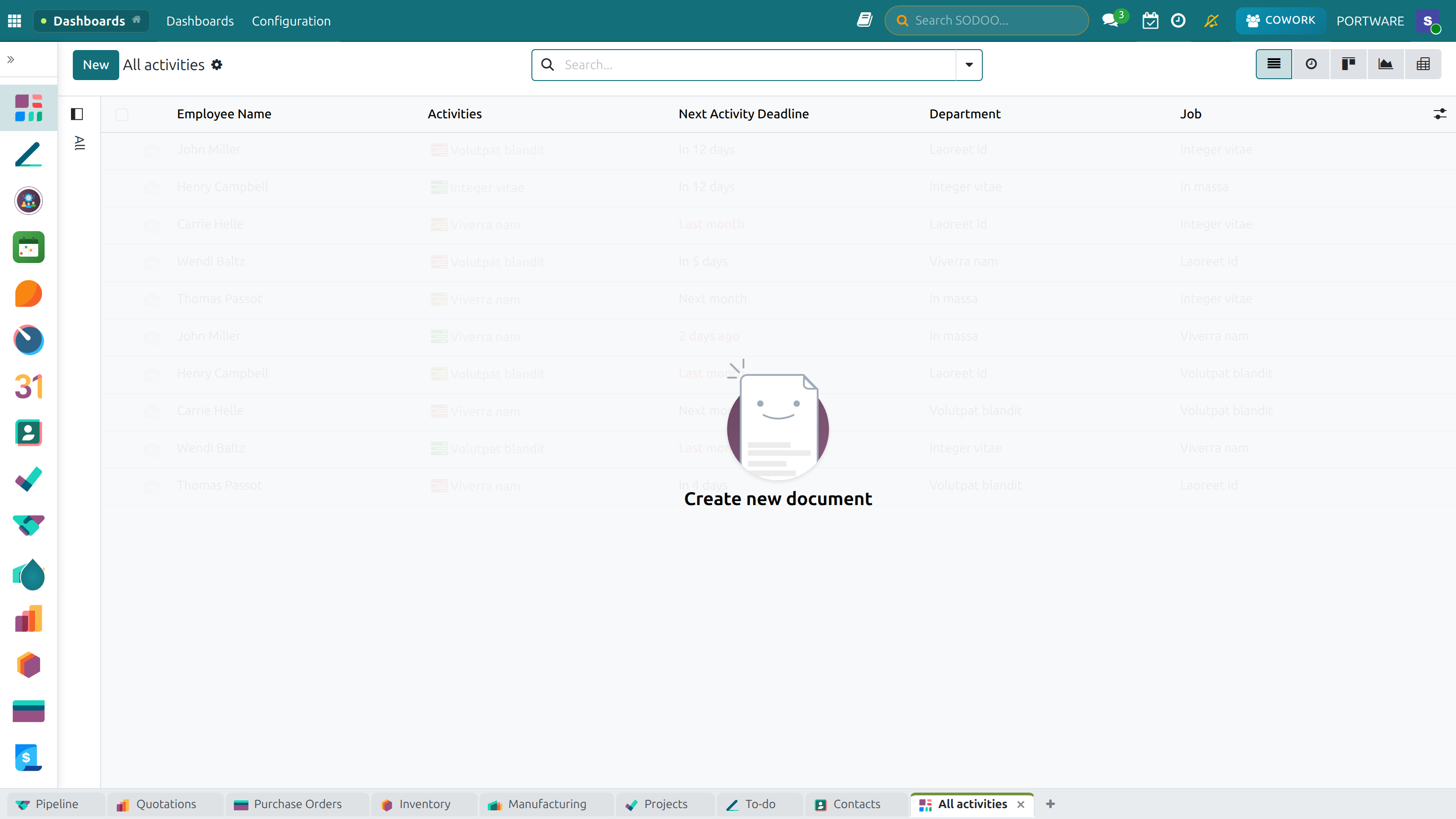
Activity Centre — manage all your activities from one place
Activity Dashboard — summary statistics and quick access
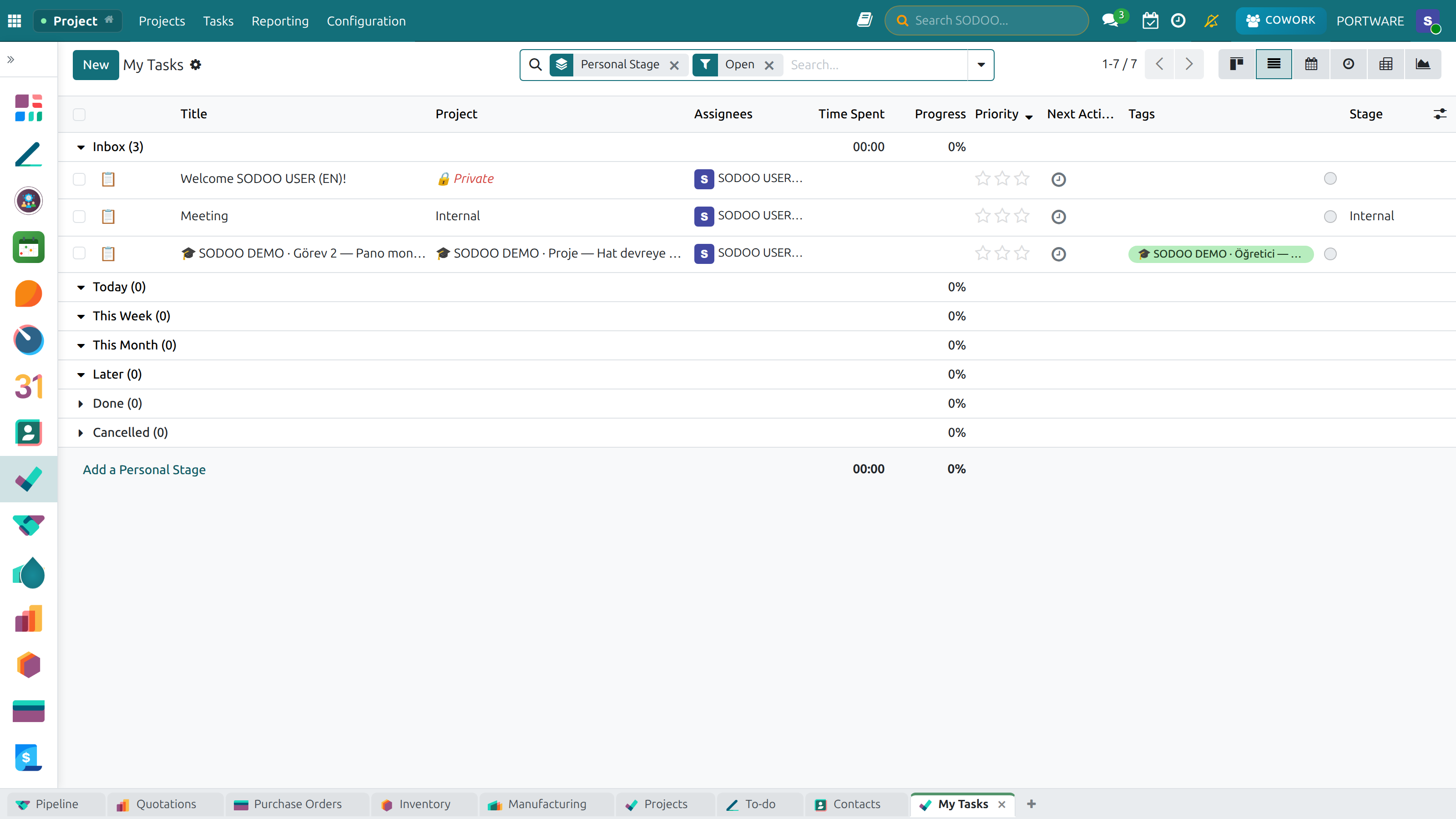
My Tasks — everything assigned to you
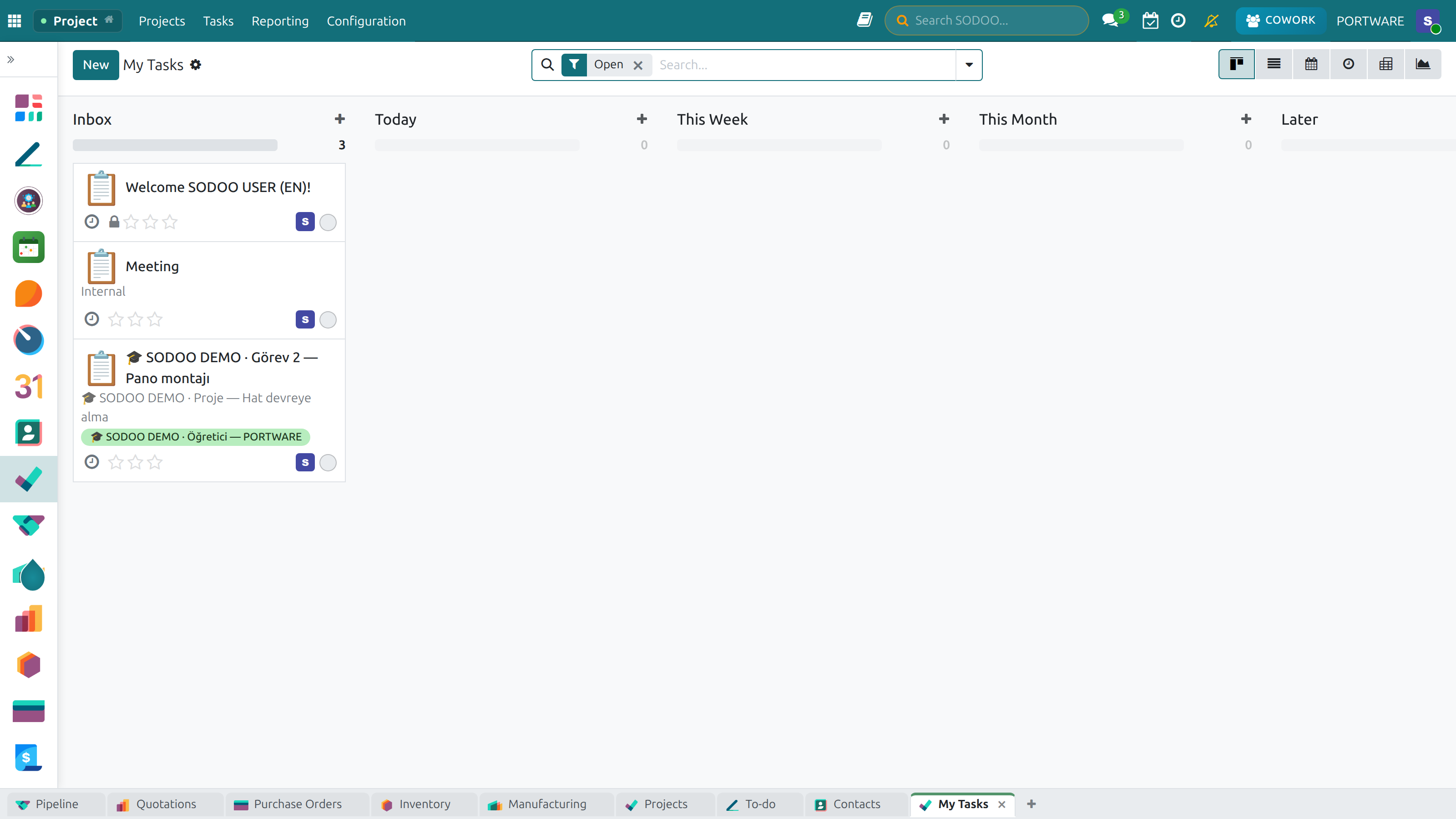
Kanban View — manage tasks by dragging and dropping
Kanban Detail — expanding a task card
Kanban Grouping — the grouping options available
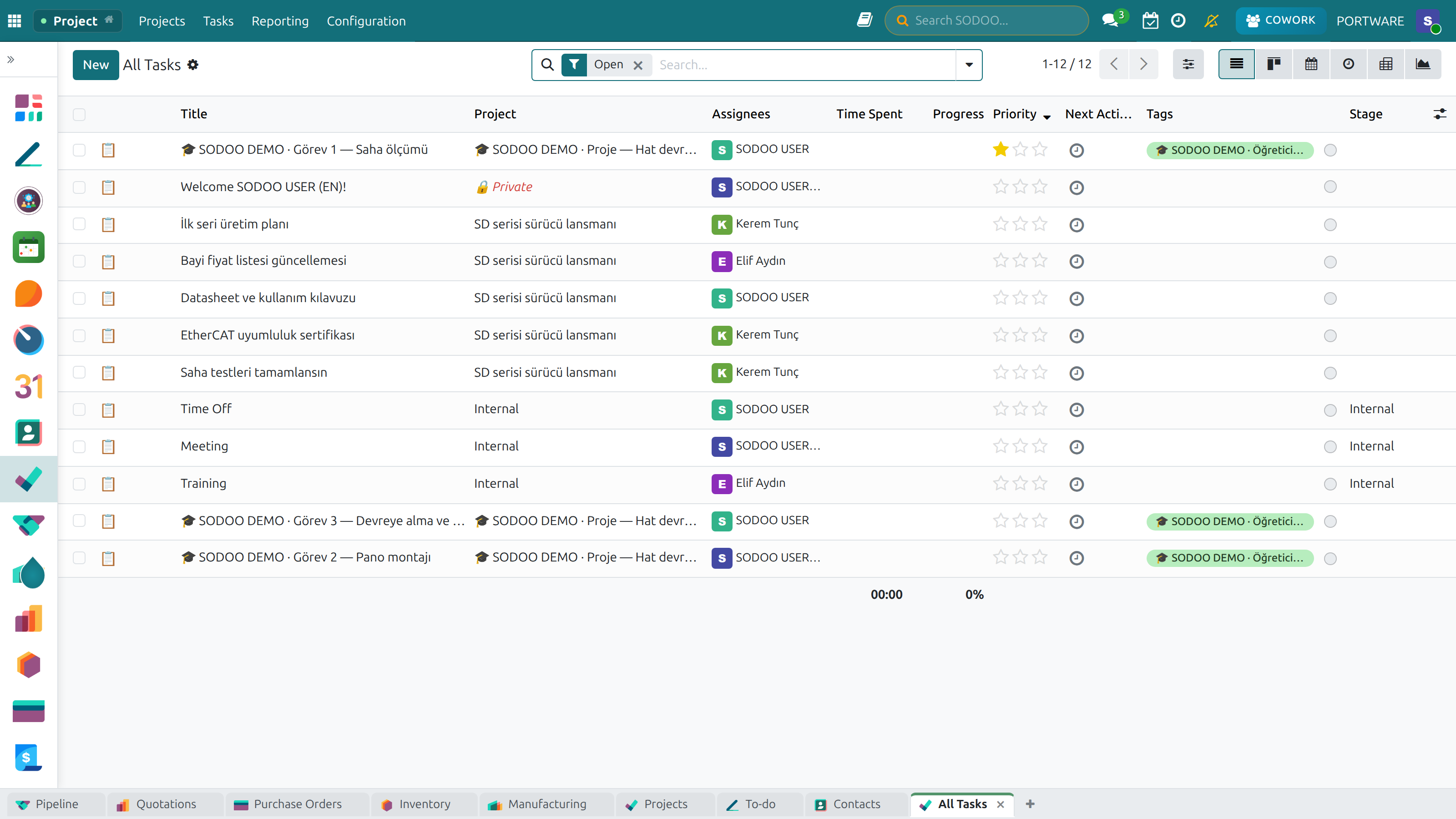
All Tasks — tracking work across the team
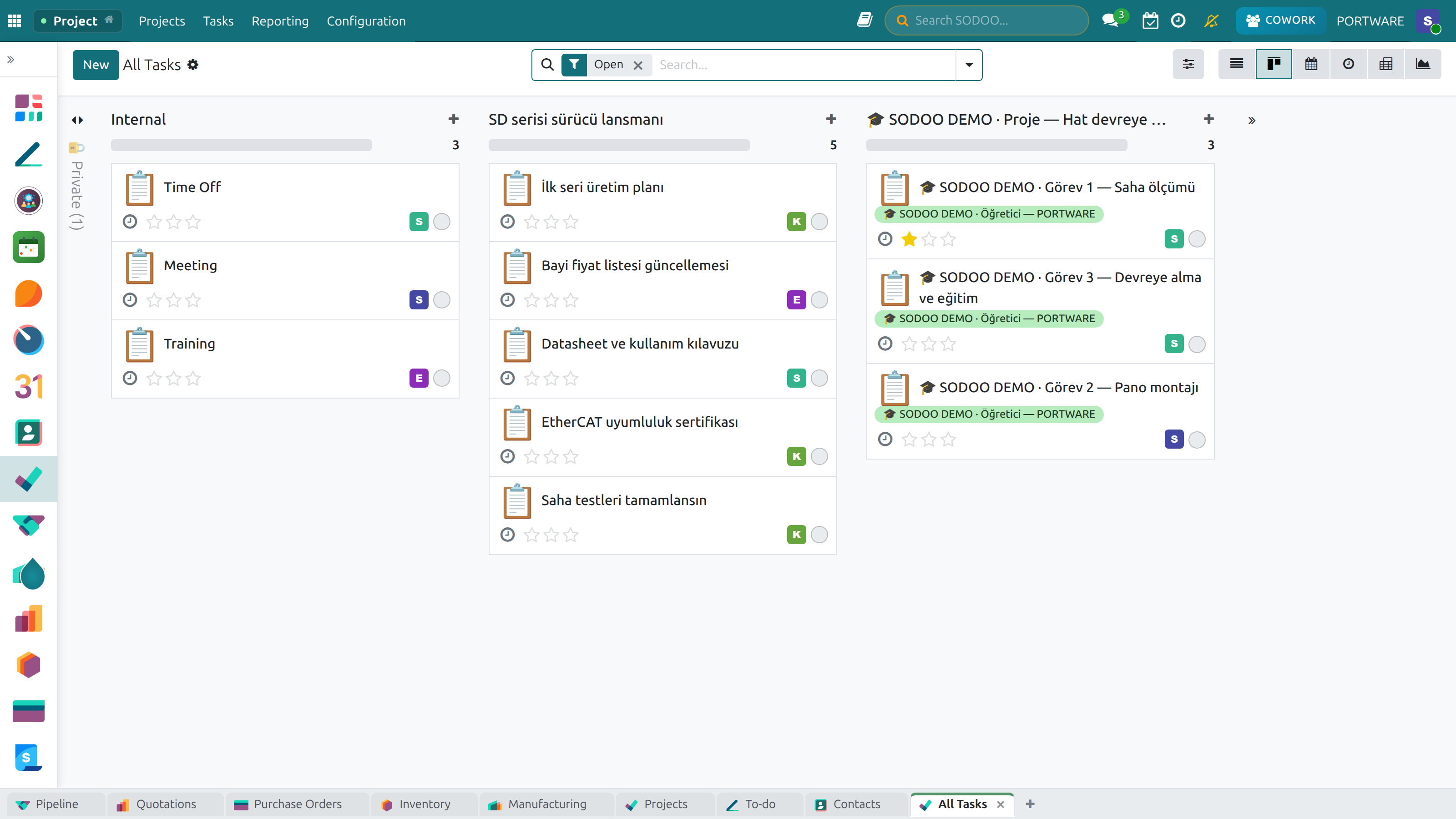
All Tasks, Kanban — the team's workflow
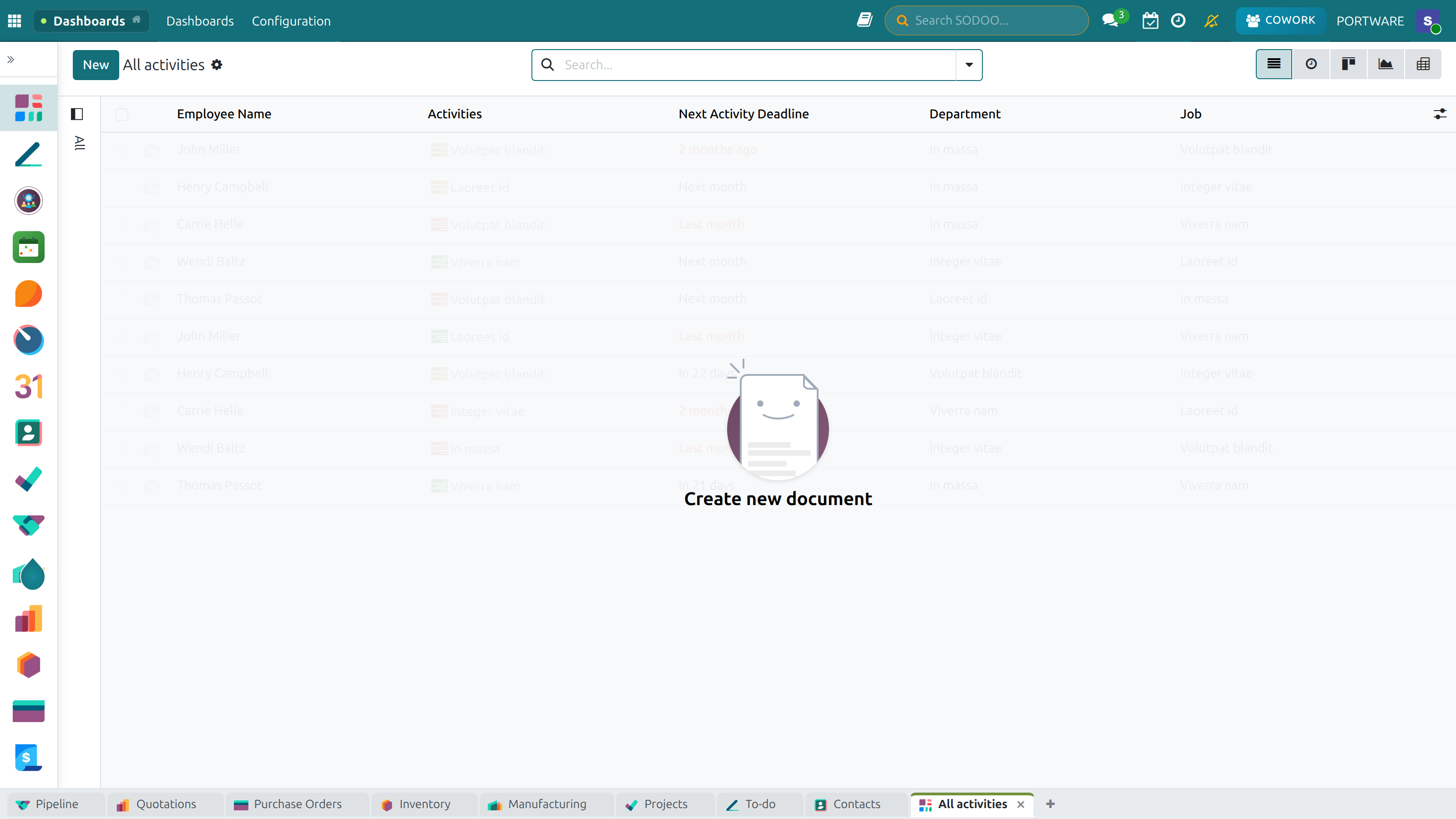
All Activities — the full activity list
Activity Management — the detailed activity list
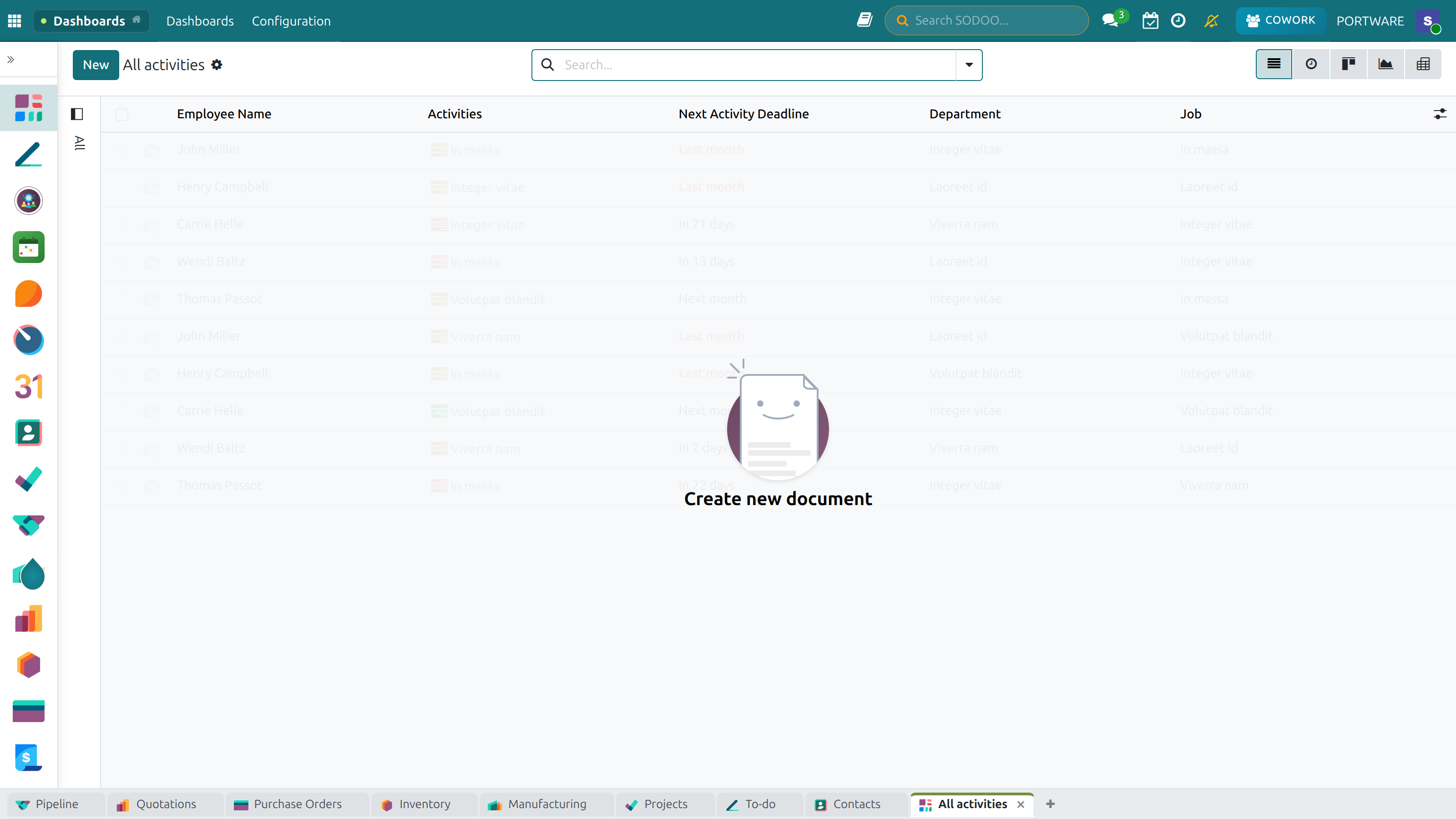
List View — activities in a table
Activity Management Panel — bulk actions and management tools
Filter Options — the filtering criteria available
Task Filters — filtering tasks by various criteria
Advanced Filters — combining several filters at once
Overdue Tasks — filtering activities past their deadline
Sign - Digital Signatures
Learning Objectives
- Send documents for electronic signature
- Define required signature fields and their positions
- Track signature status and send reminders
- Store signed documents securely
Sign enables legally binding electronic signatures on contracts, agreements, NDAs, and any PDF document. Send documents to internal or external recipients and track the signing process in real time.
Signing Workflow
Signature Types
Draw signature, type name, upload image. Date, initials, and custom text fields also supported.
Automated Reminders
Configure automatic reminder emails for pending signatures. Track who has signed and who hasn't.
Audit Trail
Full audit trail with timestamp, IP address, and identity verification for legal compliance.
Multi-party Signing
Sequential or parallel signing workflows. Define the order of signatories for complex contracts.
Documents
The Documents module is SODOO's central file repository. Organize files in workspaces, apply tags, share with internal or external users, and manage access rights. Unlike attachments on records, Documents provides a standalone file management system with folder hierarchy.
Key Features
Workspace Organization
Create workspaces for Finance, HR, Legal, etc. Set access rights per workspace to control who sees what.
Tagging System
Tag documents with multiple labels (contract, invoice, 2024, customer-X). Filter and search by any combination of tags.
Sharing
Share documents with external parties via secure links with optional expiration and download limits.
Automation
Auto-process uploaded documents: extract data from invoices, create records from scanned contracts.
Data Cleaning
Learning Objectives
- Detect and merge duplicate records in customers, contacts, and products
- Complete missing data fields systematically
- Improve overall data quality in your SODOO instance
The Data Cleaning module helps maintain high-quality master data. As data accumulates in any ERP system — from manual entry, imports, and API integrations — duplicates and inconsistencies emerge. Data Cleaning provides tools to detect, review, and resolve these issues.
Core Features
- Duplicate Detection: Automatically identify similar records using fuzzy matching on names, emails, and phone numbers
- Record Merging: Merge duplicate records while choosing which values to keep from each record
- Field Completion: Identify records with missing key fields (phone, email, country) and complete them in batch
- Format Standardization: Standardize phone number formats, email domains, and address formats
Data Cleaning — finding duplicate records and merging them
Integrations
SODOO's productivity tools integrate with popular external services:
| Integration | Module | What It Does |
|---|---|---|
| Google Calendar | Calendar | Bidirectional sync of events and meetings |
| Microsoft Outlook | Calendar | Bidirectional sync of calendar events |
| WhatsApp Business | Discuss / CRM | Send and receive WhatsApp messages from CRM |
| VoIP (SIP/Asterisk) | Discuss / CRM | Click-to-call, automatic call logging |
| OnlyOffice Document Server | SODOOC | Powers the SODOOC document editing feature |
| OpenAI / Anthropic / etc. | AI COWORK | AI provider APIs for the AI assistant |
Frequently Asked Questions
What is the difference between SOTION and Odoo Knowledge?
Odoo Knowledge is an Enterprise Edition feature. SOTION is SODOO's custom,
Notion-inspired alternative built for the Community Edition. SOTION includes
the variable system ({{...}}), select property labels ([[...]]),
and richer organization features not available in standard Knowledge.
How many people can edit a SODOOC document simultaneously?
There is no hard limit, but practical performance is optimal with 10-15 simultaneous editors. Hundreds of users can view a document at once. As the number of active editors increases, synchronization latency may increase slightly.
Which AI provider should I use for AI COWORK?
Use Auto mode for best results — the system selects the optimal provider automatically. If you want manual control: use Claude/GPT-4 for complex reasoning, DeepSeek/Groq for simple queries to save cost, and Groq for the fastest response times.
Can I export SODRAW diagrams?
Yes. SODRAW diagrams can be exported as PNG, SVG, and PDF. You can also copy the diagram to paste into other applications. The embedded XML in the PNG means you can always re-edit the diagram.
Does exTable support formulas?
No. exTable is an advanced HTML table editor, not a spreadsheet. It does not include a formula engine. For calculation-heavy tables, use SODOOC (Excel format). exTable is best for structured data presentation, comparison tables, and reference data.
How long is SODOOC version history kept?
SODOOC automatically retains the last 10 versions per document. Older versions are automatically pruned. For critical documents, manually save copies of important milestones as separate attachments.
Is AI COWORK safe? Can it accidentally delete data?
AI COWORK has a safety-first design. All write operations (creating, updating, or deleting records) require explicit confirmation from you before execution. Read-only queries (searching, viewing data) run automatically. The AI will always show you exactly what it plans to do and ask for your approval before making any changes.
Can AI COWORK search the web?
Yes. AI COWORK includes web search integration. It can search for company information, weather, news, and external data. For weather queries, it uses the wttr.in API for accurate forecasts. For general research, it uses DuckDuckGo and Wikipedia as sources.
Best Practices
Structure SOTION Early
- Define workspace structure before adding content
- Use consistent naming conventions for pages
- Create a "Getting Started" page as the entry point
- Archive outdated pages rather than deleting them
- Review and update content quarterly
Effective AI COWORK Usage
- Be specific: include names, dates, amounts in commands
- Use Auto mode for cost optimization
- Review AI proposals before confirming write actions
- Save useful conversation sessions for reference
- Start with read-only queries to learn what the AI can do
SODOOC Collaboration
- Establish document ownership and naming conventions
- Use Track Changes for review processes
- Create document templates for frequently used formats
- Lock sensitive sections while working
- Use comments instead of inline edits for suggestions
Activity Management
- Check the Activity Center every morning as your first action
- Address or reschedule overdue activities immediately
- Set realistic deadlines for activities
- Use activity types to categorize work (Call, Email, Meeting)
- Review your team's workload weekly as a manager
Effective Diagrams
- Keep diagrams simple — one diagram per process
- Use consistent color coding across diagrams
- Add a legend for complex diagrams
- Link diagrams to related SOTION pages
- Update diagrams when processes change
Data Quality
- Run Data Cleaning checks monthly
- Define mandatory fields for key records
- Establish data entry standards (address format, phone format)
- Review and merge duplicates before they multiply
- Train users on proper data entry from the start