Human Resources
Manage your entire workforce from a single platform — recruitment, onboarding, attendance, payroll, expenses, and performance reviews, all connected and automated.
- The whole employee journeyOne employee record from hiring to leaving.
- Payroll installedSalary calculation and accounting integration on Community, with no extra licence.
- Connected to planningApproved leave and working calendars show up in team workload.
Human Resources
Manage your entire workforce from a single platform — recruitment, onboarding, attendance, payroll, expenses, and performance reviews, all connected and automated.
Introduction
SODOO Human Resources (HR) is a comprehensive workforce management solution designed to simplify every aspect of managing people — from the moment a candidate applies for a job to the day an employee retires. It replaces scattered spreadsheets, disconnected tools, and manual processes with a single, integrated platform.
The SODOO HR suite in the Community Edition is extended with the HRMS Suite (by Cybrosys Techno Solutions), which adds payroll, loan management, attendance tracking, resignation workflows, document expiry alerts, and a comprehensive HR Dashboard.
What You Will Learn
- How to create and manage employee profiles and organizational structure
- How to run a structured recruitment pipeline from job posting to hiring
- How to configure and manage leave types, allocations, and approvals
- How to track attendance, working hours, and overtime
- How to process payroll with customizable salary structures
- How to manage employee expense claims and reimbursements
- How to run performance appraisals and set goals
- How to monitor key HR metrics with the dashboard
Employee Lifecycle
SODOO HR covers the complete employee journey. Each stage has dedicated tools and workflows to ensure nothing falls through the cracks.
Recruit
Onboard
Manage
Pay
Evaluate
Offboard
Recruit
Job postings, application pipeline, interviews, skill assessments, and offer letters — all managed in one place.
Onboard
Create employee profiles, assign contracts, set up system access, schedule induction activities.
Manage
Track attendance, manage leave, monitor documents, handle disciplinary matters and promotions.
Pay
Monthly payroll processing, salary structures, deductions, and automatic accounting integration.
Evaluate
Annual and mid-year appraisals with 360-degree feedback, goal setting, and skill gap analysis.
Offboard
Resignation workflows, exit interviews, final payslip processing, access revocation checklists.
Employee Management
The employee form is the central record for each person in your organization. It stores all relevant information — personal details, job information, emergency contacts, work schedule, documents, and history.
Employee Profile Fields
| Tab | Key Fields |
|---|---|
| Work Information | Job Position, Department, Manager, Work Location, Work Schedule, Company |
| Private Information | Home Address, ID Number, Passport, Gender, Marital Status, Emergency Contact |
| HR Settings | Related User (login), Time Attendance, Attendance Device PIN, Certificate Level |
| Resume | Work Experience Lines, Education, Certifications, Skills |
How to Create an Employee
Navigate to:
- Click New
- Enter the employee's Name and upload their photo
- Set Job Position, Department, and Manager
- Fill in the Work Information tab: location, schedule, work email
- Fill in the Private Information tab: ID, emergency contacts, address
- Go to HR Settings to link the employee to a system user (for self-service portal)
- Save and then create a contract from the employee form
Employee Documents
With the oh_employee_documents_expiry module (HRMS Suite), you can attach important documents (ID cards, work permits, health certificates, driving licenses) to each employee record with expiry dates. SODOO sends automatic reminders before documents expire — preventing compliance issues.
Departments & Job Positions
SODOO uses a hierarchical department structure. Each department can have a parent department, a department manager, and any number of job positions.
Departments
Departments group employees and are used for reporting, access control, approval chains, and organizational charts. You can define the department hierarchy as deep as needed (e.g., Company → Engineering → Backend Team → Platform Squad).
Job Positions vs Job Titles
Job Position
- Organizational role (e.g., "Software Engineer")
- Has a headcount — drives recruitment
- Linked to department
- Can have multiple holders
Job Title
- Employee's displayed title (e.g., "Senior Software Engineer")
- Free text — no headcount tracking
- Personal to the employee
- Appears on business cards and signatures
Employee Contracts
Contracts define the financial and scheduling terms of employment. They are required for payroll processing. An employee can have multiple contracts over time, but only one can be active at any moment.
Contract Fields
- Contract Reference — Unique identifier for the contract
- Contract Type — Permanent, Fixed-term, Part-time, Freelance
- Start / End Date — Contract validity period
- Wage — Gross monthly salary
- Work Schedule — Working hours per week (full-time, part-time)
- Salary Structure Type — Determines available allowances and deductions
- HR Responsible — Person responsible for this contract
Contract Expiry Alerts
- Set End Date on fixed-term contracts
- SODOO automatically warns HR before the contract expires
- Contract status automatically changes to "Expired" on end date
- Prevents payroll processing for expired contracts
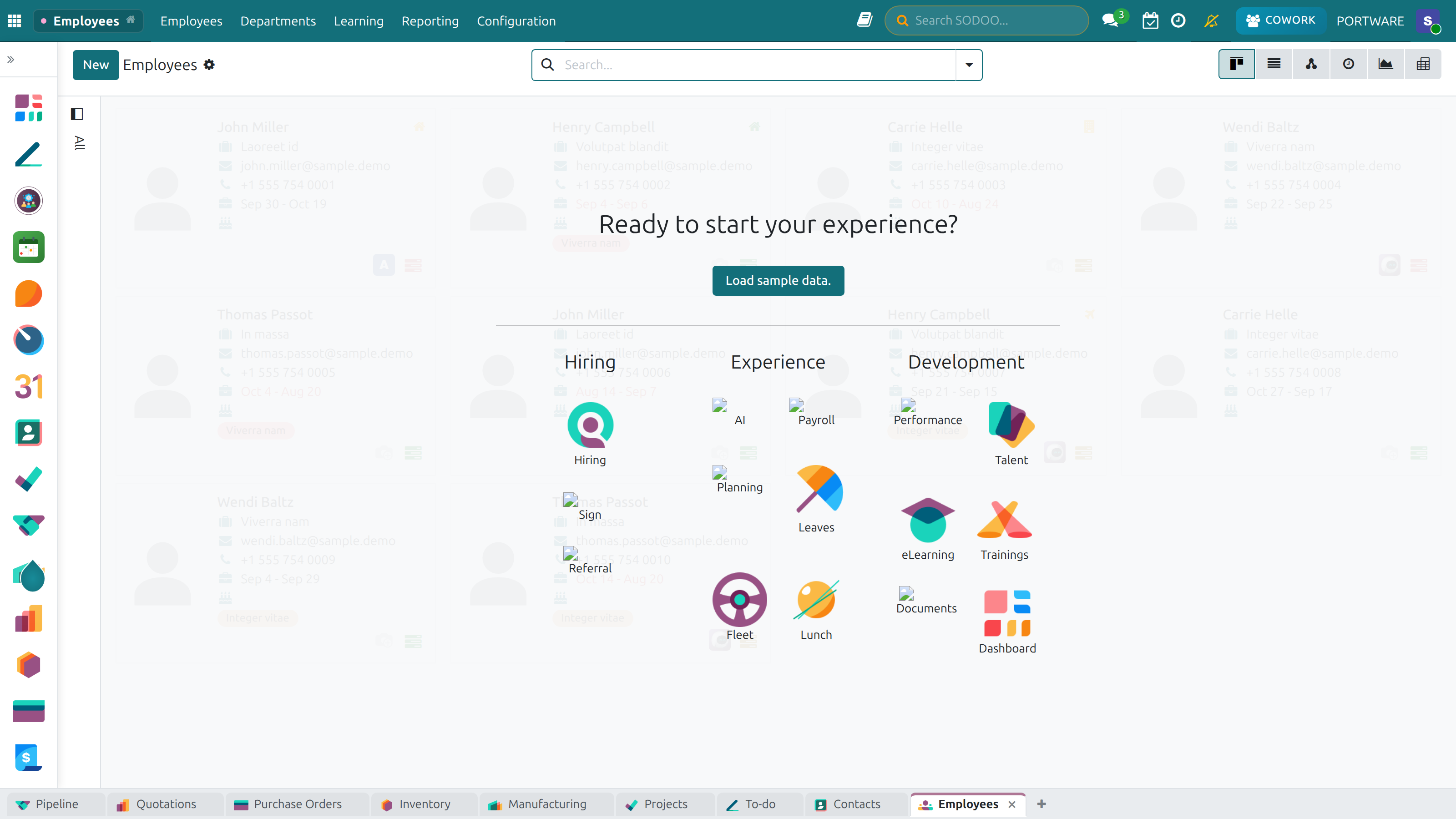
Employees — the staff list and personnel records
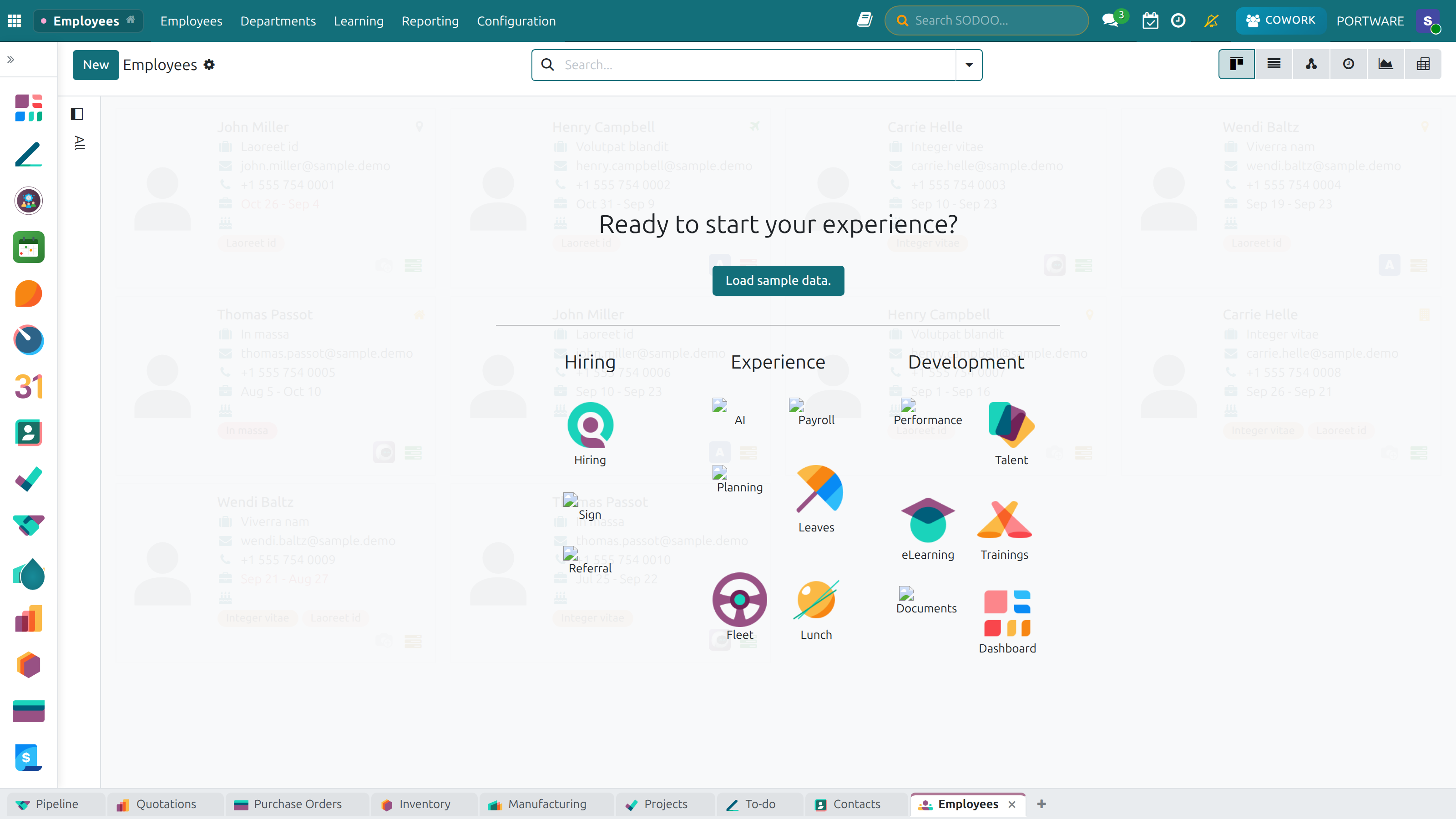
Employees, Kanban View — staff cards grouped by department
Transfer Management — moving staff between departments
New Transfer — raising an employee transfer request
Recruitment
SODOO's Recruitment module provides a visual Kanban pipeline to manage candidates from first contact to hired. It integrates with job board emails, interview scheduling, and employee creation.
Recruitment Pipeline Stages
Pipeline stages are fully configurable. Add, remove, or rename stages to match your hiring process. Each stage can have automated email templates and required activities.
Application Sources
- Website Form — Candidates apply directly on your SODOO website
- Email Alias — Each job position has a unique email; applications sent to it appear automatically
- Manual Entry — HR creates application records for candidates found through headhunting or referrals
- LinkedIn / Job Boards — Import candidates via CSV or integrate with third-party ATS tools
Scenario: Hiring a Backend Developer
An HR manager needs to fill a Backend Developer position in the Engineering department with 2 open spots.
- Create a Job Position "Backend Developer" in the Engineering department with expected headcount = 2
- Publish a job ad on the website — applications arrive automatically via email
- Review applications in the Kanban board — move promising candidates to "Initial Screening"
- Schedule phone screens via the activity planner — calendar invites are sent automatically
- After positive screens, move to "1st Interview" — technical team receives tasks
- Top candidates move to "Contract Proposal" — send offer letter from SODOO
- Accepted candidates are converted to employees with one click — "Create Employee"
- Refused candidates receive an automated courtesy email
Job Positions & Headcount
Job Positions track the organizational structure and hiring needs. Each position shows how many employees currently hold the role and how many are expected (headcount), giving HR a clear view of hiring demand at all times.
Interviews & Offer Management
SODOO provides tools for scheduling and tracking all interview stages. Interviewers can log feedback directly on the application, keeping the entire evaluation visible to the hiring team.
Interview Features
- Activity Scheduling — Create "Interview" activities linked to calendar events
- Interviewer Assignment — Assign multiple interviewers from the hiring team
- Feedback Logging — Each interviewer posts internal notes with ratings
- Interview Surveys — Attach standardized evaluation forms for consistent scoring
- Offer Letters — Generate and send offer letters via email directly from SODOO
- Contract Preview — Proposed salary and terms visible before contract creation
Attendance — the list of employee check-in and check-out records
Attendance Overview — the monthly summary and statistics
Employee Check-in — the self-service screen
New Attendance Record — entering a check-in or check-out by hand
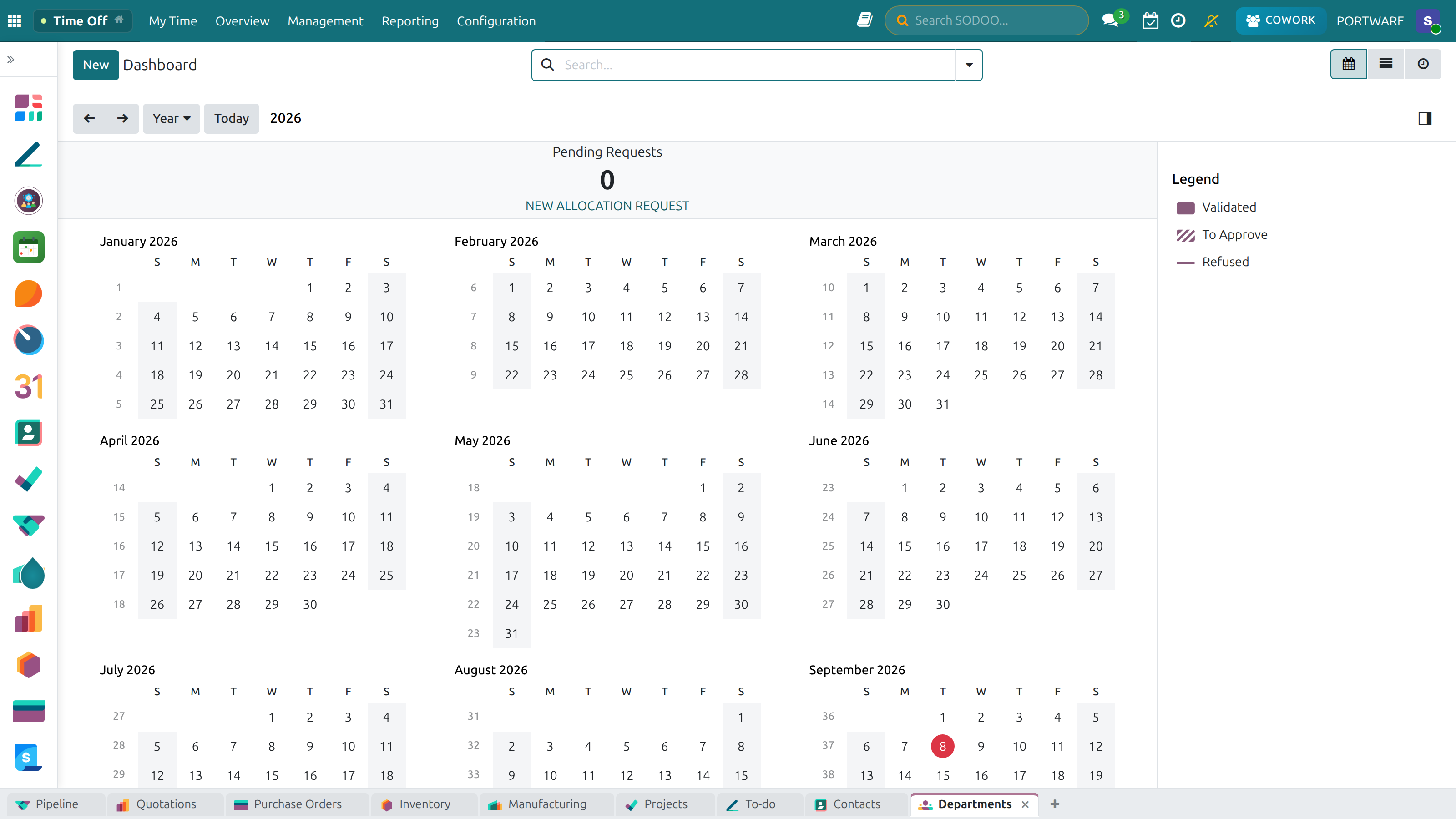
Time Off — employee leave requests and their approval status
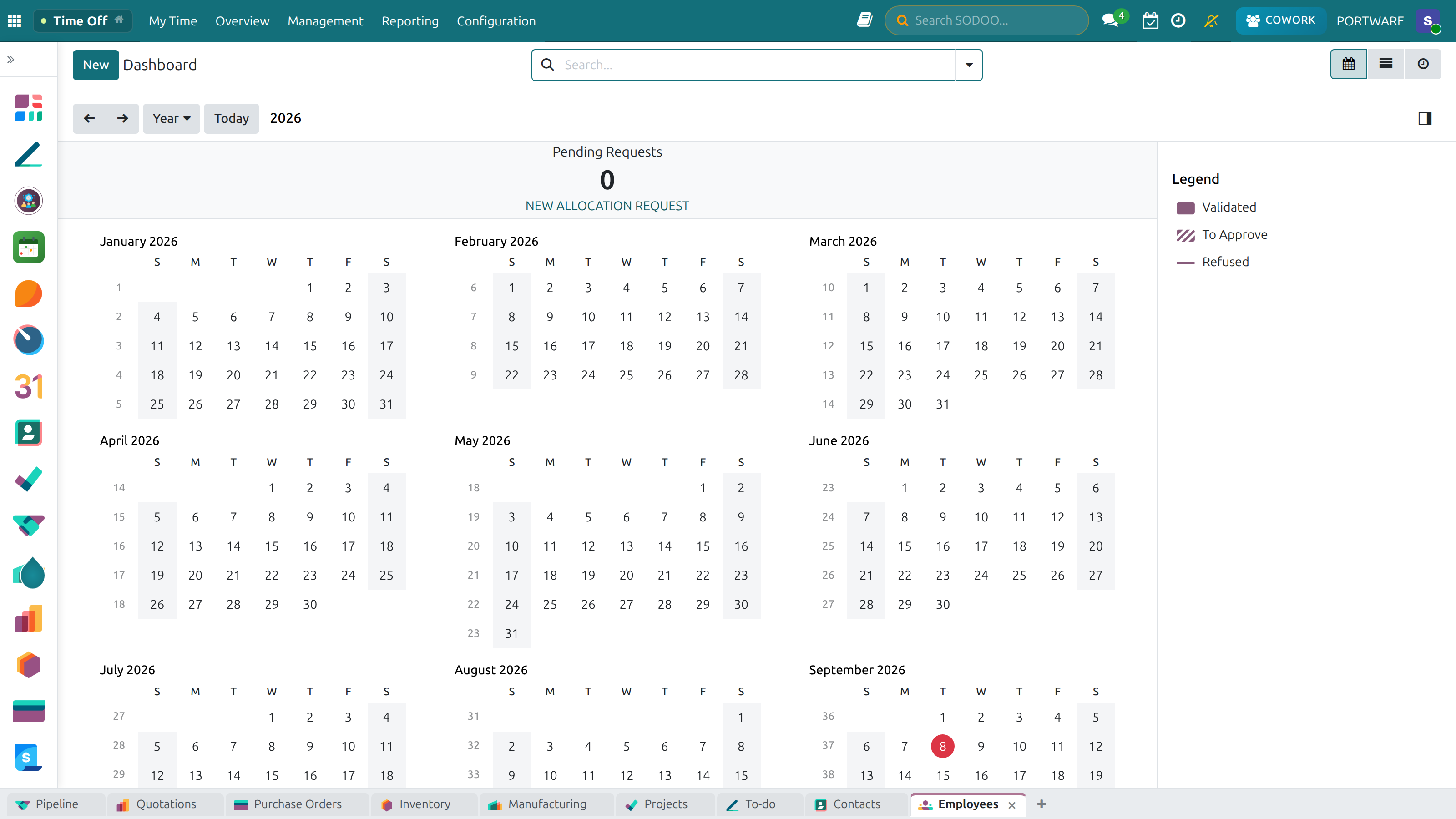
Time Off Dashboard — leave requests and the approval process
Time Off Management
SODOO's Time Off module handles the complete leave management lifecycle — from defining leave types and policies to employee requests, manager approvals, and payroll integration.
Leave Types
| Leave Type | Approval Mode | Typical Examples |
|---|---|---|
| Annual Leave | Manager approval required | Vacation, paid time off (PTO) |
| Sick Leave | No validation / auto-approved | Illness, medical appointments |
| Unpaid Leave | HR approval required | Extended unpaid absences |
| Maternity / Paternity | HR approval required | Parental leave |
| Compensation | Manager approval | Time off in lieu of overtime |
Leave Allocations
Allocations grant employees a set number of leave days. They can be created:
- Manually — HR creates allocations per employee or per department
- Automatically — Annual accrual rules grant leave based on seniority or time worked
- Per Request — Employee requests additional leave; manager or HR approves
How to Request Time Off (Employee View)
- Go to from the main app menu
- Click New Time Off
- Select the Leave Type (e.g., Annual Leave)
- Choose the Start Date and End Date
- Add a description/reason if required by your company policy
- Click Confirm — request goes to your manager
- You receive an email notification when approved or refused
Approval Workflow
Payroll — payslips and payment processing
New Payslip — creating and calculating an employee's payslip
Attendance Tracking
SODOO Attendance tracks when employees start and end their work day. It integrates with physical access devices (fingerprint, RFID, PIN pads) and provides a web check-in interface for remote employees.
Check-In Methods
Biometric Device
Fingerprint scanners or RFID readers at building entrances — fully automated, no manual action needed.
PIN Code
Employee enters a 4-digit PIN on a kiosk device. Employee PIN is set in HR Settings tab.
Web Check-In
Employees check in via browser or SODOO mobile app — ideal for remote and field workers.
QR Code
Employees scan a location QR code to check in — useful for construction sites or multi-location work.
Working Hours & Schedules
Work schedules define the expected working hours for each employee. They control what counts as overtime, when overtime premiums apply, and how attendance deviations are calculated.
- Standard (40h/week) — Mon–Fri, 9am–6pm, 1 hour lunch
- Flexible — No fixed times; total hours tracked per day
- Shift Work — Multiple shift patterns with automatic rotation
- Part-Time — Configured hours per specific days of the week
Overtime Management
With the HRMS Suite, SODOO tracks overtime hours and can automatically generate overtime compensation (either as extra pay or as compensatory leave). Overtime policies are configured per work schedule or per employee.
Overtime Compensation Options
- Cash Payment — Overtime pay added to the payslip as a wage input
- Compensatory Leave — Overtime hours generate leave allocation automatically
- Mixed — Configure a threshold (e.g., first 10 hours = leave, after 10 = cash)
Payroll (Community Edition)
The hr_payroll_community module (HRMS Suite) provides full payroll processing for the Odoo 19 Community Edition. It generates monthly payslips based on employee contracts, salary structures, attendance data, and any manual inputs (bonuses, deductions).
Payroll Process Overview
Salary Structures
A Salary Structure is a template that defines all the rules used to calculate a payslip. It contains ordered rules that compute gross pay, deductions (taxes, social security), and net pay.
Salary Rule Types
Basic Salary
The fixed monthly wage defined on the employee's contract. Always the first rule.
Allowances
Additional fixed or variable amounts: transport, meal, housing, performance bonus.
Gross Wage
Sum of all positive components before deductions. Key intermediate figure.
Deductions
Income tax, social security (employee share), pension contributions, loan repayments.
Employer Contributions
Social security employer share, pension contributions — cost to the company above gross.
Net Wage
Final take-home amount = Gross − Deductions. This is what the employee receives.
Rule Computation Modes
- Fixed Amount — A constant value (e.g., meal allowance = 150)
- Percentage of — Percentage of another rule (e.g., pension = 5% of Basic)
- Python Code — Full flexibility using Python expressions (e.g., overtime = inputs.OVERTIME.amount * contract.wage / 160)
Payslips
A payslip is generated per employee per pay period. SODOO creates payslips in bulk via Payslip Batches, making it practical to run payroll for hundreds of employees simultaneously.
Payslip States
- Draft — Created but not yet computed; can be modified
- Waiting — Computed and waiting for validation
- Done (Confirmed) — Validated; accounting journal entries posted
- Refused — Rejected after review; must be corrected and resubmitted
How to Run Monthly Payroll
- Go to
- Click New and set the Batch Name (e.g., "January 2026 Payroll")
- Set the Date From and Date To for the pay period
- Click Generate Payslips — SODOO creates a payslip for every active employee
- Review the batch: click any payslip to inspect individual calculations
- Click Compute Sheet on individual payslips or Compute All on the batch
- Review computed amounts; add manual inputs (bonuses, deductions) where needed
- Click Validate — accounting entries are posted
- Send payslips to employees via the Send Payslip by Email option
inputs variable in Python rules.
Resignation Management — employee resignations and how they progress
New Resignation Record — raising a resignation request
Expense Management
SODOO Expenses allows employees to submit expense claims for reimbursement — travel, meals, accommodation, client entertainment, and any other business costs. The workflow includes submission, manager approval, HR validation, accounting integration, and payment.
Expense Workflow
Expense Features
- Receipt Attachment — Attach photos or PDFs of receipts to each expense line
- Expense Categories — Define categories with accounts, tax rules, and product links
- Per-Diem Rates — Set daily allowances for travel expenses
- Multi-Currency — Submit expenses in any currency; SODOO converts at the rate of the expense date
- Company Cards — Track expenses paid by company credit card (no reimbursement needed)
- Expense Reports — Group multiple expenses into a single report for one approval
- Mobile App — Employees submit expenses with photo receipts from their phone
How to Submit an Expense
- Go to
- Click New
- Enter the Expense Name (e.g., "Client Dinner - Jan 15")
- Select the Category (e.g., Meals & Entertainment)
- Enter Total and select Currency
- Attach the receipt file
- Click Create Report to group with other expenses
- Click Submit to Manager to start the approval flow
Appraisals & Performance Reviews
SODOO Appraisals provides structured tools for performance reviews. Regular appraisals help employees understand expectations, receive feedback, and set goals for growth. They also provide a documented basis for salary reviews and promotions.
Appraisal Types
- Annual Review — Comprehensive yearly evaluation covering all performance dimensions
- Mid-Year Check-In — Informal progress review at the six-month mark
- Probationary Review — Assessment at the end of a new employee's probation period
- 360-Degree Feedback — Input from managers, peers, and direct reports
- Goal Setting Session — Dedicated session to set SMART objectives for the next period
Appraisal Process
Skills & Competency Tracking
Each employee's skill set can be documented in the Resume tab and linked to competency levels. Appraisals can include skills assessment to track growth over time and identify training needs. Skill gaps become visible when comparing current skills to the required skills for a job position.
HR Dashboard
The HRMS Dashboard (from the hrms_dashboard module) provides real-time KPI cards and visual analytics to help HR managers make data-driven decisions. It aggregates data from all HR sub-modules into a single overview.
Dashboard Charts
- Headcount by Department — Bar chart of employee distribution
- Headcount Trend — Monthly trend line showing growth or decline
- Gender Distribution — Pie chart for diversity reporting
- Leave Utilization — Leave days taken vs allocated per leave type
- Attendance Heatmap — Late arrivals and absences by day of week
- Payroll Trend — Monthly payroll cost trend with breakdown
Best Practices for HR in SODOO
Follow these guidelines to maximize efficiency and data quality in your HR operations.
Organization Setup
- Define your full department hierarchy before creating employees
- Create all job positions before starting recruitment
- Set up work schedules for each employee type (full-time, part-time, shift)
- Link each employee to a system user for self-service portal access
- Configure approval chains in work schedules and leave types
Payroll Readiness
- Design salary structures before creating any employee contract
- Test salary rules with sample employees before going live
- Ensure every employee has an active contract before running payroll
- Reconcile payroll accounting entries monthly with the finance team
- Archive (do not delete) old payslips for compliance and audit purposes
Compliance & Data
- Restrict access to salary and personal data with record rules
- Set document expiry alerts 90 days before expiry for work permits
- Keep employee address and emergency contact data up to date
- Run monthly headcount reconciliation against payroll
- Export and archive payroll reports monthly for statutory compliance
Pro Tips
- Use activity planning — Schedule onboarding checklists as activities on new employee records so nothing is forgotten.
- Salary structure per contract type — Create separate structures for permanent, fixed-term, and part-time employees; keeps rules clean and auditable.
- Automate leave accrual — Annual leave accrual rules save hours of manual allocation work and prevent errors.
- Regular contract review — Set a calendar task to review all fixed-term contracts 60 days before expiry — extend, convert, or end with sufficient notice.
- Integrate with Payroll — Attendance and time-off data feeds directly into payroll. Always process attendance corrections before running the monthly payroll.
- Employee self-service — Enable the portal so employees can view payslips, request leave, and update personal information without creating support requests to HR.
Frequently Asked Questions
Can an employee be in multiple departments?
How do I handle payroll for a new employee who joined mid-month?
result = contract.wage / working_days.WORK100 * worked_days.WORK100 to achieve this automatically.