Accounting & Financial Management
SODOO Accounting Module — Main menu and quick-access dashboard
- Accounting that comes from the workThe delivery produces the invoice and the invoice produces the entry; nobody types the ledger afterwards.
- Built for TürkiyeThe uniform chart of accounts, VAT withholding and e-Invoice / e-Archive integration.
- From accounting to managementThe same entries flow into the scorecard, the statements and the budget.
Overview
What You Will Learn in This Section
- The role of the accounting module in your business processes
- The core logic of the double-entry bookkeeping system
- How ERP accounting compares to traditional methods
- SODOO's Turkey localization for the accounting module
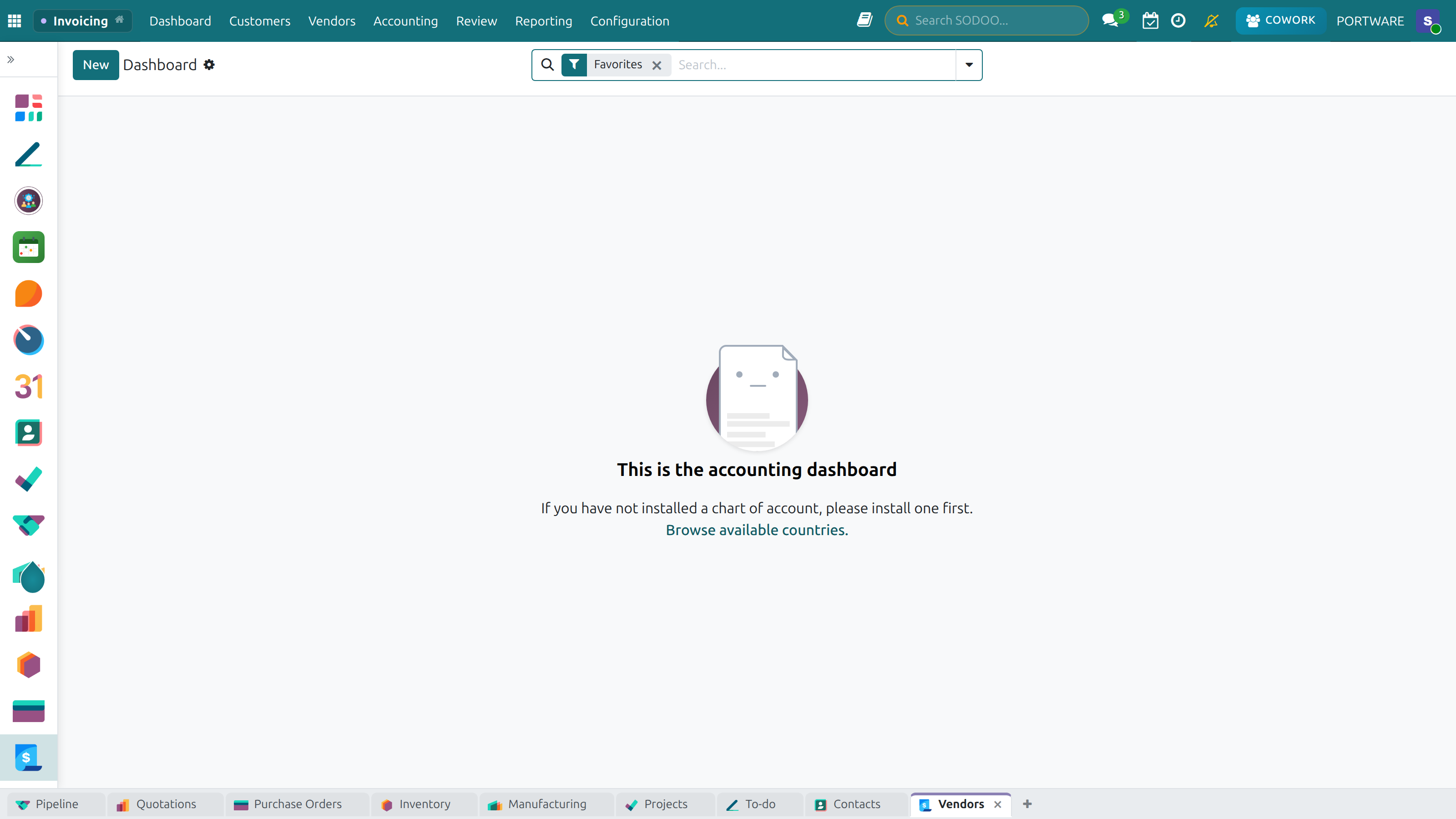
SODOO Accounting Module — Main menu and quick-access dashboard
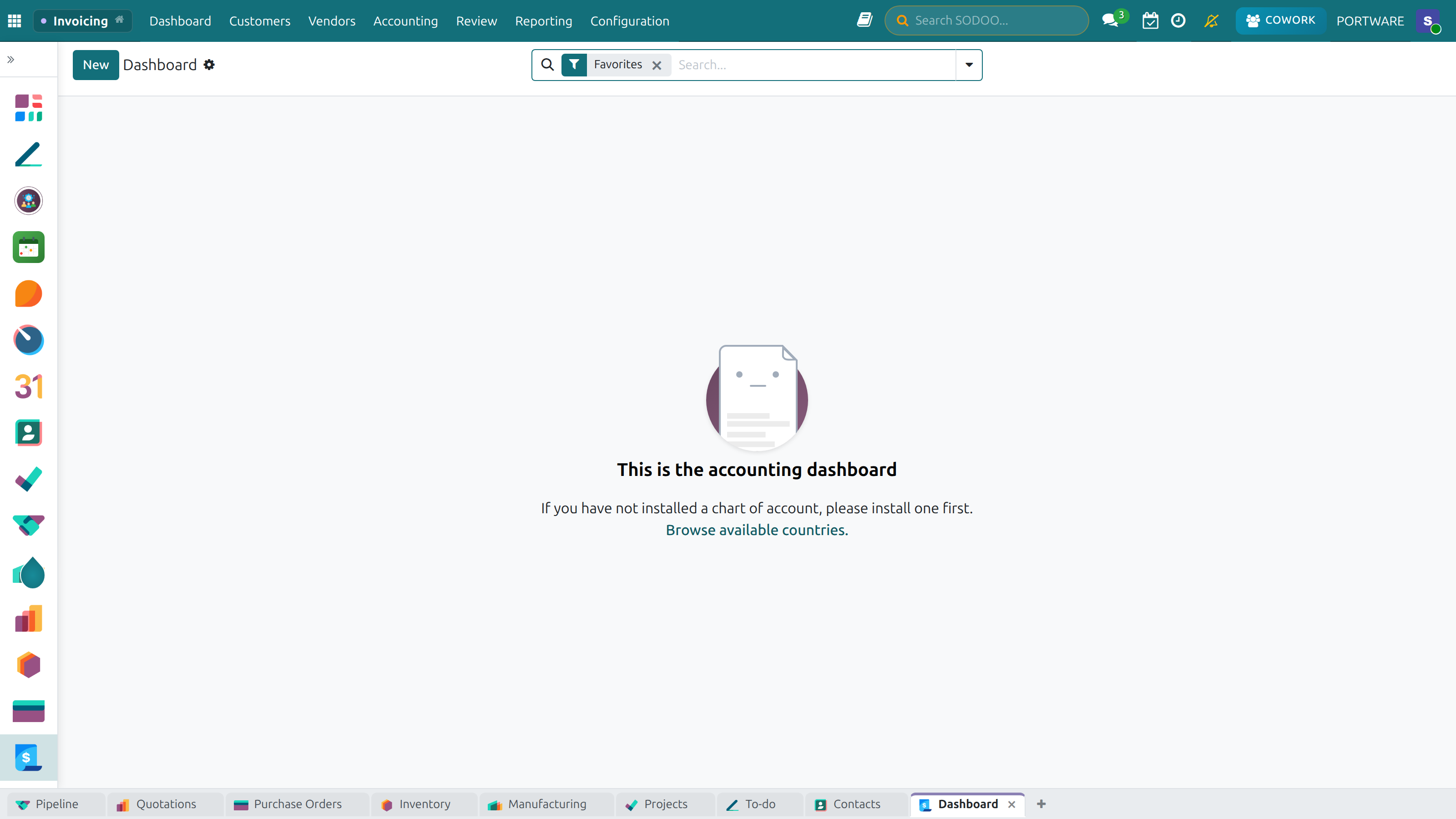
Accounting Dashboard — Financial summary and charts
Accounting is the heartbeat of every business. When you make a sale, revenue is recorded; when you purchase goods, an expense is recorded; when you pay salaries, liabilities decrease. All these financial movements tell a story that reflects the true state of your company.
SODOO Accounting ensures that story is told accurately, completely, and in legal compliance. Built on Odoo 19.0 Community Edition, this module addresses financial management needs for businesses of every size — from SMBs to large enterprises.
The Accounting Cycle
Understanding the basic accounting cycle — repeated every month — is critical to grasping how the system works:
SODOO Accounting Features
Invoicing
Customer and vendor invoices, credit notes, and e-Invoice integration
Payment Management
Cash, wire transfer, check, and online payment methods with automatic reconciliation
Bank Integration
Bank account synchronization, automatic matching, and reconciliation models
Financial Reports
Balance sheet, income statement, cash flow, and aging reports
Multi-Currency
Foreign currency transactions, automatic exchange rate updates, and forex difference calculation
Turkey Compliance
e-Invoice, e-Archive, e-Ledger, 2KB chart of accounts, and GIB (Revenue Administration) integration
How to Do It in SODOO?
Accessing the Accounting application:
- Click the icon in the main menu
- Select the application
- The Accounting Dashboard opens — pending invoices and transactions are displayed
Initial configuration:
- Go to
- Set Fiscal Year and Default Currency
- Select "2KB — Turkey Uniform" as the Chart of Accounts
- Review VAT rates in the Tax Groups section
- Save
Understanding the Dashboard:
- The Customer Invoices tile shows pending sales invoices
- The Vendor Bills tile shows bills to be recorded
- The Bank & Cash tile shows transactions awaiting reconciliation
- Click any tile to jump directly to the relevant transaction list
Why ERP Accounting?
"I manage it in Excel — it works fine." We hear this often. But does it really work fine? Let's examine the real differences between traditional methods and ERP accounting:
Excel / Manual Accounting
- Every invoice entered manually
- Inventory and accounting tracked separately
- Bank reconciliation done by hand
- Reports take hours to prepare
- High risk of data entry errors
- Difficult to query historical data
SODOO ERP Accounting
- Invoices generated automatically from sales
- Stock movement = accounting entry
- Bank synchronized and auto-matched
- Reports available instantly
- Double-entry system prevents imbalances
- All history is fully queryable
Scenario: Month-End Close Comparison
❌ Excel / Manual Method:
- Manually enter all invoices into Excel (2–3 hours)
- Download bank statement and compare line by line (1–2 hours)
- Investigate unmatched items (1 hour)
- Calculate VAT totals (30 min)
- Check balance sheet and income statement formulas (1 hour)
- Fix errors and recalculate (variable time)
Total: 6–8+ hours (if error-free)
✅ SODOO ERP Method:
- Accounting → Reports → Balance Sheet (ready instantly)
- Accounting → Reports → Income Statement (ready instantly)
- Accounting → Reports → Tax Report (VAT auto-calculated)
- Lock the period (optional) to prevent further edits
Total: 15–30 minutes
Basic Concepts
To use the Accounting module effectively, you need to understand a few fundamental concepts. These are not SODOO-specific — they are universal accounting principles.
Double-Entry Bookkeeping
The most important invention in accounting history, double-entry bookkeeping was developed by Italian merchants in the 15th century. The logic is simple:
Example: Sale of Goods worth 10,000 TRY (inclusive of VAT at 20%)
| Account | Debit (TRY) | Credit (TRY) | Explanation |
|---|---|---|---|
| 120 — Trade Receivables | 12,000 | - | Amount owed by the customer increases |
| 600 — Domestic Sales | - | 10,000 | Sales revenue recognized |
| 391 — Output VAT | - | 2,000 | 20% VAT liability created |
| TOTAL | 12,000 | 12,000 | Equation balanced ✓ |
Chart of Accounts Structure
In Turkey, the Uniform Chart of Accounts (2KB) is used. Accounts are categorized with 3-digit codes:
| Group | Code Range | Account Type | Example Accounts |
|---|---|---|---|
| 1 | 100–199 | Current Assets | 100-Cash, 102-Banks, 120-Receivables, 153-Inventories |
| 2 | 200–299 | Non-current Assets | 253-Fixtures, 254-Vehicles, 257-Accumulated Depreciation |
| 3 | 300–399 | Short-term Liabilities | 320-Trade Payables, 360-Taxes Payable, 391-Output VAT |
| 4 | 400–499 | Long-term Liabilities | 400-Bank Loans |
| 5 | 500–599 | Equity | 500-Capital, 570-Retained Earnings, 590-Net Profit |
| 6 | 600–699 | Revenue | 600-Domestic Sales, 602-Other Revenue |
| 7 | 700–799 | Expenses | 760-Marketing Expenses, 770-General & Admin Expenses |
Journals
In SODOO, separate journals are used for each type of transaction:
Sales Journal
Used for customer invoices and credit notes. A default revenue account is defined.
Purchase Journal
Used for vendor bills and expense invoices. A default expense account is defined.
Bank Journal
Used for bank transactions. A separate journal is created for each bank account.
Cash Journal
Used for cash transactions. Separate cash registers can be defined per branch or location.
Miscellaneous Journal
Used for manual adjustments, depreciation, foreign exchange differences, and other special entries.
Creating a Customer Invoice
What You Will Learn in This Section
- How to automatically generate an invoice from a sales order
- How to create a manual customer invoice
- Understanding invoice statuses and the invoice workflow
- How to send and track invoices
A customer invoice is the official financial document for a sales transaction. In SODOO, invoices can be created in three different ways:
Invoice Creation Methods
1. Automatic Invoice from a Sales Order
This is the most common and recommended method. After a sales order is confirmed:
Customer Invoice — Creating an invoice from a confirmed sales order
- On the sales order page, click the "Create Invoice" button
- Select the invoicing method:
- Regular Invoice: For the full order amount
- Down Payment: For a specific amount or percentage
- Delivered Quantities: Only for what has been shipped
- Review the invoice and click "Confirm"
2. Manual Invoice Creation
To create an invoice directly without a sales order:
Accounting → Customers → Invoices → New
- Customer: Select the customer to invoice
- Invoice Date: Enter the invoice date
- Due Date: Automatically calculated based on payment terms
- Invoice Lines: Add products / services, quantities, and unit prices
- Taxes are applied automatically (based on product and customer settings)
- Click "Confirm"
Invoice Statuses
| Status | Description | Available Actions |
|---|---|---|
| Draft | Invoice created but not yet confirmed | Edit or delete |
| Posted | Invoice confirmed; accounting entry created | Send, Register Payment |
| Paid | Full payment received and reconciled | Closed transaction |
| In Payment | Partial payment received; balance ongoing | Track remaining balance |
| Overdue | Due date has passed without payment | Initiate payment follow-up |
| Cancelled | Invoice reversed | Reversal entry created |
Scenario: Invoicing a Service Sale
- Navigate to Accounting → Customers → Invoices → New
- Select the customer in the Customer field (payment terms auto-populate)
- Add "Consulting Service" to the invoice line
- Enter Quantity: 1, Unit Price: 50,000 TRY
- VAT is calculated automatically (20% = 10,000 TRY)
- Click "Confirm" (Invoice No: INV/2026/0001)
- Click "Send & Print" to email the invoice to your customer
- 120 Trade Receivables: 60,000 TRY (Debit)
- 600 Sales Revenue: 50,000 TRY (Credit)
- 391 Output VAT: 10,000 TRY (Credit)
How to Do It in SODOO?
Creating a manual customer invoice:
- Follow the path
- Click the New button in the top left
- Select the customer from the Customer field
- Check the Invoice Date (default: today)
- Choose the payment terms from Payment Terms (e.g., 30 Days)
- In the invoice lines table, click Add a Line:
- Product: Select the product or service sold
- Quantity: Enter the quantity
- Unit Price: Enter the price (may auto-populate from product)
- Taxes: Auto-populated from product settings (e.g., 20% VAT)
- Verify the invoice total in the bottom right
- Click Confirm to finalize the invoice
- Use the Send & Print button to email it to your customer
Invoice from a sales order:
- Go to
- Open the relevant confirmed sales order
- Click the Create Invoice button
- Select the invoicing type (Regular / Down Payment / Delivered Quantities)
- Review the generated invoice and click Confirm
Recording a Vendor Bill
Vendor bills are the financial record of your goods and service purchases. Accurate and timely recording affects both your VAT recovery and your vendor relationships.
Methods for Recording Vendor Bills
1. Automatic from a Purchase Order
When a purchase order exists, this is the easiest approach:
- Click "Create Bill" on the purchase order
- Enter the vendor's bill reference number
- Verify the amounts
- Click "Confirm"
2. Manual Entry
Accounting → Vendors → Bills → New
3. OCR Automatic Recognition
Upload a bill image or PDF for automatic data extraction:
- Upload the PDF or image file of the bill
- The system automatically recognizes the vendor, amount, taxes, and lines
- Review and correct as needed
- Confirm the bill
Vendor Bill Fields
| Field | Description | Importance |
|---|---|---|
| Vendor | The company that issued the bill | Critical for payment and reconciliation |
| Bill Reference | The vendor's invoice number | Prevents duplicate entry |
| Bill Date | The date the bill was issued | Determines the VAT period |
| Accounting Date | The posting date (may differ from bill date) | Affects period closing |
| Due Date | The final payment date | Essential for cash flow planning |
How to Do It in SODOO?
Recording a vendor bill:
- Follow the path
- Click the New button
- Select the vendor from the Vendor field
- Enter the vendor's invoice number in the Bill Reference field (critical for duplicate check!)
- Bill Date: Enter the date on the vendor's invoice
- Accounting Date: Date of posting (usually same as bill date)
- In the bill lines table:
- Product: Select the product or service purchased
- Enter Quantity and Unit Price
- Compare amounts against the paper vendor bill to verify
- Match the total to the vendor's bill
- Click Confirm
OCR automatic bill recognition:
- In the vendor bills list, click the Upload button
- Select the PDF or image file of the bill
- The system automatically recognizes vendor, amounts, and lines
- Review the recognized values and correct if necessary
- Click Confirm to save
Collections & Payments
Recording an invoice and recording a payment are two separate operations. An invoice creates an accounts receivable or payable; a payment closes that account. Both processes are tracked carefully in SODOO.
Customer Collections
When you receive a payment from a customer:
Method 1: From the Invoice
- Open the relevant invoice
- Click the "Register Payment" button
- Enter the payment method (Bank/Cash), amount, and date
- Confirm — the invoice automatically changes to "Paid" status
Method 2: Batch Collection
Accounting → Customers → Payments → New
- Select the customer
- Enter the total payment amount
- The system lists open invoices
- Select which invoices to close (partial payment is supported)
- Confirm
Vendor Payments
When paying a vendor:
Payment Methods
Cash
Posted to the Cash journal. Daily cash closing should be performed.
Bank Transfer
EFT / wire transfer transactions. Matched during bank reconciliation.
Check
Received and issued checks are tracked. Due dates are important.
Credit Card
POS collections. Processing fees are recorded as a separate expense.
Payment Management Dashboard — Visual summary of collection and payment flows
Scenario: Receiving a Partial Payment
- Open the relevant invoice (Accounting → Customers → Invoices)
- Click the "Register Payment" button
- Enter 30,000 TRY in the Amount field
- Select "Bank" as the payment method
- Enter the payment date and confirm
- The invoice status updates to "In Payment"
- The remaining 20,000 TRY balance is visible on the invoice
Bank Reconciliation
Bank reconciliation is the process of matching your SODOO payment records against your actual bank statement. This ensures that no transaction is missed or duplicated.
Reconciliation Process
Importing Bank Statements
SODOO supports multiple formats for importing bank data:
- OFX / QFX: Standard bank statement format (widely supported)
- CSV: Comma-separated values (customizable column mapping)
- CAMT.053: European SEPA XML format
- Manual Entry: Type transactions directly
- Bank Sync (Open Banking): Real-time feed from supported banks
Reconciliation Models
Reconciliation models allow SODOO to match bank lines to existing invoices or payments automatically based on rules you define. You can create models that match by:
- Invoice reference number in the bank narrative
- Exact amount match
- Partner name in the transaction description
- IBAN / account number match
How to Do It in SODOO?
Reconciling a bank account:
- Go to
- Select the bank account journal
- Click Import Statement or manually enter transactions
- SODOO automatically suggests matches — review each suggestion
- Click Match to confirm correct matches
- For unmatched lines, create a new entry or link to an existing one
- When all lines are reconciled, click Validate
Bank Journal and Reconciliation Settings — configuring a bank account
Period Closing
Period closing (month-end or year-end close) is the process of verifying all transactions for a given period and locking the books to prevent further changes. It is a critical internal control step.
Month-End Close Checklist
- Ensure all customer invoices for the month are confirmed
- Ensure all vendor bills for the month are recorded
- Complete bank reconciliation for all accounts
- Run the Aged Receivable and Aged Payable reports — investigate anomalies
- Review outstanding checks and deposits in transit
- Record depreciation entries (if applicable)
- Record any accruals or prepayments
- Review the Trial Balance for unusual balances
- Lock the period to prevent backdated changes
Locking a Period
Once the period is closed and verified, you should lock it to protect the integrity of your records. In SODOO:
Accounting → Configuration → Settings → Lock Date
Set the Tax Return Lock Date and All Users Lock Date to prevent entries being posted in or before the closed period.
Period Controls — budget overrun warnings and the control panel
VAT Declaration
Value Added Tax (KDV in Turkish) is Turkey's primary consumption tax. Businesses are obligated to file a monthly VAT return and remit net VAT (output VAT minus input VAT) to the Tax Administration (GIB).
How VAT Works in SODOO
Every transaction involving VAT is tracked automatically:
- Output VAT (391): VAT collected from customers on sales invoices
- Input VAT (191): VAT paid to vendors on vendor bills
- Net VAT Payable: Output VAT minus Input VAT = amount to pay to GIB
VAT Report
Accounting → Reporting → Tax Report
The Tax Report shows:
- Total taxable sales by VAT rate (0%, 1%, 10%, 20%)
- Total output VAT by rate
- Total deductible input VAT
- Net VAT payable or refundable
VAT Rates in Turkey (2026)
| Rate | Common Applications |
|---|---|
| 0% | Exports, certain financial services |
| 1% | Basic foodstuffs, agricultural products, printed books |
| 10% | Healthcare, education, certain food products |
| 20% | Standard rate — most goods and services |
Depreciation
Fixed assets (machinery, vehicles, computers, furniture) lose value over time through use and wear. Depreciation is the systematic allocation of that cost over the asset's useful life.
Depreciation Methods in SODOO
Straight-Line
Equal depreciation charge each period. Most common method in Turkey.
Declining Balance
Higher depreciation in early years. Suitable for technology assets.
Sum of Digits
Accelerated depreciation variant. Less common in Turkish practice.
Recording Depreciation
- Navigate to Accounting → Accounting → Assets
- Create a new asset with acquisition cost and useful life
- SODOO generates the full depreciation schedule automatically
- At month-end, click "Post All Depreciations" to record all due entries
- The entries debit Depreciation Expense (7XX) and credit Accumulated Depreciation (257)
Assets and Budgets — depreciation planning and budget control
Balance Sheet
The Balance Sheet (Bilanço) is a snapshot of your company's financial position at a specific date. It shows what you own (assets), what you owe (liabilities), and what remains for the owners (equity).
Accessing the Balance Sheet
Accounting → Reporting → Balance Sheet
Balance Sheet Key Sections
| Section | 2KB Accounts | Typical Items |
|---|---|---|
| Current Assets | 100–199 | Cash, receivables, inventories, prepayments |
| Non-current Assets | 200–299 | Property, plant & equipment, intangibles, investments |
| Current Liabilities | 300–399 | Trade payables, taxes payable, short-term loans |
| Non-current Liabilities | 400–499 | Long-term bank loans, lease liabilities |
| Equity | 500–599 | Share capital, retained earnings, current year profit |
Income Statement
The Income Statement (Gelir Tablosu / P&L) shows your company's revenues, costs, and resulting profit or loss over a specific period (month, quarter, or year).
Accessing the Income Statement
Accounting → Reporting → Profit & Loss
P&L Structure
| Line Item | 2KB Accounts | Description |
|---|---|---|
| Net Revenue | 600–602 | Domestic sales + other revenue |
| Cost of Goods Sold | 620–622 | Direct cost of products/services sold |
| Gross Profit | — | Net Revenue minus COGS |
| Operating Expenses | 760–770 | Selling, marketing, general & admin expenses |
| Operating Profit (EBIT) | — | Gross Profit minus Operating Expenses |
| Financial Income / Expense | 640–660 | Interest income/expense, forex gains/losses |
| Net Profit / Loss | 590 | Profit or loss for the period |
Cash Flow
The Cash Flow Statement shows how cash moves in and out of your business — from operations, investing activities, and financing activities. A profitable company can still fail if it runs out of cash, making this report critical.
Cash Flow Categories
Operating Activities
Cash from day-to-day business: customer collections, vendor payments, salary payments.
Investing Activities
Cash used for or received from asset purchases/disposals, investments.
Financing Activities
Cash from loans, capital injections, or repayments and dividends.
Accounting → Reporting → Cash Flow Statement
Aging Reports
Aging reports show how long outstanding invoices or bills have been unpaid, grouped by time buckets (e.g., 0–30 days, 31–60 days, 61–90 days, 90+ days).
Aged Receivables
Accounting → Reporting → Aged Receivable
Use this report to:
- Identify customers with long-overdue balances
- Prioritize collection activities
- Estimate bad debt provisions
- Measure your Days Sales Outstanding (DSO)
Aged Payables
Accounting → Reporting → Aged Payable
Use this report to:
- Plan vendor payments and maintain good supplier relationships
- Avoid late payment penalties
- Measure your Days Payable Outstanding (DPO)
Turkey Localization
SODOO includes a comprehensive Turkey localization package developed by the 2KB Consortium, covering the full spectrum of Turkish accounting and tax compliance requirements.
e-Invoice (e-Fatura)
Electronic invoices submitted directly to and received from the GIB platform
e-Archive (e-Arşiv)
Electronic archiving of invoices issued to non-registered taxpayers
e-Ledger (e-Defter)
Digital submission of the general ledger and journal book to GIB
2KB Chart of Accounts
Turkey's Uniform Chart of Accounts pre-loaded and ready to use
Turkish Banks
Pre-loaded list of Turkish banks with IBAN format validation
Tax Offices
Complete list of Turkish tax offices (vergi daireleri) for partner records
e-Invoice System
Turkey's e-Invoice (e-Fatura) system, managed by the Revenue Administration (GIB), has been mandatory for large taxpayers since 2012 and expanded to cover most businesses. It replaces paper invoices with legally valid XML documents exchanged through the GIB platform.
e-Invoice vs e-Archive
| Feature | e-Invoice (e-Fatura) | e-Archive (e-Arşiv) |
|---|---|---|
| Recipient | Registered e-Invoice taxpayers | Non-registered taxpayers or B2C |
| Delivery | Via GIB platform directly | Email / paper (archived digitally) |
| ETTN | GIB-assigned UUID | Your system-generated UUID |
| Format | UBL-TR XML | UBL-TR XML |
e-Invoice Workflow in SODOO
2KB Chart of Accounts
The 2KB (İki Haneli Kod — Two-Digit Code) Uniform Chart of Accounts is the standard accounting framework prescribed by Turkish law for all companies. SODOO ships with this chart pre-configured.
The chart is organized into 7 main groups (1–7 as described in the Basic Concepts section) and subdivided into specific accounts for each line of business. Common customizations include:
- Adding sub-accounts for cost centers or departments
- Creating additional revenue accounts by product category
- Configuring withholding tax (stopaj) accounts
- Setting up VAT withholding (KDV tevkifatı) accounts
Accounting General Settings — the chart of accounts and localisation
Key Performance Indicators
The following KPIs are commonly tracked using SODOO Accounting data:
DSO
Days Sales Outstanding — average collection period
DPO
Days Payable Outstanding — average time to pay vendors
Current Ratio
Current Assets / Current Liabilities — short-term liquidity
Gross Margin %
Gross Profit / Net Revenue × 100
Net Profit Margin
Net Profit / Net Revenue × 100
Overdue Rate
Overdue AR / Total AR × 100 — collection health
Frequently Asked Questions
Can I edit a confirmed invoice?
Once an invoice is confirmed (posted), it cannot be edited directly. To correct it, you must either:
- Create a Credit Note (reversal) to cancel the original
- Reset it to Draft (only if no payment has been applied)
This restriction protects the integrity of your audit trail.
What happens if I confirm a vendor bill with the wrong date?
The bill date determines the VAT period. If the date is wrong, it will affect your VAT return. Reset the bill to Draft, correct the date, and re-confirm. If the period is already locked, you may need to adjust the lock date first (with appropriate authorization).
How do I handle a customer who overpays?
When the payment amount exceeds the invoice amount, SODOO creates an outstanding credit on the customer account. You can:
- Apply the credit to a future invoice
- Issue a refund to the customer
Navigate to the customer's Receivable account to manage outstanding credits.
Can SODOO handle multiple currencies?
Yes. Enable multi-currency under Accounting → Configuration → Settings. SODOO automatically fetches exchange rates from the European Central Bank or you can enter rates manually. Foreign currency transactions are recorded in both the foreign currency and your base currency (TRY).
How are inter-company transactions handled?
SODOO supports multi-company accounting. When a transaction occurs between two companies in the same SODOO instance, it can be automatically recorded in both companies' books using the inter-company rules configuration.
Best Practices
Daily Habits
- Post invoices the same day: Never let unposted invoices accumulate — it distorts your AR balance.
- Record vendor bills promptly: Ensures input VAT is captured in the correct period.
- Reconcile cash daily: Compare cash journal balance with physical cash count every day.
Weekly Habits
- Review Aged Receivables: Follow up on invoices approaching their due date.
- Plan vendor payments: Use the Aged Payables report to avoid missing payment deadlines.
- Import bank statements: Keep reconciliation current — don't let it pile up to month-end.
Month-End Habits
- Complete all reconciliations before generating reports.
- Run the Tax Report and compare it with your accounts 191 and 391 balances.
- Lock the period immediately after filing your VAT return.
- Review the Trial Balance for any unexpected or large balances.
- Compare to prior period: A sudden jump in any line item warrants investigation.
Configuration Best Practices
- Assign correct income/expense accounts to every product category to avoid manual corrections.
- Configure payment terms for each customer and vendor — this drives automatic due date calculation.
- Set up reconciliation models for recurring bank transactions (bank charges, standing orders).
- Use analytic accounts (cost centers) if you need department-level P&L reporting.
- Train staff on duplicate bill checks — always enter the vendor's reference number.