Manufacturing & PLM
You run a manufacturing business. A customer order arrives: produce 100 office desks . To fulfill this order, you need to answer:
- From order to productionA sales order creates the material need and the manufacturing order.
- The bill of materials at the centreParts, sub-assemblies and operations in one BoM.
- The same truth as PLMThe engineering revision is tied to the tree production uses.
Introduction: What is Manufacturing Management?
Learning Objectives
- Understand MRP (Manufacturing Resource Planning) concepts
- Discover how SODOO Manufacturing benefits your production operations
- Grasp the manufacturing lifecycle from order to delivery
- See the advantages of moving from spreadsheets to integrated MRP
You run a manufacturing business. A customer order arrives: produce 100 office desks. To fulfill this order, you need to answer:
- What materials are required? (wood, screws, paint, etc.)
- How much of each material? (4 legs per desk, 1 top, 16 screws...)
- Is there enough stock on hand?
- Which work centers will handle production? (cutting, assembly, painting)
- How long will it take?
- What will it cost?
SODOO Manufacturing (MRP) answers all these questions automatically and manages your production process from start to finish.
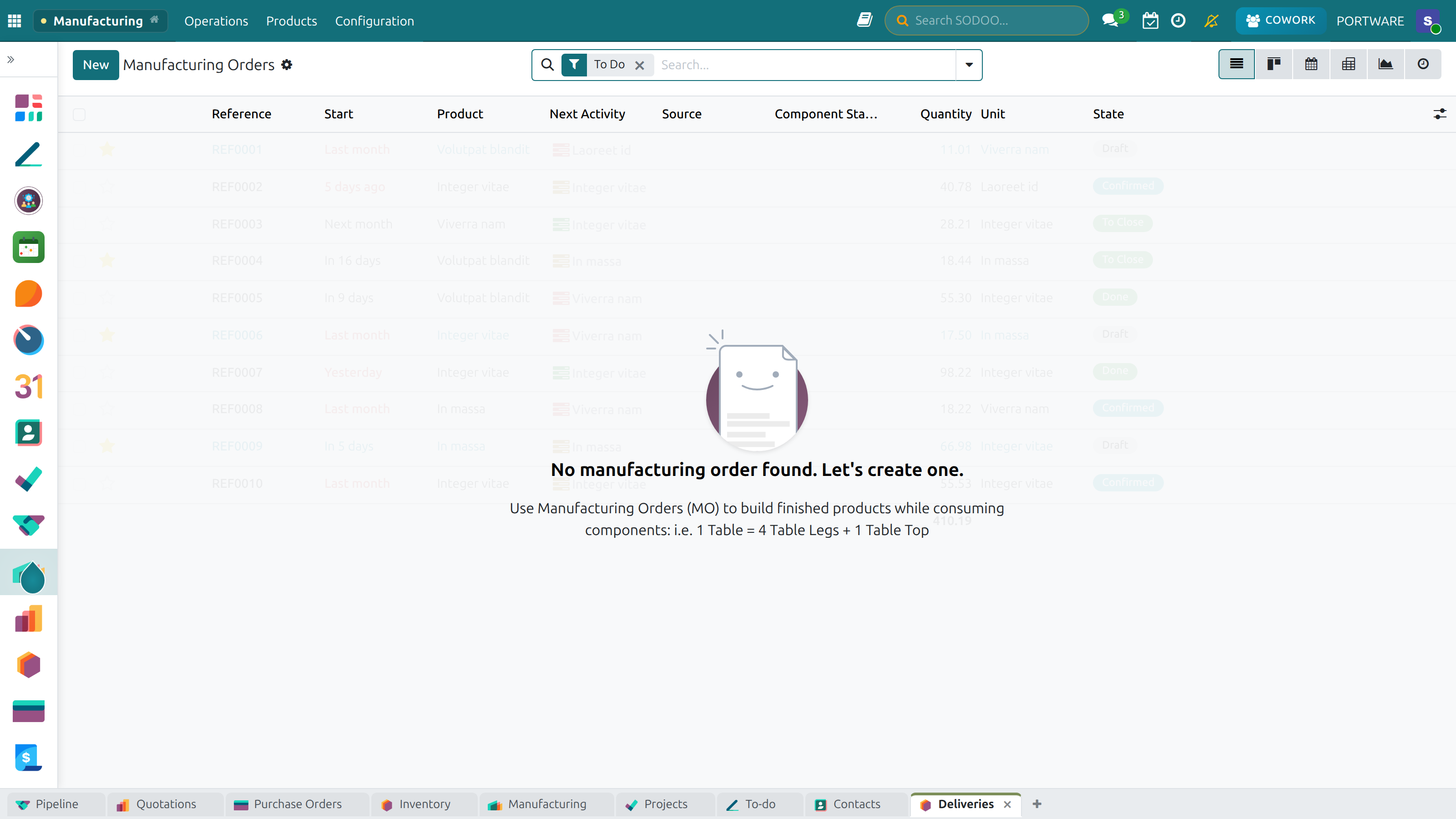
SODOO Manufacturing — running production from a single overview
Manufacturing Orders — list view
Why Use an MRP System?
- Manual material calculations for every order
- Stock status always uncertain, no real-time view
- "Do we have enough material?" anxiety
- Production plan on paper — hard to change
- Work center load unclear
- Cost calculation starts from scratch each time
- No quality issue tracking
- Cannot anticipate delays before they happen
- Automatic material calculation from BOM
- Real-time stock status and reservations
- Automatic low-stock alerts and purchase requests
- Digital production plan with drag-and-drop
- Work center capacity visualization
- Automatic cost calculation (standard or AVCO)
- Integrated quality control at any step
- Delay forecast and early warnings
Scenario: 100 Office Desk Order
Situation: A customer orders 100 office desks. Delivery deadline: 2 weeks. Each desk requires: 4 legs, 1 top panel, 16 screws, 4 plastic feet caps, paint.
- Order Confirmation: When the sale order is confirmed, the system automatically creates a Manufacturing Order
- BOM Explosion: System calculates total materials: 400 legs, 100 tops, 1,600 screws, 400 caps
- Stock Check: Current stock is checked, and purchase orders are automatically created for shortfalls
- Capacity Planning: Time is scheduled across cutting, assembly, and painting work centers
- Production Start: When materials are ready, production begins — operators see work orders on tablets
- Quality Control: Inspection is conducted every 10 desks; defective units are logged
- Completion: When 100 desks are done, stock is updated and the order moves to the shipping queue
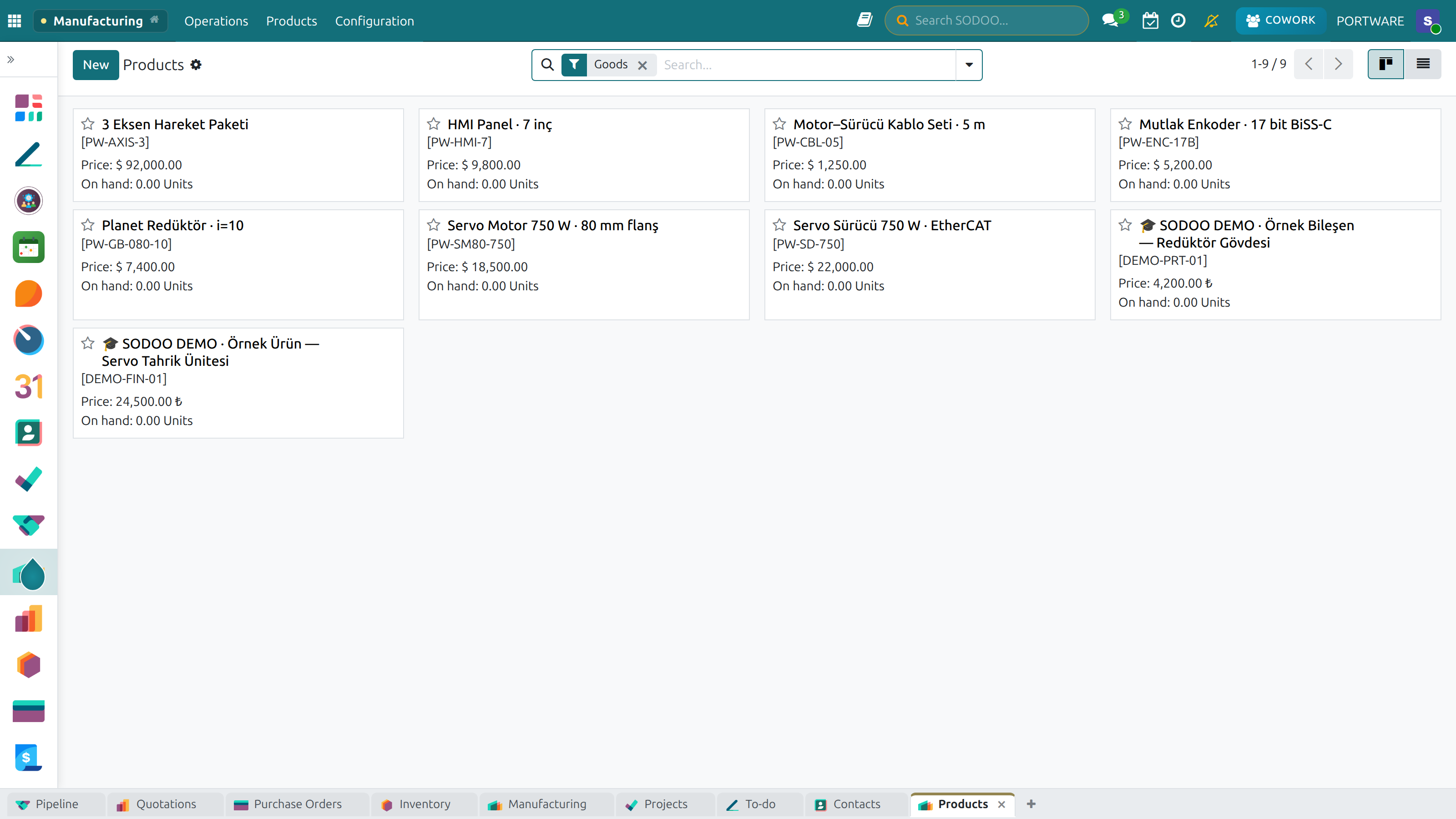
Kanban makes manufactured products and their status easy to follow
Key Concepts
Terms you'll frequently encounter in manufacturing management:
| Term | Definition | Example |
|---|---|---|
| BOM (Bill of Materials) | Structured list of all components and raw materials needed to produce a product | Desk BOM: 4 legs + 1 top + 16 screws |
| Manufacturing Order (MO) | Production instruction for a specific quantity of a product | MO-00123: Produce 100 Office Desks |
| Work Order (WO) | Sub-steps of a Manufacturing Order; operations at each work center | WO-001: Cutting, WO-002: Assembly, WO-003: Painting |
| Work Center | Physical location or machine where production operations take place | CNC Machine, Assembly Line, Paint Booth |
| Routing | Sequence of work centers and operations a product passes through | Cutting → Assembly → Painting → Packaging |
| Lead Time | Total time required to complete production or procurement | 3 working days to produce a desk |
| Scrap / Waste | Materials or products that become unusable during production | 5 legs scrapped due to cutting error |
| OEE | Overall Equipment Effectiveness — measures machine efficiency | CNC machine OEE: 85% |
| MTO | Make-to-Order — produce only when customer orders | Custom product built per specification |
| MTS | Make-to-Stock — produce to forecast demand, keep in stock | Standard catalog product kept in warehouse |
| ECO | Engineering Change Order — formal process to modify a product design | Change screw type from M6 to M8 across all BOMs |
The Manufacturing Cycle
The complete journey of a manufacturing order, from demand to delivery:
Supply Strategies
Manufacture
Product is manufactured in-house. BOM and routing must be defined. A manufacturing order is created when demand arises.
Buy
Product is procured from a supplier. A purchase order is created automatically when stock falls below the reorder point.
Make to Order (MTO)
Produce only when a customer order is received. Each order triggers dedicated production. Not held in stock.
Make to Stock (MTS)
Produce against forecast demand. Products are held in warehouse and consumed by sales orders as they arrive.
Bill of Materials (BOM)
A Bill of Materials (BOM) is the complete, structured list of all components, sub-assemblies, and raw materials needed to manufacture a product. It is the foundation of manufacturing management — without a BOM, planning is impossible.
Creating a BOM
Step-by-Step: Create a Bill of Materials
Access
- Navigate to
- Click + New
Define the BOM Header
- Product: Select the finished product (e.g., "Office Desk Model A")
- Quantity: The quantity this BOM produces (usually 1)
- BOM Type: Select Manufacture, Kit, or Subcontracting
- Routing: Optionally link a routing to define work center operations
Add Components
- In the Components tab, click Add a line
- Select the component (e.g., "Desk Leg")
- Enter quantity (e.g., 4)
- Add all components until the BOM is complete
- Save with Save
BOM Components Tab Fields
| Field | Description |
|---|---|
| Component | The raw material or sub-component required |
| Quantity | How many units of this component per finished product |
| Unit of Measure | kg, each, liter, meter, etc. |
| Apply on Variants | Restrict component to specific product variants only |
Multi-level BOMs
Complex products often require multi-level BOMs — where components themselves have their own BOM (sub-assemblies). SODOO handles this natively with unlimited BOM depth.
When a Manufacturing Order is created for the finished desk, SODOO can automatically create separate Manufacturing Orders for sub-assemblies (Desk Top Panel, Desk Legs) — either immediately or on demand, depending on your MRP strategy.
BOM Types
| BOM Type | Purpose | When to Use |
|---|---|---|
| Manufacture | Standard production BOM — components are consumed to produce the finished product | Most manufacturing scenarios |
| Kit | Product is sold as a bundle — components are picked and packed, no production occurs | Bundle sales (e.g., "Starter Kit" = 3 individual products) |
| Subcontracting | Components sent to external contractor who assembles the product | Outsourced manufacturing, contract assembly |
Cost Calculation
SODOO automatically calculates the theoretical manufacturing cost of a product based on its BOM. This cost includes:
- Material Cost: Sum of all component costs at their current valuation
- Operations Cost: Work center costs per hour × operation duration
- Overhead: Additional overhead rates defined per work center
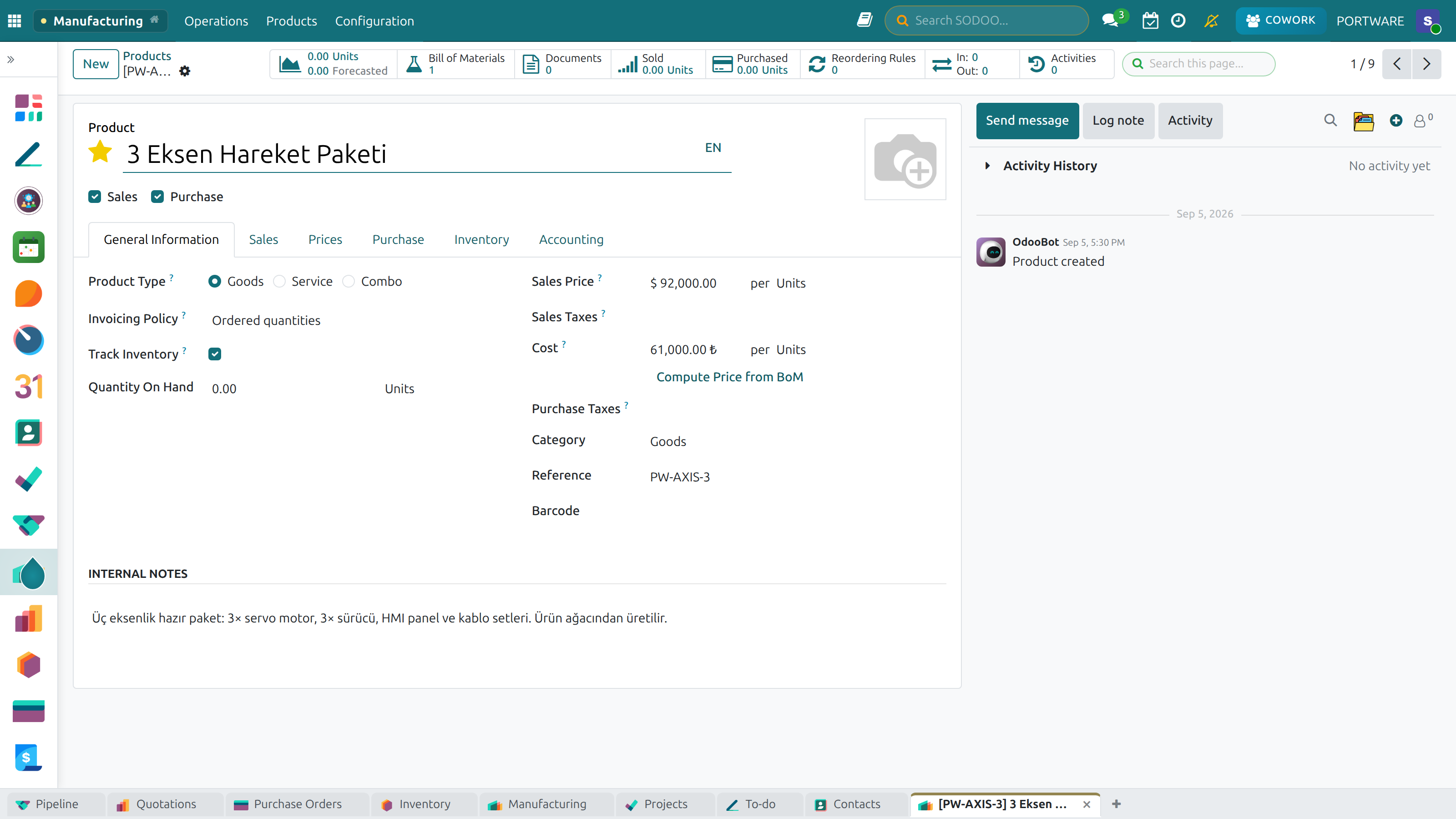
Product detail — bill of materials, components and manufacturing on one page
Manufacturing Orders
A Manufacturing Order (MO) is the central document that drives production. It specifies what to produce, how many, by when, and tracks the entire production lifecycle.
Creating a Manufacturing Order
Method 1: Manual Creation
- Go to
- Click + New
- Select the Product to manufacture
- Enter the Quantity
- Set the Scheduled Date (planned start date)
- The BOM auto-populates — verify components and routing
- Click Confirm to lock the MO
Method 2: From Sales Order
- When a sale order is confirmed for a MTO product, SODOO automatically creates an MO
- The MO is linked to the sale order via the smart button
- Production can be tracked directly from the sale order
Manufacturing Order Lifecycle
Key Manufacturing Order Fields
| Field | Description |
|---|---|
| Product | The finished product to be manufactured |
| Quantity to Produce | Planned output quantity |
| Qty Producing | Quantity currently being produced in this session |
| Scheduled Date | Planned production start date |
| Deadline | Latest date the MO must be completed |
| Source Location | Warehouse location from which components are consumed |
| Finished Location | Warehouse location where finished product is stored |
| Lot/Serial Number | Traceability tracking for finished product |
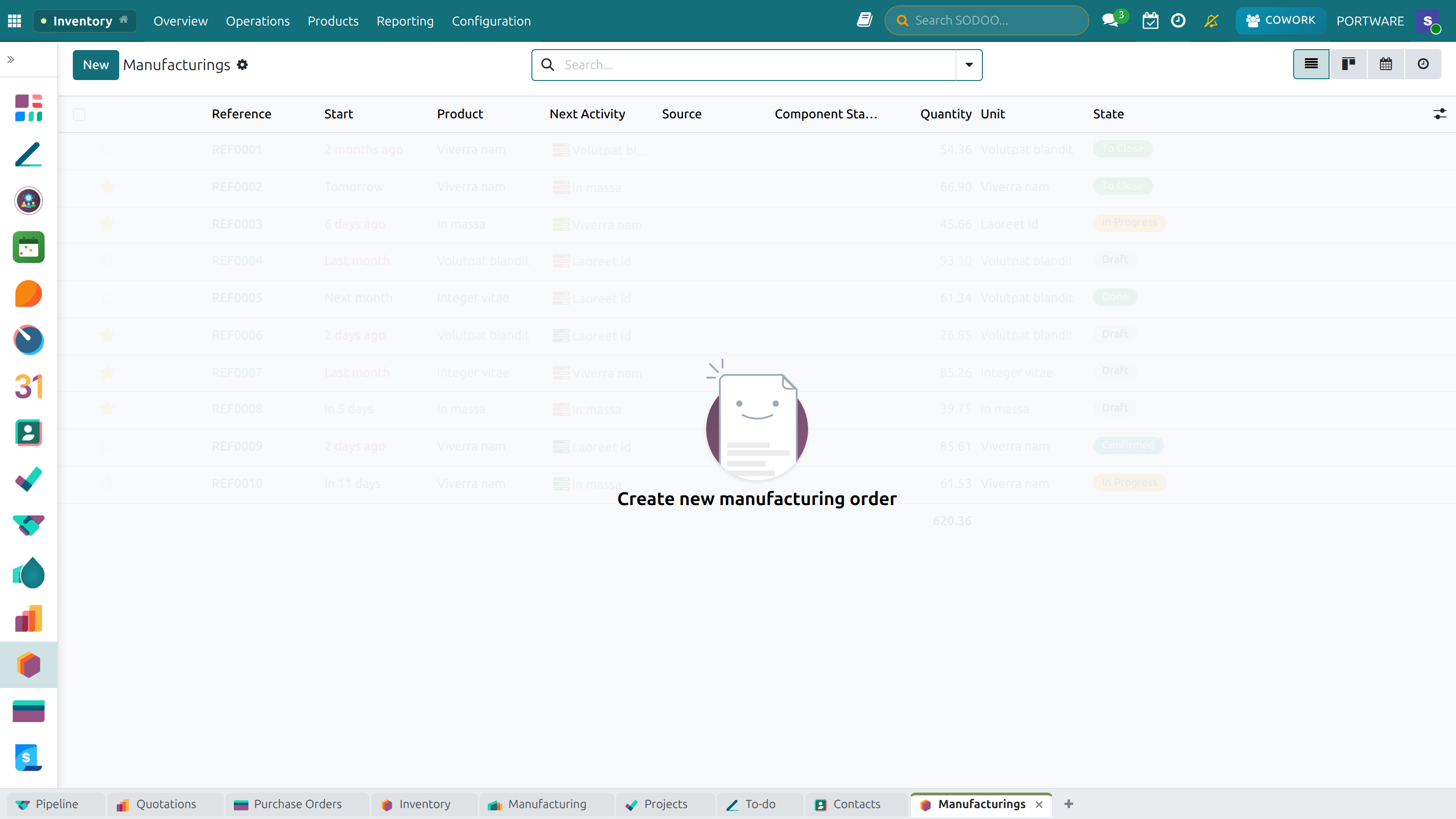
Manufacturing orders in list view — filter and sort to follow every order
Work Orders
Work Orders are the sub-operations within a Manufacturing Order. Each work order corresponds to one step in the routing — one work center, one operation, one responsible operator.
When a Manufacturing Order is confirmed, SODOO automatically generates work orders based on the product's routing. Operators can see and execute their work orders from any device, including tablets on the shop floor.
Work Order Fields
| Field | Description |
|---|---|
| Operation | The type of work (e.g., "Cutting", "Assembly", "Quality Check") |
| Work Center | Machine or station where the work happens |
| Duration Expected | Planned duration in minutes from routing definition |
| Duration | Actual time recorded when work order is completed |
| Status | Waiting, Ready, In Progress, Finished |
Work Centers
A Work Center represents a physical location, machine, or team in your factory where production operations occur. Work centers have defined capacities, efficiency factors, and hourly costs.
CNC Cutting
AvailableCapacity: 8hr/day
Assembly Line A
BusyCapacity: 16hr/day
Paint Booth
AvailableCapacity: 8hr/day
Packaging
BusyCapacity: 8hr/day
Work Center Configuration
| Setting | Purpose |
|---|---|
| Time Efficiency | Percentage efficiency (100% = full speed, 85% = accounts for changeovers) |
| Capacity | How many operations can run simultaneously |
| Working Hours | Shift schedule — when the work center is available |
| Costs per Hour | Overhead rate added to MO cost calculations |
| OEE Target | Target Overall Equipment Effectiveness percentage for reporting |
Routing
A Routing (or Operation) defines the sequence of operations a product must go through during manufacturing. Each step is assigned to a work center with a defined duration.
Example Routing: Office Desk Manufacturing
| Step | Operation | Work Center | Duration |
|---|---|---|---|
| 1 | Wood Cutting | CNC Cutting Machine | 15 min/unit |
| 2 | Sanding & Finishing | Finishing Station | 10 min/unit |
| 3 | Assembly | Assembly Line A | 20 min/unit |
| 4 | Painting/Coating | Paint Booth | 30 min/unit (incl. drying) |
| 5 | Quality Inspection | QC Station | 5 min/unit |
| 6 | Packaging | Packing Area | 8 min/unit |
Capacity Planning
Capacity planning ensures your work centers aren't overbooked or underutilized. SODOO provides a visual Gantt-style planner and work center load charts.
Production Schedule
Visual timeline of all manufacturing orders and work orders. Drag to reschedule and detect conflicts.
Workload Chart
Bar chart showing scheduled hours vs. available capacity per work center per day/week.
Overload Detection
Red indicators when a work center is scheduled beyond capacity. Adjust order dates or split production runs.
Lead Time Calculation
Automatic calculation of earliest possible delivery date based on routing durations and work center availability.
PLM engineering parts — capacity planning and work-centre load
Recording Production
Recording actual production involves updating the Manufacturing Order with quantities produced, materials consumed, scrap, and time spent.
Completing a Manufacturing Order
- Open the Manufacturing Order (status: Confirmed or In Progress)
- Enter the Qty Producing (can produce in partial batches)
- In the Components tab, verify or adjust actual material consumption
- If work orders exist, mark each as "Done" after completing at the work center
- Record any scrap in the Scrap tab or using the Scrap button
- Click Mark as Done to complete and create the stock entry
Partial Production
You can produce in batches. Set "Qty Producing" to less than the full MO quantity and click "Produce" — SODOO creates a stock move for the produced quantity and keeps the MO open for the remainder.
Material Consumption
When production is recorded, SODOO moves components from their source location into "in production" virtual stock, then consumes them to produce the finished product.
Consumption Modes
| Mode | How It Works |
|---|---|
| Auto (Standard) | Components consumed at BOM quantity when MO is confirmed. Adjust actuals on completion. |
| Manual | Operator manually records each component lot/serial number consumed during production. |
| Lot Tracking | Full lot traceability — each component lot is tracked to the finished product lot. |
| Serial Number Tracking | Every individual unit tracked — each serialized component links to a serialized finished product. |
Scrap & Waste Management
Scrap represents materials or finished products that become unusable during production. Recording scrap accurately is essential for cost control and yield analysis.
Recording Scrap
From within a Manufacturing Order, click Scrap to record:
- Which product or component was scrapped
- Quantity scrapped
- Scrap location (inventory journal entry is created)
- Optional: scrap reason for analysis
Scrap Analysis
Use Manufacturing reports to analyze scrap rates by product, work center, and time period. High scrap rates may indicate process problems, tooling wear, or operator training needs.
Tablet Mode (Shop Floor)
SODOO's tablet mode provides a simplified, touch-friendly interface for shop floor operators. Workers can view and execute work orders without needing access to the full SODOO interface.
Features
Time Tracking
Operators start/stop a timer for each work order. Actual time is recorded automatically.
Barcode Scanning
Scan component lot/serial numbers for traceability. Scan work order QR codes to open them quickly.
Work Instructions
Display step-by-step instructions with images, PDF attachments, and video links for each operation.
Quality Checks
Trigger quality checks from the tablet. Pass/Fail results are recorded directly in the system.
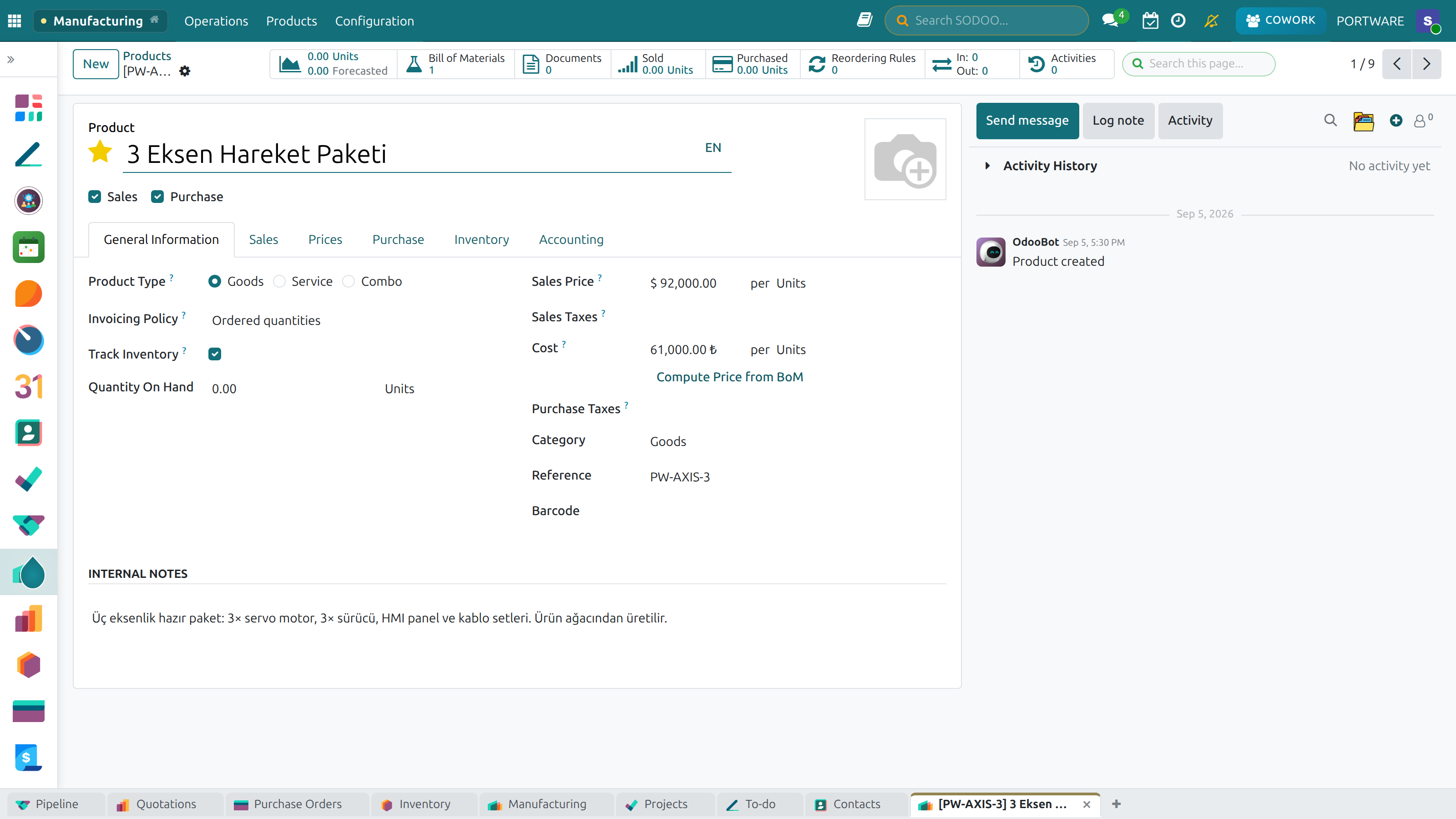
A product detail screen on the shop floor — a motor and its components
Quality Management
Learning Objectives
- Set up quality control points at key production stages
- Define inspection criteria and acceptable limits
- Record quality results and trigger corrective actions
- Analyze quality data to drive continuous improvement
SODOO's Quality module integrates directly with Manufacturing to enable inline quality control — checks can be triggered automatically at defined points in the production process.
Quality Control Points
Quality Control Points define where and when quality checks happen in the process. They can be triggered by:
| Trigger | When the Check Occurs | Example |
|---|---|---|
| All Operations | At every manufacturing step | Visual inspection at each work order |
| Manufacturing Operation | At a specific operation in the routing | Dimensional check after CNC cutting |
| Receipts | When goods are received from suppliers | Incoming material inspection |
| Delivery Orders | Before products are shipped to customers | Final inspection before dispatch |
Quality Check Types
Meets specification. Continue to next step.
Does not meet spec. Block production, create alert.
Requires further review or approval.
Measurement Types
| Type | Description | Example |
|---|---|---|
| Measure | Numerical measurement within tolerance range | Length: 1200mm ± 2mm |
| Pass/Fail | Binary visual or functional check | Surface finish acceptable? Yes/No |
| Text | Free-text observation or comment | Inspector notes any visible defects |
| Photo | Photo evidence required as part of check | Photograph serial number label |
| Worksheet | Structured multi-step inspection checklist | Pre-delivery inspection checklist with 20 items |
Quality Alerts
When a quality check fails, SODOO can automatically create a Quality Alert — a formal notification that triggers a corrective action workflow.
- Assign the alert to the responsible team or individual
- Set priority and deadline for resolution
- Track root cause analysis and corrective action
- Link to the specific production lot or batch
- Generate 8D problem-solving reports
Quality control during production — inspection results and control points
PLM - Product Lifecycle Management
Learning Objectives
- Understand how PLM manages products from design to retirement
- Manage product revisions and design versions
- Use Engineering Change Orders (ECO) for controlled design changes
- Integrate CAD files with SODOO product records
Product Lifecycle Management (PLM) extends Manufacturing with engineering-focused tools. Manage product designs, control revisions, implement engineering changes, and maintain the connection between CAD files and manufacturing BOMs.
SODOO includes the OmniaSolutions PLM Suite (32 modules), providing comprehensive PLM capabilities for engineering-intensive manufacturers.
Control product versions
Formal change control
Link CAD files to products
Revision Management
Products in engineering environments evolve over time. Revision management ensures that:
- Every version of a product is uniquely identified (e.g., Rev A, B, C or 1.0, 1.1, 2.0)
- Older revisions are preserved in the system for historical reference
- Production always uses the approved, current revision
- Superseded revisions cannot be accidentally used in new orders
| Revision State | Description |
|---|---|
| Draft | Design in progress, not yet released for production |
| Under Review | Submitted for engineering approval |
| Released | Approved and available for manufacturing |
| Obsolete | Superseded by newer revision, archived for reference |
Engineering Change Orders (ECO)
An Engineering Change Order (ECO) is a formal document that proposes, reviews, approves, and implements a change to a product design, BOM, or manufacturing routing.
ECO Workflow
Example ECO: Screw Type Change
Problem: M6 screws are experiencing loosening in field use. Engineering proposes changing to M8 self-locking screws across all desk models.
- Engineer creates ECO: "Change M6 screws to M8 self-locking on all desk BOMs"
- ECO includes: reason, affected products (12 desk models), cost impact analysis
- Quality manager and production manager review and approve the ECO
- ECO is applied: all 12 BOMs are updated automatically in one action
- Product revisions are bumped: Desk Model A Rev C → Rev D
- All new manufacturing orders automatically use the updated BOM
- Existing open orders with old BOM are flagged for decision
CAD Integration
The OmniaSolutions PLM Suite provides deep CAD integration, allowing SODOO to serve as the product data management hub for engineering teams.
Supported CAD Systems
- SolidWorks
- Autodesk Inventor
- FreeCAD
- Generic CAD via neutral formats (STEP, IGES, DXF)
Key Capabilities
- File Storage: CAD files stored as attachments to product records, version-controlled
- BOM Sync: BOM structure imported from CAD assembly hierarchy
- 3D Viewer: View 3D models directly in browser (plm_web_3d module)
- Weight Calculation: Automatic weight propagation through assembly levels
- Drawing Management: 2D drawings stored alongside 3D models
PLM home — following product lifecycle stages and engineering parts
PLM product detail — CAD files, drawings and the 3D viewer
MRP Multi-Level (OCA)
MRP Multi-Level is an advanced OCA (Odoo Community Association) module that enhances SODOO's planning capabilities with proper multi-level material requirements planning.
What MRP Multi-Level Adds
True MRP Logic
Net requirements calculation considering: demand, on-hand stock, open purchase orders, and open manufacturing orders simultaneously.
Multi-level Explosion
Plans sub-assemblies automatically when the top-level product demand changes. Cascades through all BOM levels.
Time-phased Planning
Schedule procurement and production considering lead times to ensure materials arrive just-in-time.
MRP Inventory View
Comprehensive view of planned inventory positions over time — see projected stock levels per product.
MRP Run Process
Maintenance
The Maintenance module tracks equipment uptime, schedules preventive maintenance, and manages repair requests. Downtime is the enemy of OEE — proactive maintenance keeps your work centers running at maximum efficiency.
Maintenance Types
| Type | Description | Trigger |
|---|---|---|
| Corrective | Repair after equipment breakdown | Equipment failure or operator report |
| Preventive | Scheduled maintenance to prevent breakdowns | Time-based schedule (every 30 days, 500 hours) |
| Predictive | Data-driven maintenance based on equipment condition | Sensor readings, vibration analysis, IoT integration |
Key Features
Equipment Registry
Central database of all equipment: specifications, location, warranty, purchase date, maintenance history.
Maintenance Requests
Anyone can submit a maintenance request. Requests are assigned to maintenance teams and tracked to resolution.
Preventive Schedule
Define recurring maintenance plans (oil change every 500 hours). System automatically creates requests on schedule.
MTBF & MTTR
Track Mean Time Between Failures and Mean Time to Repair per equipment — key reliability KPIs.
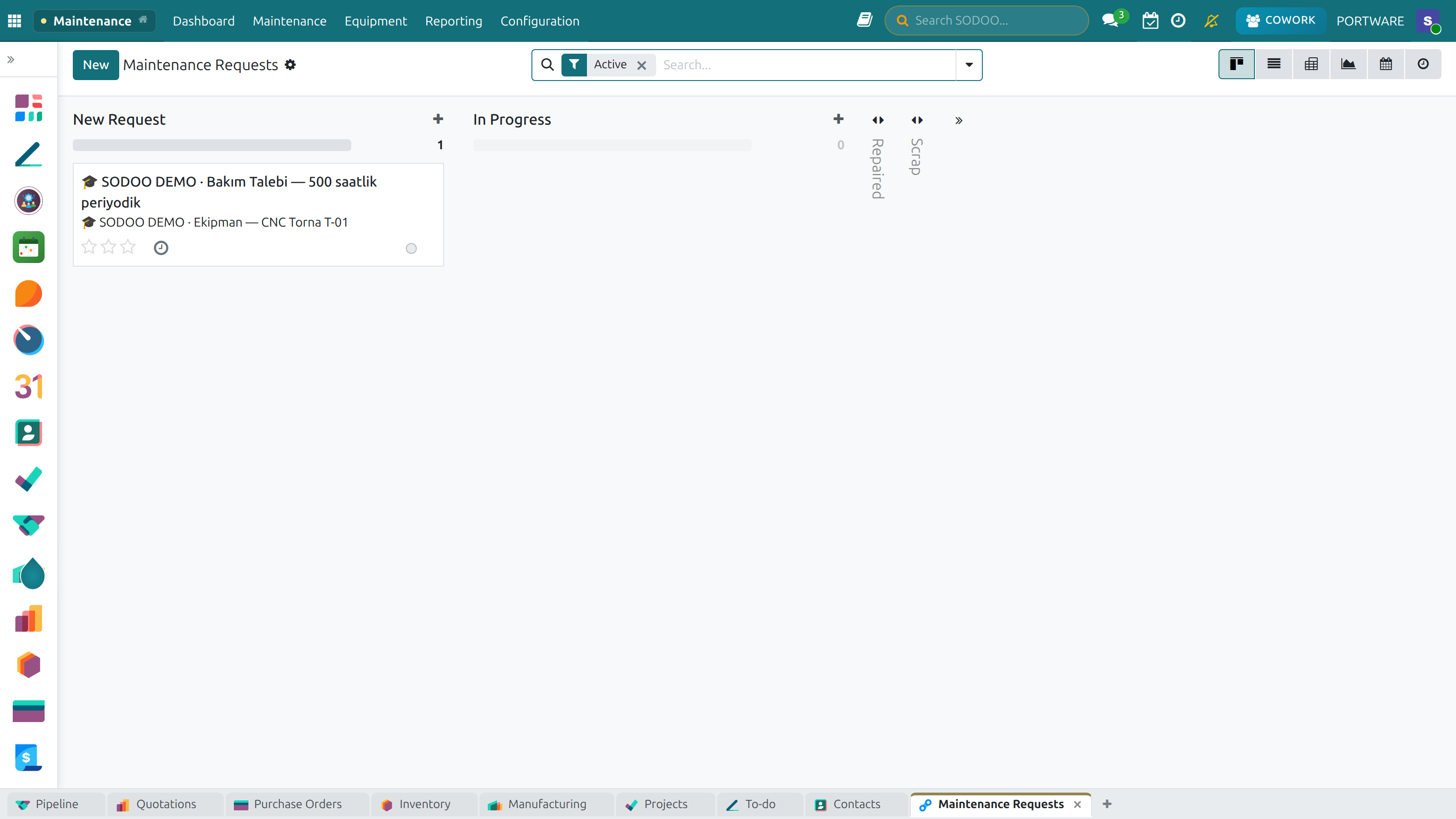
Maintenance home — the equipment list and maintenance status
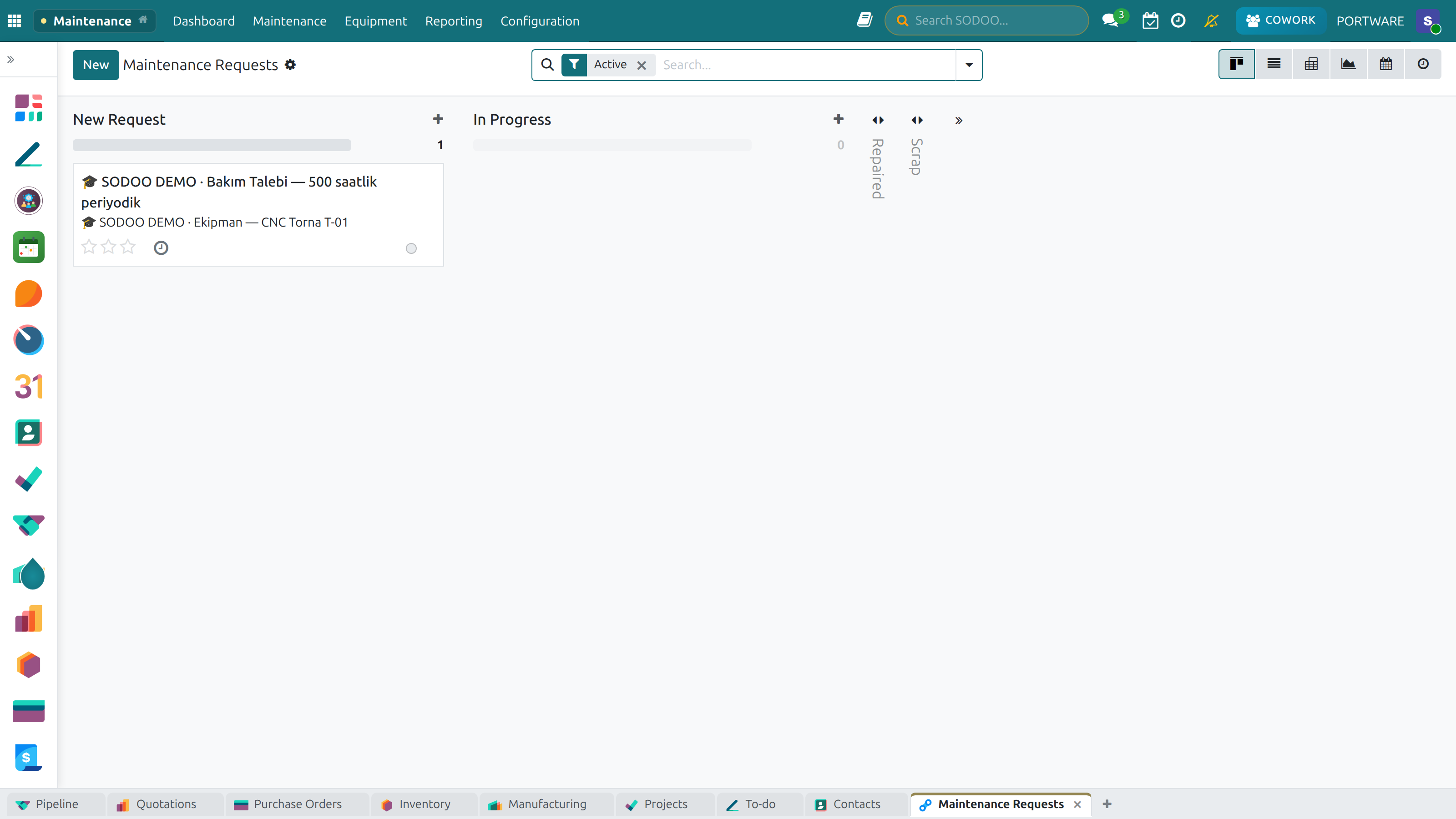
Maintenance requests in Kanban — pending, in-progress and completed jobs
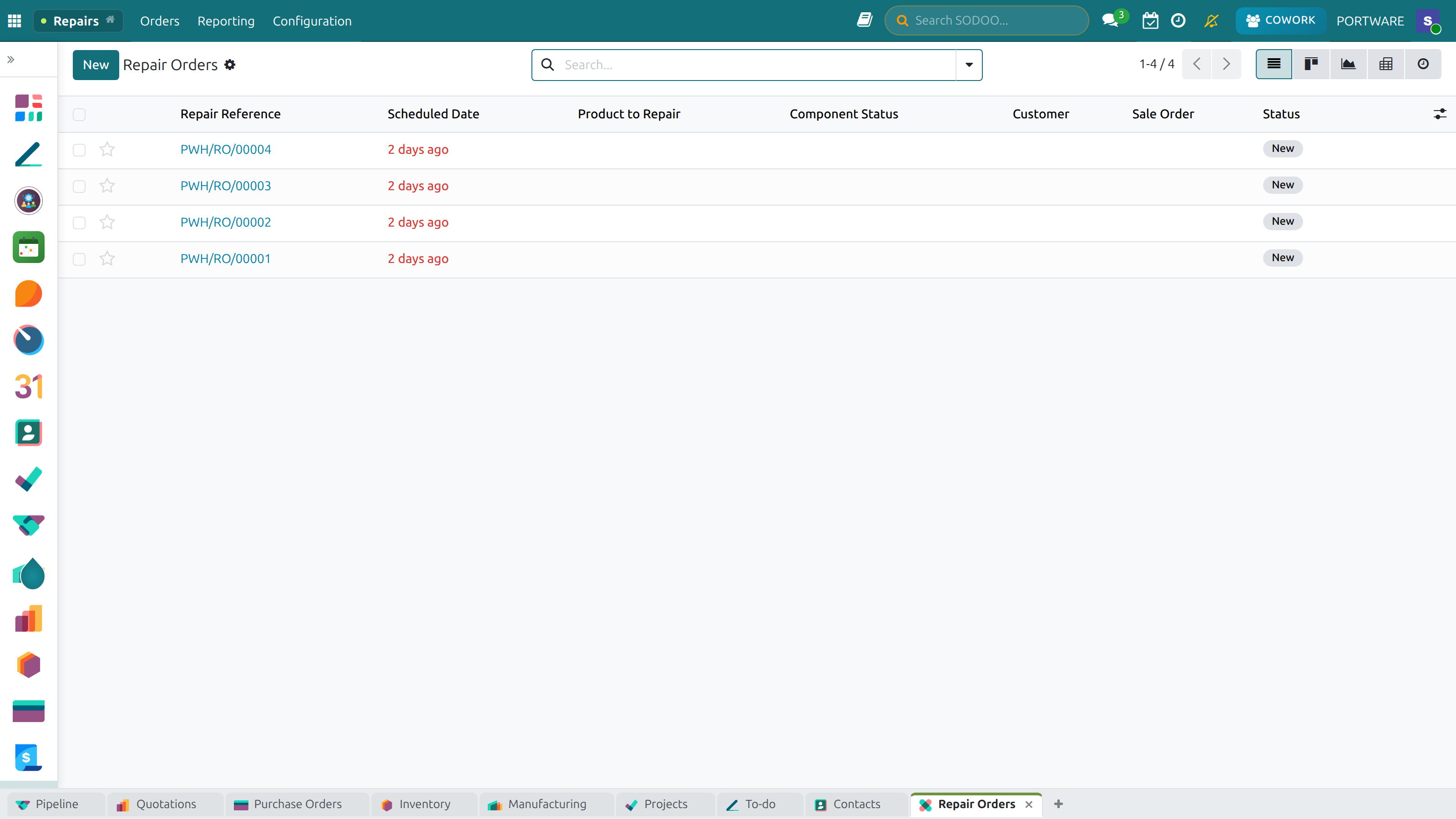
Repair Management — faulty equipment and the repair process
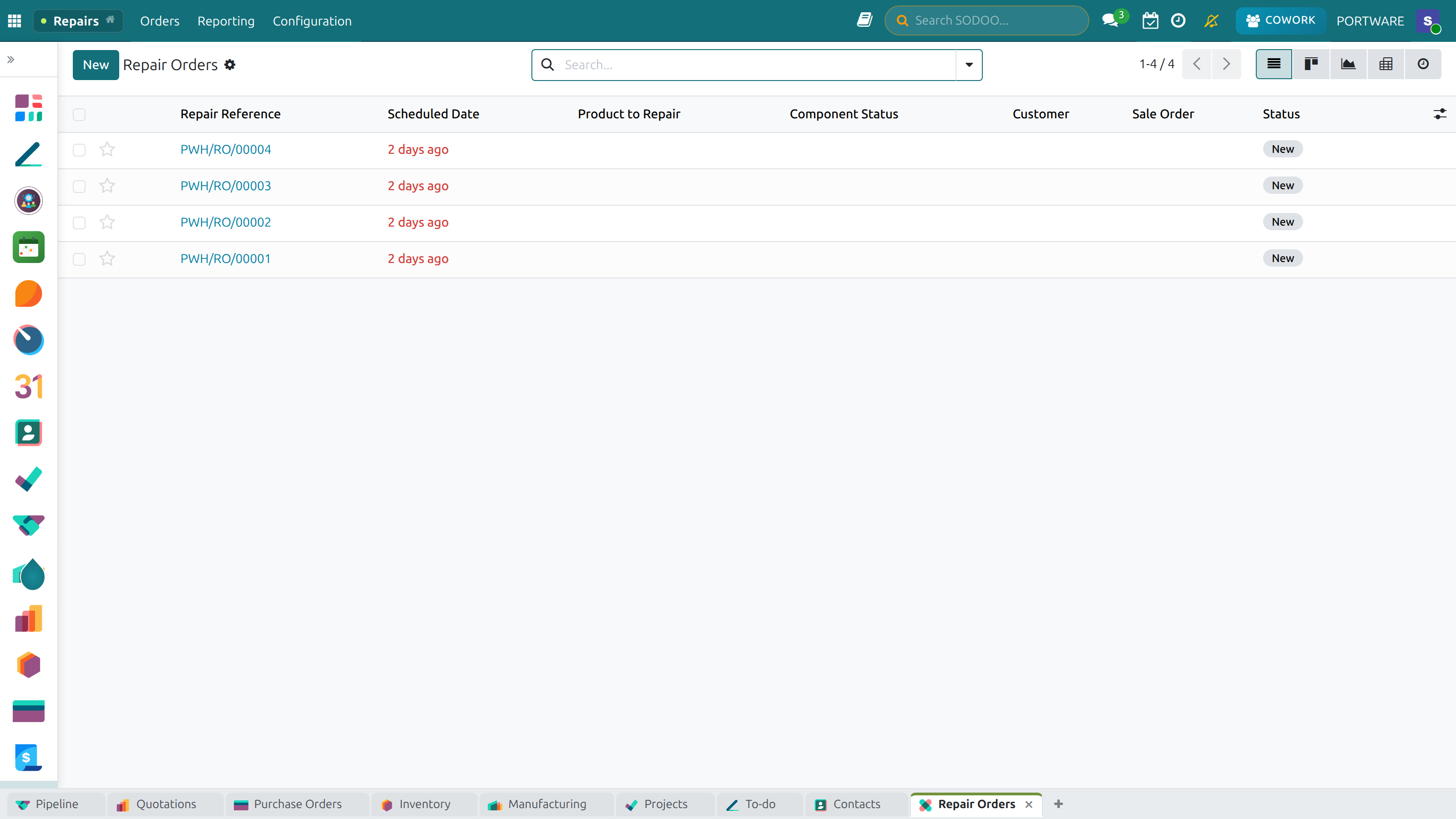
Repair Orders List — following every repair request
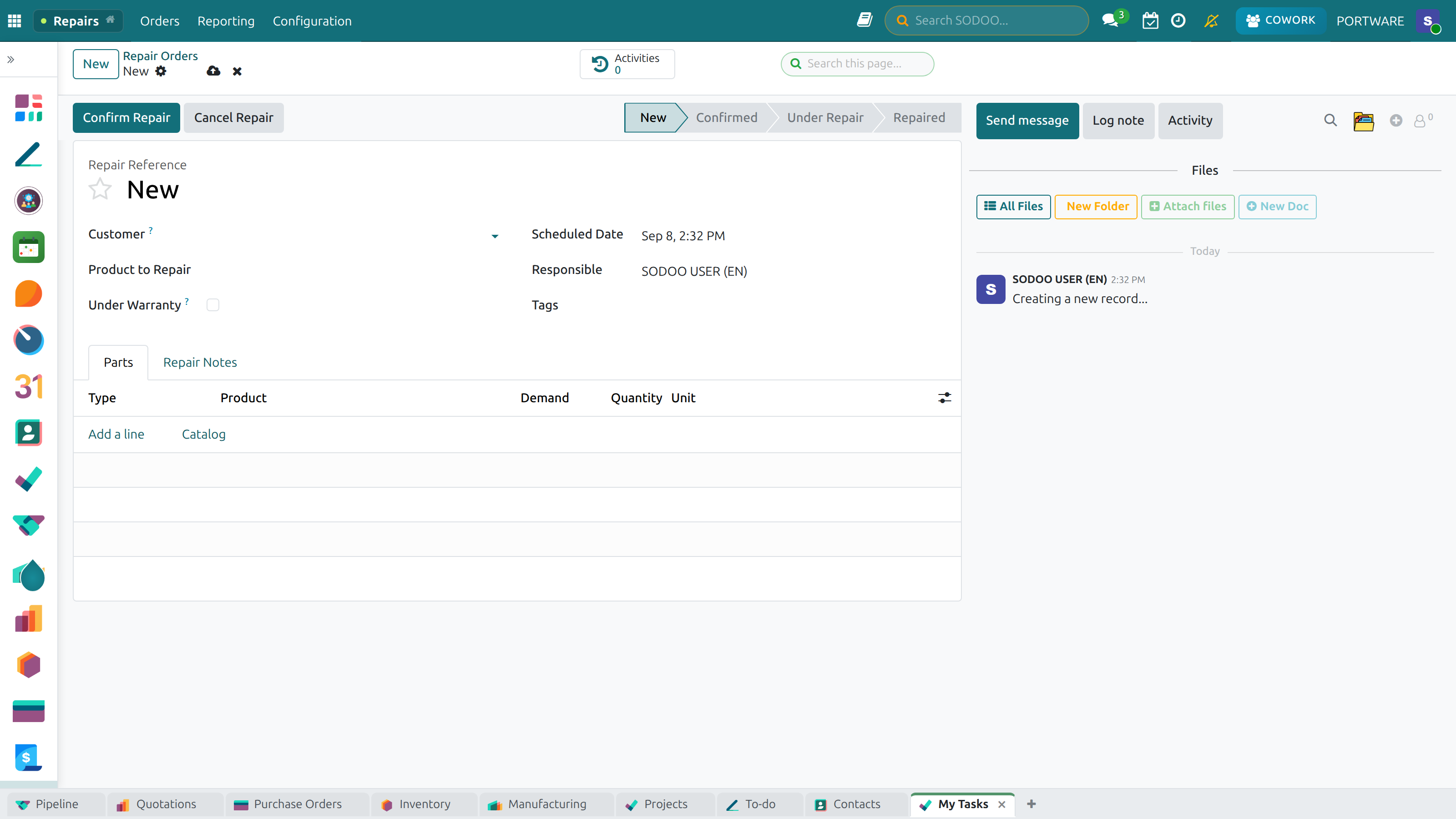
New Repair Order — the fault details and the repair plan
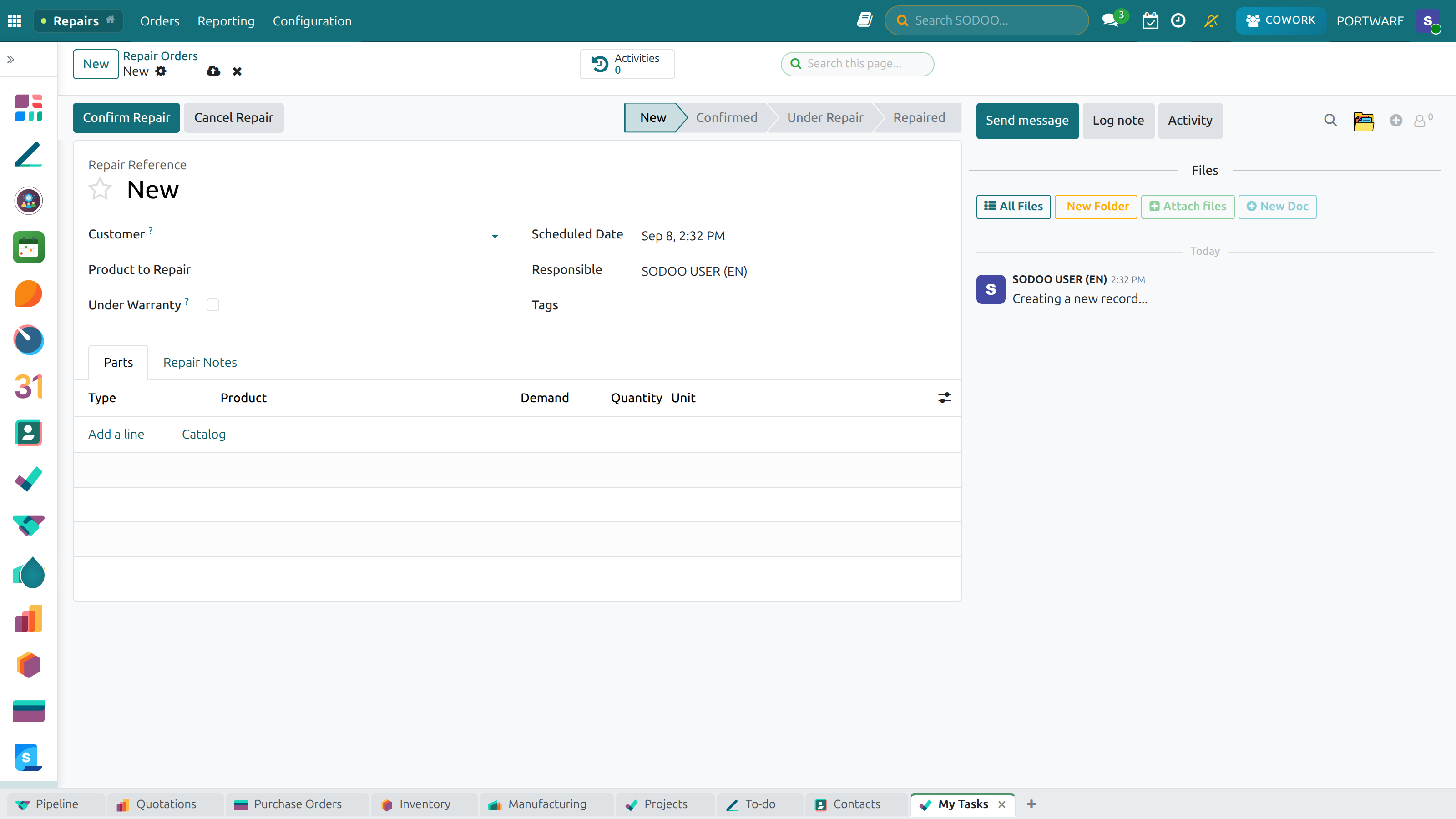
New Repair Record — reporting a fault and opening the repair
OEE - Overall Equipment Effectiveness
OEE is the gold standard metric for measuring manufacturing efficiency. It combines three factors:
| Factor | What It Measures | Losses It Captures |
|---|---|---|
| Availability | Actual runtime / Planned production time | Breakdowns, setup time, changeovers |
| Performance | Actual speed / Theoretical max speed | Minor stoppages, reduced speed, operator pace |
| Quality | Good units / Total units produced | Defects, rework, scrap, startup rejects |
Integrations
| Module | Integration | Value Created |
|---|---|---|
| Sales | MO created from confirmed sale orders (MTO route) | Automatic demand-driven production |
| Inventory | Component consumption and finished goods stock movements | Real-time stock accuracy during production |
| Purchasing | Purchase orders created for material shortfalls | Automatic procurement when stock is insufficient |
| Accounting | Material and overhead costs posted to journals on MO validation | Real-time cost of goods manufactured accounting |
| Quality | Quality checks triggered within work orders | Inline quality control without leaving production |
| Maintenance | Maintenance requests accessible from work centers | Operators report equipment issues from the shop floor |
| AI COWORK | Natural language manufacturing queries and order creation | "Show me all delayed MOs" — instant answer without navigation |
Reports & KPIs
Available Manufacturing Reports
| Report | Description | Access |
|---|---|---|
| Manufacturing Analysis | Pivot table of MOs by product, state, period — quantities and durations | Manufacturing > Reporting > Manufacturing Analysis |
| Work Center Analysis | Planned vs. actual hours per work center, efficiency metrics | Manufacturing > Reporting > Work Centers |
| OEE Report | Availability, Performance, Quality breakdown per work center | Manufacturing > Reporting > OEE |
| Scrap Analysis | Scrap quantities and costs by product, work center, period | Manufacturing > Reporting > Scraps |
| Quality Analysis | Pass/fail rates by quality point, product, and team | Quality > Reporting > Quality Analysis |
| Maintenance Analysis | MTBF, MTTR, downtime per equipment | Maintenance > Reporting > Requests Analysis |
Best Practices
Discrete vs. Process Manufacturing
Producing countable, individual units
- Use BOM with exact quantities per unit
- Define routing with clear operation times
- Use serial number tracking for high-value items
- Enable work orders for shop floor visibility
- Set up quality checkpoints at critical operations
Producing continuous or batch outputs (food, chemical, pharma)
- Use BOM quantities as ratios (per 100kg output)
- Enable lot tracking for batch traceability
- Define expiry dates on lot numbers
- Set up quality checks per batch
- Use the Inventory calendar for batch scheduling
General Best Practices
BOM Accuracy
Inaccurate BOMs cause stock discrepancies, cost variances, and production delays. Review BOMs regularly and update when designs change via ECOs. Treat BOM maintenance as a critical process, not an afterthought.
Realistic Lead Times
Configure lead times (procurement + manufacturing + safety buffer) accurately. Optimistic lead times cause late deliveries; pessimistic ones create unnecessary inventory. Review actual vs. planned lead times monthly.
Work Center Efficiency
Set up work center time efficiency realistically (typically 85-95%). Include time for setup, changeovers, and break time. Unrealistic efficiency settings make the schedule meaningless.
Quality Gates
Define quality control points at the highest-risk points in production, not everywhere. Over-inspection adds cost without proportional benefit. Focus QC resources where defects have the most impact.
Use AI COWORK
Ask AI COWORK: "Which MOs are delayed?", "What products have the highest scrap rate this month?", "Create a production order for 50 units of Product A scheduled for next week". Save hours of manual reporting.
Continuous Improvement
Review OEE and scrap reports monthly. Identify the top 3 losses (the "Big 3" losses in your factory). Tackle them systematically using root cause analysis and corrective actions.
Frequently Asked Questions
How deep can BOM nesting go in SODOO?
SODOO supports unlimited BOM depth. You can have sub-assemblies within sub-assemblies to any level. The MRP explosion handles all levels automatically. Practically, BOMs beyond 8-10 levels can be slow to process in MRP runs, so flatten unnecessarily deep structures where possible.
Can I produce multiple products from one Manufacturing Order?
SODOO primarily supports one finished product per MO. However, you can define by-products in the BOM — secondary outputs produced alongside the main product. For example, producing lumber may generate sawdust as a by-product that goes into inventory as a separate product.
How does subcontracting work in SODOO Manufacturing?
Set the BOM type to "Subcontracting". When a manufacturing order is created, SODOO generates a purchase order to the subcontractor and automatically sends the required components. When the purchase is received, the finished product enters inventory and component consumption is recorded. This provides full traceability and cost tracking for outsourced production.
What happens to the Manufacturing Order if the sale order is cancelled?
For MTO (Make-to-Order) products, cancelling the sale order does not automatically cancel the linked Manufacturing Order. You must manually cancel or archive the MO. For MTS products, MOs are independent of specific sale orders, so cancellation doesn't affect existing MOs. Consider this in your cancellation procedures.
Can I track which components went into which finished product?
Yes — enable Lot Tracking or Serial Number Tracking on both component and finished product categories. SODOO's Traceability report shows the complete forward and backward trace: which lot of raw material was used to produce which finished good lot, and vice versa. This is essential for recalls in food, pharma, and aerospace industries.
How does MRP Multi-Level differ from standard SODOO MRP?
Standard SODOO uses reorder rules (min/max stock rules) to trigger replenishment. MRP Multi-Level adds true MRP logic: it considers time-phased demand, calculates net requirements at all BOM levels simultaneously, and plans procurement timing based on lead times. This is particularly valuable for complex multi-level BOMs where component lead times must be considered to ensure materials arrive just-in-time for production.
Can operators use SODOO on the shop floor without training?
The Tablet Mode is specifically designed for shop floor use. It is simplified, touch-friendly, and shows only the information relevant to the current work order. Most operators can learn the basic workflow (open work order, start timer, scan barcode, record result, close) within 15-30 minutes of hands-on training.
How do I handle by-products (co-products) in manufacturing?
Enable the "By-Products" option in Manufacturing settings. In the BOM, go to the "By-Products" tab and add the co-products with their expected quantities and destination locations. When the manufacturing order is validated, the by-products are automatically added to inventory at the specified locations.