Project and Service Management
Project and service management in PORTWARE: projects, tasks, timesheets, helpdesk, field service and the PORTWARE planning layer.
- Every project picks its own methodScrum, Kanban, Waterfall or Stage-Gate; a project that picks none does not change.
- Who is how fullTeam workload shows tasks, meetings, leave and holidays apart.
- From task to invoiceTimesheets flow into the invoice by themselves.
Project and Service Management
From Idea to Delivery: Plan projects, coordinate teams, manage customer requests and organise field service. All your service operations on one platform.
What You Will Learn in This Section
- Creating projects and organising tasks
- Tracking work with Kanban and Gantt views
- Recording working hours with timesheets
- Managing customer support tickets (helpdesk)
- Planning field service operations
- Analysing project profitability
Overview
The Project and Service Management module covers every operation of a company in the service sector. From software development to consulting, from technical service to customer support, you can manage any kind of project-based work.
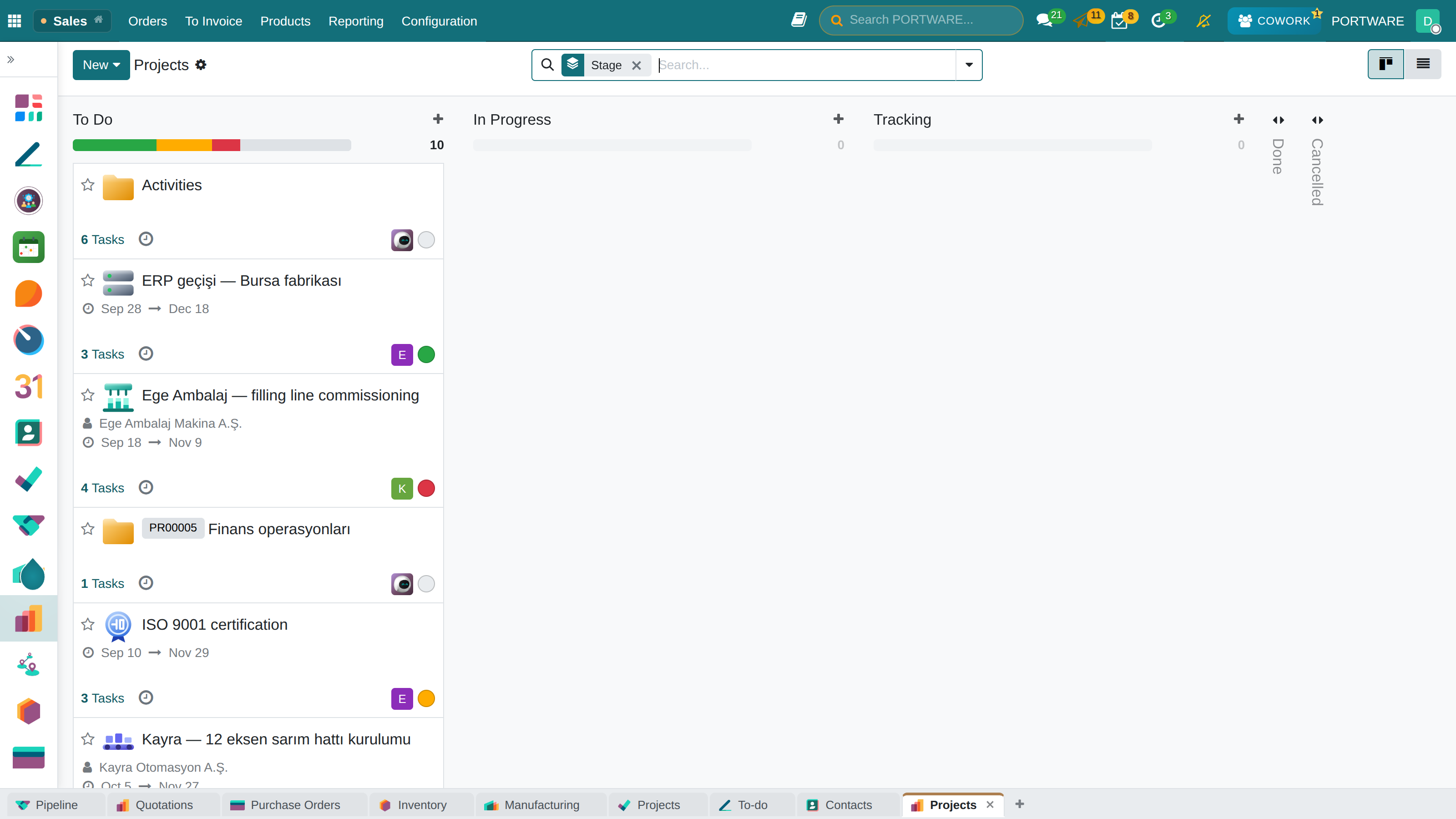
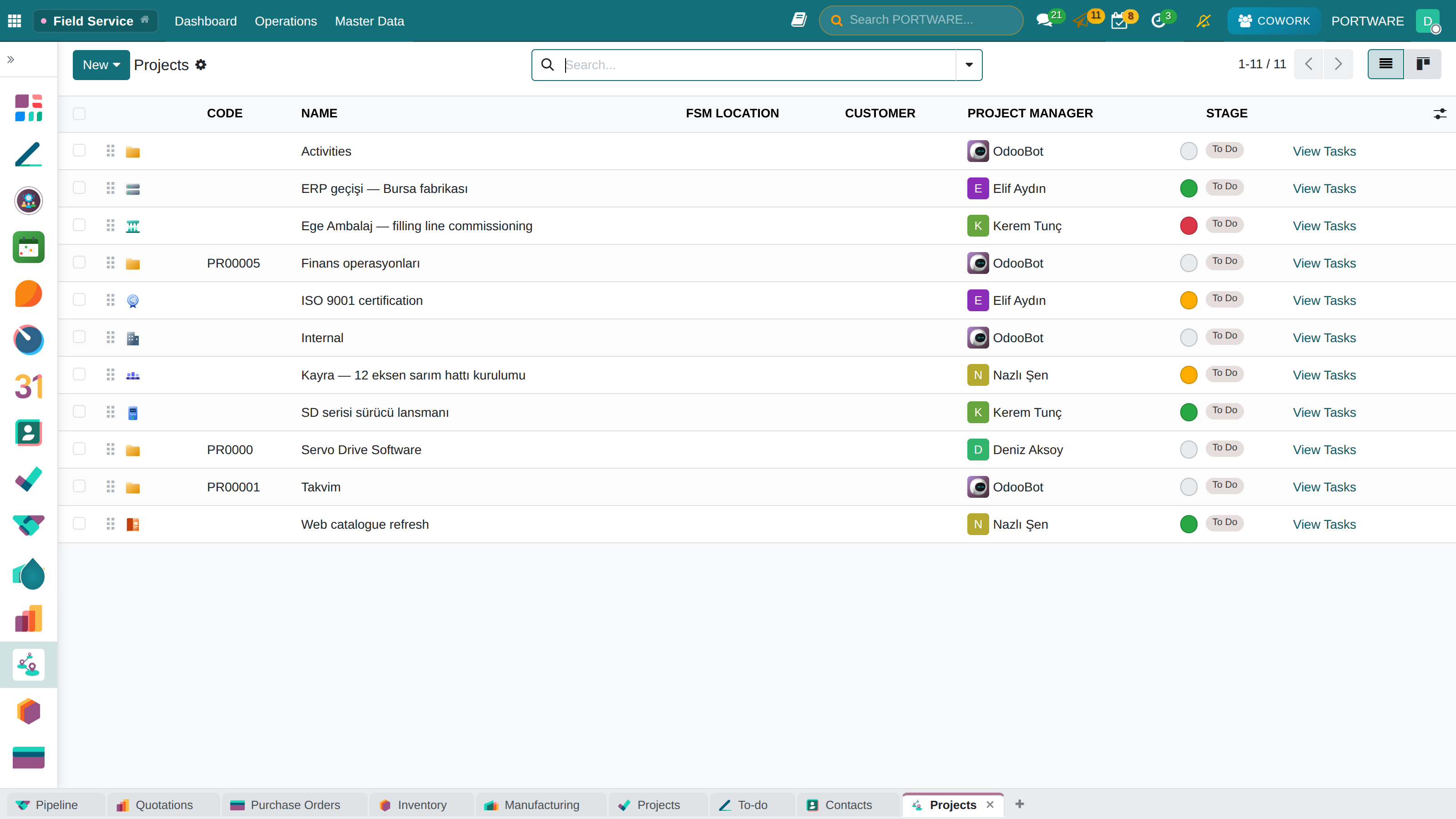
Projects home view - the overall status of every project on a kanban board
Project Lifecycle
Planning
Initiation
Execution
Monitoring
Closing
PORTWARE helps you at every stage of this cycle:
- Planning: Scoping, resource allocation, budget planning
- Initiation: Creating the project, assigning the team, defining milestones
- Execution: Assigning tasks, tracking progress, logging timesheets
- Monitoring: Performance analysis, budget control, risk management
- Closing: Delivery, review, profitability analysis
Why Digital Project Management?
Picture a website project: the customer asked for it, the deadline is 3 months and a team of 5 will work on it. What happens if you try to run this project with Excel and e-mail?
With Excel and E-mail
- The task list is in Excel and everyone uses a different version
- "Did Ahmet finish this task?" - lost in an e-mail thread
- Is the project 80% or 60% done? Nobody knows
- No timesheets, so the hours spent are unknown
- Is the project profitable or losing money? We will find out at month end
- Panic when the customer asks "where are we?"
With PORTWARE Project Management
- One source: everyone sees the same task list
- Kanban board: which task is with whom, at which stage
- Automatic progress: calculated from completed tasks
- Timesheet integration: every hour is recorded
- Instant profitability: revenue - cost = profit (in real time)
- Customer portal: the customer can see the status themselves
Scenario: Managing a Website Project
Managing with Excel (2 hours lost every day):
- Prepare the task list in Excel
- E-mail the team every day: "What did you do today?"
- Collect the answers and update Excel
- Report the status in the weekly meeting
- Prepare the report by hand when the customer asks
- Gather the expenses and work out profitability when the project ends
Managing with PORTWARE (automatic):
- Create the project, define the tasks and stages
- Assign the team members and share the Kanban board
- Everyone moves their own tasks forward with drag and drop
- Live progress and hour tracking on the dashboard
- The customer can follow the project from the portal
- Automatic profitability report - always up to date
Core Concepts
Project
The whole body of work, with a start and an end date, carried out to reach a specific goal. In PORTWARE the project is the main container in which tasks are organised.
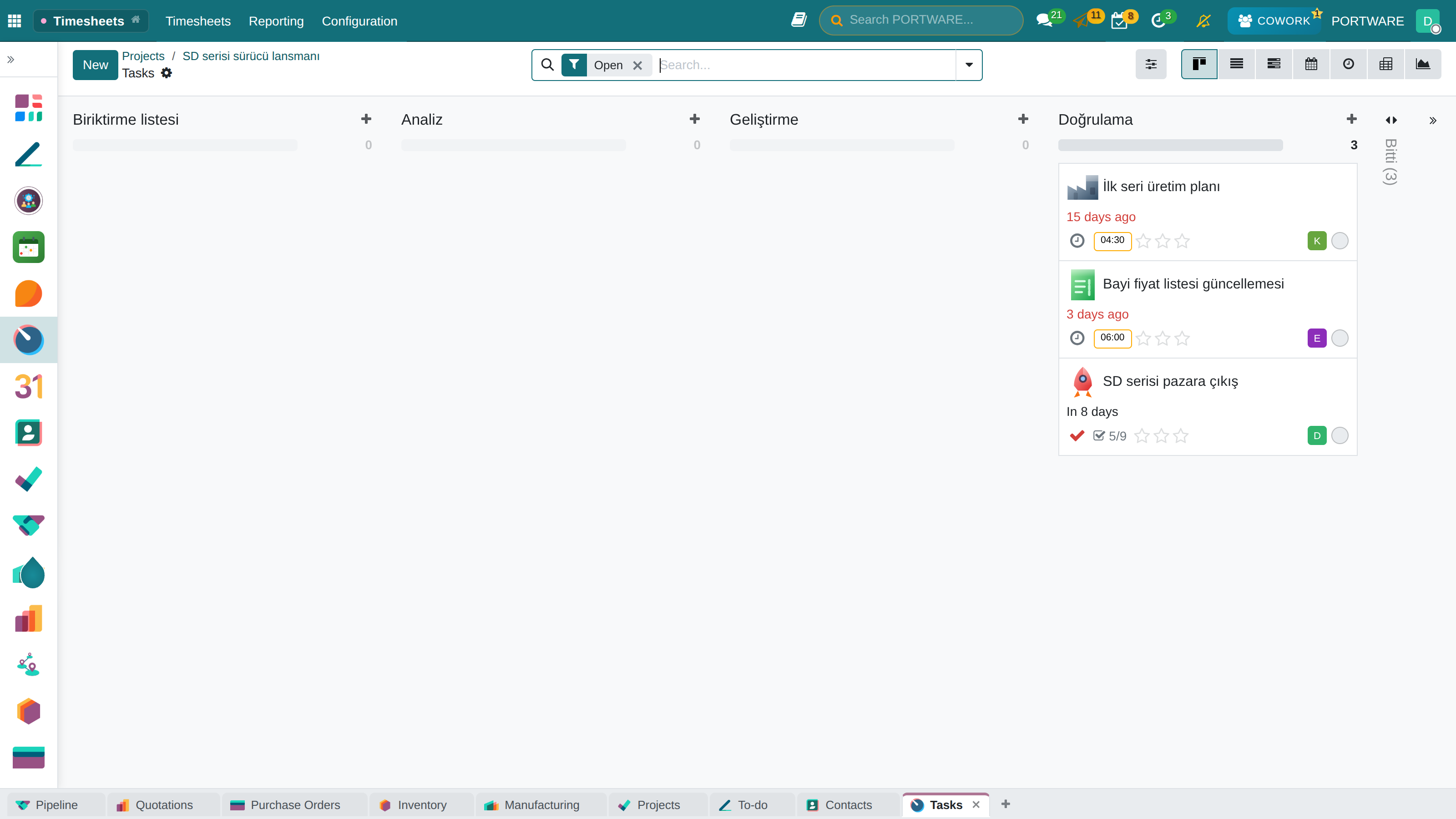
A project's board — backlog, analysis, development and review stages
Project Types
- Customer Project: billable work done for a specific customer
- Internal Project: in-house development and improvement work
- Support Project: the project that collects customer support requests
- Service Project: maintenance and technical service work
Task
The smallest unit of work in a project. Each task is assigned to a person and has start/end dates and an estimated duration.
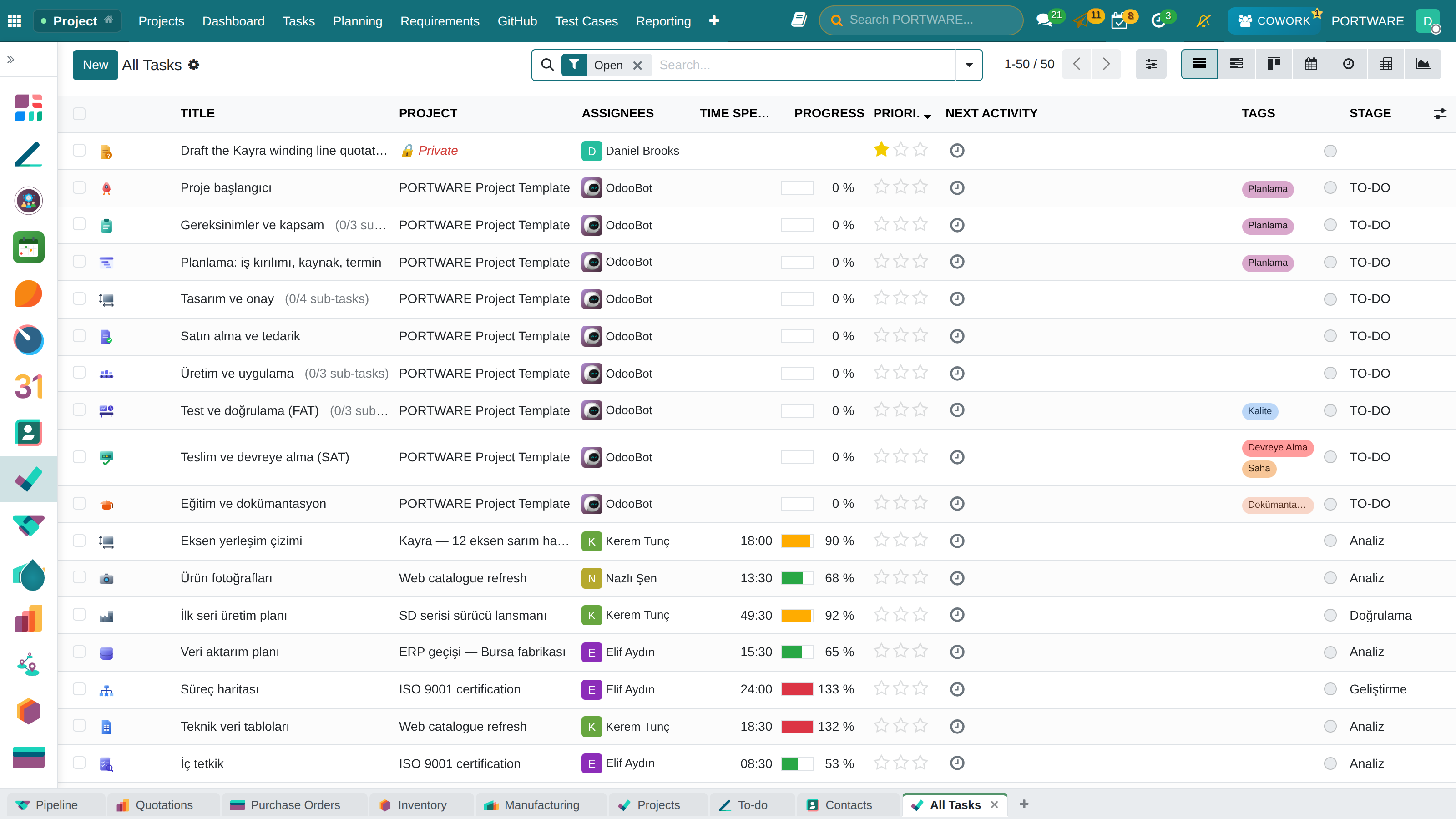
Task list - list view of every task in the project
| Field | Description | Example |
|---|---|---|
| Title | Short description of the task | Home page design |
| Assignee | The person who will do the task | Ayşe Yılmaz |
| Stage | Kanban stage | In Progress |
| Planned Hours | Estimated working time | 16 hours |
| Deadline | Delivery date | 15.02.2026 |
Milestone
The critical points of a project. They usually stand for delivery, approval or payment points.
Creating a Project
To create a new project, go to Project → Projects → New.
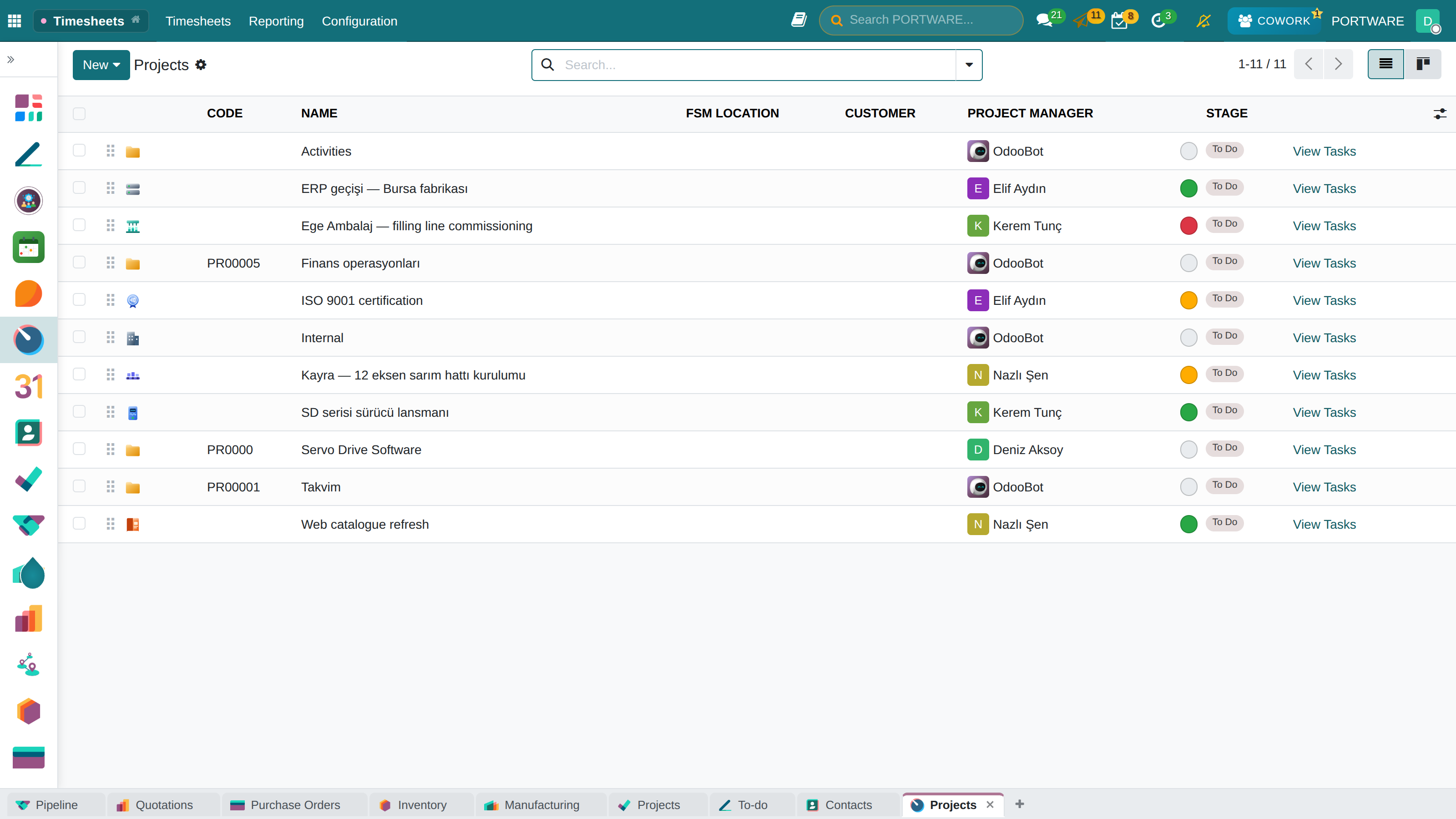
Project settings - creating and configuring a new project
Project settings in detail - timesheet, invoicing and sub-task options
Advanced project settings - recurring tasks and customer portal configuration
Project template detail - template configuration for recurring projects
Steps to Create a Project
- Enter the project name (e.g. "ABC Corp - Website")
- Select the customer (for a billable project)
- Assign the project manager
- Define the stages (Kanban columns)
- Set the start and end dates
Project Settings
- Timesheets: timesheet logging on/off
- Invoicing: hourly, fixed price or milestone based
- Sub-tasks: splitting tasks into sub-tasks
- Recurring Tasks: for periodic work
- Customer Portal: the customer can see the project
How to Do It in PORTWARE
Creating a New Project
- Go to the menu
- Click the + New button
- Enter the project name in the Project Name field (e.g. "ABC Corp - Website")
- Select the customer in the Customer field
- Settings tab, configure the project features:
- Timesheets - enable for timesheet logging
- Invoicing - choose hourly or fixed price
- Sub-tasks - enable to split tasks
- Click the Save button
Customising Project Stages
- Go to the menu
- Add a custom stage with + New (e.g. "Code Review", "QA Test")
- Set the Kanban order with the Sequence field
Task Management
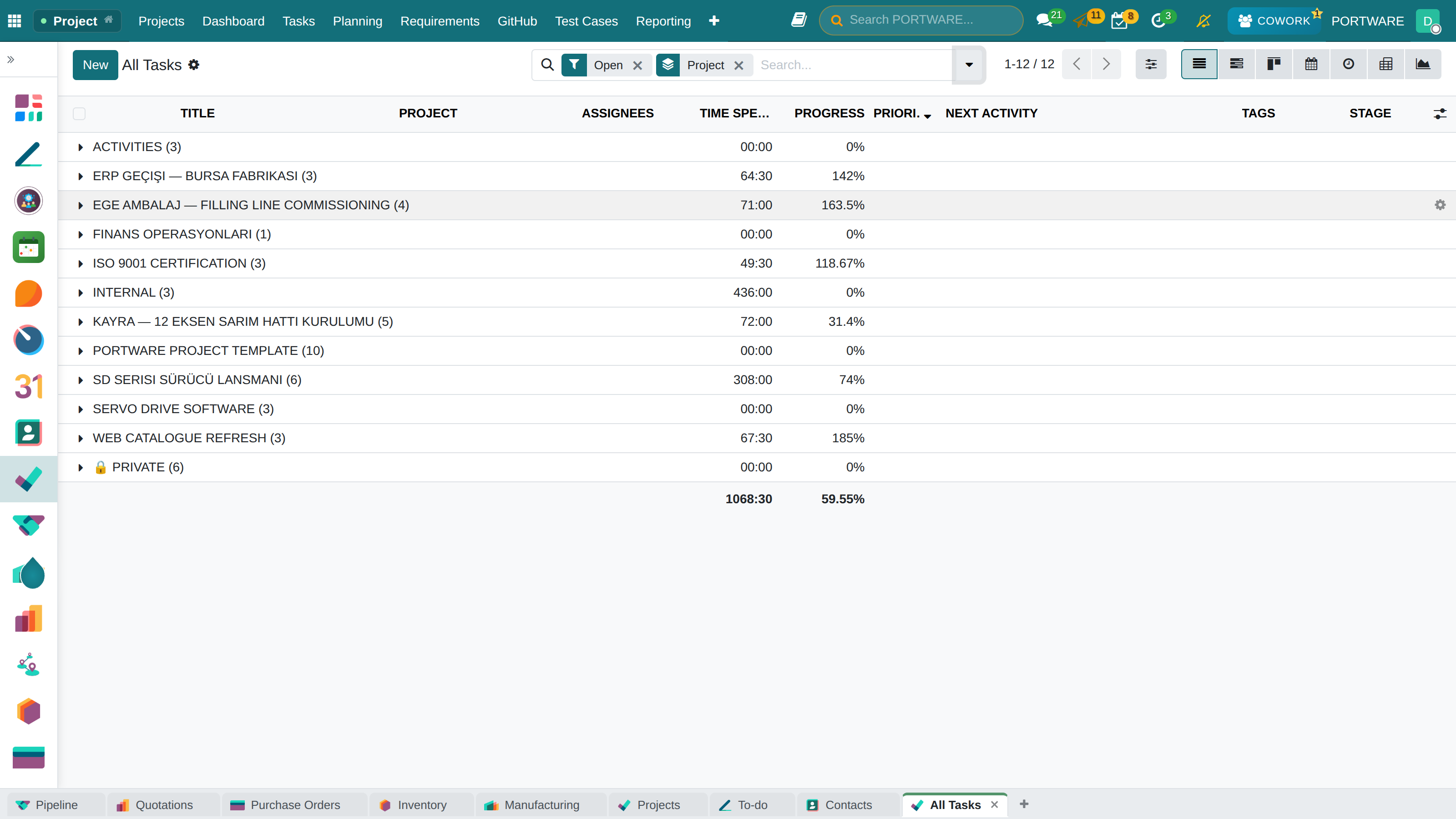
All Tasks grouped by project — tasks, hours and progress per project
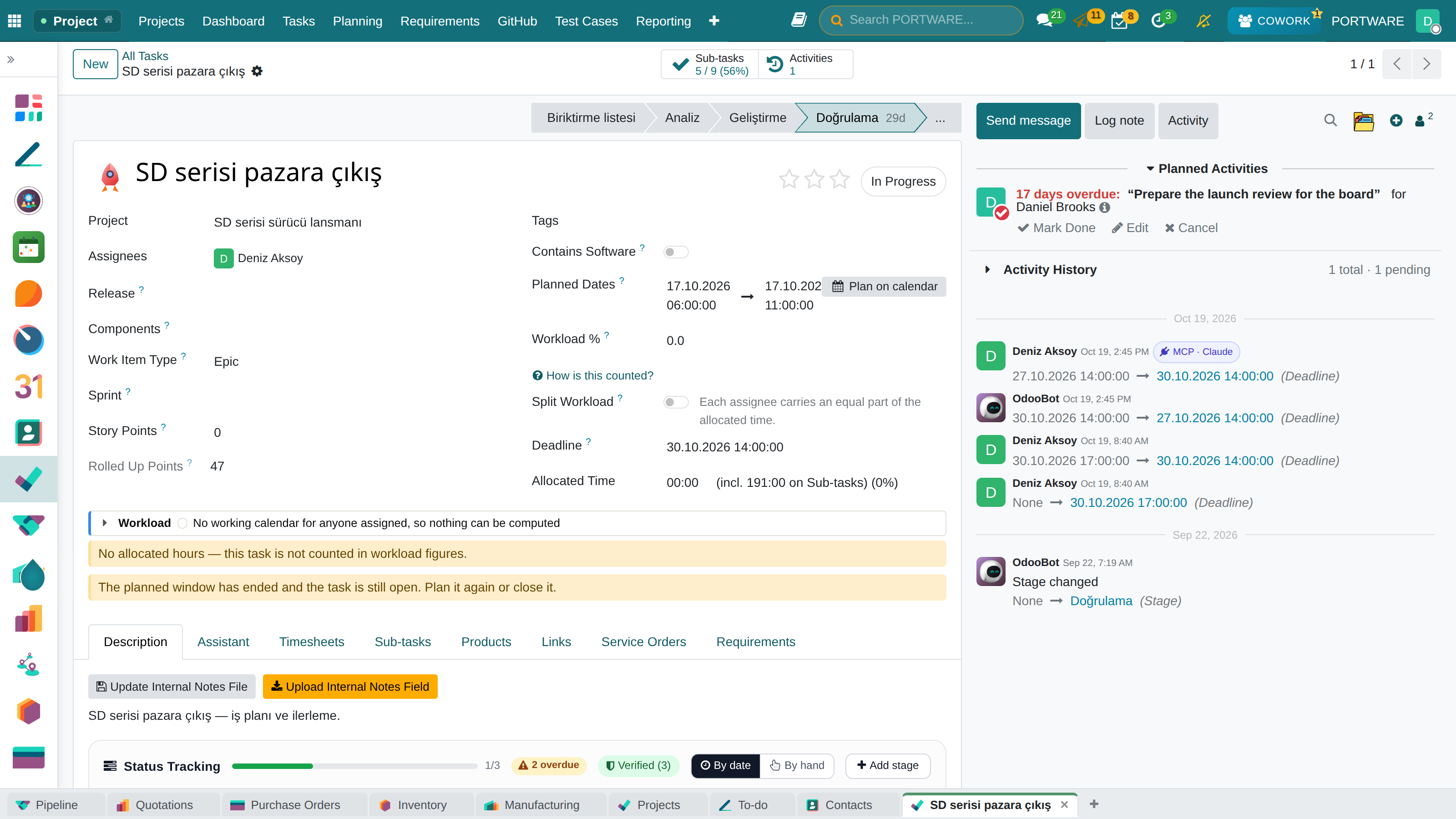
The task form — assignee, planned dates, workload, sprint, story points and Plan on calendar
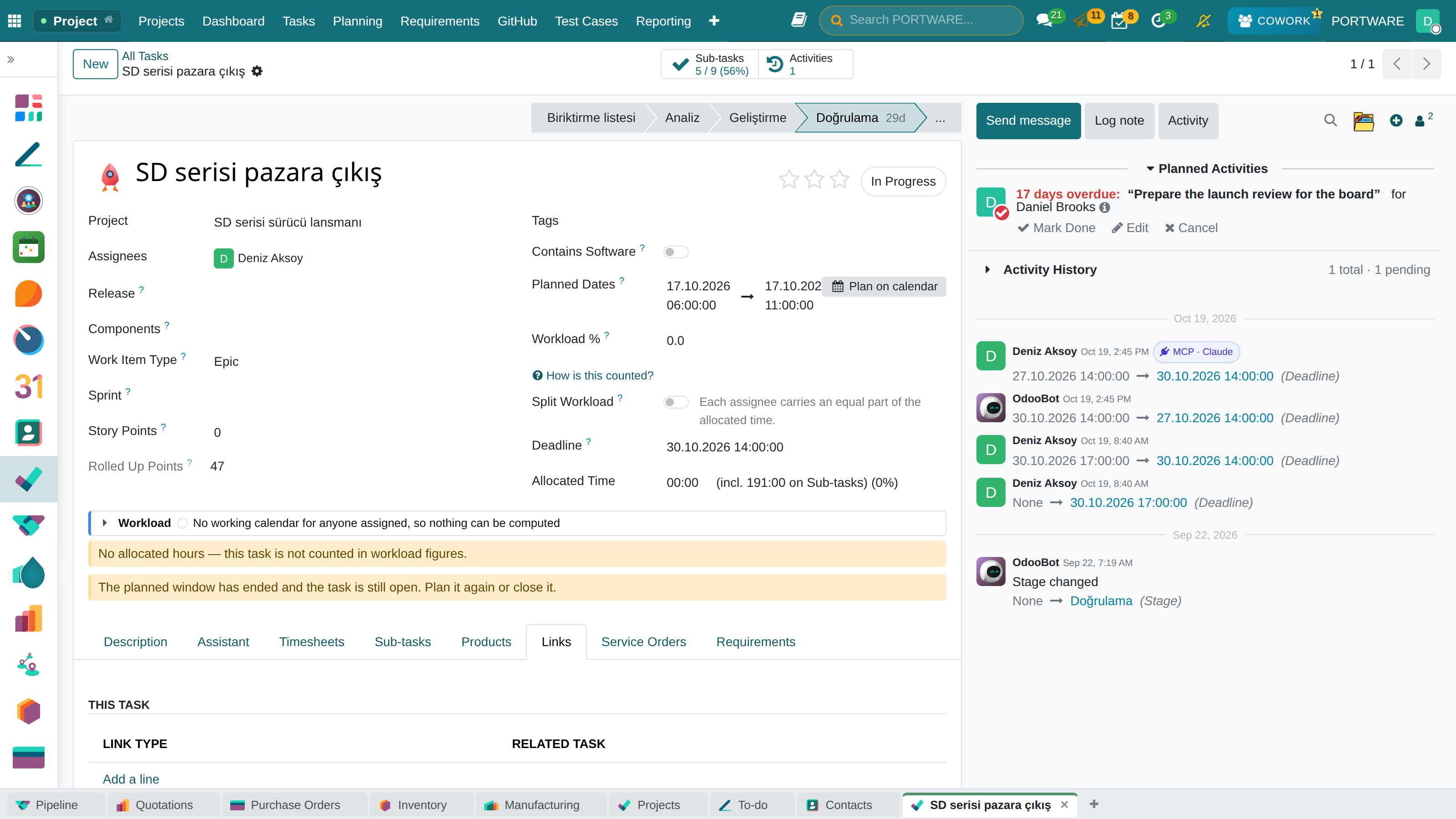
The Links tab — the work this task depends on and blocks
Scenario: Creating and Assigning a Task
Steps:
- Click the + Add Task button in the project
- Type the task title: "Contact form development"
- Add a description: requirements, technical details
- Select the assignee: Mehmet Demir (Back-end)
- Planned hours: 8 hours
- Deadline: 20.02.2026
- Priority: High
- Tags: backend, form, php
- Save
How to Do It in PORTWARE
Creating a Task
- Go to the Kanban view of the project
- Click the + Add button in any column
- Type the task name in the Title field
- Click the task card to open its form
- Select the person responsible in the Assignee field
- Enter the estimated time in Planned Hours
- Set the deadline with Deadline
- Categorise with Tags (backend, design, etc.)
Creating a Sub-task
- Open the parent task's form
- Go to the Sub-tasks tab
- Add a sub-task with + Add a line
- Each sub-task can have its own assignee and deadline
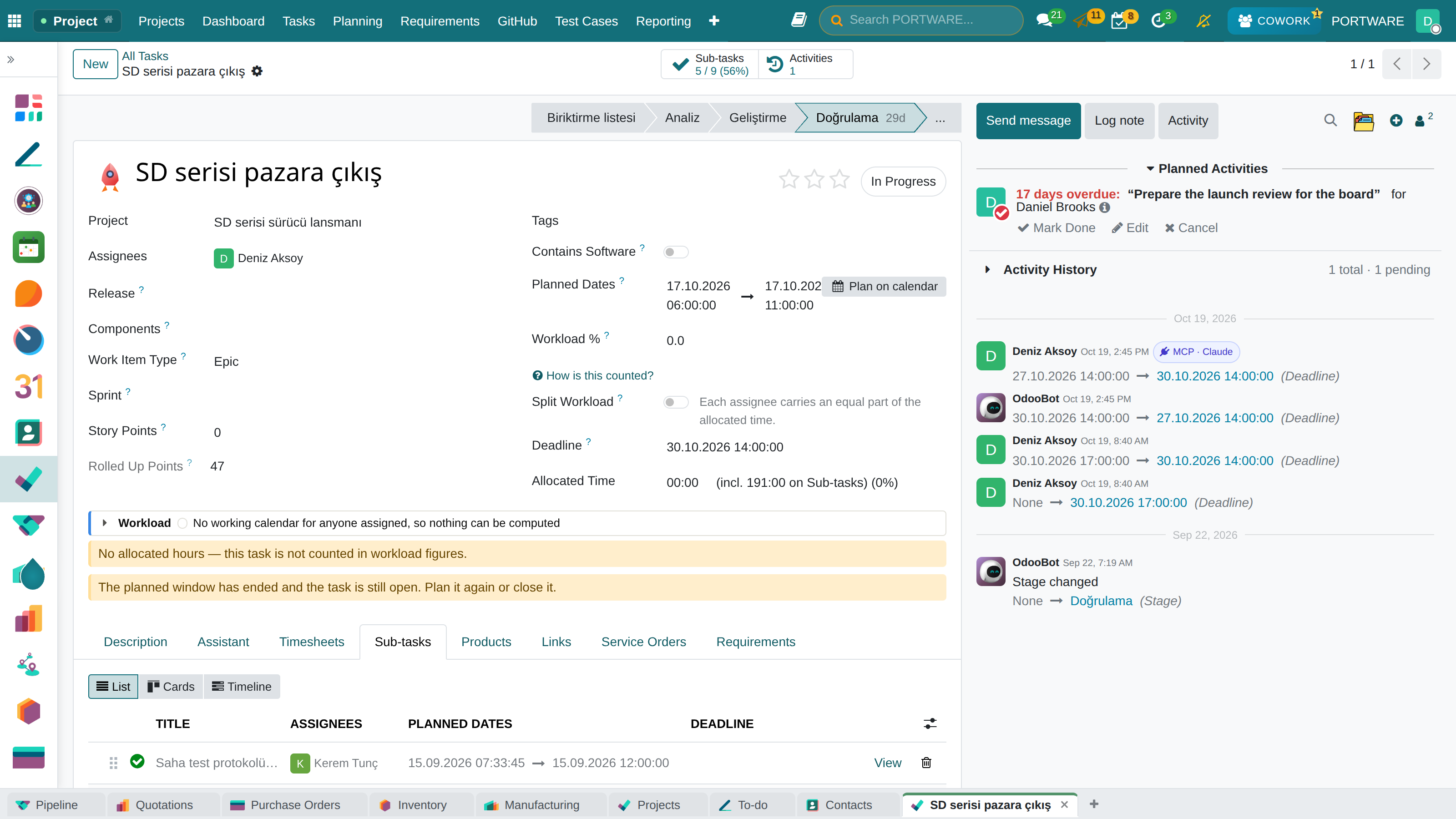
The Sub-tasks tab — the parts of the work, their assignees and planned dates
Sub-task timesheets - tracking the time spent on sub-tasks
Sub-task detail - the sub-task's information and assignment screen
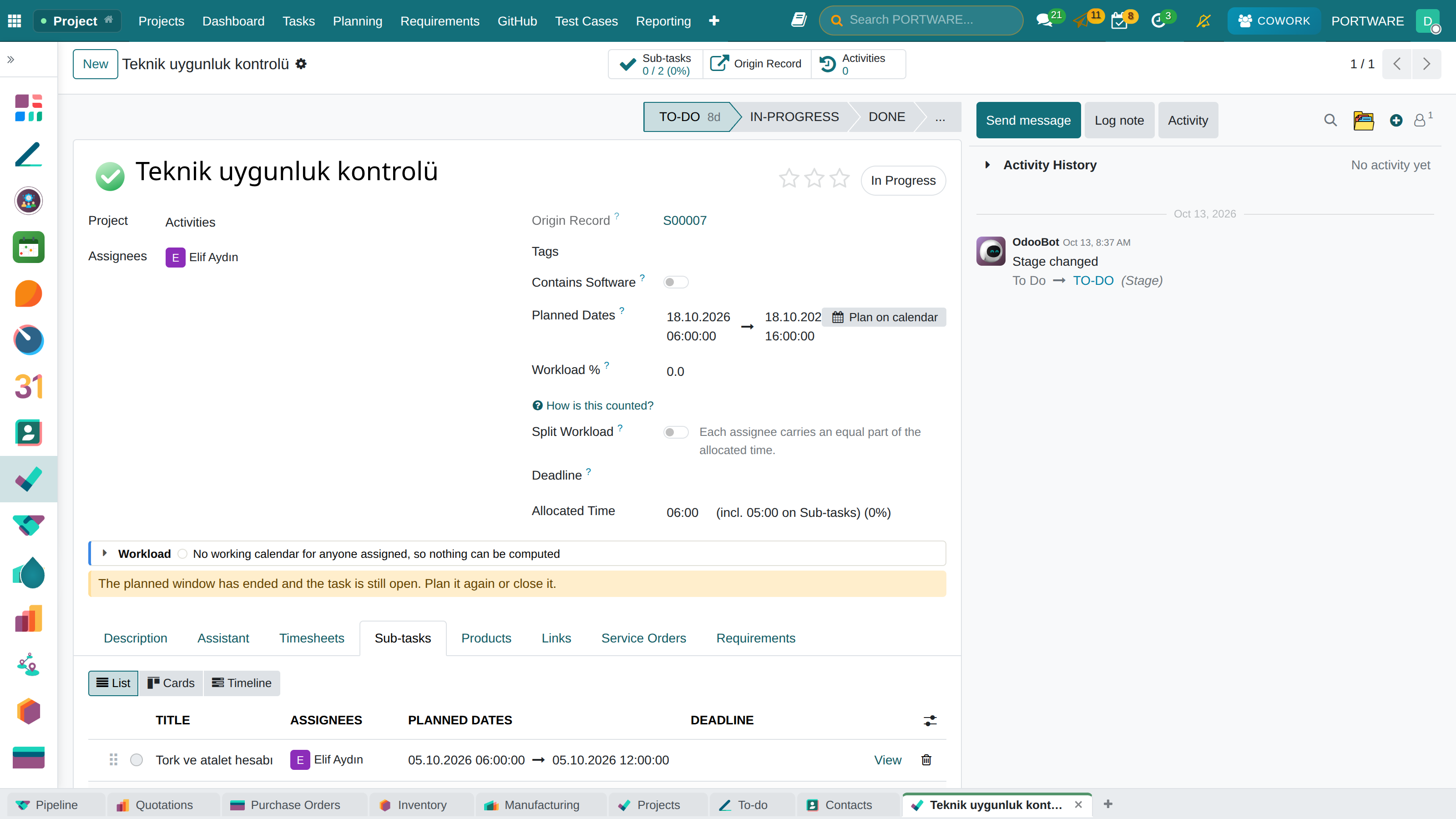
Sub-task view - list and card views of the sub-tasks
Prioritising Tasks
- Find the Priority field on the task form
- Set the priority level by clicking the star icon:
- ⭐ (1 star) = Low
- ⭐⭐ (2 stars) = Normal
- ⭐⭐⭐ (3 stars) = High
Kanban View
Kanban lets you follow the stages of tasks visually. Tasks are cards that you drag and drop between columns.
To Do
In Progress
Review
Done
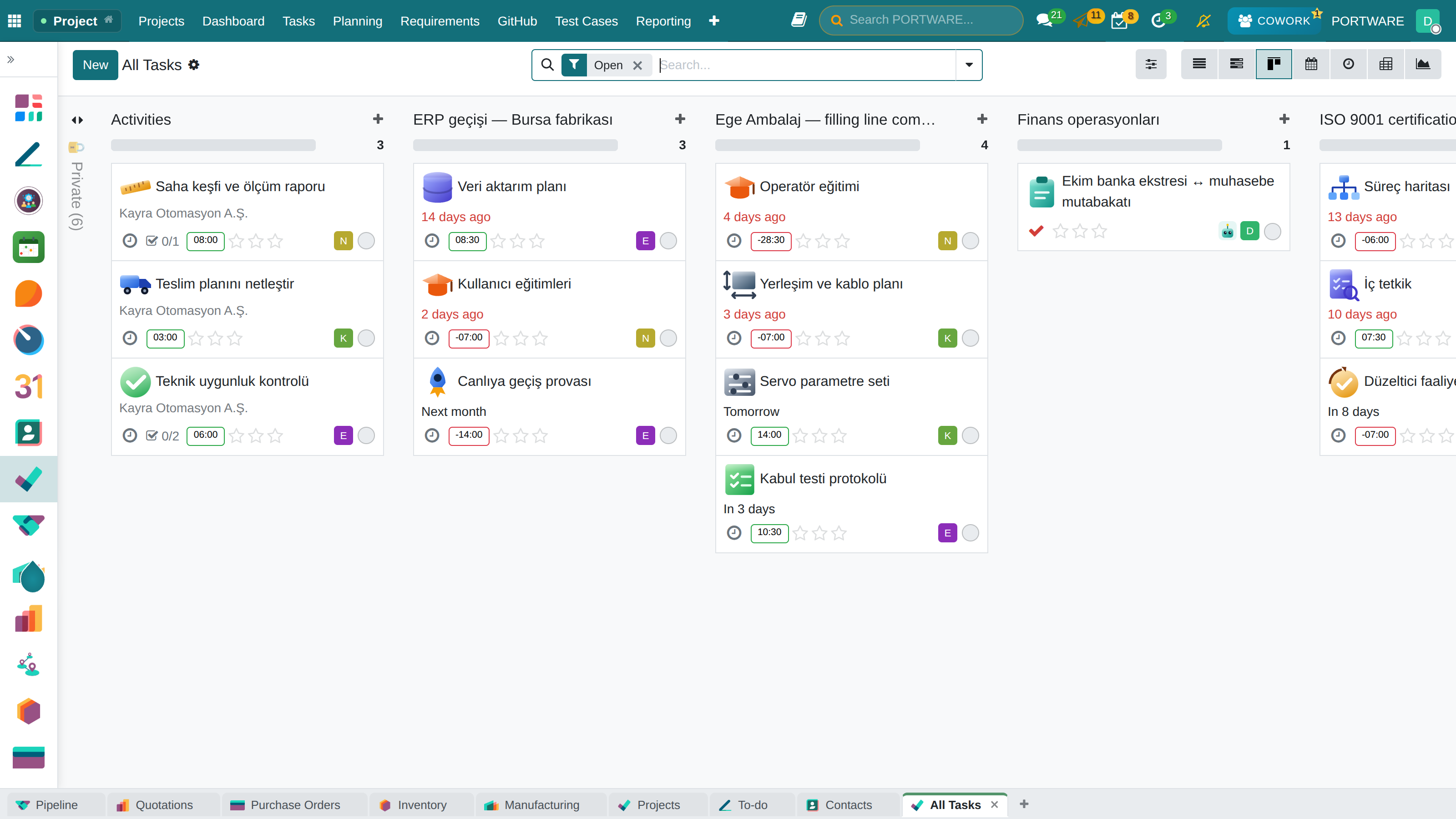
Kanban view - following tasks across stages visually
Sub-task progress - task completion percentage and status
How to Do It in PORTWARE
Working on the Kanban Board
- Select the project from the project list
- The default view is Kanban - tasks appear in columns
- Drag and drop: drag a task card from one column to another
- Assign quickly by clicking the icon on the task card
- Set the priority with the in the card's top right corner
Switching Views
- Use the view switcher at the top of the project page:
- Kanban - card view
- List - table view
- Gantt - timeline
- Calendar - calendar view
- Pivot - analysis view
Filtering and Grouping
- Click the Filters button
- Ready-made filters: "My Tasks", "Late", "Not Done"
- Categorise tasks with Group By (Assignee, Priority, Tag)
Gantt Chart
The Gantt view shows how tasks are spread over time and how they depend on one another. It is ideal for long-running projects.
Gantt View Features
- Time bar: the start-to-end span of each task
- Dependencies: relations between tasks (B cannot start before A ends)
- Critical path: the chain of tasks that would delay the project
- Progress: the completion percentage, shown visually
- Resource view: tasks distributed by person
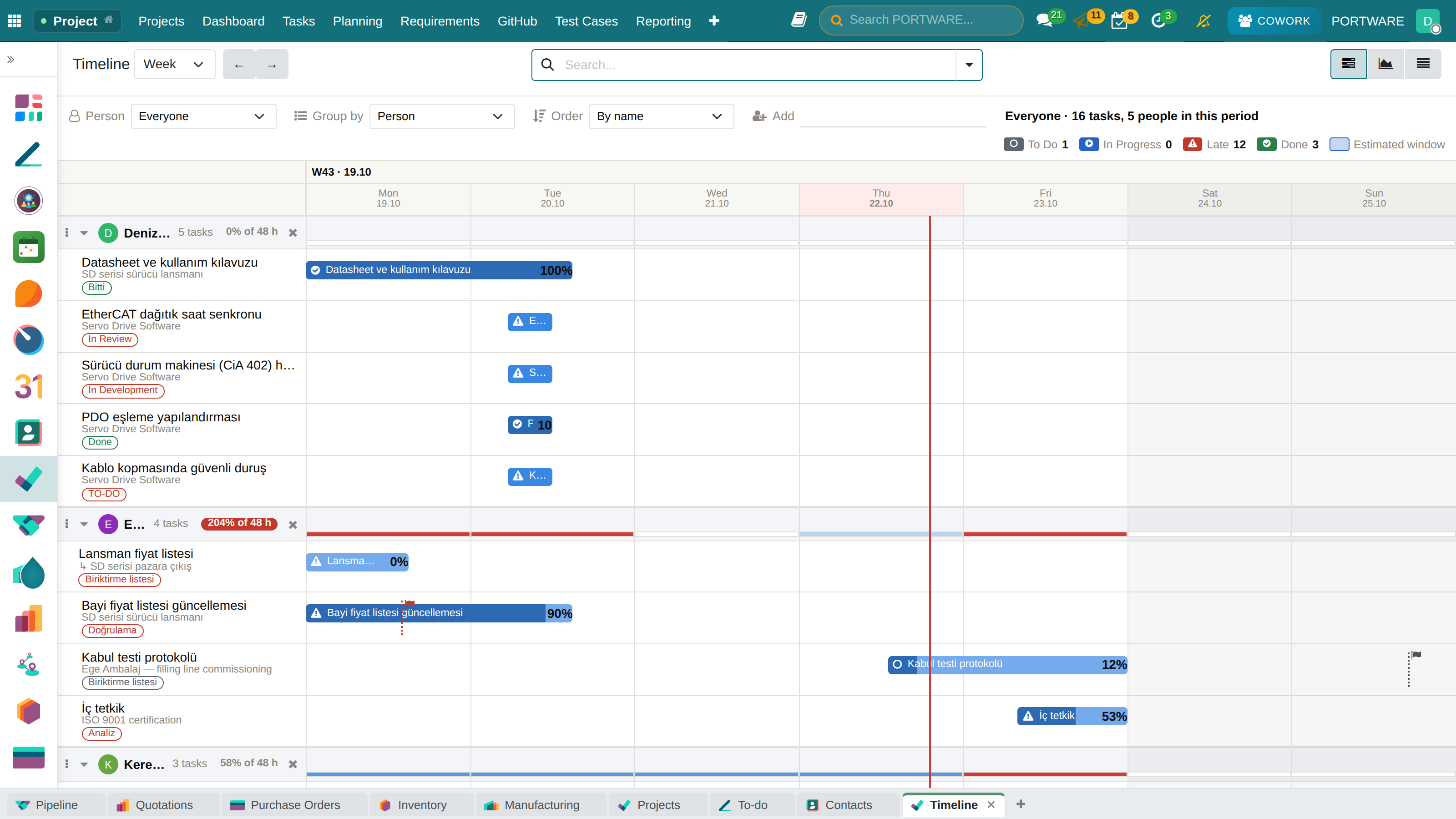
Project summary - project status, progress and timeline view
Milestones
Mark the critical turning points of the project. Milestones can trigger invoicing or require customer approval.
Project activities - tracking milestones and key events
Milestone detail - milestone information, target date and linked tasks
Activity planning - scheduling task and project activities
- Enable Milestones in the project settings
- Go to the Milestones tab
- Create a milestone with + New
- Enter the name, target date and description
- Link the related tasks to this milestone
The PORTWARE project layer
Everything described so far is the open-source core's own project management. On top of it PORTWARE adds a planning and tracking layer that the core does not have at all. All of it is additive: in a project that picks no method no field becomes mandatory, no view changes shape and no menu appears.
Screens this layer adds
- Tasks from records — a Task button in every chatter, Record Tasks on the form
- Planned window, Workload % and Split Workload — when the task is done and whose hours it takes
- Plan on the calendar and My Work
- Timeline — a real
ganttview type that the open-source core lacks - Team Workload and the Workload Calendar
- Swimlane board — stages across, the grouping you choose down
- Cumulative flow — which stage work piles up in
- Sprint, backlog board, Stage-Gate
- Release · Component · Typed link
- Project Health, People Analysis and the flow reports
Tasks from records
An activity is a reminder; work that will be split into sub-tasks, pass through stages or carry booked hours is a task. The chatter of every record — quotation, opportunity, order — has a Task button beside Activity.
A task that belongs to a record
- The Task button opens a small dialog: title, what has to be done, assignees, Planned Dates, sub-tasks; Save or Save & Open
- Plan on the calendar shows the assignees' other work on those days; Apply writes the dates into the dialog
- A scheduled activity becomes a single task with Convert to Task — together with its siblings when it was scheduled for several people
- The record's tasks are listed under Tasks in the chatter, apart from the activity history
- The Record Tasks button at the top right of the form shows open / total; Origin Record leads back from the task
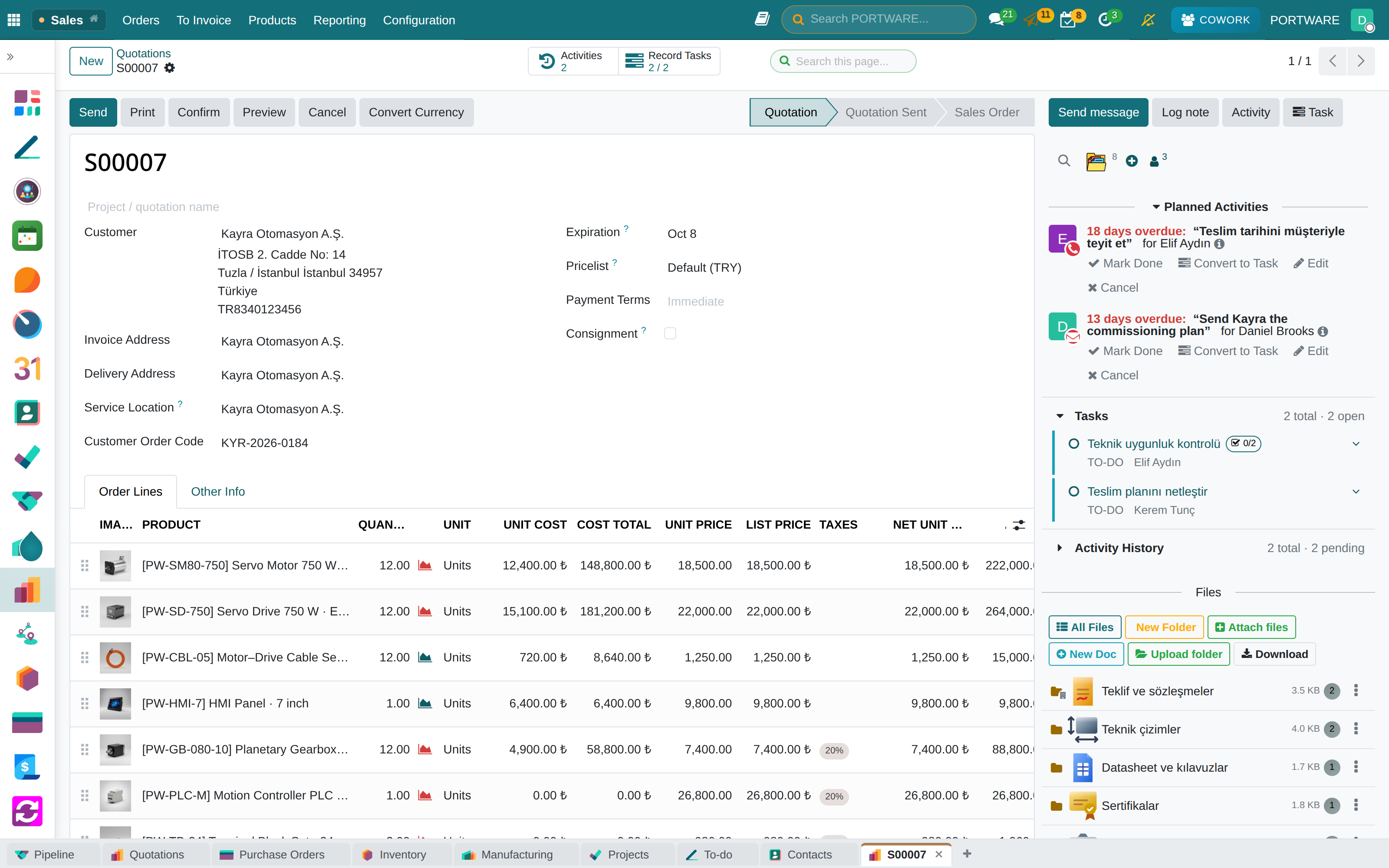
Quotation form — the Record Tasks button, the Task button in the chatter and the Tasks section
The plan on the task form
The planning rows of the task form answer one question: whose time does this work take, in this window, and how much of it?
What the plan says
- Planned Dates is always a range; a picked day is the assignees' working day (08:00–18:00)
- Without a deadline the planned end is used, and it stays yellow until a person confirms it
- Workload %: the allocated hours as a share of the assignees' working time in the window — type either figure and the other follows
- Split Workload: one row per assignee; Allocated Time is the sum of the rows
- A parent task's Allocated Time includes its sub-tasks; load is counted on the leaves and completion rolls up by hours
- Notices: hours that do not fit the window (Stretch the window to fit), a deadline before the planned end, a window that has passed while the task is open
- The Sub-tasks tab as a list, cards or a timeline; the Planned Today, Planned This Week and Not Planned filters
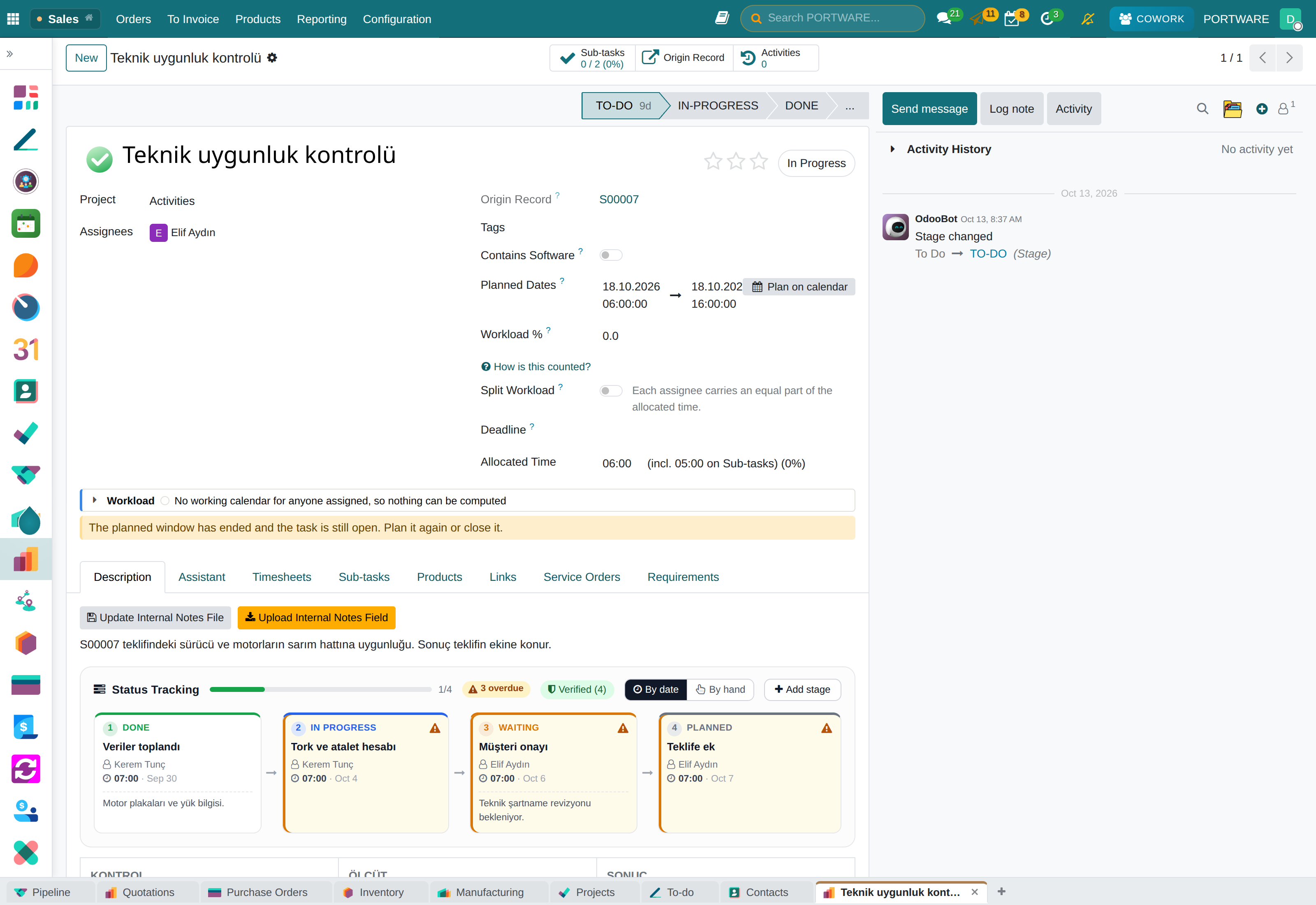
Task form — planned window, allocated time that includes the sub-tasks, and the workload share
Plan on the calendar and My Work
Plan on the calendar shows the assignees' other work on a calendar: paint a range on the free time, drag and stretch the task, or type the dates. Anyone can be added to compare against. To-dos are planned the same way.
Conflicts have two levels and never block. Orange: something else is booked at the same time. Red: the assignee has no working time left in the window. The decision stays with a person.
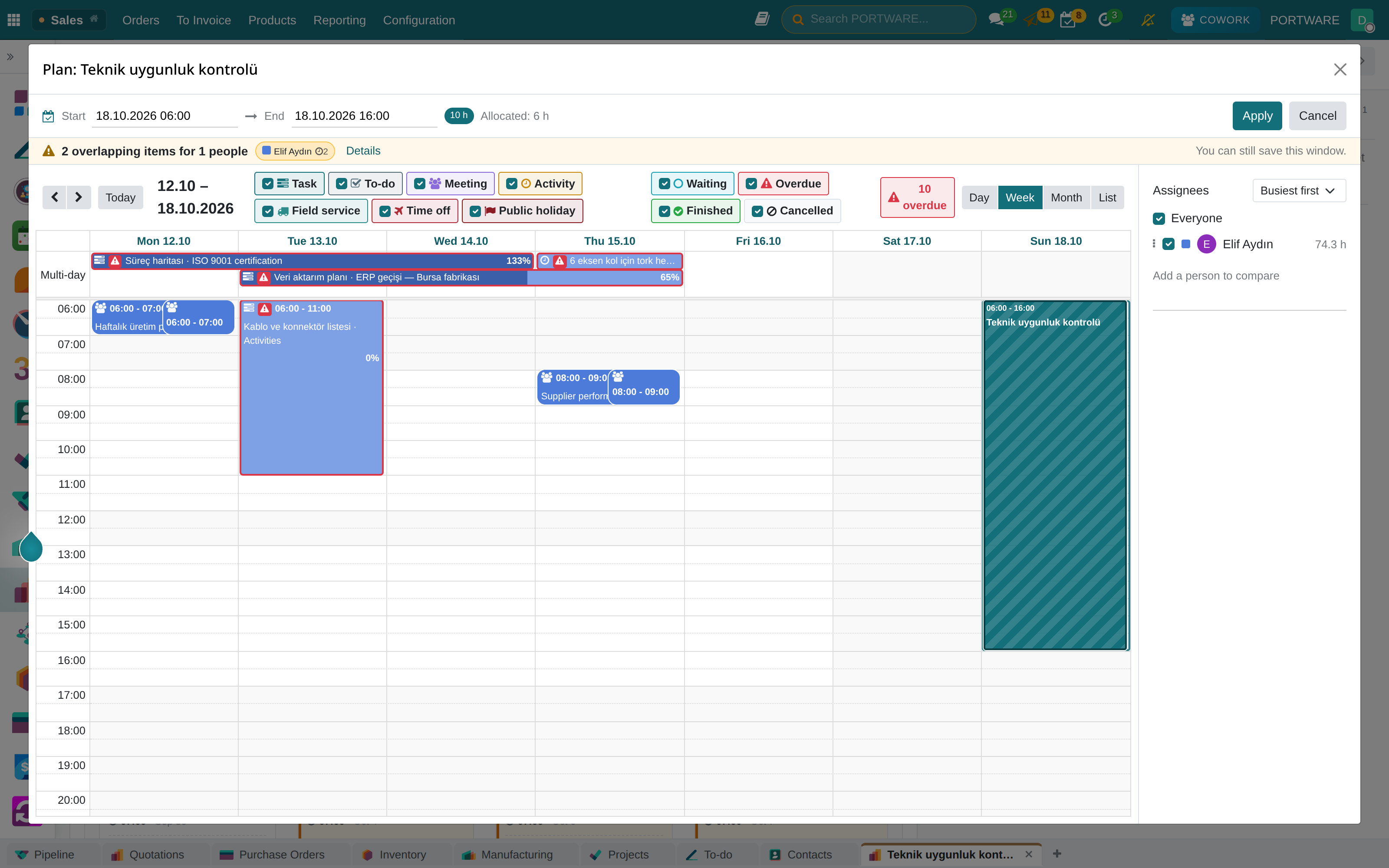
Plan on the calendar — the assignees' other work, orange and red conflicts
Calendar › My Work gives everyone the same picture of their own work, read-only: tasks, to-dos, meetings, activities and time off on one calendar.
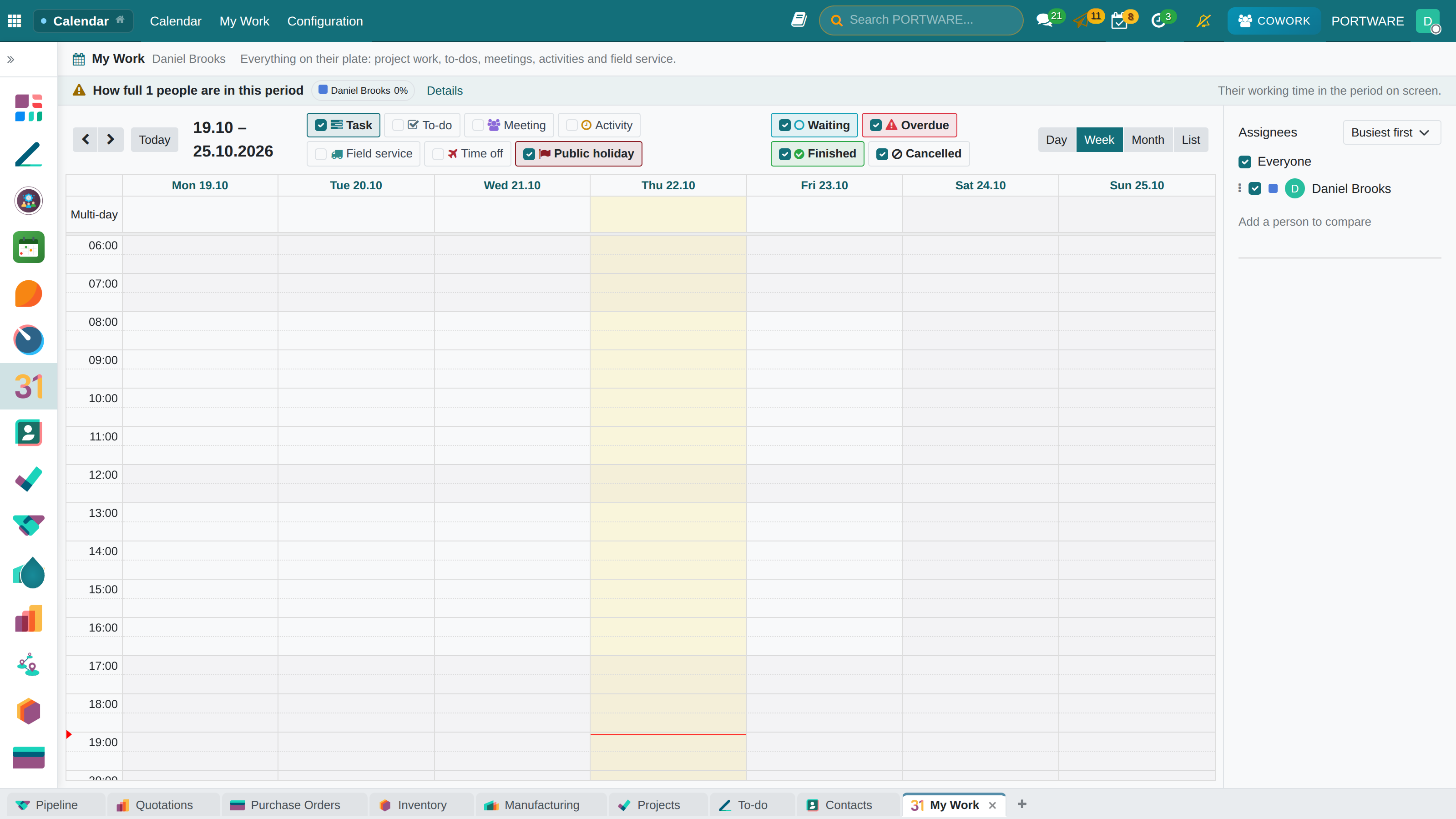
Calendar › My Work — your own work on one calendar
Flow reports
Under Project › Reporting the questions a team asks every week are answered from data the database already holds:
Four reports
- Flow Overview — work in progress, weekly throughput, cycle time (as percentiles) and a probabilistic finish forecast
- Aging Work — work open longer than 85% of everything ever finished: the leading indicator of stuck work
- Time in Stage — which stage work waits in longest
- Estimate vs Actual — estimated hours against hours booked on timesheets; never as a ranking of people
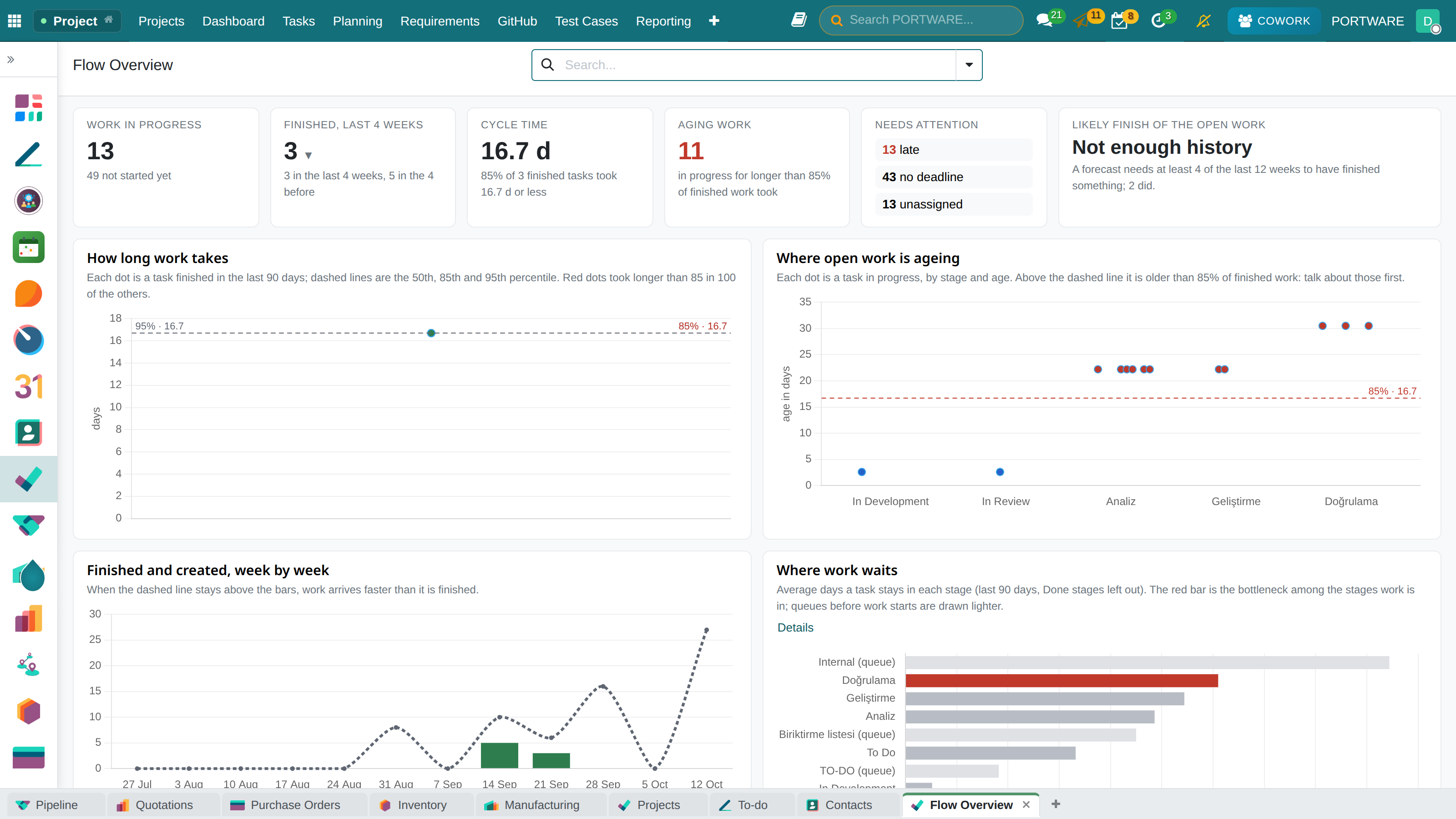
Flow Overview — work in progress, throughput, cycle time and finish forecast
The planned window
In the standard core a task has a deadline but no time window: there is an answer to "when must it be done" but none to "when is it being worked on". Workload is a division, and without a window its numerator cannot be built.
The rules of the window
- It sits on the person's own working calendar: an 8-hour job starting Friday afternoon ends on Monday, not Saturday
- No calendar, no guess: no window is computed for a person without a working calendar — a made-up calendar would silently corrupt every workload figure
- Portable field names: the planning fields follow the common naming, so the data keeps its meaning if it ever moves
Timeline
The open-source core has no view type called gantt. PORTWARE adds it as a real view type, so search, filtering, grouping and saved favourites work as they do everywhere else.
Honest bars
- A bar is drawn from the planned window, not from the deadline
- A derived window is drawn hatched: a bar the system computed looks different from one a person confirmed
- When a bar is dragged, its start is re-anchored to the person's next working moment
- The critical path reads blockers only: "relates to" is not a date rule and never moves the schedule
Timeline — bars drawn from the planned window, dependencies and milestones
Team workload
While work is being assigned, the person's load for that week is in view. The figure is a division: the denominator is the person's contracted hours, the numerator their work, approved leave and meetings.
The three loads are shown separately. A person 100% full because of leave is not the same as a person 100% full because of work; the panel never mixes the two. Tasks without a window or hours are shown apart as "not counted" — a percentage that silently skips a third of the work is worse than no percentage.
A warning never blocks. Who works on what is a human decision; the system's job is to make sure it is taken with the figures in view.
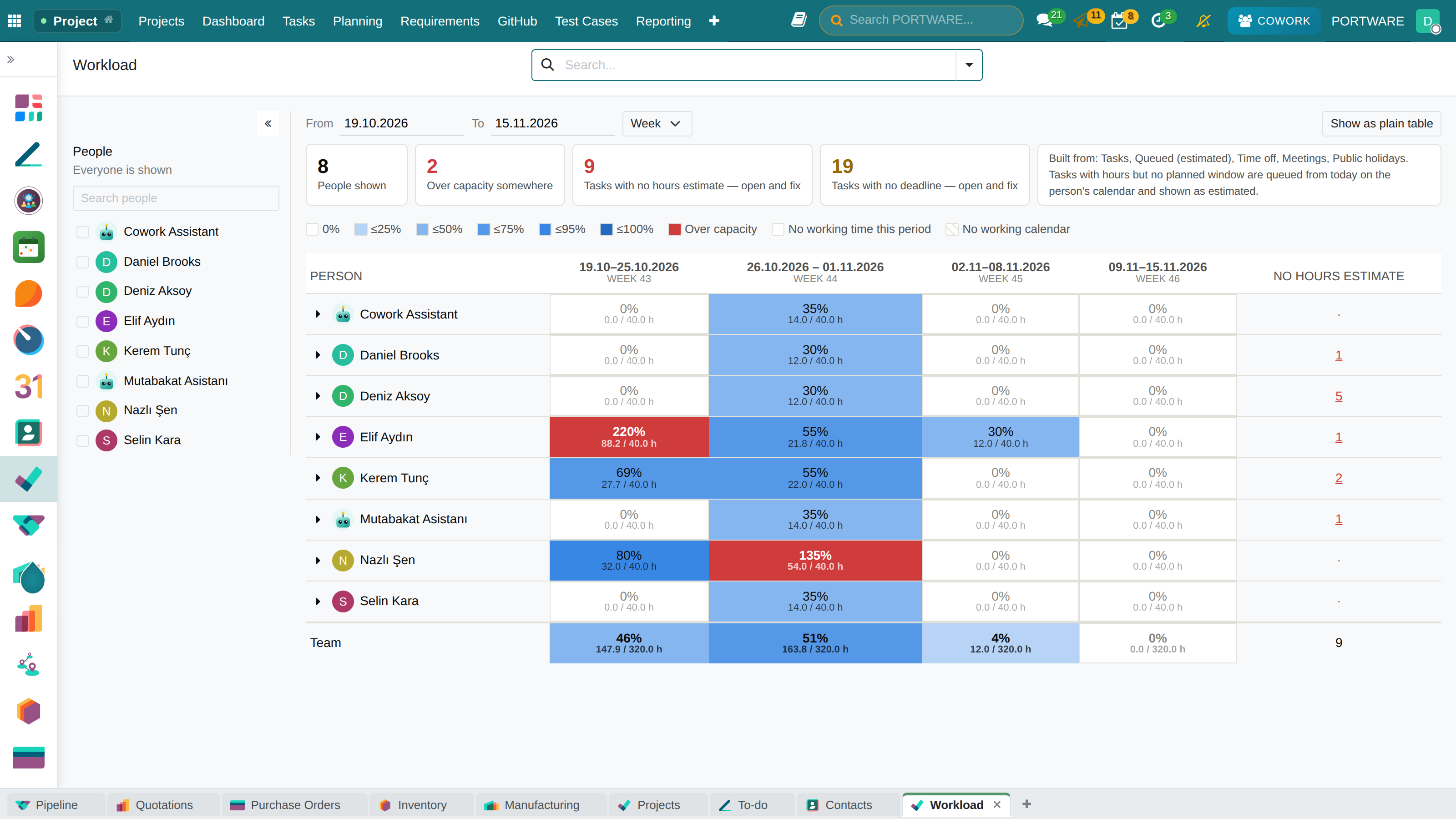
Team Workload — work, leave and meeting load per person and week
Swimlane board
Kanban groups by one field: the stages line up side by side, and that is where it ends. The swimlane board adds a second dimension — stages across, the grouping you choose down. Lanes can be the assignee, epic, work item type or priority.
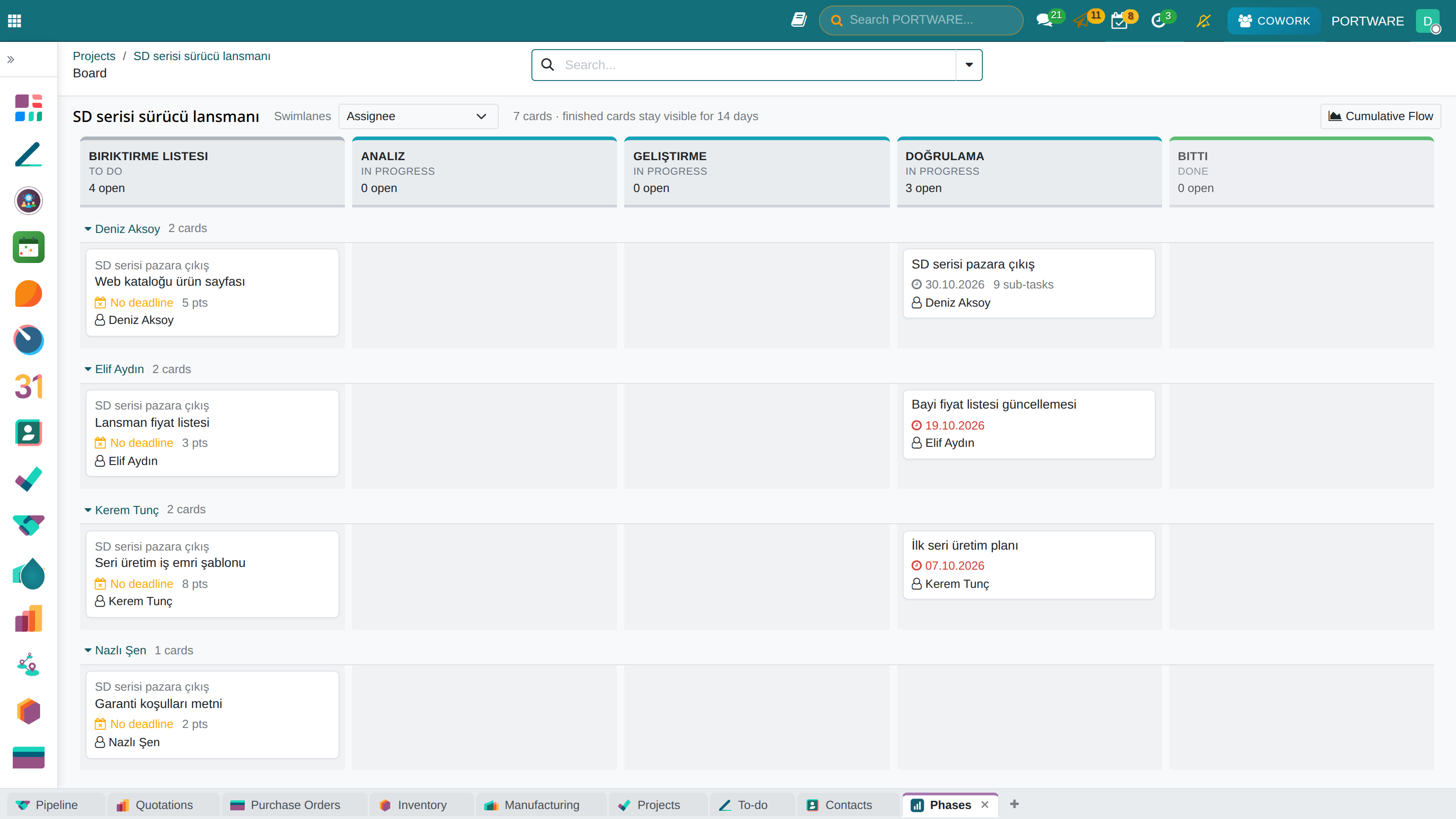
Swimlane board — stages across, assignees as lanes down
Cumulative flow
Shows the amount of work accumulated in each stage over time. If a stage's band widens, work enters it but does not leave; the bottleneck is not guessed, it is seen.
The chart's bands read the status category (To Do / In Progress / Done), not the stage names; so the chart keeps its meaning when a team renames its stages. A project without history gets a sentence saying so instead of an empty chart.
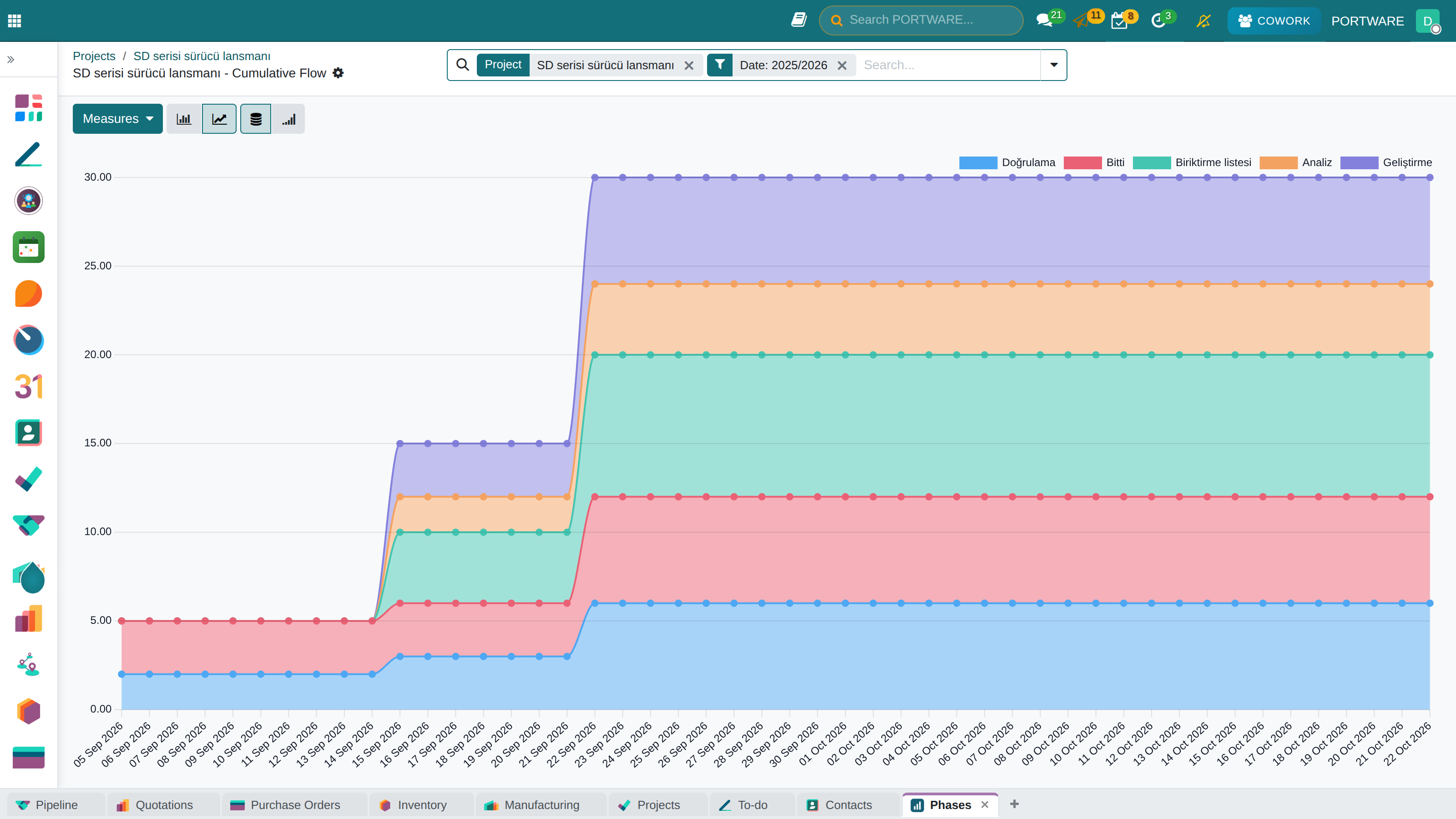
Cumulative flow — each stage's band, day by day
Sprints and the backlog
Each project chooses its method: Scrum, Kanban, Waterfall or Stage-Gate. A project that picks none sees no change — a method is a declaration, not an imposition.
What comes with Scrum
- Sprint form — committed scope, velocity and burndown chart
- Backlog board — drag-and-drop sprint planning; the totals are the server's arithmetic, not the browser's
- Sprint capacity — the committed work compared with the team's real hours in that period
- Work item type — initiative, epic, story, task, sub-task
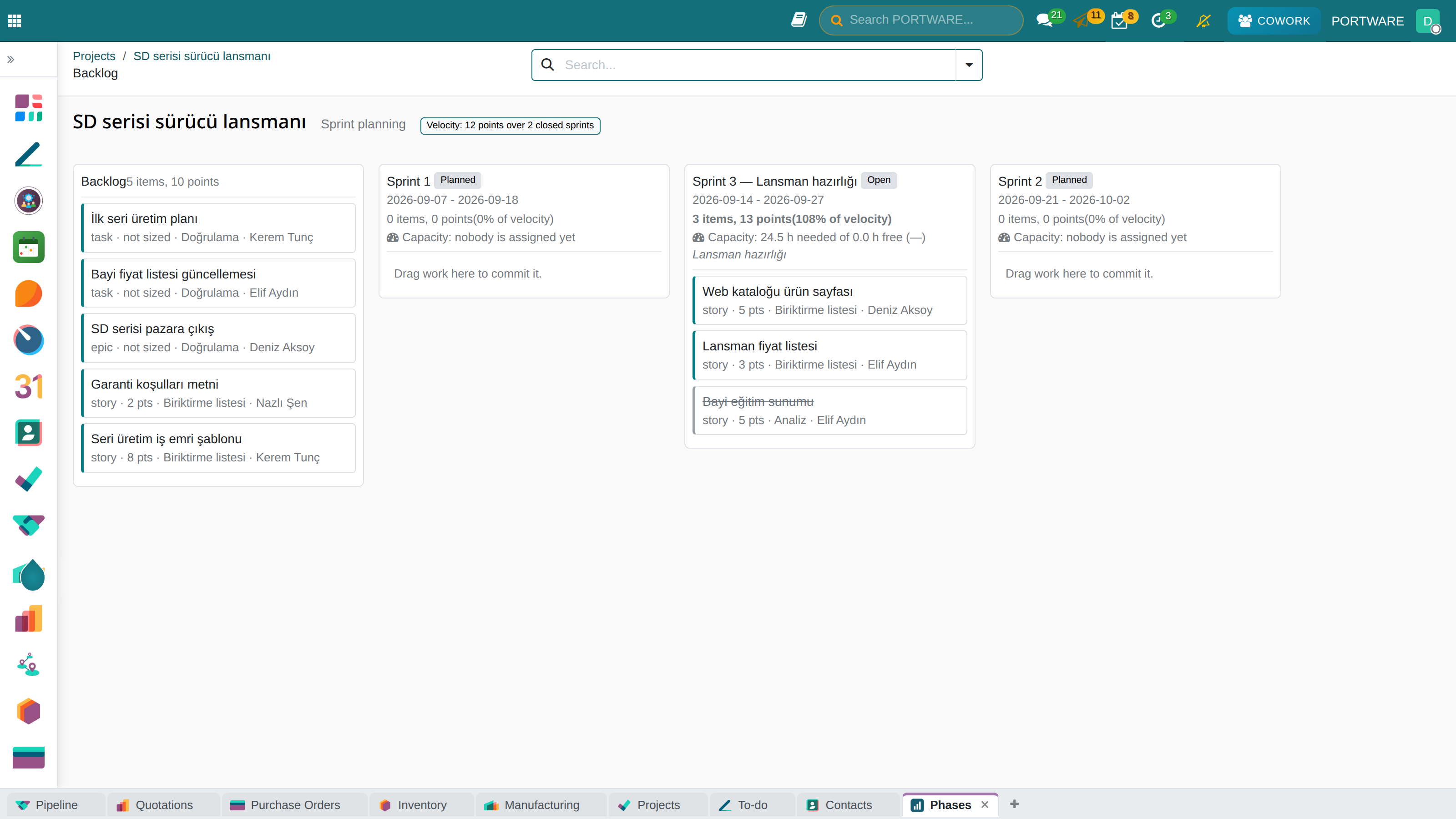
Backlog board — the backlog on the left, the sprints on the right
Stage-Gate, releases and components
Four additions
- Stage-Gate: moving to the next stage needs an approval, and the requester cannot approve it
- Release: the thing that is delivered; it has its own status, tasks target it and it can be reported on afterwards
- Component: a part of the product that has an owner — "who looks after this" has an answer
- Typed links: relates to, duplicates, causes — these are not scheduling constraints and the critical path does not read them
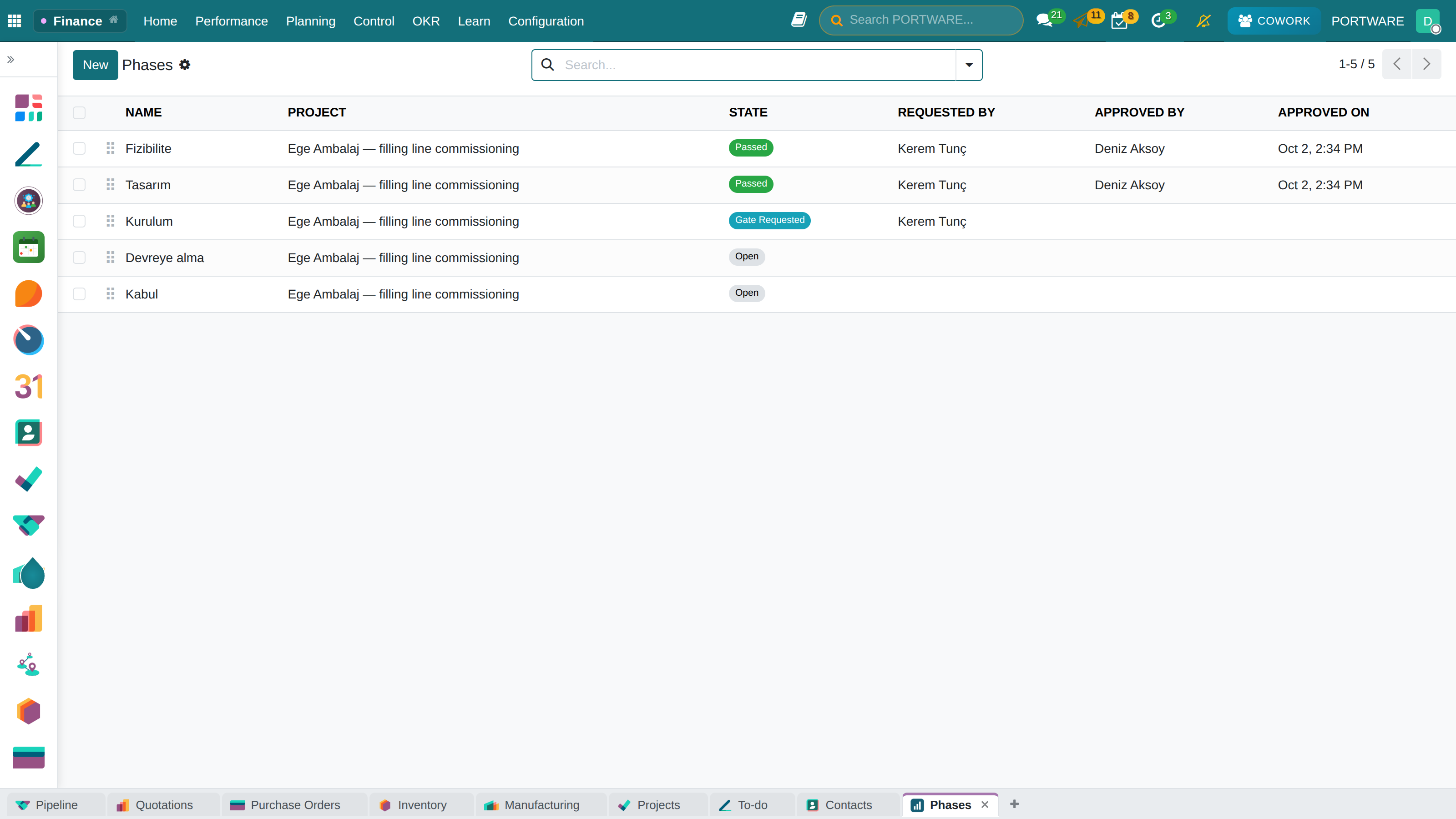
Stage-Gate — one gate passed, one requested
Project Health and People Analysis
A manager brings two questions to a report: which projects are in trouble and who carries what. Both are under Project › Reporting.
The query runs with the caller's own rights — nobody is told how many tasks are late in a private project they cannot see.
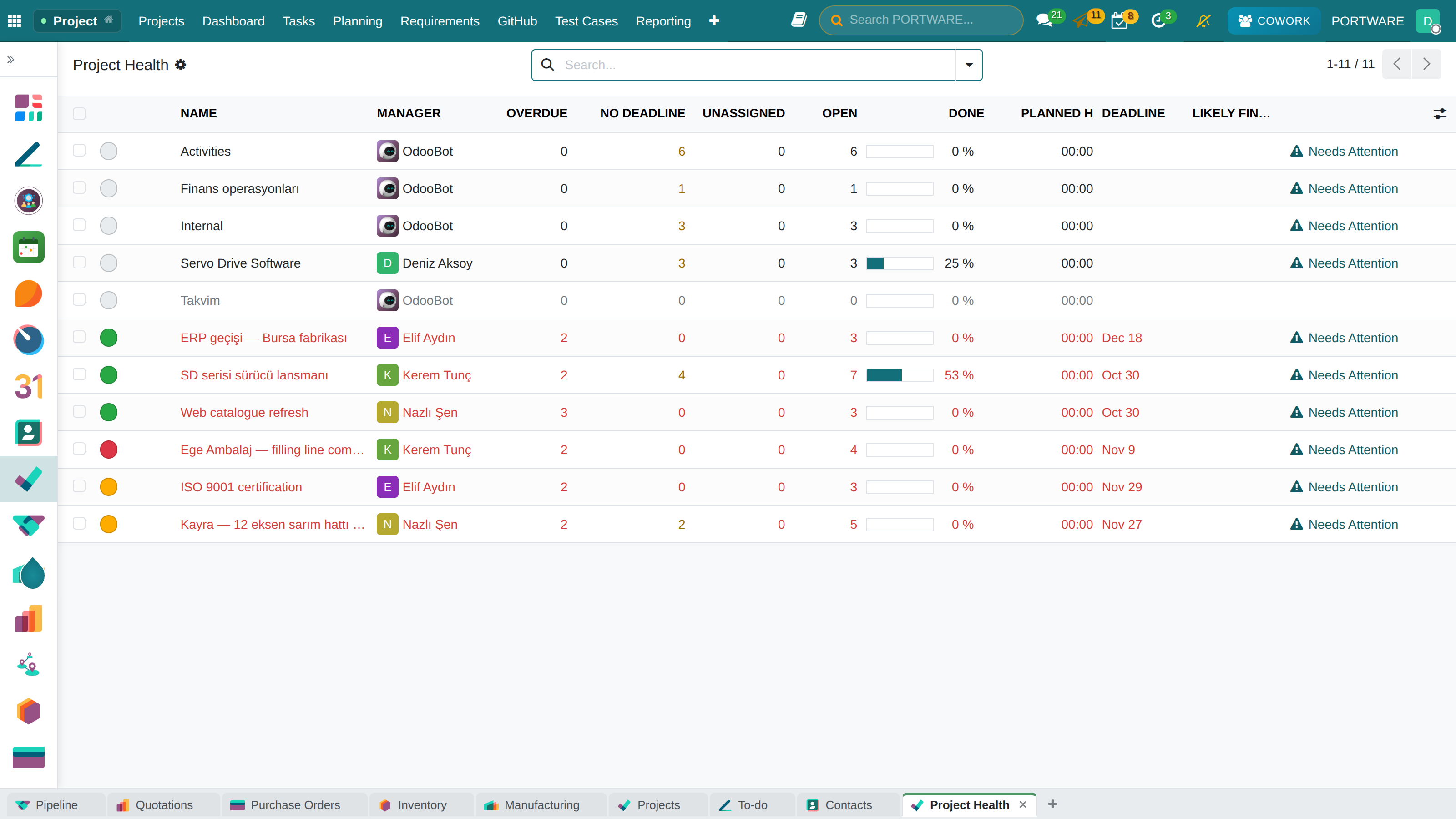
Project Health — late, open and completed work in one list
The whole layer is described in more detail in the handbook: chapter 25 — methodology, sprints, swimlanes and cumulative flow and chapter 26 — timeline, planning and workload.
Timesheets
A timesheet records how much time employees spend on which project or task. The data feeds project costing, invoicing and performance analysis.
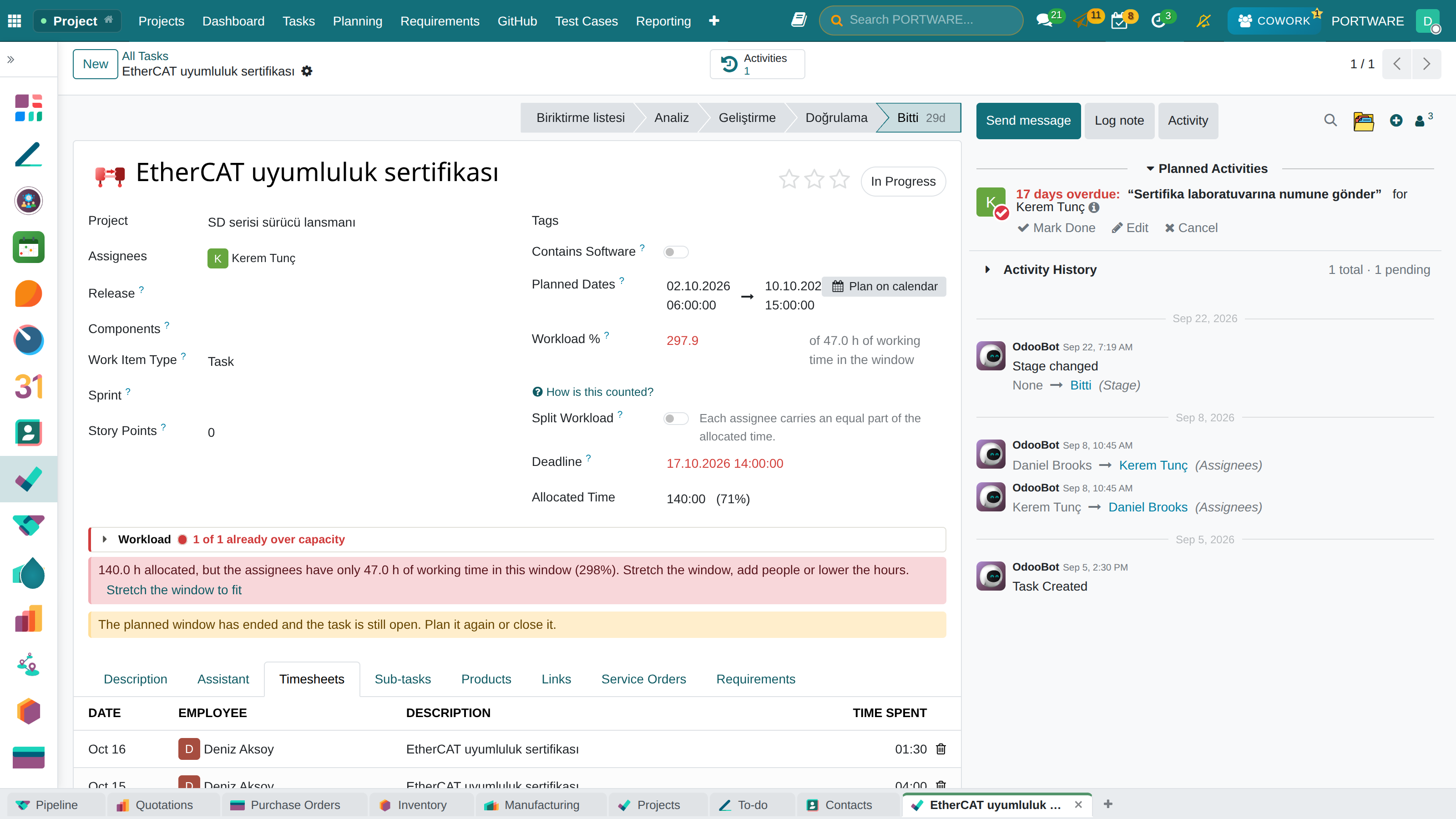
The task's Timesheets tab — who, which day, how long and on what
Logging Timesheets
- Go to the Timesheets menu
- Choose the date
- Choose the project and task
- Enter the time worked (hours:minutes)
- Add a description (briefly, what you did)
- Save
How to Do It in PORTWARE
Logging a Timesheet (Daily)
- Go to the menu
- Click the + New button
- Choose the project you worked on in the Project field
- Choose the related task in the Task field
- Briefly describe the work in the Description field
- Enter the time worked in the Duration field (hours:minutes)
- Click the Save button
Weekly Timesheet View
- Go to the menu
- See your whole week in the weekly grid
- Click the day on a project row to enter hours directly
- Add a new project/task row with + Line
Quick Timesheets from a Task
- Open the task form
- Go to the Timesheets tab
- Add hours to this task directly with + Add a line
- Hours added here appear in the timesheet reports automatically
Resource Planning
Plan in advance how much time each team member will give to which project.
Project summary - resource use and project progress details
| Employee | Project A | Project B | Internal | Total |
|---|---|---|---|---|
| Ahmet | 20 hours | 15 hours | 5 hours | 40 hours |
| Ayşe | 30 hours | - | 10 hours | 40 hours |
| Mehmet | 10 hours | 25 hours | 5 hours | 40 hours |
Project Invoicing
Project-based invoicing models:
Project attachments - managing invoices, contracts and project files
Invoicing Models
- Hourly invoicing: hours logged on timesheets × unit price
- Fixed price: the total amount agreed for the project
- Milestone: partial invoicing as each stage is completed
- Subscription: a fixed monthly maintenance fee
How to Do It in PORTWARE
Project Invoicing Settings
- Open the project form and go to the Settings tab
- Enable the Billable option
- Invoicing Type choose:
- Approved Timesheets: Only approved hours are invoiced
- Fixed price: the total amount agreed for the project
- Milestone: invoicing by stage
A Service Product for Hourly Invoicing
- Create a "Service" product from the menu
- Choose "Service" as the Product Type
- Set the hourly rate as the Sales Price (e.g. 500 TL/hour)
- In the project settings, select this product as the Default Service Product
Task products - products and service lines linked to the task
Creating an Invoice from a Project
- Click the Create Invoice button on the project form
- Choose the period to invoice
- The system turns the timesheet hours into invoice lines automatically
- Review the draft invoice and Confirm
Helpdesk (Customer Support)
The Helpdesk module organises the support requests customers send. Requests arriving by e-mail, web form or the customer portal become tickets automatically.
Meeting planning - scheduling project meetings and activities
Project meetings - planned meetings and the attendee list
Ticket Management
Scenario: A Customer Support Request
Automatic process:
- The e-mail arrives and the system creates a ticket automatically
- It is matched with the customer database (ABC Ltd)
- The priority is set (according to the SLA rules)
- It is assigned to the right team/person (Support Team)
- An automatic confirmation e-mail goes to the customer (#TKT-2345)
- The support agent looks into the problem and writes a reply
- The solution is sent to the customer
- The ticket is closed once the customer confirms
Ticket Fields
| Field | Description |
|---|---|
| Subject | The title of the request |
| Customer | The person/company who opened the request |
| Category | Technical, Billing, General, etc. |
| Priority | Low, Normal, High, Urgent |
| Assignee | The support agent responsible |
| Stage | New, In Progress, On Hold, Solved |
How to Do It in PORTWARE
Creating a Helpdesk Team
- Go to the menu
- Click the + New button
- Enter the Team Name (e.g. "Technical Support", "Billing Support")
- Set the Alias E-mail (support@yourcompany.com)
- Add staff in the Team Members field
- Save
Creating a Ticket by Hand
- Go to the menu
- Click the + New button
- Type the request title in the Subject field
- Choose the Team (Technical Support, etc.)
- Choose the requester in the Customer field
- Set the Priority (with the stars)
- Write the details in the description
- Save
Replying to a Ticket
- Open the ticket
- Use the Send Message area at the bottom
- Write your reply and click Send
- An e-mail is sent to the customer automatically
- If it is solved, change the stage to "Solved"
Automatic Tickets from E-mail
- Go to the menu
- Configure your support e-mail address (IMAP/POP3)
- Select this address in the Helpdesk Team settings
- From now on every e-mail sent to this address becomes a ticket automatically
SLA Management
An SLA (Service Level Agreement) defines the service commitments made to customers, for example "reply to urgent requests within 2 hours".
SLA example: Gold Customer Package
- First response: urgent → 1 hour, normal → 4 hours
- Resolution time: urgent → 4 hours, normal → 24 hours
- Working hours: 24/7
- Escalation: the manager is notified when the SLA is breached
How to Do It in PORTWARE
Creating an SLA Policy
- Go to the menu
- Click the + New button
- Enter the Policy Name (e.g. "Gold Customer SLA")
- Choose the Team (which helpdesk team it applies to)
- Define the conditions:
- Priority = Urgent
- Customer Tag = Gold
- Set the targets:
- First Response = 1 hour
- Resolution Time = 4 hours
- Save
Defining SLA Working Hours
- Go to the menu
- Create a working schedule with + New (e.g. "24/7 Support")
- Select this schedule as the Working Hours in the Helpdesk Team settings
- SLA times are counted on this schedule (holidays excluded)
Tracking SLA Status
- The ticket list shows the SLA status in colour:
- ● Green: within SLA
- ● Orange: close to the limit
- ● Red: SLA breached
- See the critical tickets with Filters → "SLA Failed"
Field Service
The Field Service module manages the work technical teams do at customer sites: installation, maintenance, repair and periodic checks.
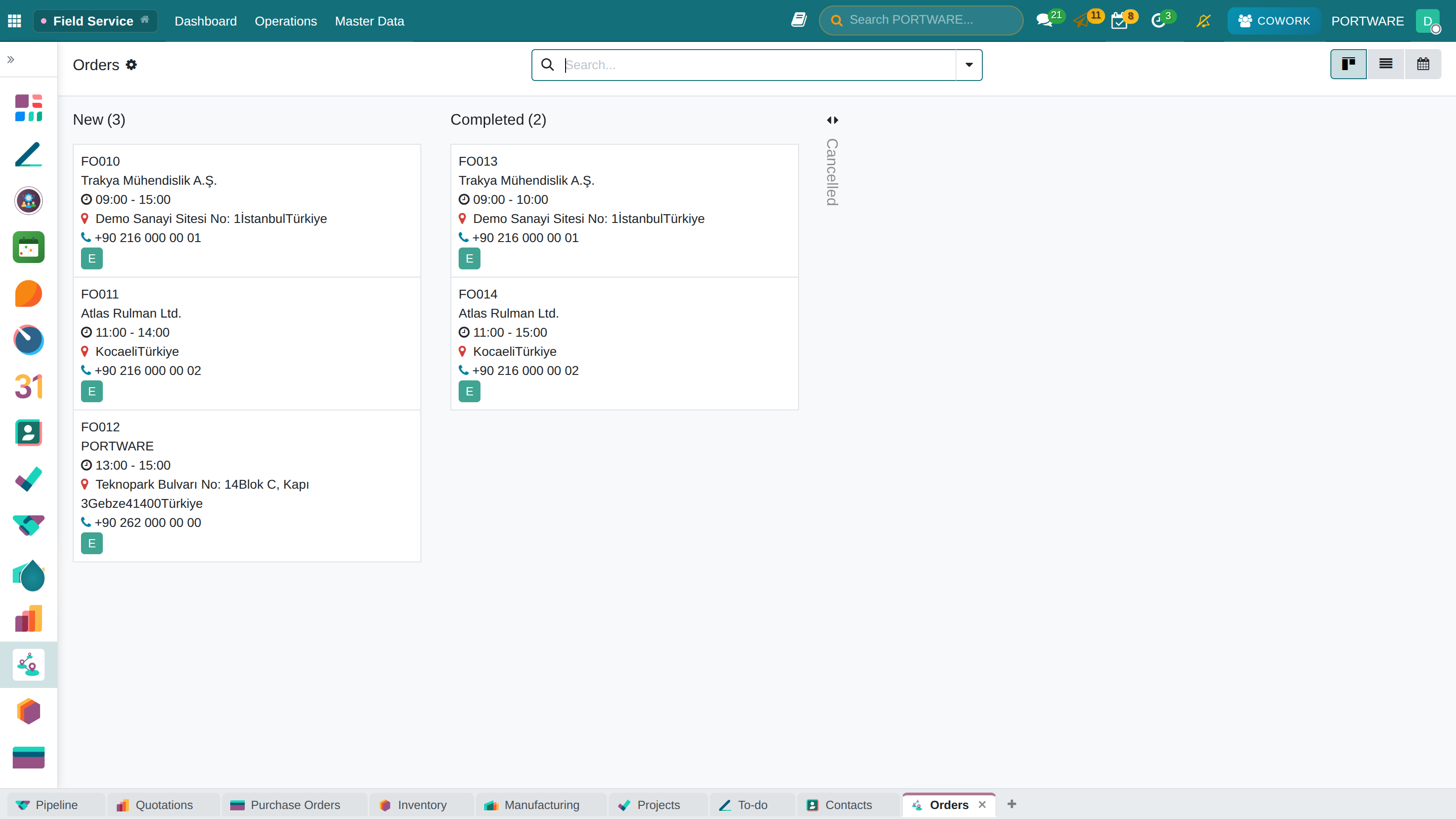
Field Service - an overview of technician assignments and appointments
File versions - version control of service reports and technical documents
Version list - a detailed list of document versions, with comparison
Document warnings - documents that are missing or need updating
Technical document - motion control and motor drive settings
Technical document - detailed motion control parameters and configuration
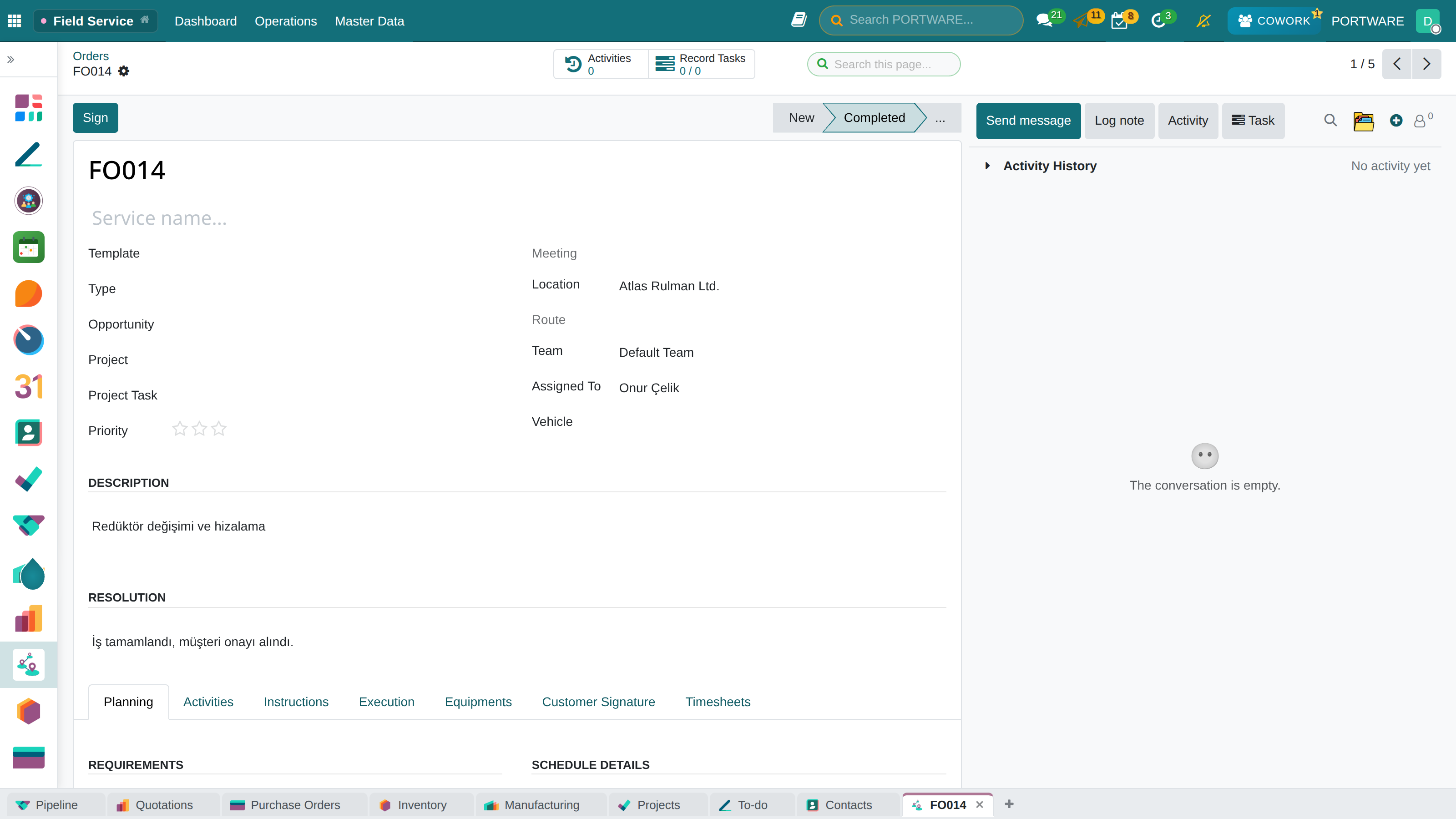
A field service order — location, team, scheduled time and the work to do
Encoder voltage information - encoder and voltage parameters for technical service
Creating a Service Request
- Create the request from the Helpdesk or directly in the Field Service module
- Enter the customer and location
- Choose the service type (Breakdown, Maintenance, Installation)
- Assign a technician
- Set the appointment date and time
- Note the materials needed
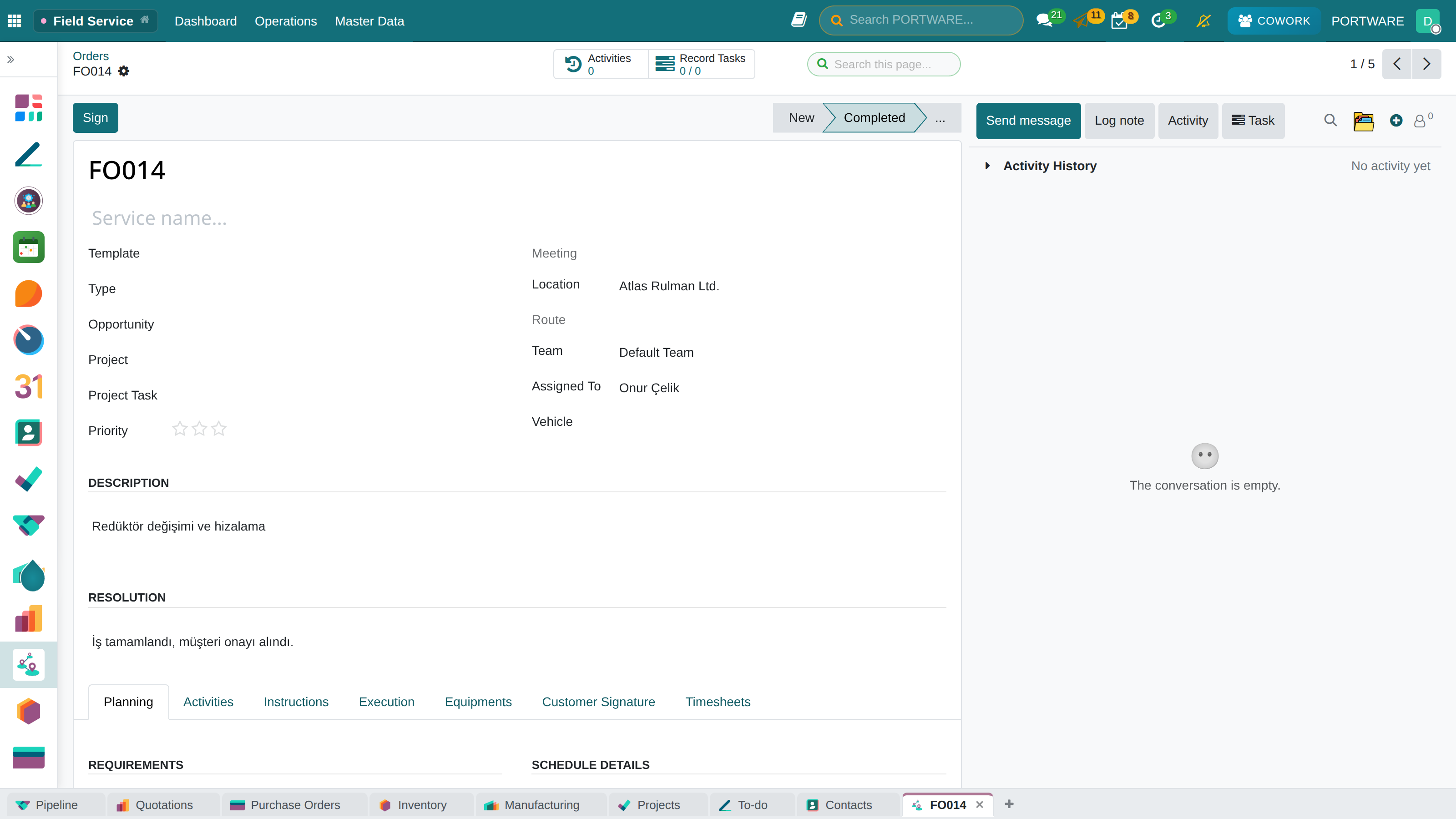
Field service work order - customer, location and service details
Work order detail - technical details, materials and completion status
Route Planning
Route optimisation matters when you plan several site visits.
Route Planning Tips
- Geographic grouping: put jobs in the same area on the same day
- Priority order: urgent jobs first, routine maintenance after
- Skill matching: send the right technician to the right job
- Travel time: leave enough time between two appointments
How to Do It in PORTWARE
Enabling Field Service
- Go to the menu
- Search for the "Field Service" module and install it
- Enable Onsite Interventions in the helpdesk team settings
Creating a Service Appointment
- Start from a helpdesk ticket or directly from the menu
- Click the + New Task button
- Choose the Customer and the Address
- Set the Assigned Technician
- Enter the Planned Date and the Duration
- Add the materials needed in the Parts tab
- Save
Technician Calendar
- Go to the menu
- See every technician's appointments in the calendar view
- Reschedule appointments with drag and drop
- View by technician with Group By → "Employee"
Field Report (Customer Signature)
- Open the field task on a phone or tablet
- When the job is done, go to the Signature tab
- Have the customer sign on the screen
- Complete the job with Confirm
- The report produces a PDF automatically, which can be sent by e-mail
Planning Module
The Planning module assigns team resources to projects and tasks. Its calendar view shows capacity and conflicts at a glance.
Project dashboard - overall planning and resource use
Planning Views
- Day view: today's assignments
- Week view: a 7-day plan
- Month view: monthly capacity
- Gantt: long-term planning
Shift Management
Shift planning for companies in manufacturing, retail or 24/7 service.
| Shift | Hours | Headcount |
|---|---|---|
| Morning | 06:00 - 14:00 | 5 |
| Afternoon | 14:00 - 22:00 | 5 |
| Night | 22:00 - 06:00 | 3 |
How to Do It in PORTWARE
Enabling the Planning Module
- Go to the menu
- Search for the "Planning" module and install it
Creating a Shift Template
- Go to the menu
- Click the + New button
- Enter the Template Name (e.g. "Morning Shift")
- Set the Start Time and End Time
- Choose the Role (Technician, Support, etc.)
- Save
Resource Scheduling
- Go to the menu
- View resources in the Gantt or calendar view
- Click an empty slot to add a new shift
- Choose the Employee, Project and Role
- Drag the shift to change its date or time
Conflict Check
- The system warns when overlapping shifts are assigned to the same employee
- See the problem assignments with the Conflicts button
- Assignments that fall on an employee's time off are flagged automatically
Publishing Shifts and Notifications
- Once the plan is ready, click the Publish button
- Employees are notified automatically
- Employees see their own schedule on the portal or the mobile app
Project Reports
The PORTWARE Project module offers comprehensive reporting:
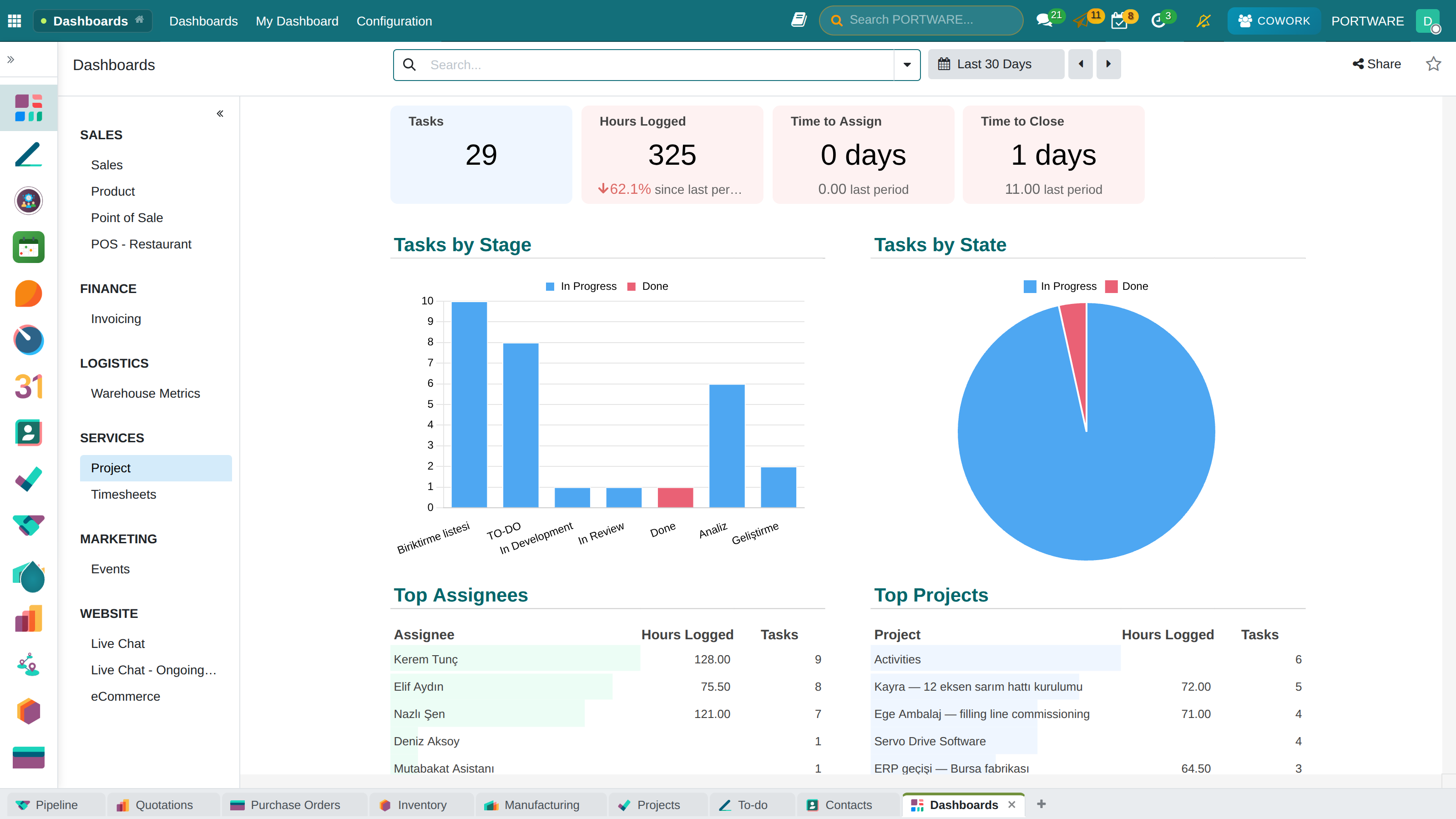
Main dashboard - project metrics and reporting view
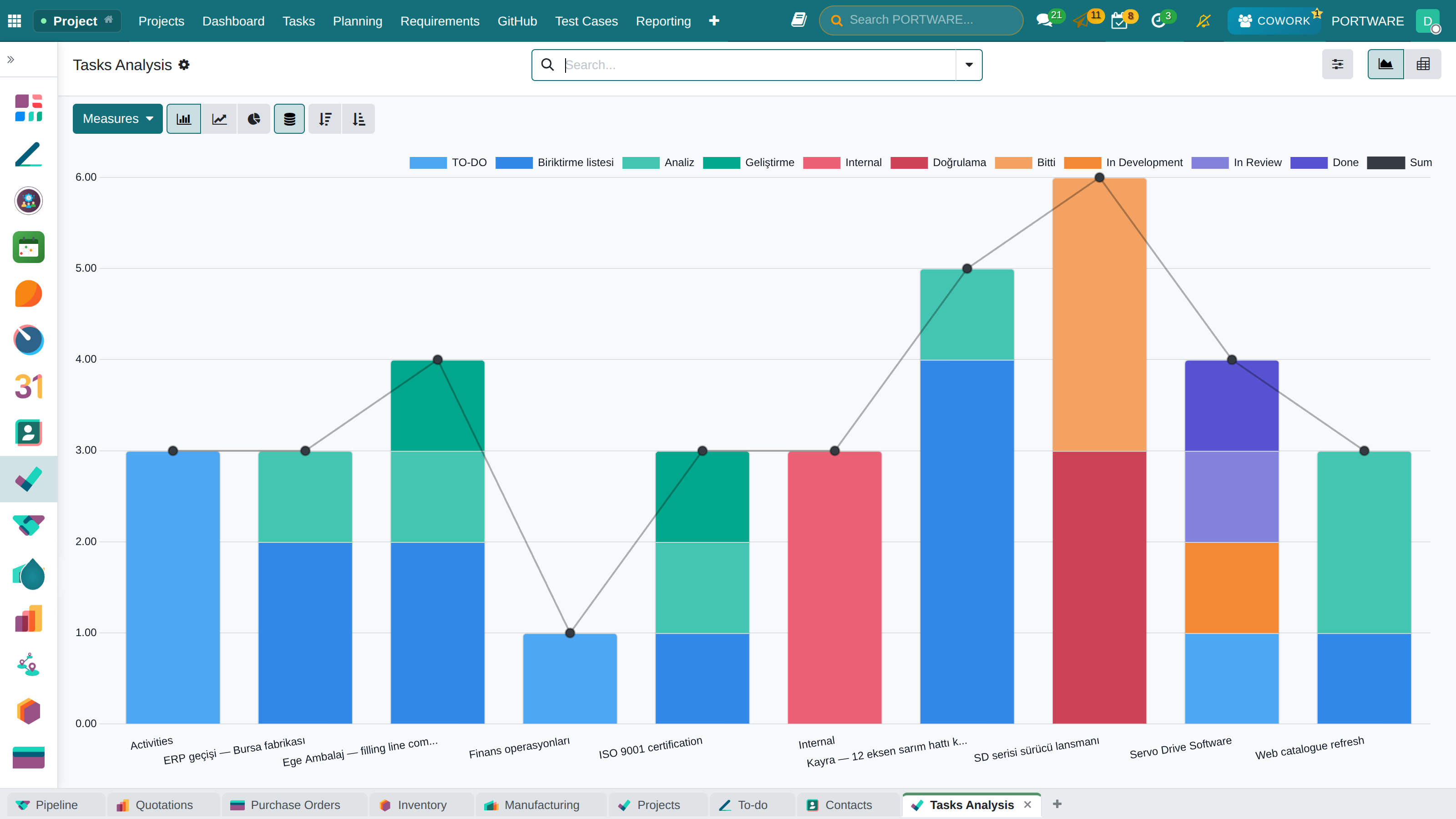
Task report - task status, progress and performance metrics
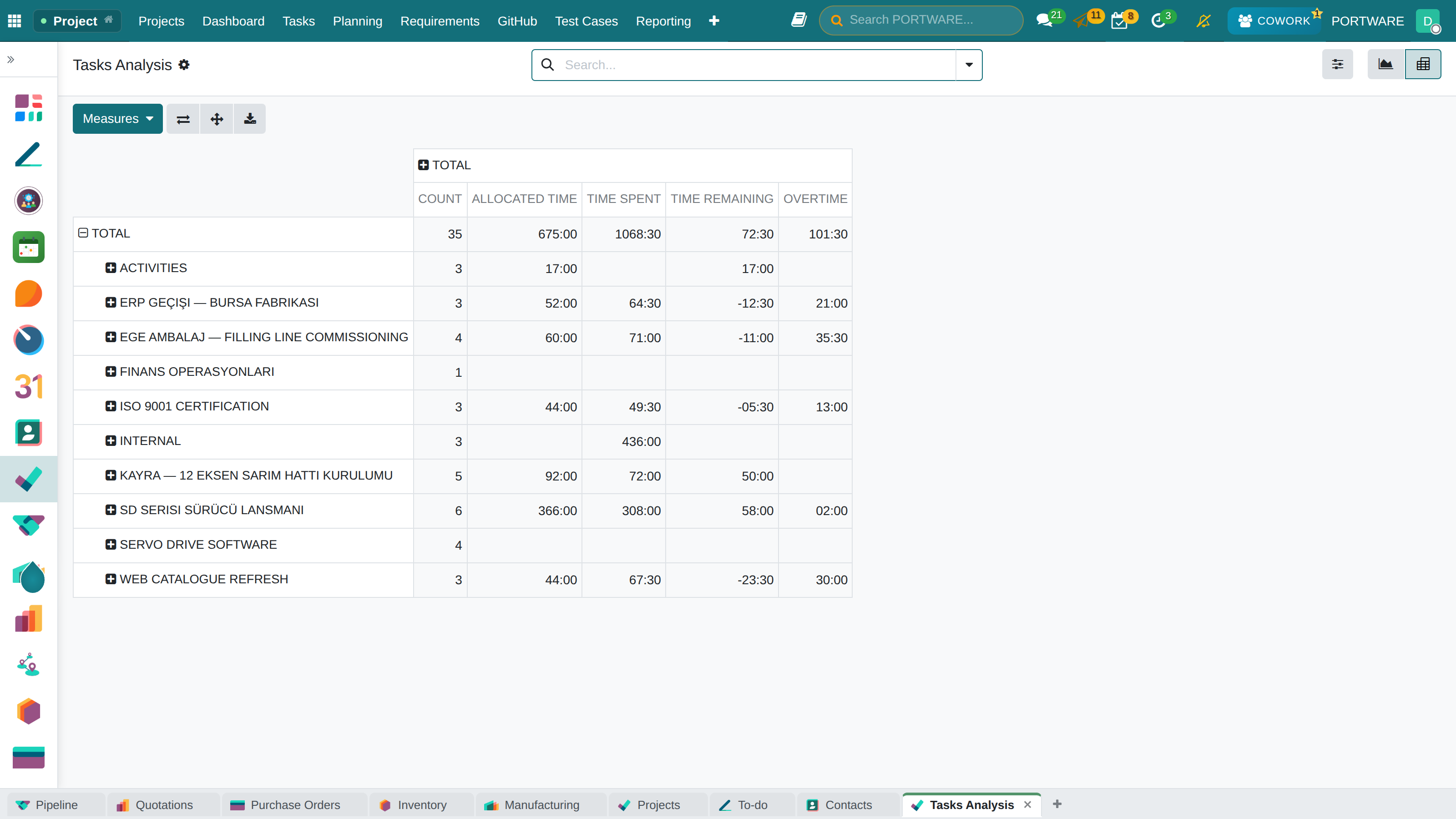
Task analysis — tasks, allocated and spent hours and remaining time per project
Key Reports
| Report | Content | Use |
|---|---|---|
| Project Summary | Task status, progress, timesheets | Weekly status meeting |
| Timesheet Analysis | Working hours per person/project | Measuring productivity |
| Profitability Report | Revenue, cost, profit margin | Financial analysis |
| Resource Utilisation | Team capacity vs actual | Capacity planning |
| SLA Performance | Share of tickets on time/late | Service quality |
Project KPIs
How to Do It in PORTWARE
Project Analysis Report
- Go to the menu
- The default analysis opens in the pivot view
- Choose the metrics to show with Measures (Hours, Cost, Count)
- Group with Rows and Columns
- Click the button for the chart view
Project Profitability Report
- Go to the menu
- Each project shows planned revenue, actual cost and profit margin
- Red: loss-making projects, green: profitable projects
Timesheet Report
- Go to the menu
- See working hours in an employee × project × week matrix
- Choose the date range and department with Filters
Helpdesk SLA Performance Report
- Go to the menu
- See KPIs such as the SLA success rate, average response time and number of breaches
- Filter by team and priority
Building Your Own Dashboard
- In any report view, use Favorites → "Add to Dashboard"
- See all your favourite reports on one screen from the menu
Frequently Asked Questions
What is the difference between a project and a task?
Project: the whole body of work, with start and end dates, aimed at a specific goal. For example "ABC Corp Website Project".
Task: the smallest unit of work in a project. For example "Home page design", "Database setup".
A project contains many tasks. The project moves forward as tasks are completed.
Are timesheets mandatory?
Timesheets are optional, but strongly recommended when:
- you invoice by the hour (to bill the customer for the hours worked)
- you want to measure project profitability (for costing)
- you track employee performance
You may skip timesheets for internal projects, but we strongly recommend them for external customer projects.
How do Helpdesk and Project work together?
Helpdesk tickets can be linked to a project. This lets you:
- create tasks from support requests
- see all the work for a customer in one place
- include support hours in the project cost
The Helpdesk → Ticket → Convert to Task button turns a ticket into a project task.
Can the customer follow the project?
Yes. With the PORTWARE Customer Portal your customers can:
- see the project's progress
- follow the status of tasks
- add comments and files
- open support requests
Enable the Customer Portal feature in the project settings and send the customer a portal invitation.
How do I calculate profitability on a fixed-price project?
The profitability formula for a fixed-price project:
Profit = Project Price - (Total Hours × Hourly Cost)
Example: a 50,000 TL project, 250 person-hours spent, hourly cost 100 TL
Profit = 50,000 - (250 × 100) = 50,000 - 25,000 = 25,000 TL (50% margin)
PORTWARE does this calculation automatically. Enter your timesheets regularly.
Best Practices
At the Start of a Project
- Clarify the scope and write it into the project description
- Define the milestones
- Split tasks into pieces as small as possible (4-8 hours)
- Define the dependencies (B cannot start before A ends)
- Make the resource assignments
During the Project
- Daily stand-up: review the Kanban board
- Enter timesheets daily (not at the weekend)
- Spot blocked tasks early
- Share the status with the customer regularly
- Document scope changes
At Project Closing
- Confirm that every task is complete
- Obtain the customer's approval
- Review the profitability report
- Record the lessons learned
- Archive the project