Website & E-Commerce
The window of your physical shop draws customers in. And in the digital world? Your website and online store are your digital shop window - open 24/7 and visible worldwide.
- The site and the ERP share dataProducts, prices and contact forms are connected to the system.
- No lost requestA website form lands in CRM as a lead.
- Edit without codePages are updated with a visual editor.
What Is a Digital Shop Window?
The window of your physical shop draws customers in. And in the digital world? Your website and online store are your digital shop window - open 24/7 and visible worldwide.
What You Will Learn in This Section
- The business value of an online presence
- The difference between a website and e-commerce
- The digital customer journey
- Basic digital marketing concepts
Why Does Digital Transformation Matter?
Today more than 70% of consumers research online before they buy. If your business is not visible on the internet, you cannot reach these potential customers. PORTWARE makes your digital transformation easier.
A professional website - your digital shop window, open 24/7
Why an Online Presence?
We often hear: "We already have a physical shop - why open a website?" Here are the differences between traditional methods and a digital presence:
Physical Shop Only
- Sales limited to opening hours
- Reaches local customers only
- High rent and staff costs
- Limited display space
- Customer behaviour cannot be measured
- Advertising impact is hard to measure
- Stock information is hidden from customers
Physical + Online (PORTWARE)
- Sales 24/7
- Reaches the whole world
- Low fixed cost
- An unlimited product catalogue
- Every click is measurable
- Campaign ROI can be calculated
- Real-time stock visibility
Scenario: Launching a New Product
Situation: you have released a new product line and want to bring it to market quickly.
- Website: create a product page with a detailed description and images
- E-commerce: add the product to the online store and open pre-orders
- Blog: publish a launch post and draw organic traffic with SEO
- E-mail: send a launch e-mail to existing customers
- Social media: spread the word with share buttons
- Live chat: answer questions from curious visitors instantly
- Analytics: measure how many sales come from each channel
Result: your launch runs on every channel at once, and it is measurable.
PORTWARE Website - a modern, professional corporate site design
Key Concepts
Before entering the world of digital marketing, it helps to understand a few basic concepts:
| Concept | Description | In PORTWARE |
|---|---|---|
| CMS | Content Management System | The Website module (drag-and-drop editor) |
| SEO | Search Engine Optimisation | Built-in SEO tools (meta, URL, sitemap) |
| E-Commerce | Electronic commerce - selling online | The eCommerce module (cart, payment, shipping) |
| Lead | A potential customer - someone whose contact details you have | Sent to CRM automatically |
| Conversion | A visitor taking the desired action | Measured with analytics |
| CTR | Click-Through Rate | Measured with the link tracker |
| Bounce Rate | Visitors who view one page and leave | Google Analytics integration |
| Cart Abandonment | Visitors who fill the cart but do not buy | E-commerce reports |
The Customer Journey
A visitor becomes a customer over several stages. Different tools are used at each stage:
Building a Website
The PORTWARE Website module lets you build professional websites without writing code. With the drag-and-drop editor and more than 100 ready-made building blocks, your corporate site is ready in minutes.
Building Blocks
Building blocks are ready-made components you use to build your web pages. Each one is designed by professional designers and is mobile-friendly.
Structure
Column layouts, spacing, separators - the skeleton of the page
Content
Headings, paragraphs, buttons, links - they carry your message
Gallery
Image galleries, sliders, masonry grids - they tell a visual story
Pricing
Price tables, plan comparisons - they present your services
Contact
Forms, maps, addresses - they open the line to customers
References
Customer testimonials and reviews - they build trust
Steps to Build a Website
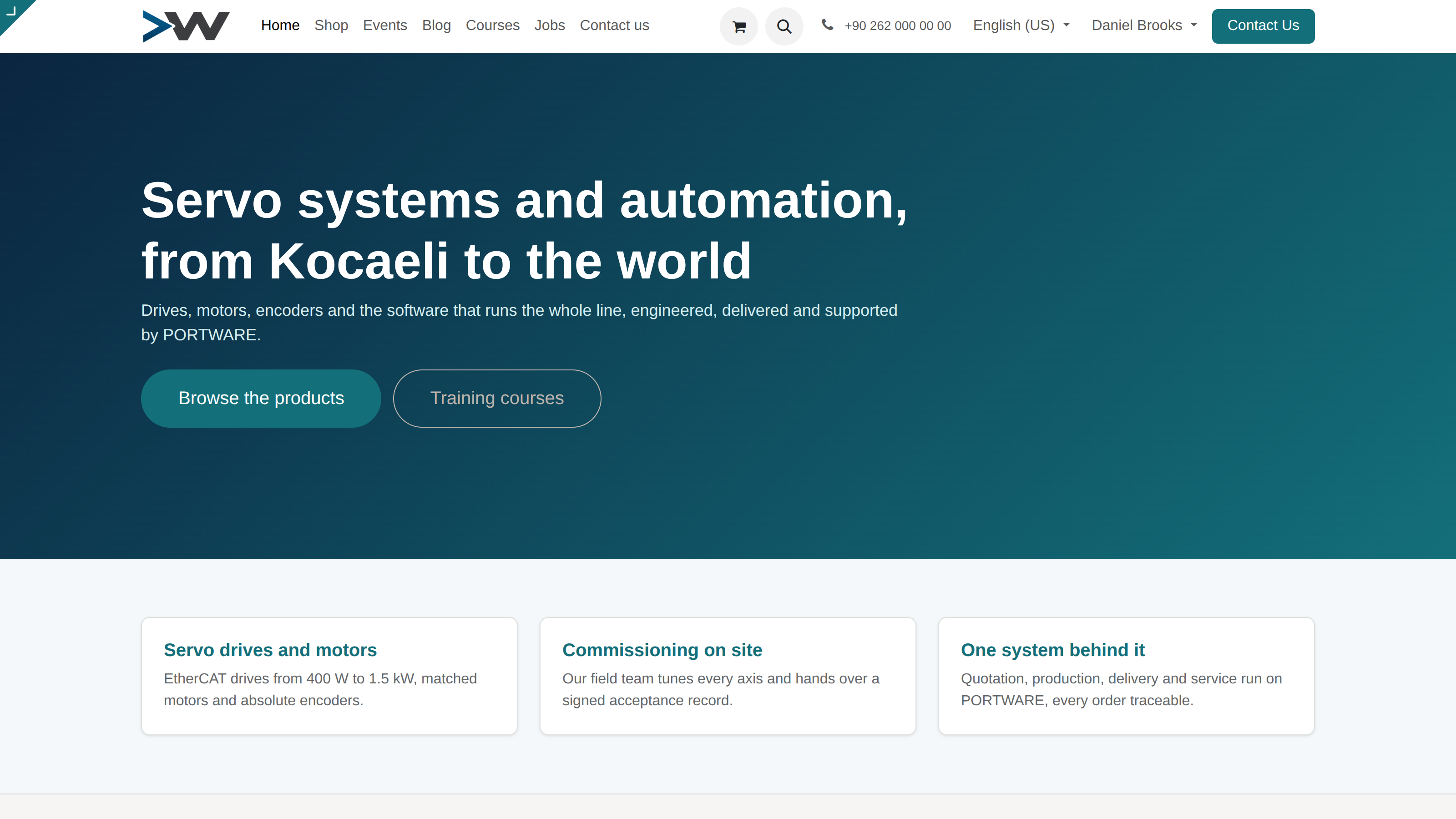
PORTWARE website builder - a professional home page designed with the drag-and-drop editor
Website editor - the page editing interface
Theme and Brand Identity
The theme sets the overall look of your site. Colours, fonts and styles are managed through the theme. Choose a theme that reflects your brand identity or customise the current one.
| Theme Element | Customisation | Tip |
|---|---|---|
| Primary Colour | Your brand colour | Should match the logo colour |
| Secondary Colour | Accents, buttons | Should contrast with the primary colour |
| Heading Font | H1, H2, H3 fonts | Eye-catching and readable |
| Body Font | Paragraph text | Comfortable to read in long texts |
| Header Style | The top menu layout | Sticky/fixed is preferred |
| Footer Style | The footer layout | Contact details and links go here |
How to Do It in PORTWARE
Creating a New Page
- Click the + New button
- Enter the page title in the Page Name field
- When the editor opens, drag and drop building blocks from the right panel
- Click each block to edit its content
- Take it live with Save → Publish at the top right
Customising the Theme
- Go to the Theme tab
- Choose your brand colours in the Primary Colour and Secondary Colour fields
- Upload your company logo in the Logo field
- Add your browser icon in the Favicon field
- Apply the changes with Save
Editing the Header and Footer
- Open the website in preview mode
- Double-click the top menu (header) to switch to edit mode
- Add or remove menu items from the right panel
- For the footer, scroll to the bottom of the page and edit it the same way
- Changes apply to every page automatically
Website editing - the interface for editing page content and placing blocks
Content Strategy
"Content is king" is the basic truth of digital marketing. Without quality content your website is no better than an empty shop window. So what content should you create?
Page Types
| Page Type | Purpose | Content Example |
|---|---|---|
| Home Page | First impression, guidance | Value proposition, CTAs, services |
| About Us | Building trust | Company story, team, values |
| Services/Products | Sales | Detailed description, price, CTA |
| Blog | SEO, showing expertise | Educational articles, news |
| Contact | Capturing leads | Form, address, map, phone |
| FAQ | Reducing the support load | Frequently asked questions |
| Landing Page | Campaign conversion | A single focus, a strong CTA |
Blog Content Strategy
A blog is the most effective way to attract organic traffic over the long term. Publishing content regularly raises your visibility in search engines.
How to Do It in PORTWARE
Writing a Blog Post
- Click the + New button
- Enter an SEO-friendly title in the Title field (it should contain the keyword)
- Write a short summary in the Subtitle field
- Upload an eye-catching image in the Cover Image field
- Write the post in the content editor (use H2 and H3 subheadings)
- Choose the categories in the Categories field
- Add the keywords in the Tags field
- Publish it with Save → Publish
Creating a Blog Category
- Create a category with + New
- Enter the Category Name and Description
- Optionally choose a Parent Category (for a hierarchy)
SEO Optimisation
SEO (Search Engine Optimisation) gets your website ranked high on Google and other search engines. Free organic traffic is the most valuable source of customers.
SEO Checklist
Check these items for every page:
Technical SEO Tools
| Tool | Location | Function |
|---|---|---|
| XML Sitemap | /sitemap.xml |
A list of every page, updated automatically |
| Robots.txt | /robots.txt |
Crawler rules |
| Canonical URL | Page settings | Prevents duplicate content problems |
| Hreflang | Multi-language settings | Language-aware SEO support |
| Schema Markup | Automatic | Structured data for rich snippets |
How to Do It in PORTWARE
Editing Page SEO Settings
- Open the page you want to edit in the web editor
- Click the Optimize SEO (or gear) icon at the top right
- Enter a 50-60 character title in the Page Title field
- Write a 150-160 character summary in the Meta Description field
- Edit the URL field to set a short, descriptive URL
- Enter your target keywords in the Keywords field
- Apply the changes with Save
Image SEO Optimisation
- Click any image in the web editor
- Enter descriptive text in the Alt Text field in the right panel
- Make the image name SEO-friendly in the File Name field (e.g. blue-running-shoes.jpg)
- Optimise the image size (max. 200KB recommended)
XML Sitemap and Robots.txt
- Go to the SEO tab
- Enable the Generate Sitemap option
- The sitemap is updated automatically:
yoursite.com/sitemap.xml - Edit the crawler rules in the Robots.txt field
Capturing Leads
Every visitor to your website is a potential customer. Most, however, do not buy on the first visit. By capturing their contact details you can turn them into customers later.
Form Management
Forms are the most effective way to collect information from visitors. The forms you create in PORTWARE send leads to CRM automatically.
Effective Form Design
Form → CRM Integration
How to Do It in PORTWARE
Creating a Contact Form
- Open the page where you want the form in the website editor
- In the right panel go to Blocks → Contact
- Drag and drop the Form block onto the page
- Click the form to switch to edit mode
- Add or remove form fields in the right panel:
- Full Name - Required
- E-mail - Required
- Phone - Optional
- Message - Text area
- Choose Create a Lead in the Form Action field
- Set the Sales Team the leads will be assigned to
- Publish the form with Save
Pop-up Form (Exit Intent)
- Create a pop-up with + New
- Choose On Exit in the Trigger field
- Add a form with an attractive offer (e.g. "Leave your e-mail for a 10% discount code")
- Set the target pages with Display Pages
Setting Up an Online Store
PORTWARE eCommerce is a fully integrated online sales solution. It stays in sync with stock, accounting and shipping automatically. No separate e-commerce platform is needed.
Scenario: Setting Up Your First E-Commerce Site
Situation: you have a physical shop and want to start selling online.
- Install the module: Apps → eCommerce → Install
- Shop page: Website → Pages → the Shop page is created automatically
- Add products: enable existing products with the "Publish on Website" option
- Payment set-up: payment provider integration (İyzico, PayTR)
- Shipping settings: define delivery methods and prices
- Test order: place a test order yourself
- Go live: activate the shop
Result: your customers can now shop online 24/7, and orders sync with stock and accounting automatically.
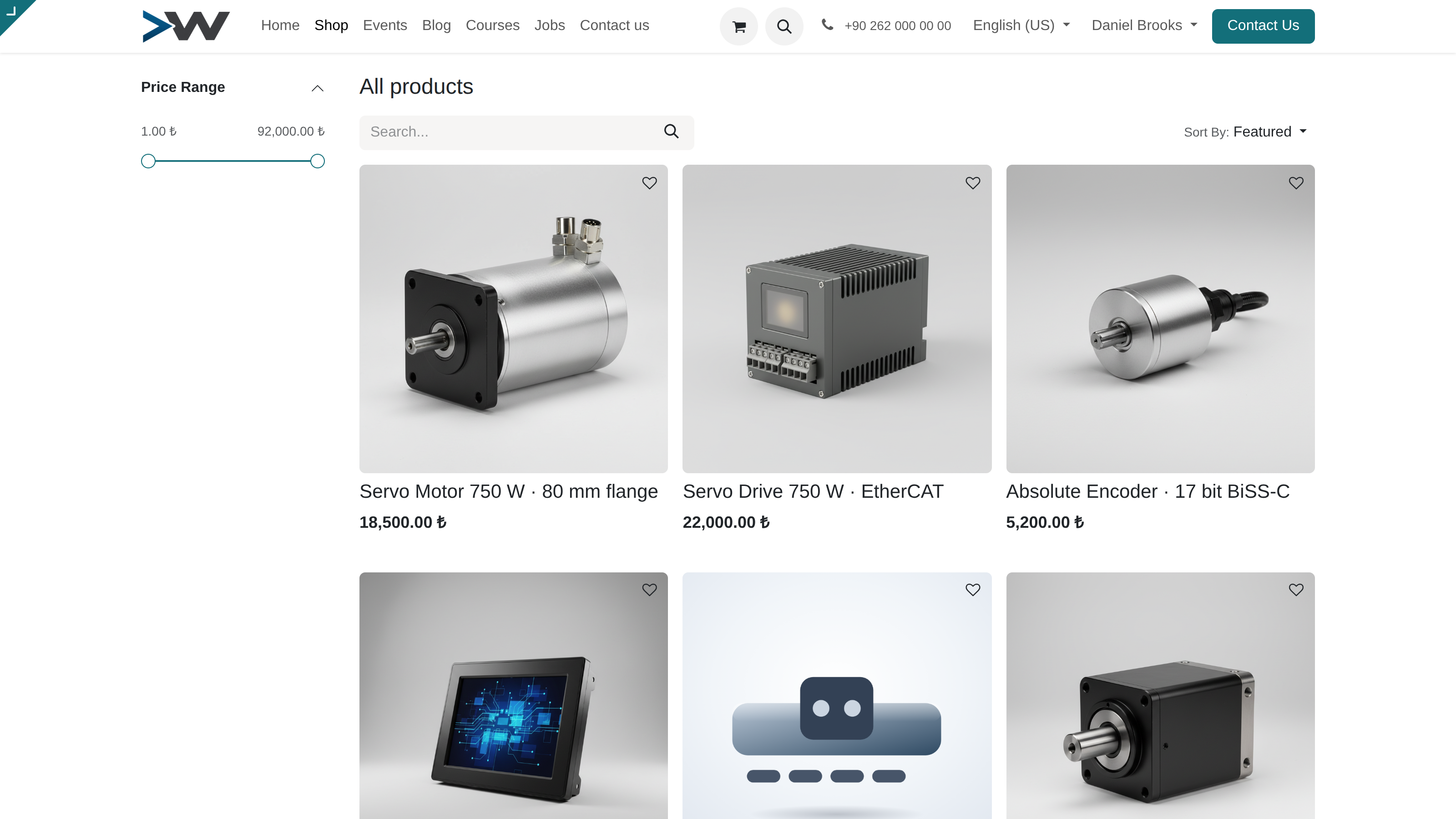
Online store - a professional e-commerce view with a product catalogue and category filters
E-Commerce Advantages
E-commerce catalogue editor - the interface for editing and customising the product page
Product Management
The foundation of e-commerce success is a well-organised product catalogue. Customers must find what they are looking for easily and get enough information about the product.
Creating a Product Card
What an Effective Product Page Contains
| Element | Importance | Tip |
|---|---|---|
| Product Name | Critical (SEO) | Should contain the keyword, 60 characters |
| Description | High (sales) | Highlight the benefits, 200+ words |
| Images | Very high | At least 3 images, different angles, zoomable |
| Price | Critical | Clear; show the old price if discounted |
| Stock Status | High | Create urgency, e.g. "Only 3 left" |
| Variants | Medium | Size/colour choice should be visual |
| Customer Reviews | Very high | Social proof, builds trust |
Product Categories
Well-organised categories make products easier to find and improve SEO performance.
How to Do It in PORTWARE
Publishing a Product in the Online Store
- Choose the product to publish or create one with + New
- Go to the eCommerce tab
- Tick the Publish on Website box
- Choose the eCommerce Categories (for display in the shop)
- Write a detailed product description in the Website Description field
- Upload photos from at least 3 angles in the Product Images section
- Publish the product in the shop with Save
Product Variants (Size/Colour)
- Go to the Variants tab on the product form
- Add Variant - define the attributes:
- Colour: Red, Blue, Black...
- Size: S, M, L, XL...
- Define a separate SKU, Barcode and Stock for each variant
- Use the Price Extra field for variant-specific price differences
Creating an eCommerce Category
- Click the + New button
- Enter the Category Name (SEO-friendly, descriptive)
- Choose the Parent Category for a parent
- Upload the Category Image (for the banner)
- Create the category with Save
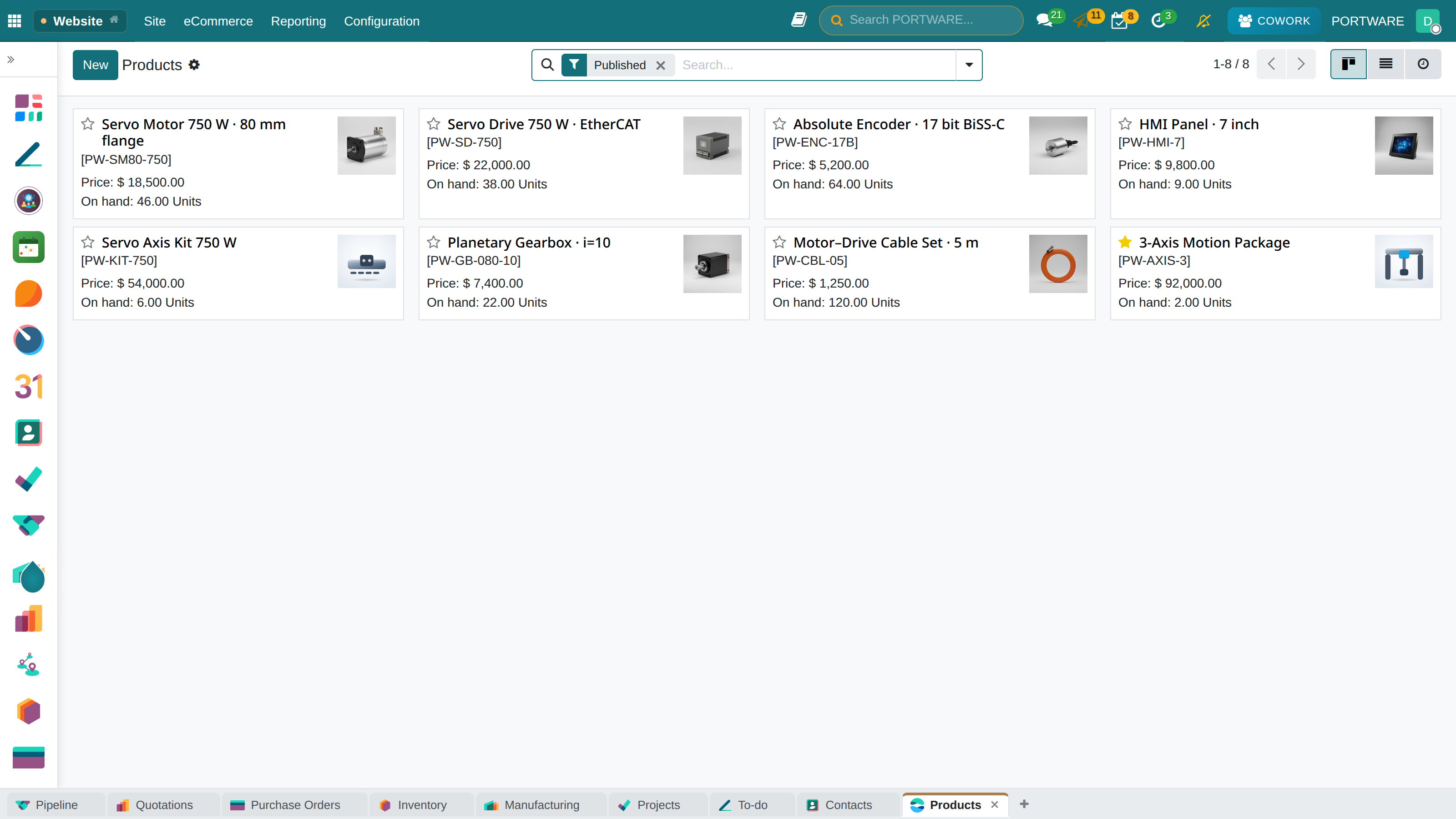
E-commerce product list - product management and category organisation
The Order Process
The process from a customer adding a product to the cart to receiving the order is the heart of your e-commerce operations. Every step should be optimised.
The Conversion Funnel
The Order Flow
| Stage | Automatic Action | Customer Notification |
|---|---|---|
| Order Received | Stock reservation, sales order created | E-mail: order confirmation |
| Payment Confirmed | Payment recorded, invoice created | E-mail: payment received |
| Being Prepared | Warehouse transfer order | - |
| Shipped | Stock deducted, delivery recorded | E-mail: tracking number |
| Delivered | Order closed | E-mail: review request |
How to Do It in PORTWARE
Viewing Online Orders
- List online orders with the filter Source = Website
- See the payment status, delivery address and product details on each order
Processing an Order (Preparation → Shipping)
- Open the order and click the Create Delivery button
- Pick the products on the warehouse screen and confirm with Validate
- Enter the carrier tracking code in the Tracking Number field
- Notify the customer automatically with Shipped
Abandoned Cart E-mails
- See the list of customers who abandoned their carts
- Send a cart reminder e-mail with Send Reminder
- For automatic sending: enable Settings → eCommerce → Automatic Cart Reminder
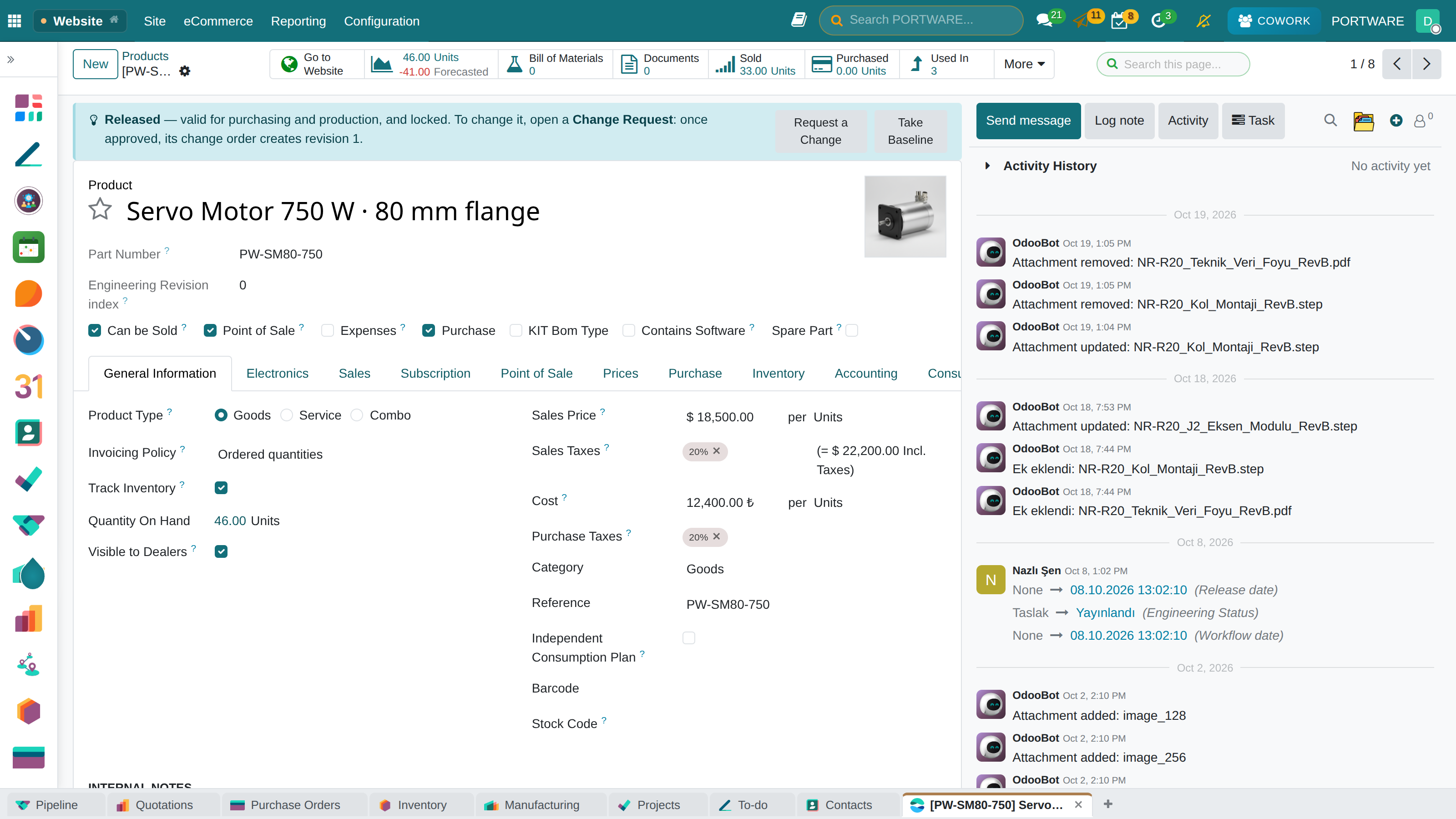
E-commerce catalogue editing - product page and cart management
Payment & Shipping
Payment Systems
Different payment providers are supported for Turkey and global markets. Offer your customers the payment method they prefer.
Stripe
Global, credit cardPayPal
Global, digital walletİyzico
Turkey, instalmentsBank/EFT
Manual confirmationShipping Management
Delivery Methods
| Method | Pricing | Used For |
|---|---|---|
| Fixed Price | The same for every order | Simple, products of similar weight |
| Weight-Based | Calculated per kg | Products of different weights |
| Price-Based | By order amount | Tiered shipping (20₺ above 100₺) |
| Free Shipping | Above a given amount | Raises the average basket value |
| Pick Up in Store | Free | Businesses with a physical shop |
How to Do It in PORTWARE
Setting Up a Payment Provider (İyzico Example)
- Click the İyzico card (or another provider)
- Click the Activate button
- Enter the details from your İyzico panel in the API Key and Secret Key fields
- Tick the Test Mode box to test first
- Place a test order; if the payment succeeds, untick Test Mode
- Go live with Save
Creating a Shipping/Delivery Method
- Create a delivery method with + New
- Enter the Method Name (e.g. "Standard Shipping", "Express Delivery")
- Choose Fixed Price or Weight-Based as the Provider
- Enter the Delivery Fee or formula
- Enter the minimum amount in the Free Shipping Threshold field (e.g. 250₺)
- Activate it with Save
Adding Bank/EFT Payment
- Choose Wire Transfer from the payment providers list
- Activate it with Activate
- Enter your IBAN and account details in the Bank Details field
- Customers will see this option at checkout; a manual confirmation is needed after payment
Customer Experience
Success in e-commerce is not just selling products but offering an excellent customer experience. Happy customers buy again and recommend you.
Customer Portal
Your customers can create an account on your website to follow their orders, manage their addresses and see their past orders.
Portal Features
Order History
All past orders, invoices and delivery details on one screen
Shipment Tracking
Real-time shipment status and tracking number
Address Book
Save several delivery/invoice addresses
Return Request
Online return requests and tracking
Sign-Up Policies
| Policy | Advantage | Disadvantage |
|---|---|---|
| Guest Checkout | Fast checkout, low abandonment | Limited customer data |
| Mandatory Sign-Up | Complete customer data | High abandonment |
| Optional Sign-Up (Recommended) | A balanced approach | - |
Digital Marketing
Your website and online store are ready. Now it is time to attract traffic and turn it into sales. Reach your customers with PORTWARE's built-in marketing tools.
Scenario: An End-of-Season Sale Campaign
Situation: you are running a campaign to clear end-of-season stock.
- Landing page: create a page dedicated to the campaign
- Promo code: define a discount coupon (e.g. SEASON30)
- E-mail: announce the campaign to existing customers
- Banner: add a campaign banner to the home page
- Live chat: add the campaign rules to the chatbot
- UTM links: create a tracking link for each channel
- Analysis: follow the campaign's performance daily
Result: you see how many sales came from each channel, calculate the ROI and optimise future campaigns.
Promotion Tools
| Tool | Use | Example |
|---|---|---|
| Discount Coupon | A discount tied to a specific code | WELCOME10 → 10% off |
| Free Shipping | Above a given amount | Free on orders over 250₺ |
| Free Gift | Together with a given product | A free bag with every laptop |
| Buy X Pay Y | Encourages multi-buys | Buy 3, pay for 2 |
| Flash Sale | Time-limited | 50% off today only |
How to Do It in PORTWARE
Creating a Discount Coupon
- Click the + New button
- Enter the Program Name (e.g. "Welcome Discount")
- Choose Coupon as the Program Type
- Enter the code in the Coupon Code field (e.g. WELCOME10)
- Set a percentage or fixed amount in the Discount field
- Choose the Validity date range
- Set a lower limit with Minimum Amount (optional)
- Activate the coupon with Save
Free Shipping Campaign
- Click + New in Promotion Programs
- Program Type: Free Shipping
- Enter the Minimum Order Amount (e.g. 250₺)
- Optional: limit it to certain categories or products
- Start the campaign with Save
E-mail Marketing Campaign
- Create a campaign with + New
- Write an eye-catching subject in the Subject field
- Design the e-mail content with the drag-and-drop editor
- Choose the Recipient List or apply segmentation
- Send a test to yourself first with Send Test
- Start the campaign with Send
Live Chat
Talk in real time with customers visiting your website. By answering their questions instantly you can raise your conversion rate by up to 30%.
Setting Up Live Chat
Creating a Channel
Channel Settings
| Setting | Description | Recommended Value |
|---|---|---|
| Notification Text | The greeting next to the button | "How can I help you?" |
| Welcome Message | The first message when the chat opens | "Hello! I'm here for your questions." |
| Button Colour | The chat button colour | Your brand colour |
| Auto-Open | When the chat window opens | After 30-60 seconds |
Live Chat - the real-time chat interface between customer and operator
Chatbot (Automatic Replies)
Outside working hours or at busy times the chatbot steps in. It can answer common questions and collect lead details.
How to Do It in PORTWARE
Creating a Live Chat Channel
- Click the + New button
- Enter the Channel Name (e.g. "Website Support")
- Add the support staff on the Operators tab
- Set the working hours on the Rules tab
- Choose the site the channel appears on in the Website field
- Activate the channel with Save
Creating a Chatbot
- Create a chatbot with + New
- Enter the Bot Name (e.g. "Support Assistant")
- Flow tab - design the conversation flow:
- Welcome Message → "Hello, how can I help you?"
- Offer Options → Order Status, Product Information, Other
- Forward to Operator → for complex questions
- Trigger: active outside working hours or when operators are busy
- Activate the chatbot with Save
Saving Chat History to CRM
- Live Chat → Configuration → Settings
- Enable the Save Chats to CRM option
- When the customer comes back, past chats appear automatically
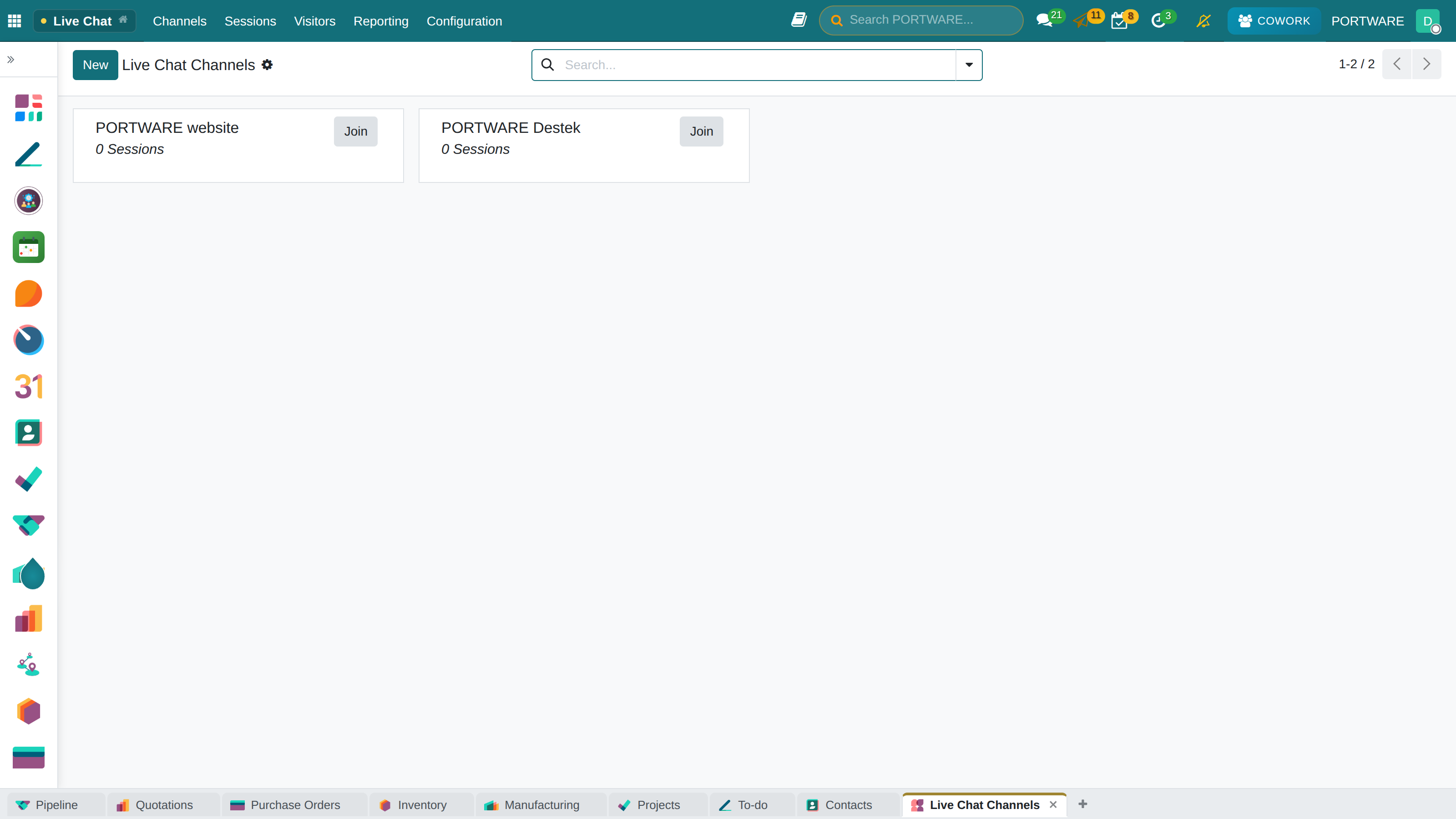
Live Chat channels - managing chat channels and assigning operators
Analytics & Reports
You cannot manage what you do not measure. PORTWARE offers comprehensive analytics to follow your website and e-commerce performance.
Key Metrics
Google Analytics Integration
- Create a GA4 property in Google Analytics
- Get the Measurement ID (in G-XXXXXXXXXX format)
- PORTWARE: Website → Configuration → Google Analytics
- Enter the Measurement ID and save
- Enable "Enhanced Ecommerce" for e-commerce tracking
Campaign Tracking with UTM
Use UTM parameters to tell apart traffic from different channels:
| Parameter | Description | Example |
|---|---|---|
utm_source |
Traffic source | google, facebook, newsletter |
utm_medium |
Channel type | cpc, email, social, banner |
utm_campaign |
Campaign name | summer_sale, black_friday |
utm_content |
Content variation | banner_a, button_red |
yoursite.com/product?utm_source=facebook&utm_medium=social&utm_campaign=end_of_season
How to Do It in PORTWARE
Google Analytics Integration
- Go to the Analytics tab
- Enter the GA4 Measurement ID in the Google Analytics ID field (G-XXXXXXXXXX)
- Tick the E-commerce Tracking box
- Complete the integration with Save
PORTWARE's Built-in Reports
- Choose a date range to see visitor, page view and source data
- Analyse the most visited pages on the Pages tab
- See which channels bring visitors with Traffic Sources
E-Commerce Reports
- Sales Summary: total orders, revenue, average basket value
- Best Sellers: find the popular products
- Conversion Rate: visitor-to-customer conversion analysis
- Cart Abandonment: analysis of abandoned carts
- Download the report as Excel/PDF with Export
B2B E-Commerce
B2B (Business-to-Business) mode offers features for wholesale businesses. Build a professional B2B e-commerce platform with dealer prices, credit limits and approval processes.
B2B Features
Wholesale Price Lists
Pricing per customer group. Dealer, distributor and VIP prices
Minimum Order
A minimum quantity by product or category
Request for Quotation (RFQ)
The customer can ask for a price quote and negotiate
Credit Limit
Sales on credit with limit management and payment tracking
Hiding Prices
Prices are hidden until the visitor signs in
Approval Process
A workflow for new dealer applications and approval
Multi-Website Management
You can run several websites from one PORTWARE database. Create separate sites for different brands, countries or customer segments.
| Feature | Site 1 | Site 2 | Shared |
|---|---|---|---|
| Domain | www.brand1.com | www.brand2.com | - |
| Theme | Blue theme | Green theme | - |
| Products | Category A | Category B | Or shared |
| Customers | - | - | ✓ Shared |
| Stock | - | - | ✓ Shared |
| Reports | - | - | ✓ Combined |
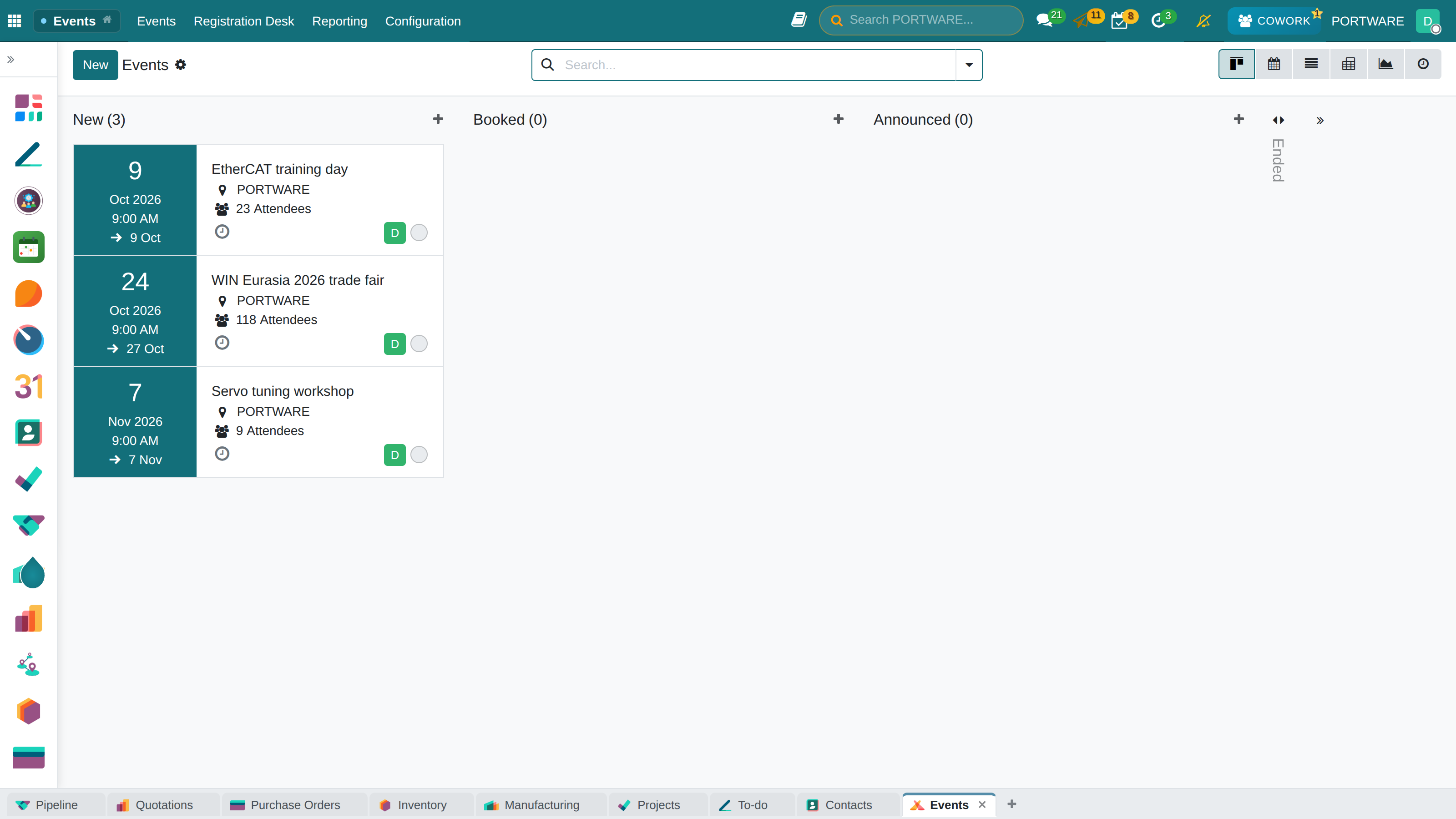
Event management - following events in the kanban view
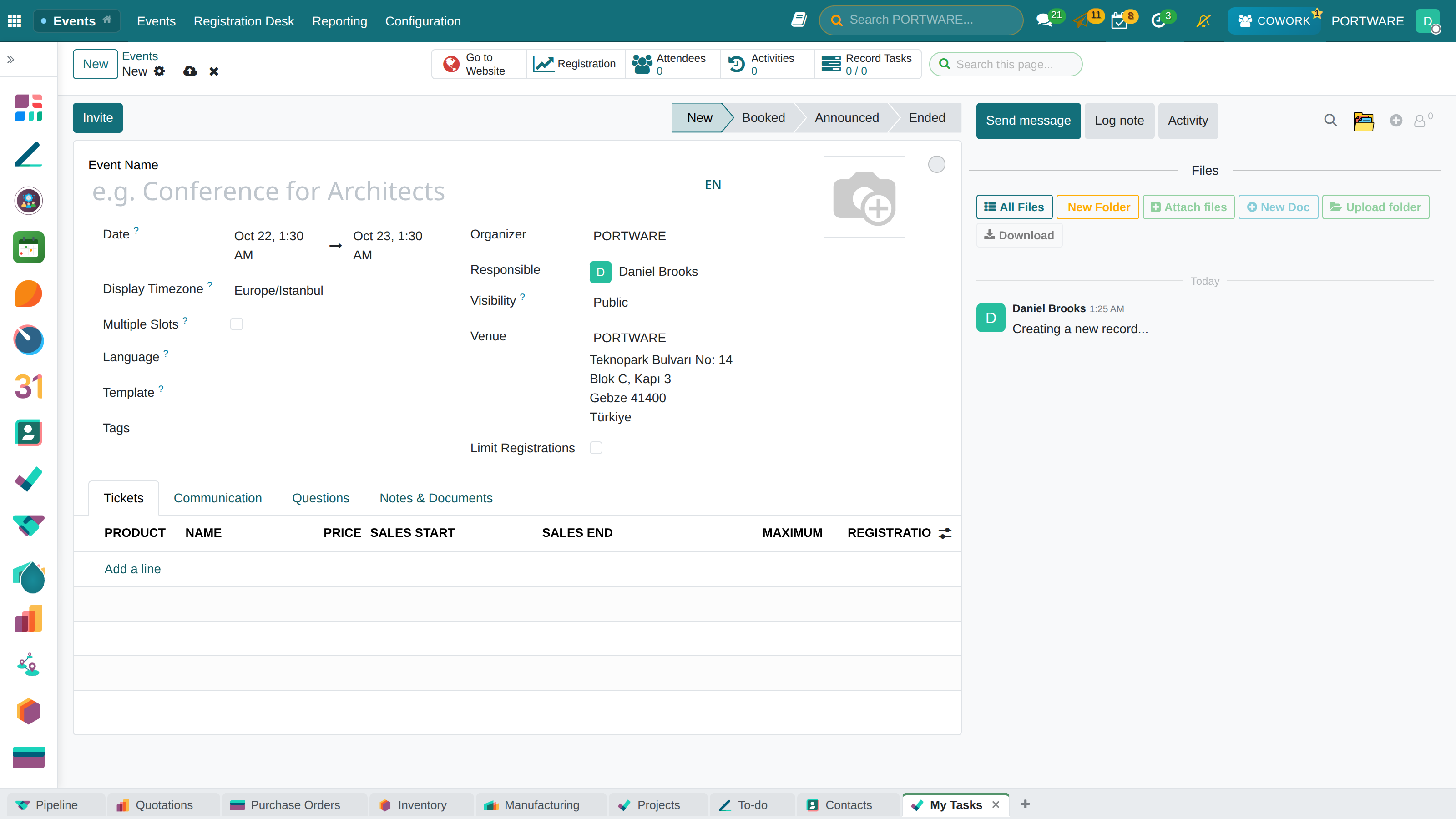
Creating a new event - event management integrated with the website
Integrations
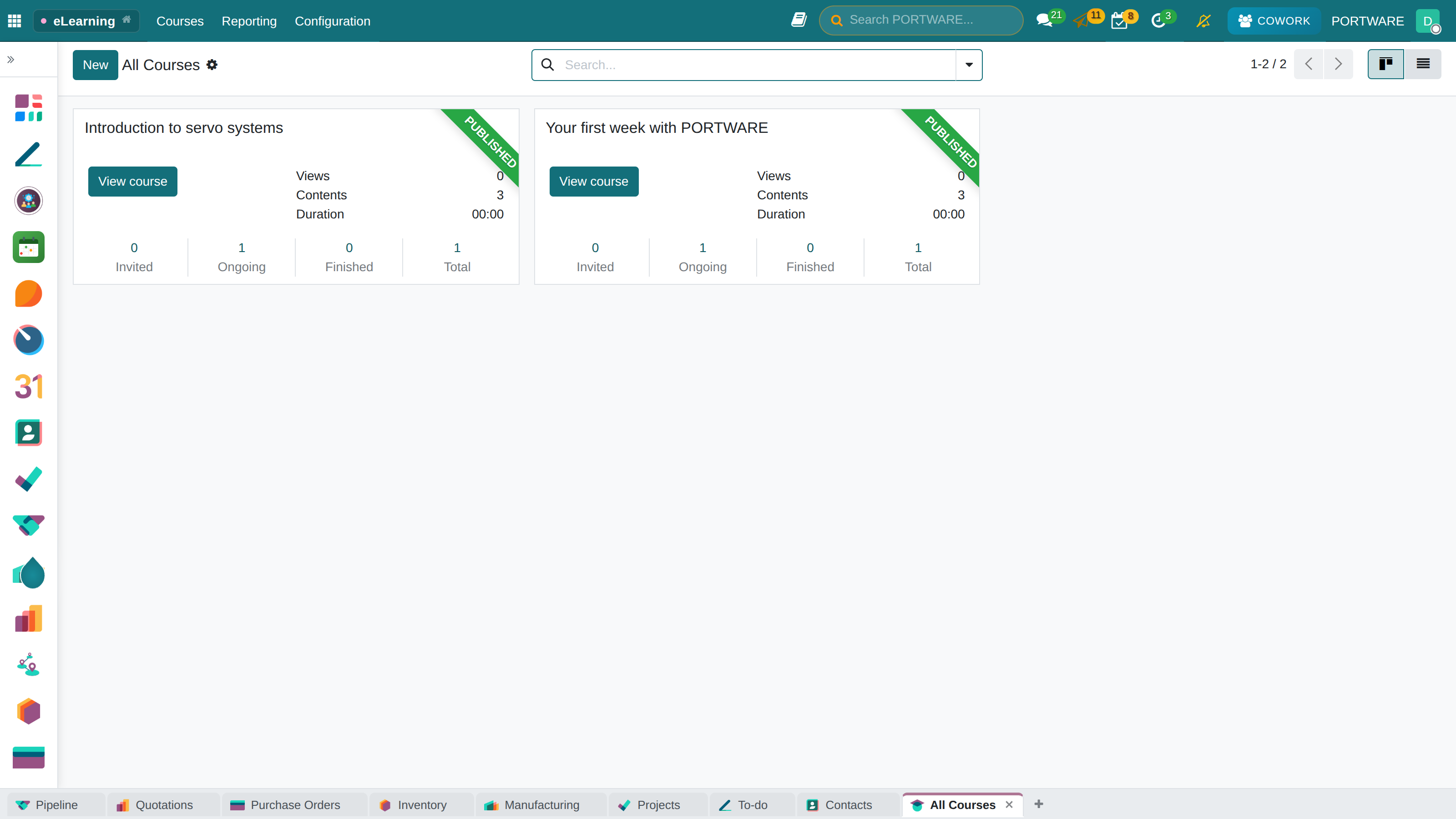
eLearning module - integration with an online course and training platform
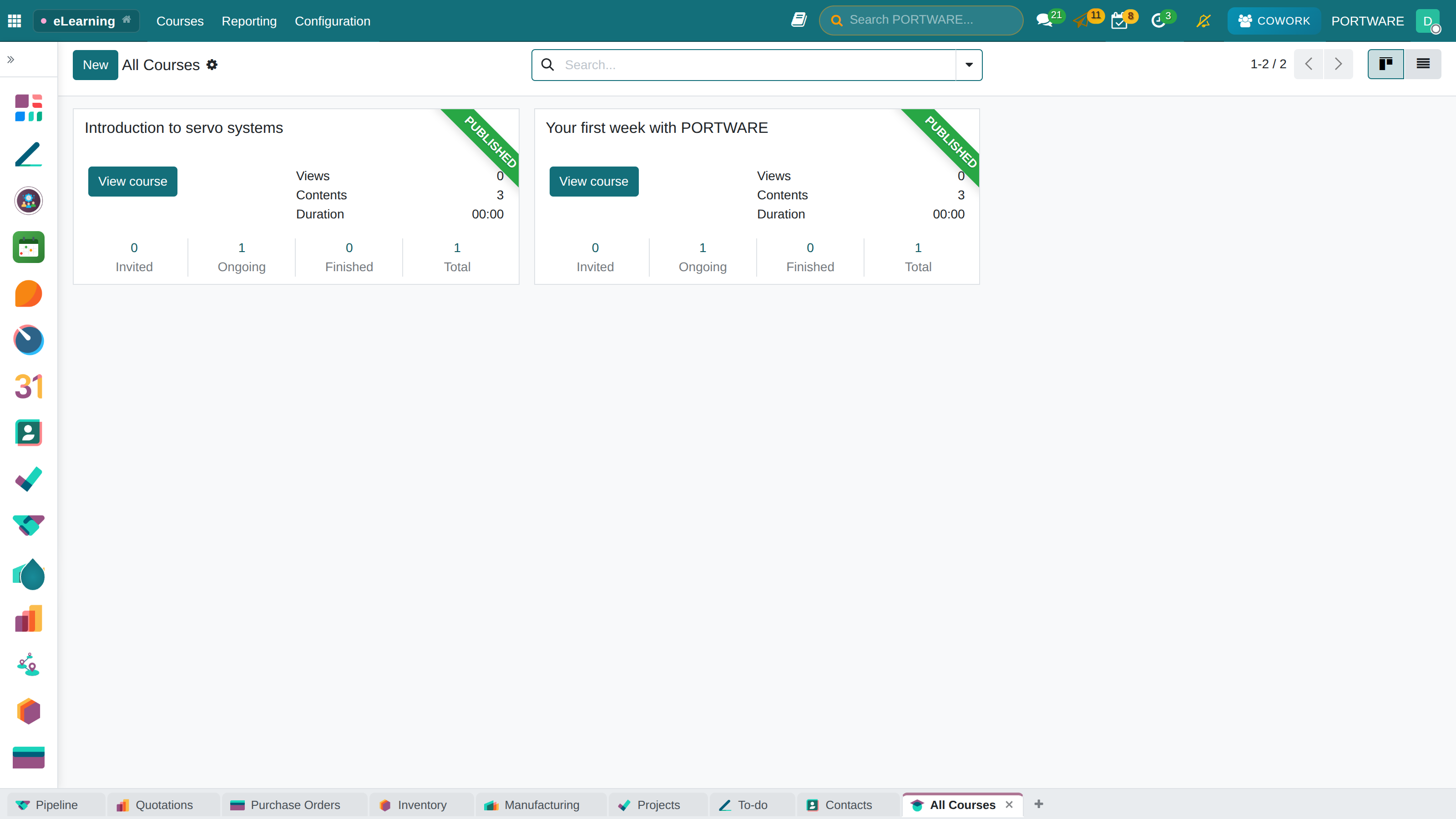
eLearning courses - managing the course catalogue and training content
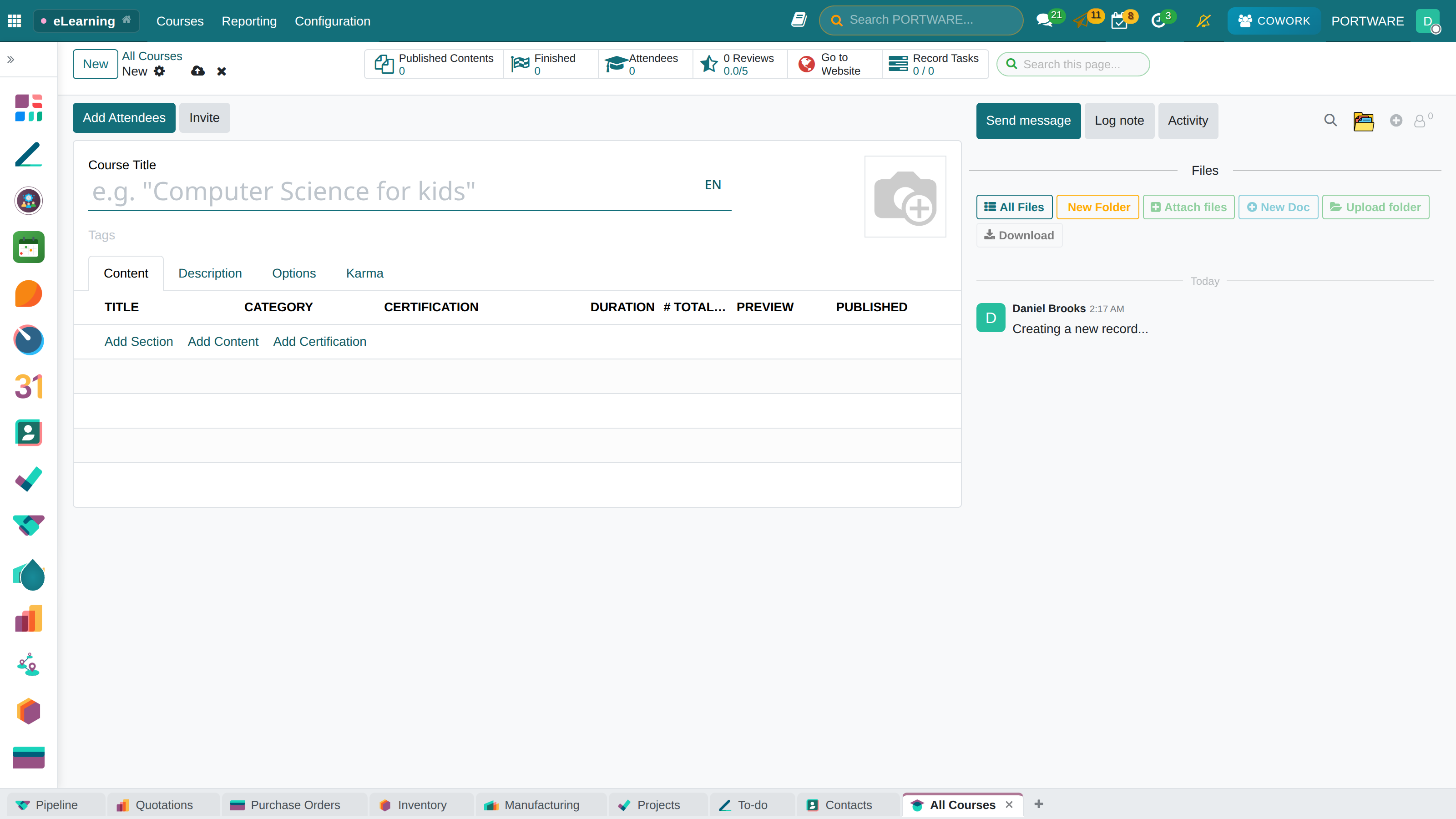
Creating a new course - preparing online training content
eLearning new course - the course module and content structure
Frequently Asked Questions
Does e-commerce need separate hosting?
How much are the payment commissions?
Is there integration with marketplaces (Trendyol, Hepsiburada)?
Is there a mobile app?
Is an SSL certificate included?
Is there an extra charge for SEO?
How many operators does live chat support?
Do the blog and forum need extra modules?
Best Practices
Website
- Test mobile friendliness on every page
- Optimise images (WebP, max. 200KB)
- Use a unique meta title on every page
- Add internal links to increase browsing within the site
- Keep page load time under 3 seconds
- Publish content regularly (at least 1 blog post a week)
E-Commerce
- Write detailed, original product descriptions
- Use product photos from at least 3 angles
- Encourage customer reviews
- Send abandoned cart e-mails
- Set a free shipping threshold
- Keep the checkout steps to a minimum
Live Chat
- Keep the first response time under 30 seconds
- Create templates for frequently used answers
- Enable the chatbot outside working hours
- Save chat transcripts to CRM
- Send a satisfaction survey
- Define proactive chat rules
Analytics
- Use UTM parameters in every campaign
- Produce a weekly conversion rate report
- Watch the cart abandonment rate (alarm above 70%)
- Try to keep the bounce rate below 50%
- Feature the best-selling products
- Run A/B tests by target audience