Lesson 11 · Verification, build and deploy
Test cases and runs, defect tasks, ECO verification, building and deploying with GitHub Actions, Workbench tools, insights and settings.
Goal of this lessonTo prove a requirement with its work and its tests, build and deploy the software with GitHub Actions and use the Workbench's smart tools.
Requirements follow the V-model: a requirement says what is needed and its acceptance criteria; a task does it; a test case says how it is checked; a test run records on which version, by whom and with which result it was tried. The line on the requirement form always says the next step.
Step by step
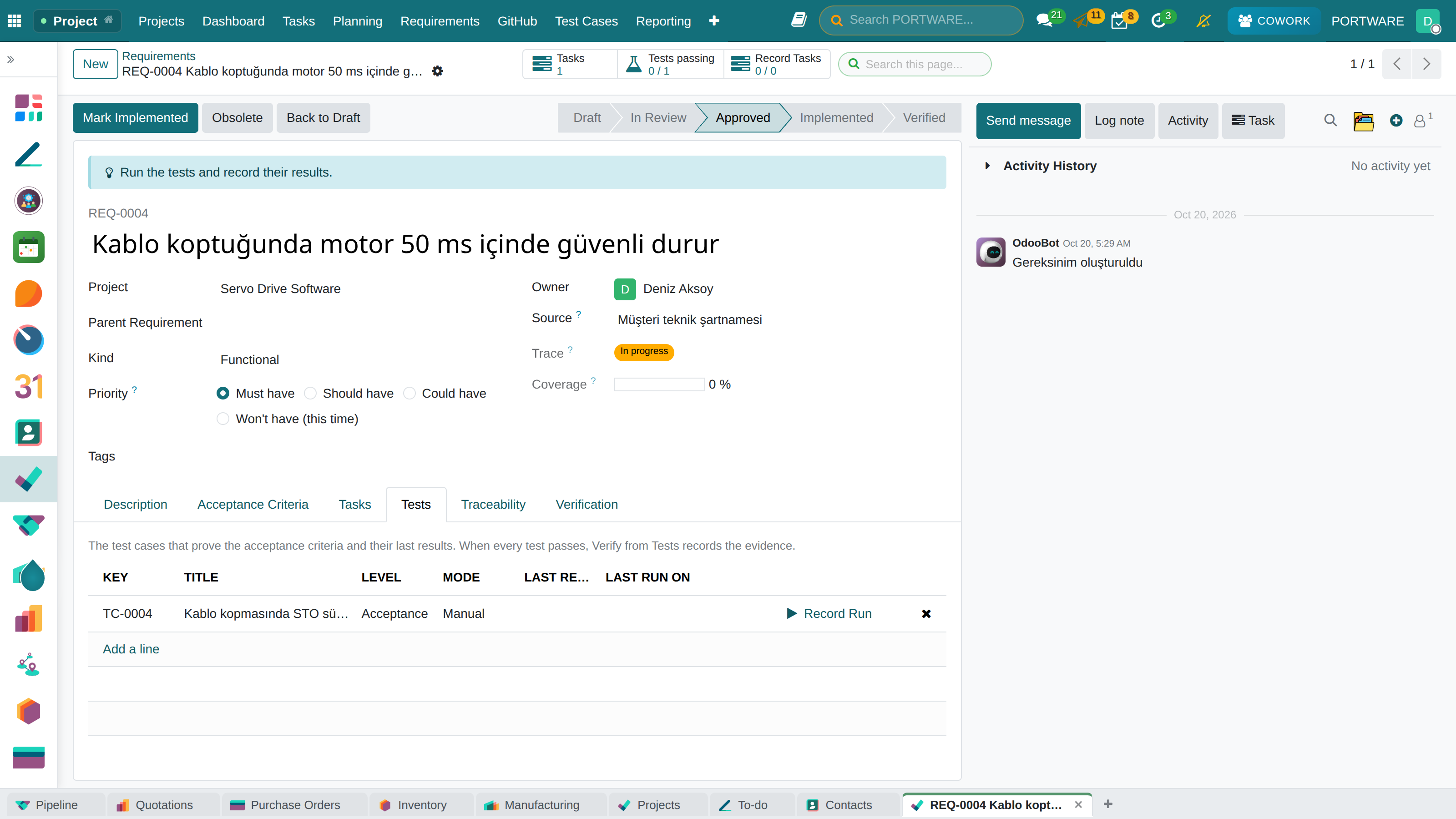
Link the work and the tests to a requirement
On the requirement's Tasks tab pick the task that does it, or open one with Create Task. On the Tests tab add the test cases that prove the acceptance criteria: preconditions, steps, expected result; manual or automated (a test method or a CI job).
 1234
1234- The next step: what the V-model still lacks.
- Tests passing / all tests.
- Test cases and their last results.
- Tasks: the tasks that do the work.
Follow the product's requirements
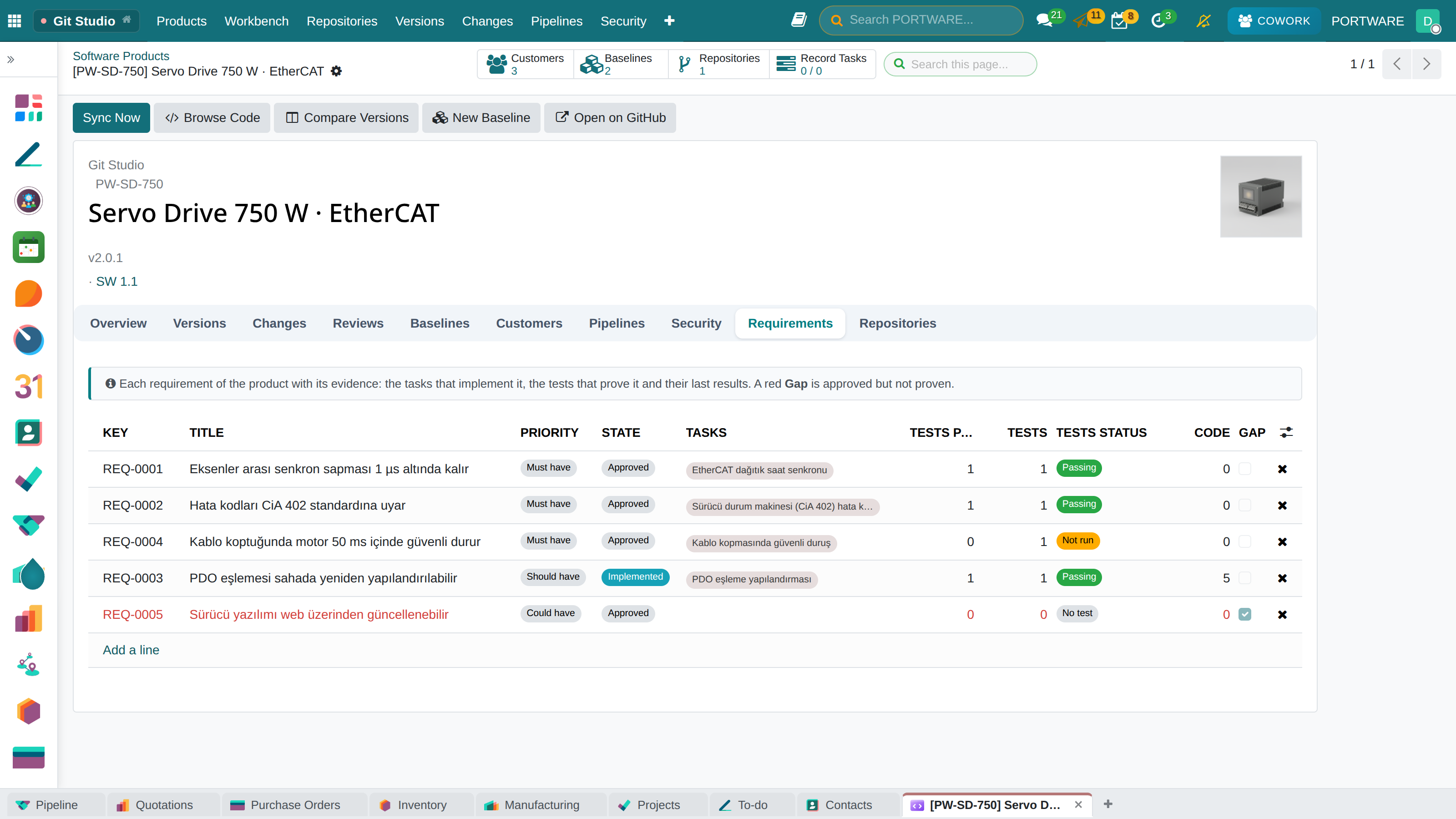
The Requirements tab of the product's Git Studio lists each requirement with the tasks that do it, the tests passing and the code changes; a click opens the requirement.
 123
123- The tasks that do the work.
- The state of the tests.
- A click opens the requirement.
See a task's software
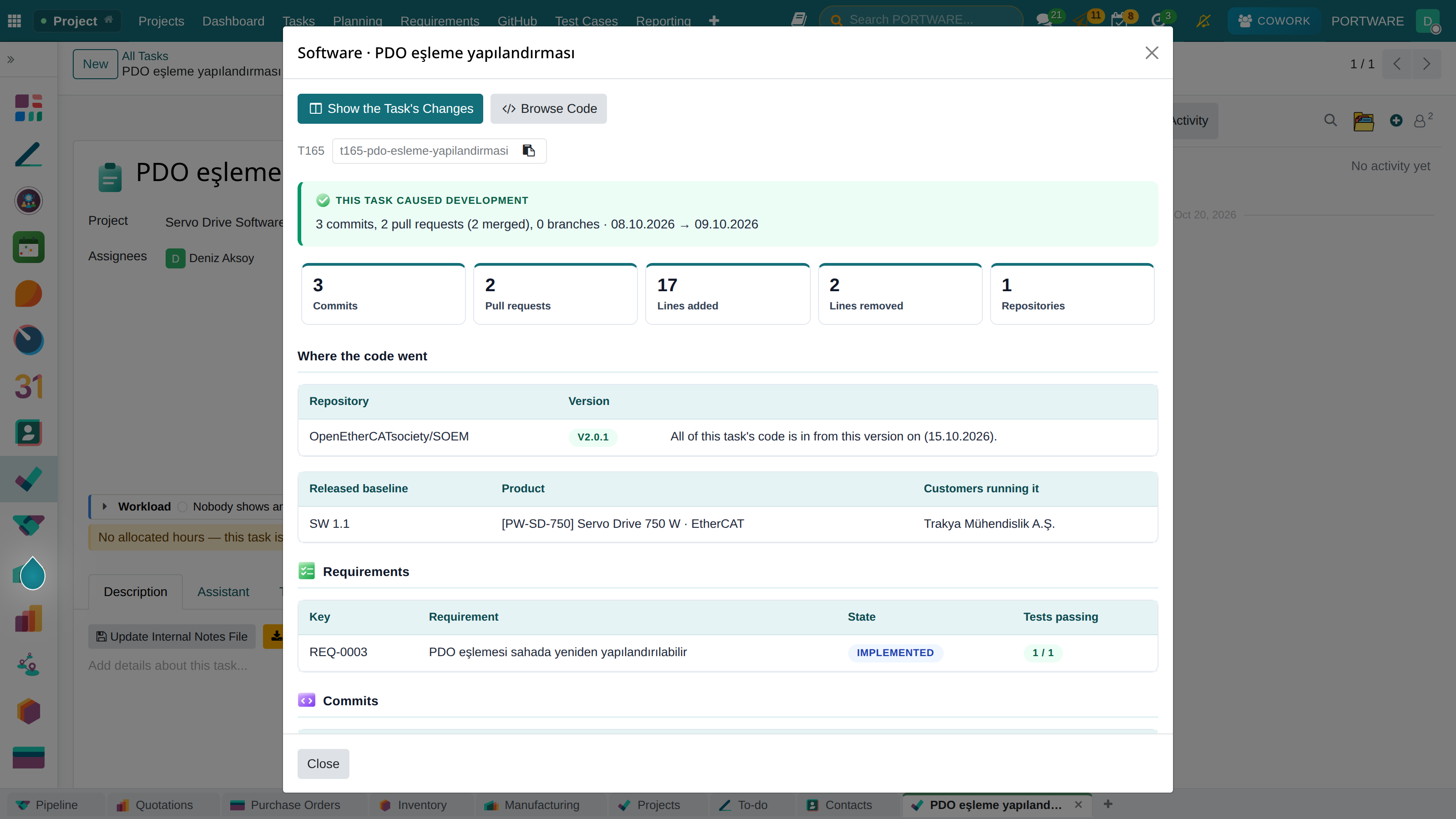
The task's GitHub button first sums up the task's software: did it cause development (commits, pull requests, branches), which version holds all of its code, which customers run that version, which requirement it meets and how its tests stand. The code opens from here.
 123
123- Show the Task's Changes: the task's changes in the Workbench.
- The development this task caused and the version its code went into.
- The task's branch name.
Run the test and record the result
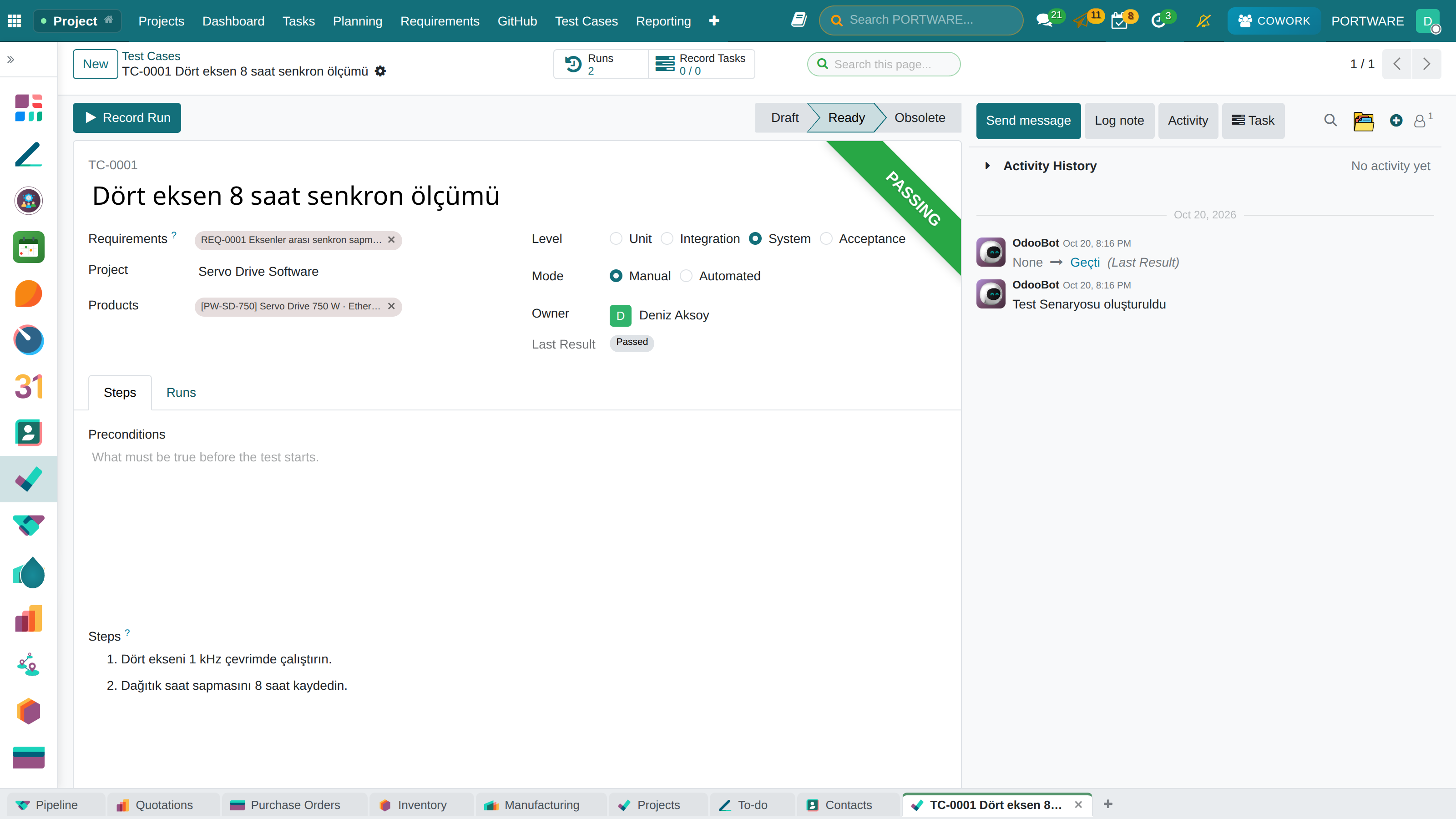
On the test case press Record Run: the result (passed, failed, blocked, skipped), the version tried (e.g. 2026.10.9, rev B), the environment, the duration and the evidence. A failed run opens a defect task in one click, already linked to the requirement. When every test passes, Verify from Tests on the requirement notes which test passed on which version.
 1234
1234- Record Run: a new run.
- The requirements it verifies.
- Level and manual / automated.
- Steps, preconditions and the expected result.
Build and deploy
Builds and deployments run where the code lives, on GitHub Actions. On the repository's Build and Deploy tab press Read Workflows and give each workflow its role (build, test, deploy, release). A workflow with the
workflow_dispatchtrigger starts from Build or Deploy on the repository header, on a branch or a tag, with its inputs. It is a GitHub manager's act; the credential needs "Actions: Read and write". The result arrives under Builds.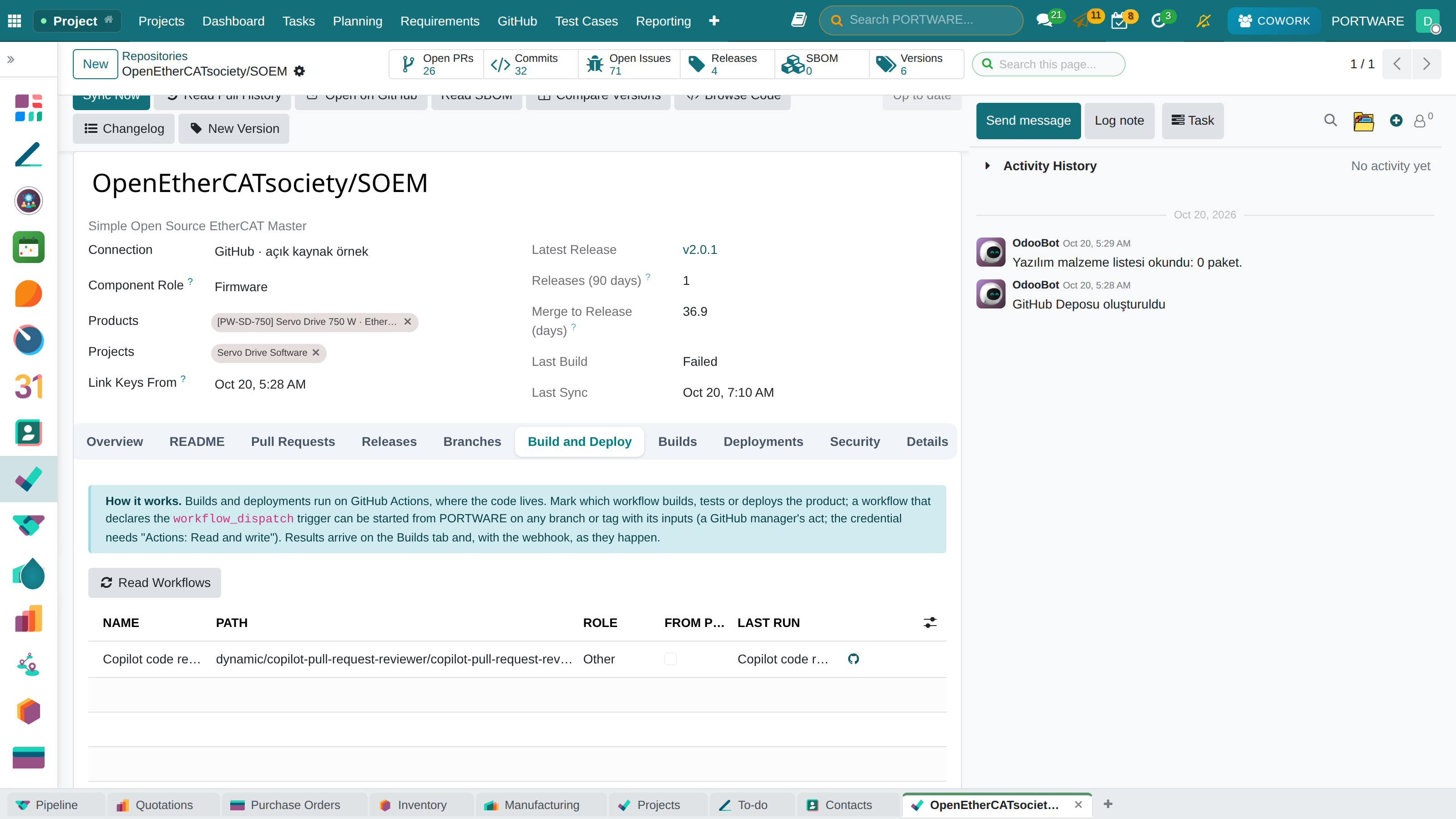 1234
1234- How it works.
- Read Workflows: reads the workflows on GitHub.
- Role: the Build and Deploy buttons start it.
- Can be started from PORTWARE (workflow_dispatch).
The Workbench's smart tools
Ctrl+P finds a file from a few letters of its name. Outline lists the open file's functions, classes and headings; a click goes to the line. History shows every commit that changed the file and compares one with the one before. Ask Cowork prepares the question that explains the open file or the difference; sending it is up to you. ? opens every shortcut.
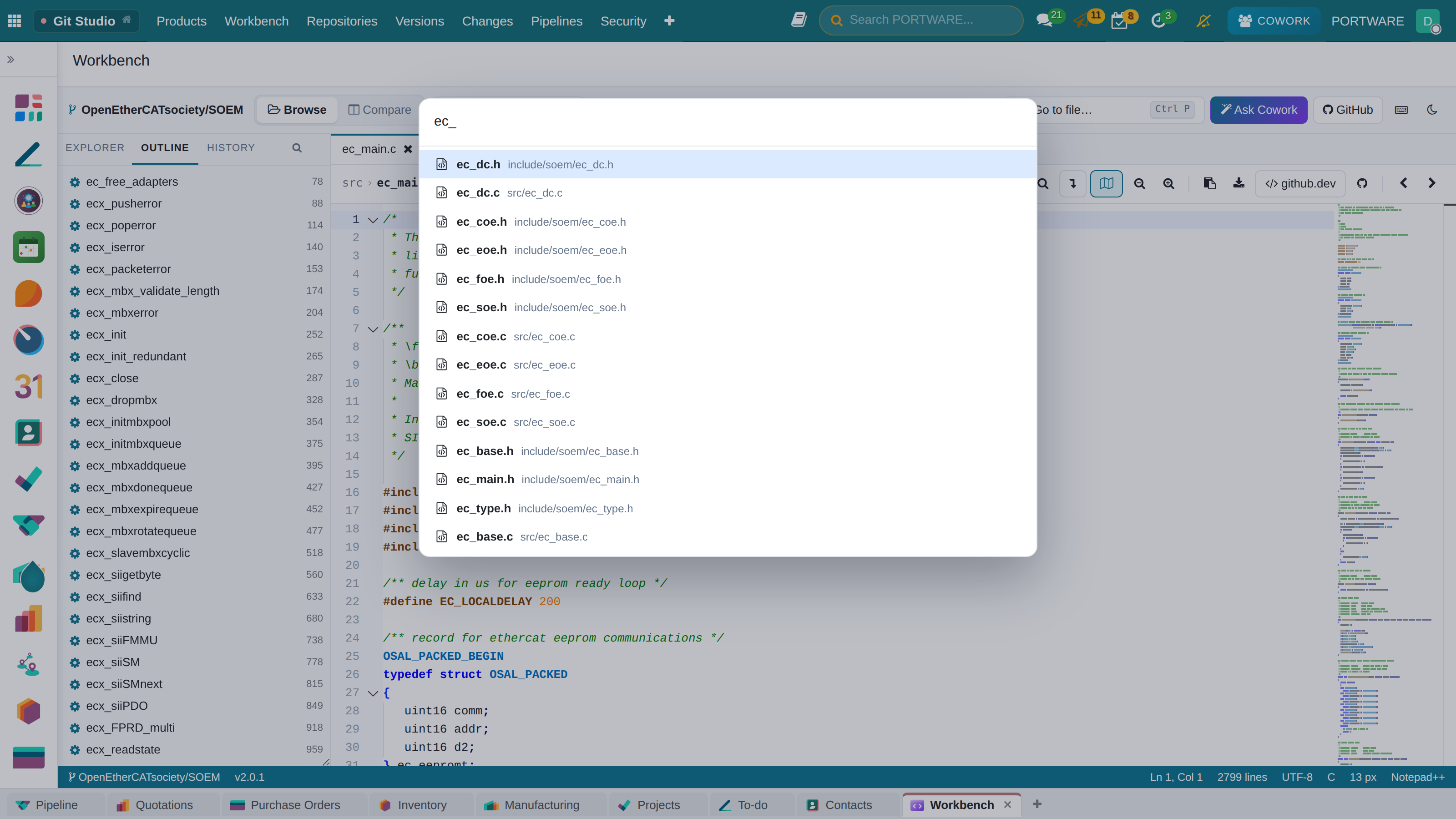 123
123- Go to file: a few letters are enough.
- Explorer, Commits, Outline, History.
- Ask Cowork: prepares the question.
Search the code, go to a definition
Ctrl+Shift+F searches all the code of the selected version; a hit opens the file at that line. Ctrl+click (or F12) on a function, class or variable goes to its definition: in the file, in the file an #include / import names, or elsewhere in the repository; a QML component is its own file. Shift+F12 lists its uses in the file, Ctrl+Shift+O the symbols. Colours tell functions, classes, parameters and constants apart.
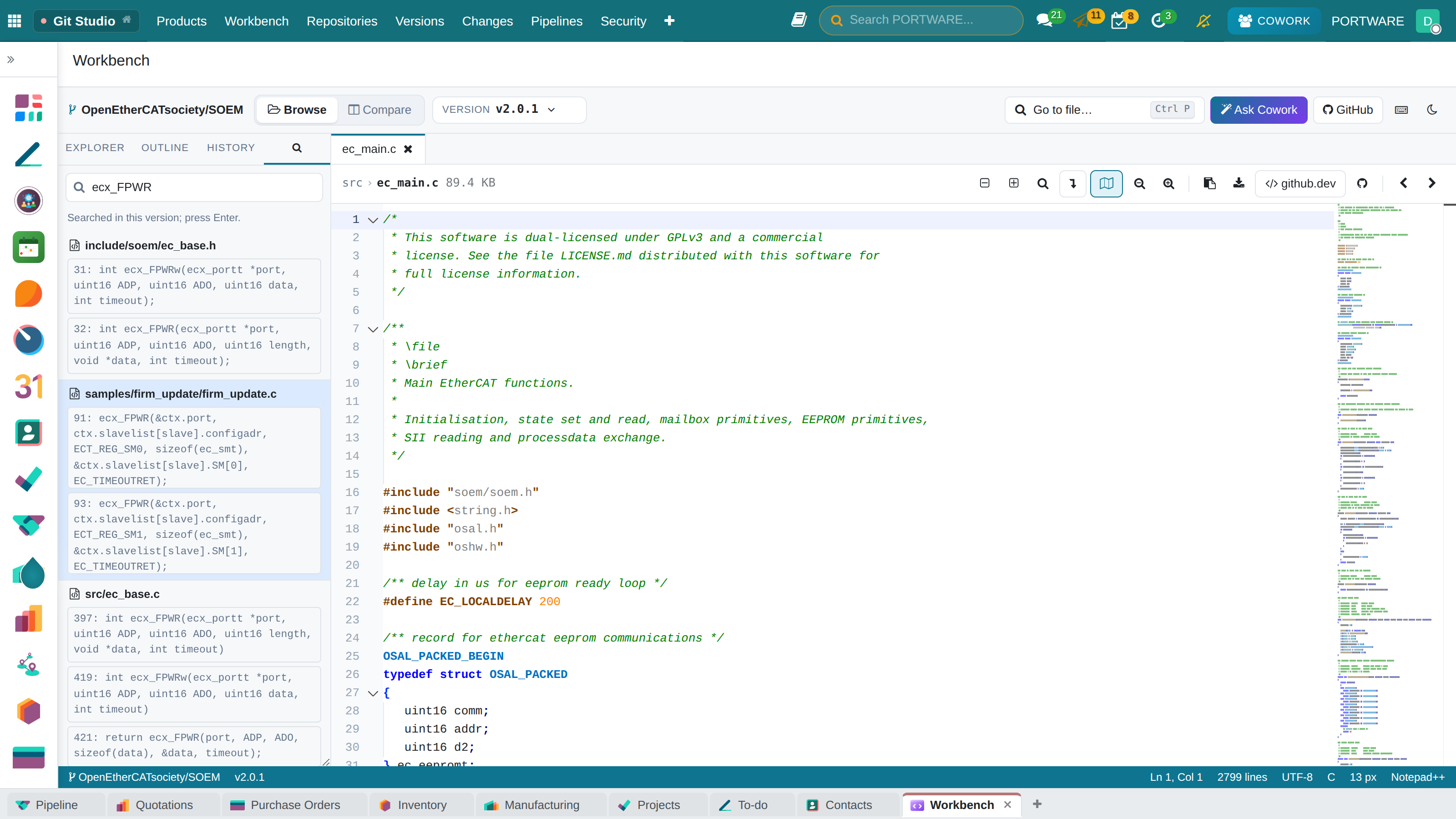 123
123- The text searched; Enter.
- A hit: the file and its lines.
- Coloured code: function, class, parameter, constant.