Purchase
The PORTWARE Purchase module manages your company
- From need to paymentRequest, order, receipt and bill in one chain.
- The budget is checked at the orderAn order over budget is warned or stopped.
- Supplier comparisonSeveral quotes side by side.
What You Will Learn in This Section
- Managing the request for quotation (RFQ) process and choosing the best offer
- Creating purchase orders and using approval flows
- Monitoring and evaluating vendor performance
- Saving costs with long-term purchase agreements
- Checking order, delivery and invoice consistency with 3-way matching
- Creating automatic replenishment rules integrated with inventory and manufacturing
Overview
The PORTWARE Purchase module manages your company's Procure-to-Pay (P2P) process end to end. It digitises the whole purchasing cycle from need to payment, optimises costs and strengthens vendor relationships.
RFQ Management
Request quotes from vendors, compare them and choose the best offer.
Order Tracking
Create and confirm purchase orders and follow the shipment.
Vendor Portal
Portal access where vendors see and confirm orders.
Cost Analysis
Analyse purchasing costs and keep the budget under control.
The Procure-to-Pay (P2P) Process
P2P is the end-to-end purchasing process from identifying a need to paying the vendor:
Scenario: Urgent Raw Material Supply
Situation: production planning needs 500 kg of aluminium profile next week. There are 50 kg in stock and the lead time is normally 5 business days. Urgent supply is needed so production does not stop.
- Create an urgent RFQ from Purchase → Requests for Quotation → New
- Send the RFQ to 3 approved vendors at once (Create Alternative)
- Set Expected Arrival: 3 days on the RFQ
- Evaluate the replies in the Compare view
- Choose the best offer on price + lead time
- Create the PO with Confirm Order and e-mail the vendor
- Follow the order confirmation on the vendor portal
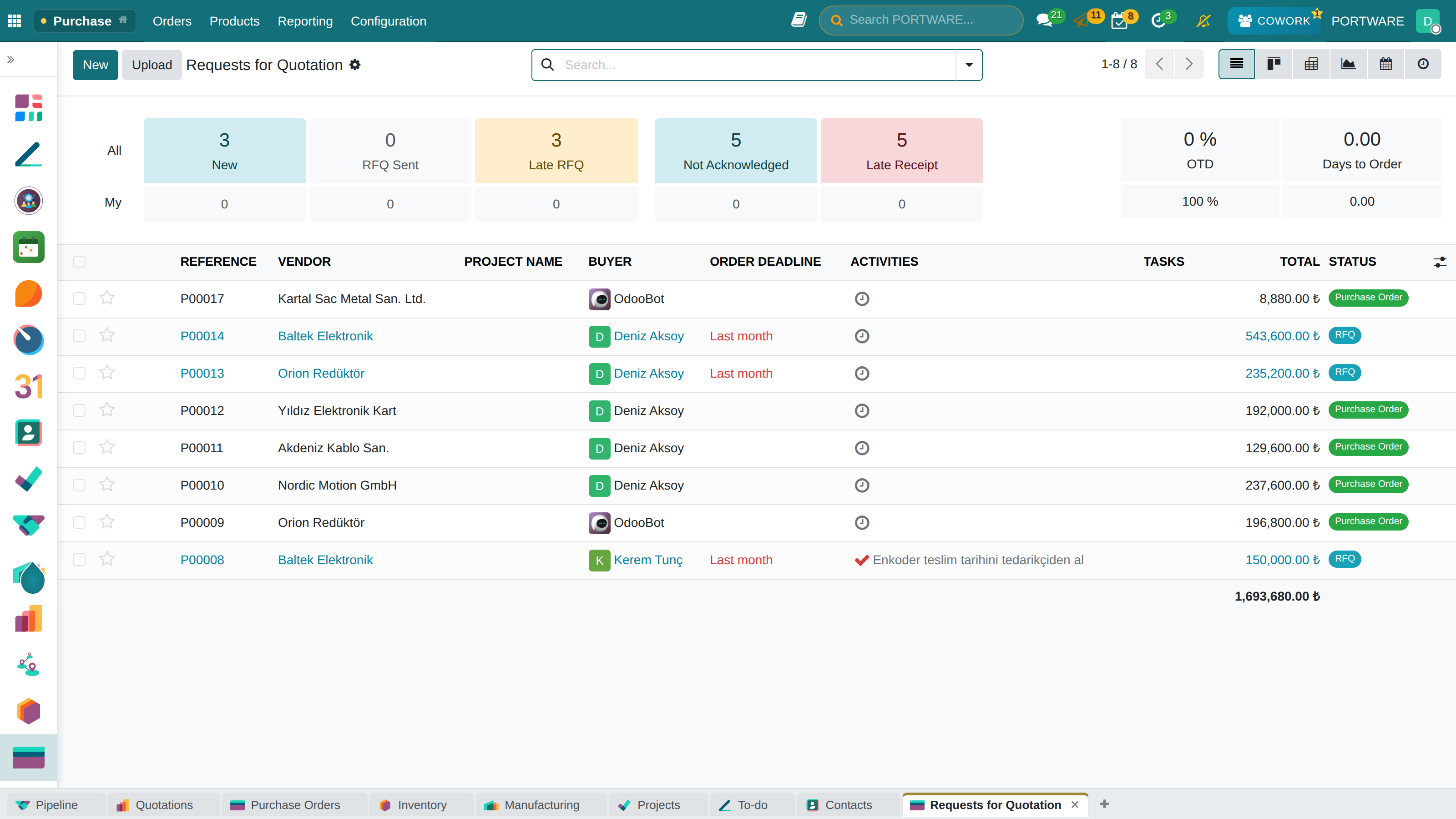
Purchase module overview screen
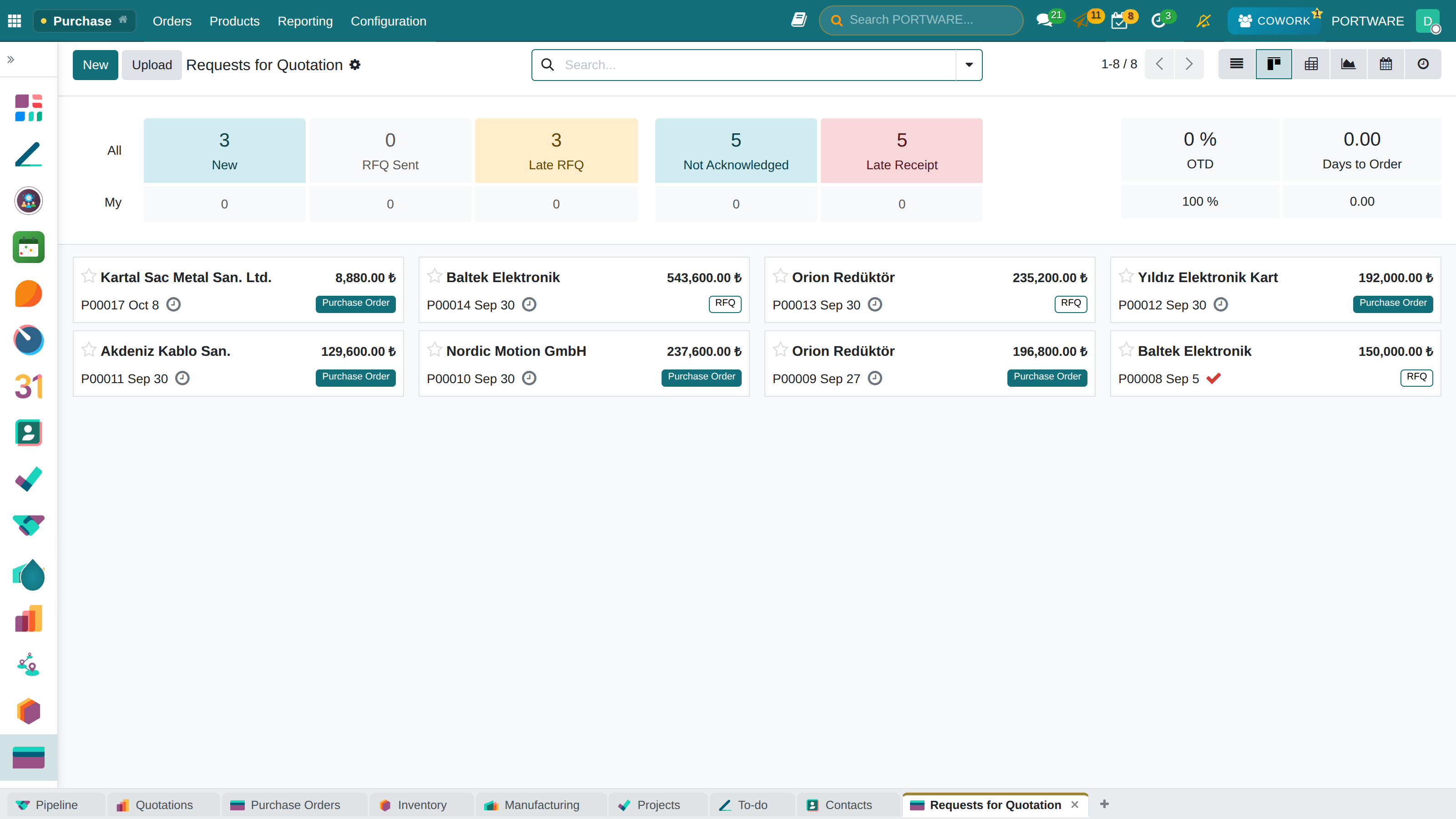
Requests for quotation as cards — vendor, amount and status
Request for Quotation (RFQ)
A Request for Quotation (RFQ) is the formal request used to get price quotes from vendors. In PORTWARE you create RFQs to get and compare quotes from several vendors.
Why the RFQ Matters
Advantages of Using RFQs
- Competitive prices
- Vendor comparison
- A transparent purchasing process
- An audit trail
- More negotiating power
Risks of Skipping the RFQ
- Higher cost
- Dependence on a single vendor
- Lack of transparency
- Risk of audit findings
- Opportunity cost
Creating an RFQ
Step 1: New RFQ
Go to Purchase → Requests for Quotation → New
Step 2: Choose the Vendor
Select a vendor or create a new one
Step 3: Add Products
Add the requested products and quantities
Step 4: Set Dates
Set the expected delivery date
Step 5: Send
E-mail the vendor with the Send RFQ button
RFQ States and Workflow
| State | Description | Next Actions |
|---|---|---|
| Draft | The RFQ has not been sent yet and can be edited | Edit, Send, Delete |
| Sent | E-mailed to the vendor, awaiting an answer | Confirm, Send Again, Cancel |
| To Approve | The amount limit was exceeded; a manager's approval is needed | Approve (authorised user), Refuse |
| Purchase Order | The RFQ was confirmed and became a PO | View the PO, Print |
| Cancelled | The RFQ was cancelled | Set to Draft, Delete |
Alternative Quotes and Comparison
To get quotes from several vendors for the same products, use the Alternatives feature:
The Alternative Quote Process
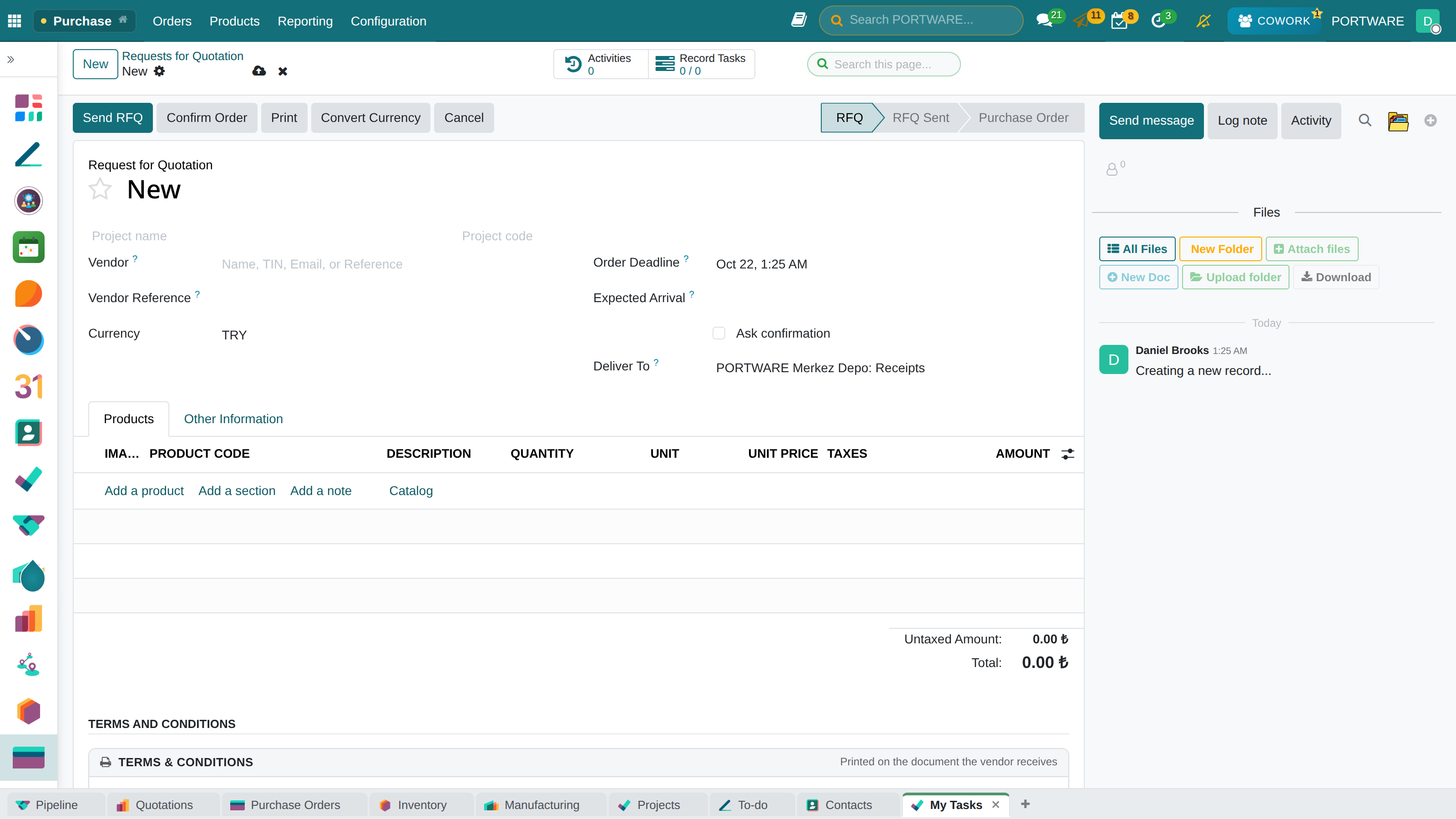
Creating a new Request for Quotation (RFQ)
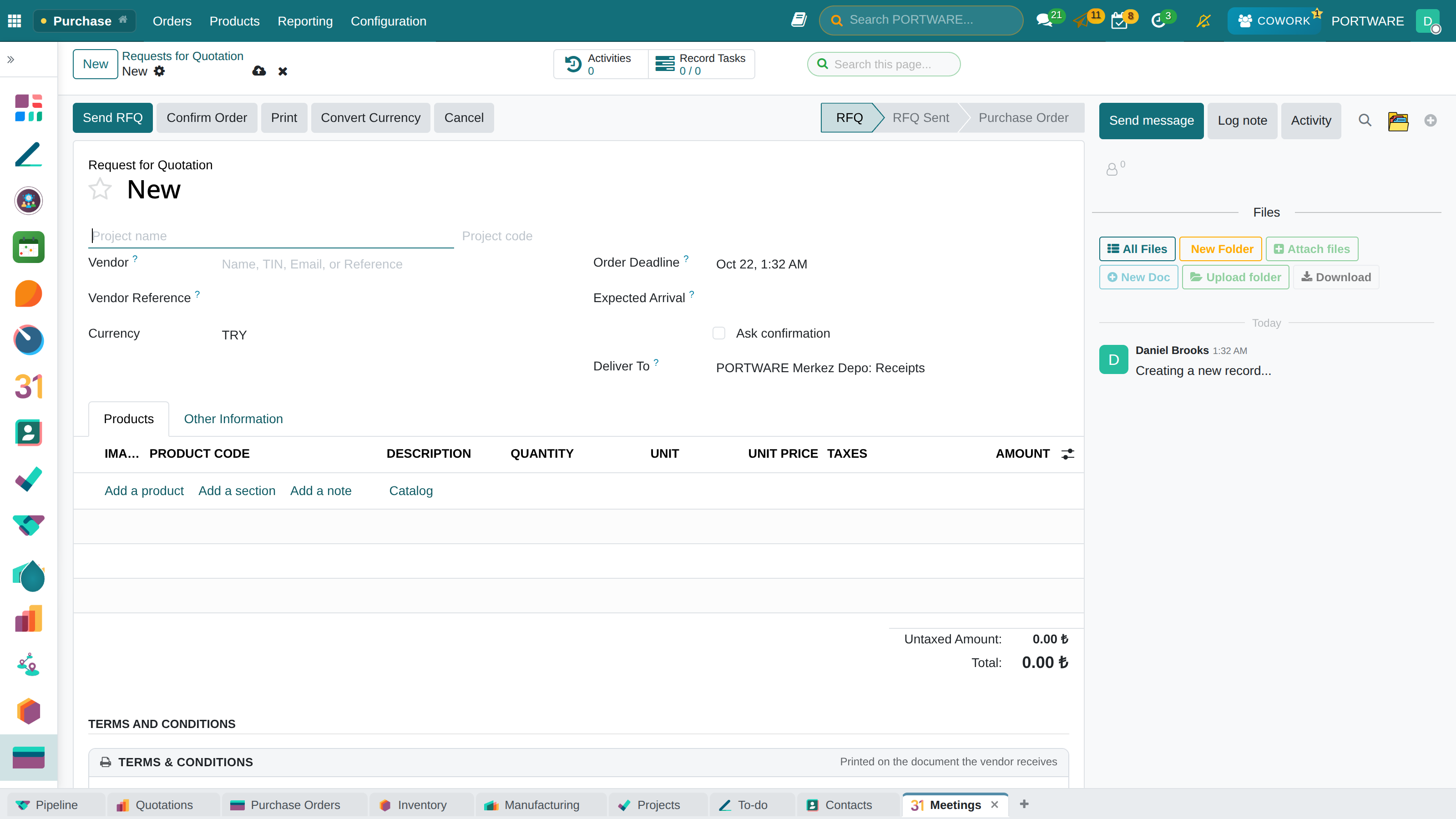
Choosing the vendor while creating an RFQ
RFQ E-mail Templates
The RFQ e-mails sent to vendors can be customised:
- Purchase → Configuration → E-mail Templates
- Add the company logo and contact details
- State the delivery and payment terms
- Use dynamic fields:
{{ object.name }},{{ object.date_order }}
Purchase Orders (PO)
A Purchase Order (PO) is the formal order sent to the vendor. A confirmed RFQ becomes a PO automatically, or you can create a PO directly.
Ways to Create a PO
Converting an RFQ
A confirmed RFQ becomes a PO automatically. The most common and recommended way.
Creating by Hand
Create a PO directly with Purchase → Orders → New. For urgent cases.
Automatic Replenishment
The system drafts a PO automatically when stock rules are triggered.
MRP Integration
Material requirements planning (MRP) creates POs automatically from production needs.
The PO Lifecycle
| State | Description | Stock Impact |
|---|---|---|
| Draft | The order is not confirmed yet | None |
| To Approve | Waiting for a manager's approval (if the amount limit was exceeded) | None |
| Purchase Order | The order is confirmed and sent to the vendor | Incoming stock increases |
| Partially Received | Some products have been received | On-hand stock partly increases |
| Done | Every product has been received and invoiced | All stock updated |
| Cancelled | The order was cancelled | Incoming stock goes back to zero |
Scenario: Partial Delivery and Invoice Matching
Situation: you ordered 1,000 units. The vendor shipped 600 in the first delivery and 400 in the second, with a separate invoice for each.
- When the first shipment arrives, click Receive Products
- Confirm the received quantity as 600 units → Validate
- The system automatically keeps a new receipt open for the remaining 400
- When the first invoice arrives, use Create Bill or Match Bill on the PO
- Check that the invoiced quantity (600) matches the received quantity
- Repeat the same steps when the second shipment arrives
- When every delivery and invoice is complete, the PO becomes "Done" automatically
3-Way Matching
The critical process that checks consistency between the purchase, the goods receipt and the invoice:
Purchase Order
The products, quantities and unit prices ordered
Goods Receipt (GRN)
The products and quantities actually received
Vendor Bill
The products, quantities and amounts invoiced
Goods Receipt
Receiving the products that arrive from the vendor:
- Click Receive Products on the PO (or go to the automatically created receipt)
- Count the incoming products physically and check their quality
- Enter the received quantities in the system
- Enter the lot/serial numbers if they are tracked
- Add a note for damaged or missing products
- Complete the stock update with the Validate button
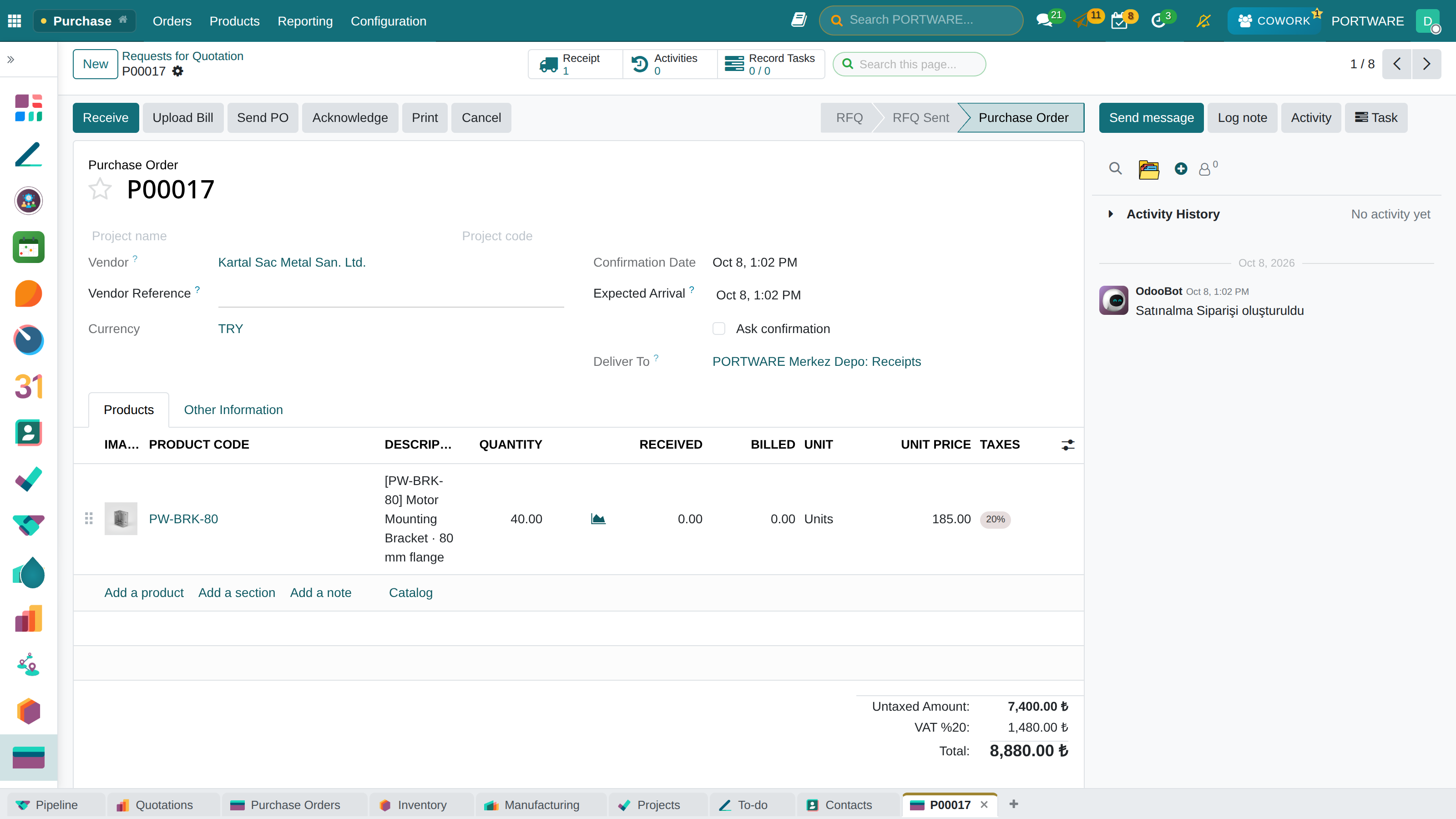
Creating a new Purchase Order (PO)
Terms, Internal Notes and the order document
A purchase order also has two separate boxes: Terms & Conditions are printed on the document the vendor receives; Internal Notes (lead-time risk, alternative vendor, who to contact) are never printed.
The order form is held to the quotation's standard: project name and code under the number, lines that read like a sales order, and optional manufacturer code, stock code and product picture columns. The PDF has bordered vendor/buyer and order information tables and a line table with the SMB code, vendor code and picture.
Vendor Management
Manage vendor information, payment terms and contact details centrally. Strong vendor relationships are the foundation of a successful supply chain.
Vendor Card Components
| Tab | Content | Purpose |
|---|---|---|
| General | Name, address, tax ID, contact persons | Basic identity details |
| Purchase | Default payment terms, currency, discount rate | Commercial terms |
| Accounting | Vendor account, bank details, fiscal position | Financial integration |
| Sales/CRM | Sales details if the vendor is also a customer | A two-way relationship |
| Internal Notes | Warnings, special notes, past problems | Company memory |
Vendor Price Lists
You can define product-level price lists for each vendor:
- Unit price per product: the price the vendor gives for that product
- Minimum order quantity (MOQ): the smallest quantity to order
- Validity period: the period in which the price applies
- Quantity price breaks: discounted prices for bulk purchases
- Lead time: the number of days between order and delivery
Multi-Vendor Strategy
Defining more than one vendor for critical products matters for risk management:
Advantages
- Lower risk of supply disruption
- Competitive prices
- More negotiating power
- Quality can be compared
Points to Watch
- More management complexity
- Volume discounts may be lost
- Risk of inconsistent quality
- More coordination needed
Vendor Evaluation
Monitor and evaluate vendor performance systematically, and base vendor selection and development decisions on data.
Vendor Performance Metrics
Evaluation Criteria
| Metric | Formula / Measure | Target | Weight |
|---|---|---|---|
| On-Time Delivery (OTD) | On-time deliveries / total deliveries × 100 | ≥ 95% | 30% |
| Quality Score | Accepted / total received × 100 | ≥ 98% | 30% |
| Price Competitiveness | Index against the market average | ≤ 100 | 25% |
| Response Time | Time from sending the RFQ to receiving the quote | ≤ 48 hours | 10% |
| Flexibility | Share of urgent orders fulfilled | ≥ 80% | 5% |
Vendor Classification
Class A - Strategic
Total score ≥ 90. Long-term partnership, preferred vendor status.
Class B - Approved
Total score 75-89. Regular cooperation, potential for development.
Class C - Watch
Total score 60-74. Close follow-up, an improvement plan is needed.
Class D - Exit
Total score < 60. Look for an alternative vendor, phase-out plan.
Purchase Agreements
Secure price stability and supply with long-term vendor agreements. Agreements bring predictability to both buyer and seller.
Agreement Types
Blanket Order
- A fixed price guaranteed for a given period
- No quantity commitment
- Orders are placed as needed
- Protection against price swings
- Example: 5 TL per kg for 1 year
Quantity Contract
- A commitment to buy a given quantity
- A discounted price in return for the commitment
- Flexible delivery timing
- The benefit of a volume discount
- Example: 10,000 units a year at 15% off
Creating and Managing Agreements
New Agreement
Purchase → Orders → Agreements → New
Choose the Type
Set the agreement type: blanket or quantity
Vendor and Dates
Choose the vendor and enter the start and end dates
Products and Prices
Add the products covered by the agreement and their special prices
Confirmation
Activate the agreement with the Confirm button
Using Agreements
When an RFQ or PO is created for products with an active agreement:
- The system proposes the agreement price automatically
- The remaining committed quantity is shown for quantity contracts
- A warning appears when the agreement limit gets close
- Every order is linked to the agreement for traceability
Products and Pricing
Manage the vendor information, cost structure and pricing strategy of purchased products.
Product Vendor Information (Supplierinfo)
Several vendors can be defined for each product. They are reached from the Purchase tab of the product form:
| Field | Description | Example |
|---|---|---|
| Vendor | The supplying company | ABC Supply Ltd. |
| Vendor Reference | The vendor's product code | SUP-ALU-001 |
| Lead Time | Days between order and delivery | 5 days |
| Minimum Quantity | Minimum order quantity (MOQ) | 100 units |
| Price | Unit purchase price | 15.00 TL |
| Validity | The date range in which the price applies | 01.01.2026 - 31.12.2026 |
Costing Methods
Stock valuation and costing methods are defined on the product category:
Standard Price
A fixed unit cost. Ideal for manufacturing and cost estimates; variances can be analysed.
Average Cost (AVCO)
A weighted average cost, recalculated on every receipt. Suited to retail and distribution.
FIFO
First in, first out. Mandatory for products with expiry dates such as food and medicine.
Landed Costs
Items that can be added to the product cost on top of the purchase price:
- Freight: transport and logistics costs
- Customs: import duties and customs fees
- Insurance: transport insurance
- Commission: agents' commissions
- Storage: temporary storage fees
Automatic Replenishment Rules
PORTWARE's replenishment system watches stock levels and creates purchase requests automatically when needed.
Reordering Rules
Replenishment is triggered automatically when stock falls below the minimum:
| Parameter | Description | Example |
|---|---|---|
| Minimum Quantity | Triggers when stock falls below this level | 50 units |
| Maximum Quantity | The target stock level after ordering | 200 units |
| Multiple Quantity | The order quantity must be a multiple of this value | 25 units (25, 50, 75... are ordered) |
| Lead Time | Days to order ahead of the planned delivery | 5 days |
Replenishment Methods
Buy
Creates a purchase order to the vendor. For raw materials and traded goods.
Manufacture
Creates a manufacturing order. For finished and semi-finished products.
Transfer
Requests a transfer from another warehouse. In multi-warehouse set-ups.
Dropship
Shipped from the vendor straight to the customer. No stock is held.
MRP Integration
With purchasing integrated into manufacturing planning (MRP):
- Raw material needs in manufacturing orders are calculated automatically
- Purchase requests are created for BOM (Bill of Materials) components
- Delivery dates are synchronised with the production schedule
- Material shortages are prevented
Scenario: Automatic Raw Material Supply
Situation: you have 50 aluminium profiles in stock (the minimum level). 300 products are planned for production next week, and each product needs 2 aluminium profiles.
- When MRP runs, a need for 300 × 2 = 600 aluminium profiles is calculated
- Current stock: 50 units, shortfall: 550 units
- Reordering rule: a maximum target of 700 units
- The system automatically drafts an RFQ/PO for 650 units (700 - 50)
- The preferred vendor and lead time are chosen automatically
- The purchasing specialist reviews and confirms the draft
Reports and KPIs
Monitor purchasing performance, analyse trends and make data-driven decisions.
Key KPIs
Standard Reports
Purchase Analysis
Amounts by period, breakdown by product/vendor, trend analysis.
Vendor Performance
OTD, quality score, price comparison, response times.
Late Deliveries
Deliveries past their expected date, analysed by vendor.
Cost Analysis
Price changes, budget variances, savings opportunities.
Pivot and Graph Views
Analyse purchasing data across several dimensions:
- Row dimensions: Vendor, Product Category, Time (Year/Month/Week)
- Column dimensions: Status, Currency, Warehouse
- Measures: Amount, Quantity, Number of Orders, Average Price
Configuration and Settings
Configure the Purchase module's general settings to fit your business.
General Settings
Available from Settings → Purchase:
| Setting | Description | Default |
|---|---|---|
| Vendor Portal | Vendors see and confirm their orders | Off |
| Approval Limits | Amount-based approval rules (e.g. a manager's approval above 10,000 TL) | Off |
| 3-Way Matching | Invoice-order-delivery check | On |
| Purchase Agreements | Blanket and quantity agreements | Off |
| Alternative RFQs | Quotes from several vendors | On |
Configuring Approval Rules
Enable the Setting
Turn on Settings → Purchase → Approval Limits
Create a Rule
Purchase → Configuration → Approval Rules → New
Set the Amount
Enter the minimum amount threshold (e.g. 50,000 TL)
Choose the Approver
Assign a user or user group
Flow Type
Choose a sequential (hierarchical) or parallel approval flow
Module Integrations
| Module | Integration Details | Activation |
|---|---|---|
| Inventory | Reordering rules, goods receipt, location management | Automatic |
| Accounting | Vendor bills, payment tracking, cost accounting | Automatic |
| Manufacturing (MRP) | Material requirements planning, BOM component supply | Requires the MRP module |
| Project | Purchasing tracked by project, budget control | Requires the Project module |
| Quality | Quality control points at goods receipt | Requires the Quality module |
Frequently Asked Questions
What is the difference between an RFQ and a PO?
RFQ (Request for Quotation): the document that asks a vendor for a price quote. It is not binding yet and is used for comparison.
PO (Purchase Order): a confirmed purchase order. Once sent to the vendor it becomes binding and creates a legal commitment.
When an RFQ is confirmed it becomes a PO automatically.
Why does 3-way matching matter?
3-way matching keeps the purchasing process consistent and accurate:
- No overpayment: nothing is paid for products that were not received
- Error detection: price or quantity errors are caught automatically
- Audit compliance: meets internal and external audit requirements
- Transparency: the whole process is documented
How does automatic purchasing work?
In PORTWARE, automatic purchasing is triggered in two ways:
- Reordering Rules: when stock falls below the minimum, the system drafts a PO automatically.
- MRP (Material Requirements Planning): raw material needs in manufacturing orders are calculated and supply requests are created automatically.
In both cases the PO is created as a draft and must be reviewed and confirmed by the purchasing specialist.
How are partial deliveries handled?
When the vendor ships part of the order:
- Enter the quantity actually received on the receipt screen
- Complete the partial delivery with "Validate"
- The system automatically keeps a new receipt open for the remaining quantity
- The PO status is updated to "Partially Received"
- When the full quantity has been received, the PO becomes "Done"
How is a vendor price list updated?
There are several ways to update vendor prices:
- Manually: update the price on the Purchase tab of the product form
- Excel import: Purchase → Configuration → Product Prices → Import
- Automatically from the RFQ: the price is updated when the RFQ is confirmed (configurable)
Set validity dates to manage prices by period.
How are multiple currencies handled?
PORTWARE supports multiple currencies:
- Set a default currency on the vendor card
- Choose a different currency on the PO
- The system converts rates automatically (Accounting → Configuration → Currencies)
- The bill and the payment can be in the same or different currencies
- Exchange differences are posted automatically
How do I set up a purchase approval workflow?
To set up an approval workflow:
- Enable Settings → Purchase → Approval Limits
- Go to Purchase → Configuration → Approval Rules
- Create a new rule and set the amount threshold
- Assign the approving user or group
- Define several rules for several levels
Example: 0-10,000 TL → Purchasing Specialist, 10,000-50,000 TL → Manager, 50,000+ TL → General Manager
How does dropshipping work?
With dropshipping the product is shipped from the vendor straight to the customer without being held in your stock:
- On the product form choose Purchase → Procurement Method: Dropship
- When you create a customer sales order, a PO is created automatically
- The customer's address is used as the PO delivery address
- The vendor ships straight to the customer
- No stock move is created; only the accounting entry is made