Inventory Management
The right product, at the right time, in the right place - manage your stock intelligently
- One truth for stockEvery movement from sales to production reads the same records.
- Where, and how muchLive quantities by warehouse, location and lot.
- No surprise shortagesMin/max rules suggest the reorder.
Inventory Management
The right product, at the right time, in the right place - manage your stock intelligently
What You Will Learn in This Section
- How inventory management affects profitability
- Product types, variants and traceability
- Running warehouse operations efficiently
- Optimising stock levels and creating reordering rules
- Carrying out inventory counts and adjustments
Introduction: The Power of Stock Control
Imagine walking into a shop and the product you want is not on the shelf. Or ordering from an online store and getting a "Product out of stock" message... How do you feel as a customer?
Now look at it as the business owner: products that have not sold for years sit in the warehouse, tying up your capital. Or the opposite - your best seller runs out and customers go to a competitor...
Inventory management is finding and keeping the balance between these two extremes:
- Too much stock: capital is tied up, storage costs rise, products become obsolete
- Too little stock: lost sales, unhappy customers, the cost of urgent orders
- The right stock: you meet customer demand and use capital efficiently
How to Do It in PORTWARE
Opening the Inventory app:
- Click the icon in the main menu
- Choose the app
- The Inventory Overview screen opens - pending operations are shown here
Viewing stock for the first time:
- Go to
- By default the stock in every location is shown
- From the Group By drop-down you can choose "Product", "Location" or "Lot/Serial Number"
- Use the search bar at the top to find a specific product
View options:
- List - a detailed table view
- Kanban - operation states as cards
- Pivot - multi-dimensional stock analysis
- Graph - a visual stock breakdown
Why Inventory Management?
Scenario: A Company Tracking Stock in Excel
Situation: Mr Mehmet runs a distribution company selling 500 products and tracks stock in Excel. One day he promises a customer 100 units of product "ABC-123". On shipping day the warehouse lead says: "We only have 20 of these - the Excel number is wrong!"
- Result: an apology to the customer; the order ships half-complete
- Real cost: a lost customer + damaged reputation + the cost of urgent supply
- Root cause: entries were not made in Excel on time; physical stock and records did not match
What Changes with PORTWARE Inventory?
Real-Time Stock
Stock is updated the moment each sale or purchase happens. The answer to "how many do we have right now?" is always correct.
Automatic Alerts
When stock falls to the minimum, the system notifies you automatically. No more "out of stock" surprises.
Barcode Integration
Scan products with a handheld terminal or phone and act at once. Cut manual entry errors to zero.
Traceability
Track where every product came from, where it went and which lot it belongs to. A recall? Done in minutes.
Key Concepts
To understand inventory management, let us first learn the basic terms. You will meet them in every stock operation in PORTWARE:
| Concept | Definition | Example |
|---|---|---|
| On Hand Stock (On Hand) |
The total quantity physically in the warehouse | 150 pens on the shelf |
| Reserved Stock (Reserved) |
The quantity set aside for orders, waiting to ship | 50 units reserved for customer X |
| Available Stock (Available) |
The quantity free for new orders (On Hand - Reserved) | 100 units available for a new order |
| Forecasted Stock (Forecasted) |
The expected future stock (+ pending receipts - pending deliveries) | 200 units arrive next week, 50 go out → it will be 250 |
| Location (Location) |
The physical or virtual place of the product | Warehouse A / Shelf 3 / Bin B |
| Transfer (Transfer) |
A stock move from one location to another | Goods receipt → Main warehouse |
Product Types
Every product in PORTWARE has a "type". The product type decides how the system tracks it:
Storable Product
When to use it: every product you physically keep in the warehouse and whose stock level you must track.
Examples: electronics, clothing, furniture, raw materials
System behaviour: the stock quantity is tracked and a warning appears when stock is short
Consumable Product
When to use it: products that need no stock tracking and are always assumed to be "there".
Examples: office supplies, cleaning products, small consumables
System behaviour: can be sold or used; the stock quantity is not checked
Service
When to use it: non-physical products that cannot be stocked.
Examples: consulting, installation, training, transport
System behaviour: no stock concept; sold and invoiced directly
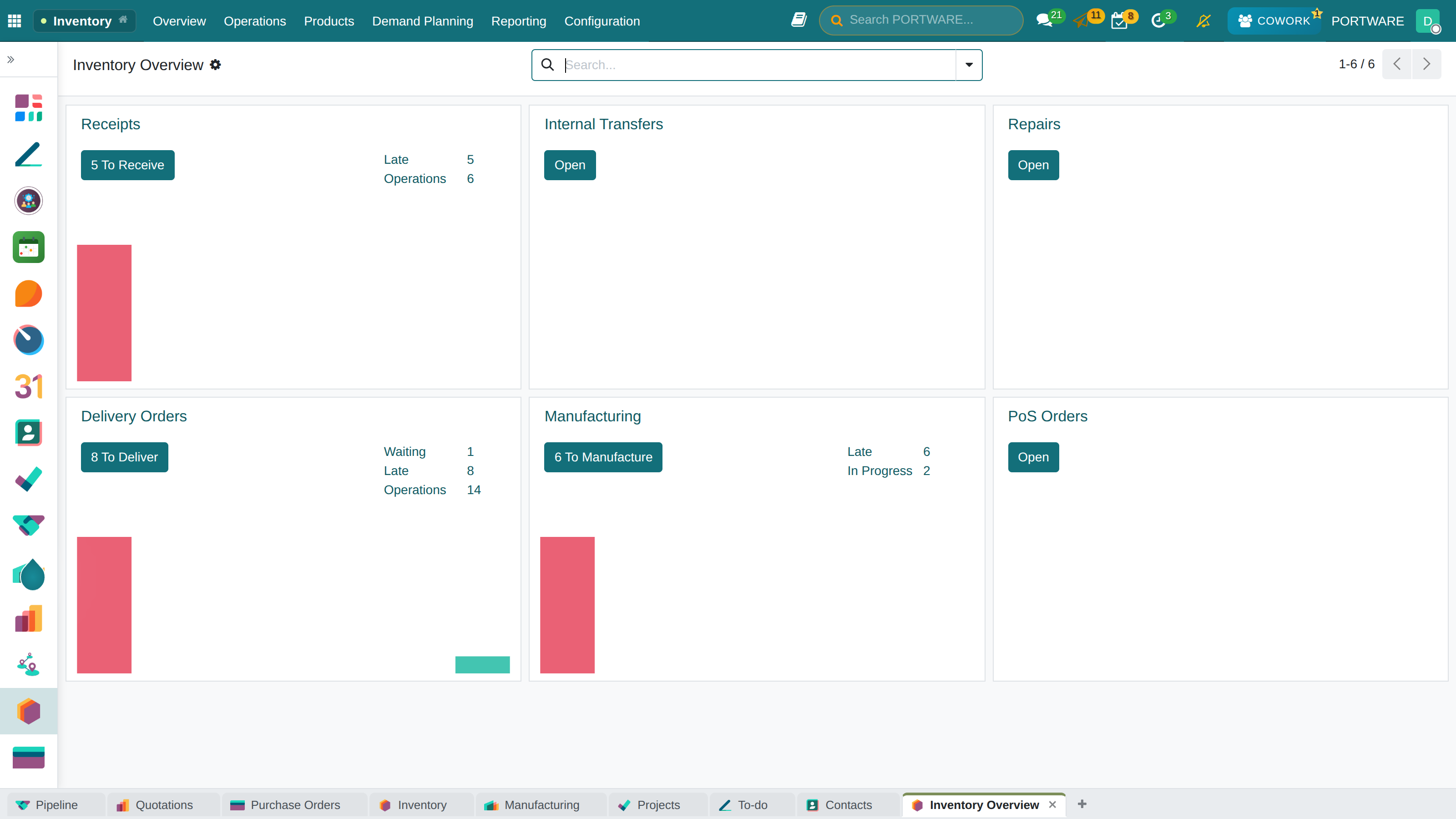
Inventory dashboard - stock status and operations summary
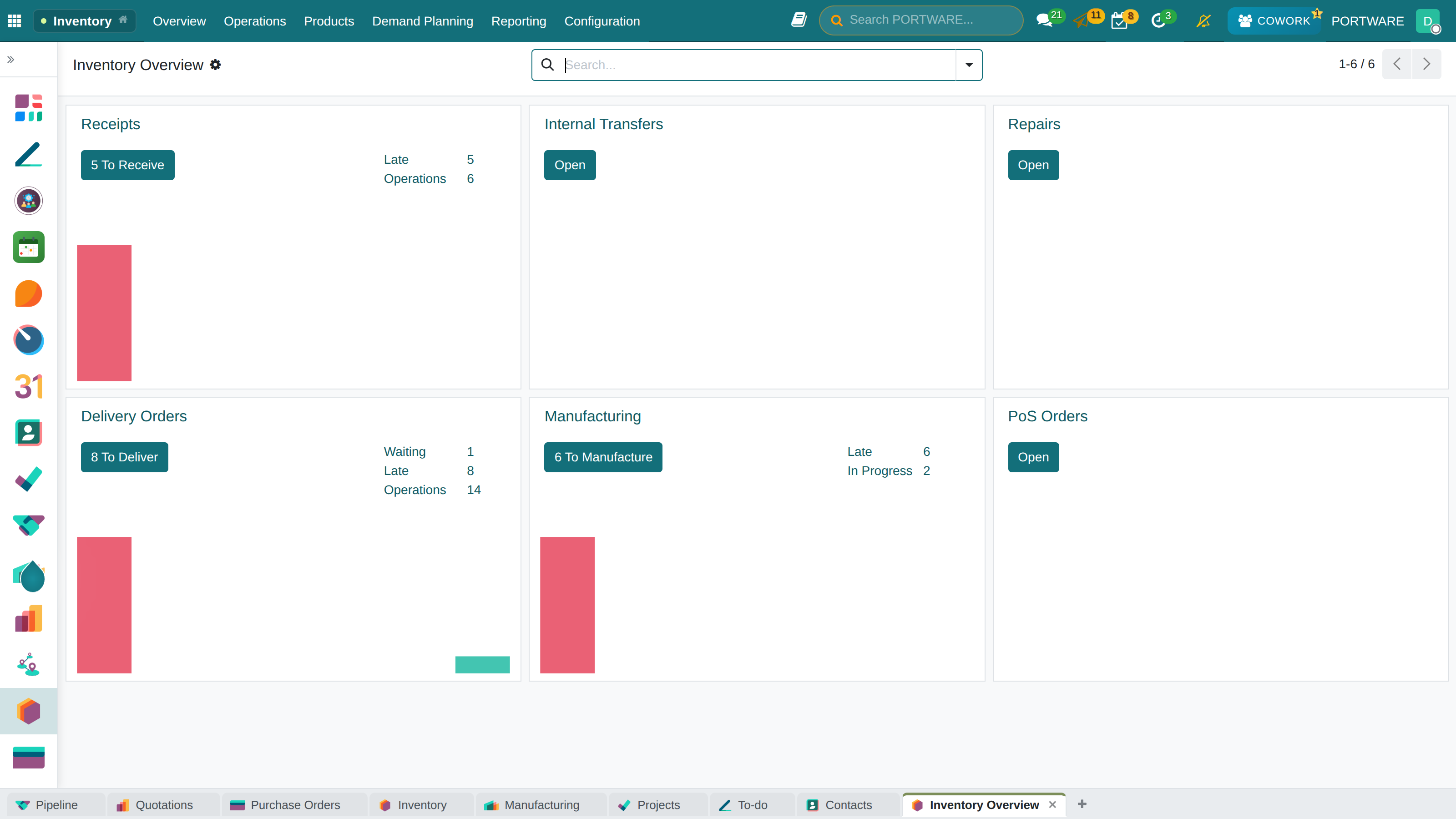
Product detail page - the form view and properties of a storable product
How to Do It in PORTWARE
Creating a new product:
- Go to
- Click the New button
- Enter the product name in the Product Name field
- Product Type drop-down, choose:
- Storable Product: Products that need physical stock tracking
- Consumable: supplies that need no stock tracking
- Service: non-physical services
- On the General Information tab enter the Sales Price and Cost
- Switch to the Inventory tab and fill in the Weight and Volume
- Create the product with Save
Adding a barcode:
- On the product form go to the Inventory tab
- Enter the EAN-13 or other barcode number in the Barcode field
- Alternatively, click the icon and scan it with the camera
Creating a new product - name, type and basic information
Product Variants
Instead of opening a separate product card for each version of the same product, you can use variants. This makes catalogue management much easier.
Example: Selling T-shirts
Product: Basic T-shirt
- Colour variant: White, Black, Navy, Red (4 options)
- Size variant: S, M, L, XL, XXL (5 options)
- Total combinations: 4 × 5 = 20 different variants
- Advantage: one product card, 20 separate stock counts
Advantages of using variants:
- Every option appears on a single product page (ideal for e-commerce)
- Shared information such as price, description and images is managed in one place
- Each variant can have its own stock quantity, barcode and cost
- Reports can analyse by product and by variant
How to Do It in PORTWARE
Enabling product variants:
- Go to
- Enable Product Variants in the Variants section
- Click the Save button
Defining attributes and variants:
- Go to
- Create an attribute with New (e.g. "Colour", "Size")
- Add the options in the Values section (Red, Blue, Green...)
- On the product go to the Attributes & Variants tab
- Link the attributes with Add a line
- The variants are created automatically when you save
Checking variant stock:
- Click the Variants smart button on the product form
- The stock quantity of each variant is shown separately
- Click a variant to edit its Barcode and Cost
Units of Measure (UoM)
Products can be bought and sold in different units. PORTWARE converts between them automatically:
Example: Selling Paper
Product: A4 copy paper
- Purchase unit: Box (5 reams = 2,500 sheets)
- Stock unit: Ream (500 sheets)
- Sales unit: Sheet or Ream
- Conversion: when 1 box is received, the system adds 5 reams to stock
| Unit Category | Examples | Used For |
|---|---|---|
| Units | Unit, Dozen, Box, Pallet | Countable products |
| Weight | Gram, Kilogram, Tonne | Food, raw materials, chemicals |
| Length | Metre, Centimetre, Kilometre | Fabric, cable, pipe |
| Volume | Litre, Millilitre, Cubic metre | Liquids, gas |
| Time | Hour, Day, Month | Services, rentals |
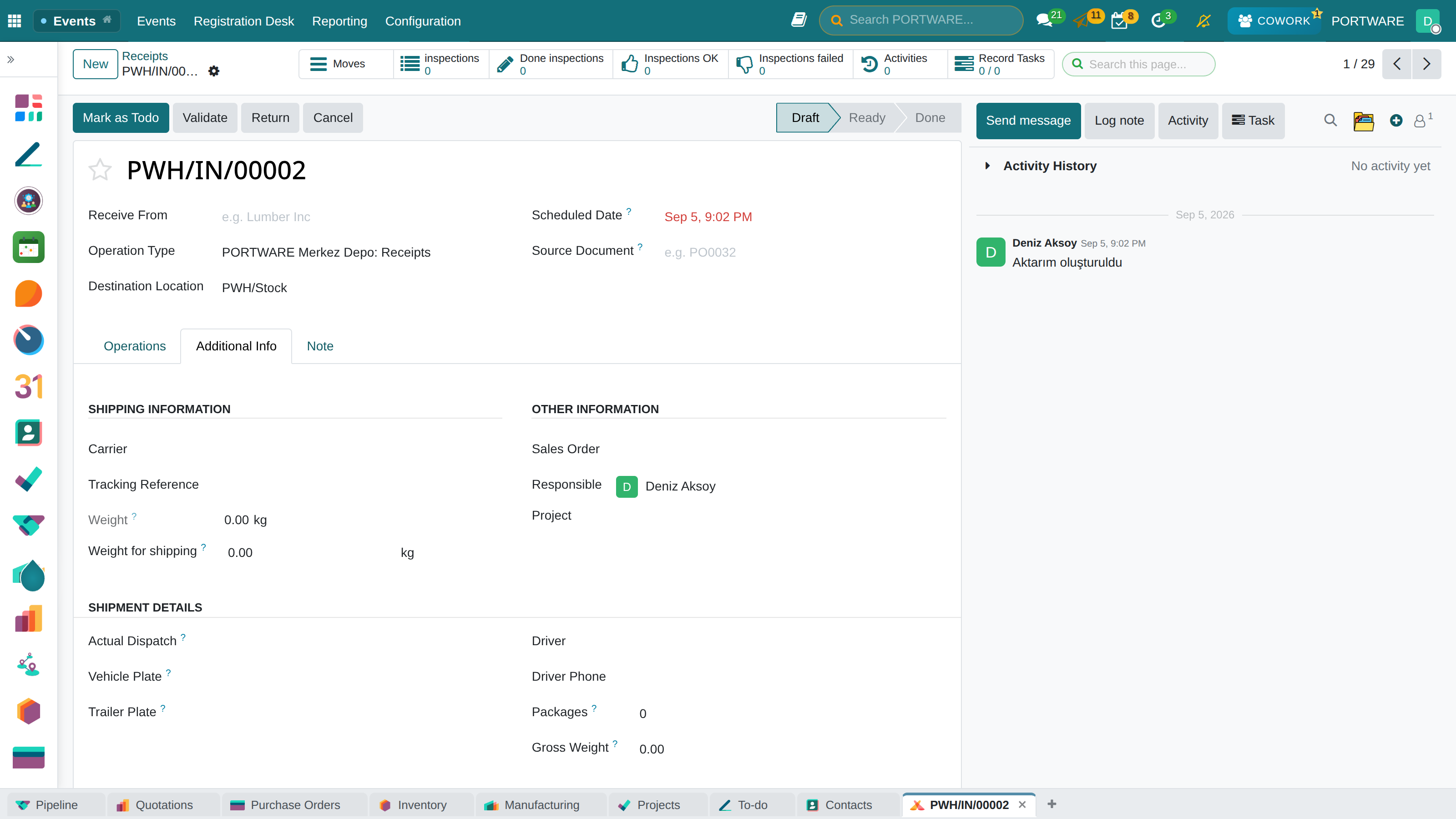
Receipt additional information - product details, units of measure and lot/serial number information
Traceability
Traceability is the ability to answer "where did this product come from, and where did it go?". It is critical for food, medicine and high-value products.
Lot Number (Batch Tracking)
Groups products from the same production batch. When a quality problem appears you can recall just that batch.
Food Industry
Lot: 20240115-B03
Meaning: produced on 15 January 2024, line B, third shift
Use: expiry date tracking, recalls
Pharmaceutical Industry
Lot: XYZ-2024-0547
Meaning: manufacturer code + year + sequence number
Use: integration with the national drug tracking system (İTS)
Serial Number (Unit Tracking)
Gives every single unit of a product a unique identity. Used for warranty tracking, valuable products and anything that needs unit-level traceability.
Example: Selling Computers
Product: Laptop
- Serial No: SN-2024-ABC123456
- Sale: sold to Ahmet Yılmaz on 15 January 2024
- Warranty: a 2-year warranty, until 15 January 2026
- Service: screen replaced 3 months later (on record)
- Benefit: when the customer calls, the whole history is visible at once
How to Do It in PORTWARE
Enabling lot/serial number tracking:
- Go to
- Enable Lots & Serial Numbers in the Traceability section
- Save
Assigning lot/serial tracking to a product:
- Open the product form and go to the Inventory tab
- Tracking field, choose:
- No Tracking: Traceability is off
- By Lots: batch-level tracking (food, medicine)
- By Unique Serial Number: a separate number for each unit (electronics)
- Save - from now on this product asks for a lot/serial number at receipt and shipping
Creating and viewing lots:
- Go to
- Every existing lot and serial number is listed
- Click a lot and use the Traceability button to see all its moves
- During goods receipt a new lot can be added with Create
Expiry Date
Critical for perishable products. PORTWARE warns automatically about products nearing expiry and, with the FEFO (First Expired, First Out) strategy, ships the product that expires first.
| Date Type | Description | System Behaviour |
|---|---|---|
| Expiration | The date after which the product must not be used | Sales are closed after this date |
| Best Before | The optimal quality date | Shown to the customer for information |
| Alert Date | The date that needs attention | A warning is sent the set number of days in advance |
| Removal Date | The date to take it off the shelf | Flagged for an inventory adjustment |
Warehouse Structure
In PORTWARE the warehouse structure is hierarchical. Understanding it is the basis of managing stock moves:
Location Types
| Location Type | Description | Example |
|---|---|---|
| Internal | Physical storage areas | WH/Stock, WH/Shelf-A3-B2 |
| Customer | The virtual location of shipped products | Partners/Customers |
| Vendor | The source location of received products | Partners/Vendors |
| Transit | An intermediate location for transfers between warehouses | Inter-Warehouse Transit |
| Scrap | Products that have become unusable | Virtual/Scrap |
| Production | A virtual location for production consumption | Virtual/Production |
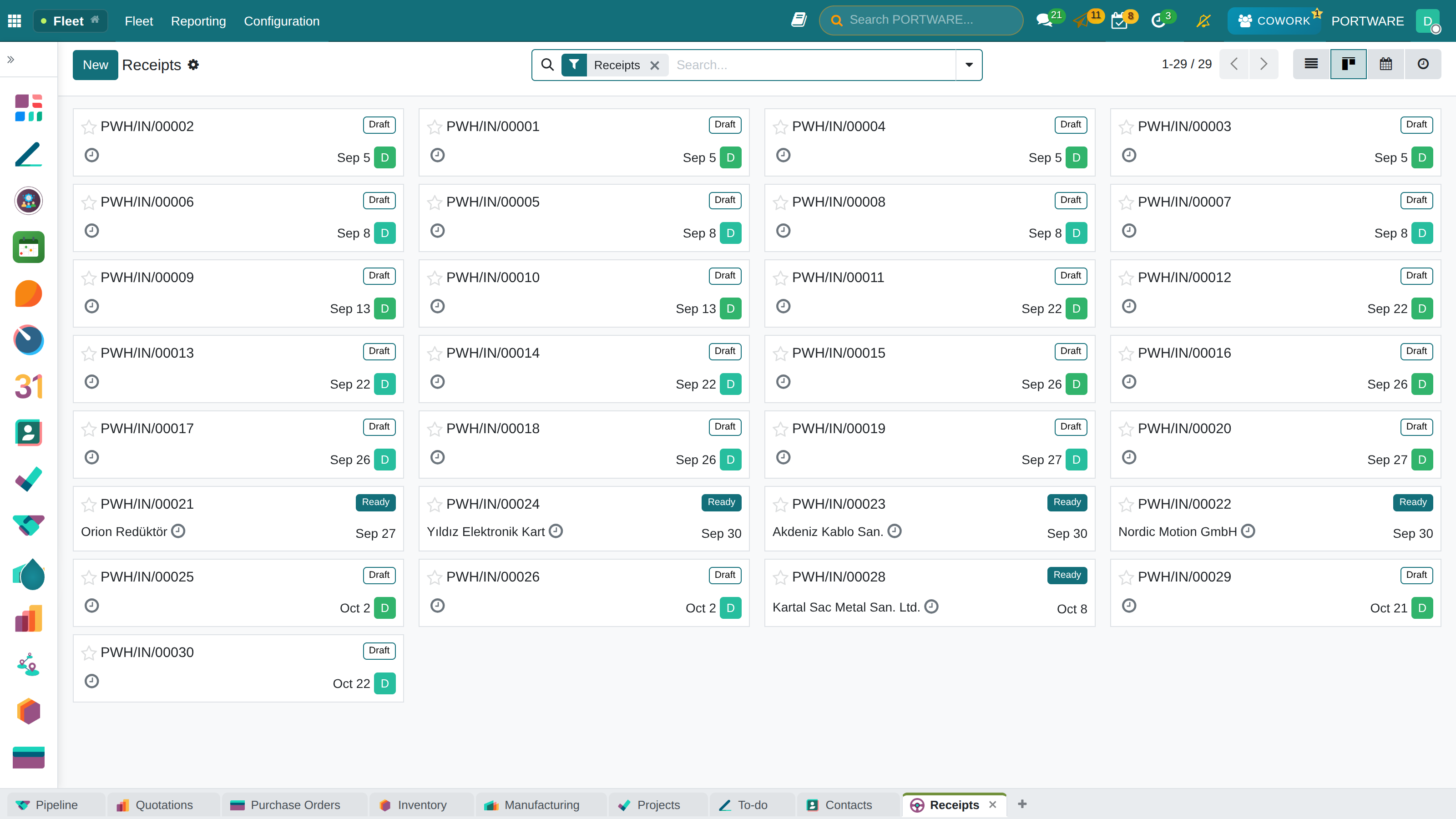
Receipts as cards — each receipt's status and scheduled date
How to Do It in PORTWARE
Creating a new warehouse:
- Go to
- Click the New button
- Enter the Warehouse Name (e.g. "Main Warehouse", "Istanbul Branch")
- Enter the Short Name (e.g. "WH", "IST") - it is used in location codes
- Choose or create the warehouse address in the Address section
- Save - the system creates the locations automatically
Creating a sub-location (shelf/bin):
- Go to
- Add a location with New
- Enter the Location Name (e.g. "Shelf-A1-B2")
- Choose the main location in the Parent Location field (e.g. "WH/Stock")
- Choose "Internal Location" as the Location Type
- Optional: add a Barcode to label the shelf
Configuring warehouse operation flows:
- Open the warehouse form and go to the Warehouse Configuration tab
- Incoming Shipments field, choose the number of steps:
- 1 step: Straight into stock (simple)
- 2 steps: input area + move to stock (controlled)
- 3 steps: input + quality control + stock (full control)
- Set the number of steps for Outgoing Shipments the same way
The Goods Receipt Process
Goods receipt is how products enter the warehouse. Doing it correctly is critical for stock accuracy.
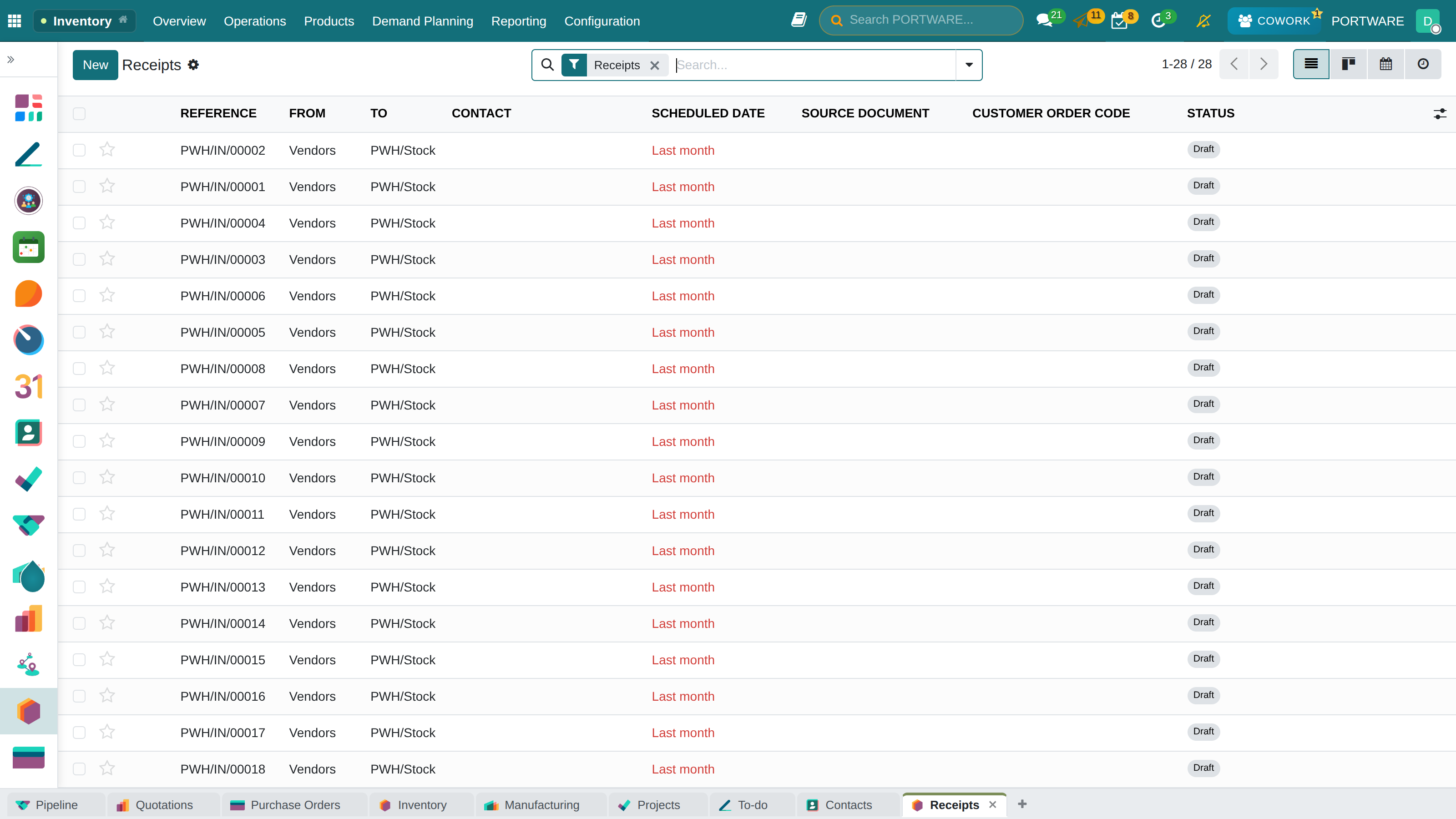
Receipts - pending goods receipt operations and their states
Goods Receipt Flows
One Step (Simple)
Flow: Vendor → Stock
When: small businesses, warehouses that need to move fast
Advantage: fast, few operations
Disadvantage: quality control can be skipped
Two Steps (Controlled)
Flow: Vendor → Input Area → Stock
When: products that need a quality check
Advantage: room for a check
Disadvantage: an extra operation step
Three Steps (Full Control)
Flow: Vendor → Input → Quality Control → Stock
When: critical products, strict quality standards
Advantage: full traceability and control
Disadvantage: the slowest flow
Scenario: Goods Arrive from the Vendor
Situation: you ordered 100 units of product A and 50 of product B from vendor XYZ. The truck is at the door.
- Document check: compare the delivery note with the order
- Physical count: count what arrived (100 A and 48 B)
- System entry: open the "Receipt" in PORTWARE and enter the actual quantities
- Note the shortfall: 2 units of product B are missing; add a note in the system
- Confirmation: validate the receipt; stock is updated
- Tell the vendor: inform the vendor about the shortfall
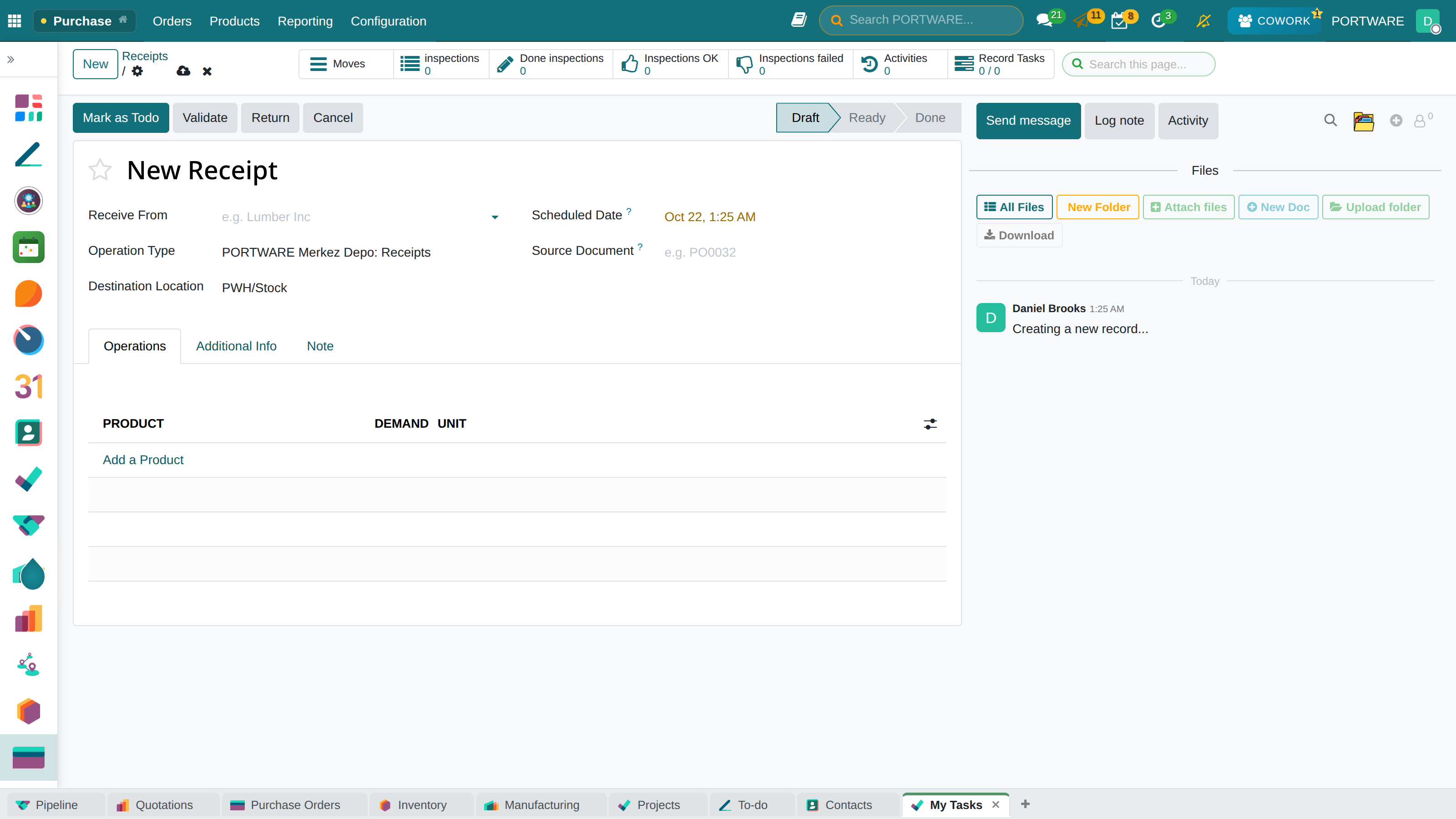
New receipt form - starting a goods receipt from a vendor
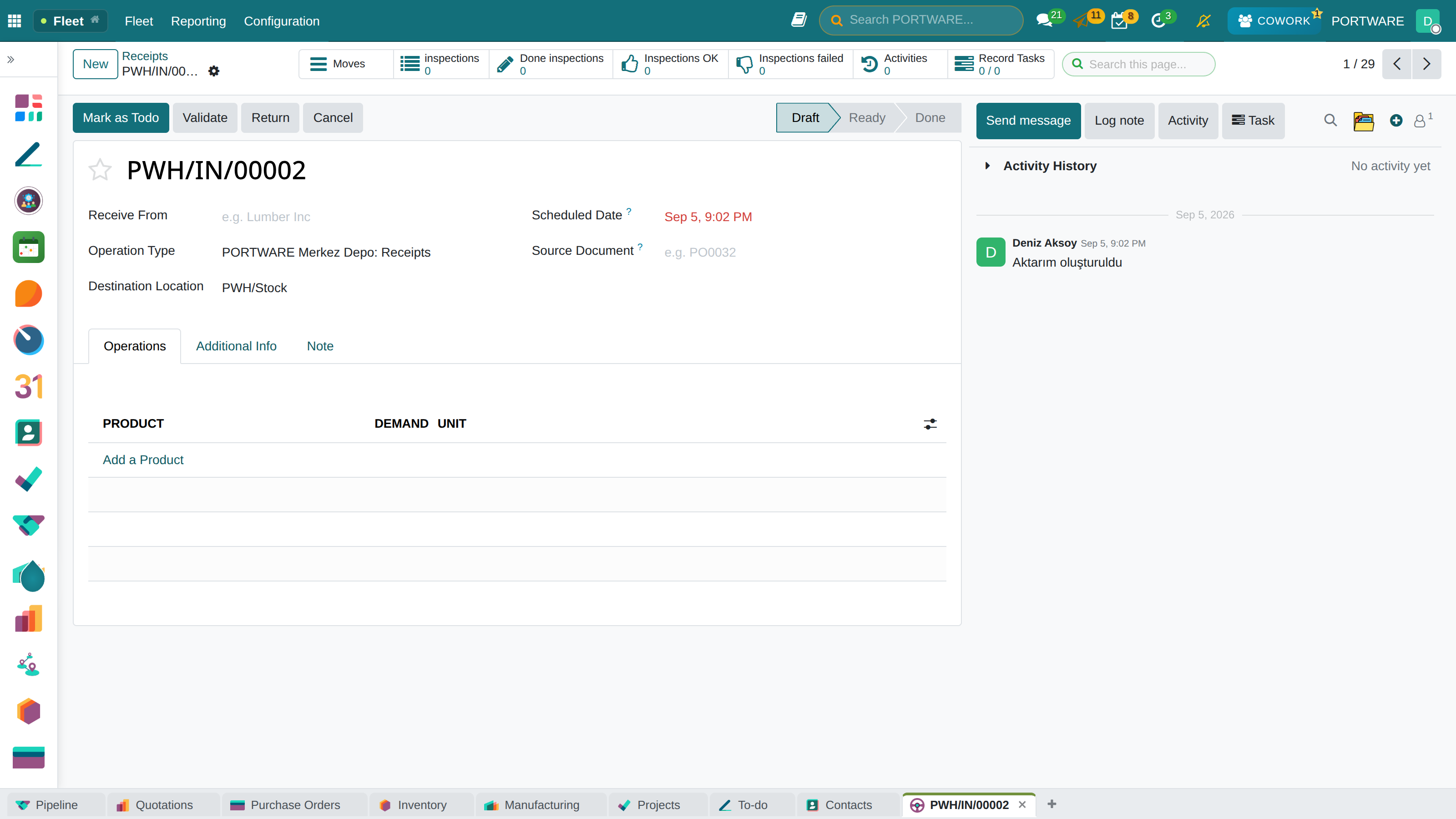
A receipt's form — vendor, scheduled date, source document and operation lines
How to Do It in PORTWARE
Viewing pending receipts:
- Go to
- Filter on Type = "Receipt"
- Or click the "Receipts" tile on the screen
- Pending transfers appear in the Ready state
Processing a receipt:
- Click the pending receipt transfer
- The expected quantities appear in the Demand column
- Enter the quantity actually received in the Quantity column
- If lots/serials are tracked, click the icon and enter the lot details
- After checking every line, click the Validate button
- If something is short or over, the system warns you - choose Create Backorder or No Backorder
Fast goods receipt with barcodes:
- Click the Barcode button on the transfer form
- Scan the product barcode with a barcode reader or the phone camera
- Each scan increases the product's quantity by 1
- If a lot is required, scan the lot barcode too
- Finish with Enter
Putaway Rules
Putaway rules decide automatically which location incoming products go to. Good putaway directly affects picking efficiency.
| Rule Type | Description | Example |
|---|---|---|
| By Product Category | A product category is sent to a given area | Electronics → Aisle A, Food → Cold Store |
| Product-Specific | A given product is sent to a given shelf | iPhone 15 → location A3-R1-L2 |
| By Storage Condition | Routing by conditions such as temperature and humidity | Needs cold storage → Cold Room |
| By ABC Class | Positioning by movement speed | Class A (fast movers) → shelves near the exit |
Picking Methods
Picking is taking ordered products out of the warehouse. The right method can raise warehouse efficiency by 30-50%.
Order-Based (Discrete)
How: a separate pick for each order
Advantage: simple, low risk of error
Disadvantage: a lot of walking, low efficiency
Ideal for: few orders, large orders
Batch
How: several orders are picked at once
Advantage: less walking, high efficiency
Disadvantage: sorting is needed
Ideal for: many orders, shared products
Zone
How: each picker picks from their own zone
Advantage: specialisation, parallel work
Disadvantage: coordination is needed
Ideal for: large warehouses, many pickers
Wave
How: orders are released in waves
Advantage: a planned flow, capacity management
Disadvantage: complex planning
Ideal for: high-volume operations
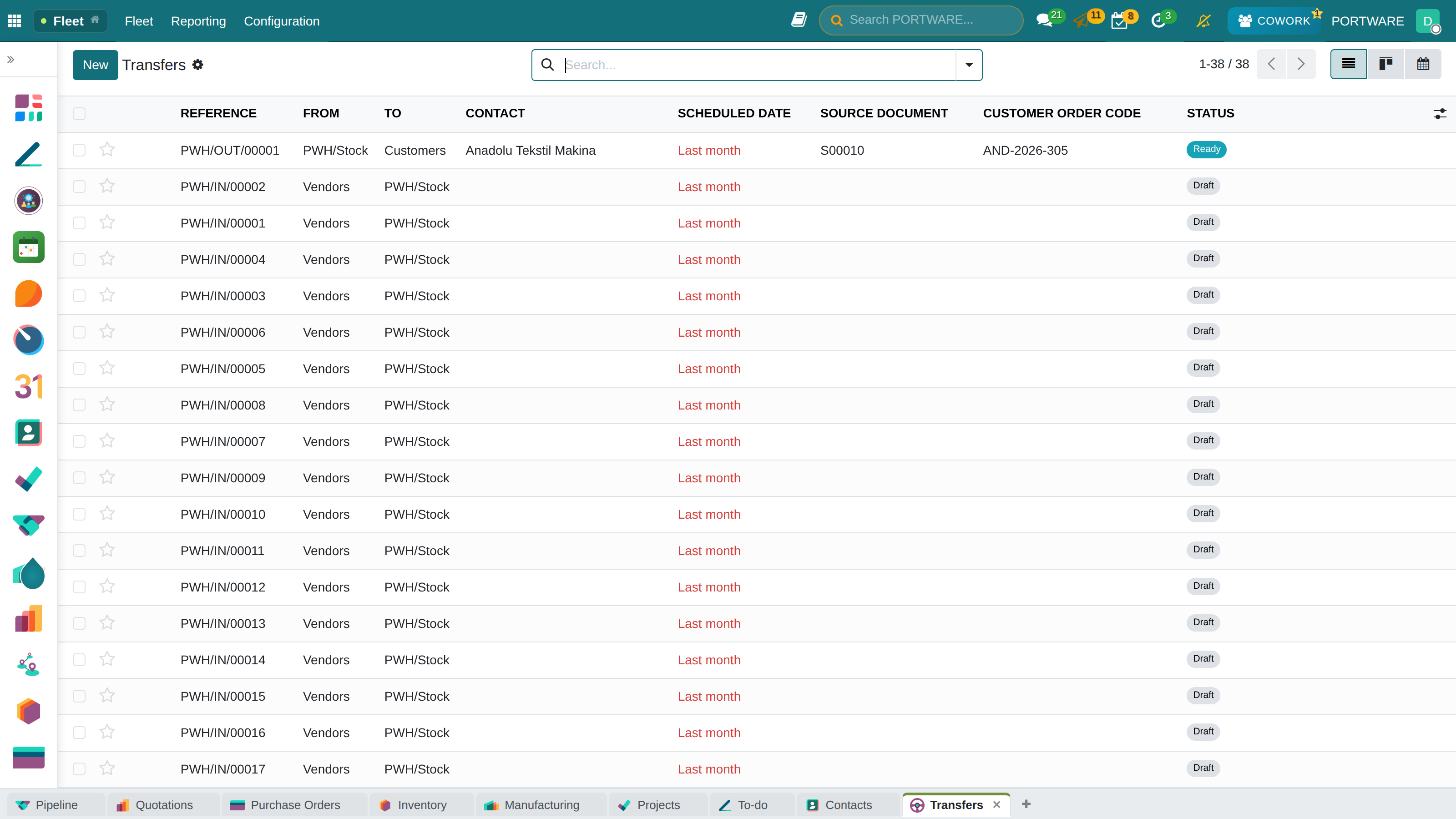
All transfers — receipts, deliveries and internal moves in one list, with their status
How to Do It in PORTWARE
Viewing the pick list:
- Go to
- Filter: Type = "Delivery Orders" or "Pick"
- Alternatively: → the "Delivery Orders" tile
Picking:
- Click the pending delivery order
- The Source Location column shows where to take the product from
- Enter the picked quantity in the Quantity column
- To pick from several locations, use Detailed Operations
- When done, Validate
Batch picking:
- Select several transfers in the delivery orders list (checkbox)
- Choose
- The system groups shared products so you can pick them in one pass
- After picking, split them across the orders in the sorting area
Removal Strategies
When there is more than one lot or location of the same product, the strategy decides which goes out first:
| Strategy | Description | When to Use It |
|---|---|---|
| FIFO (First In, First Out) |
The oldest stock goes out first | The default, suits most products |
| LIFO (Last In, First Out) |
The newest stock goes out first | Stacked storage (the top one is taken) |
| FEFO (First Expired, First Out) |
The stock with the nearest expiry date goes out first | Food, medicine, cosmetics - perishable products |
| Closest Location | The stock nearest the exit goes first | To minimise picking time |
Shipping
Shipping is sending products from the warehouse to the customer. Accurate, on-time delivery is the foundation of customer satisfaction.
Shipping Flows
Delivery Methods
| Method | Pricing | Use |
|---|---|---|
| Fixed Price | The same price for every delivery | Simple, predictable |
| Weight-Based | A charge per kg | Heavy products |
| Volume-Based | A charge per volumetric unit (m³) | Bulky but light products |
| Carrier Integration | Real-time prices via API | FedEx, DHL, UPS, Yurtiçi, MNG |
How to Do It in PORTWARE
Defining a delivery method:
- Go to
- Create a method with New
- Enter the Name (e.g. "Standard Shipping", "Express Delivery")
- Provider field, choose the pricing type:
- Fixed Price: The same charge for every delivery
- Based on Rules: calculated by weight, volume or price
- Fill in the Delivery Fee or the rule table
Completing the shipment:
- Open the delivery order (picking must be done)
- Confirm the shipment with Validate
- Use the Print menu to print the delivery slip
- With a carrier integration the tracking number comes in automatically
Package management:
- Click the Put in Pack button on the delivery form
- Choose a package type (box, envelope, pallet...)
- Spread the products over several packages if needed
- The weight and dimensions of each package are recorded
Reordering Rules
Reordering rules create a purchase request or manufacturing order automatically when stock falls to a given level.
Example: Automatic Reordering
Product: printer cartridge
- Minimum stock: 10 units (the rule triggers at this level)
- Maximum stock: 50 units (stock is topped up to this level)
- Multiple quantity: multiples of 10 (10, 20, 30...)
- Lead time: 5 days
- Result: when stock falls to 10, a purchase request for 40 units is created
How to Do It in PORTWARE
Creating a reordering rule:
- Go to
- Create a rule with New
- In the Product field choose the product the rule applies to
- As the Location, choose the warehouse/location it applies to
- Enter the Min Quantity - the rule triggers at this level
- Enter the Max Quantity - the target stock level
- Optional: round the order quantity with the Multiple Quantity (e.g. multiples of 10)
- Save
Running automatic replenishment:
- Go to
- The system checks every rule and creates the purchase/manufacturing requests needed
- The requests appear under or
- Tip: you can have the scheduler run it automatically
Adding a rule quickly from the product:
- Open the product form
- Click the Reordering Rules smart button
- Add a rule for that product directly with New
Rule Parameters
| Parameter | Description | Effect |
|---|---|---|
| Minimum Stock | The reorder trigger point | Low = risk of running out, High = ordering early |
| Maximum Stock | The target stock level | Low = frequent orders, High = fewer orders but more stock |
| Multiple Quantity | Order quantity multiples | Matches the vendor's minimum order or a pallet |
| Lead Time | Time from order to delivery | Critical for planning; affects the minimum stock |
Safety Stock
Safety stock is a buffer against swings in demand and supply delays.
Factors that affect safety stock:
- Demand variability: the less predictable sales are, the more safety stock you need
- Supply reliability: if the vendor is often late, keep a bigger buffer
- Product importance: more safety for critical (class A) products
- Lead time: a long lead time = more safety stock
Demand Forecasting
Forecasting future demand from past sales is the basis of stock optimisation.
Seasonality
Demand rises or falls at certain times of the year. Example: winter clothing picks up in September.
Trend
A long-term upward or downward tendency. Example: smartphone sales grow 10% every year.
Random Fluctuation
Unpredictable short-term changes. Covered by safety stock.
Inventory Adjustment
Correcting the differences between a physical count and the system records. Doing it regularly keeps stock accurate.
Scenario: A Stock Count
Situation: the month-end stock count is under way. The system shows 100 units of product "ABC-123".
- Physical count: 97 units were counted in the warehouse
- Difference: 3 units short (-3)
- Find the cause: possible causes - theft, a recording error, damage
- Correction: update the quantity to 97 on the Inventory Adjustment screen
- Note: record the reason for the difference in the system (for audit)
- Confirmation: apply the adjustment; stock becomes 97
How to Do It in PORTWARE
Starting a stock count:
- Go to
- Start a count with New
- Choose the areas to count in the Locations field
- Set the products to count in the Products field (leave it empty for all products)
- Click the Start Count button
Entering the count results:
- Every product line appears on the count form
- Enter the physical count in the Counted Quantity column
- The system calculates the difference automatically (the Difference column)
- If lots/serials are tracked, enter the details with
- When done, confirm with Apply
- Stock quantities are updated automatically
Quick stock update for a single product:
- Open the product form
- Click the On Hand smart button
- Locations and quantities are shown
- Correct the quantity with the Update button
Cycle Counting
Instead of a full annual inventory, counting continuously and periodically. Prioritised with ABC analysis:
| Class | Definition | Count Frequency | Typical Share |
|---|---|---|---|
| Class A | High value, fast moving | Weekly or monthly | 20% of products, 80% of value |
| Class B | Medium value | Quarterly | 30% of products, 15% of value |
| Class C | Low value, slow moving | Once a year | 50% of products, 5% of value |
Scrap Management
Removing damaged, spoiled or unusable products from stock.
Common reasons for scrap:
- Physical damage (handling, dropping)
- Products past their expiry date
- Production faults (defective products)
- Poor storage conditions (heat, humidity)
- Customer returns (not resellable)
How to Do It in PORTWARE
Scrapping a product:
- Go to
- Create a scrap record with New
- Choose the product to scrap in the Product field
- Enter the Quantity
- If lots/serials are tracked, choose the Lot/Serial Number
- Set the Source Location the product is taken from
- The Scrap Location defaults to "Virtual/Scrap"
- Click the Scrap button
Scrapping during a transfer:
- Open the receipt or delivery transfer
- If you find a damaged product while checking, click the Scrap button
- Enter the quantity to scrap
- The transfer is updated automatically
Stock Valuation
Stock valuation is how the financial value of your inventory is determined. It is critical for accounting and tax reporting.
| Method | Description | Advantage / Disadvantage |
|---|---|---|
| Standard Cost | A fixed unit cost is assigned to each product | ✓ Simple, predictable ✗ Ignores price changes |
| FIFO | The cost of the first purchase is used first | ✓ Reflects the real cost ✗ Complex to calculate |
| Weighted Average (AVCO) | The average of all purchases is calculated | ✓ Smooths out swings ✗ No exact traceability |
How to Do It in PORTWARE
Setting the valuation method:
- Go to
- Open the category (or create a new one)
- Costing Method field, choose:
- Standard Price: A fixed unit cost
- FIFO: first in, first out (real cost)
- Average Cost (AVCO): weighted average
- Inventory Valuation field, choose the accounting integration:
- Manual: No accounting entries are created
- Automated: every stock move is posted to accounting
Viewing the valuation report:
- Go to
- The quantity, unit cost and total value of each product are shown
- Use the Date filter to value stock at a past date
- Download the report with Export to Excel
Reports
PORTWARE Inventory offers comprehensive reports for operational decisions:
Stock Report
Current stock - quantity and value by product, location and lot.
Forecasted Stock
A projection of future stock - pending receipts and sales included.
Moves History
A chronological list of every stock move - who, when, how many.
Valuation Report
The financial value of stock - calculated by costing method.
How to Do It in PORTWARE
Viewing the stock report:
- Go to
- By default the current stock of every product is shown
- From the Group By menu you can choose "Product", "Location" or "Category"
- Filtering: type a product name or code in the Search bar
- Download the report with Export to Excel
Viewing the moves history:
- Go to
- Every incoming, outgoing and transfer move is listed chronologically
- For a specific product: click the Moves button on the product form
- Apply a date range filter
Viewing forecasted stock:
- Open the product form
- Click the Forecasted smart button
- The future stock projection is shown as a chart
- Pending sales orders and purchase orders are included
- Watch the critical points (the stock-out date) visually
Pivot analysis:
- Switch to the Pivot view on any report screen
- Drag dimensions into the row and column areas (Product, Location, Date...)
- Add measures to the value area (Quantity, Value...)
- Change the chart type with (bar, pie, line)
Key Performance Indicators (KPIs)
Stock Turnover
How many times a year stock is sold. High = efficient use of capital.
Days in Stock
The average time stock is held (days). Low = fast moving.
Stock Accuracy
How closely the system matches physical stock (%). Target: 95%+
Order Fill Rate
The share of orders filled from stock. Target: 98%+
On-Time Delivery
Orders shipped on the promised date. Target: 95%+
Scrap Rate
Scrap as a share of total stock. Low = good management.
Frequently Asked Questions
Can stock go negative?
Not by default. PORTWARE prevents selling without enough stock. The "Allow negative stock" setting can be turned on, however - the system then warns but does not block the operation. This is useful for dropshipping or pre-order models.
How is cost calculated when the same product is bought at different prices?
It depends on the valuation method you choose:
• FIFO: the first purchase price goes out first
• AVCO: the weighted average of all purchases is used
• Standard: the defined fixed cost is used and the difference is posted
How are multiple warehouses managed?
PORTWARE allows unlimited warehouses. Each warehouse has its own locations, incoming/outgoing flows and reporting. Transfers between warehouses are supported. Ideal for businesses with several branches.
What is the difference between a lot and a serial number?
Lot: identifies a group of products (a batch). 100 products from the same production batch share the same lot number. Common in food and pharmaceuticals.
Serial Number: a unique identity for each unit. Each of 100 products has a different serial number. Used for electronics and valuable products.
How often should stock be counted?
By ABC analysis:
• Class A (high value): weekly or monthly
• Class B (medium value): quarterly
• Class C (low value): yearly
An ad-hoc count can also be made when a stock difference is found or something looks suspicious.
Can I use it without a barcode reader?
Yes, every operation can also be done by hand. A barcode reader, however, lowers the error rate and speeds things up. PORTWARE also reads barcodes with the phone camera - no extra hardware needed.
Best Practices
Warehouse Optimisation Tips
- Fast movers near the exit: cuts picking time by 30%
- Heavy products at the bottom: for ergonomics and safety
- Related products side by side: makes cross-selling easier
- Clean, marked aisles: fast navigation
- Date labels for FIFO: old stock at the front
Stock Management Tips
- Automate reordering rules: manual tracking invites errors
- Keep vendor lead times up to date: critical for planning
- Account for seasonality: build up stock before the season
- Review dead stock periodically: do not tie up capital
- Talk to the sales team: hear about large orders in advance