Sales Module
The PORTWARE Sales module manages the whole sales process, from the moment you prepare a quotation for a customer to the moment you collect the money: Quote-to-Cash.
- Quotes in minutesProfessional quotes from products, pricelists and templates.
- Margin visible while quotingCost and list price beside every line.
- Customers approve onlineThe quote is signed in the portal and the order is created by itself.
Introduction to Sales
What You Will Learn in This Section
- The role of the Sales module in your business
- What the Quote-to-Cash cycle is
- The differences between a quotation, an order and an invoice
- How to optimise your sales process with PORTWARE
What Is the Sales Module For?
The PORTWARE Sales module manages the whole sales process, from the moment you prepare a quotation for a customer to the moment you collect the money. In business this process is known as "Quote-to-Cash".
Think like a salesperson: what do you do when a customer asks about a product or a service? First you prepare a quotation. If the customer accepts, it becomes an order. You deliver the product, issue an invoice and finally collect the payment. The PORTWARE Sales module digitises this whole flow.
Scenario: Your First Sale
- In PORTWARE, click Sales → Quotations → New
- Select "ABC Technology" as the customer (or create it)
- Add "Laptop Model X" on a product line, quantity: 50
- Validity: 7 days, delivery: one week later
- Send the quotation with the "Send by E-mail" button
- When Mr Ahmet approves, turn it into an order with "Confirm"
Why PORTWARE Instead of Excel?
Many businesses still prepare quotations in Word or Excel. So what difference does PORTWARE make?
| Topic | Excel/Word | PORTWARE Sales |
|---|---|---|
| Quotation Tracking | Lost in folders | Every quotation and its status in one click |
| Price Updates | One file at a time | When a product price changes, every quotation follows |
| Stock Check | Calling or e-mailing the warehouse | Live stock visibility, automatic reservation |
| Invoicing | A separate program, entering the data again | Order → invoice in one click |
| Reporting | Hours of writing formulas | Ready-made reports and charts |
How to Do It in PORTWARE
Opening the Sales App
- Click the menu at the top left
- Find and click the Sales app in the list
- The Quotations list opens by default
Create Your First Quotation
- Click the New button
- Start typing the customer's name in the Customer field, or add a new customer with Create and Edit
- Add products with Add a line in the Order Lines tab
- Select a product in the Product column and enter the Quantity
- Click the Save button at the top of the page
View Options
Use the view icons at the top right:
- List: every quotation in a table
- Kanban: cards by status
- Pivot: a summarised analysis table
- Graph: visual sales charts
Filtering and Search
From the Filters drop-down in the search bar:
- Draft Quotations: quotations not yet sent
- Quotation Sent: sent to the customer, awaiting an answer
- Sales Orders: confirmed orders
- To Invoice: orders that need invoicing
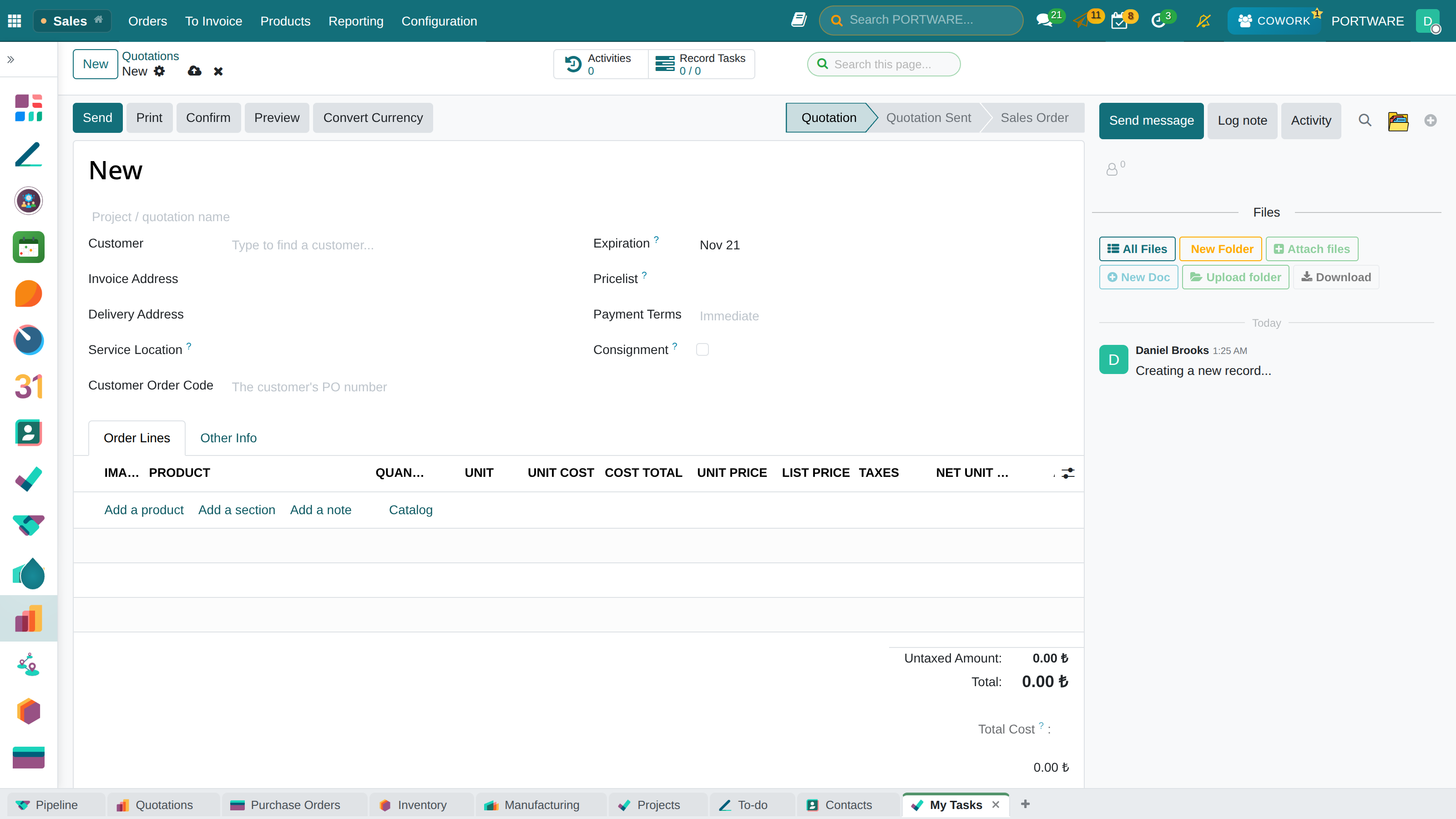
Creating a new sale - start a new order in one click with the quick sales form
The Quote-to-Cash Cycle
Quote-to-Cash (Q2C) is the business cycle that covers the whole sales process. Each step depends on the previous one, and PORTWARE connects them seamlessly.
What Happens at Each Step?
| Step | In PORTWARE | Business Impact |
|---|---|---|
| 1. Quotation | Creating a quotation document | Prices and terms are offered to the customer |
| 2. Approval | The customer signs online or approves by phone | A legally binding contract begins |
| 3. Order | Quotation → becomes a Sales Order | Stock is reserved, production is triggered |
| 4. Delivery | Delivery order | The product reaches the customer and leaves the stock |
| 5. Invoice | Creating the customer invoice | A legal document, a receivable |
| 6. Collection | Recording the payment | The cash flow is complete |
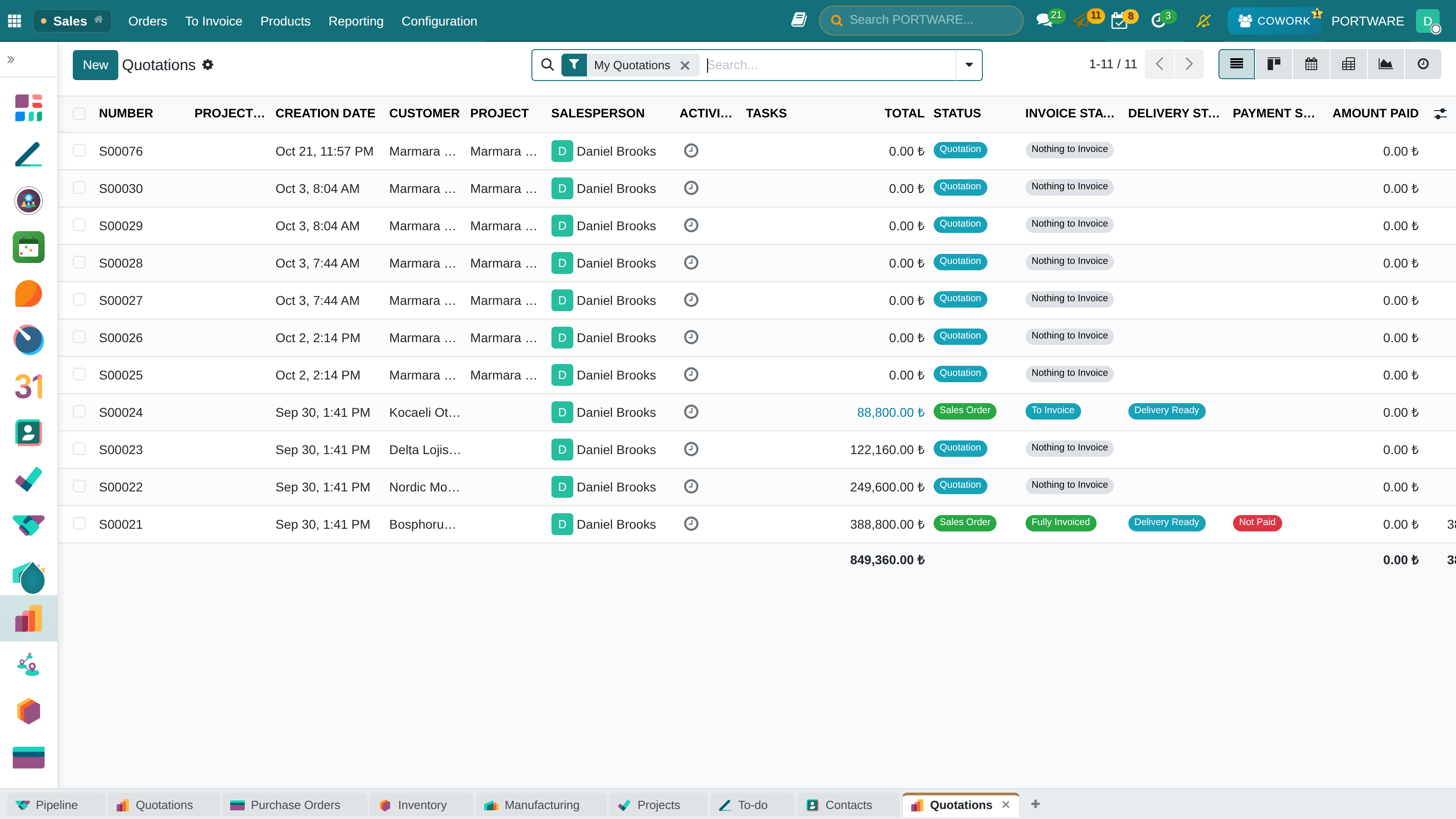
PORTWARE Sales module - the main screen
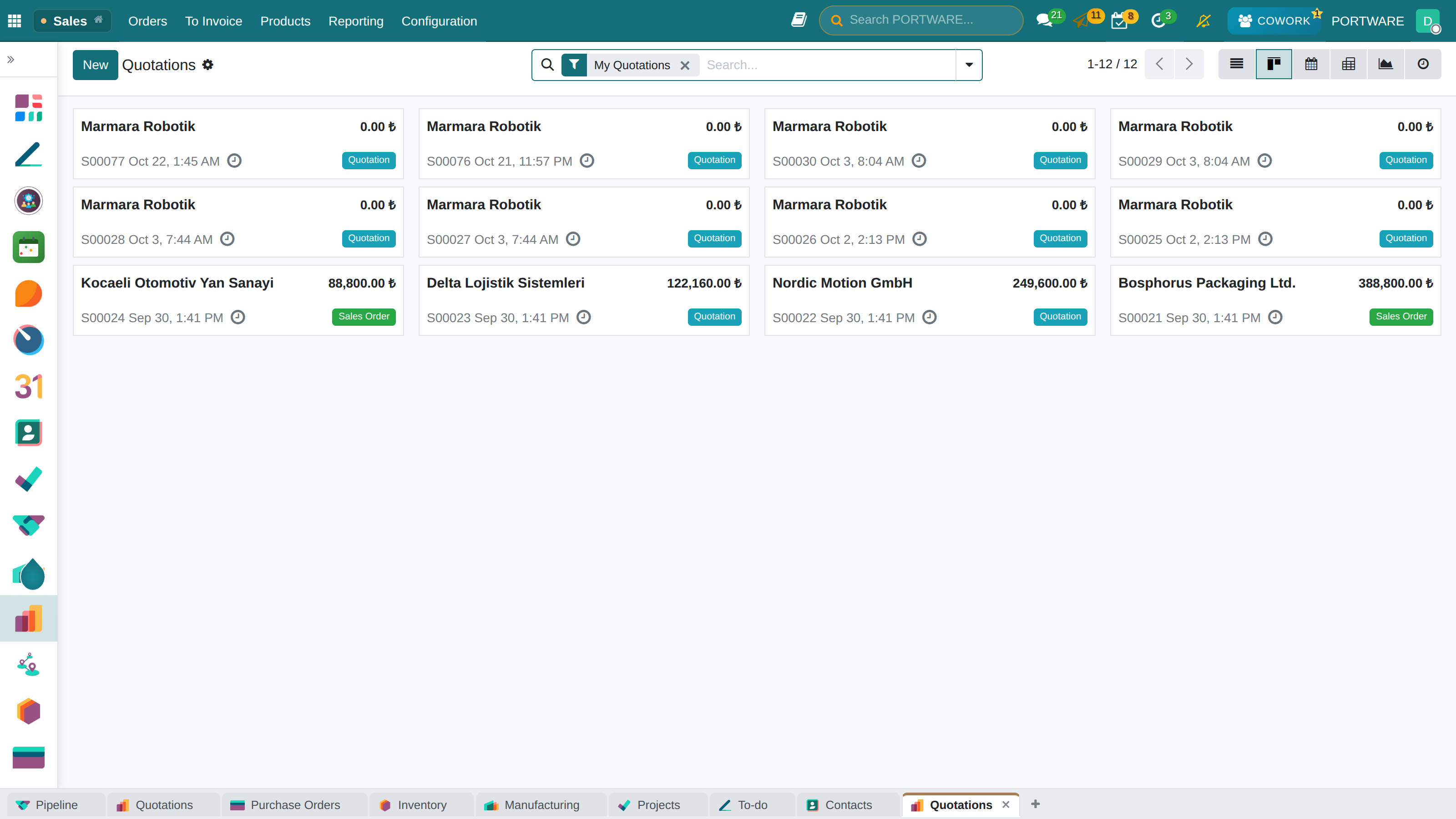
Quotations as cards — customer, amount and status at a glance
Core Concepts
To use the Sales module effectively you need these concepts:
Quotation
A price offer not yet confirmed. It can be cancelled or changed.
Sales Order
A confirmed order. Stock is reserved and delivery is planned.
Delivery Order
The shipping instruction to the warehouse: packing and carrier.
Invoice
A legal document. It creates the right to collect and an accounting entry.
Customer
The party you sell products or services to. The res.partner model.
Product
The goods or service you sell. It may be stockable or not.
Document States
Each sales document can be in different states:
| State | Meaning | What you can do |
|---|---|---|
| Draft | Not yet sent or confirmed | Edit, delete, send |
| Sent | Sent to the customer, awaiting an answer | Follow up, update, cancel |
| Confirmed | The order is active and in progress | Delivery, invoicing |
| Done | The whole process has finished | View only |
| Cancelled | Abandoned | Set back to draft |
Frequently Asked Questions
What is the difference between a quotation and a pro-forma invoice?
Quotation: the document that presents prices and terms. It is not binding.
Pro-forma invoice: a preliminary document in the format of an official invoice. It is used for customs or prepayment requests, but it is not a legal invoice.
PORTWARE produces both: Quotation → "Print Pro-Forma Invoice"
Can I cancel a confirmed order?
Yes, but it depends on the situation:
- Not yet delivered: it can be cancelled directly
- Already delivered: take the goods back first (reverse transfer)
- Already invoiced: create a credit note
Cancellations are logged and can be audited.
How do I take a down payment?
After the order is created:
- Order → click the "Create Invoice" button
- Choose "Down payment (percentage)" or "Down payment (fixed amount)"
- Enter the amount or percentage
- The down-payment invoice is created
After delivery, a separate invoice is issued for the rest and the down payment is deducted.
Creating Quotations
What You Will Learn in This Section
- How to prepare a professional quotation
- Saving time with quotation templates
- Cross-selling with optional products
- Controlling profitability with margin visibility
Creating a New Quotation
The quotation is where the sales process starts. A well-prepared quotation noticeably increases your chance of winning the sale.
Creating a Quotation Step by Step
- Go to Sales → Quotations → New
- Select the customer: search for an existing one or add one with "Create and Edit"
- Add products: select products with the "Add a line" button
- Set the quantities: enter a quantity for each product
- Set the terms: validity date, payment terms, delivery date
- Save: the quotation is saved as a draft
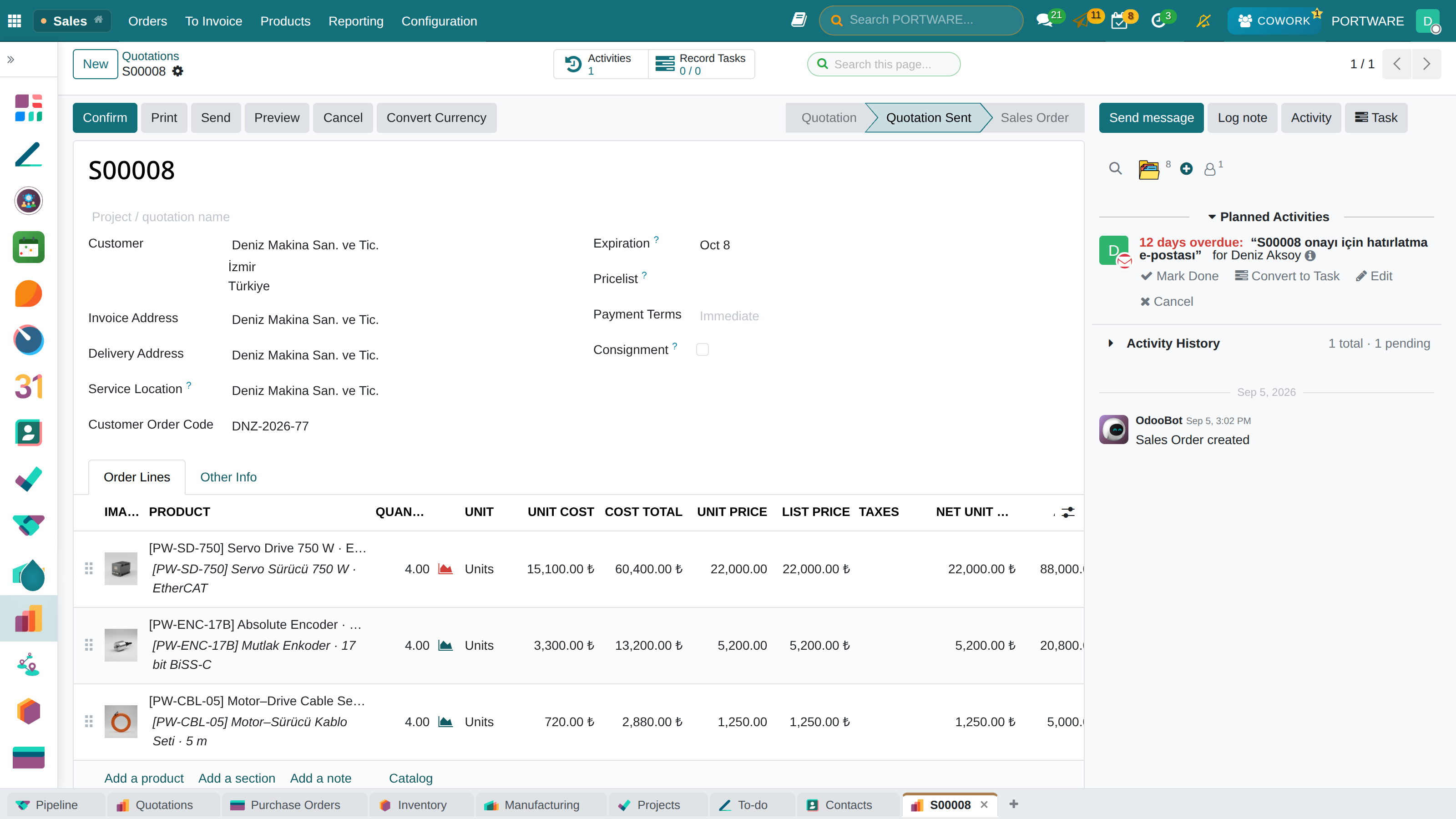
A quotation — customer, validity, product lines, total and the planned reminder
Scenario: Preparing a Complex Quotation
- Create a quotation and add the 3 products on separate lines
- For the product that is out of stock, enter a realistic date in the "Delivery Date" field
- Enter 10% in the "Discount" column of each line (or add a global discount)
- Choose "30 Days" in the Payment Terms field
- Explain the stock situation and delivery terms in the notes
- Check the margin column - is the profitability sufficient?
Quotation Templates
If you prepare similar quotations again and again, templates save a lot of time.
How to Create a Template
- Go to Sales → Configuration → Quotation Templates
- Click the New button
- Enter the template name (e.g. "Corporate IT Package")
- Add the default products
- Set defaults such as the validity period and payment terms
- Save
From now on, choosing the template on a new quotation adds all its products in one click.
Optional Products (Cross-Selling)
Optional products are extras the customer can add to the quotation. They are an effective way to increase the sales value.
Example: Laptop
Optional: mouse, bag, extended warranty, SSD upgrade
Example: Furniture
Optional: assembly service, protective cover, care kit
Example: Software
Optional: training, support package, extra user licences
Margin Visibility
Seeing the profitability of every sales line is critical. When you give a discount you must not go below the minimum margin.
Margin calculation:
─────────────────────────────────────────
Sales price:     1,000 TL
Cost:              600 TL
─────────────────────────────────────────
Margin:            400 TL
Margin %:           40%

After discount (15%):
Sales price:       850 TL
Cost:              600 TL
─────────────────────────────────────────
Margin:            250 TL
Margin %: 29%How to Do It in PORTWARE
Preparing a Detailed Quotation
- Go to the menu
- Click the New button
- Select the Customer (search or create a new one)
- Pricelist: select it if the customer has a dedicated price list
- Expiration: set the last date the quotation is valid
- Payment Terms: choose 30 days, 60 days, etc.
Adding Product Lines
- Click the Order Lines tab
- Click the Add a line button
- Search by typing the product name in the Product column
- Enter the Quantity
- The Unit Price fills in automatically; edit it if needed
- Enter a discount percentage in the Disc. % column (optional)
- Repeat for more products
Using a Template
- Find the Quotation Template field on the new quotation form
- Choose a template from the drop-down list
- All the template's products are added automatically
- Adjust quantities and prices if needed
Creating a Template
- Go to the menu
- Click the New button
- Enter the Template Name (e.g. "Corporate IT Package")
- Add the default products in the Lines tab
- Set the Validity and the Confirmation Mail
- Save
Turning on Margin Visibility
- Go to the menu
- Find the Pricing section
- Tick Show margins on sales lines
- Click the Save button
- Every quotation line now shows the Margin and Margin % columns
Pricing Strategies
The right pricing strategy keeps you competitive and protects your profitability. PORTWARE offers flexible pricing tools.
Pricing Methods
| Method | When to Use It | Example |
|---|---|---|
| List Price | Standard sales | The default price on the product card |
| Price List | By customer segment | VIP customers, dealers |
| Cost + Margin | Project-based sales | Cost × 1.4 (40% profit) |
| Quantity Discount | Encouraging bulk purchases | 100+ units: 20% discount |
| Seasonal Campaign | Seasonal sales | New Year campaign |
Creating a Price List
- Go to Sales → Products → Pricelists
- Click the New button
- Enter a name for the price list (e.g. "Dealer Prices")
- Choose the currency
- Add price rules in the Rules tab
Rule Types
- Fixed price: a special price for the product
- Discount: X% off the list price
- Formula: a calculation on the cost or the list price
- From another price list: a discount relative to another list
Scenario: A Dealer Price List
- Create a new price list called "Dealer Prices"
- First rule: All Products → 25% discount (the general default)
- Second rule: Category "A" → 20% discount
- Third rule: Category "B" → 30% discount
- Select this price list on the dealer customers' cards
How to Do It in PORTWARE
Creating a Price List
- Go to the menu
- Click the New button
- Enter the Pricelist Name (e.g. "Dealer Prices")
- Choose the Currency (TRY, USD, EUR, etc.)
Adding a Price Rule
- Switch to the Price Rules tab
- Click the Add a line button
- Apply On field, choose the target:
- All Products: general rule
- Product Category: a specific category
- Product: a single product
- Product Variant: a specific variant
- Computation type, choose:
- Fixed Price: a specific price
- Discount %: a percentage off the list price
- Formula: a calculation on the cost or another list
- Define a quantity discount with Min. Quantity
- Save
Assigning a Price List to a Customer
- Go to the menu
- Open the customer
- Click the Sales & Purchase tab
- Select the list in the Pricelist field
- Save
- This price list is applied automatically to quotations for this customer
Quantity Discount Example
For 10% off 10+ units and 20% off 50+ units:
- First rule in the price list via Add a line: Min. Quantity=10, Discount=10%
- Second rule: Min. Quantity=50, Discount=20%
- The system applies the best-matching rule automatically
Terms and Internal Notes
Two separate frames sit at the bottom of a quotation and an order, and one of them never reaches the customer:
- Terms & Conditions — printed on the document the customer receives: payment, delivery, warranty
- Internal Notes — never printed, never shown on the portal: pricing background, stock or delivery risk, who to contact
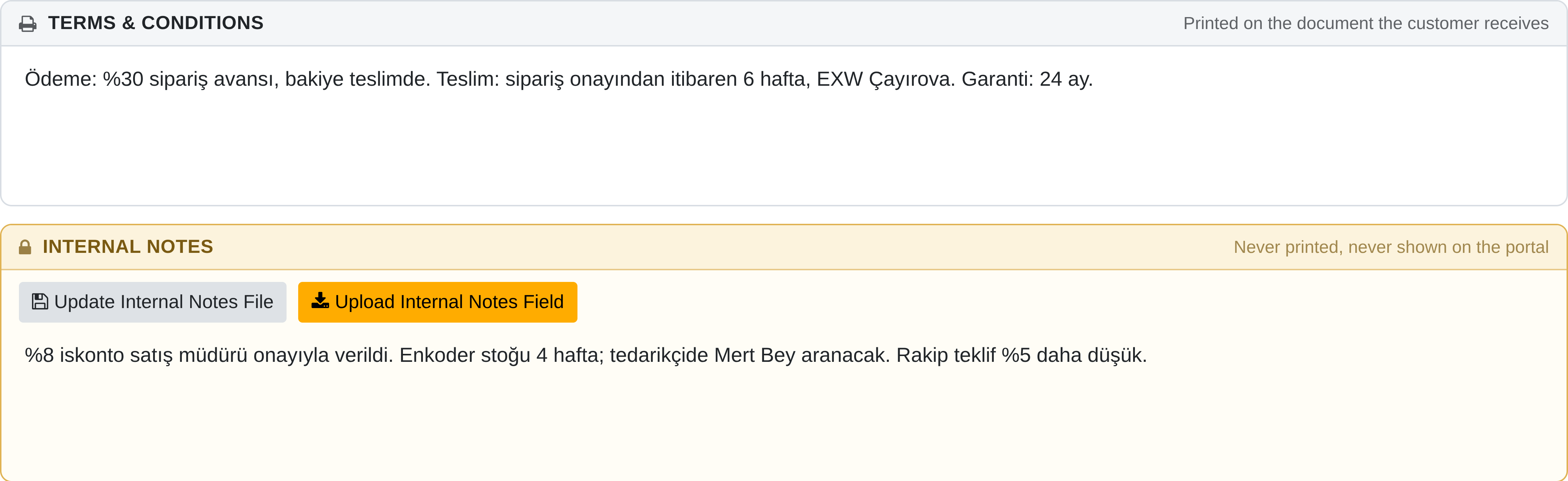
The printed Terms & Conditions and the Internal Notes only colleagues read
No report or portal template references the internal note; a test proves it by searching every QWeb view in the database. The same two boxes are on purchase orders and invoices.
Tasks on the record: work a quotation needs — a technical check, a delivery plan — is raised on the quotation itself with the chatter's Task button; Record Tasks at the top right shows how many are open.
Sending Quotations
Once the quotation is ready there are several ways to get it to the customer, each with its own advantages.
Sending Methods
Send by E-mail
As a PDF attachment or with a portal link. The most common method.
Customer Portal
The customer views, approves and pays online.
Download the PDF and hand it over or post it.
Share a Link
The portal link via WhatsApp, SMS or any other channel.
Sending by E-mail
- Open the quotation
- Click the "Send by E-mail" button
- The e-mail template loads automatically
- Check the recipient and the subject
- Edit the message (optional)
- Click the "Send" button
Online Signature and Payment
Letting the customer approve the quotation online and pay at once speeds up the sales cycle.
Turning It On
- Go to Sales → Settings
- Enable "Online Signature"
- Enable "Online Payment"
- Configure the payment providers (Stripe, PayPal, bank transfer, etc.)
How to Do It in PORTWARE
Sending a Quotation by E-mail
- Open the quotation (draft or saved)
- Click the Send by E-mail button at the top
- The e-mail composer opens:
- To: the customer's e-mail fills in automatically
- Subject: generated with the quotation number
- Message: from the template; you can edit it
- The quotation is attached as a PDF automatically
- Click the Send button
- The quotation status becomes Quotation Sent
Downloading as PDF
- Open the quotation
- Click the Print button at the top
- Choose Quotation / Order in the drop-down
- The PDF file is downloaded
- For a pro-forma invoice use the Pro-Forma Invoice option
Sharing the Portal Link
- After sending the quotation, click the Customer Preview button at the top
- The customer portal opens
- Copy the URL from the browser
- Share it via WhatsApp, SMS or another channel
Turning on Online Signature and Payment
- Go to the menu
- Find the Quotations & Orders section
- Tick Online Signature
- Tick Online Payment
- Save
- For payment providers go to
- Enable methods such as Stripe, PayPal or bank transfer
Quotation Tracking
Following the status of sent quotations is critical to sales success. Which ones have been opened, which are awaiting an answer?
Quotation States
| State | Meaning | Action |
|---|---|---|
| Draft | Not sent yet | Complete and send |
| Quotation Sent | Reached the customer | Make a follow-up call |
| Expired | The validity date has passed | Renew or close |
| Sales Order | Confirmed, the order exists | Plan the delivery |
| Cancelled | Abandoned | Analyse the loss |
Tracking Portal Views
When the customer views the quotation on the portal, PORTWARE records it:
- A "Viewed" tag appears on the quotation record
- The date and time of viewing are recorded
- This helps you time the follow-up call
Quotation Reports
From the Reporting → Sales → Quotations menu:
- Open quotations: quotations awaiting an answer
- Conversion rate: the share of quotations that became orders
- Average value: the average amount per quotation
- Salesperson performance: who closes more quotations
Order Confirmation
When the customer accepts the quotation it becomes a sales order. At this critical step stock and the credit limit are checked.
The Approval Process
Manual Confirmation
- Open the quotation
- Click the "Confirm" button
- The quotation number becomes the order number (S00001 → SO0001)
- The delivery order is created automatically
Approval Rules
You can require a manager's approval for large orders or big discounts:
- Amount limit: a director's approval for orders over 50,000 TL
- Discount limit: a manager's approval for discounts over 20%
- Credit limit: the sales manager's approval when the customer exceeds their credit limit
Credit Limit Check
On credit sales it is important to check the customer's credit limit:
- Enable "Sales Credit Limit" in Sales → Settings
- Define the credit limit on the customer card
- When the limit is exceeded the order is blocked
- The order proceeds once an authorised person approves
How to Do It in PORTWARE
Turning a Quotation into an Order
- Open the sent quotation
- Click the Confirm button at the top
- The quotation number (S00001) becomes the order number (SO0001)
- The status becomes Sales Order
- A delivery order is created automatically for stockable products
Cancelling an Order
- Open the order
- Click the Cancel button at the top
- In the confirmation dialog click Yes, Cancel
- The status becomes Cancelled
- Use the Set to Draft button to reactivate it
Creating Approval Rules
- Go to the menu
- Enable Order Approval in the Quotations & Orders section
- Save
- For approval rules go to the menu
- Create a rule for Sales Order (e.g. manager approval for amounts > 50,000 TL)
Turning on the Credit Limit Check
- Go to the menu
- Tick Sales Credit Limit
- Save
- A Credit Limit field appears in the Accounting tab of customer cards
- When the limit is exceeded the order is blocked automatically
Delivery Coordination
When the order is confirmed a delivery order is created automatically. The warehouse team sees it and plans the shipment.
The Delivery Flow
Partial Delivery
If not every product can be delivered at once:
- The first delivery covers the products in stock
- A backorder is created for the remaining products
- The backorder is completed when the stock arrives
- Each delivery is documented with its own delivery note
Delivery Address
The invoice address and the delivery address can differ:
- Use the "Delivery Address" field on the order
- You can define several addresses on the customer card
- A different address can be chosen on each order
How to Do It in PORTWARE
Viewing the Delivery Status
- Open the sales order
- Click the Delivery smart button at the top right
- The delivery order(s) are listed
- Status: Waiting, Ready, Done
Completing the Delivery (Warehouse Staff)
- Go to the menu
- Open the delivery order (it starts with OUT/)
- Enter the delivered quantities in the Done column
- Click the Validate button
- The stock is reduced automatically
Making a Partial Delivery
- Open the delivery order
- Enter in the Done column only the quantity you can deliver
- Click Validate
- The system asks: "What should happen to the remaining quantity?"
- Choose Create Backorder - a new delivery order is created for the rest
- Or remove the remaining quantity with Cancel
Changing the Delivery Address
- Open the sales order (before confirming)
- Click the Other Info tab
- Choose another address in the Delivery Address field
- If the customer has several addresses you can pick one from the list
- Use Create and Edit for a new address
Invoicing
Invoicing is the legal and financial side of the sales process. Correct invoicing secures the cash flow and meets legal obligations.
Invoicing Policies
| Policy | When the Invoice Is Issued | Use Case |
|---|---|---|
| Ordered Quantity | When the order is confirmed | Cash sales, services, prepaid products |
| Delivered Quantity | When the product is delivered | Physical product sales, stockable products |
| Milestone | When project stages are completed | Project-based sales, construction, software development |
| Time & Materials | Periodically, by hours worked | Consulting, maintenance services |
Creating an Invoice
- Open the sales order
- Click the "Create Invoice" button
- Choose the invoicing type:
- Regular invoice (invoice the whole order)
- Down-payment invoice (percentage or fixed amount)
- Invoice the delivered quantity
- Click the "Create Invoice" button
- The invoice opens as a draft
- Finalise it with "Confirm"
Down-Payment Invoice
To take a prepayment on a large order:
- Click "Create Invoice" on the order
- Choose "Down payment (percentage)" or "Down payment (fixed amount)"
- Enter the value (e.g. 30% or 10,000 TL)
- The down-payment invoice is created
- The rest is invoiced separately after delivery
- The down payment is deducted automatically on the final invoice
Scenario: Staged Invoicing
- After order confirmation: create a 30% down-payment invoice (30,000 TL)
- On delivery: create a 40% invoice (40,000 TL)
- After customer acceptance: the remaining 30% invoice (30,000 TL)
- Each invoice is followed up for payment separately
How to Do It in PORTWARE
Creating an Invoice from an Order
- Open the sales order
- Click the Create Invoice button at the top
- Choose the invoicing type:
- Regular Invoice: invoice the whole order
- Down payment (percentage): the given percentage
- Down payment (fixed amount): the given amount
- Click Create and View Invoice
- The invoice opens as a draft
Confirming the Invoice
- Review the draft invoice
- Make any corrections needed
- Click the Confirm button
- An invoice number is assigned and the accounting entry is created
- The status becomes Posted
Sending the Invoice to the Customer
- Open the confirmed invoice
- Click the Send & Print button
- Tick the Send by E-mail option
- The e-mail template loads automatically
- Click Send
Taking a Down Payment (Staged Invoicing)
- Open the confirmed order
- Click Create Invoice
- Choose Down payment (percentage), e.g. 30%
- Create and View Invoice
- The down-payment invoice is created; confirm and send it
- After delivery, invoice the rest with Create Invoice again
- The down payment is deducted automatically on the final invoice
Setting the Invoicing Policy
- Go to the menu
- Find the Invoicing section
- Invoicing Policy choose:
- Ordered quantities: can be invoiced as soon as it is confirmed
- Delivered quantities: only what has been delivered is invoiced
- Save
Collections Tracking
Issuing an invoice is not enough; the money has to be collected. PORTWARE tracks invoices that are due and overdue.
Tracking Due Dates
From the Accounting → Customers → Invoices menu:
- Due today: invoices to be paid today
- Overdue: invoices past their payment date
- Aging report: 0-30, 30-60, 60-90, 90+ days
Payment Reminders
You can set up automatic reminder e-mails:
- Go to Accounting → Settings → Follow-up Levels
- Create reminder levels:
- Level 1: 3 days before the due date - a friendly reminder
- Level 2: 7 days after the due date - a formal reminder
- Level 3: 30 days after the due date - a final notice
- Define an e-mail template for each level
- Choose automatic or manual sending
Recording a Payment
When a payment arrives:
- Open the invoice
- Click the "Register Payment" button
- Choose the payment method (bank, cash, cheque, etc.)
- Enter the amount
- Record the payment with "Confirm"
How to Do It in PORTWARE
Registering a Payment on an Invoice
- Go to the menu
- Open the invoice to be paid
- Click the Register Payment button
- Amount: enter the payment amount
- Date: choose the payment date
- Journal: choose the bank/cash account
- Payment Method: bank transfer, cash, cheque, etc.
- Click Create Payment
Viewing Overdue Invoices
- Go to the menu
- Open Filters in the search bar
- Choose the Overdue filter
- Every overdue invoice is listed
- For aging use
Payment Reminder E-mail
- Go to the menu
- Select the customers to remind (checkbox)
- Choose Send Reminder from the Action menu
- The e-mail template opens; edit it if needed
- Send
Automatic Reminder Rules
- Go to the menu
- Click New
- Days After: how many days after the due date (e.g. 7)
- E-mail Template: the template to use
- Automatic: if ticked, it is sent automatically by a scheduled job
- Create several levels (7 days, 30 days, 60 days)
Recurring Revenue (Subscriptions)
The subscription model brings a regular revenue stream. Automate recurring invoicing with the PORTWARE Subscriptions module.
Subscription Advantages
Predictable Revenue
Plan the cash flow with MRR (Monthly Recurring Revenue).
Automatic Invoicing
An invoice created and e-mailed automatically every period.
Customer Loyalty
Long-term customer relationships, low churn.
Growth Opportunities
Increase subscription value with upselling and cross-selling.
Creating a Subscription
- Enable "Recurring" on the product card
- Choose the recurrence period (monthly, yearly, etc.)
- Create the order through the normal sales process
- The subscription starts when the order is confirmed
- An invoice is created automatically at the end of each period
Subscription Metrics
Product Management
Products are the foundation of the Sales module. Well-defined products mean a fast, error-free sales process.
Product Types
| Type | Stock Tracking | Use |
|---|---|---|
| Storable Product | Yes | Physical products (electronics, furniture, etc.) |
| Consumable | No | Materials that get used up (stationery, cleaning) |
| Service | No | Consulting, training, maintenance |
Product Variants
Use variants for different versions of the same product:
- Colour: red, blue, black
- Size: S, M, L, XL
- Capacity: 64GB, 128GB, 256GB
How to Do It in PORTWARE
Creating a New Product
- Go to the menu
- Click the New button
- Enter the Product Name
- Tick Can be Sold
- Product Type choose:
- Storable Product: stock is tracked
- Consumable: stock is not tracked
- Service: not physical
- Enter the Sales Price
- Enter the Cost (for the margin)
- Save
Creating Product Variants
- Go to the Attributes & Variants tab on the product card
- Click Add a line
- Attribute: choose e.g. "Colour" (create it if it does not exist)
- Values: choose values such as "Red, Blue, Black"
- Add a new line for another attribute (e.g. Size)
- Save
- The variants are created automatically (e.g. Red-S, Red-M, Blue-S, ...)
Product Categories
- Go to the menu
- Click New
- Enter the Category Name (e.g. "Electronics")
- Parent Category: choose the parent for the hierarchy
- Save
- You can select this category on product cards
Price Lists
Use price lists to apply different prices to different customer segments.
Where Price Lists Are Used
- Dealer/Distributor: wholesale prices
- VIP customer: special discounted prices
- By currency: prices in USD, EUR
- Regional: different prices for different markets
- Campaign: seasonal discounts
Price List Precedence
When a price list is assigned to a customer it is applied automatically on quotations and orders:
- The price list is selected on the customer card
- It becomes the default when a new quotation is created
- The salesperson can still choose another list by hand
Discount Policies
Discounts increase sales, but uncontrolled discounts kill profitability. Manage discount rights in PORTWARE.
Discount Types
| Type | Application | Example |
|---|---|---|
| Line Discount | Separately on each product line | Laptop 10%, mouse 20% |
| Global Discount | On the whole order | 5% off the total |
| Coupon | With a code | NEWYEAR2026 → 15% |
| Quantity Discount | In the price list | 10+ units 10%, 50+ units 20% |
Discount Rights
To limit the sales team's discount rights:
- Salesperson: maximum 10% discount
- Sales Manager: maximum 25% discount
- General Manager: unlimited
Sales Reports
Review sales reports regularly to take data-driven decisions.
Key Reports
Sales Trend
Daily, weekly, monthly sales chart
Best Sellers
Sales ranking by product and customer
Salesperson Performance
Comparison across the sales team
Margin Analysis
Profitability by product and category
Report Filters
- Date range: this month, this quarter, custom dates
- Salesperson: one salesperson's performance
- Customer: one customer's sales history
- Product category: analysis by category
- Region: geographic distribution of sales
How to Do It in PORTWARE
Sales Analysis Report
- Go to the menu
- The pivot table view opens by default
- Switch to the graph view at the top right
- Choose the date range with Filters
- Group by salesperson, product or customer with Group By
Customising the Pivot Table
- Use the field list on the left of the pivot view
- Drag into Rows: Product, Customer, Salesperson
- Drag into Columns: Month, Quarter
- Values: choose Amount, Quantity, Margin
- Save the view with Favorites
Exporting the Report
- Open the report view you want
- Click the settings icon at the top right
- Choose Export to Excel or Insert in Spreadsheet
- The Excel file is downloaded or added to a PORTWARE spreadsheet
Adding to a Dashboard
- Click Favorites in the report view
- Choose Add to Dashboard
- Choose the target dashboard or create a new one
- Set the chart type and size
- Add
Keyboard Shortcuts
Moving around reports quickly:
- Ctrl + Shift + F: open/close filters
- Ctrl + G: the group-by menu
- Alt + ↓: the next record
KPI Tracking
Tracking the right KPIs is the first step to better sales performance.
Sales KPIs
KPI Targets
| KPI | Formula | Example Target |
|---|---|---|
| Quotation Conversion Rate | Won quotations / total quotations × 100 | ≥ 30% |
| Average Sales Cycle | Total days / number of sales closed | ≤ 14 days |
| Average Order Value | Total sales / number of orders | ≥ 5,000 TL |
| Gross Margin | (Revenue - Cost) / Revenue × 100 | ≥ 35% |
Best Practices
Preparing Quotations
- Save time with quotation templates
- Keep the validity short (7-14 days)
- Cross-sell with optional products
- Never send a quotation without checking the margin
Order Management
- Keep control with approval rules
- Check stock before the order
- Set realistic delivery dates
- Keep the customer informed about partial deliveries
Invoicing
- Take a down payment on large orders
- Invoice right after delivery
- Never let due-date tracking slip
- Reconcile regularly
Reporting
- Look at the daily sales summary
- Review the KPIs weekly
- Prepare monthly trend analyses
- A quarterly strategy review