CRM - Customer Relationship Management
CRM (Customer Relationship Management) gathers, tracks and manages every interaction with your customers in one place: leads, the pipeline, activities, quotations and reports in PORTWARE.
- No opportunity is forgottenEvery lead, quote and conversation is followed by an activity.
- The pipeline at a glanceWhich deal is at which stage, who owns it and what it is worth.
- From quote to invoice without a gapThe opportunity becomes a quote, an order and an invoice on the same record.
What You Will Learn in This Guide
- What CRM is and how it adds value to your business
- The difference between lead, opportunity and customer
- How to manage the sales pipeline effectively
- How to apply real business scenarios in PORTWARE
- How to analyse your sales performance with reports
What is CRM?
CRM (Customer Relationship Management) is a system that gathers, tracks and manages every interaction with your customers in one place. But CRM is not just software — it is also a customer-centred way of doing business.
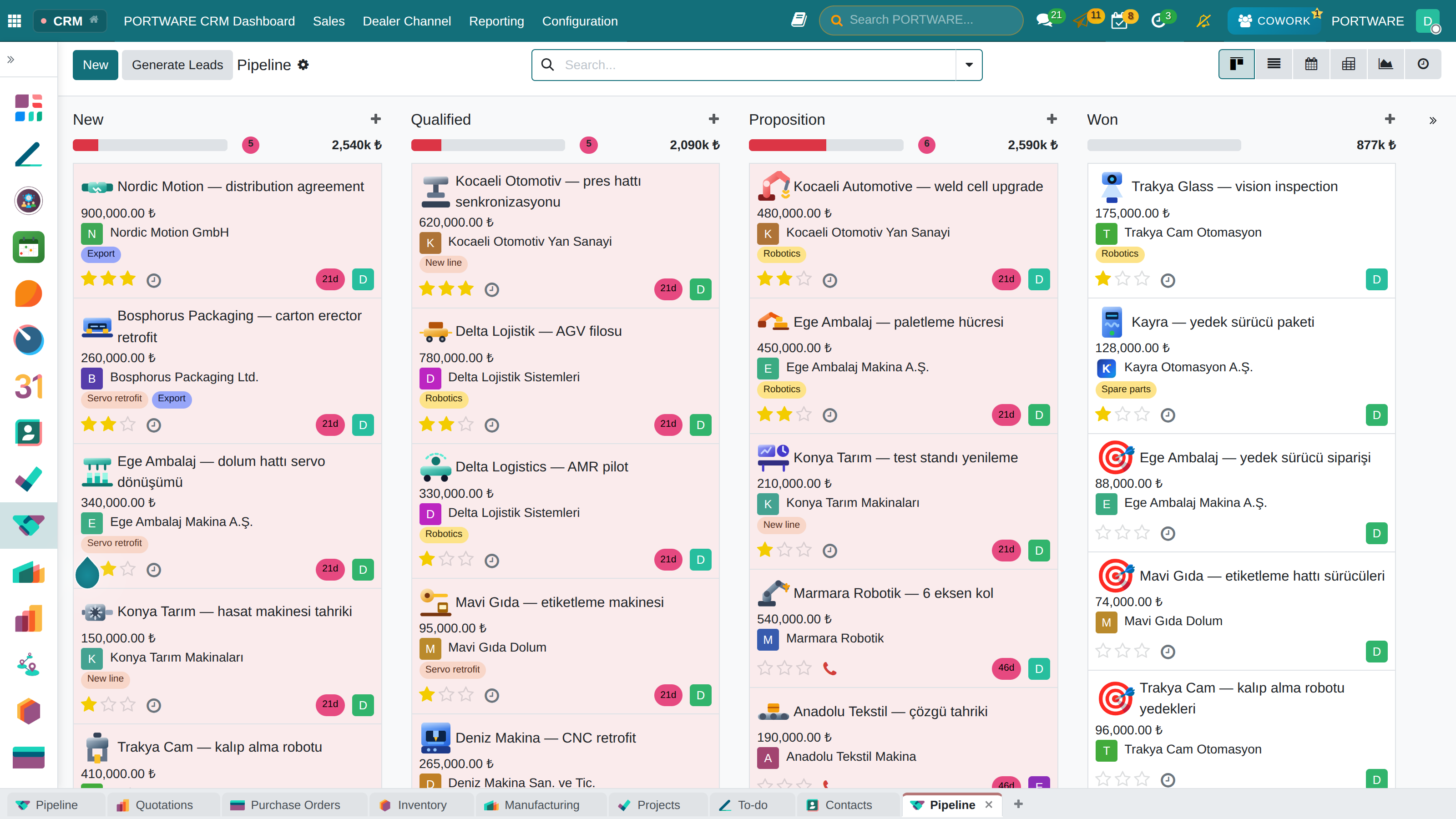
The pipeline — the whole team's opportunities by stage, expected revenue above each column
A Real-Life Example
Situation: picture a salesperson working the traditional way. Customer details in Excel, notes on paper, e-mails scattered across the inbox...
One day an important customer calls: "What happened to the quotation we discussed last month?"
The salesperson opens Excel in a panic, digs through e-mails, searches the notes... Every second the customer waits is lost trust.
With CRM: you type the customer's name and the whole history — calls, quotations, notes, e-mails — appears at once. You leave a professional, trustworthy impression.
Why Use CRM?
You may think: "I already track customers in Excel, why use a system?" Here is how CRM differs from Excel:
| Topic | Excel / Paper | CRM System |
|---|---|---|
| Customer History | Scattered, hard to search | The whole history in one click |
| Follow-up Reminders | Manual, easy to forget | Automatic notifications |
| Teamwork | File sharing, version chaos | Real-time sharing |
| Reporting | Manual, time-consuming | Instant, automatic |
| Mobile Access | Hard or impossible | Access from anywhere |
Time Saving
Focus on selling instead of searching for information. The average salesperson loses 2 hours a day looking for information.
More Sales
Companies using CRM sell 29% more on average. No opportunity slips through.
Customer Satisfaction
Know your customer. Offer personalised service. Win loyal customers.
Visibility
Managers see the sales situation in real time and spot problems early.
Core Concepts
Before stepping into CRM you need the core concepts. They are similar in every CRM system (Salesforce, HubSpot, PORTWARE).
Lead (Prospect)
A person or company you do not know yet, who has shown interest but has not been qualified. Example: an enquiry from a web form, a business card collected at a trade fair.
Opportunity
A prospect you have qualified and in whom you see real sales potential: a lead with the right budget, authority, need and timing.
Customer
A person or company you have made at least one sale to and now have a business relationship with. They carry repeat-sale and referral potential.
Pipeline
A visual arrangement of all your opportunities by stage. In kanban format, each column is a stage.
Activity
Actions to take with the customer: a phone call, an e-mail, a meeting, sending a quotation. Every activity has a date and an owner.
Tag
Markers used to categorise leads and opportunities. Example: "Hot", "Cold", "VIP", "Campaign 2024".
From Lead to Customer: the Conversion Process
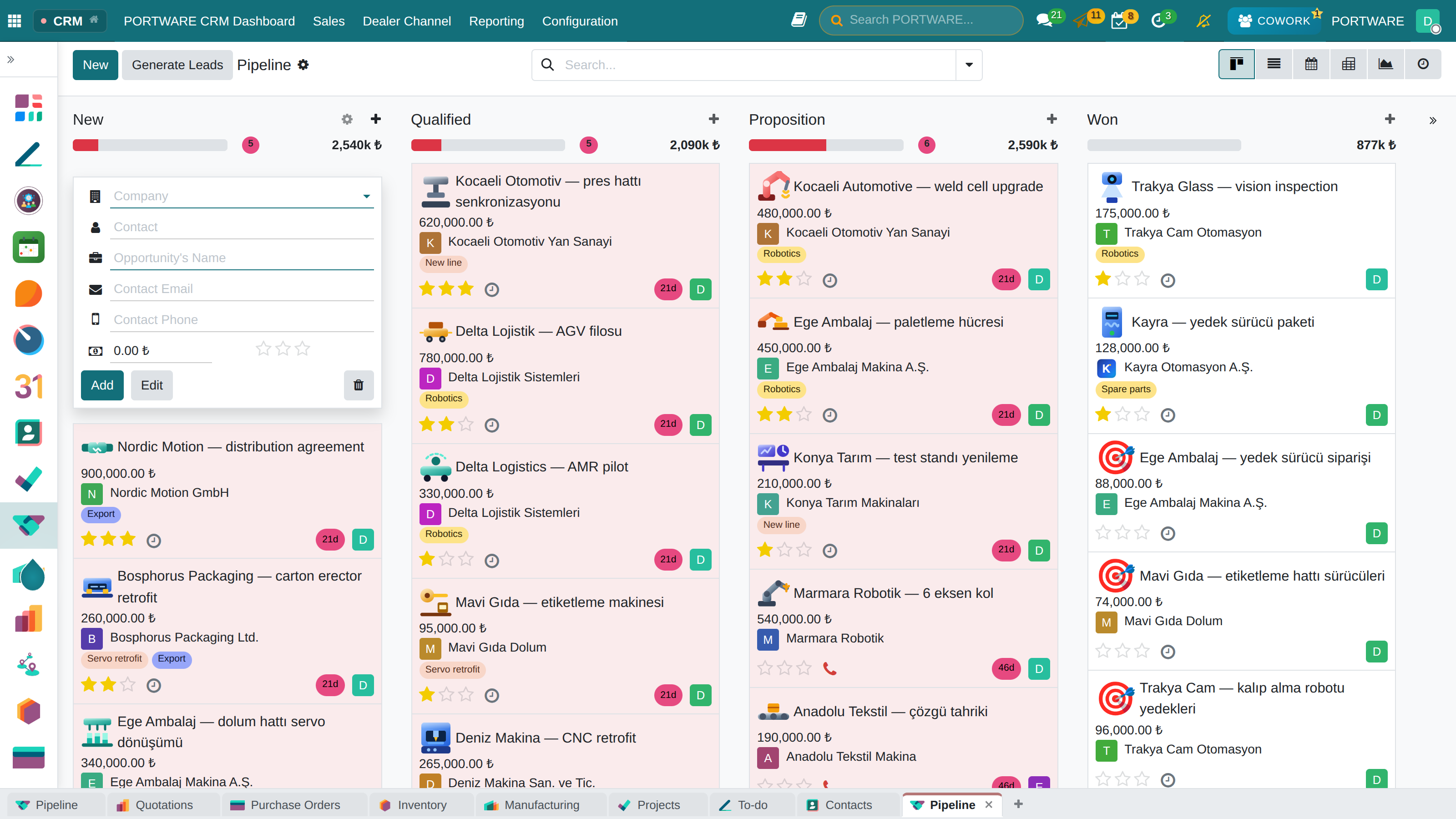
A column's + opens the quick-create card — company, contact and expected revenue without leaving the pipeline
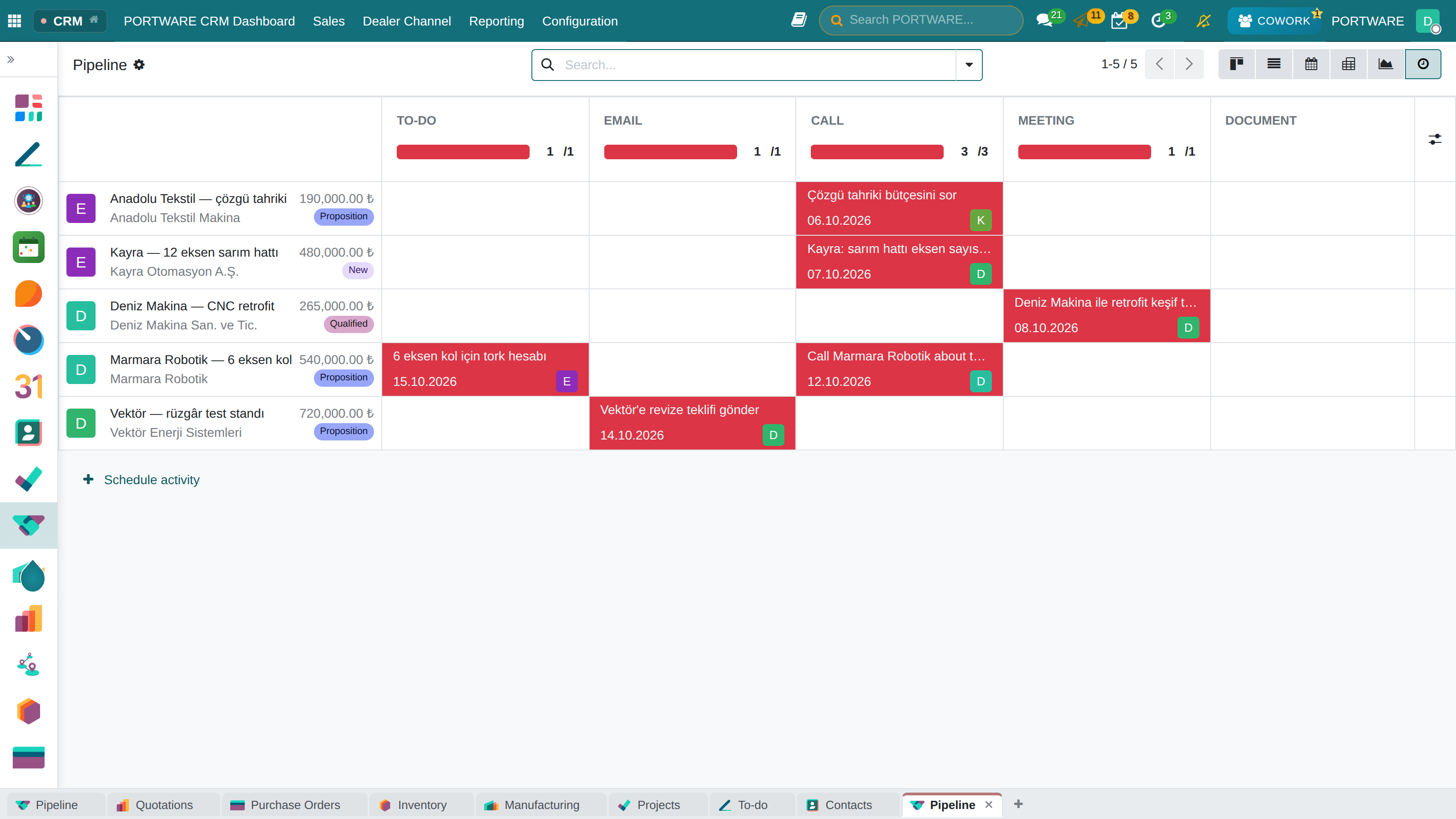
The activity view — which follow-up each opportunity is waiting for; red is overdue, green is planned
Frequently Asked Questions
What is the difference between a lead and an opportunity?
Lead: a prospect you do not know yet, who has only shown interest. You do not know who they are, what they want or whether they have a budget.
Opportunity: a prospect you know, have qualified and see sales potential in. They meet the BANT criteria (Budget, Authority, Need, Timeline).
In short: leads are quantity, opportunities are quality.
Why does the pipeline matter?
The pipeline is the visual map of your sales process. It shows you:
- How many opportunities you have and at which stages
- How much revenue is expected this month/quarter
- Which stage is blocked
- How each person is performing
Managing sales without a pipeline is like driving blindfolded.
When should I create a lead, and when an opportunity directly?
Create a lead for people you have just met and not qualified. Example: trade-fair business cards, web-form enquiries, cold-call lists.
Create an opportunity directly for customers you already know or who come by referral with a clear request. Example: a new project from an existing customer, a referral from someone you know.
First Steps in PORTWARE CRM
What will you see when you first open CRM in PORTWARE, and where should you start? Here is your step-by-step start guide:
-
Open the CRM App
Click the CRM icon on the main menu. The pipeline (kanban) view opens.
-
Get to Know the Pipeline Stages
The default stages are New, Qualified, Proposition, Negotiation and Won. You can customise them for your company.
-
Create Your First Lead or Opportunity
Click the + New button at the top right. Enter the customer name, the company and the expected revenue.
-
Schedule an Activity
Once the opportunity exists, add your first activity, such as "introduction call tomorrow at 10:00".
-
Review the Dashboard
Go to Reporting in the top menu. See your pipeline value and conversion rates.
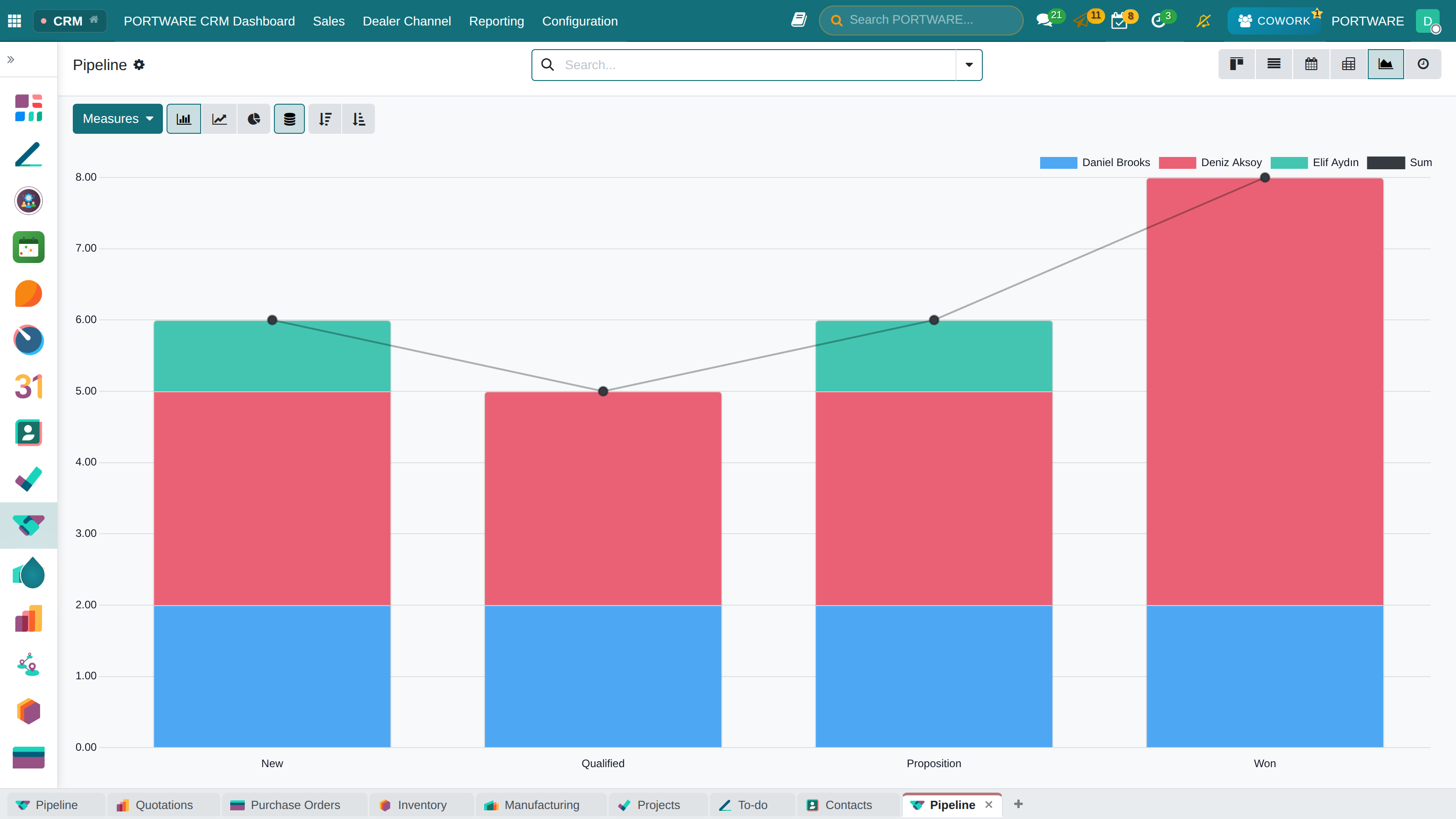
The CRM report — opportunities by stage and salesperson, stacked chart
How to Do It in PORTWARE
Opening the CRM App
To open CRM from the PORTWARE home screen:
- Click the menu at the top left
- Click the CRM icon in the app list
- The pipeline (kanban) view opens automatically
Understanding the Pipeline View
The kanban board on the CRM home screen:
- Columns: each column is a sales stage (New, Qualified, Proposition, Negotiation, Won)
- Cards: each card is an opportunity - showing the customer, the expected revenue and the planned activity
- Drag and drop: move cards between columns to change the stage
Creating Your First Opportunity
- Click the New button at the top right
- Fill in these fields on the form:
- Opportunity: the opportunity title (e.g. "ABC Company - ERP Project")
- Customer: type the customer name or create a new one with
- Expected Revenue: the estimated sales amount
- Expected Closing: the estimated closing date
- Click the Save button
View Options
Switch views with the view buttons at the top right:
- Kanban: the pipeline view (default)
- List: every opportunity in a table
- Pivot: an analytical pivot table
- Graph: visual charts
- Calendar: activities on a calendar
Filtering and Search
Using the search bar at the top:
- Quick search: type a customer name or opportunity title
- Filters: choose ready-made filters from the Filters menu (My Pipeline, This Month, Lost...)
- Group by: group by salesperson, stage or date with Group By
Lead Management
Lead management is where the sales process begins. Capturing, qualifying and prioritising your prospects correctly is the foundation of sales success.
Where Do Leads Come From?
Leads can come from many channels, each with its own advantages and challenges:
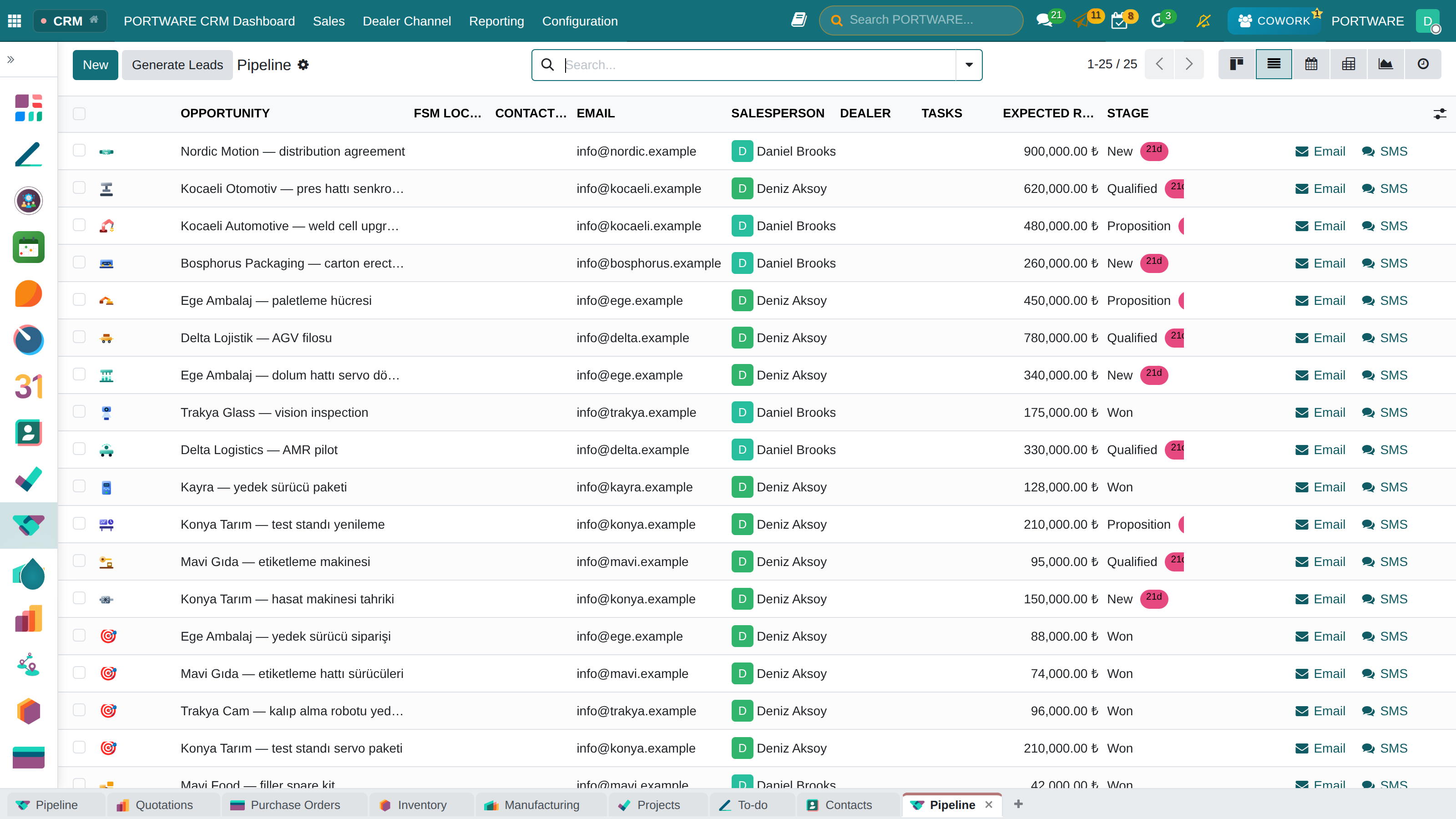
Opportunities as a list — contact, e-mail, salesperson, expected revenue and stage
| Source | Description | Quality | Tracking in PORTWARE |
|---|---|---|---|
| Website | Contact forms, demo requests | High (active interest) | Leads created automatically |
| Trade Fairs | Business cards, stand visits | Medium (bulk) | Excel import / manual entry |
| Phone | Incoming calls, cold calls | Variable | Manual entry |
| Incoming enquiries, campaign replies | High | E-mail integration | |
| Referral | Recommendations from existing customers | Very high | Manual entry + tagging |
| Social selling, connections | Medium-high | Manual entry |
Scenario: Back from a Trade Fair
Situation: you are back from a technology fair with 35 business cards. All of them must go into the system and be followed up.
- Bulk entry: put the card details into Excel (name, company, e-mail, phone)
- Import: upload the Excel file from CRM > Import
- Source tag: tag every lead "Source: 2024 Technology Fair"
- First activity: create a "send an introduction e-mail within 24 hours" activity for each lead
- Prioritise: mark those who showed strong interest at the fair as "Priority"
Result: 35 leads are in the system; none will be forgotten and all will be followed up.
Qualifying Leads: the BANT Method
Spending time on every lead is inefficient. Use the BANT method to find the leads with real sales potential:
Budget
Does the customer have a budget set aside for this solution? Do not hesitate to ask "what is your budget?"
Authority
Can the person you are talking to make the purchase decision, or are they only researching?
Need
Do they have a real need? Which problem are they trying to solve?
Timeline
When do they want to buy? This month, this year, or "some day"?
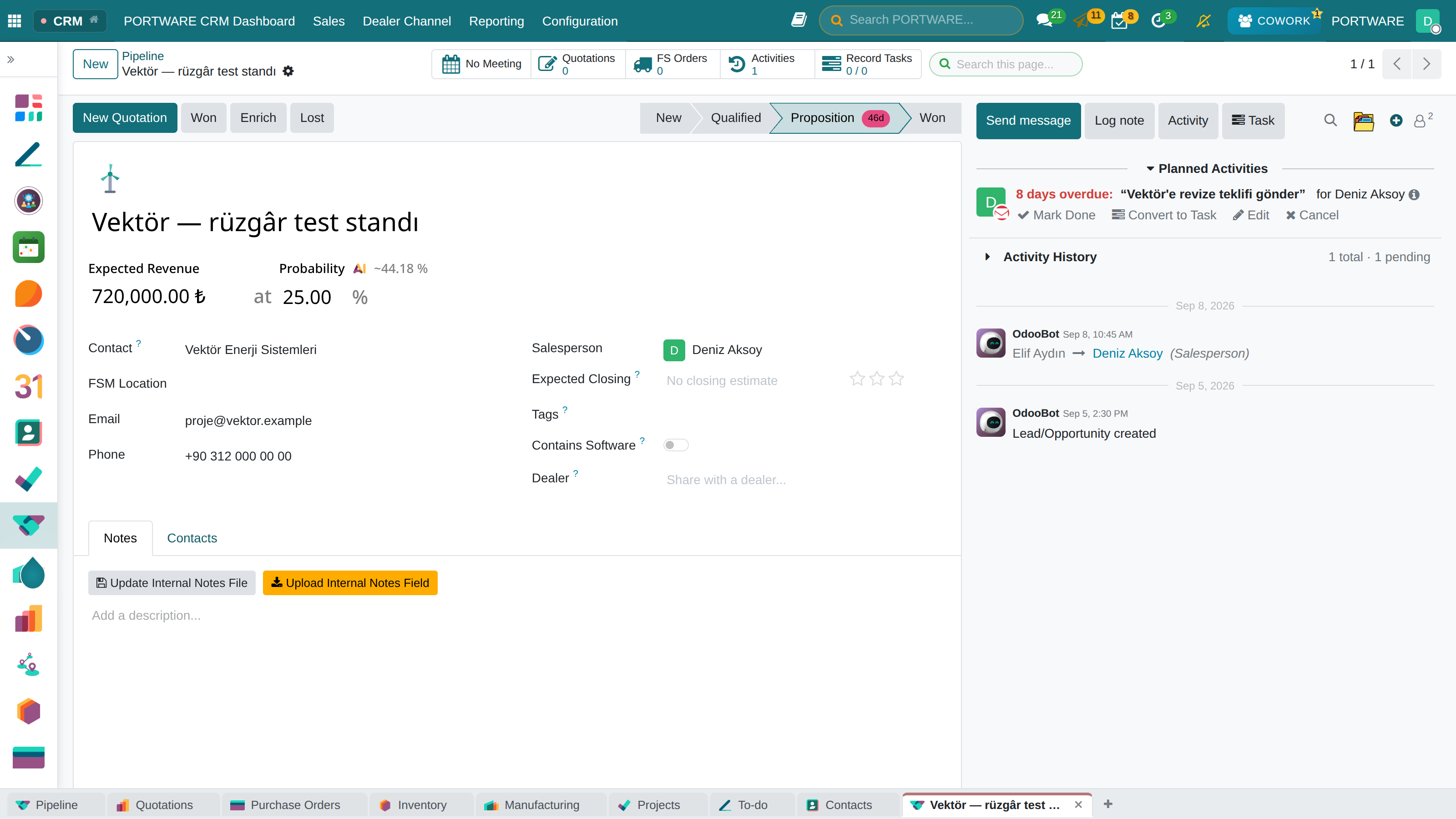
The opportunity's timeline — expected revenue, probability and tomorrow's planned quotation
Creating Leads in PORTWARE
Entering a Lead by Hand
-
menu
Note: if the Leads menu is not visible, enable .
- Click the New button
-
Fill in the lead form:
- Lead Name: a title describing the interest (e.g. "Website renewal request")
- Contact Name: the person's full name
- E-mail: the contact's e-mail address
- Phone: the contact's phone number
- Company Name: the organisation they work for
- For more detail switch to the Internal Notes tab and add the meeting notes
- Click the Save button
Importing Leads in Bulk from Excel
- On the screen choose Favorites › Import records
- Choose your Excel/CSV file with Upload File
-
Map the columns:
- "Name" in Excel → in PORTWARE Lead Name
- "Email" in Excel → E-mail in PORTWARE
- Click the Import button
Adding Tags
To categorise lead records:
- Open the lead record
- Click the Tags field
- Pick an existing tag or type a new tag name and press Enter
Suggested tags: "Fair 2024", "Web Form", "Referral", "Hot", "Cold", "VIP"
Assigning Leads
To assign a lead to a salesperson:
- Select the person in the Salesperson field of the lead form
- Or select a Sales Team to use round-robin assignment within the team
Converting a Lead into an Opportunity
You have qualified the lead and see sales potential. Now it is time to convert it:
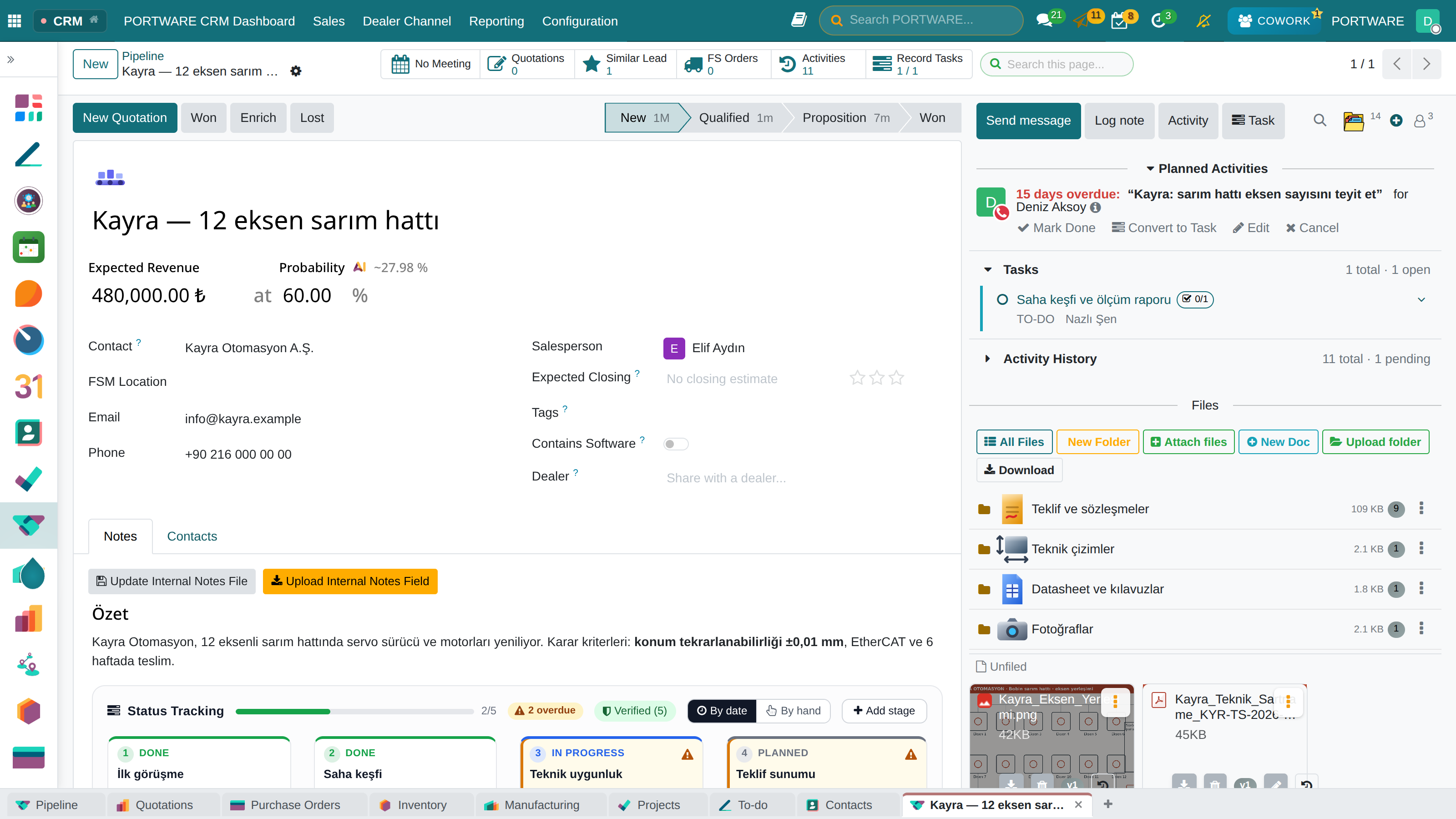
The opportunity form — expected revenue and probability, the planned activity and the task raised from it
-
Open the Lead Record
Find and open the lead in CRM.
-
Click "Convert to Opportunity"
Click the button at the top. A new window opens.
-
Enter the Opportunity Details
Choose the expected revenue, the estimated closing date and the stage.
-
Create the Customer Record
If it does not exist yet, a new customer is created; if it does, the lead is linked to it.
-
Schedule the First Activity
Once the opportunity exists, schedule the first meeting or demo.
Converting a Lead into an Opportunity in PORTWARE
The Conversion
- Open the lead to convert from the screen
- Click the Convert to Opportunity button at the top
-
Set the options in the dialog:
- Conversion Action: "Create a new customer and opportunity" or "Link to an existing customer"
- Salesperson: who will follow the opportunity
- Sales Team: which team it is assigned to
- Click the Create Opportunity button
- The system takes you to the new opportunity automatically
Matching an Existing Customer
If the lead belongs to a customer who is already registered:
- PORTWARE detects similar customer records automatically
- A Similar Customers Found warning appears in the conversion dialog
- Choose "Link to an existing customer" to merge the customer data
Bulk Conversion
To convert several leads at once:
- Tick the boxes on the left of the leads in the list
- Choose Action › Convert to Opportunity at the top
- Set the bulk conversion options and confirm
Pipeline Management
The pipeline is the visual representation of your sales process. It organises all your opportunities by stage and shows you the "big picture".
Opportunity Stages
The default sales stages in PORTWARE and what to do at each one:
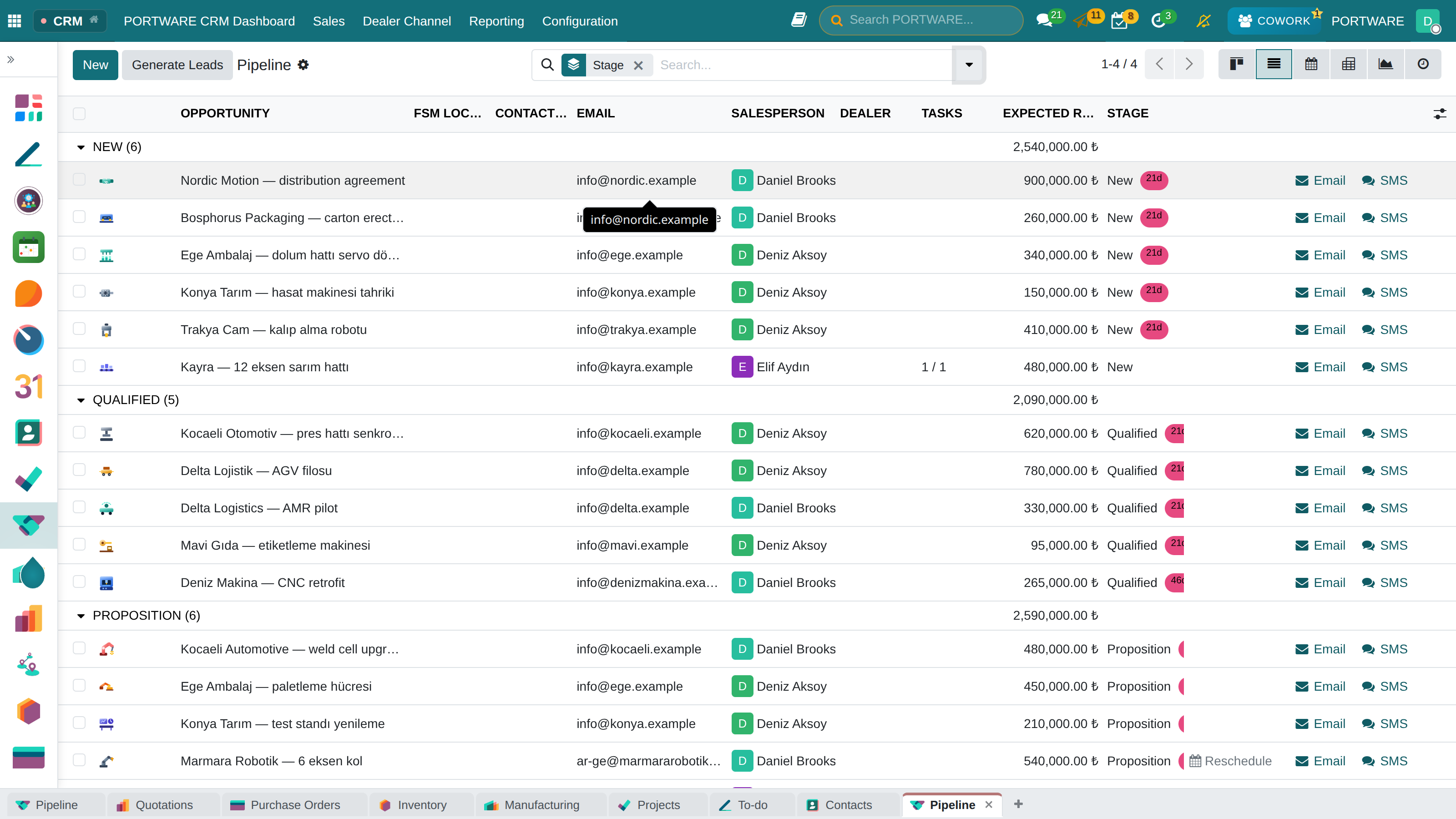
Opportunities grouped by stage — each stage's total expected revenue on its row
| Stage | Description | What to Do at This Stage | Probability of Success |
|---|---|---|---|
| New | A newly created opportunity | Make first contact, analyse the need | 10% |
| Qualified | Meets the BANT criteria | Plan a detailed meeting or a demo | 20% |
| Proposition | Quotation sent | Prepare, send and follow up the quotation | 40% |
| Negotiation | Price/terms under discussion | Negotiate, answer objections | 60% |
| Won | Sale completed | Sign the contract, convert to an order | 100% |
Planning Activities: Miss Nothing
Activities are the heart of CRM. Managing them well is the key to sales success.
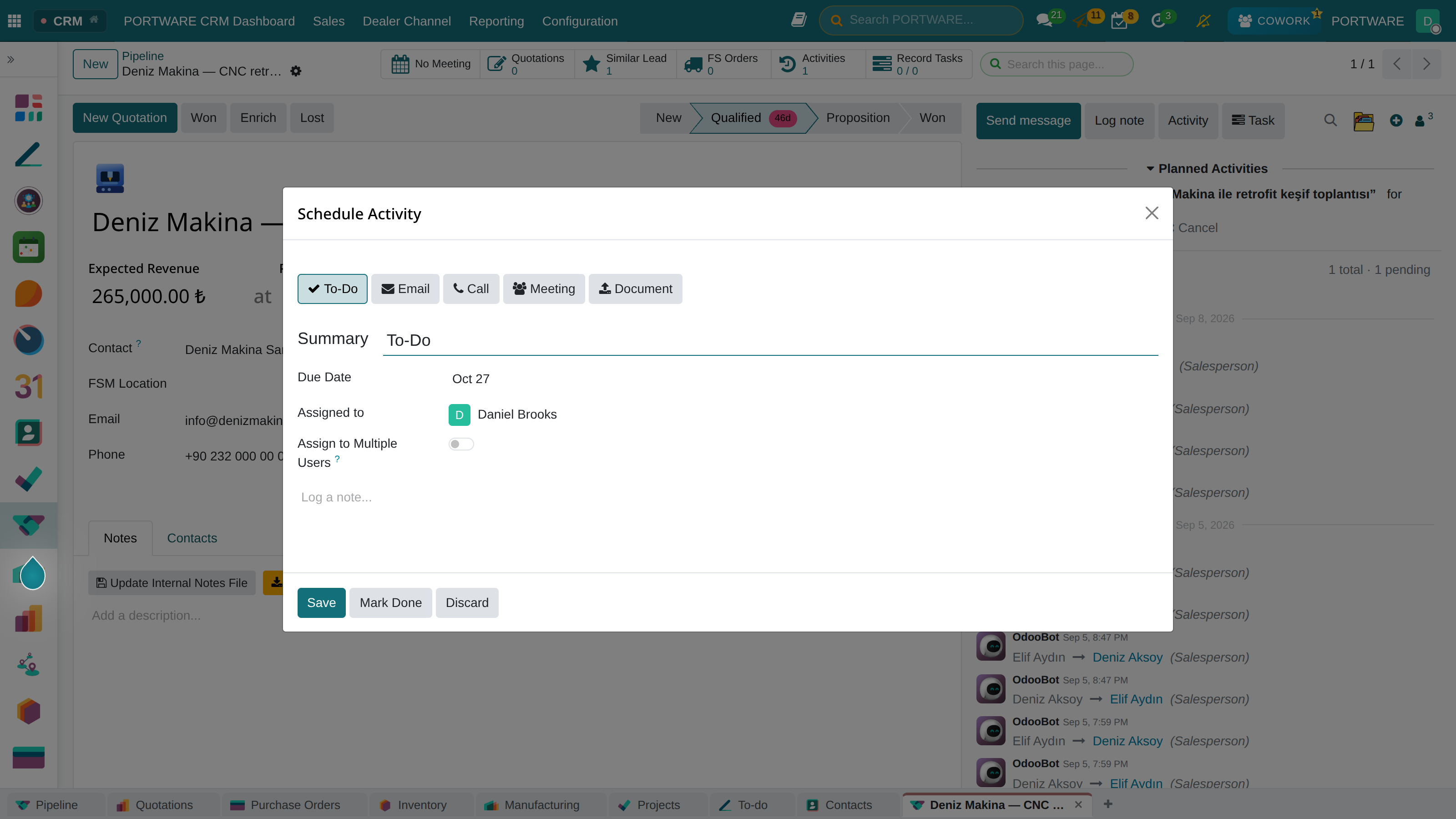
Schedule Activity — type, summary, due date and assignee, right on the record
Phone Call
Talking to the customer. The most effective way to get quick decisions and build a relationship.
Written communication. Ideal for sharing detailed information and sending quotations.
Meeting
In person or by video. For demos, presentations and closing meetings.
To-Do
General tasks: preparing quotations, research, internal coordination.
Scenario: Managing the Day's Activities
Situation: you have just arrived at work. What should you do today?
- Open the activity list: go to CRM > My Activities
- See today's activities: red (overdue), orange (today), blue (upcoming)
- Set priorities: finish the overdue activities first
- Take notes after each activity: a summary of the call, the next step
- Schedule the next one: after each completed activity, add the following one
Golden rule: an opportunity without an activity is a forgotten opportunity. Every opportunity must have a next activity.
Pipeline and Activity Management in PORTWARE
Customising Pipeline Stages
- Go to the menu
- Click a row to edit an existing stage or add one with New
-
Fill in these fields on the stage form:
- Stage Name: for example "Discovery Call", "Demo Done"
- Sequence: the order in the pipeline (smaller numbers to the left)
- Probability: the default win probability at this stage (%)
- Sales Team: select it if the stage belongs to one team
Changing an Opportunity's Stage
To move an opportunity to a new stage:
- In kanban: drag the opportunity card to the column you want
- On the opportunity form: click the stage buttons at the top or pick from the Stage drop-down
Scheduling Activities
- Open the opportunity and go to the Chatter panel on the right
- Click the Schedule Activity button
-
Fill in the activity form:
- Activity Type: Call, E-mail, Meeting, To-Do
- Summary: a short description (e.g. "Follow up on the price quote")
- Due Date: when the activity is due
- Assigned to: who will do it
- Click the Schedule button
Completing an Activity
- Click the Mark Done button on the activity card
-
In the window that opens:
- Feedback: write your meeting notes
- Optionally tick Next Activity and schedule the next one
- Click Done or Done & Schedule Next
Activity Views
You can view your activities in several ways:
- : the list of your own activities
- In the pipeline kanban, the coloured dots under each card show the activity status:
- 🔴 Red: an overdue activity
- 🟠 Orange: due today
- 🟢 Green: due later
- ⚪ Grey: no activity (watch out!)
Shortcuts
- Alt + Shift + H: schedule a call
- Alt + Shift + M: schedule an e-mail activity
- Alt + Shift + L: schedule a meeting
The Closing Process
Creating a Quotation
When your opportunity reaches the "Proposition" stage you need a professional quotation. In PORTWARE you go straight from CRM to the Sales module to create it.
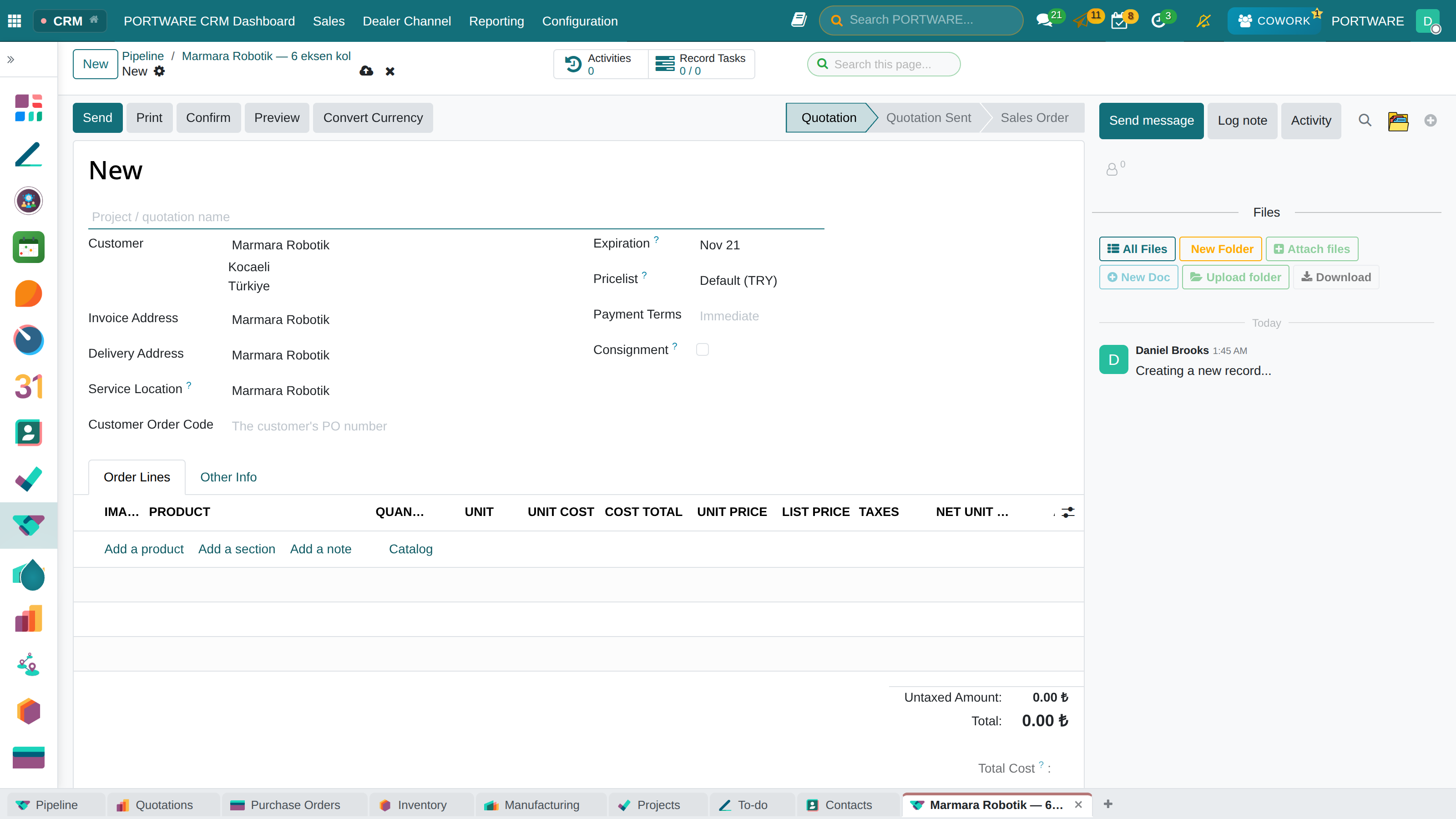
New Quotation — the opportunity's customer comes filled in; the quotation stays linked to it
-
Click "New Quotation" on the Opportunity
Use the "New Quotation" button at the top of the opportunity page.
-
Add the Products/Services
Select the products or services to quote and enter the quantities.
-
Set the Pricing
Set discounts, tax rates and the validity period.
-
Send the Quotation
Send it in a professional format with the "Send by E-mail" button.
Won / Lost
Every opportunity ends — you either win or lose. In both cases recording it properly matters.
When You Win
1. Move the opportunity to "Won"
2. Turn the quotation into an order
3. Send the customer a thank-you e-mail
4. Ask for a referral (at the right moment)
When You Lose
1. Mark the opportunity as "Lost"
2. Choose the lost reason (price, competitor, timing...)
3. Note what you learned
4. Plan to get in touch again in 6 months
Creating Quotations and Closing in PORTWARE
Creating a Quotation from an Opportunity
- Open the opportunity in CRM
-
At the top, click the New Quotation button
This button requires the Sales module integration.
-
On the Sales Quotation form that opens:
- Customer: filled in automatically (from CRM)
- Expiration: how long the quotation is valid
- Payment Terms: the terms (e.g. "30 Days")
-
Order Lines tab, use Add a line to add products/services:
- Product: the product or service to sell
- Description: a detailed description (filled in automatically, editable)
- Quantity: the number of units
- Unit Price: the sales price
- Disc. %: an optional discount
- Click the Save button
- Click the Send by E-mail button to send the quotation
Marking an Opportunity as Won
- Open the opportunity
-
At the top, the Won button
Or drag the opportunity to the "Won" column in kanban.
- The system sets the opportunity to "Won" and includes it in the statistics
Marking an Opportunity as Lost
- Open the opportunity
- Click the Lost button at the top
-
Choose the lost reason in the dialog:
- Lost Reason: "Too expensive", "Chose a competitor", "No longer needed", etc.
- Closing Note: a detailed explanation (optional but recommended)
- Click the Mark as Lost button
Reopening a Lost Opportunity
To reconsider a lost opportunity:
- On the screen choose Filters › Lost
- Open the opportunity
- Click the Restore button
- The opportunity returns to the pipeline
Configuring Lost Reasons
To add lost reasons specific to your company:
- Go to the menu
- Add a new reason with the New button
- Example reasons: "Insufficient budget", "Timing mismatch", "Technical requirements not met"
Customer Relations
The 360° Customer View
In PORTWARE every customer record brings together everything about that customer in one place:
Communication History
Every e-mail, call note and meeting record in chronological order.
Sales History
Every quotation, order, invoice and payment.
Support Tickets
Open and closed support tickets (with the Helpdesk integration).
Projects
The customer's projects and tasks (with the Project integration).
Customer Segmentation
Treating every customer the same way is inefficient. Group your customers with segmentation and apply the right strategy to each group:
| Segment | Definition | Strategy |
|---|---|---|
| VIP | High-volume, loyal customers | Special attention, priority support, senior-level relationship |
| Growth | Growing customers with high potential | Cross-selling and upselling opportunities |
| Standard | The middle segment that buys regularly | Efficient service, standard processes |
| At Risk | Falling purchases, signs of dissatisfaction | Proactive contact, problem solving, special offers |
The 360° Customer View in PORTWARE
Opening the Customer Card
- Click the name in the Customer field of an opportunity or lead
- Or search for the customer from the menu
Smart Buttons
The smart buttons at the top of the customer record:
- Opportunities (3): all the customer's CRM opportunities
- Sales (5): all sales orders
- Invoices (8): all invoices and their payment status
- Projects (2): the customer's projects
- Support (4): helpdesk tickets
Note: the buttons shown depend on the installed modules and the customer's activity.
Tagging for Customer Segmentation
- Open the customer record
- Click the Tags field
- Add segment tags: "VIP", "Growth", "At Risk", "Standard"
- Use these tags for filtering and reporting
Communication History (Chatter)
In the Chatter area at the bottom of the customer record:
- See every e-mail exchange
- Add internal notes ( Log note)
- Follow the activity history
- Attach documents ()
Sharing with several companies
The standard core gives an opportunity one company, and the multi-company rules hide it from every other company. The Shared with Companies field on the opportunity and project forms opens the record to the group companies working on the same customer — activity analysis, and on projects the tasks, milestones and updates, included.
Sharing is an access decision: the added company's users see the record and work on it. A salesperson limited to their own documents also sees the opportunities shared with their company.
Team Management
With more than one salesperson, team management becomes critical. In PORTWARE you can organise your sales team and follow its performance.
Sales Teams
Organise your teams by region, product line or customer segment:
- Regional: Istanbul team, Anatolia team, export team
- By product: software sales, hardware sales, service sales
- By segment: enterprise team, SME team, retail team
Lead Distribution
Leads can be assigned to team members automatically or by hand:
Round Robin
Leads go to team members in turn. It ensures an even distribution.
By Region
The lead goes to the representative for its location.
By Industry
The lead goes to the specialist for its industry.
Manual
A manager reviews each lead and assigns it to the right person.
Reports and KPIs
"You cannot manage what you do not measure." CRM reports help you understand and improve your sales performance.
Key Sales KPIs
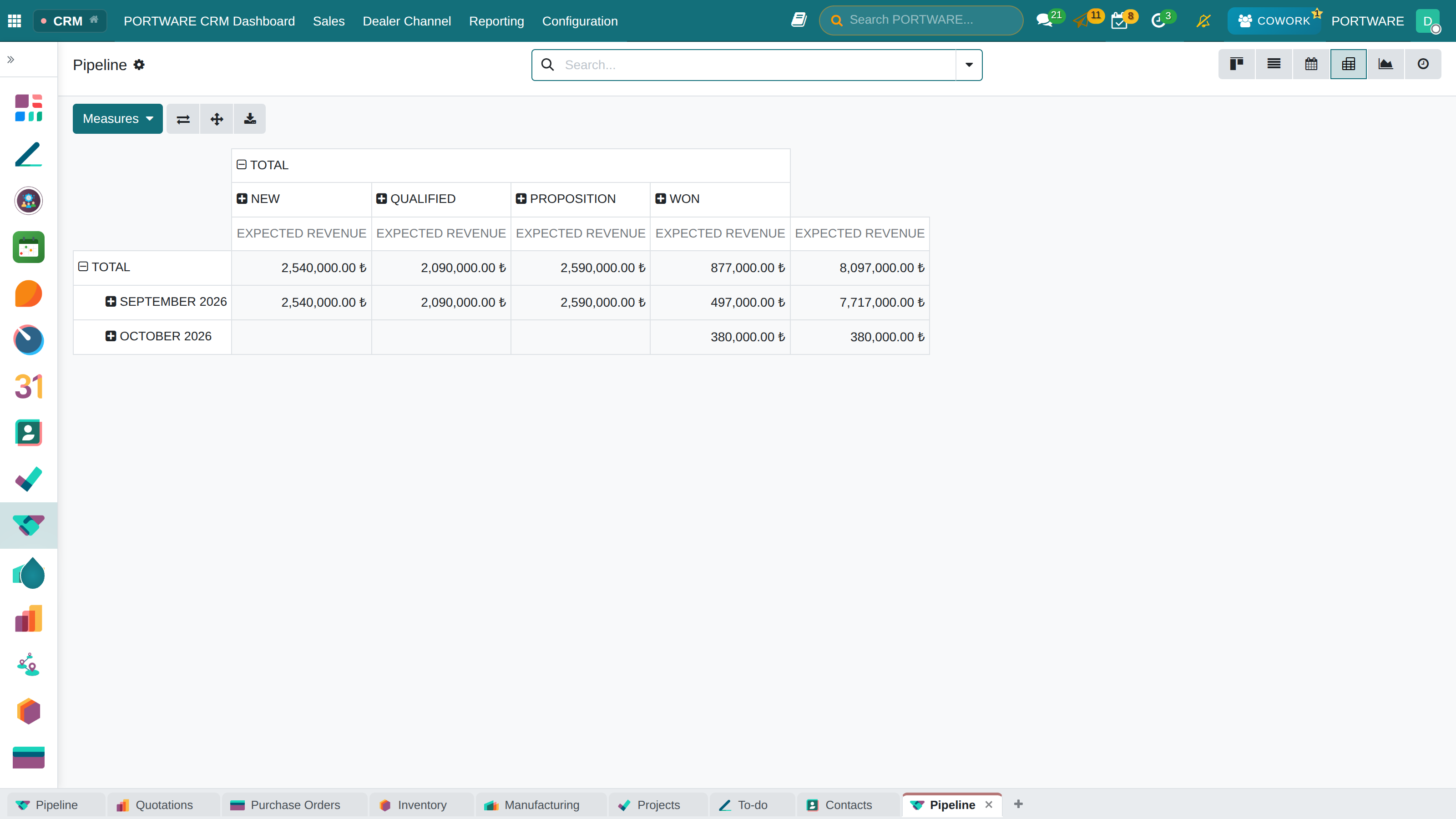
Pivot — expected revenue by stage and period; rows and columns open with a click
Sales Forecast
Forecast the expected revenue from the probabilities of the opportunities in your pipeline:
Revenue/expense analysis - a detailed view of your sales performance
| Stage | Number of Opportunities | Total Value | Probability | Expected Revenue |
|---|---|---|---|---|
| Qualified | 8 | ₺ 400,000 | 20% | ₺ 80,000 |
| Proposition | 5 | ₺ 350,000 | 40% | ₺ 140,000 |
| Negotiation | 3 | ₺ 200,000 | 60% | ₺ 120,000 |
| Total Expected Revenue | ₺ 340,000 | |||
CRM Reports and Analysis in PORTWARE
Pipeline Analysis
- Go to the menu
- The default view shows the pipeline value by stage
-
To customise the view:
- Bar chart
- Line chart
- Pie chart
-
Measures menu, choose the metrics you want to see:
- Expected Revenue: the total pipeline value
- Prorated Revenue: probability × expected revenue
- Count: the number of opportunities
Sales Forecast
- Go to the menu
- See the expected revenue by month or quarter
-
Group By menu:
- Group by salesperson
- Group by sales team
- Group by month/quarter
Conversion Rate Analysis
- Go to the menu
- Choose the period with Filters
- Calculate the won/total ratio in the pivot view
Activity Report
- Go to the menu
- Analyse the completed activities by activity type and person
- See which activities are done most with Group By › Activity Type
Exporting a Report
To export any report to Excel:
- In the report view click the Export button
- Choose XLSX or CSV as the format
- The file is downloaded automatically
Building Your Own Dashboard
To add the reports you use most to a dashboard:
- In the report view choose Favorites › Add to Dashboard
- Enter a dashboard name and save
- Reach this view quickly from the dashboards on the home screen
Integrations
CRM and the Sales Module
Your CRM opportunities connect seamlessly to the Sales module:
E-mail Integration
PORTWARE can integrate your e-mail inbox with CRM:
- Automatic linking of incoming e-mails: e-mails from the customer are added to the related record
- Sending e-mail from CRM: e-mail the customer without leaving the system
- E-mail templates: ready-made templates for recurring e-mails
- Bulk e-mail: send campaign e-mails