PORTWARE++ Modules
PORTWARE++, the PORTWARE module family added on top of the open-source core
- The layer the core lacksOffice documents, a knowledge base, diagrams and tables — inside the system.
- Files never leave the systemA document opens on the record, is versioned and discussed there.
- One interfaceNo new tool to learn; everything on the same screen.
Overview
PORTWARE++ is a family of custom modules added on top of the open-source core. These modules turn PORTWARE into a more powerful, user-friendly and efficient ERP platform.
What is PORTWARE++?
PORTWARE++ (PORTWARE Plus Plus) is a set of custom modules developed by AXES MOTION and fully compatible with the open-source core. These modules provide:
- Notion-style knowledge management: a hierarchical page structure, workspaces and a rich content editor with SOTION
- Office document editor: edit Word, Excel and PowerPoint files directly inside PORTWARE with PORTWARE Office
- Diagram builder: create Draw.io diagrams in HTML fields with SODRAW
- Advanced table editor: Excel-like table features with exTable
- User experience improvements: app icons, search features and more
Module List
SOTION
A Notion-style knowledge management system. Hierarchical pages, workspaces, variables and labels.
v19.0.1.5.0PORTWARE Office
Office document editor integration. Real-time co-editing for Word, Excel and PowerPoint.
v19.0.5.3.10SODRAW
Draw.io diagram editor integration. Quick diagram creation with the "/" command.
v1.0.0exTable HTML Editor
Excel-like table features. Multi-cell selection, copy/paste, keyboard navigation.
v19.0.1.4.0App Icons Menu
Icons in the app menu. Shows app icons in the navbar dropdown.
v19.0.1.0.1App Sidebar Search
Search in the sidebar. Quick filtering and navigation between apps.
v19.0.1.0.0PORTWARE Documentation
Documentation server. HTML documentation at /portware/doc and /portware/help.
v19.0.1.0.0SOTION - Knowledge Management System
SOTION is a knowledge management system inspired by Notion. Manage your documents professionally with a hierarchical page structure, workspaces, variables and a rich content editor.
Screenshots
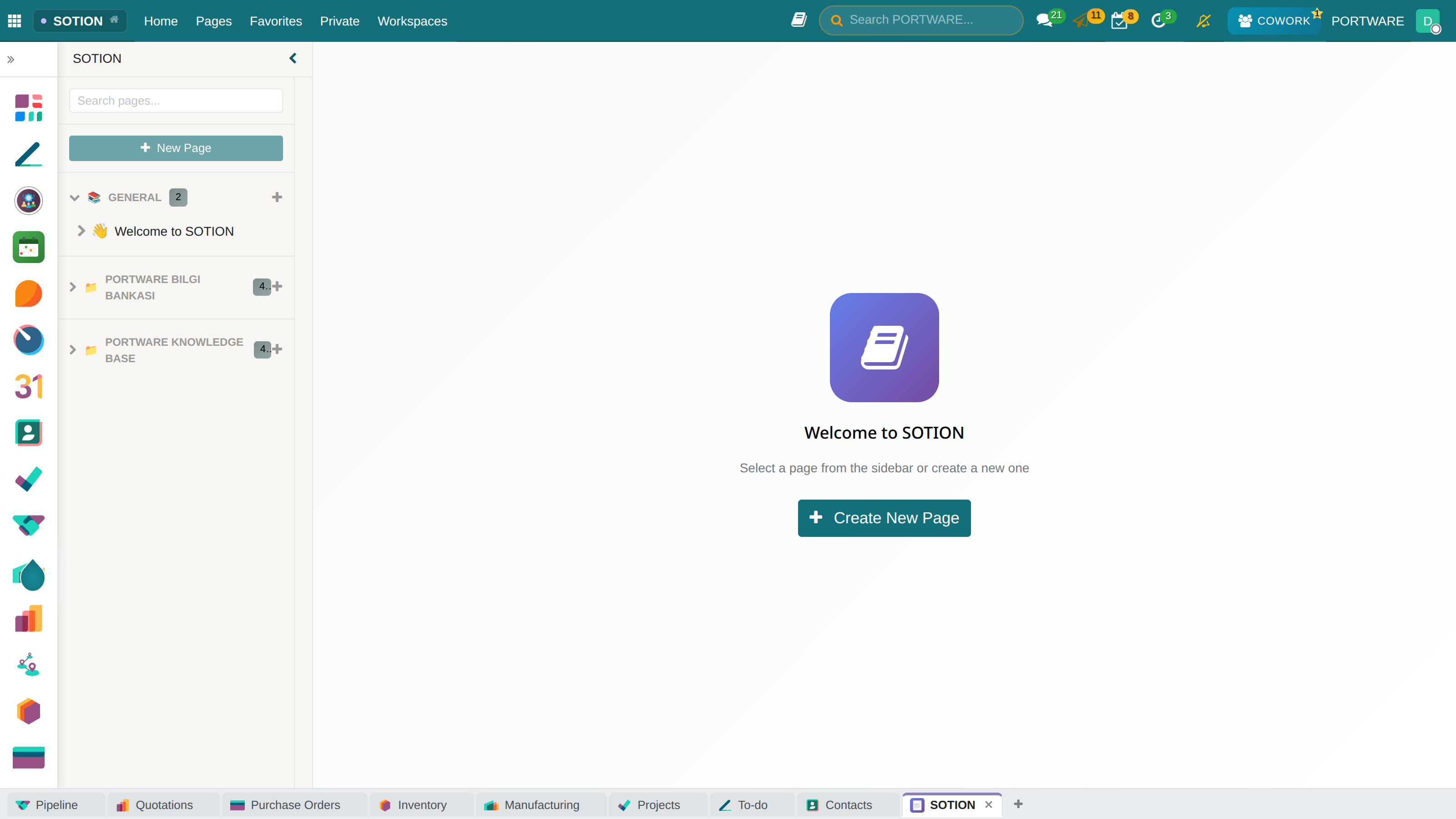
SOTION - Main application screen
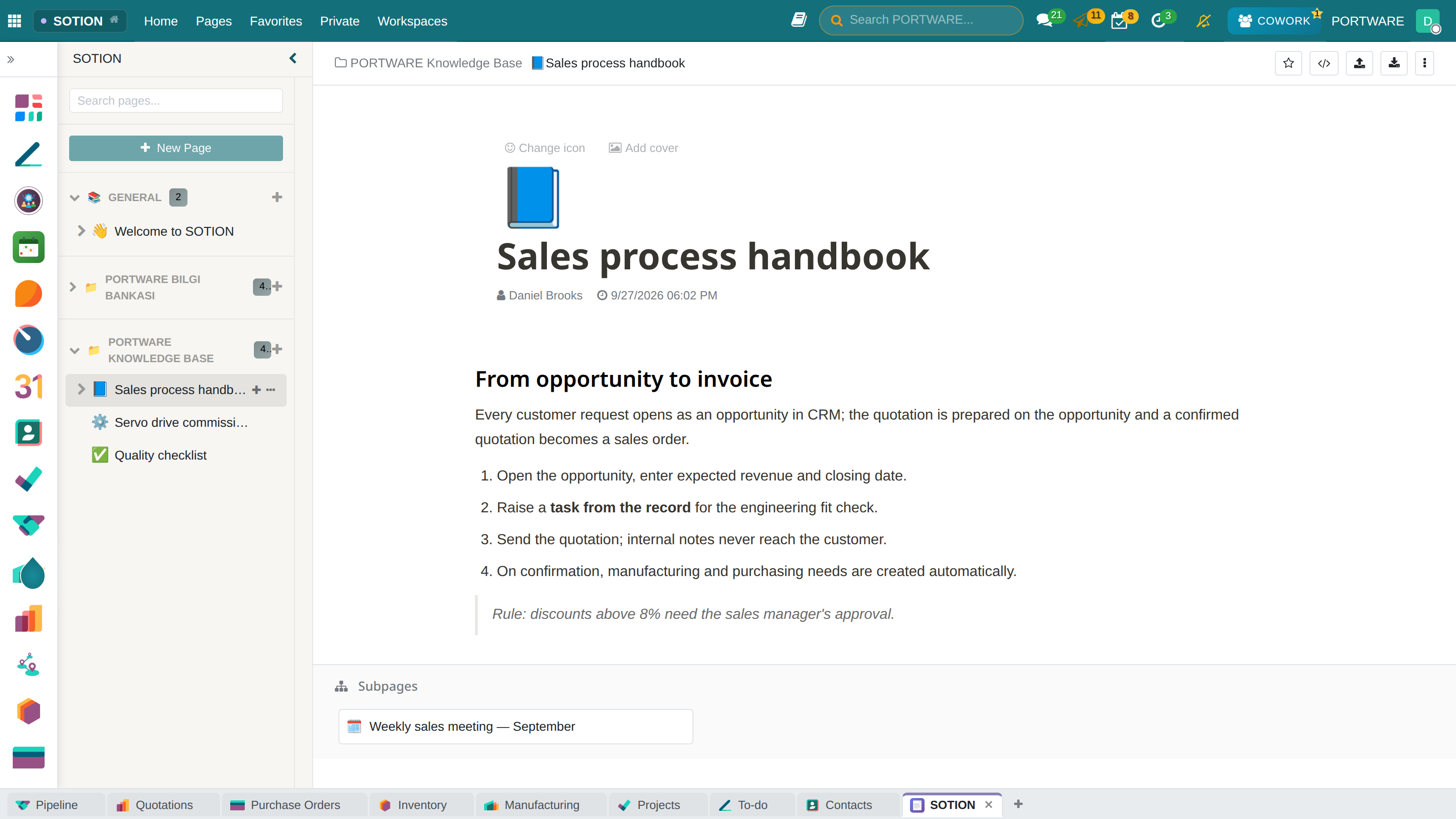
SOTION — workspace, page tree and a handbook page; sub-pages below
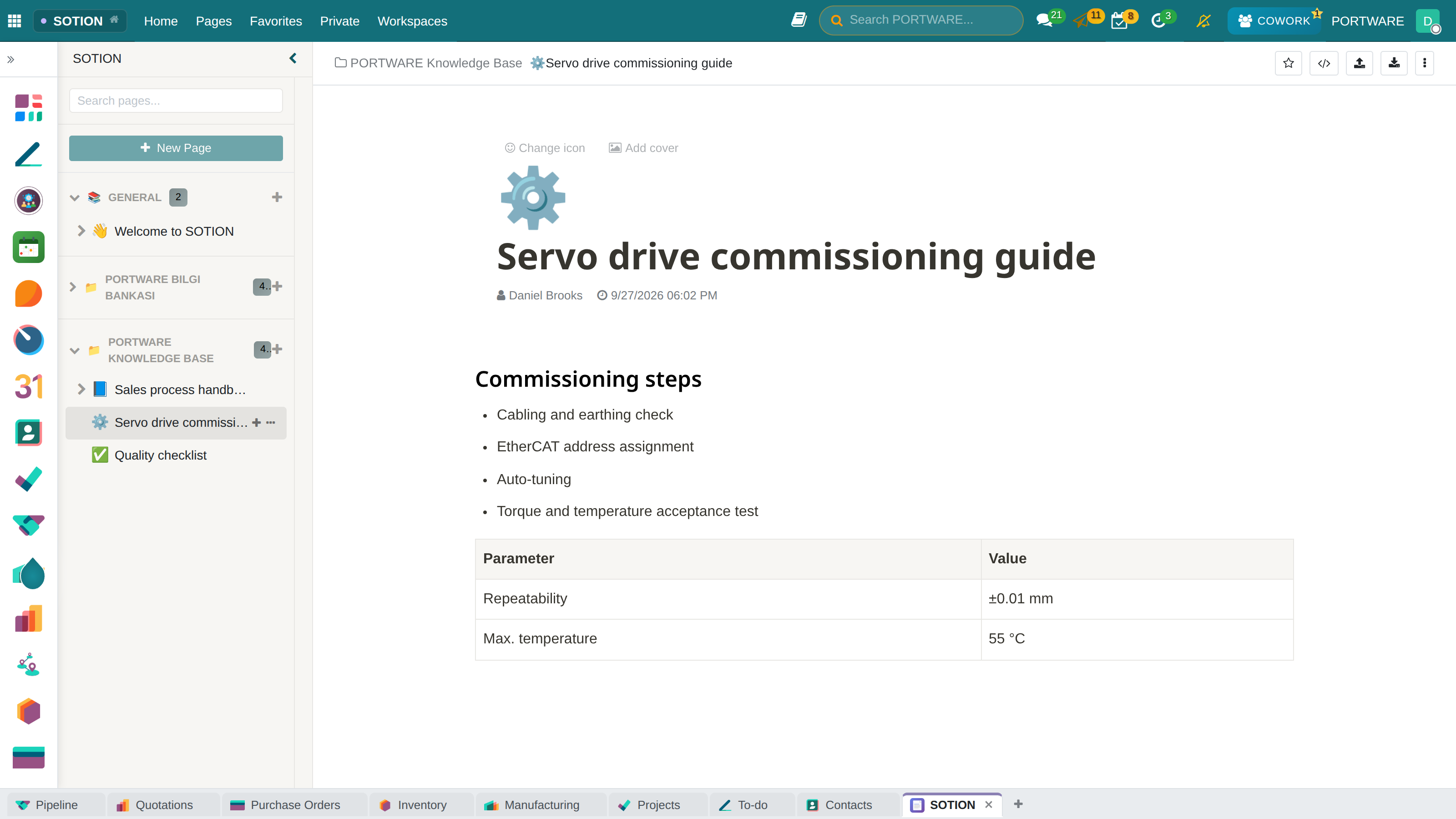
A guide page — headings, a checklist and a table on one page
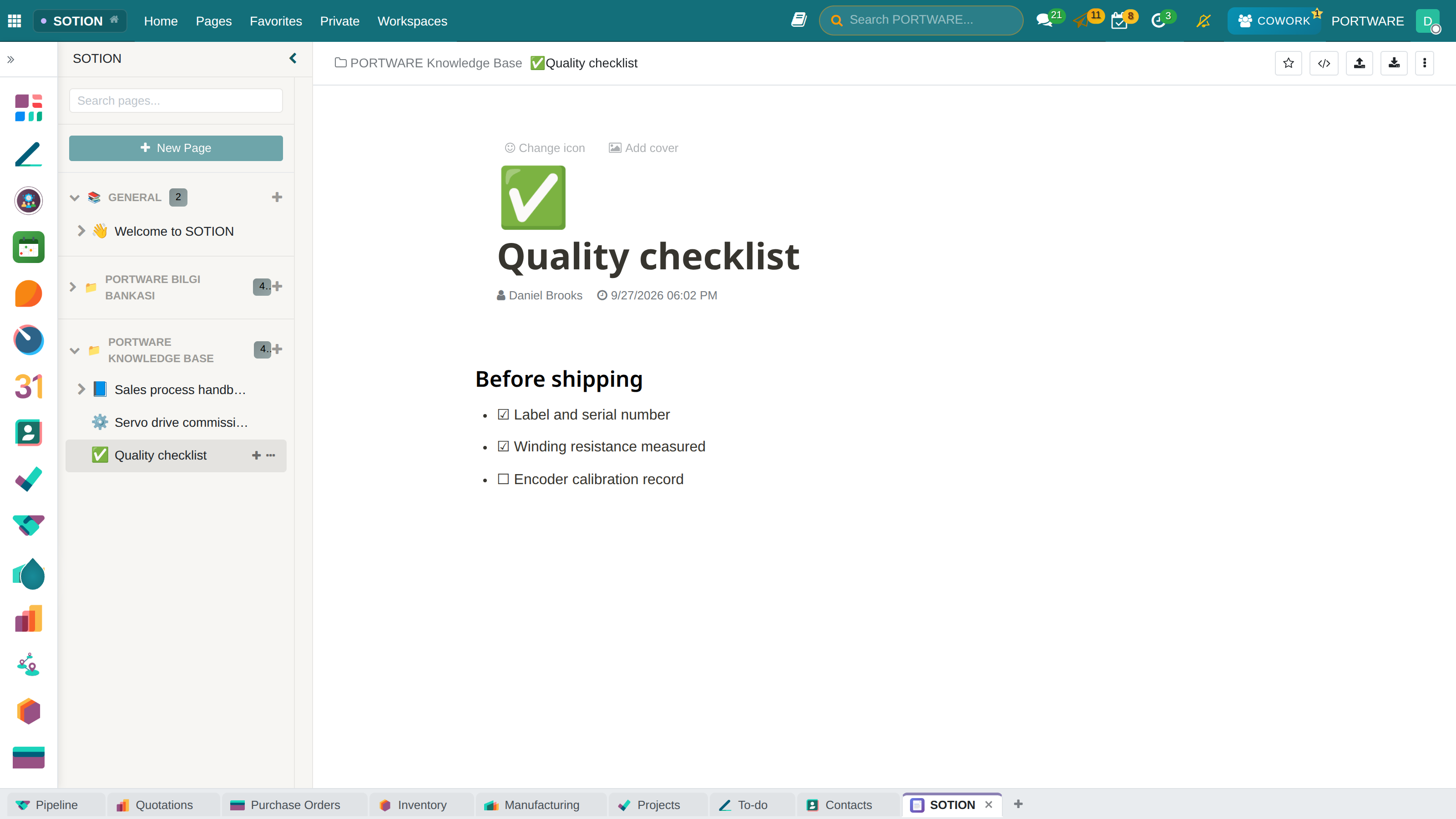
A checklist page — ticked and open items
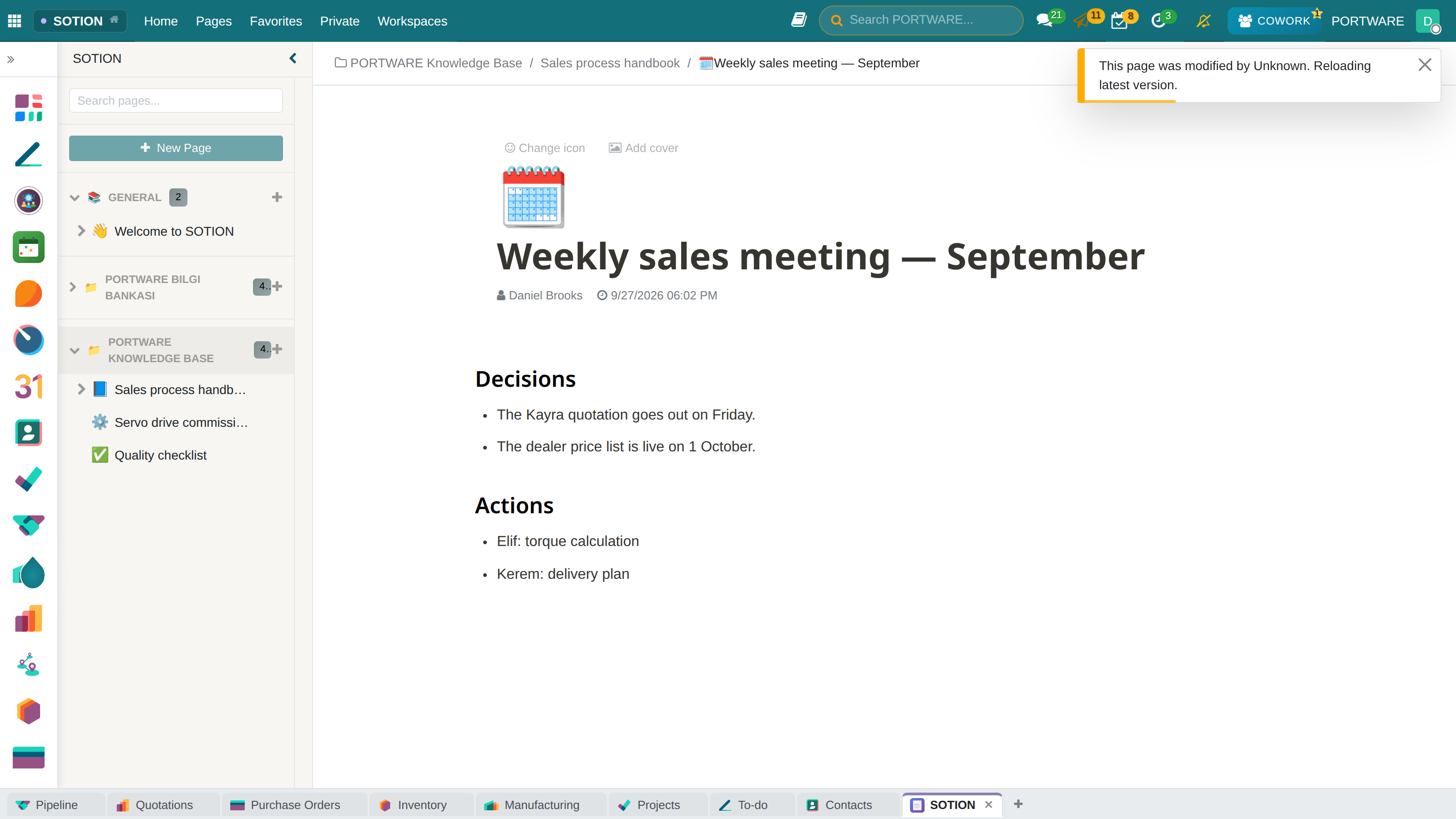
A sub-page — meeting decisions and actions, under its parent page
SOTION - Published page view
SOTION - Page publishing options
SOTION - Page properties and labels
SOTION - Variable system
SOTION - Variable management panel
SOTION - Rules and table view
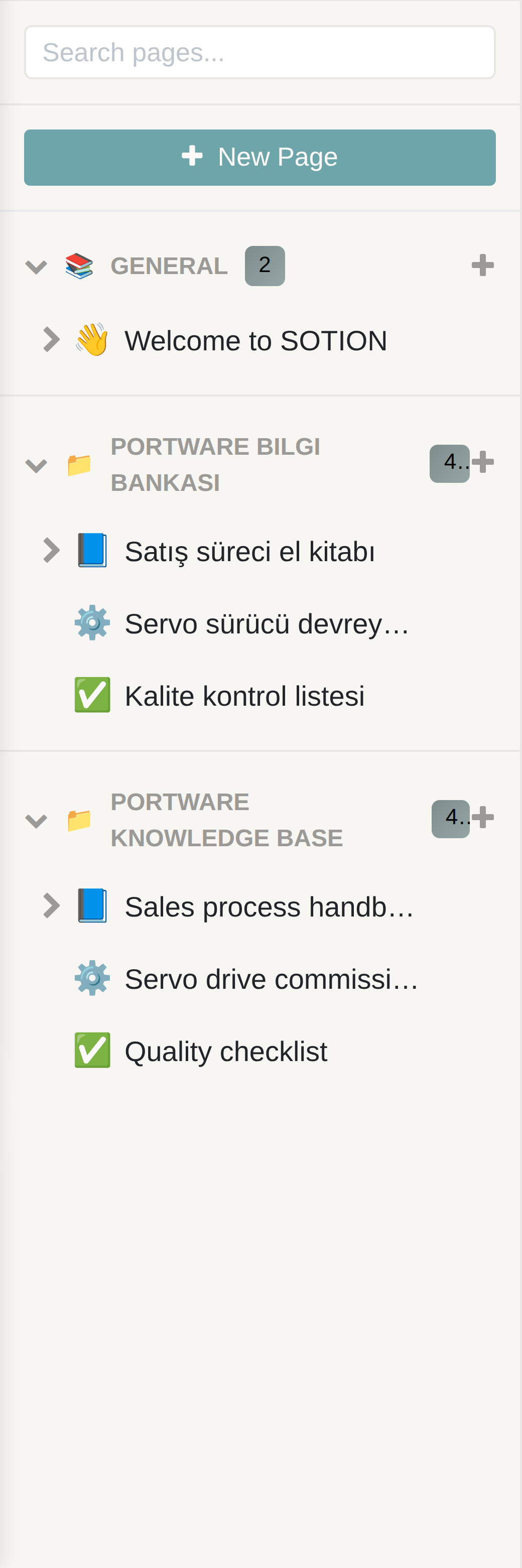
The sidebar — workspaces and the pages inside them
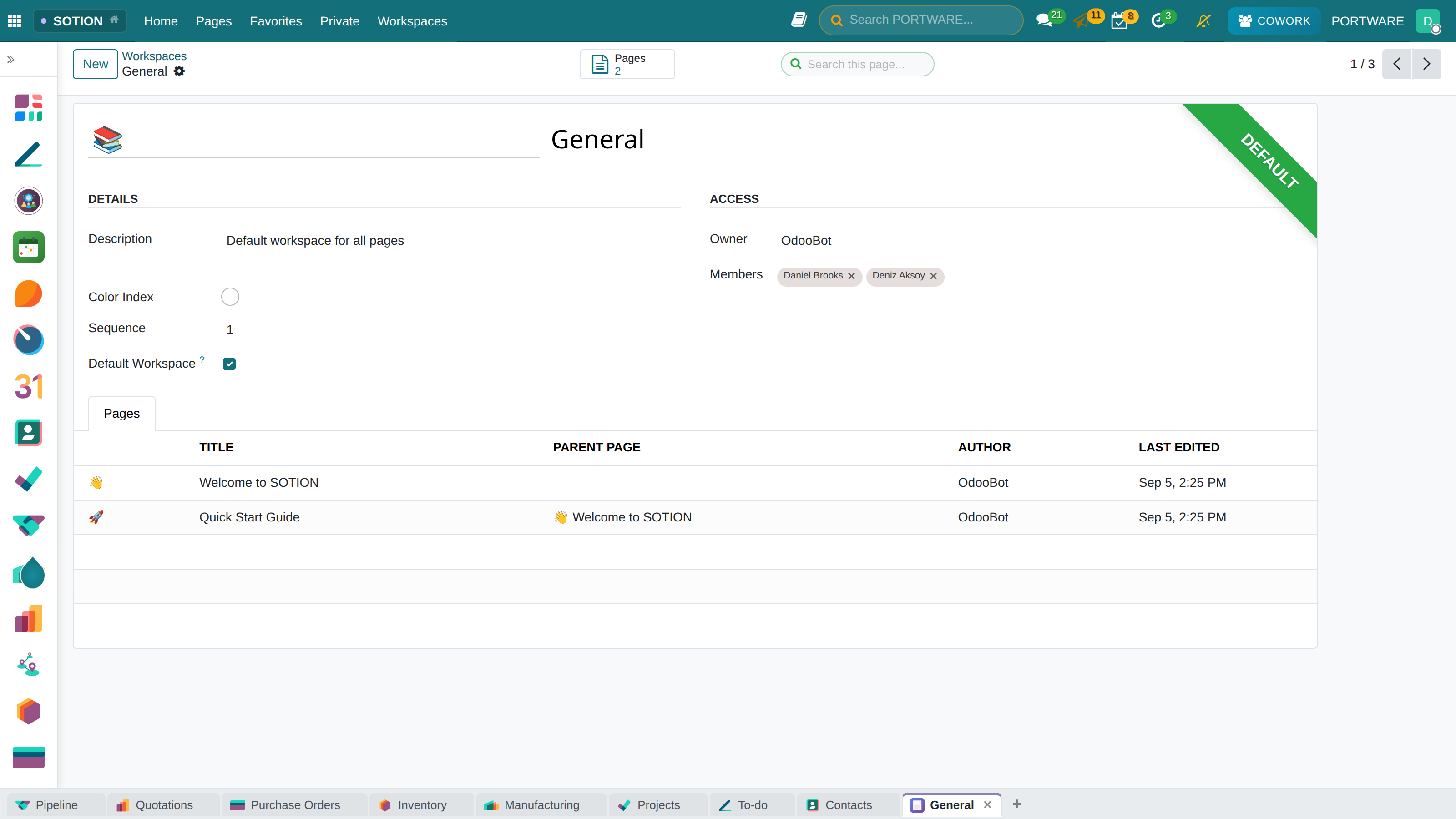
SOTION - Workspace detail view
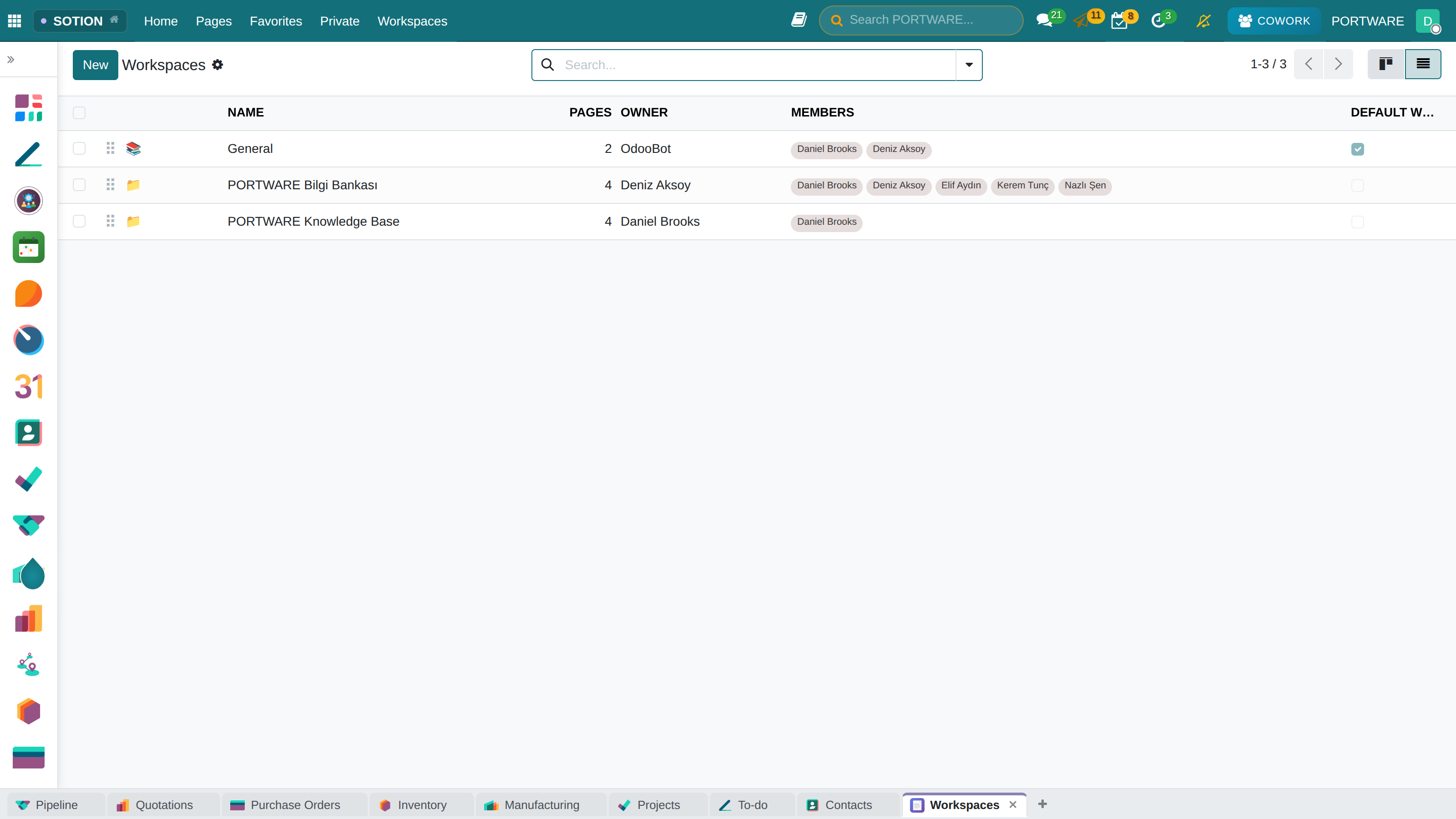
SOTION - Workspace settings
Key Features
- Hierarchical pages: build an unlimited nested page structure
- Workspaces: organise pages by workspace
- Private and favourite pages: personal pages and favourites
- Variable system: dynamic content with the
{{variable_name}}syntax - Select properties: status labels with the
[[property]]syntax - Emoji icons: a custom emoji icon for every page
- Cover images: cover image support for pages
- Real-time collaboration: live updates through the bus module
Variable System
SOTION lets you use variables in page content. Variables are defined with the {{variable_name}} syntax and are replaced automatically with their values.
Select Properties
Like Notion's status labels, SOTION offers select properties. Use the [[property_name]] syntax to create coloured status labels.
| Colour Index | Colour | Example Use |
|---|---|---|
| 0 | Grey | Draft, On hold |
| 1 | Red | Cancelled, Rejected |
| 2 | Orange | Attention, Under review |
| 3 | Yellow | In progress |
| 4 | Green | Done, Approved |
| 5 | Blue | Info, Reference |
PORTWARE Office - Office Document Editor
PORTWARE Office is an advanced integration for editing Office documents inside PORTWARE. Working with OnlyOffice Document Server, it lets you edit Word, Excel and PowerPoint files directly in your browser.
Screenshots
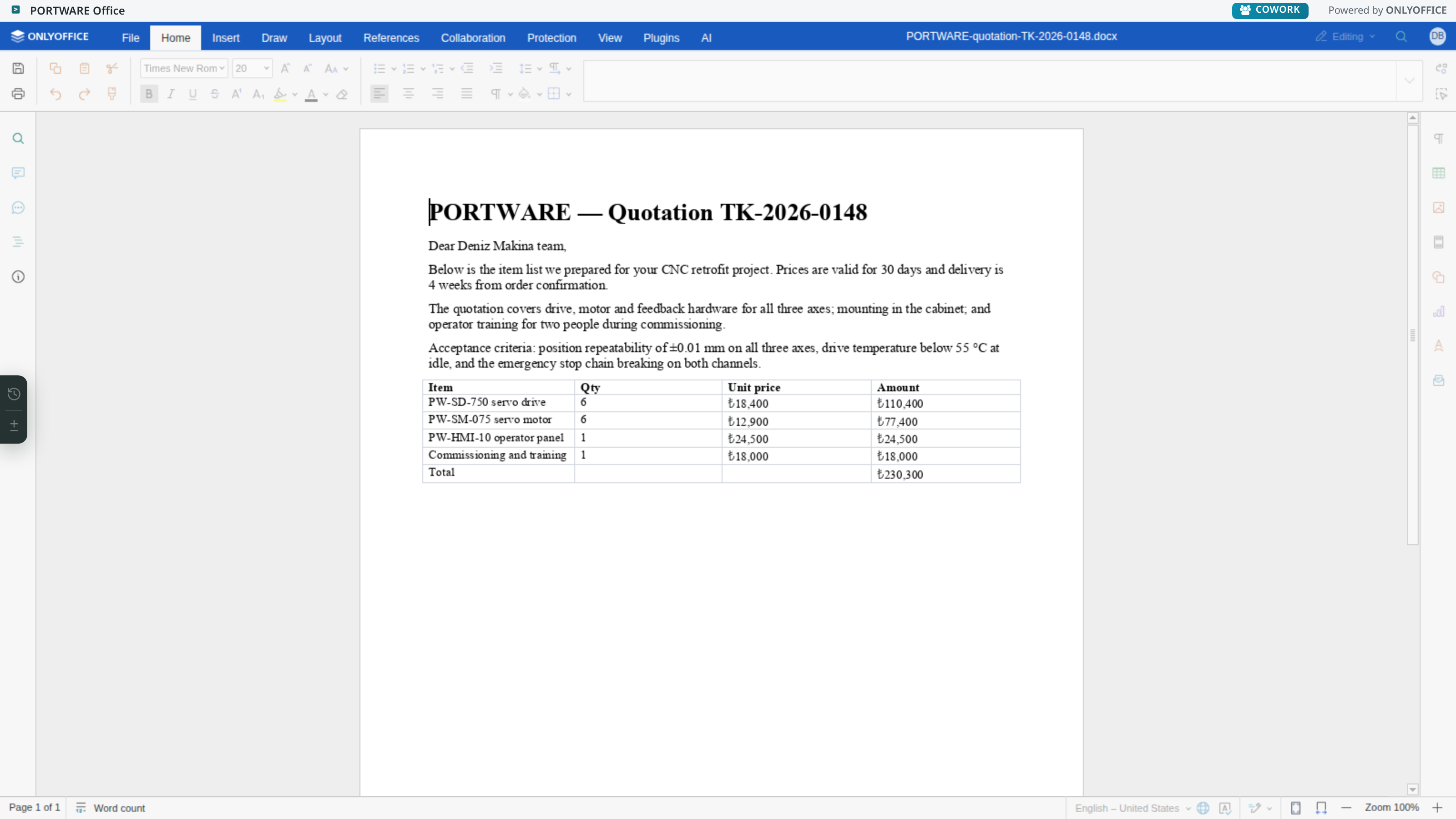
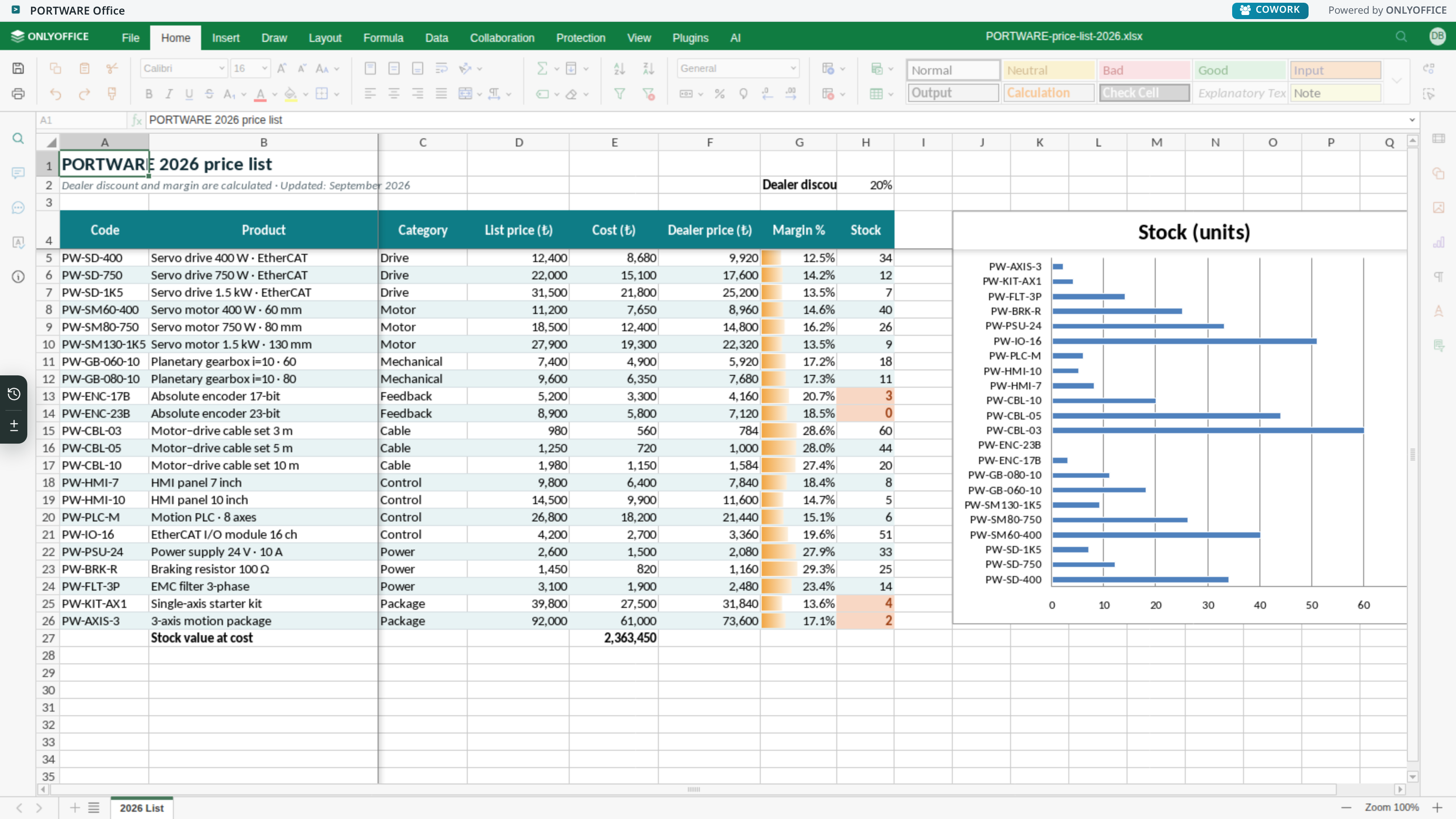
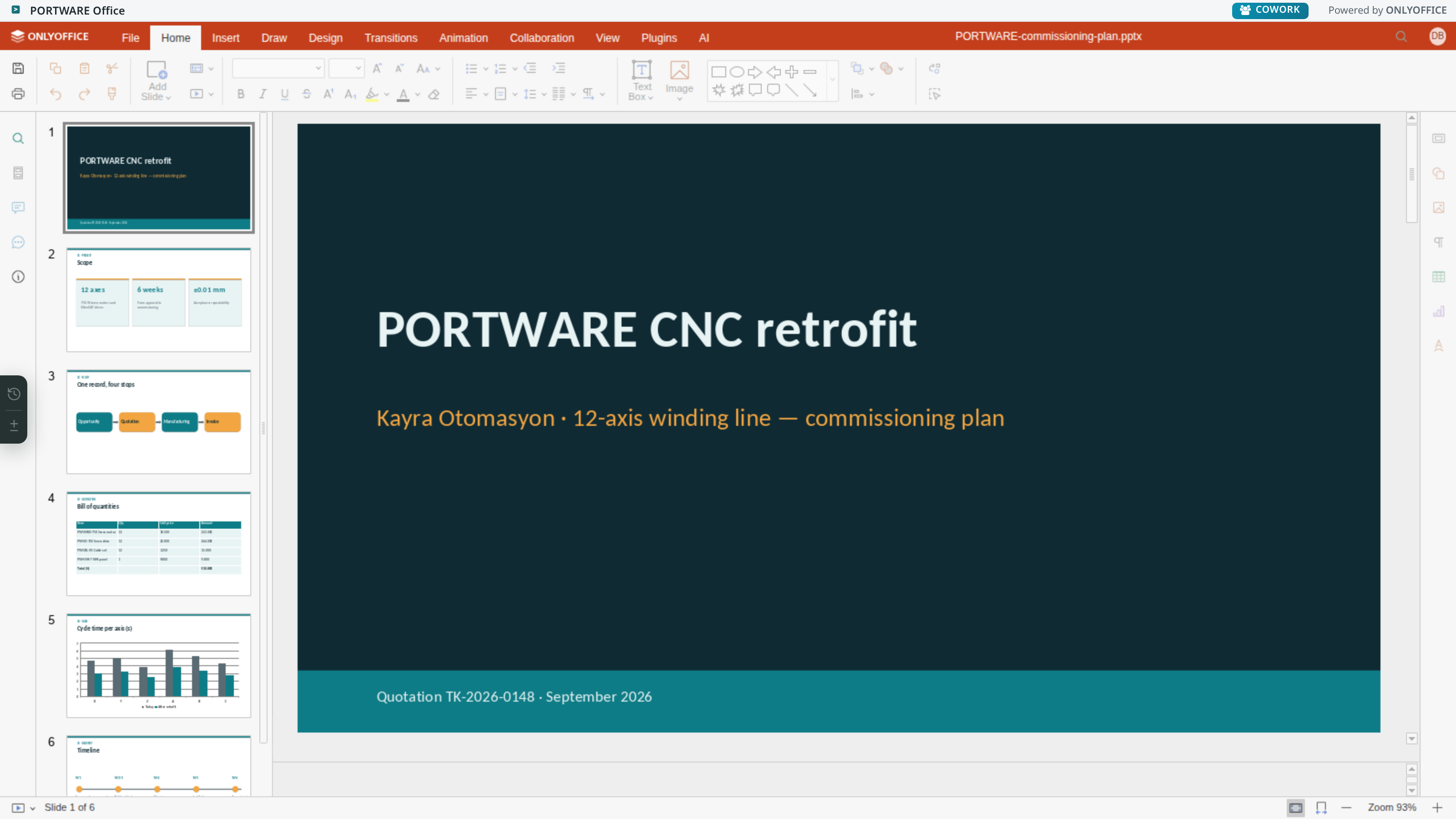
PORTWARE Office - Editing mode view
PORTWARE Office - Creating a new document
PORTWARE Office - Version control system
PORTWARE Office - Version history view
Version diff: go to the change, restore piece by piece
The Version diff button on the editor's left edge opens a panel docked to the right of the document. The editor narrows but stays open: the change you pick in the panel stays visible in the document.
- Choose two versions. The comparison refreshes as soon as you choose; ⇄ reverses the direction. In Excel changes are grouped by sheet, in a presentation by slide.
- Filter and search. The added / changed / deleted counts at the top are also filters; the search box searches cell addresses and text. In a long text only the changed words are marked.
- Go to the change. Click a row or press the ⌖ button: in Excel the sheet switches (the tab changes) and the cell is highlighted yellow for a moment — then the highlight goes, the cell's old formatting (including having no fill) is put back exactly and the cell stays selected. In Word the paragraph is selected; in a presentation the slide opens. On the keyboard, move between rows with ↑/↓ and go with Enter.
- Who changed it, and when? Press the person icon on the row: the server reads that spot version by version and writes under the row the version in which the new value first appeared, its date and who saved it. Even if you compare across twenty versions, the answer shows the right version in between; if it cannot be sure it does not guess, and says "not visible in the versions in between".
- Formatting and objects show too. Not only text: cell fill, font colour, bold/italic, number format, borders; a shape's fill and outline; charts, images and shapes added or deleted are listed as separate rows. A colour change is shown on the row with a small colour swatch.
- Restore piece by piece. The ↺ button writes the old value into the open document; tick several changes and choose Restore selected. On rows where the same fix repeats (such as ×36), one click reverts them all, and show all places takes you to each one.
- Safe. If a spot was changed again after that version, it is not overwritten; it is skipped and you are told. A restore is a normal edit in the document: Ctrl+Z undoes it, and co-editors see it.
- The whole version. A button at the bottom such as Restore version v3 brings that version back as a new version; no version is ever deleted.
- Every restore asks first. To guard against a slip, the panel asks "restore this?" and says what will be written; Esc or Cancel writes nothing.
In a comparison opened from the attachment list, every row has Open this change in the editor: the document opens with the same comparison and goes to that change.
With Cowork AI: for requests such as "What has changed in this file since last week?", "Who changed B7?" or "Bring back the prices from version 3", Cowork can read the version history, the difference between two versions and the text of an old version; with your approval it restores the whole version or (when the document is open in the editor) the selected changes.
PORTWARE Office - Editing a SODRAW diagram
PORTWARE Office - Saving a SODRAW diagram
Supported Formats
| Document Type | Formats | Features |
|---|---|---|
| Text Documents | .docx, .doc, .odt, .txt, .rtf | Full editing, revisions, comments |
| Spreadsheets | .xlsx, .xls, .ods, .csv | Formulas, charts, pivot tables |
| Presentations | .pptx, .ppt, .odp | Slides, animations, transitions |
Co-editing Modes
Fast Mode
Changes appear instantly. Suited to several users working at the same time. Requires close collaboration.
Strict Mode
Changes appear when saved. Prevents conflicts. Ideal for individual work.
Features
- Real-time collaboration: several users can edit the same document at the same time
- Change tracking: see who changed what with Track Changes
- Comments and chat: hold discussions inside the document
- Version history: go back to and compare previous versions
- Templates: use your company templates
- PDF output: export documents as PDF
SODRAW - Diagram Editor
SODRAW integrates the Draw.io diagram editor into the system's HTML editor. Create diagrams quickly with "/" commands and edit existing diagrams.
Screenshots
SODRAW - Draw.io diagram editor
SODRAW - Diagram inside a Word document
SODRAW - OLE embed test view
SODRAW - Diagrams in a PowerPoint presentation
Usage
Features
- Slash command: start by typing
/sodrawor/diagram - Re-editing: double-click an existing diagram to edit it
- High quality: PNG output at 10x scale (high resolution)
- XML storage: the diagram XML is stored in a data attribute
- Draw.io compatibility: all Draw.io shapes and templates are supported
Diagram Types
| Type | Description | Example Use |
|---|---|---|
| Flowcharts | Visualising process flows | Business processes, approval flows |
| Organisation Charts | Hierarchical structures | Company structure, teams |
| ER Diagrams | Database relationships | Data modelling |
| Network Diagrams | Network topology | Infrastructure documentation |
| UML Diagrams | Software modelling | Class, sequence, use case |
| Wireframe | Interface mock-ups | UI/UX design |
exTable - Advanced Table Editor
exTable HTML Editor adds Excel-like table features to the system's HTML editor: efficient table editing with multi-cell selection, copy/paste and keyboard navigation.
Features
- Multi-cell selection: select several cells with Shift+Click or by dragging
- Copy/paste: copying from and to Excel
- Keyboard navigation: move with the arrow keys, Tab and Enter
- Cell formatting: bold, italic, underline, alignment
- Background colour: a cell background colour picker
- Text style: UPPER CASE, Title Case, lower case
- Border styles: cell borders (style, width, position)
- Right-click menu: insert, delete and move rows and columns
Keyboard Shortcuts
| Shortcut | Action |
|---|---|
| Tab | Go to the next cell |
| Shift + Tab | Go to the previous cell |
| Enter | Go to the cell below |
| Arrow Keys | Navigate with the arrow keys |
| Ctrl + C | Copy the selected cells |
| Ctrl + V | Paste |
| Ctrl + B | Bold |
| Ctrl + I | Italic |
App Icons Menu
The App Icons in Menu module adds app icons to the apps dropdown in the navbar (the nine-dot menu), so apps are recognised faster.
Features
- Icons in the navbar apps menu
- The same images as the icons on the Apps page
- Automatic - no extra configuration needed
- Minimalist, clean design
web module and becomes active automatically after installation.