Accounting & Financial Management
PORTWARE Accounting module - the main menu and quick access panel
- Accounting that comes from the workThe delivery produces the invoice and the invoice produces the entry; nobody types the ledger afterwards.
- Built for TürkiyeThe uniform chart of accounts, VAT withholding and e-Invoice / e-Archive integration.
- From accounting to managementThe same entries flow into the scorecard, the statements and the budget.
Overview
What You Will Learn in This Section
- The role of the Accounting module in business processes
- The basic logic of double-entry bookkeeping
- How ERP accounting compares with traditional methods
- The Turkish localisation of the PORTWARE Accounting module
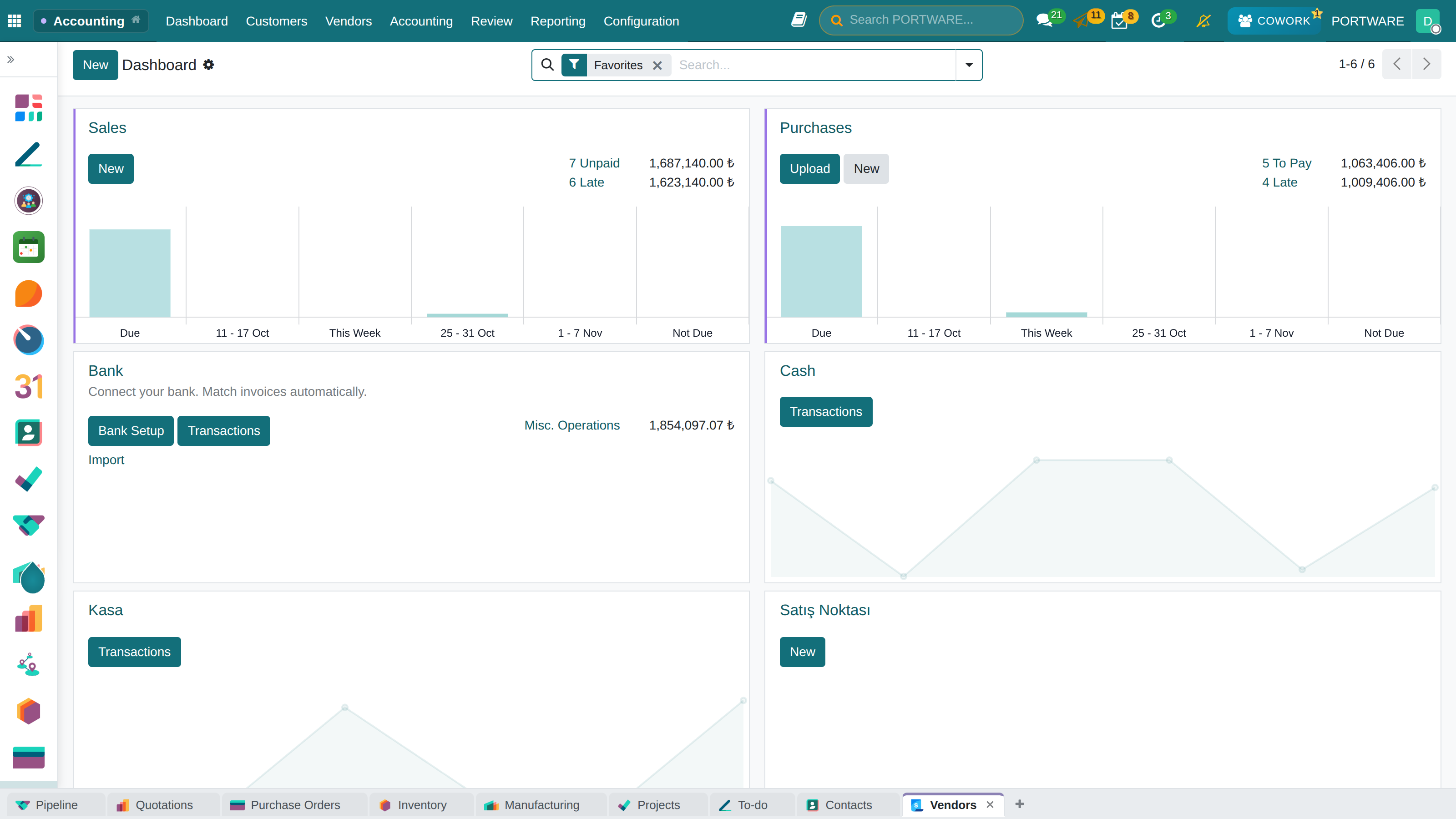
PORTWARE Accounting module - the main menu and quick access panel
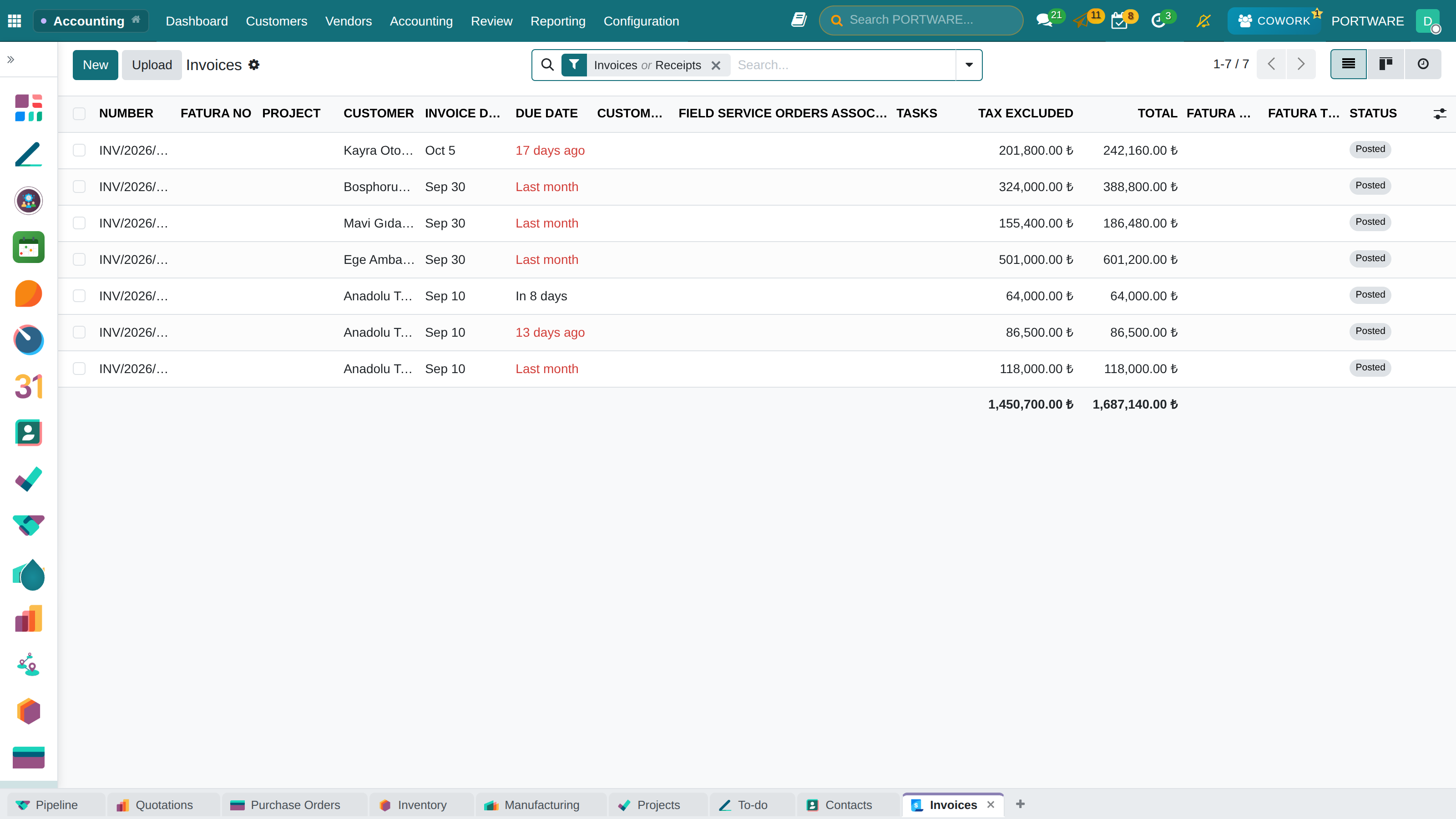
Customer invoices — due date, untaxed amount, total and payment status
Accounting is the heart of every business. When you sell, income is recorded; when you buy, an expense is recorded; when employees are paid, liabilities fall. Together, these financial movements tell a story that reflects the true state of your company.
The PORTWARE Accounting module lets you tell that story accurately, completely and in line with the law. Built on the world's most widely used open-source business-management core, it meets the financial management needs of companies of every size, from SMEs to large enterprises.
The Accounting Cycle
Understanding the basic accounting cycle that repeats every month is key to understanding the system's logic:
PORTWARE Accounting Features
Invoicing
Customer and vendor invoices, credit notes, e-Invoice integration
Payment Management
Cash, transfer, cheque and online payment methods with automatic reconciliation
Bank Integration
Bank account synchronisation, automatic matching, reconciliation models
Financial Reports
Balance sheet, income statement, cash flow, aged balance reports
Multi-Currency
Foreign currency transactions, automatic rate updates, exchange difference calculation
Turkish Compliance
e-Invoice, e-Archive, e-Ledger, the uniform (2KB) chart of accounts, Revenue Administration (GİB) integration
How to Do It in PORTWARE
Opening the Accounting app:
- Click the icon in the main menu
- Choose the app
- The Accounting Dashboard opens - pending invoices and operations are shown
Initial configuration:
- Go to
- Set the Fiscal Year and Default Currency
- Choose "2KB - Turkish Uniform" as the Chart of Accounts
- Check the VAT rates in the Tax Groups section
- Save
Understanding the dashboard:
- The Customer Invoices tile shows pending sales invoices
- The Vendor Bills tile shows purchase invoices to record
- The Bank & Cash tile shows transactions waiting for reconciliation
- Click the tiles to reach the related lists quickly
Why ERP Accounting?
We often hear: "I keep it in Excel and it works fine." But does it really? Let us look at the differences between traditional methods and ERP accounting:
Excel/Manual Accounting
- Every invoice is entered by hand
- Stock and accounting are tracked separately
- Bank reconciliation is done by hand
- Reports take hours
- High risk of error
- Historical data is hard to query
PORTWARE ERP Accounting
- Invoices are created automatically from sales
- Stock move = accounting entry
- The bank is synchronised and matched
- Reports are ready instantly
- Double-entry control
- The whole history can be queried
Scenario: Comparing the Month-End Close
❌ Excel/Manual Method:
- Enter all the invoices in Excel by hand (2-3 hours)
- Download the bank statement and compare by hand (1-2 hours)
- Investigate the unmatched items (1 hour)
- Calculate the VAT totals (30 min)
- Check the balance sheet and income statement formulas (1 hour)
- Fix the errors and recalculate (? hours)
Total: 6-8+ hours (if nothing goes wrong)
✅ PORTWARE ERP Method:
- Accounting → Reporting → Balance Sheet (ready, live)
- Accounting → Reporting → Profit and Loss (ready, live)
- Accounting → Reporting → Tax Report (VAT calculated automatically)
- Close the period (optional lock)
Total: 15-30 minutes
Key Concepts
To use the Accounting module well you need to understand a few basic concepts. They are not specific to PORTWARE; they are universal accounting principles.
Double-Entry Bookkeeping
Double-entry bookkeeping, the most important invention in the history of accounting, was developed by Italian merchants in the 15th century. Its logic is simple:
Example: A Product Sale of 10,000 TL (VAT included)
| Account | Debit (TL) | Credit (TL) | Description |
|---|---|---|---|
| 120 - Trade Receivables (Customers) | 11.800 | - | What the customer owes us increased |
| 600 - Domestic Sales | - | 10.000 | Sales revenue was earned |
| 391 - VAT Calculated | - | 1.800 | An 18% VAT liability arose |
| TOTAL | 11.800 | 11.800 | The equation balances ✓ |
Chart of Accounts Structure
Turkey uses the Uniform Chart of Accounts (2KB). Accounts are categorised with 3-digit codes:
| Group | Code Range | Account Type | Example Accounts |
|---|---|---|---|
| 1 | 100-199 | Current Assets | 100-Cash, 102-Banks, 120-Trade Receivables, 153-Inventory |
| 2 | 200-299 | Non-Current Assets | 253-Fixtures, 254-Vehicles, 257-Accumulated Depreciation |
| 3 | 300-399 | Short-Term Liabilities | 320-Trade Payables, 360-Taxes Payable, 391-VAT Calculated |
| 4 | 400-499 | Long-Term Liabilities | 400-Bank Loans |
| 5 | 500-599 | Equity | 500-Capital, 570-Retained Earnings, 590-Net Profit for the Period |
| 6 | 600-699 | Income | 600-Domestic Sales, 602-Other Income |
| 7 | 700-799 | Expenses | 760-Marketing Expenses, 770-General Administrative Expenses |
Journals
PORTWARE uses a separate journal for each type of transaction:
Sales Journal
Used for customer invoices and credit notes. A default income account is defined.
Purchase Journal
Used for vendor bills and expense invoices. A default expense account is defined.
Bank Journal
Used for bank transactions. A separate journal is created for each bank account.
Cash Journal
Used for cash transactions. Separate cash registers can be defined per branch or location.
Miscellaneous Journal
Used for special operations such as manual corrections, depreciation and exchange differences.
Creating a Customer Invoice
What You Will Learn in This Section
- Creating an invoice automatically from a sales order
- Creating a customer invoice manually
- Understanding invoice states and the workflow
- Sending and following up invoices
The customer invoice is the official financial document of a sale. In PORTWARE an invoice can be created in three ways:
Ways to Create an Invoice
1. Automatic Invoice from a Sales Order
The most common and recommended way. After the sales order is confirmed:
Creating a customer invoice - the screen for invoicing from a sales order
- Click the "Create Invoice" button on the sales order
- Choose the invoicing method:
- Regular Invoice: For the full order amount
- Down Payment: for a fixed amount or percentage
- Delivered Quantities: only for what has been shipped
- Check the invoice and click the "Confirm" button
2. Creating an Invoice Manually
To create an invoice directly, without a sales order:
Accounting → Customers → Invoices → New
- Customer: choose the customer to invoice
- Invoice Date: enter the invoice date
- Due Date: calculated automatically from the payment terms
- Invoice Lines: add the product/service, quantity and unit price
- Taxes are applied automatically (from the product and customer settings)
- Click the "Confirm" button
Invoice States
| State | Description | What You Can Do |
|---|---|---|
| Draft | The invoice was created but not confirmed yet | Can be edited or deleted |
| Posted | The invoice was confirmed and the accounting entry created | Send, Register Payment |
| Paid | Paid in full and reconciled | A closed transaction |
| Partially Paid | A partial payment was received; a balance remains | Follow up the remaining payment |
| Overdue | The due date has passed without payment | Start payment follow-up |
| Cancelled | The invoice was cancelled | A reversal entry was created |
Scenario: Invoicing a Service Sale
- Follow Accounting → Customers → Invoices → New
- Choose the customer in the Customer field (the payment term comes in automatically)
- Add the "Consulting Service" product to the invoice line
- Enter Quantity: 1, Unit Price: 50,000 TL
- VAT is calculated automatically (18% = 9,000 TL)
- Click the "Confirm" button (invoice no: INV/2026/0001)
- Send it to the customer with "Send by E-mail"
- 120 Trade Receivables: 59,000 TL (Debit)
- 600 Sales: 50,000 TL (Credit)
- 391 VAT Calculated: 9,000 TL (Credit)
How to Do It in PORTWARE
Creating a customer invoice manually:
- Follow
- Click the New button at the top left
- Choose the customer to invoice in the Customer field
- Check the Invoice Date field (default: today)
- Choose the due term in the Payment Terms field (e.g. 30 Days)
- In the invoice lines table, click Add a line and fill in:
- Product: choose the product or service sold
- Quantity: enter the number of units
- Unit Price: enter the price (it can come from the product)
- Taxes: filled in automatically from the product (e.g. 20% VAT)
- Check the invoice total at the bottom right
- Finalise the invoice with the Confirm button
- Use the Send by E-mail button to send the invoice to the customer
Invoicing from a sales order:
- Go to
- Open the confirmed sales order
- Click the Create Invoice button
- Choose the invoicing type (regular/down payment/delivered)
- Check the invoice created and Confirm
Recording Vendor Bills
Vendor bills are the financial record of the goods or services you buy. Recording them correctly and on time affects both your VAT deductions and your vendor relationships.
Ways to Record a Vendor Bill
1. Automatically from a Purchase Order
The easiest way when there is a purchase order:
- Click "Create Bill" on the purchase order
- Enter the vendor's invoice number
- Check the amounts
- Click "Confirm"
2. Manual Entry
Accounting → Vendors → Bills → New
3. Automatic Recognition with OCR
Extract the data automatically by uploading an image of the bill:
- Upload the PDF or image of the bill
- The system recognises the vendor, amount, tax and lines automatically
- Check them and correct if needed
- Confirm
Vendor Bill Fields
| Field | Description | Why It Matters |
|---|---|---|
| Vendor | The company issuing the bill | Critical for payment and reconciliation |
| Bill Reference | The vendor's invoice number | Duplicate entry check |
| Bill Date | The date the bill was issued | Determines the VAT period |
| Accounting Date | The posting date (can differ) | Affects the period close |
| Due Date | The last date for payment | Cash flow planning |
How to Do It in PORTWARE
Recording a vendor bill:
- Follow
- Click the New button at the top left
- Choose the company issuing the bill in the Vendor field
- Enter the vendor's invoice number in the Bill Reference field (critical for the duplicate check!)
- Bill Date: enter the date of the vendor's bill
- Accounting Date: the posting date (usually the same as the bill date)
- In the bill lines table:
- Product: choose the product/service purchased
- Enter the Quantity and Unit Price
- Check the amounts against the vendor's bill
- Match the total with the vendor's bill
- Click the Confirm button
Automatic bill recognition with OCR:
- Click the Upload button in the vendor bills list
- Choose the PDF or image of the bill
- The system recognises the vendor, amount and lines automatically
- Check the recognised values and correct them if needed
- Save with Confirm
Collections and Payments
Recording an invoice and recording a payment are separate operations. The invoice creates a receivable or payable; the payment closes it. In PORTWARE both are tracked carefully.
Customer Collections
When you receive a payment from a customer:
Method 1: From the Invoice
- Open the invoice
- Click the "Register Payment" button
- Enter the payment method (bank/cash), amount and date
- Confirm - the invoice moves to "Paid" automatically
Method 2: Batch Collection
Accounting → Customers → Payments → New
- Choose the customer
- Enter the total amount collected
- The system lists the open invoices
- Choose which invoices to close (partial payments are supported)
- Confirm
Vendor Payments
When paying a vendor:
Payment Methods
Cash
Posted to the cash journal. The cash register should be closed daily.
Bank Transfer
EFT/wire transfers. Matched through bank reconciliation.
Cheque
Cheques received and issued are tracked. The due date matters.
Credit Card
POS collections. The commission expense is recorded separately.
Payment management dashboard - a visual summary of collections and payments
Scenario: Receiving a Partial Payment
- Open the invoice (Accounting → Customers → Invoices)
- Click the "Register Payment" button
- Enter 30,000 TL in the amount field
- Choose "Bank" as the payment method
- Enter the payment date and confirm
- The invoice status is updated to "Partially Paid"
- The remaining 20,000 TL is shown as the balance
Accounting → Configuration → Follow-up Levels
menu, define different message templates for different delays.
How to Do It in PORTWARE
Registering a customer collection from the invoice:
- Go to
- Open the invoice being paid (its state must be Posted)
- Click the Register Payment button
- Amount: enter the amount received (it can be partial)
- Date: choose the payment date
- Journal: choose the payment method:
- Bank: for EFT/wire transfers
- Cash: for cash collections
- Memo: add a payment note (optional)
- Save with Create Payment
Registering a batch collection:
- Go to
- Click the New button
- Payment Type: choose "Receive"
- Partner: choose the customer
- Amount: enter the total amount collected
- Save with Confirm
- The system lists the open invoices - choose which ones to close
Registering a vendor payment:
- Go to
- Open the bill to be paid
- Click the Register Payment button
- Enter the payment details and Create Payment
Bank Reconciliation
What You Will Learn in This Section
- Why bank reconciliation is critical
- Manual and automatic matching
- Using reconciliation models
- Resolving unmatched transactions
Bank reconciliation is matching the transactions on your bank statement with your accounting records. It guarantees the accuracy of your financial records and helps you spot errors, missing entries or fraud.
Why Reconcile the Bank?
- Accuracy check: do the records match the bank statement?
- Missing entries: unrecorded bank fees and interest
- Error detection: wrong amounts, double entries
- Reliable financial statements: evidence for the audit
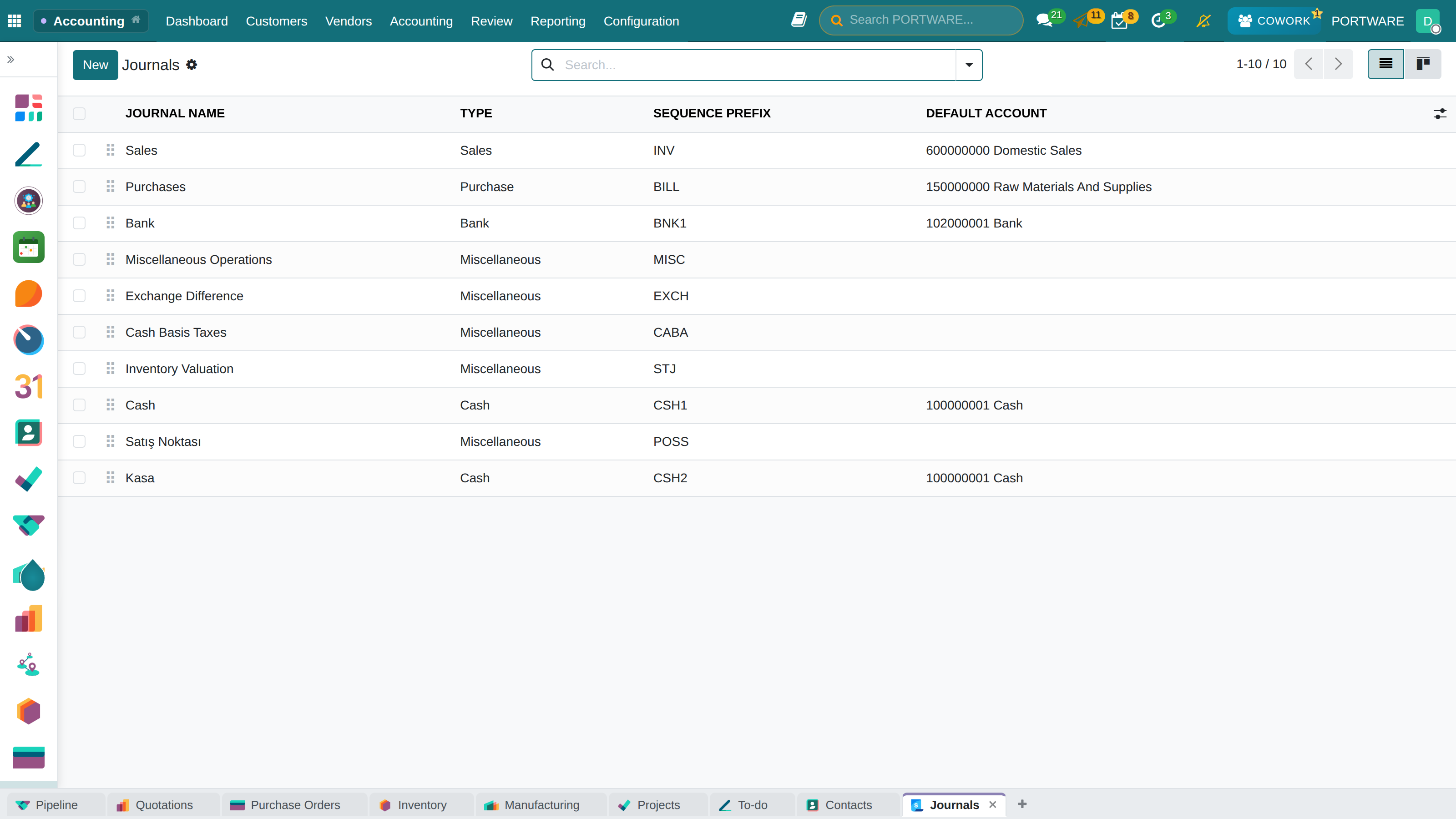
Journals — sales, purchase, bank and cash; each with its default account
The Reconciliation Process
Accounting Dashboard → Bank Journal → the "X to Reconcile" button
- Upload the bank statement (OFX, QIF and CSV formats are supported)
- Review each transaction line:
- If there is a green match suggestion → confirm it
- If manual matching is needed → choose the invoice/payment
- If a new entry is needed → create it by choosing an account
- Complete the reconciliation with the "Validate" button
Reconciliation Models
For recurring transactions (e.g. monthly rent, bank fees) you can create reconciliation models. These models recognise and match the transactions automatically.
Accounting Dashboard → Bank Journal (⋮) → Models
Model Example: Bank Fees
| Field | Value |
|---|---|
| Model Name | Bank Fees - Garanti |
| Type | Create an entry with a counterpart account |
| Matching Criterion | The label contains "KOMİSYON" (fee) |
| Counterpart Account | 780 - Financial Expenses |
Scenario: Monthly Bank Reconciliation
- Click the "47 To Reconcile" button on the bank journal
- The system matches the 40 customer collections with open invoices automatically (green)
- Match the 5 vendor payments with the vendor bills
- Apply the "Bank Fees" model to the 2 bank fees
- Validate all the lines
- Reconciliation complete: bank balance = accounting balance ✓
How to Do It in PORTWARE
Reconciling the bank:
- Go to the main screen (dashboard)
- Click the X To Reconcile button on the bank journal's card
- Upload the bank statement: click the
- Upload button
- Choose the bank statement in OFX, QIF or CSV format
- Review each transaction line:
- Green suggestions: an automatic match was found - click Validate to accept it
- Manual matching: choose the invoice/payment on the Open Balances tab
- New entry: create it by choosing an account on the Manual Operations tab
- After processing every line, click the Validate button
Creating a reconciliation model (for recurring transactions):
- Click the ⋮ menu at the top right of the bank journal card
- Choose
- Click the New button
- Model Name: give a descriptive name (e.g. "Bank Fees - Garanti")
- Model Type: choose "Create an entry with a counterpart account"
- Matching Criterion: define the label filter (e.g. contains "KOMİSYON")
- Counterpart Account: choose the account to post to (e.g. 780 Financial Expenses)
- Save the model with Save
Period Closing
What You Will Learn in This Section
- Understanding the monthly and annual closing processes
- Locking a period
- Applying the closing checklist
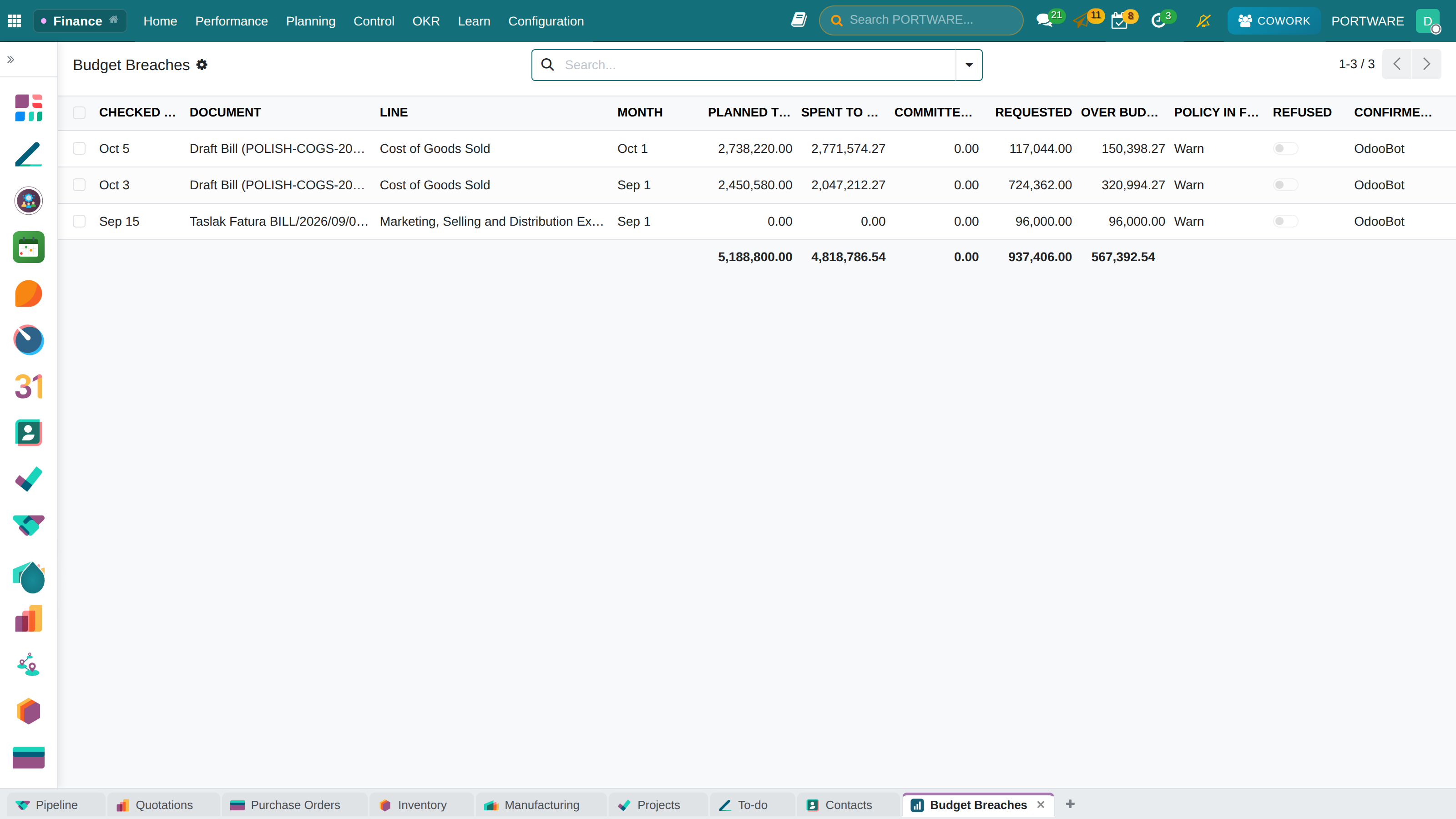
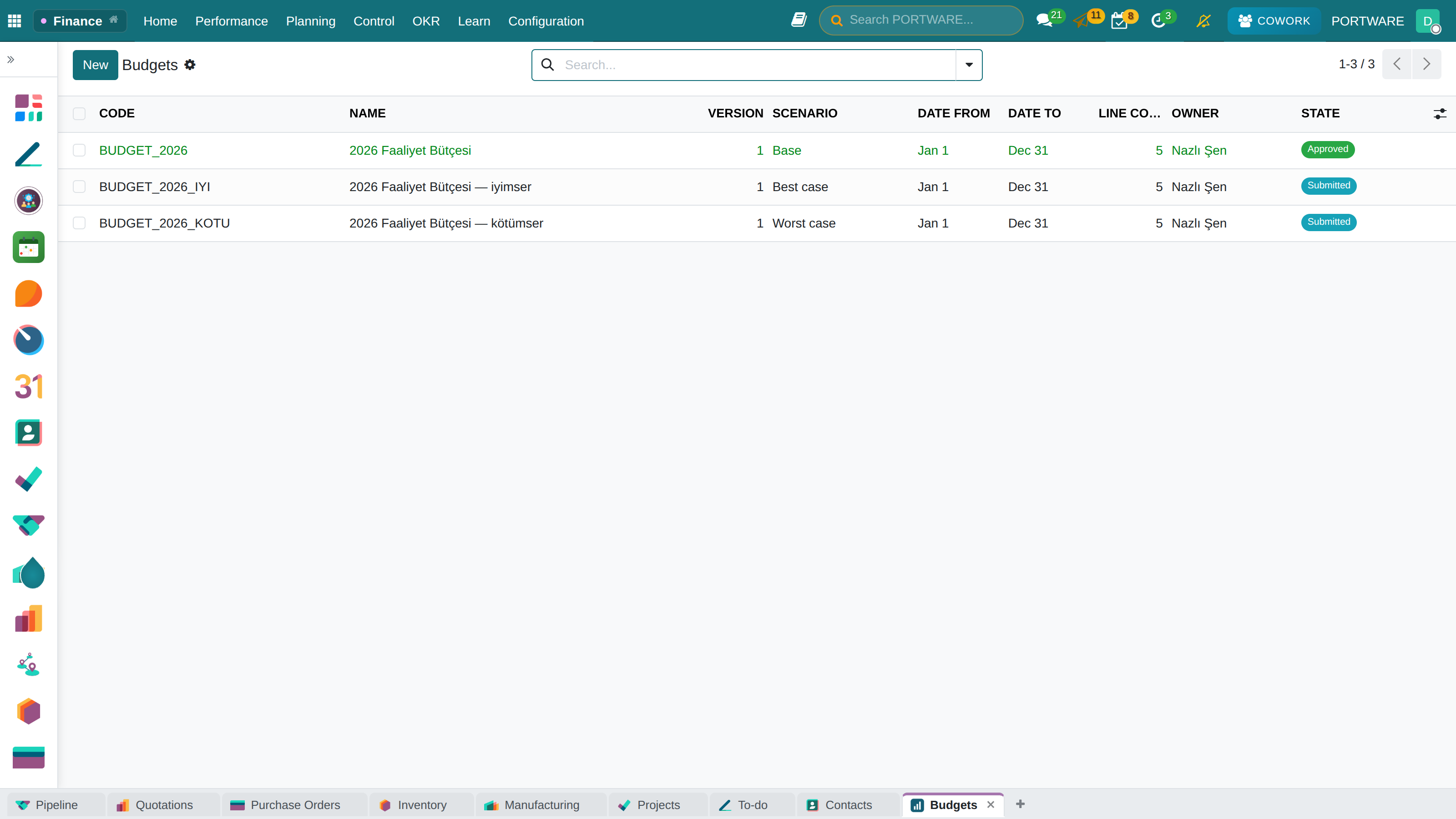
Period controls - budget overrun alerts and control panel
Period closing means completing the financial transactions of a period (month, quarter, year) and making them ready for reporting. It guarantees the accuracy of the financial statements.
Monthly Closing Checklist
| Step | Action | Purpose | Check |
|---|---|---|---|
| 1 | Record all invoices | Complete income/expenses | No draft invoices left? |
| 2 | Bank reconciliation | Cash accuracy | Are all banks reconciled? |
| 3 | Cash count | Physical cash check | Cash balance = actual cash? |
| 4 | Stock valuation | Inventory cost | Are the stock accounts up to date? |
| 5 | Depreciation entry | Fixed asset expense | Was the depreciation schedule applied? |
| 6 | VAT reconciliation | Tax check | Are accounts 191 and 391 balanced? |
| 7 | Period lock | Protect the past | Is the period closed to entries? |
Locking a Period
The period is locked to prevent new entries in a period that has been closed:
Accounting → Configuration → Settings → Fiscal Periods → Lock Date
For All Users
No one can post in the period up to this date. Usually set to the month end.
Except Advisers
Only authorised users (accountants) can post in the past period.
- Revaluation of foreign currency accounts
- Updating provisions (doubtful receivables, inventory write-downs)
- Transferring the period's profit to equity
- Creating the e-Ledger (Turkey)
How to Do It in PORTWARE
Period lock settings:
- Go to
- Find the Lock Date section
- Lock Date for All Users: no one can post up to this date (e.g. 31/01/2026)
- Lock Date for Non-Advisers: no one except authorised accountants can post
- Click the Save button
Monthly closing checklist:
- Draft invoice check: - confirm or delete the invoices still in draft
- Bank reconciliation: finish reconciling every bank journal from the dashboard
- Depreciation entry: - confirm the pending depreciation entries
- VAT reconciliation: - check accounts 191 and 391
- Period lock: update the lock date in Settings
The VAT Return
In Turkey the VAT return is filed monthly. PORTWARE calculates the VAT calculated and the deductible VAT automatically and produces the report for the return.
The VAT Calculation Logic
Getting the VAT Report
Accounting → Reporting → Tax Report
- Choose the period range (e.g. January 2026)
- The report shows amounts grouped by tax type
- Click any line to see the detailed moves
- Export to Excel/PDF
VAT Rates in Turkey
| Rate | Applies To | Example |
|---|---|---|
| %20 | The general rate (most goods and services) | Electronics, furniture, services |
| %10 | The reduced rate | Food (some), textiles |
| %1 | The special reduced rate | Basic food items |
| %0 | Exempt/export | Exports, transit trade |
l10n_tr_witholding module.
Depreciation Management
Asset and budget tracking - depreciation planning and budget control
Depreciation spreads the cost of fixed assets (machinery, vehicles, fixtures) over their useful life. It is critical for showing the true profit or loss.
Depreciation Methods
| Method | Description | Use |
|---|---|---|
| Straight-Line | The same amount is expensed every year | The most common, simple to calculate |
| Declining Balance | More expense in the early years | Assets that lose value quickly |
| Units of Production | Expense by usage | Production machinery |
The Depreciation Schedule in PORTWARE
Accounting → Asset Management → Assets
- Create an asset record when a fixed asset is purchased
- Set the depreciation method and duration
- The system creates the depreciation schedule automatically
- The depreciation entry is created automatically at the end of each month/year
The Depreciation Journal Entry
| Account | Debit | Credit |
|---|---|---|
| 770 - General Administrative Expenses | X TL | - |
| 257 - Accumulated Depreciation (-) | - | X TL |
Balance Sheet
The balance sheet is a financial snapshot of your company on a given date. It shows what you own (assets), what you owe (liabilities) and your net worth (equity).
The Balance Sheet Equation
Opening the Balance Sheet
Accounting → Reporting → Balance Sheet
Balance Sheet Structure
| Section | Sub-Items | Example |
|---|---|---|
| Assets | Current Assets | Cash, bank, receivables, inventory |
| Non-Current Assets | Buildings, machinery, vehicles | |
| Liabilities | Short-Term Liabilities | Trade payables, taxes payable |
| Long-Term Liabilities | Bank loans | |
| Equity | Capital + profits | Capital, retained earnings, profit for the period |
How to Do It in PORTWARE
Viewing the balance sheet report:
- Follow
- By default the report is shown for today's date
- Use the Date filter in the top toolbar to change the date
- To compare, turn on the Comparison option:
- Previous period
- Same period last year
- A custom date range
- Click any account line to see the sub-accounts and moves
- Export: download Excel/PDF with the button
Income Statement (Profit and Loss)
The income statement shows your company's performance over a period (month, quarter, year). How much did you earn, how much did you spend, and what was the profit or loss?
The Income Statement Formula
Opening the Income Statement
Accounting → Reporting → Profit and Loss
Income Statement Structure
| Item | Description | Account Group |
|---|---|---|
| Sales Revenue | Income from the main activity | 600-602 |
| Cost of Goods Sold | The direct cost of the products sold | 620-622 |
| = Gross Profit | Sales - Cost | - |
| Operating Expenses | Marketing, administration, R&D expenses | 760-770 |
| = Operating Profit | Gross Profit - Operating Expenses | - |
| Financial Expenses | Interest, fees | 780 |
| = Profit Before Tax | Operating Profit ± Other | - |
| Tax Expense | Corporate tax | 691 |
| = NET PROFIT/LOSS | The final result of the period | 590 |
How to Do It in PORTWARE
Viewing the income statement (Profit and Loss) report:
- Follow
- Default period: from the start of this year to today
- To change the period, use the Period filter:
- This month / This quarter / This year
- Last month / Last quarter / Last year
- A custom date range
- Analyse across periods with the Comparison option
- Click any income/expense item to see the detailed moves
- Export as PDF or Excel
Cash Flow Statement
The cash flow statement shows cash coming into and going out of your company. Even a profitable company can run short of cash - this report lets you see that risk.
Cash Flow Components
Operating Activities
Cash flow from the main activity: customer collections, vendor payments, salaries
Investing Activities
Buying and selling fixed assets: machinery purchases, property sales
Financing Activities
Borrowing and equity: drawing loans, paying dividends
Accounting → Reporting → Cash Flow Statement
Aged Balance Reports
Aged balance reports show how long your receivables and payables have been open. This is critical for prioritising collections and managing credit risk.
Aged Receivables
Accounting → Reporting → Partner Reports → Aged Receivable
The report groups receivables by how overdue they are:
| Customer | Not Due | 1-30 Days | 31-60 Days | 61-90 Days | 90+ Days | Total |
|---|---|---|---|---|---|---|
| ABC Ltd. | 10.000 | 5.000 | - | - | - | 15.000 |
| XYZ Inc. | - | - | 8.000 | 3.000 | - | 11.000 |
| Problem Customer | - | - | - | - | 25.000 | 25.000 |
Turkish Accounting Compliance
PORTWARE includes comprehensive localisation modules to meet Turkey's statutory accounting requirements.
Turkish Localisation Modules
| Module | Function |
|---|---|
| l10n_tr_base | Basic Turkish compliance, the TRY currency |
| l10n_tr_2kb | The Uniform Chart of Accounts (2KB) |
| l10n_tr_bank | Turkish banks and branch details |
| l10n_tr_tax_office | The list of tax offices |
| l10n_tr_witholding | VAT withholding rates |
| gib_base_2kb | The GİB e-document infrastructure |
| gib_invoice_2kb | Sending e-Invoices |
| gib_incoming_invoice_2kb | Managing incoming e-Invoices |
The Turkish e-Invoice System
In Turkey e-Invoice is mandatory for companies above a given turnover threshold. PORTWARE manages e-Invoice processes through integration with the Revenue Administration (GİB).
The e-Invoice Workflow
e-Invoice Types
| Type | Use | Recipient |
|---|---|---|
| e-Invoice | In B2B trade | To e-Invoice taxpayers |
| e-Archive | To individual customers | To those who are not e-Invoice taxpayers |
| e-Waybill | The shipping document | To all taxpayers |
Technical Requirements
- GİB registration: e-Invoice taxpayer status must be obtained
- Integrator: an agreement with an authorised integrator such as İZİBİZ or Kıta
- Financial seal: an e-signature or financial seal for the digital signature
- Format: the UBL-TR 1.2 standard
How to Do It in PORTWARE
Sending an e-Invoice:
- Create and confirm a normal customer invoice
- Click the Send e-Invoice button on the invoice detail page
- The system checks whether the customer is an e-Invoice taxpayer:
- If they are an e-Invoice taxpayer: it is sent as an e-Invoice
- If not: it is created as an e-Archive invoice
- Follow the sending status in the e-Invoice Status field:
- Pending: sent to GİB, waiting for approval
- Approved: accepted by GİB
- Rejected: there is an error; a correction is needed
- View the ETTN number of the approved invoice
Processing incoming e-Invoices:
- Go to
- Newly received invoices are listed automatically
- Review the invoice and Accept or Reject it
- An accepted invoice is recorded automatically as a vendor bill
The 2KB Chart of Accounts
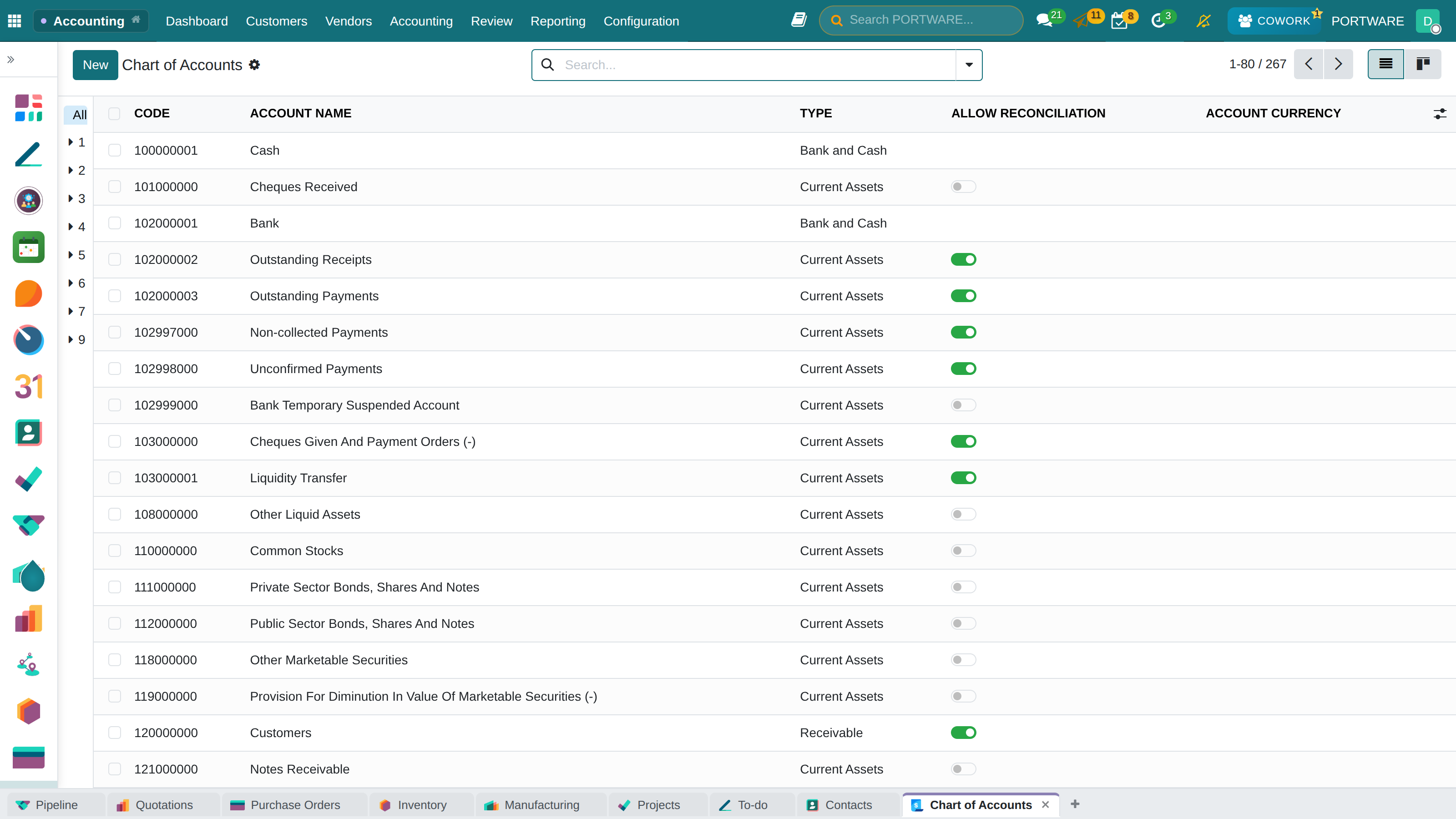
The Turkish uniform chart of accounts — code, name, type and reconciliation
In Turkey the Uniform Chart of Accounts (2KB) is mandatory. PORTWARE provides the standard chart ready to use with the l10n_tr_2kb module.
Opening the Chart of Accounts
Accounting → Configuration → Chart of Accounts
Main Account Groups
| Group | Code | Description |
|---|---|---|
| 1 | 100-199 | Current Assets |
| 2 | 200-299 | Non-Current Assets |
| 3 | 300-399 | Short-Term Liabilities |
| 4 | 400-499 | Long-Term Liabilities |
| 5 | 500-599 | Equity |
| 6 | 600-699 | Income Statement Accounts (Income) |
| 7 | 700-799 | Income Statement Accounts (Expenses) |
| 8 | 800-899 | Cost Accounts |
| 9 | 900-999 | Memorandum Accounts |
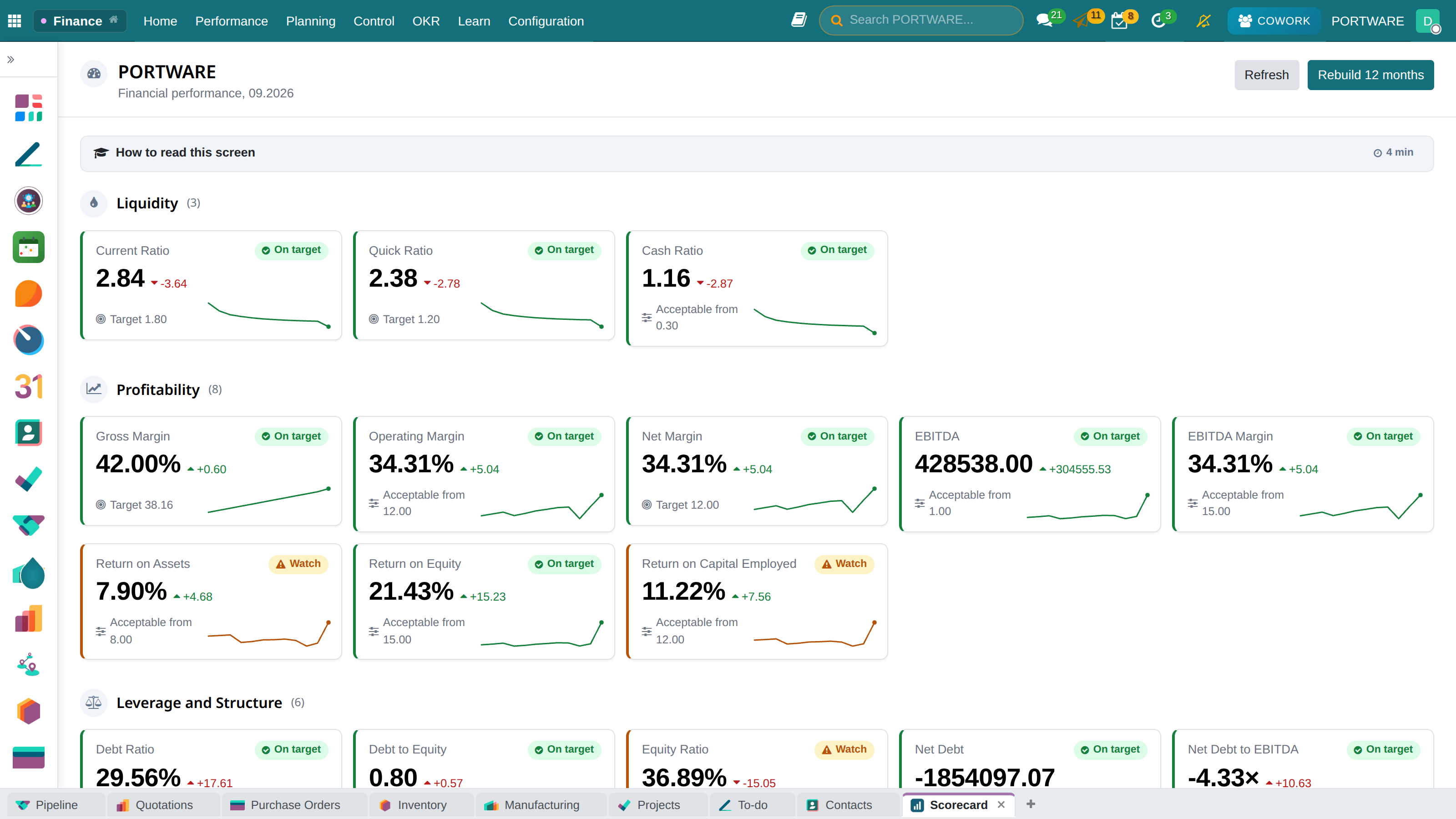
Financial KPIs
Follow these key performance indicators regularly to measure your business's financial health:
Current Ratio
Current Assets / Short-Term Liabilities (target: >1.5)
Receivables Turnover
Sales / Avg. Receivables (in days)
Gross Profit Margin
(Sales - COGS) / Sales × 100
Net Profit Margin
Net Profit / Sales × 100
Debt/Equity
Total Liabilities / Equity (target: <2)
Cash Conversion Cycle
Inventory + receivable - payable days
Frequently Asked Questions
Can I correct an invoice after confirming it?
No, a confirmed invoice cannot be changed - accounting principles require this. To correct it:
- Credit note: cancels the invoice partly or fully
- New invoice: issue a new invoice with the corrected amount
For an e-Invoice, a cancellation/rejection must be notified to GİB.
How do I prevent duplicate bills?
PORTWARE warns you when you try to record a second bill for the same vendor with the same reference number. However:
- Enter the vendor's invoice number correctly
- If a different reference number was entered, the system cannot detect it
- Check the list of open bills before confirming
Can I post to a past period?
Yes, if the period is not locked. However:
- If the VAT return has been filed, posting to the past period requires an amended return
- If the year has been closed, posting to the past year is usually problematic
- Best practice: lock periods on time
How are exchange differences recorded?
PORTWARE calculates exchange differences automatically:
- The rate on the invoice date is compared with the rate on the payment date
- The difference is posted automatically to the exchange gain/loss account
- Open currency positions are revalued at period end
Check the exchange difference accounts in Accounting → Configuration → Settings → Default Accounts.
Is e-Invoice mandatory?
It is mandatory for companies above a given turnover threshold. For 2024:
- Companies with gross sales over 3 million TL are e-Invoice taxpayers
- Those over 5 million TL are e-Ledger taxpayers
- An e-Invoice taxpayer cannot issue a paper invoice to another e-Invoice taxpayer
Check the GİB website for the current thresholds.
Best Practices
Daily
- Import the bank statement
- Record incoming bills
- Close the cash register
Weekly
- Bank reconciliation
- Follow up overdue receivables
- Plan vendor payments
Monthly
- Prepare the VAT return
- Depreciation entry
- Period close and lock
- Review the financial statements
Yearly
- Year-end revaluation
- Update provisions
- Create the e-Ledger
- Prepare for the audit
- Automatic import of bank statements
- Automatic matching with reconciliation models
- Automatic payment reminder e-mails
- Scheduled reports sent by e-mail