Manufacturing & PLM
You run a manufacturing business. A customer order has arrived: you need to produce 100 desks. To fulfil this order:
- From order to productionA sales order creates the material need and the manufacturing order.
- The bill of materials at the centreParts, sub-assemblies and operations in one BoM.
- The same truth as PLMThe engineering revision is tied to the tree production uses.
Introduction: What Is Manufacturing Management?
What You Will Learn in This Section
- The concept of MRP (Manufacturing Resource Planning)
- The benefits the PORTWARE Manufacturing module brings to your business
- The manufacturing lifecycle
- The advantages of moving from Excel/paper-based systems to an ERP
You run a manufacturing business. A customer order has arrived: you need to produce 100 desks. To fulfil this order:
- Which materials are needed? (wood, screws, paint, etc.)
- How much material is needed? (4 legs and 1 top per desk...)
- Is there enough material in stock?
- Which work centres will do the work? (cutting, assembly, painting)
- How long will it take?
- What will it cost?
The PORTWARE Manufacturing (MRP) module answers all these questions automatically and lets you manage production from start to finish.
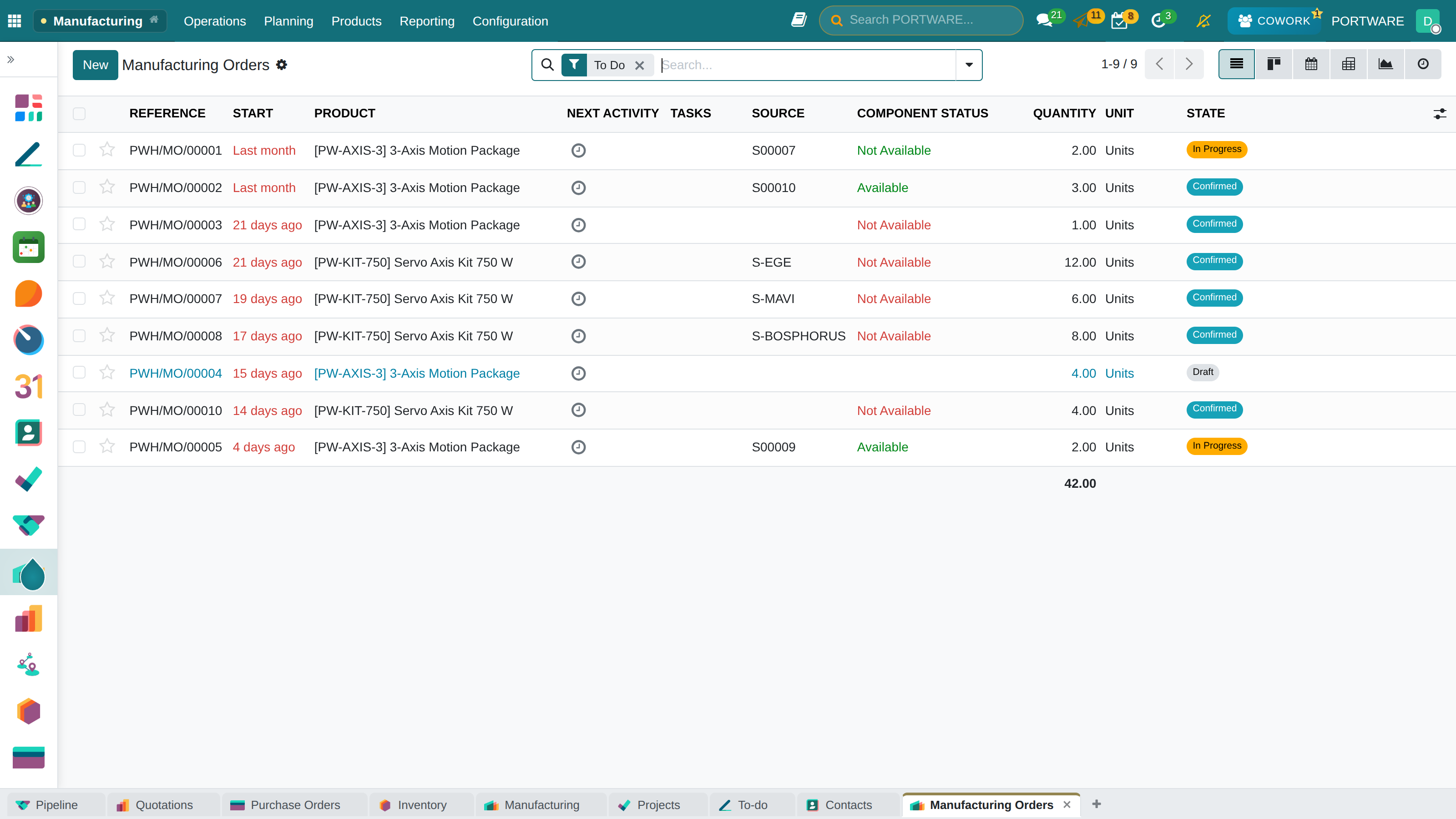
PORTWARE Manufacturing module - manage your production processes from a single overview screen
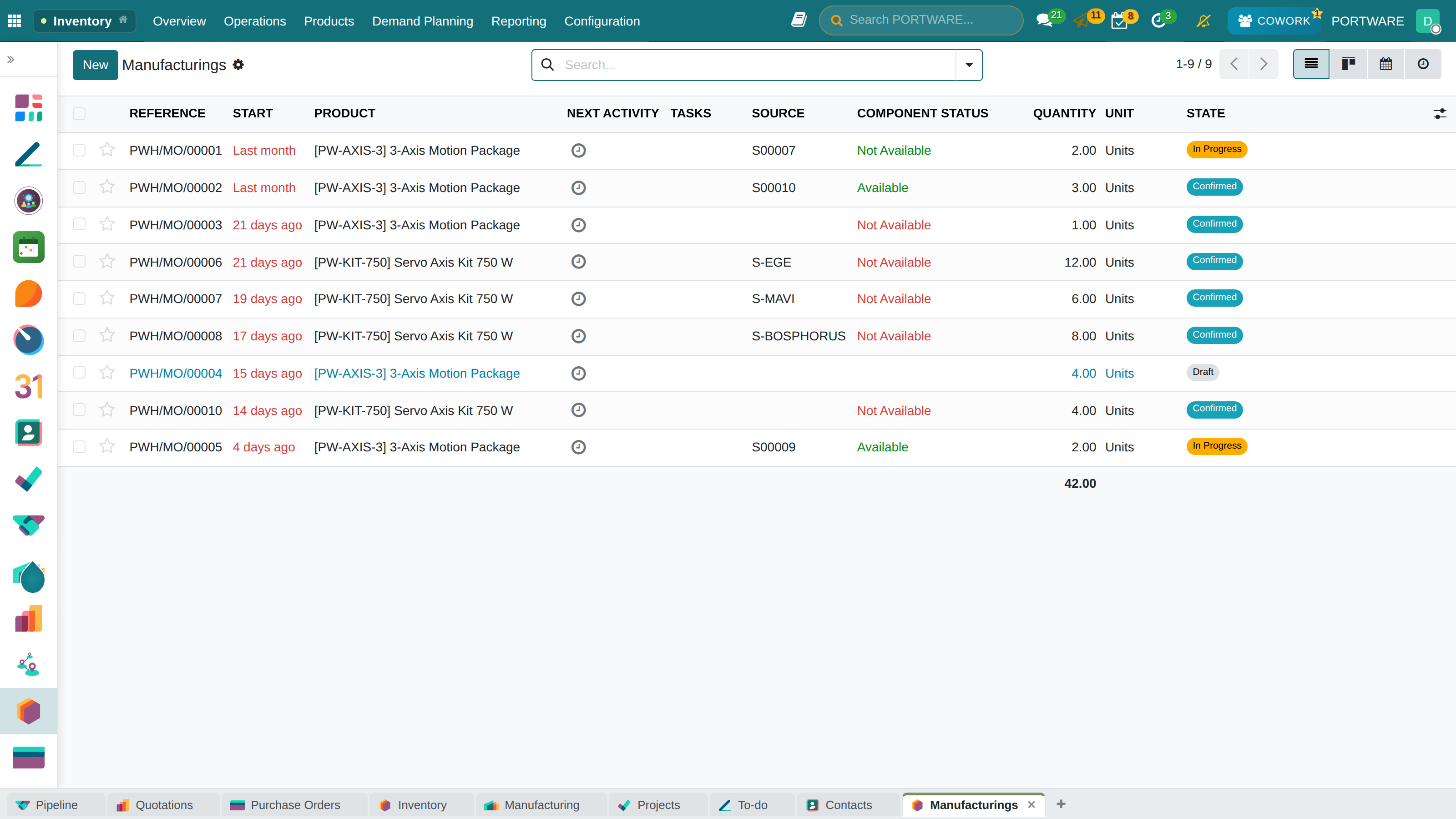
Manufacturing Orders - list view
Why Use an MRP System?
- Materials calculated by hand for every order
- Stock status unclear, no live view
- The worry: "do we have enough material?"
- The production plan on paper, hard to change
- Work centre load unknown
- Cost calculated from scratch every time
- No tracking of quality problems
- Delays cannot be seen in advance
- Materials calculated automatically from the BOM
- Live stock status and reservation
- Automatic warning on insufficient stock
- A digital production plan, drag and drop
- Work centre capacity view
- Automatic cost calculation
- Integrated quality control
- Delay forecasts and alerts
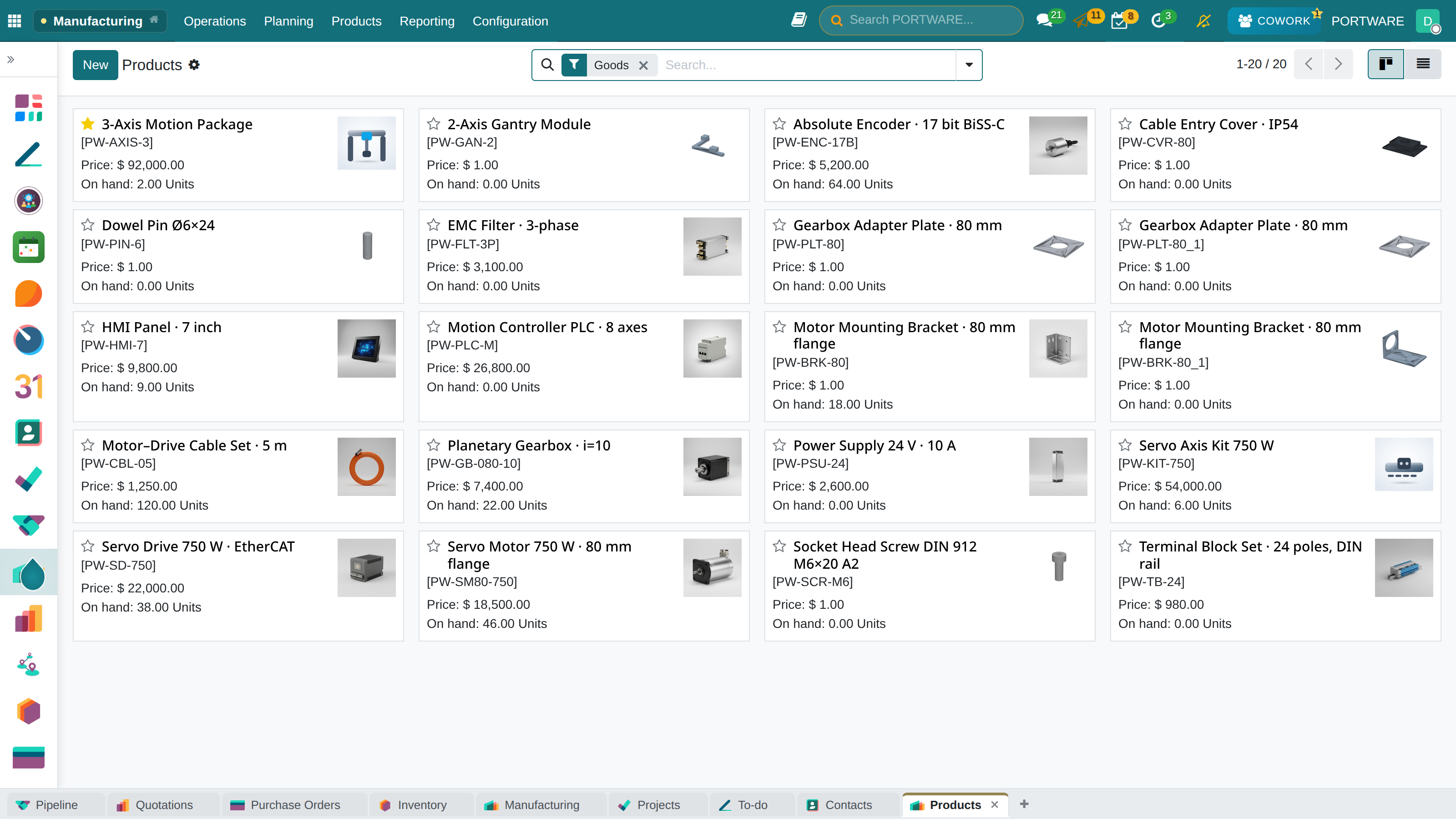
Follow manufactured products and their states easily in the kanban view
Scenario: An Order for 100 Desks
Situation: a customer ordered 100 office desks, due in 2 weeks. Each desk needs 4 legs, 1 top, 16 screws, 4 plastic foot caps and paint.
- Order confirmation: when the sales order is confirmed, the system creates a manufacturing order automatically
- BOM explosion: total materials for 100 desks are calculated: 400 legs, 100 tops, 1,600 screws, 400 caps
- Stock check: current stock is checked, and purchase requests are created automatically for missing materials
- Capacity planning: time is scheduled in the cutting, assembly and painting work centres
- Production start: production starts when the materials are ready; operators see their work orders on a tablet
- Quality control: every tenth desk is checked and defects are recorded
- Completion: when the 100 desks are done, stock is updated and they are ready to ship
Key Concepts
Terms you will meet often in manufacturing management:
| Concept | Description | Example |
|---|---|---|
| BOM (Bill of Materials) | Product tree - the list of all components needed to make a product | Desk BOM: 4 legs + 1 top + 16 screws |
| Manufacturing Order (MO) | Manufacturing Order - the instruction to make a given quantity of a product | MO-00123: make 100 Office Desks |
| Work Order (WO) | Work Order - a sub-step of the manufacturing order, the operation at each work centre | WO-001: Cutting, WO-002: Assembly, WO-003: Painting |
| Work Centre | Work Center - the physical area or machine where operations are done | CNC machine, assembly line, paint booth |
| Routing | Routing - the order in which a product passes through the work centres | Cutting → Assembly → Painting → Packing |
| Lead Time | Supply/production time - the total time needed for the product to be ready | A 3-day production time for a desk |
| Scrap | Scrap - material made unusable during production | 5 legs scrapped because of a cutting error |
| OEE | Overall Equipment Effectiveness - a measure of equipment efficiency | CNC machine OEE: 85% |
The Manufacturing Cycle: The Big Picture
An order's journey through production:
Procurement Methods
When a need for a product appears, PORTWARE must know how to supply it:
Manufacture
The product is made in-house. A BOM and routing must be defined. A manufacturing order is created.
Buy
The product is supplied from outside. A vendor must be defined. A purchase request is created.
MTO (Make to Order)
Production per order. Made specially for each order. Not kept in stock.
MTS (Make to Stock)
Production for stock. Made to a demand forecast. Held in the warehouse.
What Is a Bill of Materials (BOM)?
A BOM (Bill of Materials) is the structured list of every component and raw material needed to make a product. It is the foundation of manufacturing management - without a BOM, production cannot be planned.
BOM Example: Office Desk
│ └── Laminate covering (1.5 m²)
│ └── Plastic foot cap (4 units)
└── 🎨 Paint (0.2 litre)
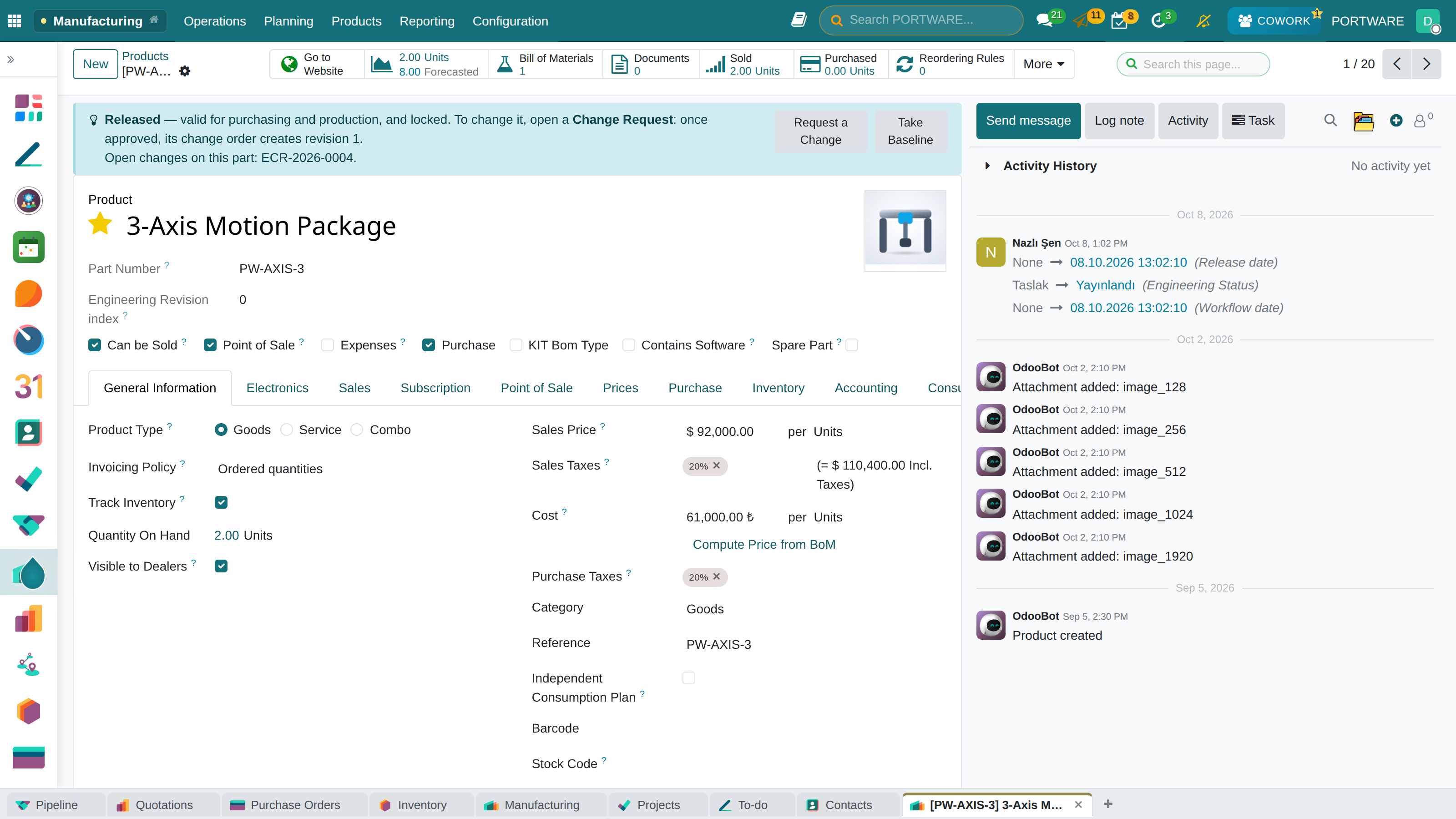
Product detail screen - BOM, components and production information on one page
Why the BOM Matters
- Material planning: 400 legs and 1,600 screws for 100 desks are calculated automatically
- Stock management: missing materials are visible at once
- Cost calculation: the product cost is calculated automatically from its components
- Purchasing: requests are created automatically for insufficient stock
- Production tracking: which materials were consumed is recorded
Creating a BOM
Creating a BOM Step by Step
Practice: Create Your First BOM
- Define the product: first define the product to be made in the "Products" menu. Product type: "Storable Product"; route: "Manufacture"
- Create the BOM: follow Manufacturing → Bills of Materials → New
- Choose the main product: choose the product to be made in the "Product" field (e.g. Office Desk)
- Set the quantity: enter how many units the BOM applies to (usually 1)
- Add components: enter the raw materials as lines on the "Components" tab
- Add operations: define the production steps on the "Operations" tab (optional)
- Save: save the BOM; you can now create manufacturing orders
BOM Form Fields
| Field | Description | Example |
|---|---|---|
| Product | The main product to be made | Office Desk |
| Quantity | How many units of product the BOM applies to | 1 unit |
| Reference | The BOM code or version | BOM-DESK-001-v2 |
| BOM Type | Manufacture or Kit | Manufacture |
| Components | Raw materials and their quantities | Leg x4, Top x1, Screw x16 |
| Operations | Production steps and work centres | Cutting (30 min), Assembly (45 min) |
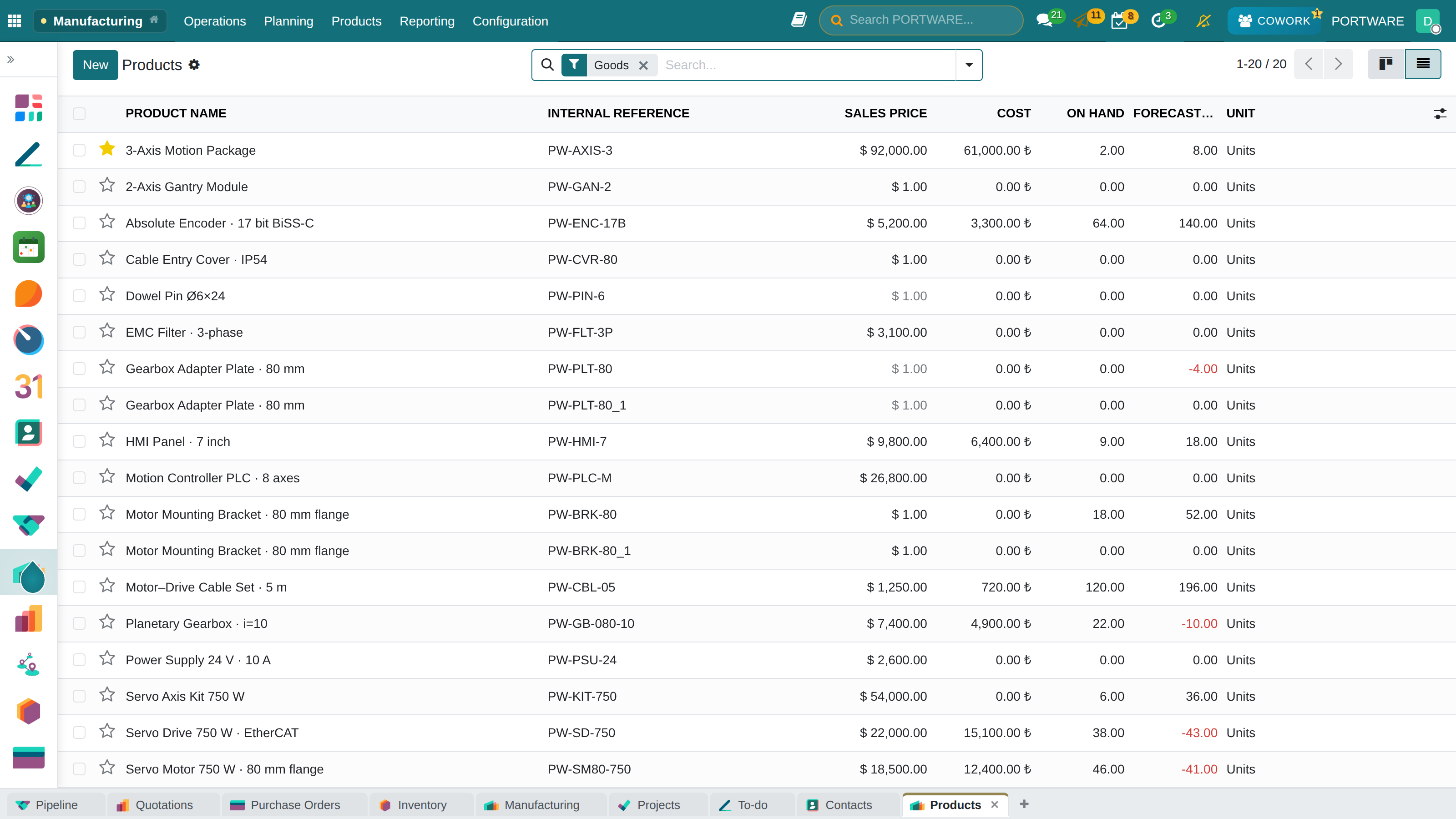
Manufactured products list - every producible product and its BOM status
Multi-Level BOM
In the real world products usually consist of sub-assemblies. Think of a computer: motherboard, power supply, case - and each of these has its own components.
Multi-Level BOM Example: Computer
│ ├── Plastic front panel (Level 2)
│ └── Fan 120mm (Level 2)
│ ├── Capacitor set (Level 2)
│ └── Cables (Level 2)
Phantom BOM
Some sub-assemblies are never physically stocked; they exist only briefly during production. These are called "phantom BOMs". For example, when the desk top and legs are joined, an "assembled frame" appears, but it is not stocked separately - it goes straight to painting.
- When the sub-assembly is not physically stocked
- When it is grouped only for planning/costing
- When there is no intermediate storage in the production flow
BOM Types
Manufacturing BOM
Use: standard production processes
Behaviour: creates a manufacturing order; material consumption is tracked
Example: making desks
Kit BOM
Use: bundle sales
Behaviour: exploded automatically on sale; no manufacturing order
Example: a furniture set (desk + 4 chairs)
Subcontracting
Use: production at an outside supplier
Behaviour: materials are sent out and the processed product comes back
Example: outsourcing the painting
Kit BOM vs Manufacturing BOM
| Feature | Manufacturing BOM | Kit BOM |
|---|---|---|
| Manufacturing Order | Created | Not created |
| Trigger | MTO/reordering rule | Sales order confirmation |
| Stock Move | Receipt after production | Components go out separately |
| Used For | Manufacturing, assembly | Bundle and set sales |
Cost Calculation
PORTWARE calculates the product cost automatically from the BOM structure. That way:
- You can set the right sales price
- You can keep your profit margin under control
- You see cost changes at once
Cost Components
| Cost Type | Description | Calculation |
|---|---|---|
| Material Cost | The total cost of the BOM components | ∑ (Component Cost × Quantity) |
| Labour Cost | The work spent in the work centres | ∑ (Work Centre Hourly Cost × Duration) |
| Overheads | Indirect production costs | A rate defined on the work centre |
Example: Desk Cost Calculation
| Item | Unit Cost | Quantity | Total |
|---|---|---|---|
| MDF Panel | 150 ₺ | 1 | 150 ₺ |
| Metal Leg | 45 ₺ | 4 | 180 ₺ |
| Screw | 0.50 ₺ | 16 | 8 ₺ |
| Paint | 40 ₺/l | 0.2 l | 8 ₺ |
| Cutting Labour | 100 ₺/hour | 0.5 hour | 50 ₺ |
| Assembly Labour | 80 ₺/hour | 0.75 hour | 60 ₺ |
| Total Cost | 456 ₺ | ||
Manufacturing Orders
A Manufacturing Order (MO) is the formal instruction to produce a given quantity of a product. It is the document that turns the BOM into real production.
How Is a Manufacturing Order Created?
Manually
Manufacturing → Manufacturing Orders → New. Used for planned production or for testing.
From a Sales Order
Created automatically when a sale of an MTO product is confirmed. The most common way.
From a Reordering Rule
Triggered automatically when stock falls to the minimum. Ideal for MTS production.
Manufacturing Order Stages
| Stage | Description | Action |
|---|---|---|
| Draft | The manufacturing order was created but has not started | Can be edited or cancelled |
| Confirmed | Materials are reserved; ready for production | Planning can be done; materials are checked |
| In Progress | Production has started; work orders are running | Consumption is recorded; progress is tracked |
| Done | Production is finished; the product is in stock | The cost is final; the report is created |
Manufacturing orders list view - follow every order with filtering and sorting
Work Orders
A manufacturing order can consist of several steps (operations). Each step is tracked as a separate Work Order.
Example: Work Orders for Making a Desk
WO-001: Cutting
CNC machine
Duration: 30 min
WO-002: Assembly
Assembly line
Duration: 45 min
WO-003: Painting
Paint booth
Duration: 60 min
WO-004: Packing
Packing
Duration: 15 min
Work Order States
| State | Meaning | Operator Action |
|---|---|---|
| Waiting | The previous work order is not finished | Wait |
| Ready | Ready to start | Click the "Start" button |
| In Progress | Being worked on | Do the operation; the time is recorded |
| Done | The operation is finished | Click the "Done" button |
Work Centres
A work centre is the physical area or machine where production operations are carried out. It is critical for capacity planning and cost calculation.
Defining a Work Centre
| Field | Description | Example |
|---|---|---|
| Name | A descriptive name for the work centre | CNC Machine 1 |
| Code | A short reference code | CNC-01 |
| Working Hours | Weekly working hours | Mon-Fri 08:00-17:00 |
| Capacity | The number of simultaneous work orders | 1 (a single machine) |
| Cost per Hour | Operating cost (electricity, depreciation, etc.) | 150 ₺/hour |
| OEE Target | The targeted efficiency | %85 |
Routing
A routing is the sequence of steps (operations) followed to make a product. Each operation is carried out at a given work centre.
Defining a Routing
The routing is defined on the "Operations" tab of the BOM form:
| Sequence | Operation | Work Centre | Duration | Description |
|---|---|---|---|---|
| 10 | Cutting | CNC Machine | 30 min | Cutting the top and legs |
| 20 | Sanding | Sanding Station | 15 min | Surface finishing |
| 30 | Assembly | Assembly Line | 45 min | Joining the parts |
| 40 | Painting | Paint Booth | 60 min | Surface painting |
| 50 | Quality Control | Quality Lab | 10 min | Final check |
Capacity Planning
Capacity planning shows how busy your work centres are and what the future workload looks like. You can spot bottlenecks early and act on them.
The Capacity View
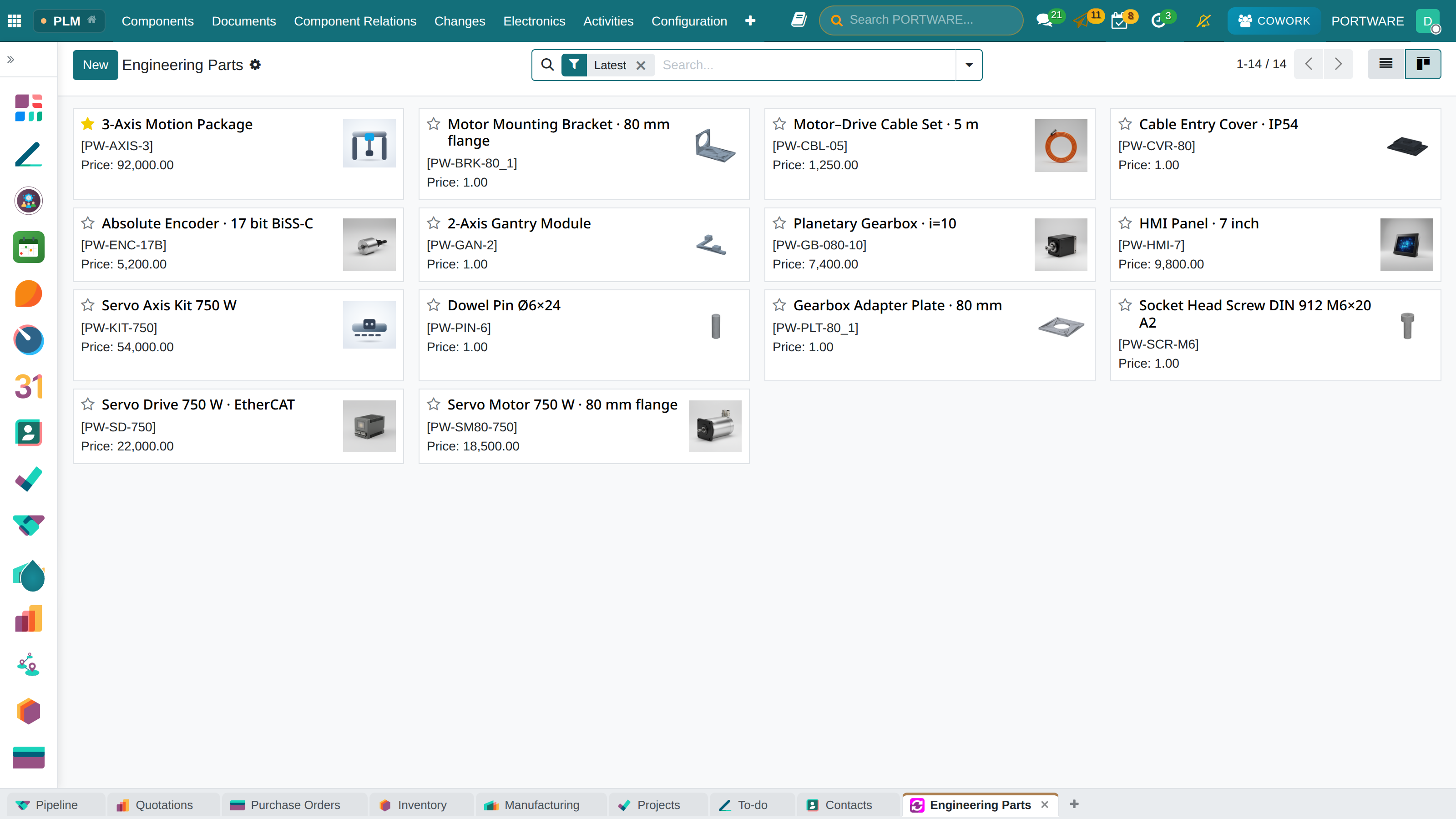
PLM engineering parts - capacity planning and work centre load view
In the Gantt view under Manufacturing → Planning → Work Centre Load:
- Green: capacity is fine, normal workload
- Yellow: capacity is nearly full (75-90%)
- Red: capacity exceeded, risk of delay
- Plan overtime
- An extra machine/shift
- Subcontracting
- Change the production sequence
Recording Production
During production, operators complete work orders and record the quantity produced. These records drive stock updates, cost calculation and performance analysis.
Steps to Complete Production
Operator: Complete the Work Order
- Open the work order: select it on a tablet or computer
- Start: press "Start"; the timer begins
- Do the work: carry out the operation physically
- Enter the quantity: enter the quantity produced and any scrap
- Complete: press "Done"; the timer stops
- Next: move on to the next work order, if any
Partial Production
A manufacturing order for 100 units, but you only made 30 today? No problem! Enter 30 in the "Quantity Consumed" field; the remaining 70 continue the next day.
Material Consumption
Raw materials used in production are deducted from stock. PORTWARE can handle this automatically or manually.
Consumption Methods
| Method | Description | Used For |
|---|---|---|
| Backflush | Consumed automatically according to the BOM when production is completed | Standard production, fixed recipes |
| Manual | The operator enters the consumed quantity by hand | Variable consumption, sensitive materials |
| By Operation | The related material is consumed at each operation | Long routings, staged consumption |
Scrap Management
Not everything in production goes to plan. A bad cut, faulty material, a machine breakdown... In these cases a scrap record is made.
Types of Scrap
- Material scrap: raw material was wasted (e.g. a wrong cut)
- Product scrap: a semi-finished or finished product came out defective
- Lost time: machine breakdown, waiting time
Recording Scrap
When completing a work order, enter the number of defective products in the "Scrap" field. The system:
- Reflects the scrap quantity in reports
- Calculates material consumption correctly
- Affects the "Quality" factor in the OEE calculation
- Shows the cost of scrap separately
Tablet Mode
PORTWARE offers a tablet interface optimised for the factory floor. With large buttons, a touch-friendly design and barcode scanning, operators manage work orders easily.
Tablet Mode Features
Large Buttons
A touch-friendly interface large enough to use even with gloves
Barcode Scanning
Read products, materials and lot/serial numbers quickly by barcode
Automatic Timing
The real duration is recorded automatically with start/stop
Instructions
PDF instructions and images can be shown at each operation
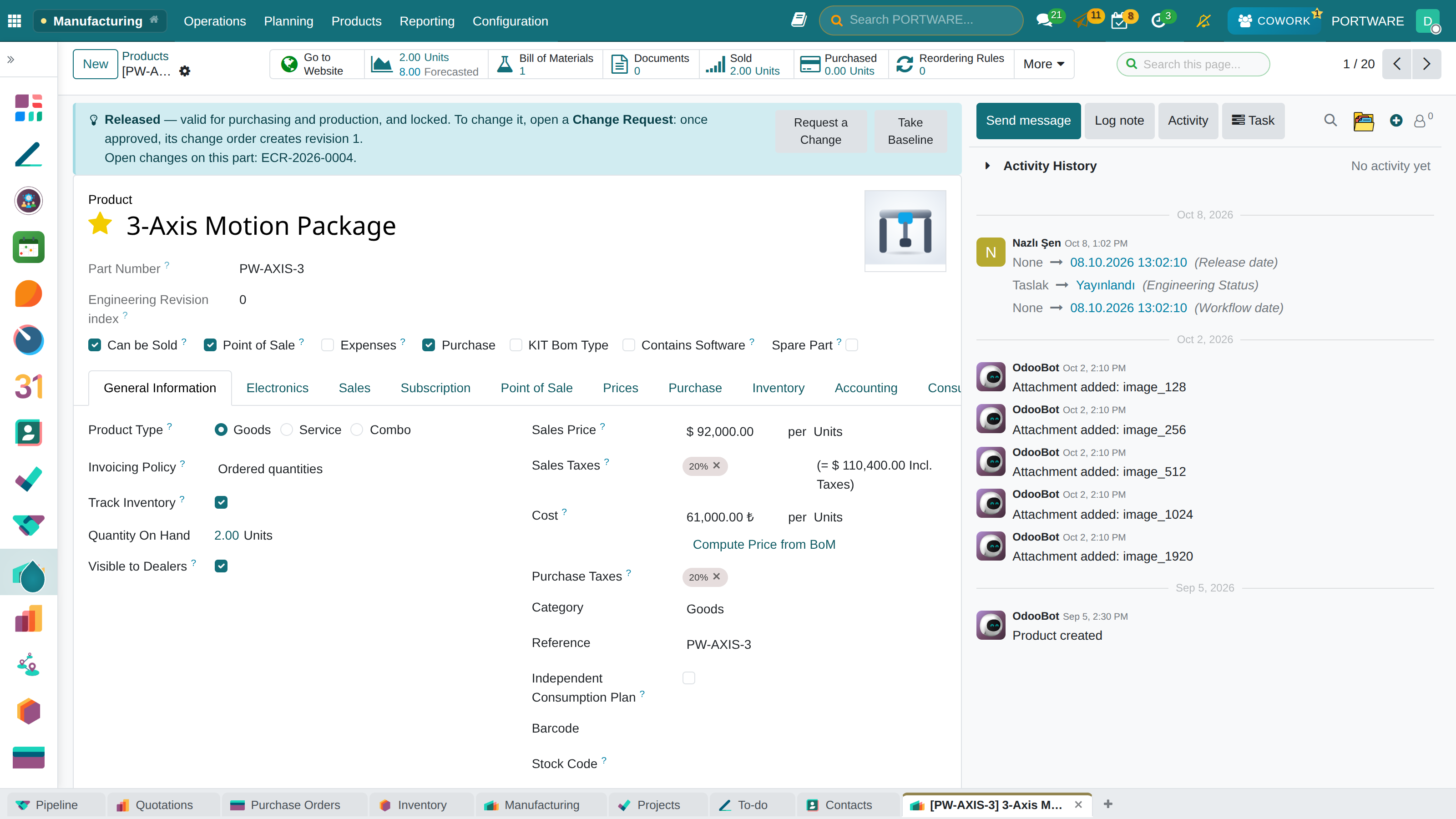
Product detail screen on the factory floor - a motor product and its components
Quality Management
Quality control is an integral part of production. With PORTWARE's integrated quality module you manage quality checks during and after production.
Quality control screen from production - inspection results and control points
The Quality Control Flow
Control Point
Where is it checked?
Check Type
How is it checked?
Pass
Production continues
Fail
Scrap or rework
On Hold
Further inspection needed
Control Points
Control points decide when, and at which operation, a quality check is triggered.
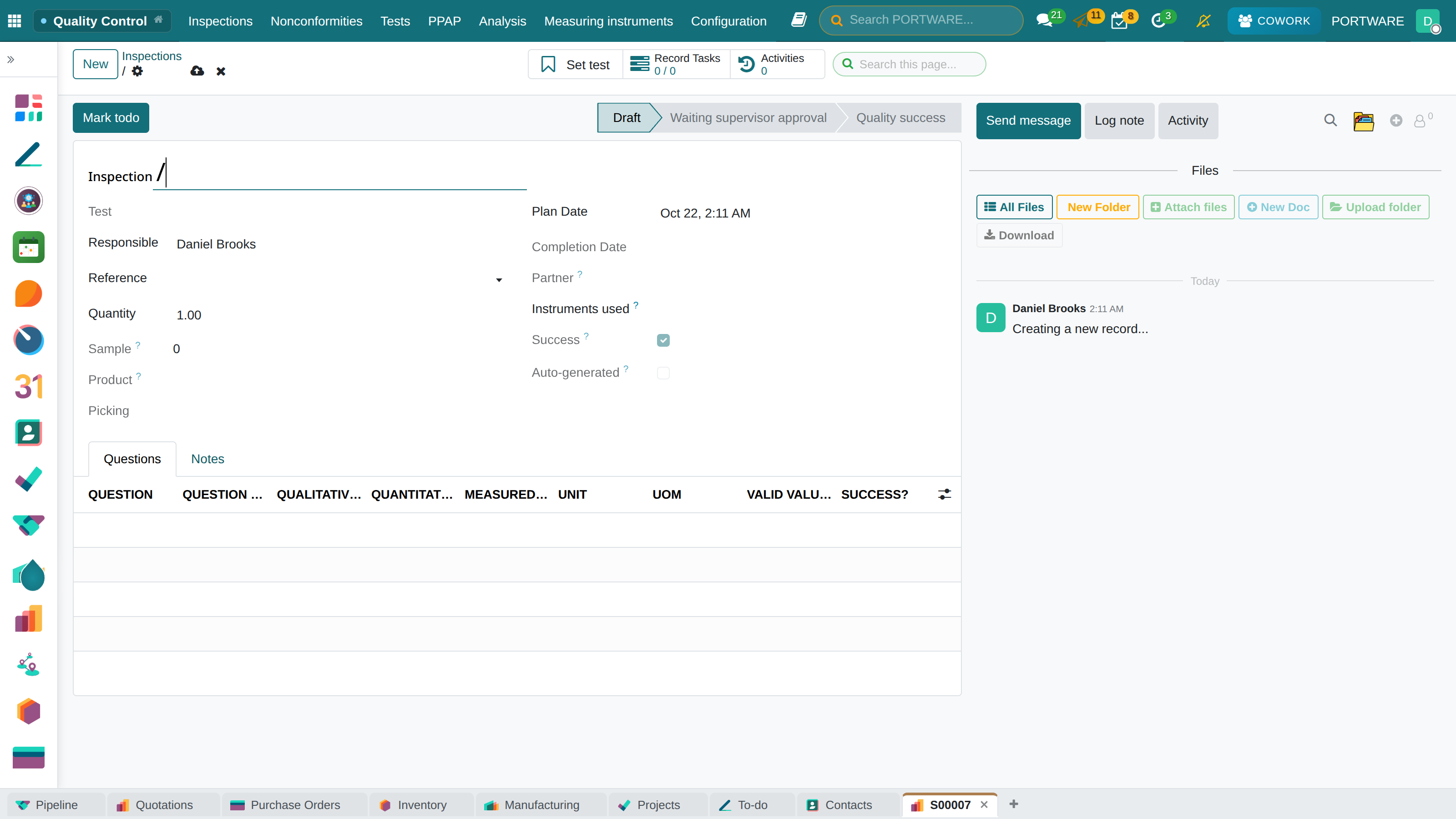
Quality inspection draft screen - control points and inspection criteria
Control Point Types
| Trigger | Description | Example |
|---|---|---|
| Production Start | When the manufacturing order starts | Raw material quality check |
| After an Operation | When a given work order is completed | Measurement after cutting |
| Production End | When the manufacturing order is completed | Final check |
| Stock Move | During goods receipt or a transfer | Incoming material inspection |
Check Types
Pass/Fail
A simple yes/no check. For visual inspection and presence checks.
Measure
A numeric value. For size, weight, temperature. Tolerances can be defined.
Photo
Visual evidence. For recording and documenting damage.
Worksheet
A detailed inspection form. For comprehensive procedures.
Measurement Tolerances
Example: the desk top must be 120cm, with a tolerance of ±0.5cm
- Minimum: 119.5 cm
- Target: 120 cm
- Maximum: 120.5 cm
If the measurement is outside this range, the check is marked "Fail".
What Is PLM (Product Lifecycle Management)?
PLM is the system that manages a product's whole lifecycle, from design through production and service to retirement. PORTWARE offers advanced engineering features with the OmniaSolutions PLM 19.0 suite.
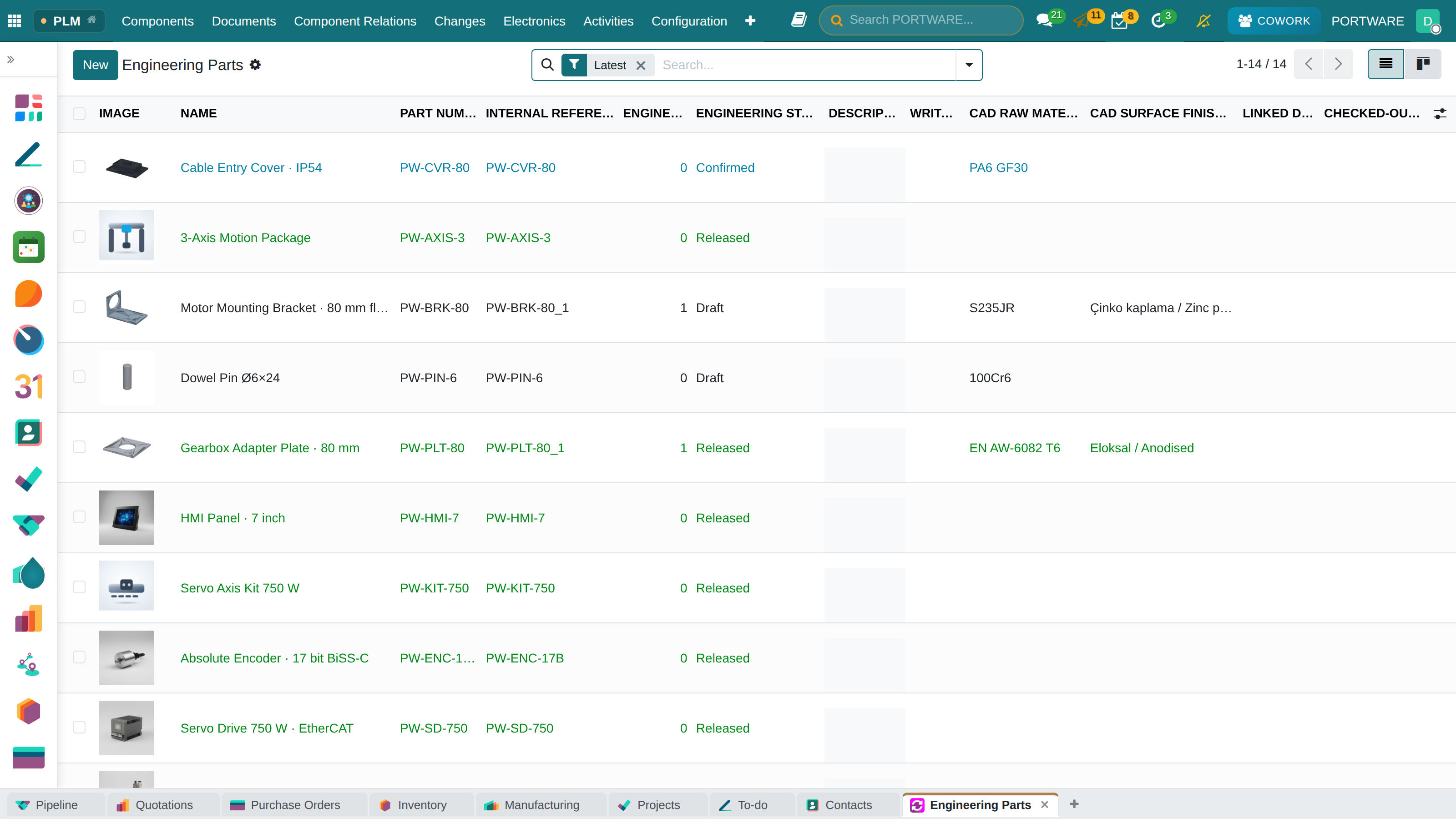
PLM main view - follow the product lifecycle stages and engineering parts
PORTWARE PLM Suite Modules
plm_web_3d
3D model viewer - view CAD files directly in PORTWARE
plm_engineering
Engineering BOM management and revision control
plm_compare_bom
Compare BOM versions and see the differences
plm_spare
Spare part BOMs and manuals
Revision Management
Products change over time: improvements, bug fixes, material changes... Every change creates a new revision, and the history is kept.
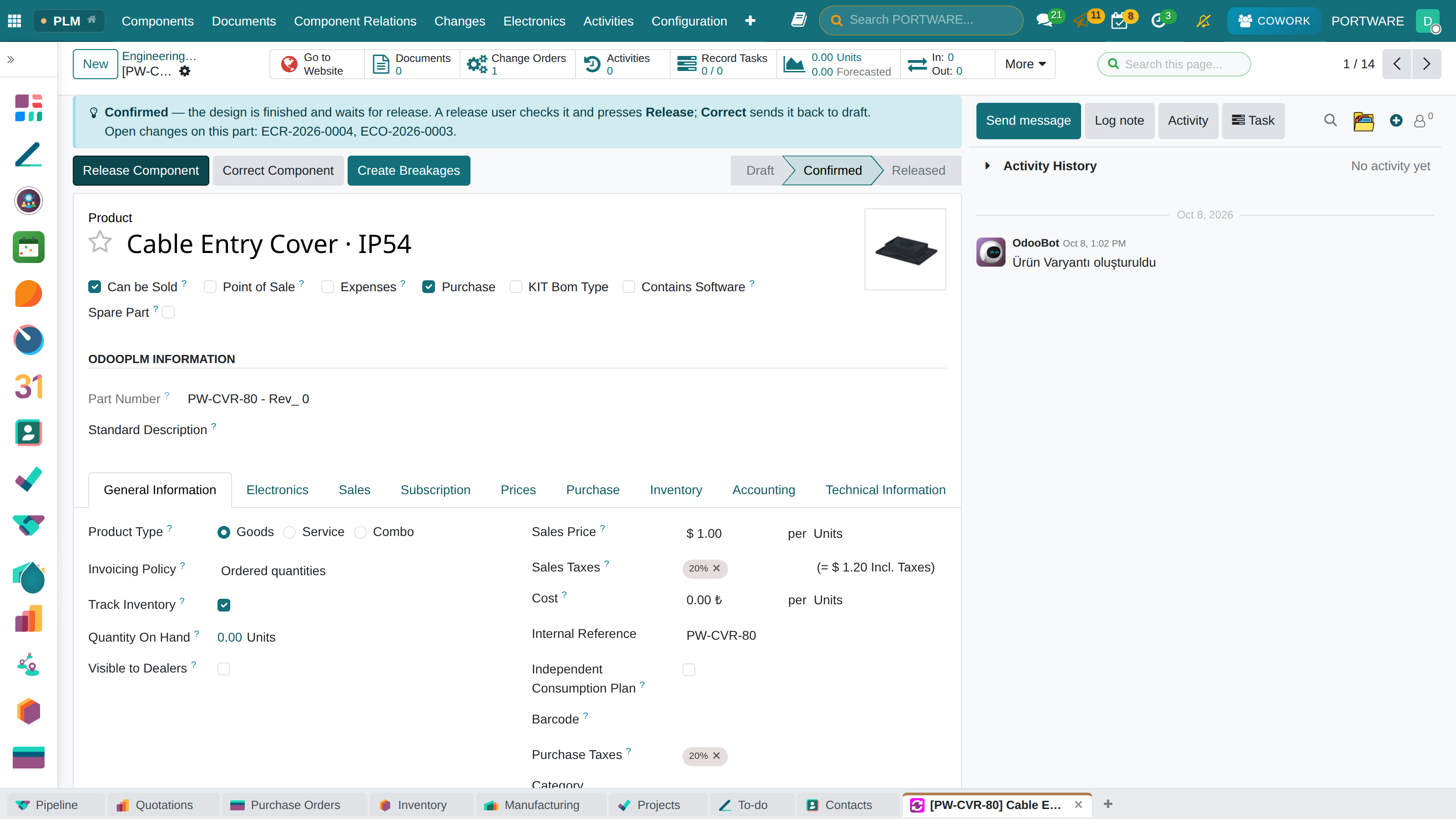
PLM product detail screen - revision history and version control
Revision Numbering
| Revision | Type of Change | Example |
|---|---|---|
| v1.0 | First release | The original design |
| v1.1 | A minor change | The screw type changed |
| v2.0 | A major change | The leg design was completely renewed |
Engineering Changes (ECO)
An ECO (Engineering Change Order) manages changes to a product or BOM in a controlled way. Changes do not reach production until they are approved.
The ECO Process
ECO Types
- BOM change: adding or removing a component, changing a quantity
- Routing change: operation sequence, work centre change
- Design change: updating a CAD file
- Document change: updating a technical drawing or documentation
PLM linked documents - technical documents for engineering changes
CAD Integration
The PLM module can work with CAD programs such as SolidWorks, AutoCAD and Inventor. Designers can send the changes they make in CAD straight to PORTWARE.
PLM CAD integration - technical drawings and 3D models directly in PORTWARE
CAD Integration Features
- Automatic BOM creation: import the BOM from a CAD assembly file
- 3D viewing: view STEP, IGES and STL files on the web
- Revision synchronisation: CAD revision = PORTWARE revision
- Technical drawings: 2D drawings are linked to the product card
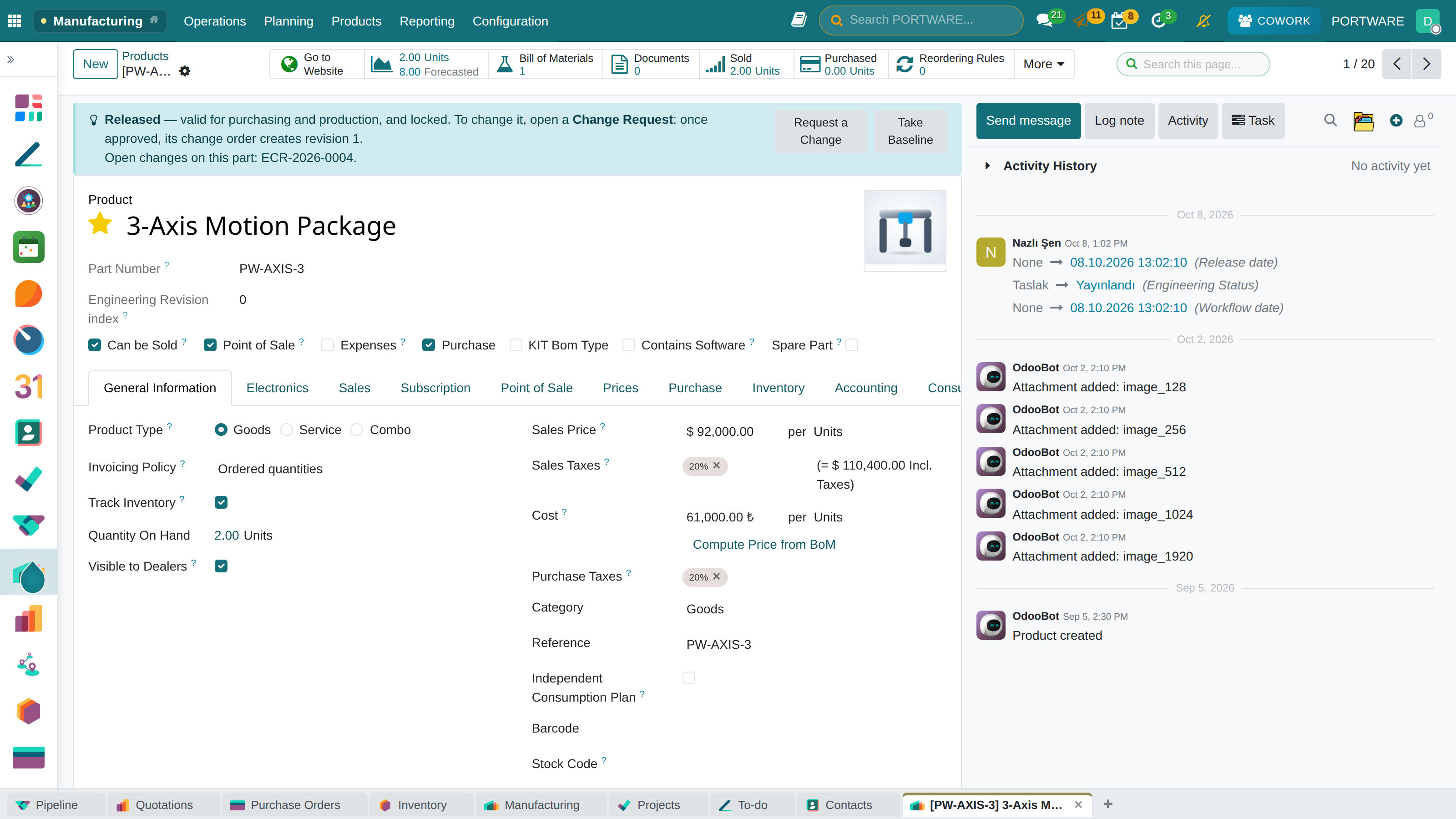
PLM product detail screen - CAD files, technical drawings and 3D model viewing
Maintenance Management
Machines break down and need maintenance. With PORTWARE's maintenance module you can plan preventive and corrective maintenance and follow the equipment history.
Maintenance Types
Preventive Maintenance
Planned periodic maintenance, done before anything fails. Example: an oil change every 3 months
Corrective Maintenance
Repair after a breakdown. Urgent intervention. Example: repairing a motor failure
Predictive Maintenance
Based on sensor data. IoT integration. Example: an alert on rising vibration
Equipment Card
Create an equipment card for each machine:
- Machine name and code
- Brand, model, serial number
- Commissioning date
- Responsible technician
- Maintenance history
- Spare parts list
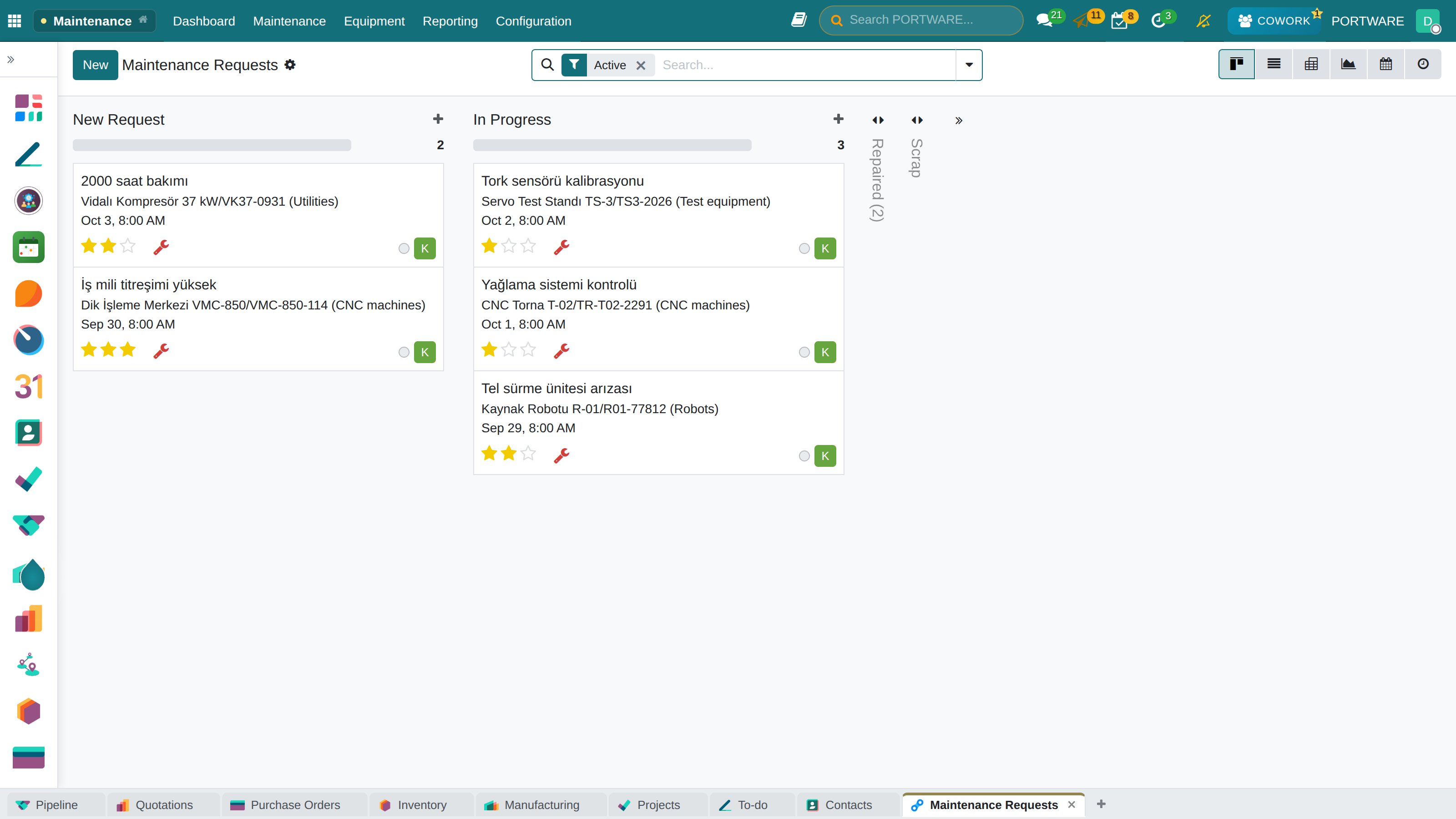
Maintenance main screen - the equipment list and maintenance states
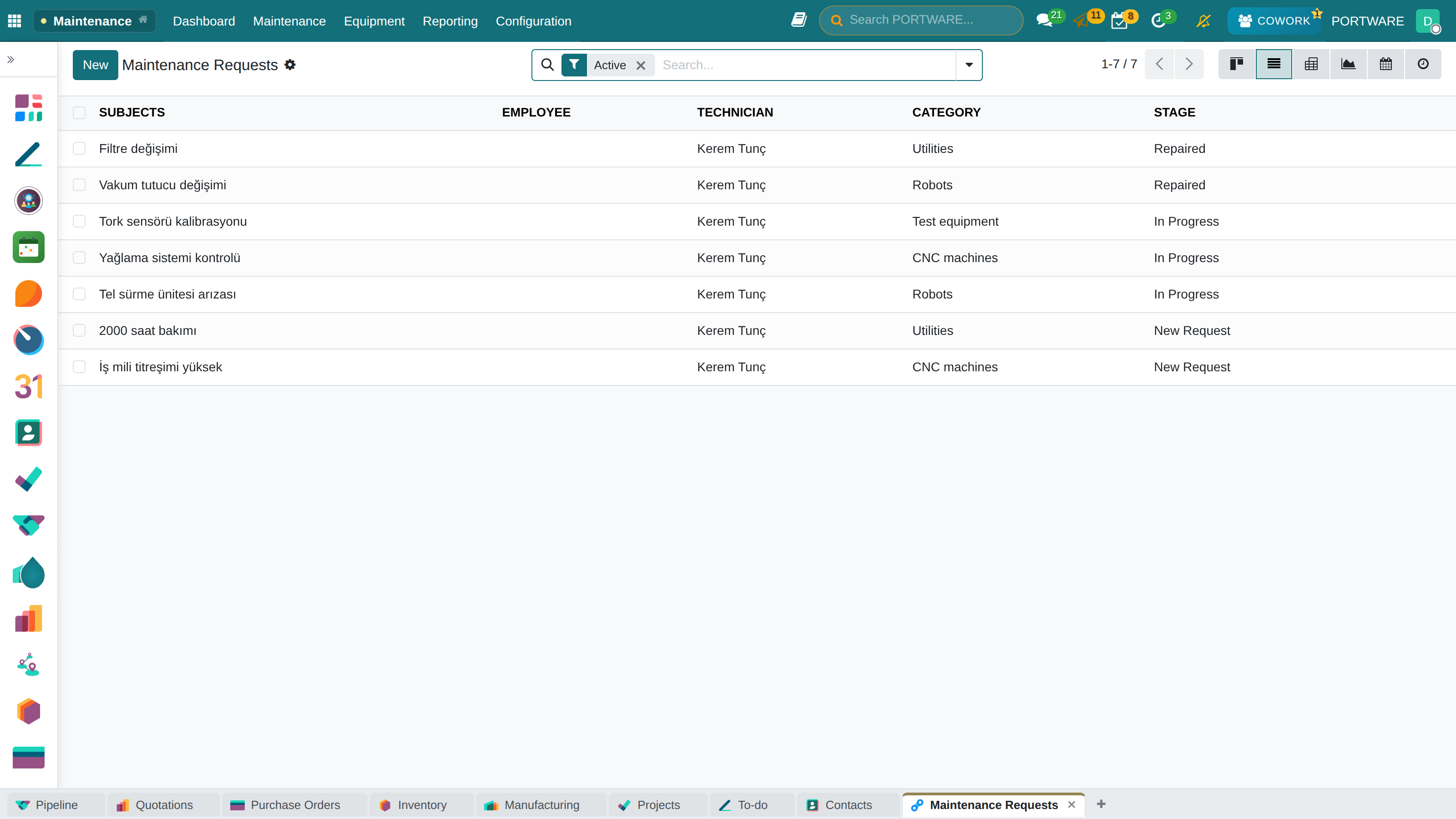
Maintenance requests as a list — equipment, owner, category and stage
Repairs
You can also manage the repair of production equipment in PORTWARE:
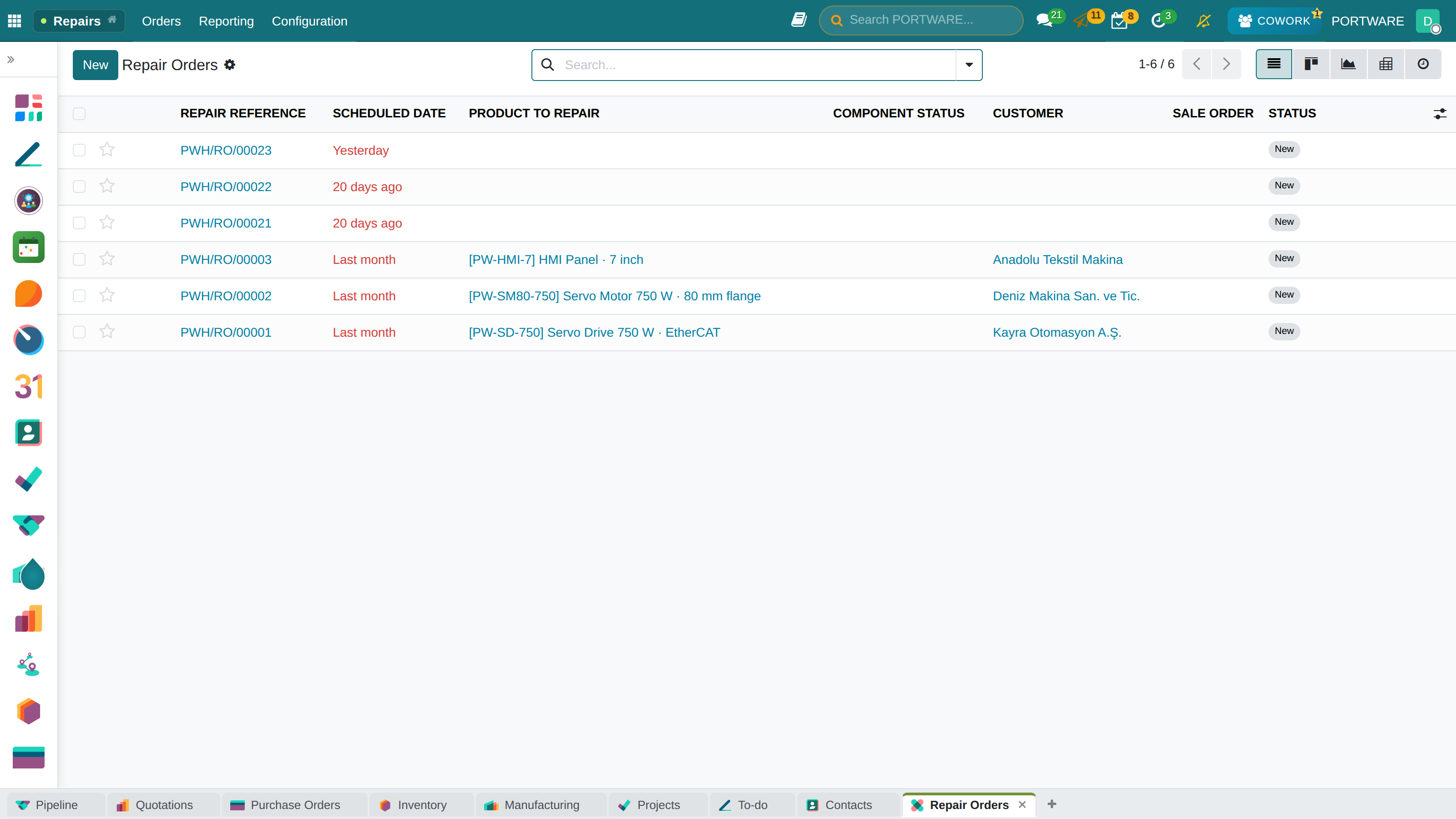
Repair management screen - faulty equipment and repair processes
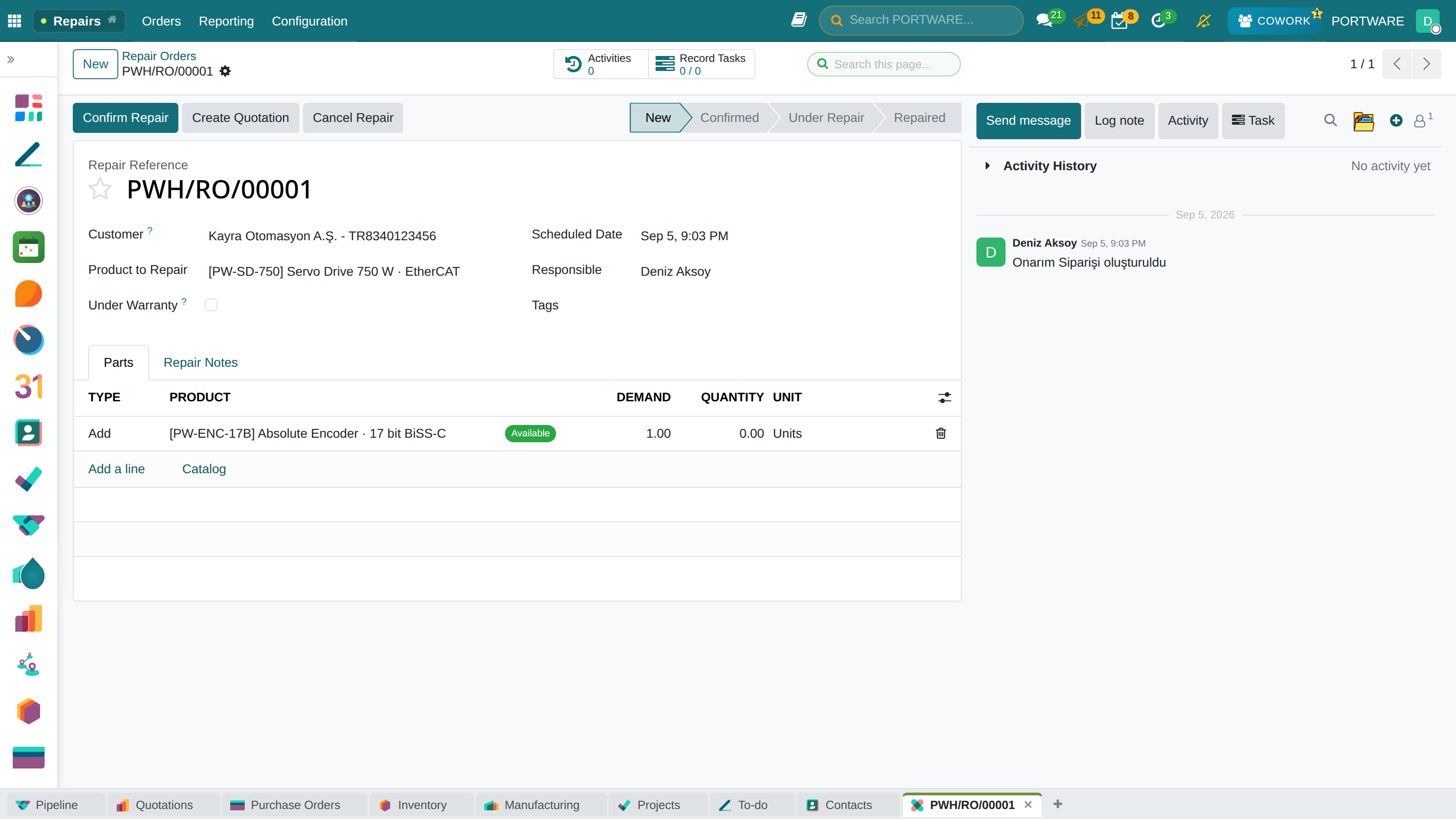
A repair order — customer, product, parts and status
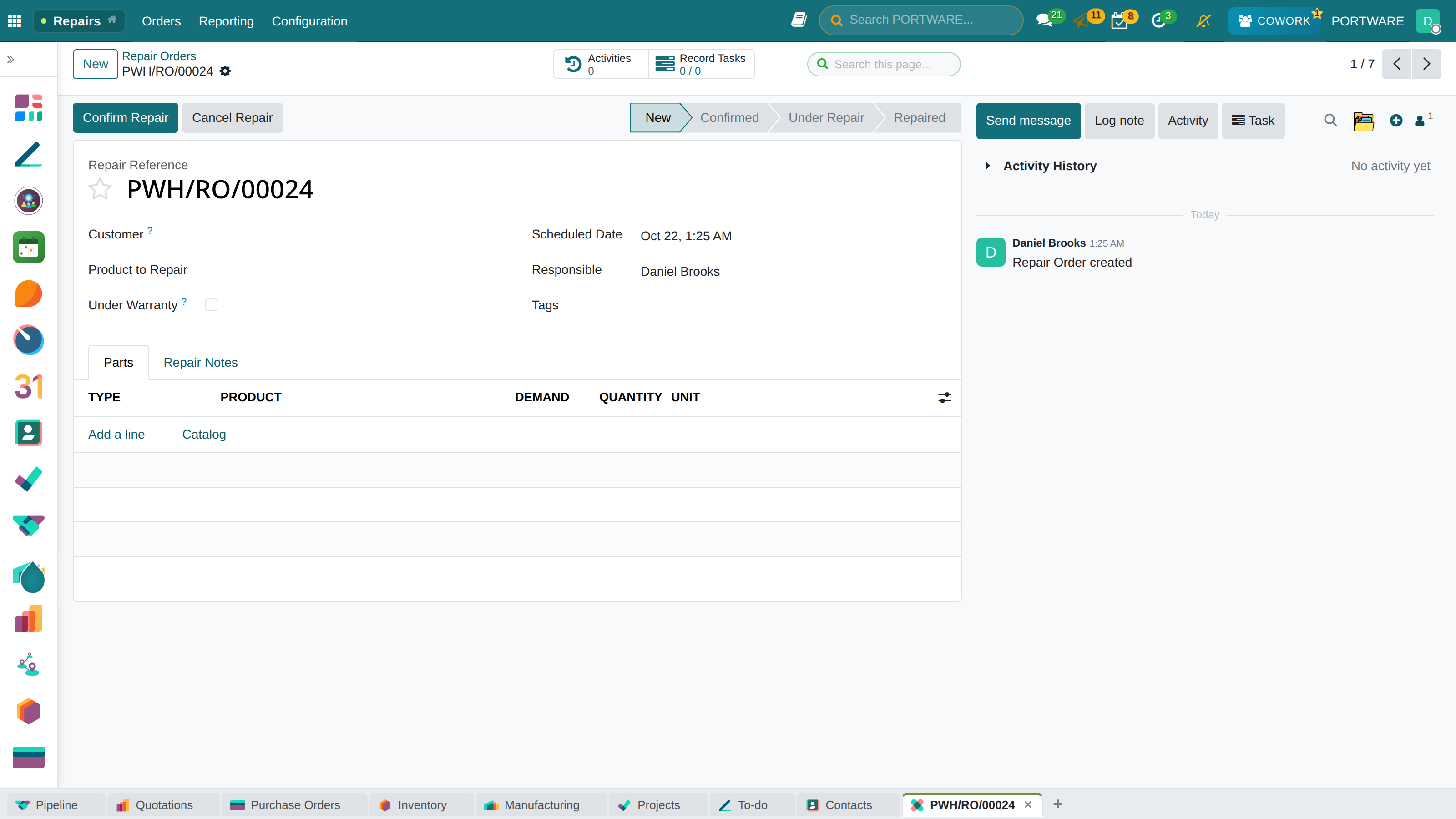
A repair order — customer, product to repair, parts and repair notes
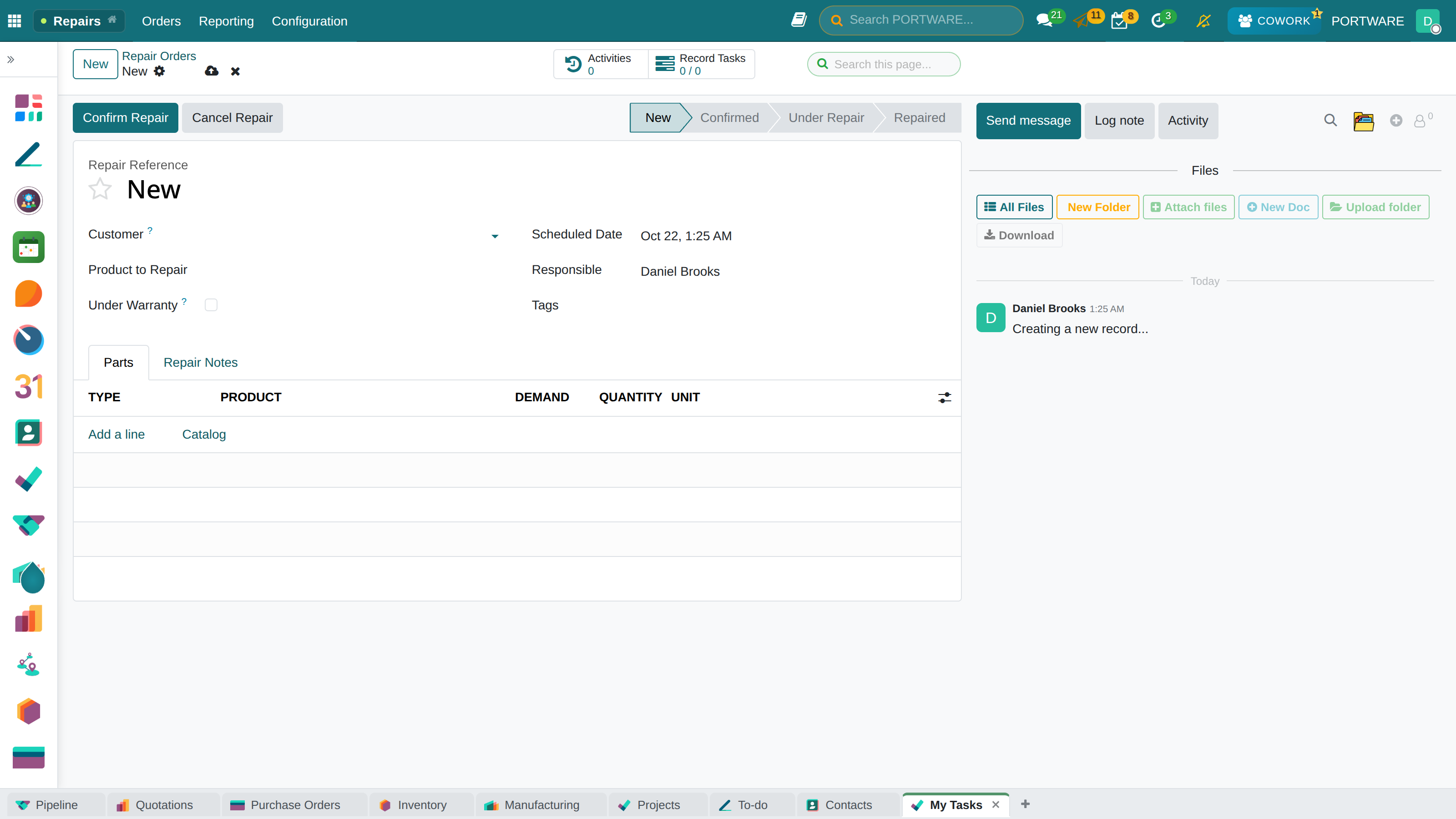
New repair record - reporting an equipment fault and starting the repair
OEE (Overall Equipment Effectiveness)
OEE (Overall Equipment Effectiveness) is the world-standard metric for how efficiently production equipment is used.
OEE Components
| Component | Formula | What Does It Measure? |
|---|---|---|
| Availability (A) | Run Time / Planned Time | Stoppages, breakdowns, set-up times |
| Performance (P) | Actual Speed / Ideal Speed | Slow running, minor stops |
| Quality (Q) | Good Products / Total Produced | Scrap, rework |
Interpreting OEE
Integrations
The Manufacturing module is fully integrated with PORTWARE's other modules. Data flows automatically.
Integration Scenarios
- Sales → Manufacturing: a manufacturing order is created automatically when an MTO order is confirmed
- Manufacturing → Inventory: completed production is received into stock automatically
- Manufacturing → Purchase: automatic requests for missing materials
- Manufacturing → Accounting: production costs are posted automatically
Reports and Analysis
Key Manufacturing Reports
Production Analysis
Production quantities by period, statistics by product
Work Order Durations
Planned vs actual duration
Cost Analysis
Cost reports by product/order
OEE Report
Efficiency analysis by work centre
Manufacturing KPIs
Frequently Asked Questions
Can I create a manufacturing order without a BOM?
No, a manufacturing order always needs a BOM. The BOM is the system's "recipe" - production cannot be planned without knowing which materials are used and how much. For simple products, however, you can create a single-component BOM.
How does partial production work?
You ordered 100 units but could only make 30 today? When completing the manufacturing order, enter 30 in the "Quantity Produced" field. The manufacturing order stays "In Progress" for the remaining 70 and you can continue tomorrow. The system calculates material consumption proportionally.
How is subcontracting tracked?
For subcontracting: 1) define the subcontractor, 2) choose the subcontracting work centre as an operation in the BOM, 3) when the purchase order is created, the raw materials are sent to the subcontractor, 4) when the processed product arrives, it is received into stock.
My scrap rate is high - how can I analyse it?
Look at the Manufacturing → Reporting → Scrap Analysis report. Ask: which products have high scrap? At which work centre? Which operator? Which shift? The answers lead you to the root cause. Usually it is insufficient training, machine set-up or material quality.
Can one product have more than one BOM?
Yes! You can define different BOMs for different scenarios: alternative materials, different production methods, special customer requests. You choose which BOM to use when creating the manufacturing order.
How does lot/serial tracking work?
You can assign lot or serial numbers during production. Settings → Inventory → Traceability must be enabled. When completing the manufacturing order the system asks for the lot/serial number. That way you can trace which products were made from which raw materials (forward/backward traceability).
Best Practices
Getting Started
- Start with simple products and move to complex BOMs later
- Define work centres correctly - keep capacities realistic
- Train operators on the tablet
- Do not skip scrap records; you need real data
Daily Operations
- Check the manufacturing dashboard every day
- Look into late manufacturing orders at once
- Do not let quality checks slip
- Handle maintenance requests on time
Continuous Improvement
- Follow OEE trends weekly
- Analyse products with a high scrap rate
- Find the bottleneck work centres and solve them
- Take operator feedback into account
Summary: The Formula for Successful Manufacturing Management
- The right BOM: accurate recipes, accurately calculated cost
- Realistic planning: do not exceed work centre capacity
- Timely recording: record production and scrap as it happens
- Quality control: costs less than shipping a defective product to a customer
- Continuous improvement: analyse the OEE and scrap reports