Human Resources (HRMS)
The employee lifecycle: manage an employee
- The whole employee journeyOne employee record from hiring to leaving.
- Payroll installedSalary calculation and accounting integration on the open-source core, with no extra licence.
- Connected to planningApproved leave and working calendars show up in team workload.
Human Resources (HRMS)
The employee lifecycle: manage an employee's whole journey through your organisation, from hiring to retirement. Leave the spreadsheets behind and bring all your HR processes onto one platform.
What You Will Learn in This Section
- Managing recruitment end to end (job posting → interview → offer → onboarding)
- Creating employee records and the organisation structure
- Attendance tracking, leave management and overtime calculation
- Understanding the payroll process and creating payslips
- Performance appraisals and goal tracking
- HR management compliant with Turkish legislation
Overview
The Human Resources module covers every process from hiring an employee to their departure. This is called the "employee lifecycle", and managing it well means managing your company's most valuable asset - its people - effectively.
HRMS dashboard - the main control panel of the human resources module
The Employee Lifecycle
Recruitment
Onboarding
Employment
Development
Departure
The PORTWARE HR module helps at every stage:
- Recruitment: job postings, applications, interview scheduling, reference checks
- Onboarding: onboarding plans, training assignments, equipment handover
- Employment: attendance tracking, leave management, payroll, benefits
- Development: performance appraisal, skill development, career planning
- Departure: offboarding, equipment return, severance pay calculation
Expense Management
Track employees' business travel, entertainment and other expenses digitally and manage their approval.
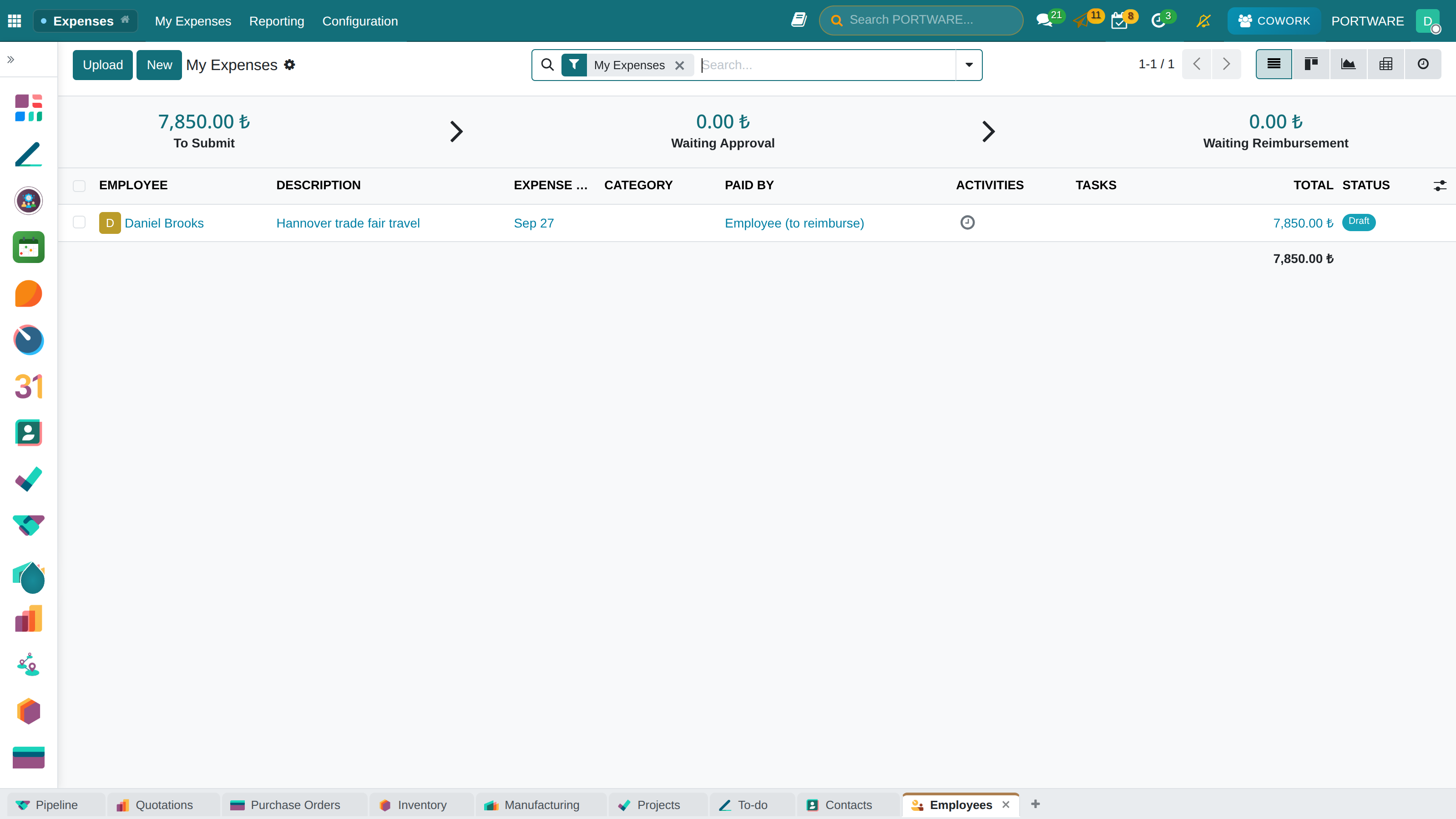
Expense management - employee expense requests and approval states
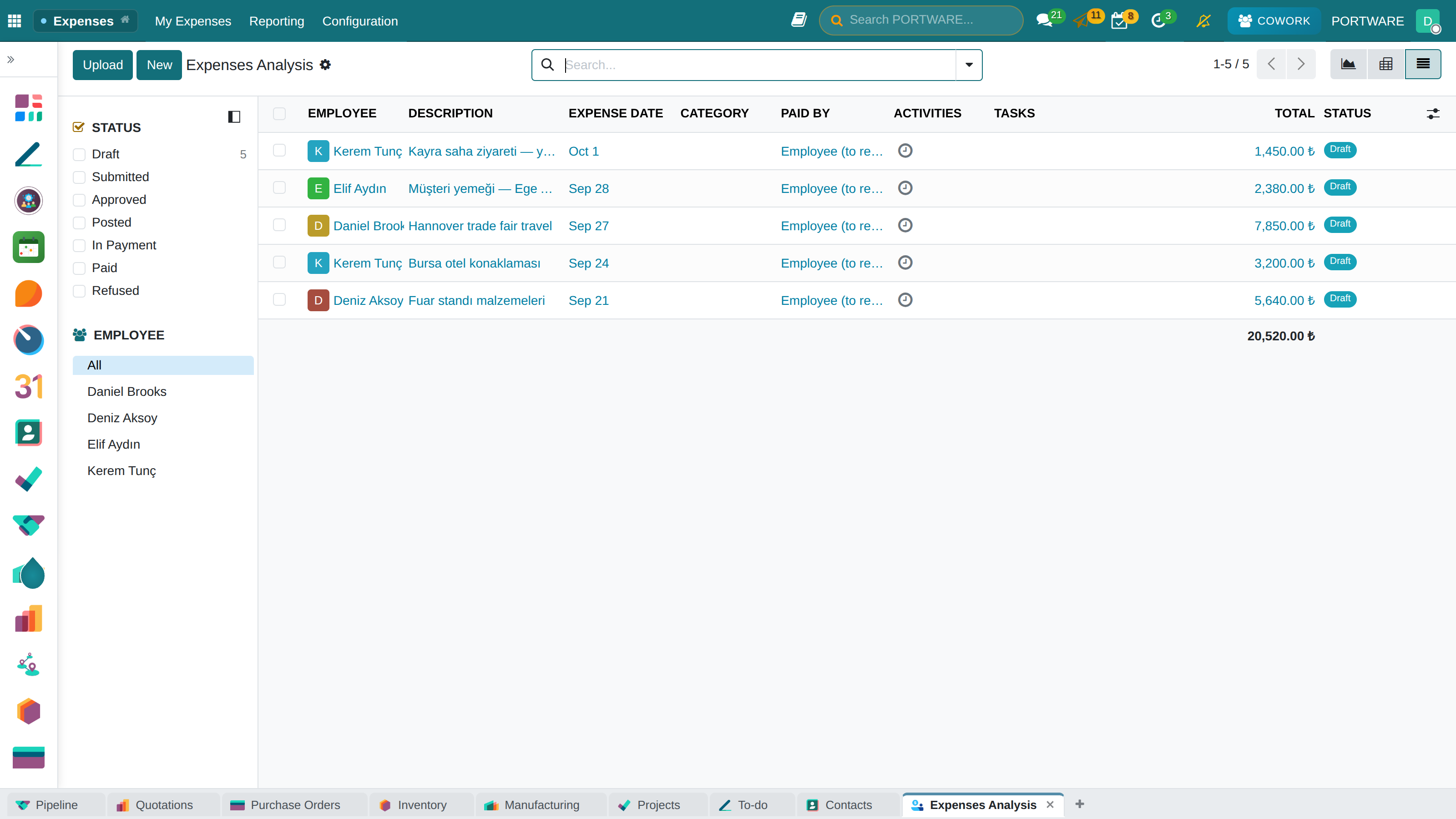
Expenses list - expense reporting by department
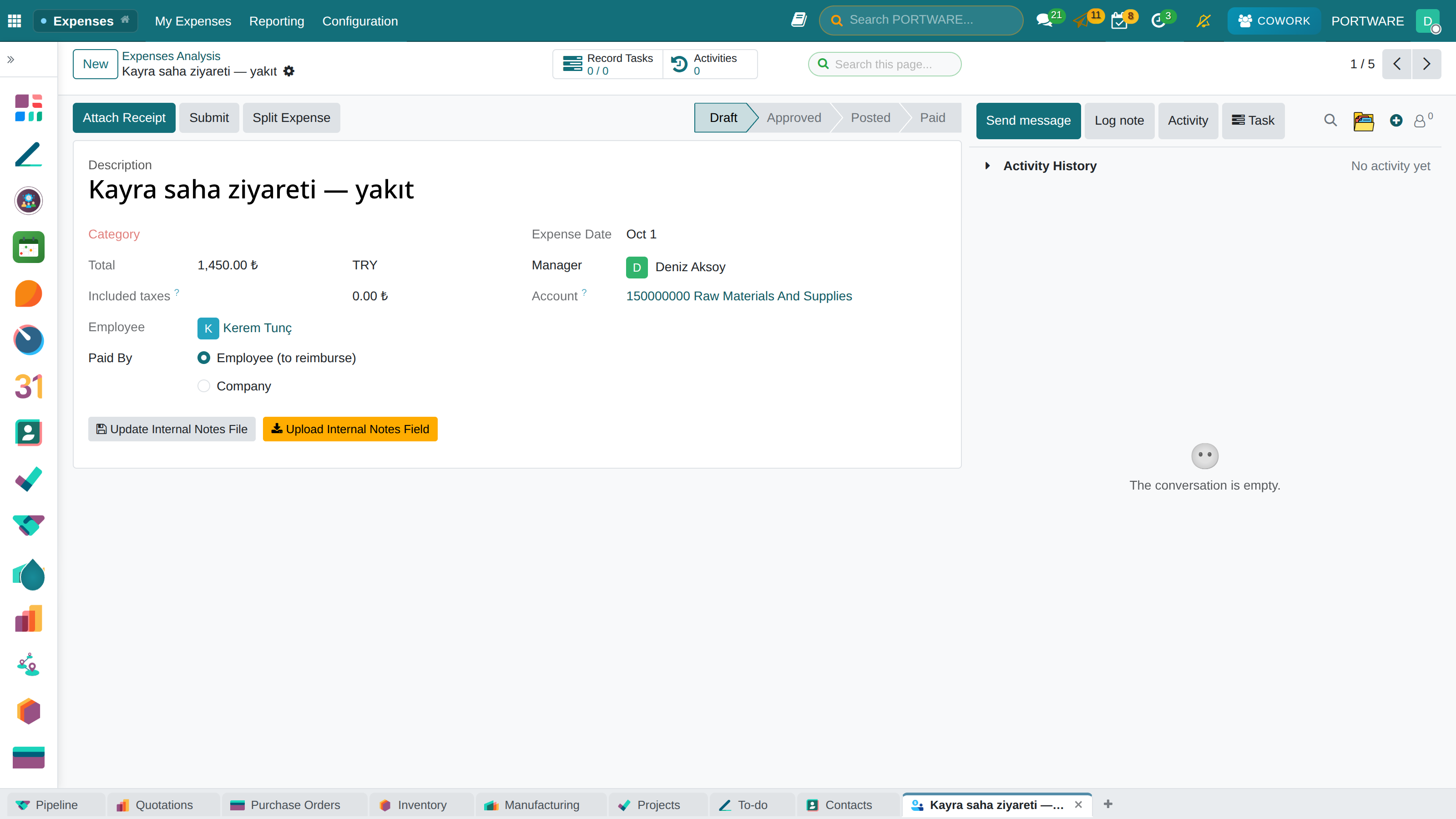
Expense receipt - expense details and the receipt document
Expense test - expense approval and validation
Why Manage Human Resources in an ERP?
Picture this for a moment: you have 150 employees and track annual leave in Excel. You use a separate program for payroll. Recruitment runs through e-mail chains. Performance appraisals are done on paper forms...
Excel and Separate Systems
- 5 different Excel files for leave balances
- 10 minutes to answer "how many days of leave does Ahmet have left?"
- Data exported to another program for payroll
- Manual data entry for social security declarations
- Performance forms lost in filing cabinets
- Candidate CVs scattered across e-mails during recruitment
- The organisation chart is never updated
The PORTWARE HR Module
- All leave information on one screen, with live balances
- Employee self-service: employees enter their own leave requests
- Attendance data flows into payroll automatically
- Social security and tax calculations are integrated
- Performance appraisal is fully digital
- Professional recruitment with an applicant tracking system (ATS)
- A dynamic organisation chart
Scenario: Preparing the Year-End HR Report
With Excel (2 days on average):
- Open the hiring spreadsheet and count the new starters
- Work out the departures from the leavers' file
- Extract leave usage by department from the leave spreadsheet
- Ask accounting for training cost data
- Pull a cost report from the payroll program
- Move all the data into PowerPoint
- Build the charts by hand
With PORTWARE (15 minutes):
- Go to Reporting → HR Dashboard
- Choose the date range (January - December)
- View the ready-made charts and tables
- Get your report with the Export PDF button
Key Concepts
Let us learn the basic concepts of HR management and their equivalents in PORTWARE:
Employee
The digital identity of every person working in your company. Personal details, job details, contract details, skills and all HR operations run through this record.
Employment Contract
The legal agreement that sets the employee's terms of employment. In PORTWARE, contract details are critical for payroll calculation.
| Field | Description | Payroll Effect |
|---|---|---|
| Gross Wage | Monthly gross wage | The base calculation value |
| Working Hours | Weekly working time | Overtime calculation |
| Contract Type | Permanent/fixed-term | Severance pay |
| Probation Period | Probation (max. 2 months) | Compensation rights |
Departments and Organisation
The digital representation of the company structure. Thanks to the hierarchical department structure:
- Reporting chain: who reports to whom
- Approval flows: authority over leave and expense requests
- Cost centre: budget tracking by department
- Organisation chart: a visual hierarchy
Working Schedule (Working Time)
Defines on which days and hours work is done. Used for attendance checks, overtime and payroll calculations.
Example Working Schedules
- Standard week: Monday-Friday 09:00-18:00 (45 hours)
- Shifts: 3 shifts (08:00-16:00, 16:00-24:00, 24:00-08:00)
- Part-time: Monday-Wednesday 09:00-18:00 (27 hours)
- Flexible: 40 hours a week, flexible start and end
The Recruitment Process
Finding the right people is the foundation of your company's success. The PORTWARE Recruitment module digitises the whole process from job posting to onboarding.
Creating a Job Posting
When you need someone for a position, the process starts like this:
- Go to Recruitment → Job Positions
- Click the New button
- Enter the position details:
- Position name (e.g. Software Developer)
- Department (e.g. IT)
- Number of open positions
- Expected start date
- Fill in the job description and requirements
- Click the Publish button
How to Do It in PORTWARE
Creating a new job posting:
- Follow
- Click the New button at the top left
- Type the position in the Job Position field (e.g. "Senior Software Developer")
- Choose the department in the Department field
- Enter how many people will be hired in the Expected New Employees field
- Describe the duties and responsibilities on the Job Description tab
- State the required qualifications on the Requirements tab
- Click Save, then the Publish button
Publishing the job on the website:
- Click the Publish on Website button on the position card
- Edit the URL and description shown on the careers page
- Set the Publication Date and Application Deadline
- The posting appears on the
/jobspage automatically
The Interview Process
Scenario: Interviewing for a Software Developer
Step by step:
- Screening: review the CVs and move suitable candidates to the "First Interview" stage
- Schedule the interview: click Schedule Interview on the applicant card
- Choose the interviewer: assign the relevant manager for the technical interview
- Send the invitation: the system informs the candidate by e-mail automatically
- Evaluation: add scores and notes after the interview
- Decision: move suitable candidates to the "Offer" stage
Interview Stages (Kanban)
| Stage | Description | Typical Duration |
|---|---|---|
| New Application | The CV has not been reviewed yet | 1-2 days |
| Initial Screening | The CV is being reviewed for fit | 2-3 days |
| Phone Call | A short introduction, checking expectations | 1-2 days |
| Technical Interview | Skills assessment | 3-5 days |
| Manager Interview | Cultural fit, final decision | 2-3 days |
| Offer | The job offer is being prepared | 1-2 days |
| Hired | The offer was accepted | - |
How to Do It in PORTWARE
Scheduling an interview for a candidate:
- Follow
- Click the candidate's card
- Click the Schedule Interview button in the right panel
- Choose the Interview Type (phone, technical, manager, etc.)
- Choose who will conduct it in the Interviewers field
- Set the Date/Time and Duration
- Enter the Location or Video Link
- Click the Schedule button
- The system sends invitations to the candidate and the interviewers automatically
Evaluation after the interview:
- Click the Evaluate button on the candidate card
- Score the criteria on the evaluation form (1-5 stars)
- Write your detailed observations in the Interviewer Notes field
- Choose Positive or Negative as the outcome
- Drag a positive candidate to the next stage in the kanban
The Job Offer
Making a job offer to a suitable candidate:
- Click the Create Offer button on the candidate card
- Enter the offer details:
- Gross wage
- Benefits (meal card, transport, health insurance)
- Start date
- Probation period
- Generate the offer document as a PDF
- E-mail it to the candidate with Send Offer
- Record the candidate's answer in the system (accept/refuse/negotiate)
Onboarding
The systematic process that organises a new employee's first days. Good onboarding raises engagement and reduces early departures.
Before the First Day
- Prepare the desk and chair
- Set up the computer
- Create the e-mail account
- Prepare the access card
- A welcome pack (pen, notebook, branded items)
The First Day
- Welcome and tour
- HR orientation (paperwork, policies)
- Meeting the department
- System access
- Assigning a mentor
The First Week
- Introduction to the role
- Training plan
- Setting the first goals
- Social integration activities
- A weekly check-in
The First Month
- 30-day review
- Checking that training is complete
- Clarifying performance expectations
- Gathering feedback
- Onboarding survey
How to Do It in PORTWARE
Creating an onboarding plan:
- Follow
- Click the New button
- Enter the Plan Name (e.g. "Software Team Onboarding")
- Choose "Onboarding" as the Plan Type
- Choose the Department (optional)
- Activities tab - add the tasks:
- Activity name (e.g. "IT equipment handover")
- Responsible department/person
- Timing (e.g. "1 day before the start date")
- Click the Save button
Assigning a plan to a new employee:
- Open the employee card
- Click the Launch Plan button
- Choose the onboarding plan from the list
- Enter the start date as the Start Date
- The system creates all the tasks automatically and assigns them to the people responsible
Employee Management
When an employee starts, all their information is gathered in a single record. This record is the centre of HR operations.
Creating an Employee Profile
- Go to Employees → Employees
- Click the New button
- Enter the basic information (name, position, department)
- Fill in the details on the tabs
| Tab | Content | Required? |
|---|---|---|
| Summary | Photo, full name, position, phone, e-mail | Yes |
| Work Information | Department, manager, working hours, start date | Yes |
| Private Information | Address, date of birth, national ID number, driving licence, bank account | Yes, for payroll |
| HR Settings | Linked user account, attendance approver, time-off manager | Yes, for self-service |
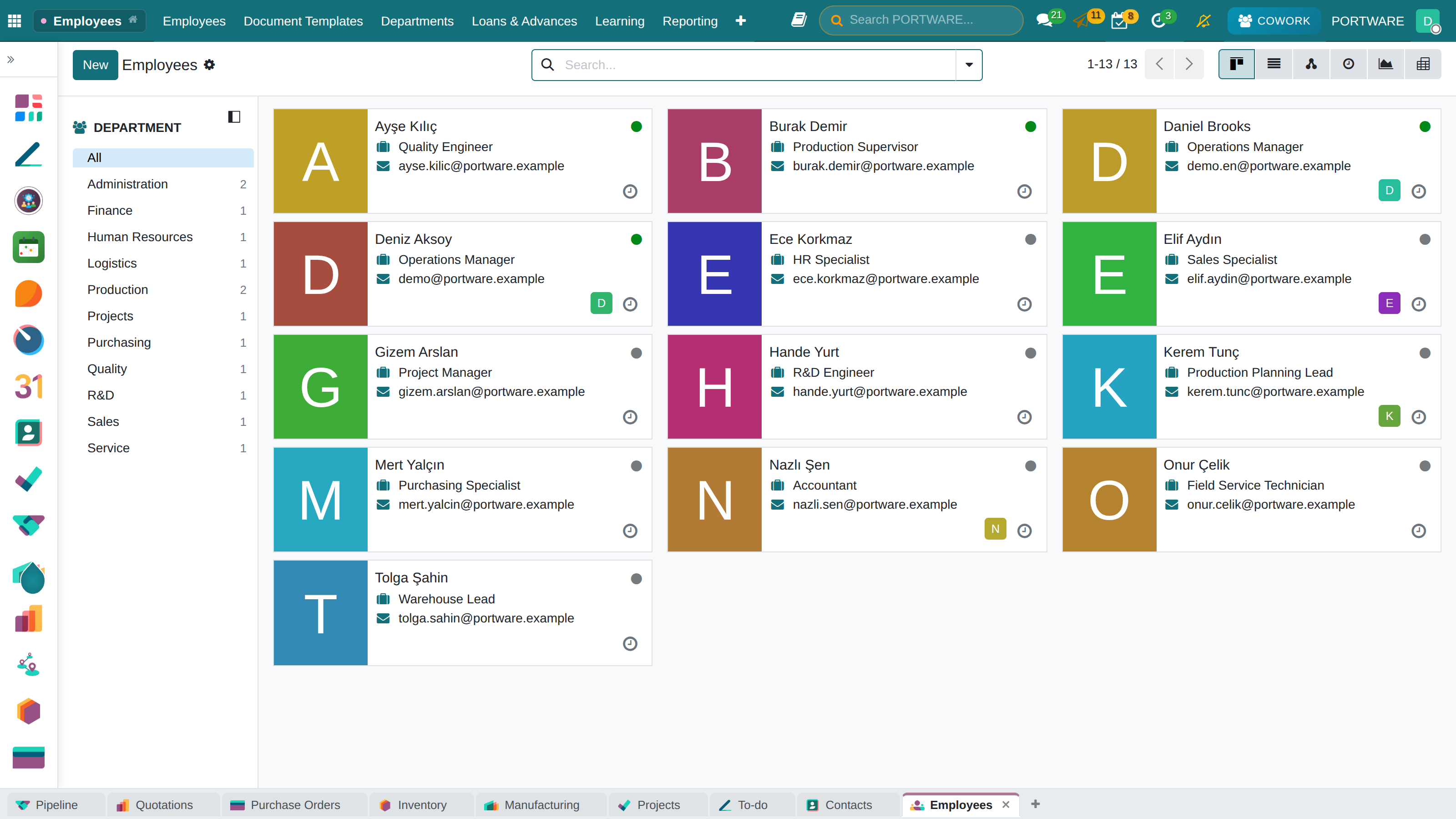
Employees module - the personnel list and personnel records
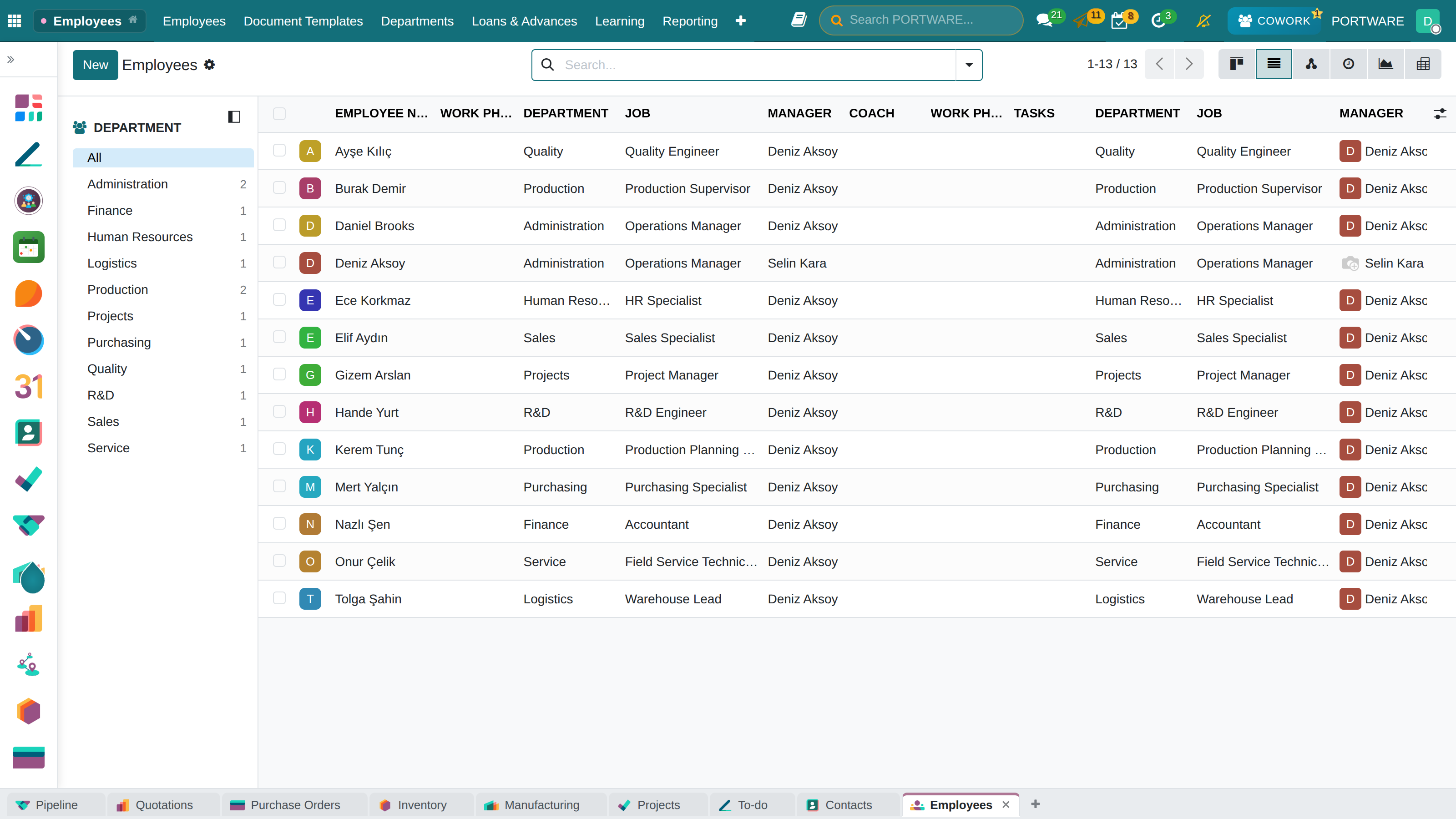
Employees as a list — department, job and manager
How to Do It in PORTWARE
Creating a new employee record:
- Follow
- Click the New button
- Click the camera icon at the top left to add a profile photo
- Type the full name in the Employee Name field
- Enter the title in the Job Position field
- Add the E-mail and Phone
- Choose the Department and Manager
- Work Information tab:
- Start Date - enter it
- Choose the Working Hours
- Enter personal data on the Private Information tab
- Link the PORTWARE user account on the HR Settings tab
- Click the Save button
Creating a user account for an employee:
- Click the Create User button on the employee card
- The system creates a user with the e-mail address automatically
- The access rights window opens; choose the right roles
- The employee receives an e-mail to set a password
Organisation Structure
Define your company's hierarchy with departments and positions.
Transfer management - personnel transfers between departments
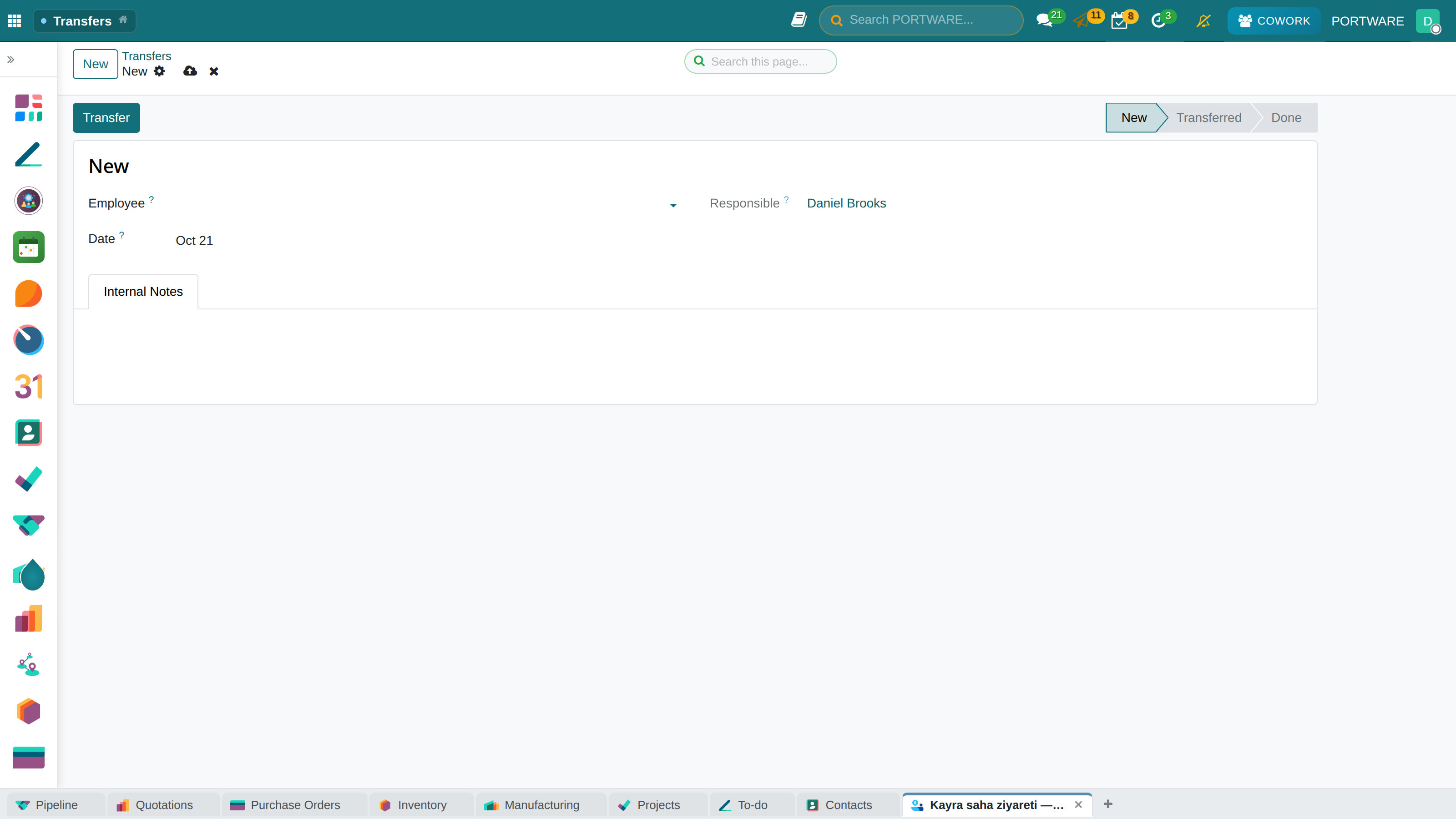
New transfer - the employee transfer request form
Creating a Department
- Go to Configuration → Departments
- Enter the department name (e.g. "IT")
- Choose the manager
- Set the parent department (for the hierarchy)
- Choose a colour (for the organisation chart)
How to Do It in PORTWARE
Creating a new department:
- Follow
- Click the New button
- Enter the Department Name (e.g. "Software Development")
- Choose the Parent Department (for the hierarchy, e.g. "Information Technology")
- Choose the department head in the Manager field
- Choose a Colour so it stands out on the organisation chart
- Click the Save button
Viewing the organisation chart:
- Follow
- See the departments and employees in a hierarchical view
- Click an employee to open their profile card
- Zoom in and out with Ctrl + +/-
- Use Export to export it as PDF or PNG
Employment Contracts
Every employee must have at least one active contract. Contract details are the basis of payroll calculation.
Scenario: A New Employee's Contract
Creating the contract:
- Open Ahmet's employee record
- Go to the Contracts tab
- Click the New Contract button
- Enter the details:
- Contract Reference: CONT-2026-0015
- Start: 01.02.2026
- Salary Structure: Turkey Standard
- Gross Wage: 45,000 TL
- End of Probation: 01.04.2026
- Set it to Running
Contract States
| State | Description | Payroll Effect |
|---|---|---|
| New | A draft, not active yet | Not included |
| Running | An active contract | Included |
| Expired | The contract has ended | Not included |
| Cancelled | Never took effect | Not included |
How to Do It in PORTWARE
Creating a new contract for an employee:
- Open the employee card
- Go to the Contracts tab
- Click the New Contract button
- Enter the Contract Reference (e.g. "CONT-2026-0015")
- Choose the Start Date
- Enter the End Date for fixed-term contracts
- Choose the Salary Structure (e.g. "Turkey Standard")
- Enter the Gross Wage amount
- Benefits tab - define the additional payments:
- Meal Card
- Transport Allowance
- Private Health Insurance
- Click the Save button
- Set the contract to Running to activate it
Lunch Management (Lunch)
Manage your employees' lunch orders. Define vendor menus and follow ordering and payment.
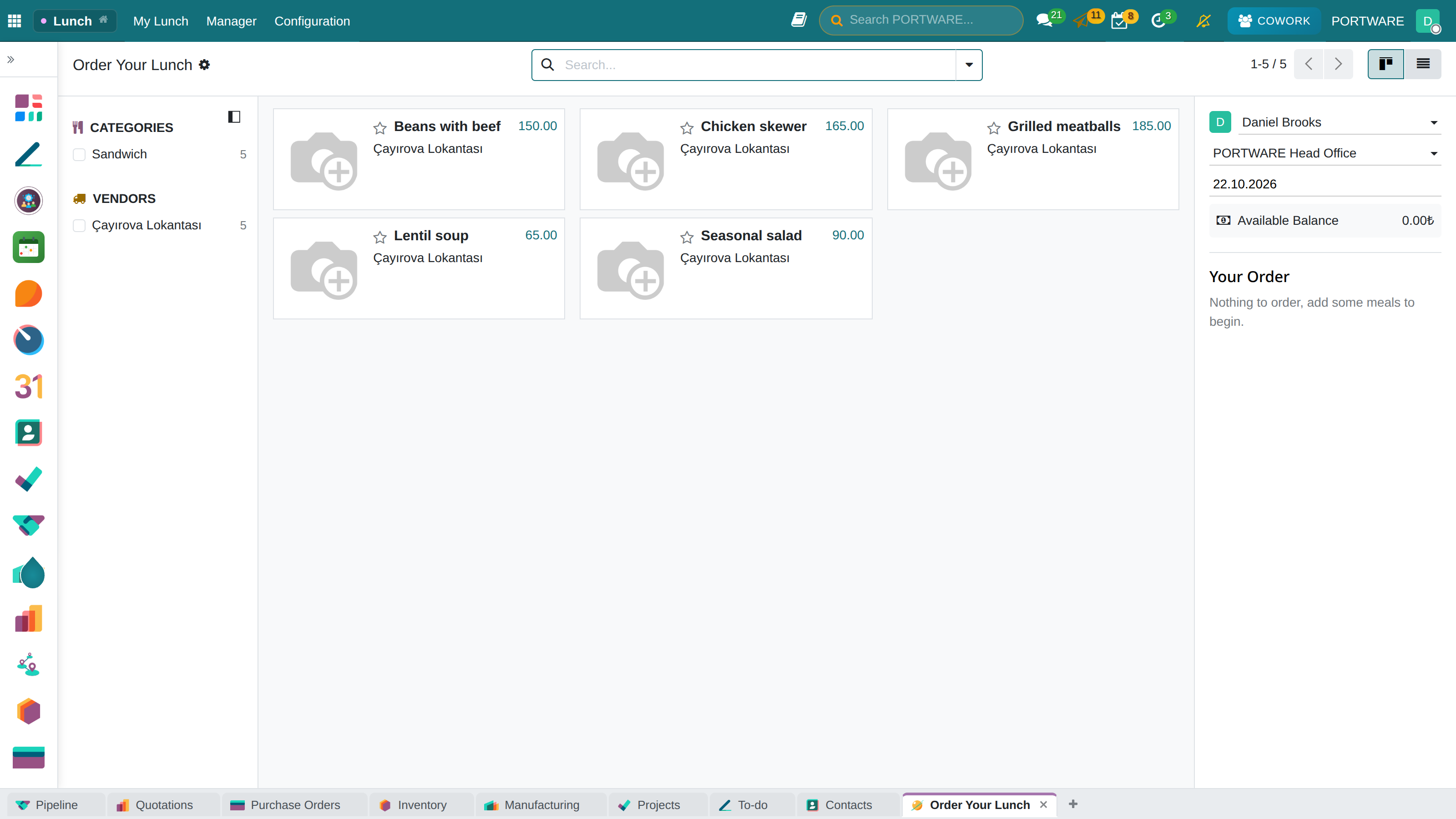
Lunch module - menu and order overview
The lunch order screen
Giving a pay rise:
- Open the current contract
- Click the Update Contract button
- The old contract moves to "Expired" automatically
- Enter the current salary details on the new contract
- Choose the date the rise takes effect as the Start Date
Skills Management
Track the skills and certificates your employees hold. This information is used in performance appraisal and career planning.
Skill Types
- Technical skills: Python, SQL, Excel, AutoCAD
- Languages: English (advanced), German (intermediate)
- Certificates: PMP, AWS Solutions Architect, ISO Auditor
- Soft skills: leadership, communication, problem solving
Time and Attendance
Used to track employees' check-in and check-out times, calculate overtime and monitor absences.
Attendance Tracking Methods
| Method | How Does It Work? | Suitable For |
|---|---|---|
| Web Interface | Log in to PORTWARE and use the Check-in/Check-out button | Office staff, remote workers |
| Kiosk Mode | Check in with a PIN on a tablet/PC at the entrance | Factory, shop, warehouse |
| Mobile App | Check in with the phone app (GPS-enabled) | Field staff, delivery drivers |
| Barcode/RFID | Scanning the staff card | Large sites, security requirements |
Setting Up Kiosk Mode
- Go to Attendances → Configuration → Kiosk
- Create a New Kiosk
- Choose the check-in method (PIN, barcode, manual)
- Choose the employee group (the whole company or a department)
- Take the kiosk URL and open it on the tablet at the entrance
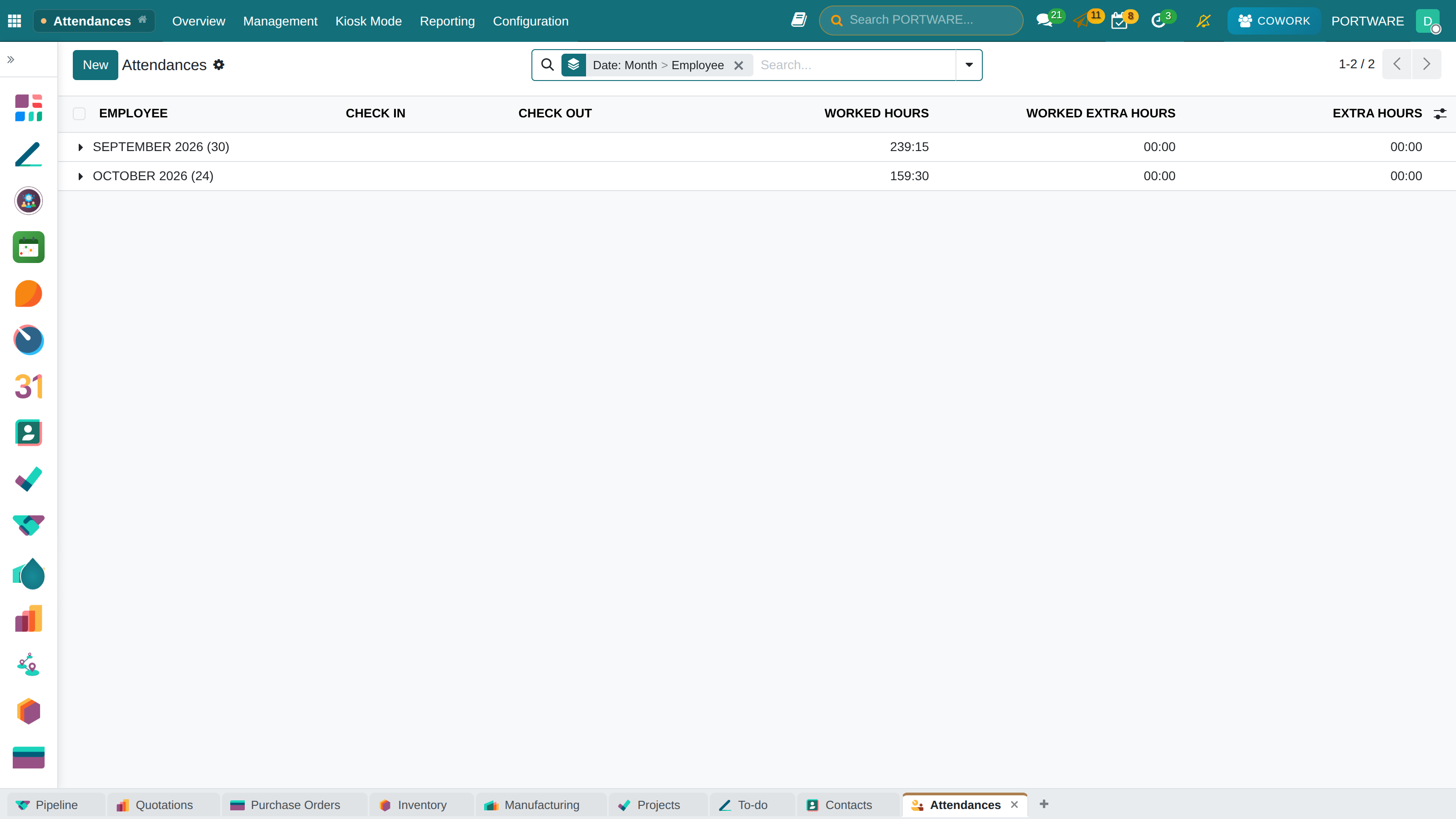
Attendance tracking - the list of employee check-in/check-out records
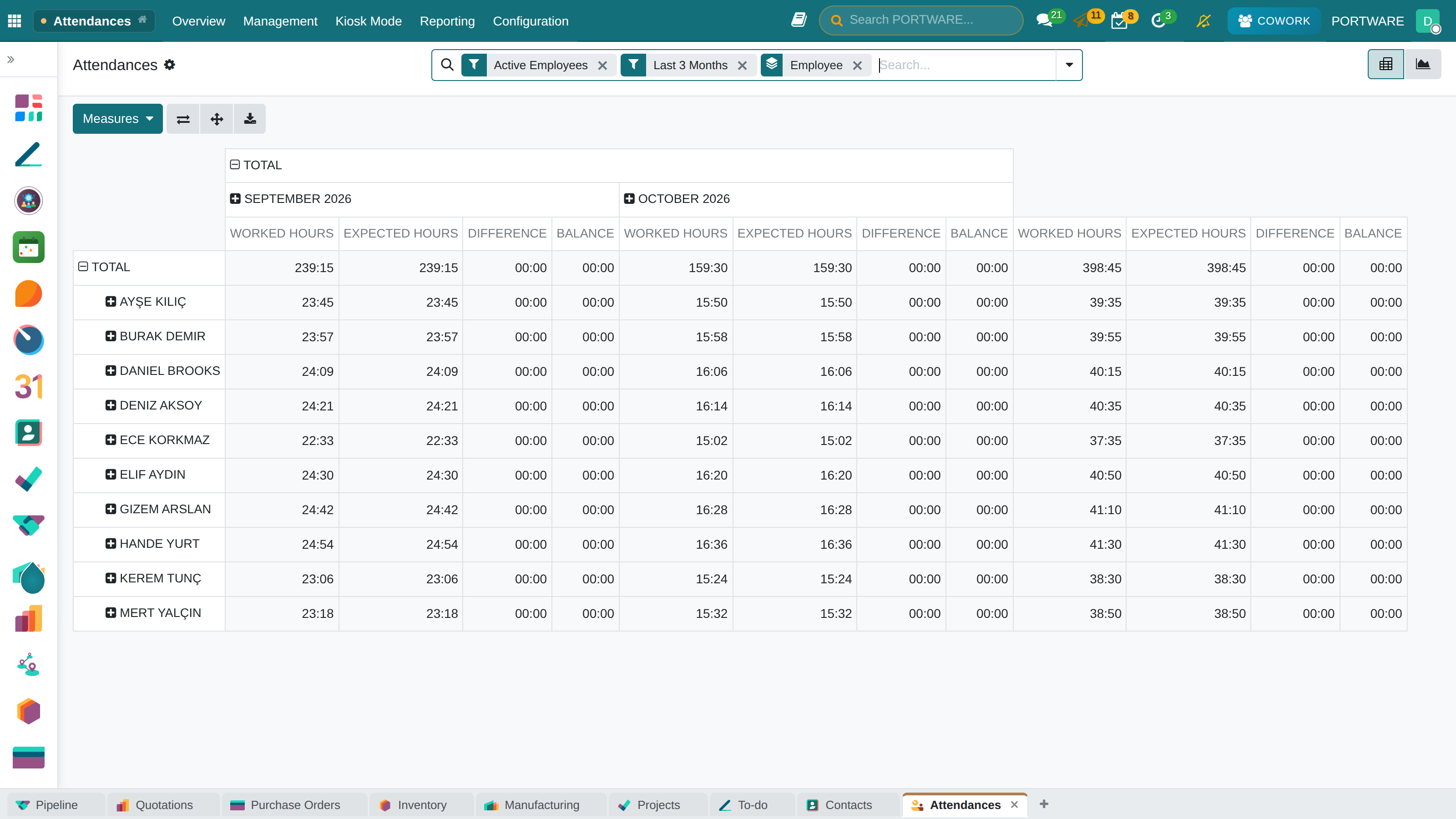
Attendance overview - monthly attendance summary and statistics
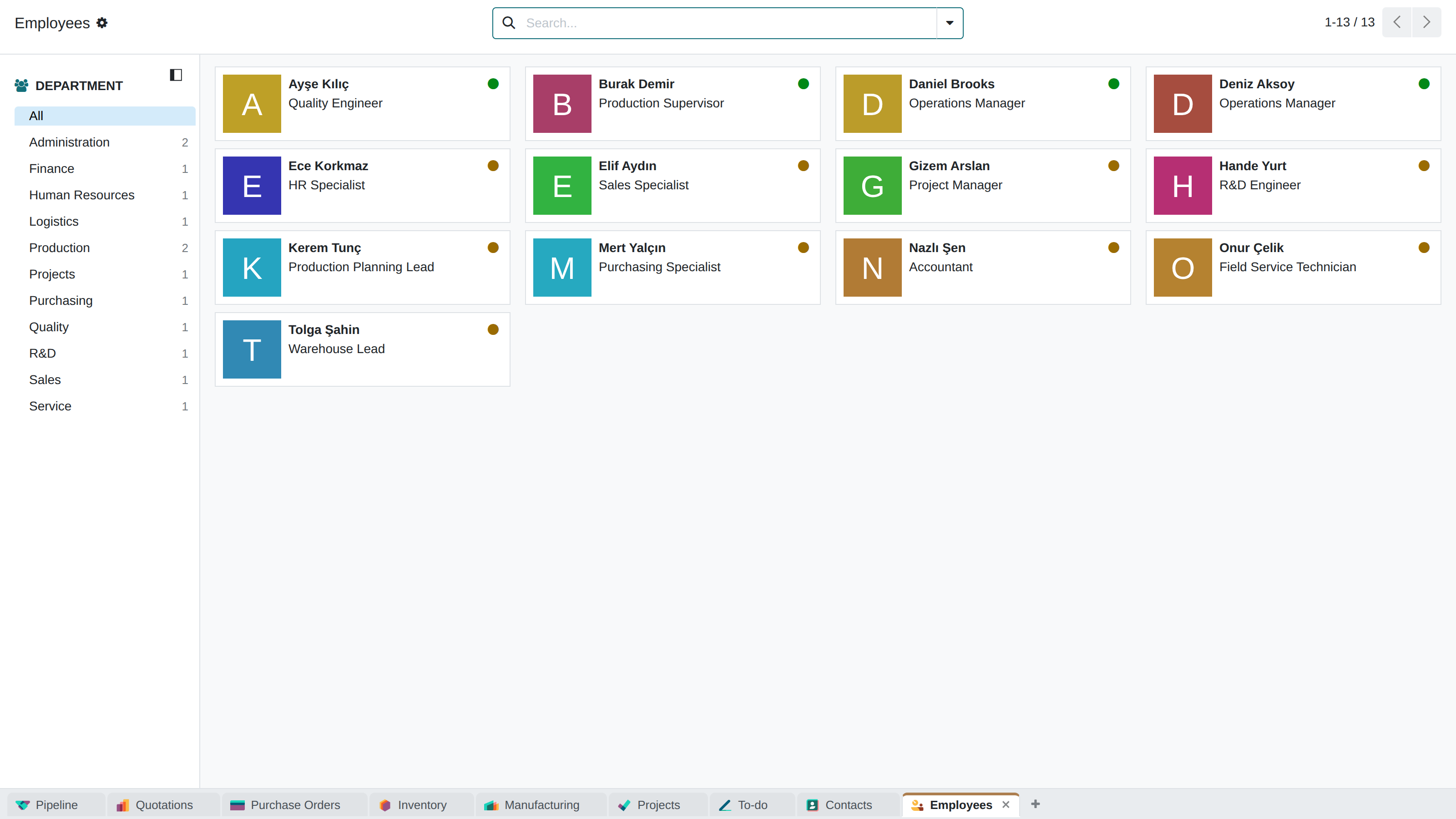
Employee check-in/check-out - the self-service check-in screen
How to Do It in PORTWARE
Manual check-in/check-out record (for HR staff):
- Follow
- Click the New button
- Choose the Employee
- Enter the Check In time
- Enter the Check Out time
- Click the Save button
Employee self-service check-in/check-out:
- Follow
- Click the green Check In button when you start work
- The system records the time and location automatically
- Click the red Check Out button when you finish
- Your daily working time is shown as a summary
Kiosk set-up:
- Follow
- Click the New button
- Enter the Kiosk Name (e.g. "Main Entrance Kiosk")
- Choose the Check-in Mode (PIN, barcode or manual)
- Choose the Employee Group (the whole company or a department)
- After Save, copy the URL that is created
- Open this URL full-screen on the tablet at the entrance
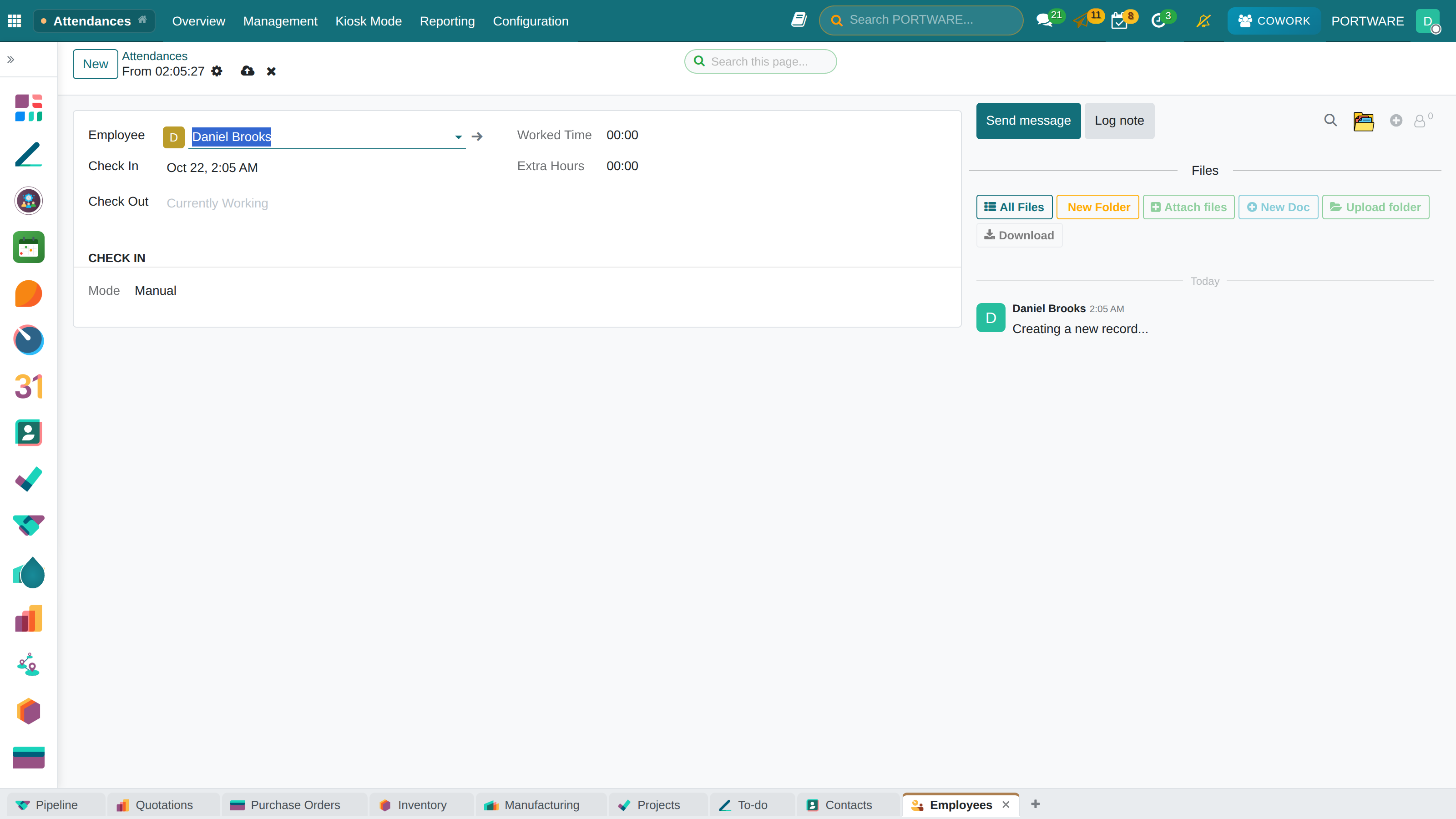
New attendance record - the form for a manual check-in/check-out record
Time Off Management
Employees' requests for annual leave, sick leave, compassionate leave and so on are managed digitally.
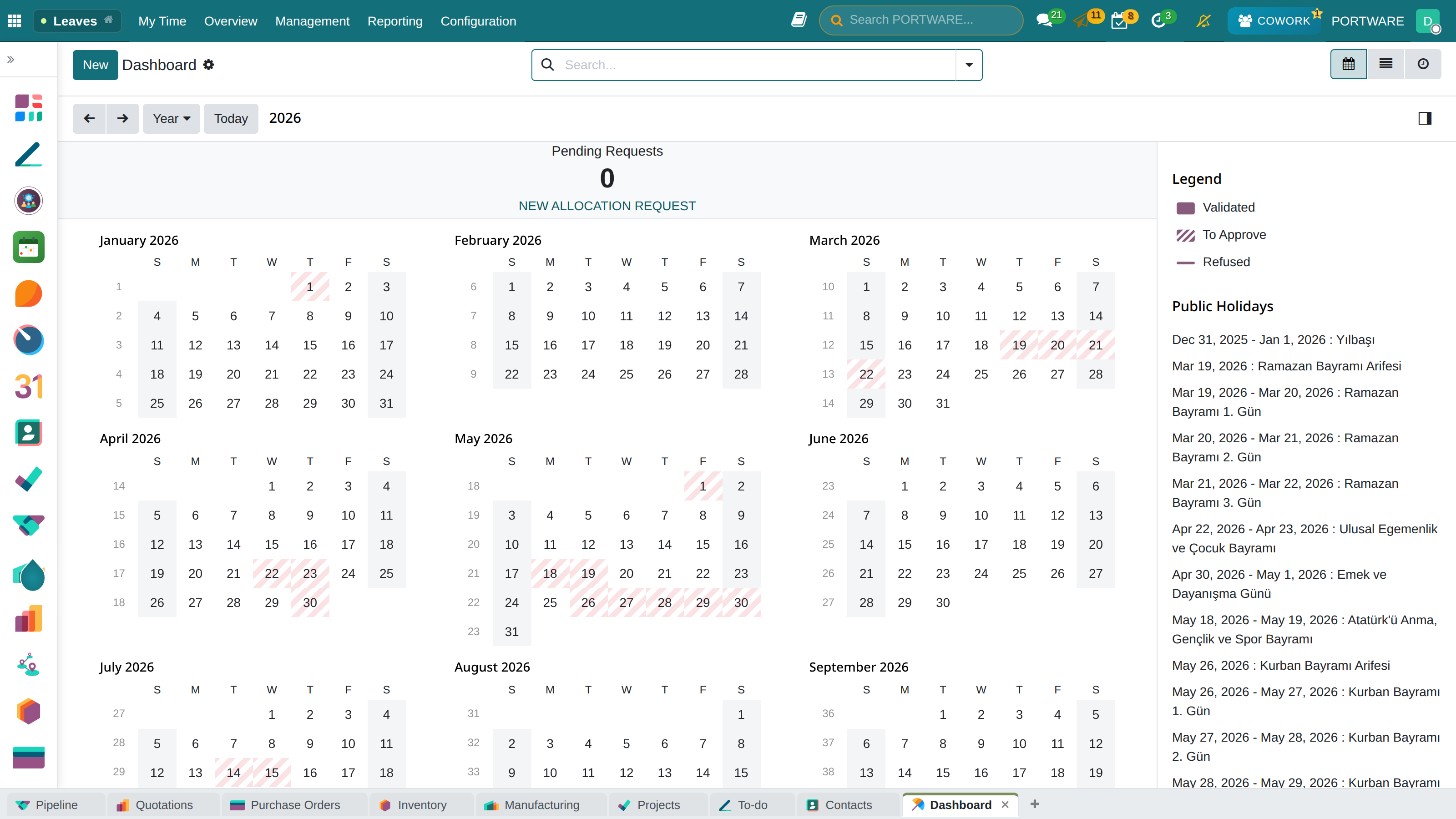
Time off management - employee leave requests and approval states
Leave Entitlements in Turkey (Labour Law No. 4857)
| Leave Type | Duration | Paid? | Condition |
|---|---|---|---|
| Annual Leave (1-5 years) | 14 days | Yes | 1 year of service |
| Annual Leave (5-15 years) | 20 days | Yes | 5+ years of seniority |
| Annual Leave (15+ years) | 26 days | Yes | 15+ years of seniority |
| Marriage Leave | 3 days | Yes | Statutory right |
| Maternity Leave | 16 weeks | Yes | 8 weeks before + 8 weeks after |
| Paternity Leave | 5 days | Yes | After the birth |
| Bereavement Leave | 3 days | Yes | First-degree relative |
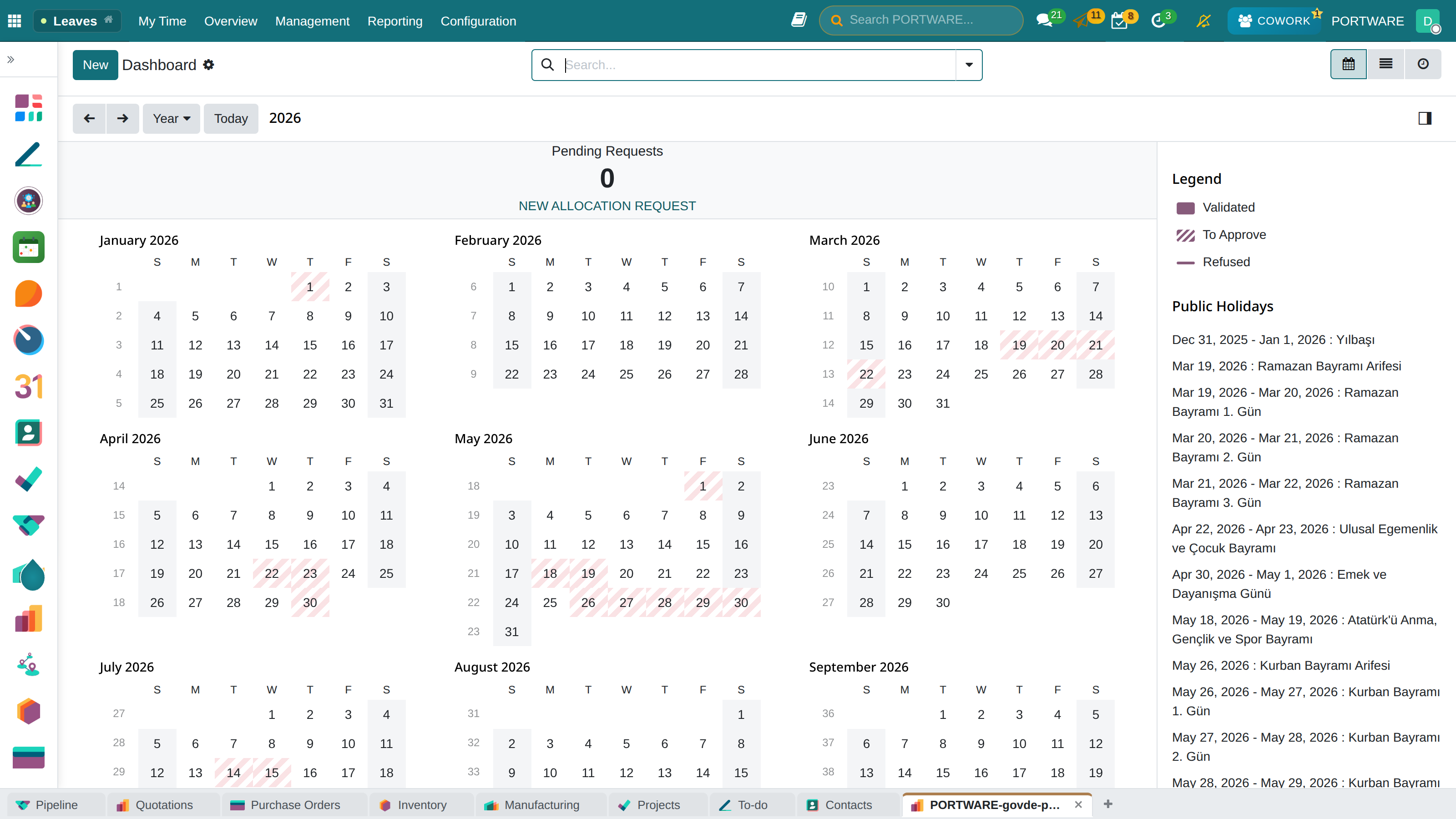
Time off dashboard - employee leave requests and the approval process
Scenario: An Employee's Leave Request
Employee self-service steps:
- Mehmet logs in to PORTWARE
- He clicks New Request in the Time Off menu
- Leave type: Annual Leave
- Dates: 15.07.2026 - 19.07.2026
- Description: "Family holiday"
- He clicks Submit for Approval
- The manager is notified and approves or refuses
- Mehmet learns the result by e-mail
How to Do It in PORTWARE
Creating a leave request (self-service):
- Follow
- Click the New Request button
- Choose the Time Off Type (annual, sick, compassionate, etc.)
- Choose the Start Date and End Date
- For a half day, tick the Half Day box
- Write the reason in the Description field
- Click the Submit for Approval button
Manager approval of leave:
- Follow
- See the pending requests in the list
- Open the request and review the details
- Check the calendar for overlaps
- Click the Approve or Refuse button
- If you refuse, enter the Refusal Reason
Checking leave balances:
- Follow
- See the remaining leave days per employee
- Filter by department or employee
- Use Export to export to Excel
Overtime
Work beyond the standard working hours (45 hours a week) is calculated as overtime.
Overtime Rules in Turkey
- Normal overtime: the hourly wage plus 50%
- Work on the weekly rest day: the hourly wage plus 100%
- Work on a public holiday: the hourly wage plus 100%, plus one extra day's pay
- Annual cap: 270 hours
Payroll and Compensation
Payroll is one of HR's most critical processes. A calculation error can lead both to unhappy employees and to legal problems.
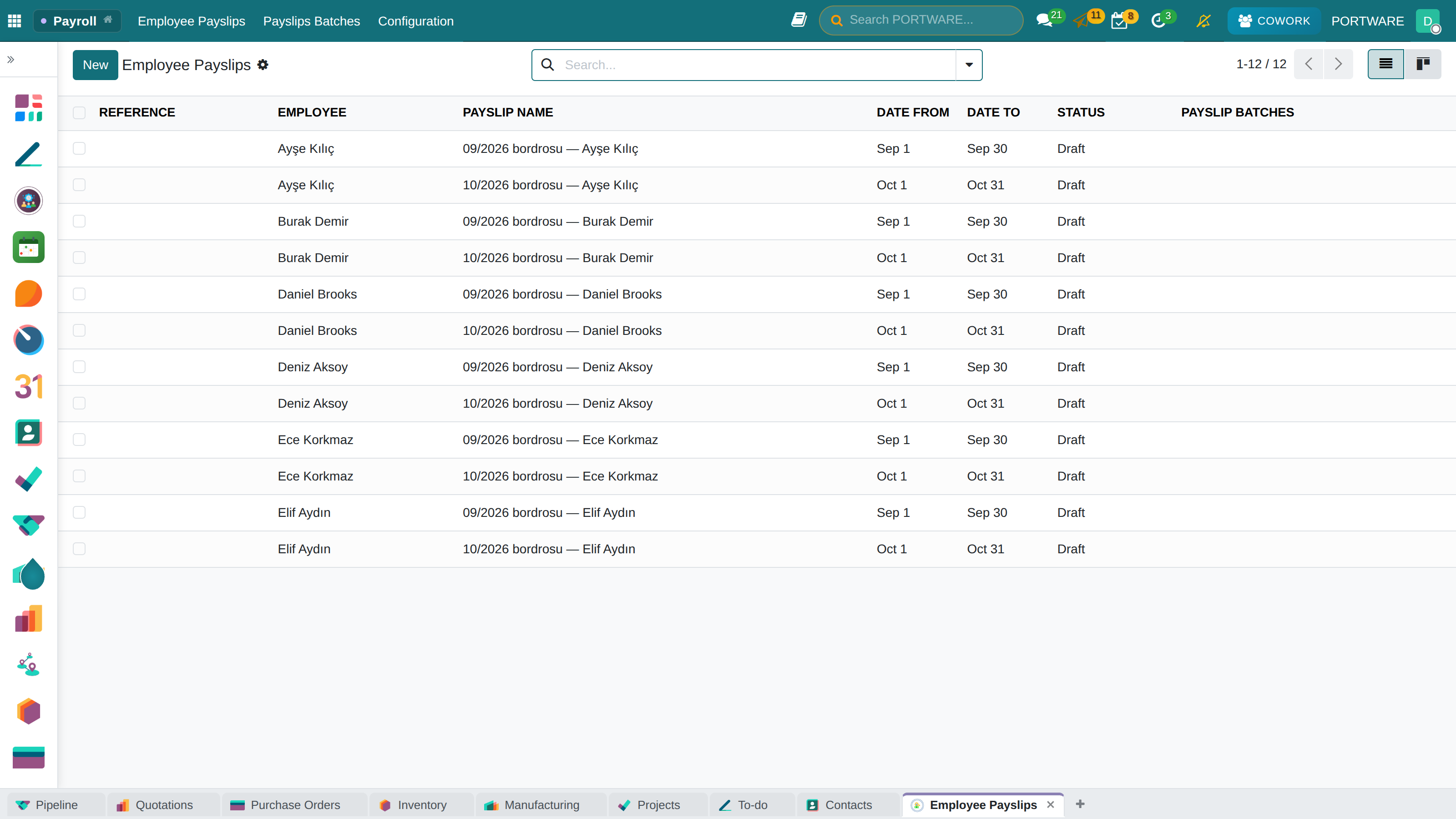
Payroll module - managing payslips and payments
Payroll Basics
- Gross wage: the total pay before deductions
- Net wage: the amount paid to the employee after deductions
- SGK premium: the social security deduction (14% employee, 20.5% employer)
- Income tax: progressive brackets from 15% to 40%
- Stamp duty: 0.759% of the gross wage
- Employer cost: gross wage + the employer's SGK share
The Payroll Calculation Process
Scenario: The Monthly Payroll Run
The payroll process step by step:
- Check the work records: confirm that attendance data is complete
- Update leave information: unpaid leave, sick notes
- Enter variable payments: bonuses, commissions, overtime
- Go to Payroll → Generate Payslips (batch)
- Choose the period: January 2026
- Click the Compute Sheet button
- Review the payslips created and correct any errors
- Finalise the payslips with Confirm All
- Create the bank payment file
- Prepare the SGK declaration
How to Do It in PORTWARE
Generating payslips in batch:
- Follow
- Click the New button
- Choose the Period (e.g. "January 2026")
- Choose the Salary Structure (leave it empty for all structures)
- Filter by Department (optional)
- Click the Generate Payslips button
- The system creates draft payslips for every eligible employee
- Review the payslip list and correct any errors
- Run the calculations with Compute All
- Finalise the payslips with Confirm All
Creating a single payslip:
- Follow
- Click the New button
- Choose the Employee
- Enter the Period (start and end dates)
- The Contract is selected automatically; check it
- Click the Compute button
- Review the earnings and deduction lines
- Click the Confirm button
Creating the bank payment file:
- Follow
- Choose the Period and Bank
- Click the Create File button
- Download the file in the bank's format (XML, TXT, etc.)
- Upload the file to online banking
The Payslip
The detailed calculation document created monthly for each employee.
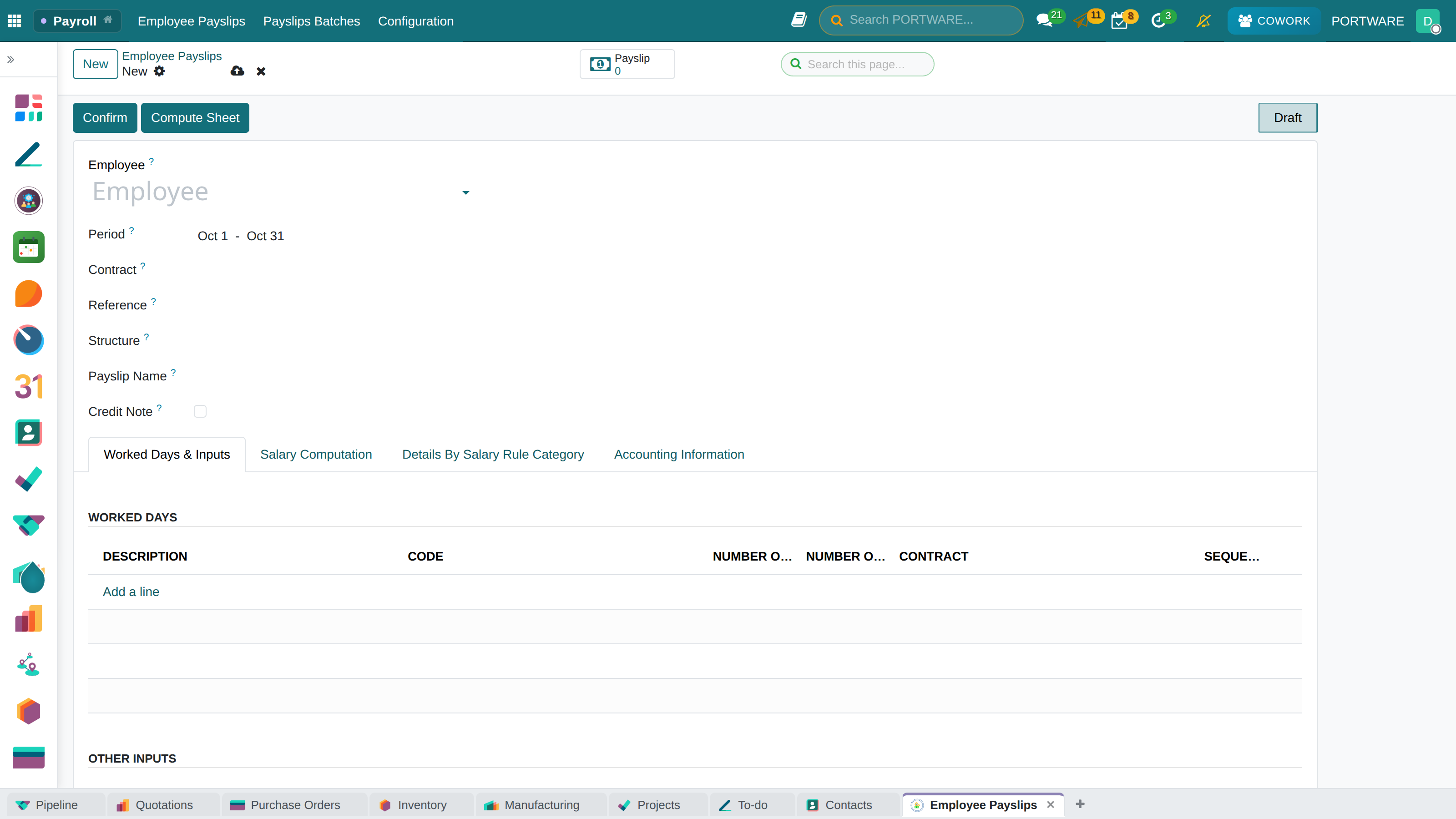
New payslip - the form to create and calculate an employee payslip
Payslip Structure
| Section | Items | Description |
|---|---|---|
| Gross Earnings | Base salary, overtime, bonuses, premiums | Total gross amount |
| Deductions | SGK premium, income tax, stamp duty | Statutory deductions |
| Other Deductions | Garnishments, advances, private insurance | Employee-specific |
| Employer Cost | Employer SGK share, unemployment fund | Borne by the company |
| Net Payment | Gross - Deductions | Paid to the employee |
Turkish Payroll Legislation
Payroll calculation in Turkey is subject to several legal regulations:
Current Values for 2026
- Minimum wage: gross 22,104.67 TL / net 17,002.12 TL
- SGK ceiling: 165,785.03 TL
- SGK employee share: 14% (pension 9%, health 5%)
- SGK employer share: 20.5% (pension 11%, health 7.5%, unemployment 2%)
- Unemployment insurance, employee: 1%
- Income tax brackets: 15% / 20% / 27% / 35% / 40%
Performance Appraisal
Used to assess employee performance regularly, identify development areas and plan careers.
Appraisal Types
| Type | Who Evaluates? | Frequency |
|---|---|---|
| Manager Appraisal | The direct manager | 6 months / 1 year |
| Self-Assessment | The employee | Together with the manager appraisal |
| 360° Feedback | Manager, peers, direct reports | Yearly |
| Probation Period | Manager | At the end of the second month |
Scenario: The Annual Performance Appraisal
Starting a company-wide appraisal:
- Go to Appraisals → New Period
- Choose the appraisal period (2025 Annual)
- Choose the appraisal form
- Set the scope (the whole company or a department)
- Click the Start Appraisal button
- The system creates a form for each employee automatically
- Managers are notified by e-mail
How to Do It in PORTWARE
Starting an individual appraisal:
- Follow
- Click the New button
- Choose the Employee
- Choose the Appraisal Form template
- Set the Deadline
- Click Save and Send
- The employee and the manager are informed by e-mail
Filling in the appraisal form:
- Click the e-mail link or follow
- Score each criterion from 1 to 5
- Write down strengths and development areas
- Set the goals for the next period in the Goals section
- Click the Send button
Assigning goals to an employee:
- Open the employee card
- Go to the Goals tab
- Click the Add Goal button
- Enter the Goal Name (in SMART format)
- Set the Target Value and Unit
- Choose the Deadline
- Update the progress percentage regularly
Goal Tracking
Make employee performance measurable by setting SMART goals.
A SMART Goal Example
- Specific: raise the customer satisfaction score
- Measurable: from 85% to 92%
- Achievable: through training and process improvement
- Relevant: in line with the company's customer-focused strategy
- Time-bound: by the end of Q2 2026
The Departure Process
When an employee leaves, a proper closing process matters both for legal obligations and for the company's reputation.
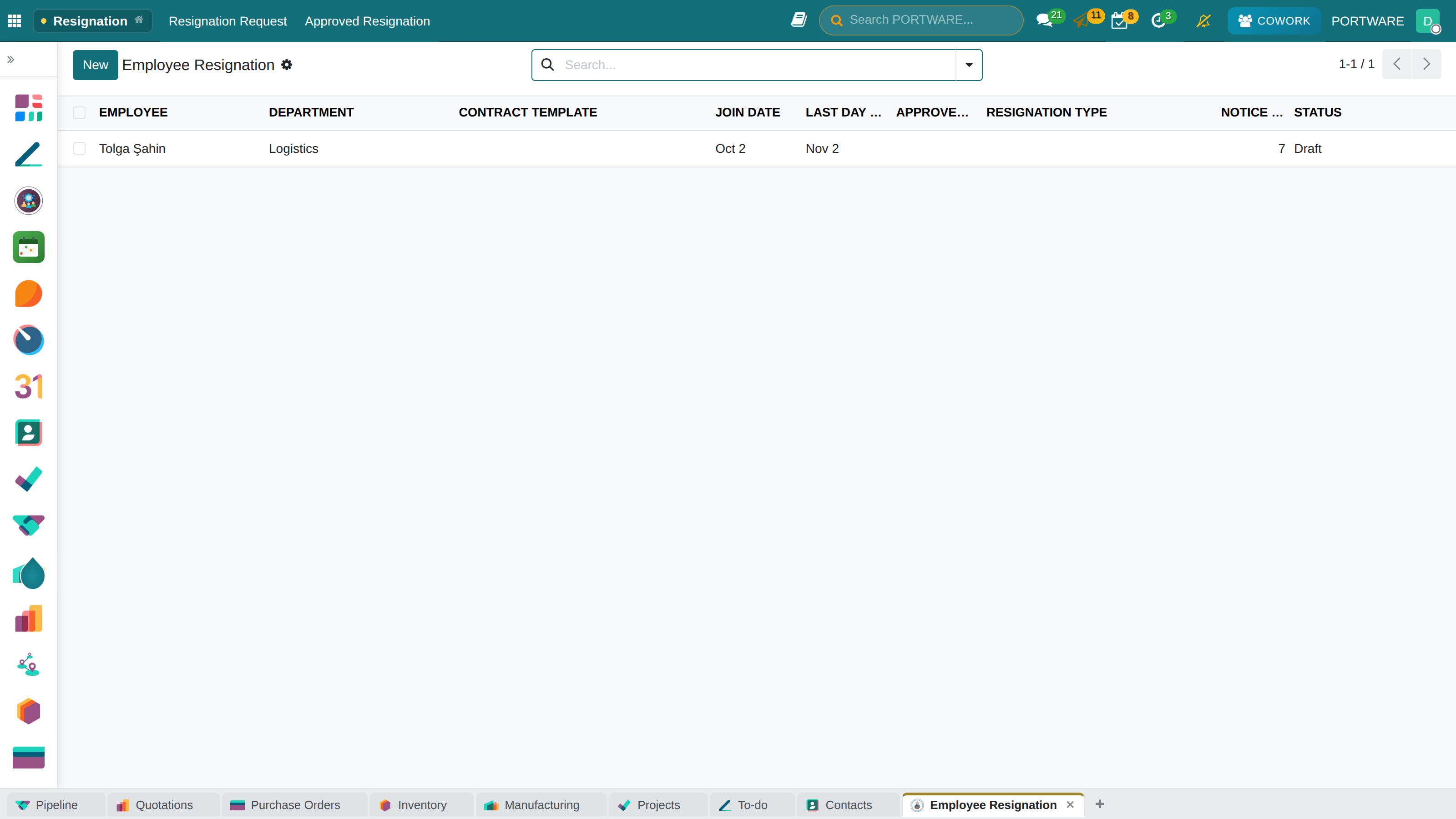
Resignation management - employee resignation requests and process tracking
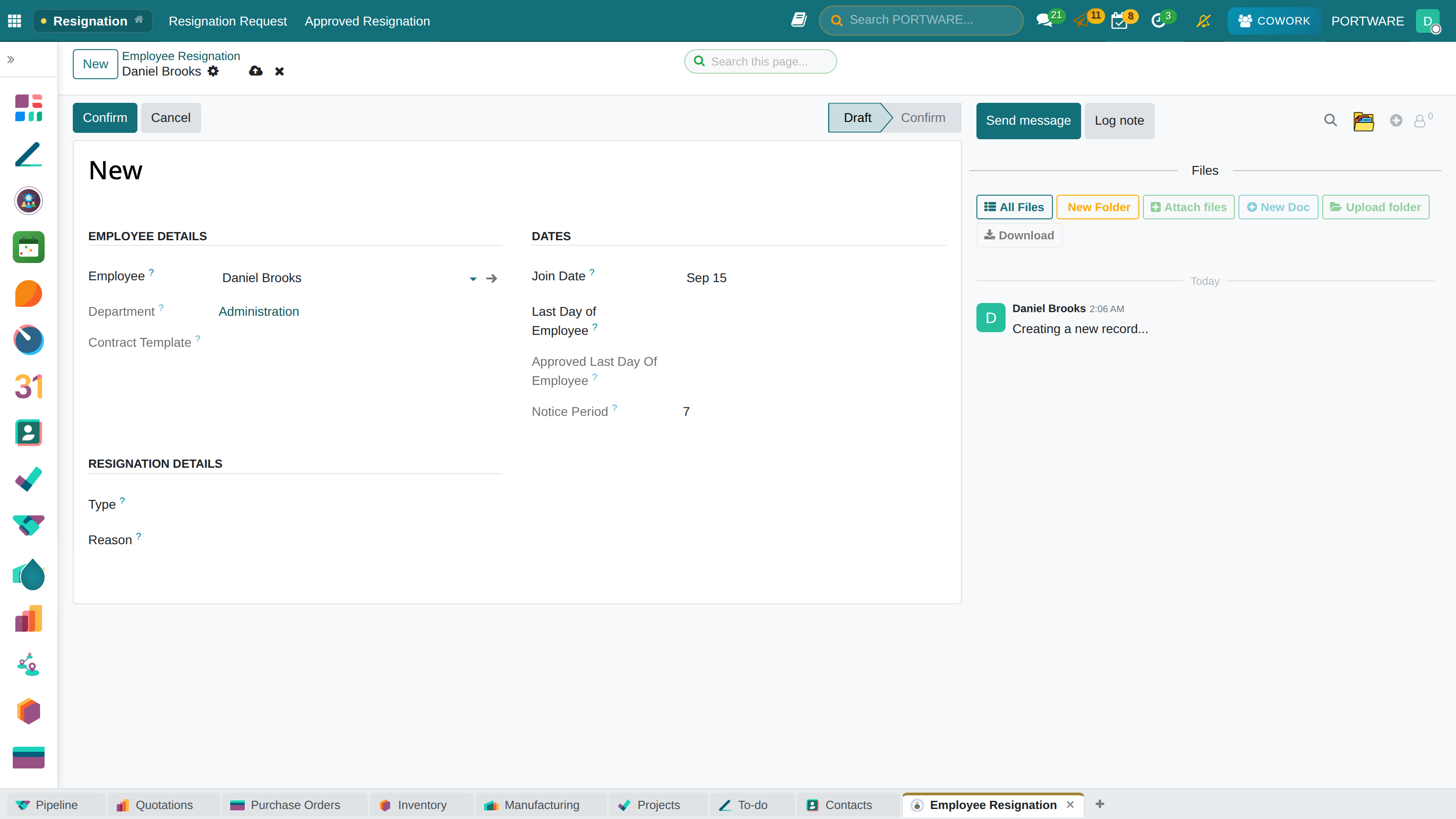
New resignation record - the resignation request form
Reasons for Departure
| Reason | Severance Pay | Notice Pay |
|---|---|---|
| Resignation (own request) | No | The employee pays |
| Termination for just cause (by the employee) | Yes | No |
| Termination for just cause (by the employer) | No | No |
| Dismissal by the employer | Yes | The employer pays |
| Retirement | Yes | No |
| Military service | Yes | No |
| Marriage (women, within 1 year) | Yes | No |
Calculating Severance Pay
Severance pay = 30 days' gross wage for each year worked
Formula
Severance Pay = Gross Wage × Years Worked
Example: an employee with 5 years of service and a gross wage of 30,000 TL
30,000 × 5 = 150,000 TL severance pay
Offboarding Checklist
HR Tasks
- Resignation letter / termination notice
- Severance/notice pay calculation
- Preparing the final payslip
- Calculating pay for unused leave
- SGK exit notification
- Documents for unemployment benefit
IT Tasks
- Closing the e-mail account
- Revoking system access
- File backup/handover
- Collecting company devices
- Reclaiming software licences
- Revoking VPN/remote access
Equipment Return
- Laptop and peripherals
- Mobile phone and SIM card
- Vehicle (if any)
- Access card
- Keys
- Credit/bank cards
Final Steps
- Exit interview
- Knowledge transfer/handover
- Farewell e-mail
- Preparing a reference letter
- Archive the employee record
- Invitation to the alumni group
How to Do It in PORTWARE
Starting the departure process:
- Open the employee card
- Click the Archive / Depart button
- Enter the Departure Date
- Choose the Departure Reason (resignation, termination, retirement, etc.)
- Write the details in the Description field
- Click the Save button
- The system starts the offboarding plan automatically
Calculating severance/notice pay:
- Follow
- Choose the Employee
- The system pulls the length of service and the last gross wage automatically
- Choose the Departure Type (it affects the right to compensation)
- Click the Compute button
- See the severance and notice pay amounts
- Click Create Payslip to create the compensation payslip
SGK exit notification:
- Follow
- Choose the Employee and Exit Date
- Choose the Exit Code (from the list of SGK exit codes)
- Check the declaration preview
- Download the file for the SGK portal with Export
HR Reports
The PORTWARE HR module offers comprehensive reporting. These reports support management decisions and ensure legal compliance.
Key HR Reports
| Report | Content | Purpose |
|---|---|---|
| Staff Turnover Report | Numbers of hires and departures, rate | Developing a retention strategy |
| Absenteeism Report | Unauthorised absence, sick leave | Finding problem areas |
| Overtime Report | Overtime hours by department/person | Balancing the workload |
| Leave Balance Report | Remaining annual leave days | Leave planning |
| Payroll Summary | Monthly salary totals, tax | Financial planning |
| Age/Seniority Distribution | Staff demographics | Workforce planning |
How to Do It in PORTWARE
Creating a staff turnover report:
- Follow
- Choose the Period (e.g. "Year 2025")
- Filter by Department (optional)
- The report counts hires and departures automatically
- See the turnover rate and trend in the chart
- Export as PDF or Excel
Payroll summary report:
- Follow
- Choose the Period range
- See the totals of gross wages, deductions and net payments
- Group by department or salary structure
- Create an Accounting Entry for the accounting integration
Monthly SGK premium declaration:
- Follow
- Choose the Period (month/year)
- See the SGK days and assessment base of every employee
- Download it in e-Bildirge format with Export
- Upload it to the SGK portal
HR KPIs
Frequently Asked Questions
What is the difference between an employee and a user?
Employee: the HR record created for every person working in the company. Personal details, contract, salary and similar data are kept here.
User: an account that can log in to PORTWARE. Each user can be linked to an employee record.
An employee does not need a user account (e.g. someone recorded only for payroll). Self-service (leave requests, expense entry), however, requires a user account.
How do I give new employees a leave entitlement automatically?
Edit the leave type in Time Off → Configuration → Time Off Types. On the "Allocation" tab:
- Allocation mode: fixed or by seniority
- Days per year: 14, 20 or 26
- Accrual: at the start of the year or monthly
When a new employee is created, the system assigns the entitlement automatically.
How do I correct a payroll mistake?
Act according to the payslip's state:
- Draft/Waiting: you can edit it directly
- Confirmed (not paid): revert it with "Set to Draft" and correct it
- Paid: create a correction payslip (negative or positive)
Never delete paid payslips - it breaks the accounting entries. Create a correction payslip instead.
Can I get the SGK declaration from PORTWARE?
With PORTWARE's Turkish localisation you can produce SGK-compliant reports. Direct integration with the SGK portal (e-Bildirge), however, needs the PORTWARE HRMS module.
Currently:
- You can produce a report in the Monthly Premium and Service Document format
- You can export it to Excel and upload it to the SGK system
- You can prepare the data for hiring/exit declarations
Is overtime reflected in payroll automatically?
Yes, if the attendance module and the payroll module work together:
- The employee records check-in/check-out
- The system calculates the time beyond standard working hours
- The overtime is reflected in the "Work Entries"
- It is included in the payroll calculation automatically
Make sure the "Include Overtime in Payroll" option is enabled in Configuration → Settings.
How is payroll calculated for a part-time employee?
For part-time employees:
- Create a working schedule for the employee (e.g. 27 hours a week)
- Choose this schedule on the contract
- Choose "Hourly Wage" or "Proportional" in the salary structure
- SGK days are calculated automatically from the days worked
Example: for someone working 3 days a week, SGK days = 30 × (3/5) = 18 days
Best Practices
Daily
- Check the attendance records
- Approve pending leave requests
- Review new applications
- Answer urgent HR requests
Weekly
- Review the absenteeism report
- Update the interview schedule
- Follow up on onboarding
- Meet the department managers
Monthly
- Complete payroll preparation
- Submit the SGK declaration
- Check contract renewals
- Report the HR KPIs
- Check certificate validity
Yearly
- Start the performance appraisal period
- Renew the leave allocations
- Apply salary updates
- Review the organisation structure
- Update the SGK/tax parameters