Productivity & Collaboration
In today
- Documents inside the systemWord, Excel and slides open on the record and are versioned.
- Knowledge in one placeThe SOTION knowledge base, HTML documents and diagrams.
- Work and communication togetherActivities, calendar and messaging on the same record.
Why Collaboration Tools?
What You Will Learn in This Section
- The value modern collaboration tools bring to businesses
- How the PORTWARE++ tools differ from traditional methods
- Which tool solves which business problem
In today's business world teams work from different places at different hours. Documents lost among e-mail attachments, files where nobody knows which version is current, "can you send me the latest version?" messages... Sound familiar?
The Problems with Traditional Methods
The Traditional Way
- Documents circulate as e-mail attachments
- File names like "Report_v2_final_latest_check.docx"
- Knowledge in people's heads or scattered notes
- Separate software needed for diagrams
- "She's on leave, nobody else knows" situations
- No version control, risk of overwriting
With PORTWARE++
- A single source of truth
- Automatic version history
- Knowledge open to everyone on wiki pages
- Diagrams embedded directly in the content
- Company memory is preserved
- Real-time co-editing
The Collaboration Lifecycle
An effective digital collaboration process has these stages:
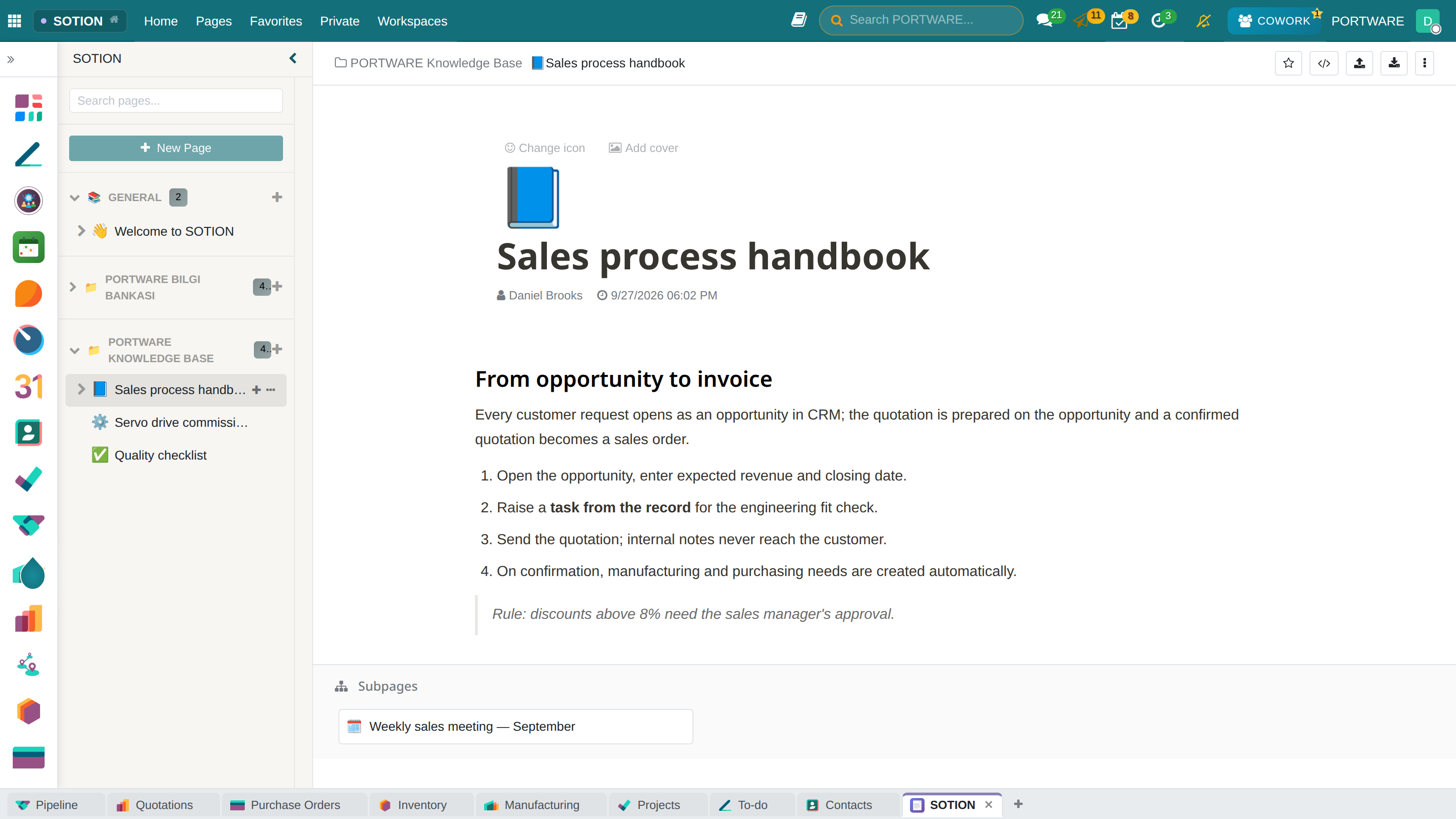
SOTION — workspace, page tree and a handbook page; sub-pages below
What Is PORTWARE++?
Beyond the Standard Core
PORTWARE++ contains premium tools built specifically for PORTWARE that the open-source core does not have. They speed up your daily workflows and raise team productivity.
The PORTWARE++ Tool Family
SOTION
A Notion-like knowledge management system. Build your company memory with wiki pages, variables and tags.
- Hierarchical page structure
- The
{{variable}}system -
[[status]]tags - Real-time synchronisation
PORTWARE Office
Edit Office documents in the browser. Real-time collaboration in Word, Excel and PowerPoint formats.
- DOCX, XLSX, PPTX support
- Real-time co-editing
- Change tracking
- Version history
SODRAW
A diagram editor built on draw.io. Create flowcharts, organisation charts and technical diagrams.
- Quick access with the
/sodrawcommand - 100+ templates
- PNG/SVG export
- Embedded diagrams
exTable
Turn tables in the HTML editor into Excel-like tables. Multi-cell selection and advanced editing.
- Multi-cell selection
- Copy-paste support
- Keyboard navigation
- Cell formatting
SOTION - Knowledge Management System
What You Will Learn in This Section
- How to build a company wiki with SOTION
- Page hierarchy and organisation
- Using the variable and tag system
- Best practices for sharing knowledge within the team
SOTION is a powerful knowledge management system inspired by Notion. Organise the company wiki, project documentation, meeting notes, procedures and more in one place.
Why SOTION?
Scenario: Onboarding a New Employee
Situation: a new sales representative has started. They need to learn the company policies, product information, sales processes and how to use CRM.
Without SOTION:
- Scattered PDFs sent by e-mail
- "Ahmet knows that, ask him"
- Out-of-date Word documents
- Onboarding takes weeks
With SOTION:
- A "New Starters" workspace is opened
- All onboarding content organised in hierarchical pages
- Videos, diagrams and checklists embedded
- The new employee learns self-service
- The content always stays current
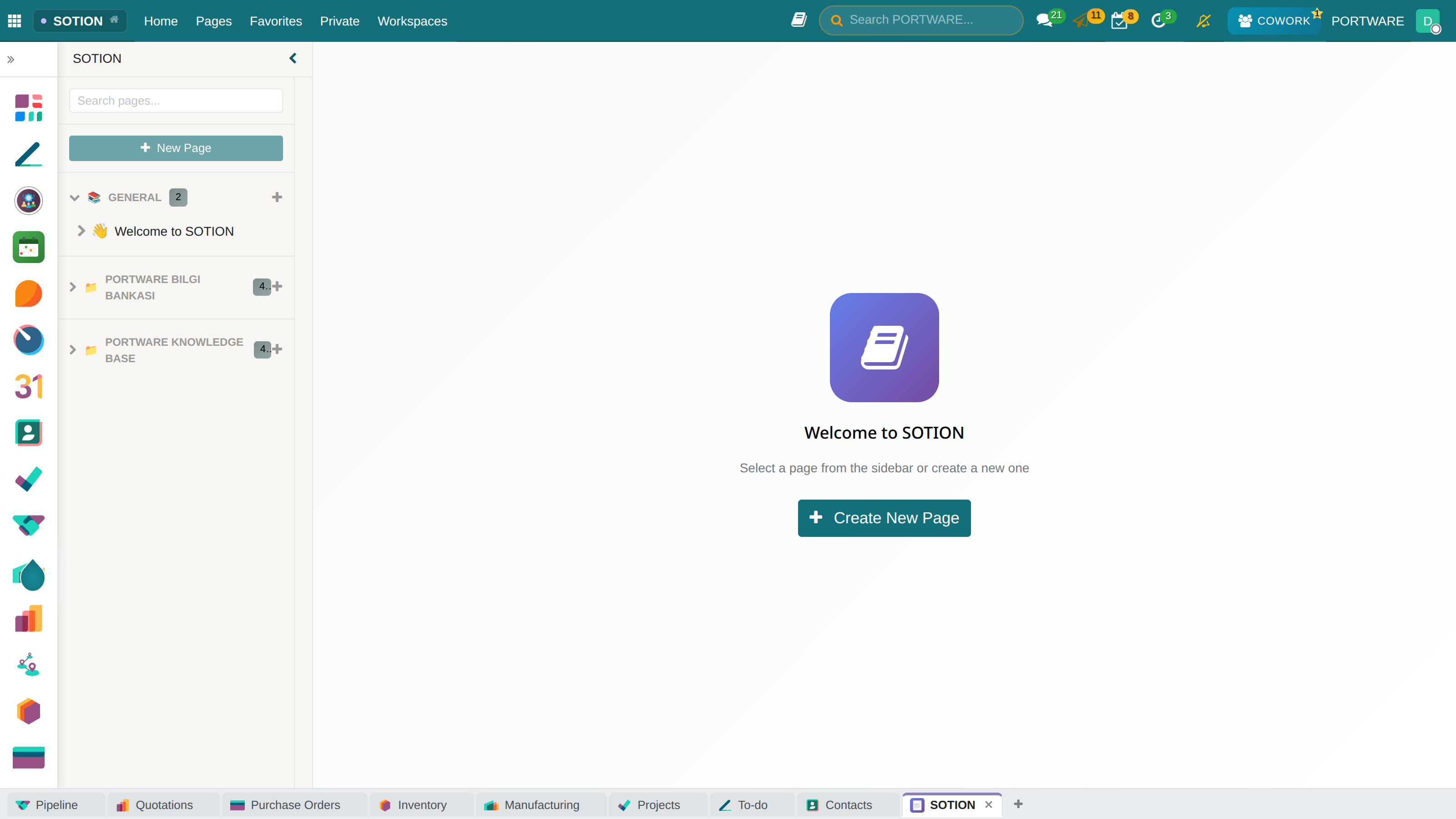
SOTION main screen - knowledge management and page organisation
Page Management
In SOTION everything is built on the "page". Pages are organised hierarchically - like the chapters and sub-headings of a book.
Page Structure
| Workspace Type | Access | Example Use |
|---|---|---|
| Workspace | The whole team | Company wiki, procedures, shared knowledge |
| Private | Only you | Personal notes, drafts, journals |
| Favorites | You + those shared with you | Frequently used important pages |
Creating a Page
Page Properties
- Emoji icon: give each page an emoji for visual identification
- Cover image: add a banner image at the top of the page
- Breadcrumb: see the page hierarchy (Main > Sub > Sub-sub)
- Drag & Drop: reorganise pages by dragging them
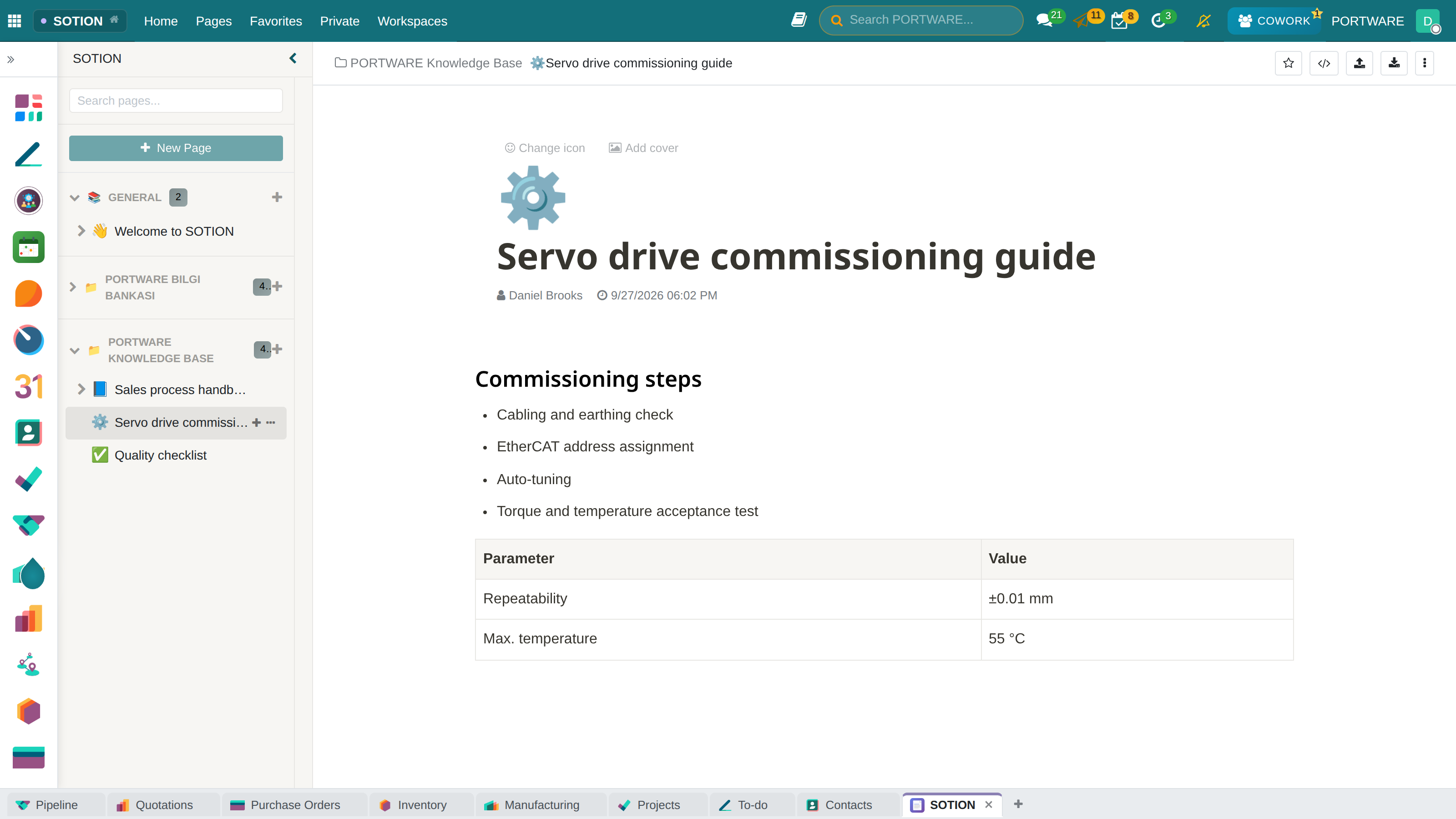
A guide page — headings, a checklist and a table on one page
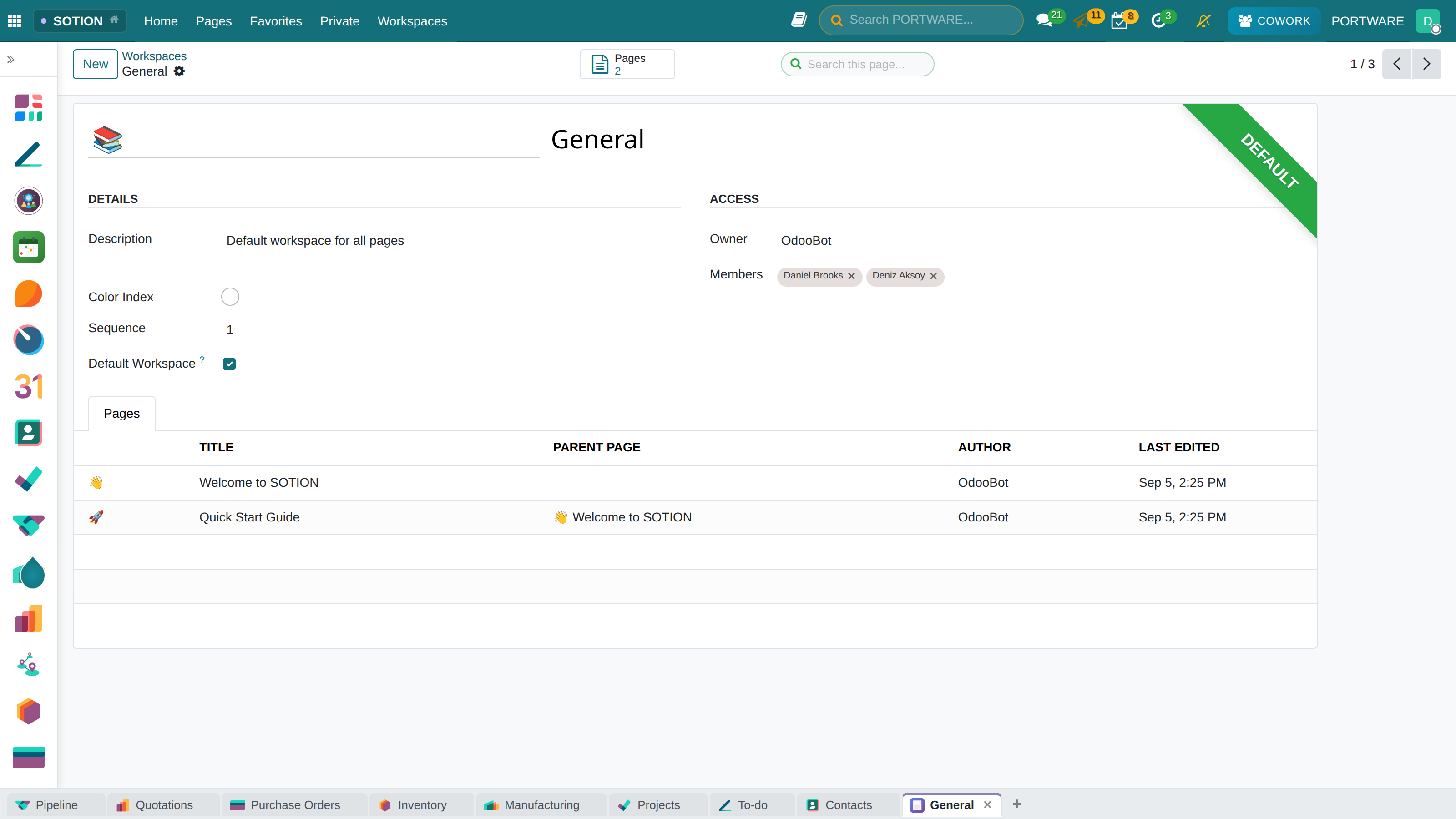
Workspace detail - the workspace content view
How to Do It in PORTWARE
Creating a New Page
Menu:
- Click the + New Page button in the left sidebar
- Write the title in the Page Name field
- Optional: choose an icon with the 🎭 Emoji button
- Optional: add a banner image with 🖼️ Cover
- Write and format your content in the editor
Building a Page Hierarchy
- Open your main page
- Click the ⋮ menu next to the page title
- Choose Add Sub-page
- Or: drag the page in the left menu and drop it onto another page
Organising with Workspaces
You can organise your pages in 3 areas:
- Workspace - pages shared with the team
- Private - pages only you can see
- Favorites - pages you have starred (quick access)
The Variable System: {{variable}}
Variables let you manage information that repeats in a page from one place. Update a variable and every use of it in the page updates automatically.
Using Variables
Example: Project Information
Variable definitions:
{{project_name}} = "PORTWARE ERP Migration" {{start_date}} = "15 January 2026" {{project_manager}} = "Ahmet Yılmaz" {{budget}} = "₺250,000"Use in the page:
Project: {{project_name}} Start: {{start_date}} Manager: {{project_manager}} Total Budget: {{budget}}Now if the project name or date changes, updating the variable definition is enough. Every {{project_name}} in the page updates automatically.
Variable Types
| Type | Example | Used For |
|---|---|---|
| Text | {{company_name}} |
Company, project and people's names |
| Date | {{last_update}} |
Deadlines, meeting dates |
| Number | {{target_qty}} |
Metrics, targets, prices |
| Link | {{document_link}} |
Links to related resources |
project_* prefix for project information and the
date_* prefix for dates.
How to Do It in PORTWARE
Defining a Variable
- Type {{ in the editor area of your SOTION page
- Enter the variable name: e.g. {{project_name}}
- Open the Variables tab in the right panel
- Write the variable's value in the Value field
- The variable is shown in the content automatically
Updating a Variable
- Go to the Variables tab in the right panel
- Find the variable you want to update
- Change the Value field
- Every use of
{{variable}}in the page updates instantly
Deleting a Variable
- Click the 🗑️ button next to the variable row in the right panel
- The
{{variable}}texts in the page stay as plain text
Variables panel - managing page variables
Variable use - variables shown in the page content
Select Property: [[property]]
Select properties let you add status tags to pages. They are ideal for values with options such as task status, priority level or category.
Creating a Property
Colour Palette (12 Colours)
Give each option a different colour for visual distinction:
Common Property Examples
| Property | Options | Use |
|---|---|---|
[[Status]] |
Draft, In Review, Published, Archived | Document status tracking |
[[Priority]] |
Low, Normal, High, Urgent | Task prioritisation |
[[Department]] |
Sales, Marketing, IT, HR, Finance | Content categorisation |
[[Type]] |
Procedure, Policy, Guide, Template | Document type |
How to Do It in PORTWARE
Creating a Select Property
- Type [[ in the editor area of your SOTION page
- Enter the property name: e.g. [[Status]]
- Click + Add Option in the panel that opens
- Set a name and colour for each option (12 colour choices)
- Create the property with Save
Changing a Property Value
- Click the
[[Property]]tag in the page - Choose the new value from the drop-down
- The tag colour updates automatically
Property Management (Right Panel)
On the Properties tab:
- ✏️ - edit the property name or options
- 🎨 - change an option's colour
- 🗑️ - delete an option or the property
Select property system - status tags and colour options
SOTION Use Cases
Company Wiki
Company policies, procedures, the organisation chart, department information, the employee handbook.
Project Documentation
Project plans, meeting notes, decisions, risks, stakeholder information, milestones.
Training Materials
Onboarding guides, software user guides, process training, quizzes and assessments.
Meeting Notes
Agenda, attendees, decisions, action items, follow-up meetings.
Technical Documentation
API documents, system architecture, deployment guides, troubleshooting guides.
Knowledge Base
FAQs, customer support articles, self-service help content.
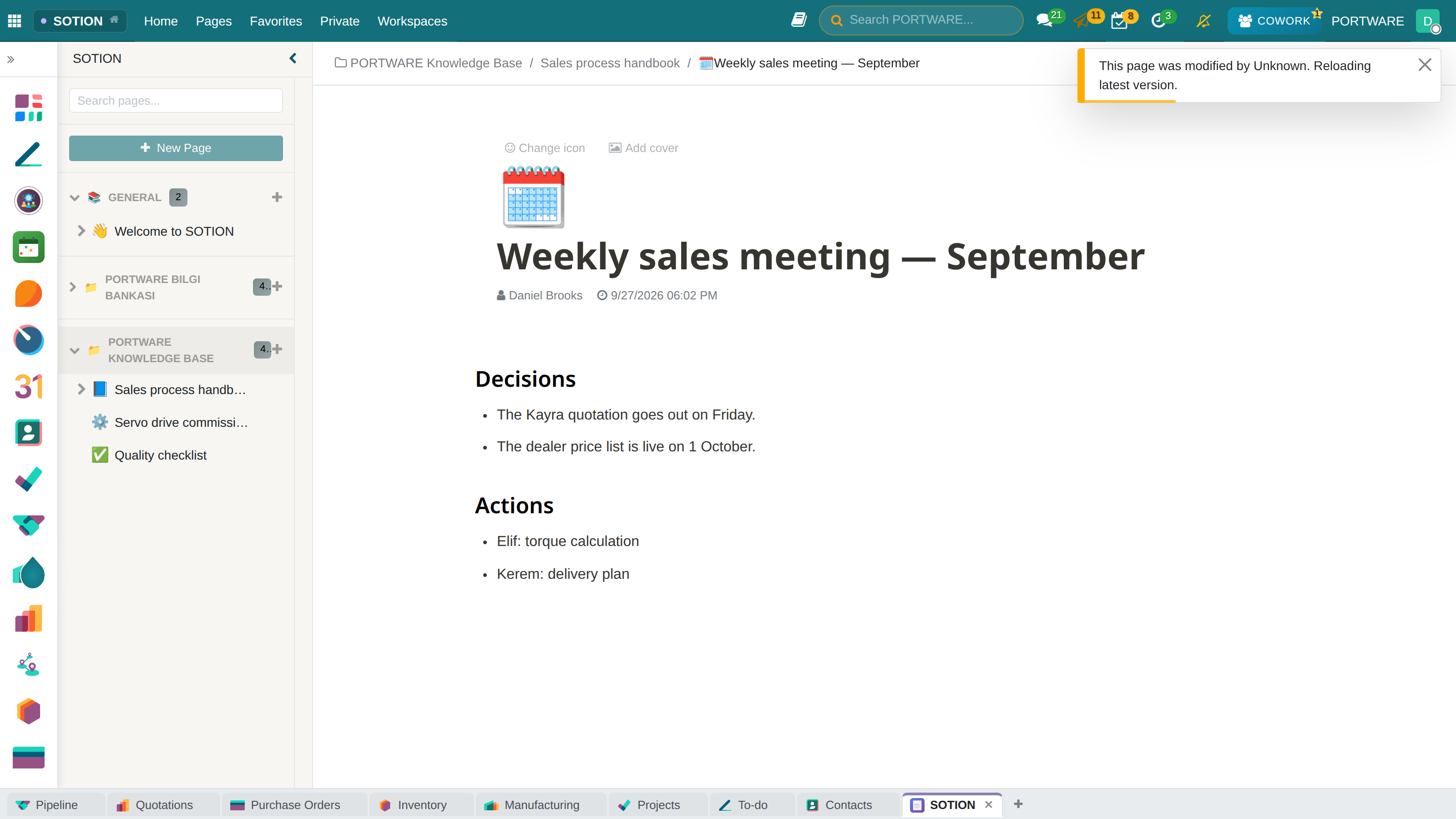
A sub-page — meeting decisions and actions, under its parent page
Published page - content ready to share
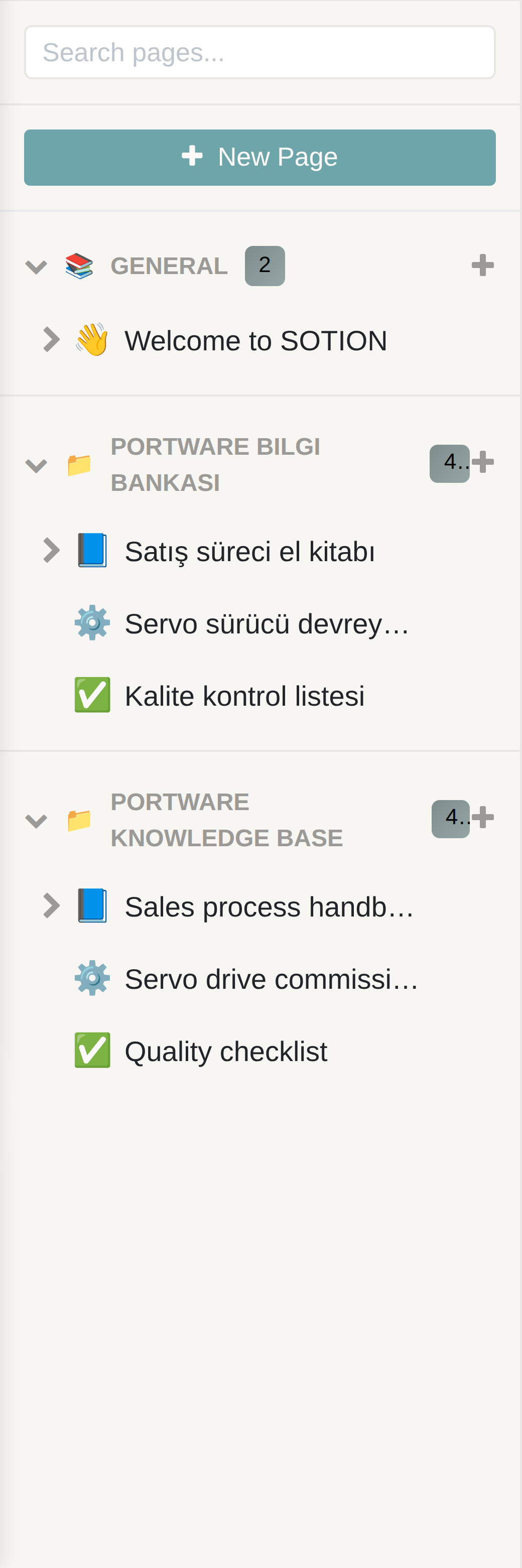
The sidebar — workspaces and the pages inside them
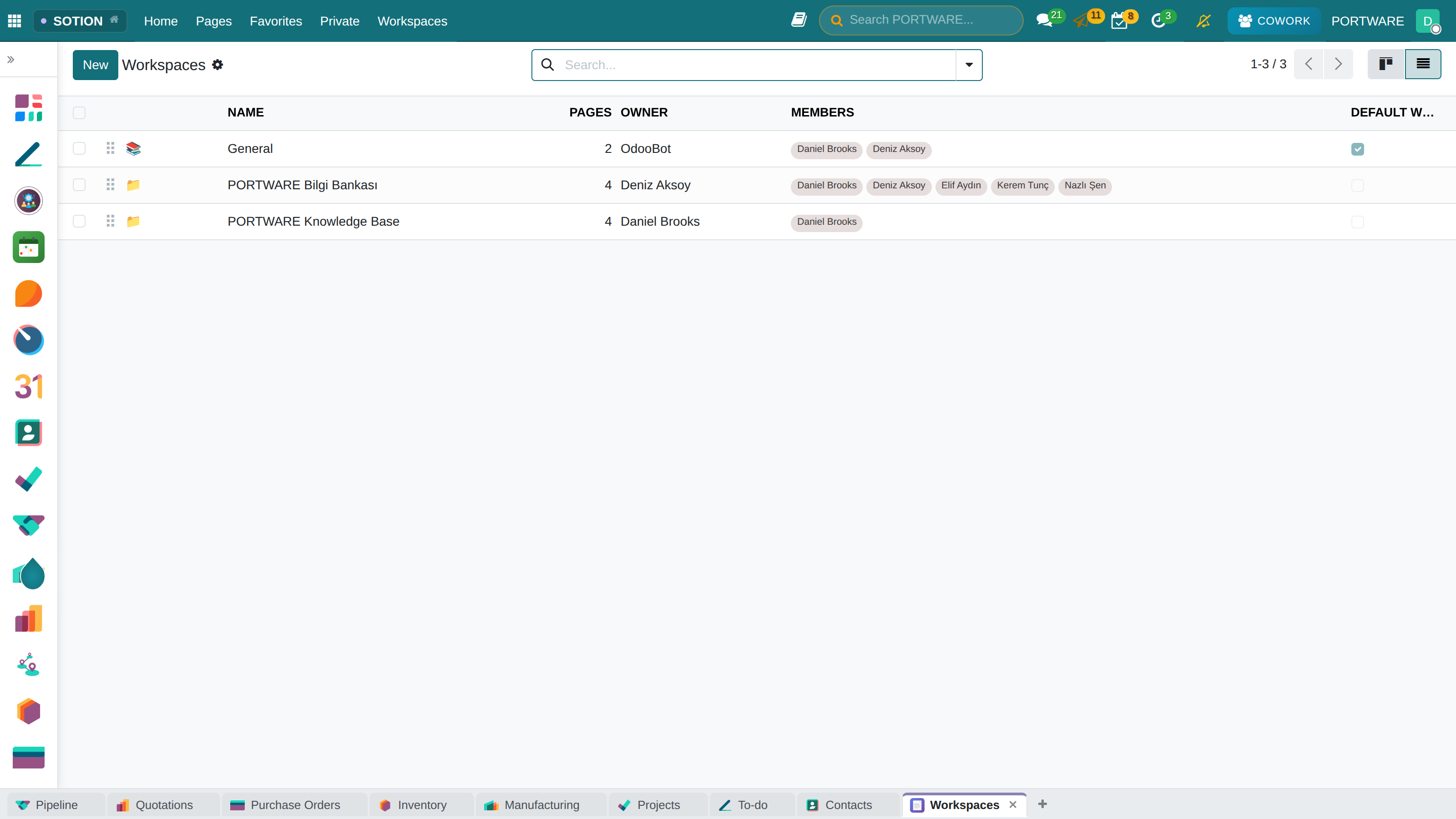
Workspace settings - workspace configuration
Rules table - content configuration rules
PORTWARE Office - Office Document Editor
What You Will Learn in This Section
- Editing Office files in the browser with PORTWARE Office
- Real-time collaboration modes
- Change tracking and version history
- Editing documents, spreadsheets and presentations
PORTWARE Office is a powerful document editing solution built on ONLYOFFICE. Open Microsoft Office files (Word, Excel, PowerPoint) in your browser, edit them and collaborate with your team in real time - without installing any software.
Why PORTWARE Office?
Scenario: Preparing a Contract
Situation: the sales team is about to sign a contract with a new customer. Legal must approve it, and it will also be sent to the customer for review.
The traditional way:
- Sales drafts the contract in Word and e-mails it to legal
- Legal makes changes and sends a new version back
- File names like "Contract_v3_legal_approved_final.docx"
- Nobody is sure which version is current
With PORTWARE Office:
- Sales uploads the contract to PORTWARE
- Opens and edits it in PORTWARE Office
- Legal edits the same file with "Track Changes"
- Sales reviews the changes and accepts or rejects them
- The whole version history is kept
- A link is shared with the customer (view-only)
Supported Formats
Text Documents
- DOCX, DOC (Microsoft Word)
- ODT (OpenDocument)
- RTF (Rich Text)
- TXT (plain text)
- PDF (viewing)
Spreadsheets
- XLSX, XLS (Microsoft Excel)
- ODS (OpenDocument)
- CSV (comma-separated)
- 400+ Excel formulas
- Pivot tables
Presentations
- PPTX, PPT (PowerPoint)
- ODP (OpenDocument)
- Animations
- Transition effects
- Slide show mode
Document Editing
PORTWARE Office's text editor offers an editing experience almost identical to Microsoft Word.
Key Features
- Rich formatting: bold, italic, underline, colour, font
- Paragraph styles: Heading 1-6, body, quote, list
- Tables: merged cells, borders, background colour
- Images: embedding, resizing, text wrapping
- Page layout: margins, orientation, header/footer
- Page numbering: automatic numbering, format choice
- Table of contents: created and updated automatically
Opening a Document
.docx, .xlsx,
.pptx etc.).
Spreadsheets
PORTWARE Office's spreadsheet editor supports all of Excel's core functions. You can build complex formulas, pivot tables and charts.
Formula Support
More than 400 Excel formulas are supported. Examples:
| Category | Example Formulas |
|---|---|
| Mathematical | SUM, AVERAGE, MAX, MIN, ROUND, ABS |
| Text | CONCATENATE, LEFT, RIGHT, MID, TRIM, LEN |
| Date/Time | TODAY, NOW, DATE, YEAR, MONTH, DAY |
| Logical | IF, AND, OR, NOT, IFERROR |
| Lookup | VLOOKUP, HLOOKUP, INDEX, MATCH |
Scenario: The Monthly Sales Report
Situation: the sales manager analyses sales data in Excel every month. The team will enter data and build charts together.
- Upload the XLSX file with the sales data to PORTWARE
- Open it in PORTWARE Office
- Team members enter their own region's data (at the same time)
- Build a summary with a pivot table
- Add charts (bar, pie, line)
- Export as PDF or share a link
Presentations
Edit PowerPoint presentations in PORTWARE Office. Slide design, animations and presentation mode are supported.
Presentation Features
- Slide layouts: title, content, two columns, blank
- Design themes: colour schemes and font sets
- Objects: text boxes, shapes, tables, charts, images
- Animations: entrance, emphasis and exit effects
- Transitions: effects between slides
- Presenter view: notes and a preview of the next slide
Real-Time Collaboration
PORTWARE Office's strongest feature is real-time collaboration. Several users can edit the same document at the same time.
Collaboration Modes
| Mode | How It Works | When to Use It |
|---|---|---|
| Fast Mode | Changes appear instantly | Active teamwork, meeting notes |
| Strict Mode | Synchronises when you press Save | Independent work, when you don't want distractions |
Collaboration Features
- Track Changes: who changed what, and when
- Comments: leave a note on a specific spot and start a discussion
- Built-in chat: instant messaging from inside the editor
- User cursors: see which line other users are on
- Version history: go back to earlier versions
How to Do It in PORTWARE
Editing an Office File
- Open the Attachments tab on any record (customer, project, product, etc.)
- Hover over an existing .docx, .xlsx or .pptx file
- Click the ✏️ Edit button
- The PORTWARE Office editor opens full screen
- Make your changes - they are saved automatically
- ✖️ Close or close the browser tab
Creating a New Office File
- Go to the Attachments section of the record form
- Upload a new blank Word/Excel/PowerPoint with 📎 Attach File
- Or drag a .docx/.xlsx/.pptx file from your desktop and drop it
- Once the file is saved, open it in PORTWARE Office with ✏️ Edit
Real-Time Collaboration
- Fast Mode (default): changes appear instantly, cursors are coloured
- Strict Mode: changes synchronise after 💾 Save
- The user avatars at the top left show who is working
Track Changes
- In the PORTWARE Office editor:
- Every change is marked in colour
- Manage changes with ✓ Accept or ✗ Reject
Version History
Use the 📋 History button in the attachment details to see every version and go back to an older one.
SODRAW - Diagram Editor
What You Will Learn in This Section
- Creating diagrams with SODRAW
- Flowcharts, organisation charts and technical diagrams
- Embedding diagrams in content
- Templates and customisation
SODRAW is a powerful diagram editor built on draw.io. Create flowcharts, organisation charts, network diagrams, UML diagrams and more at professional quality.
Why Diagrams?
Explained in Text
"The customer order comes to the sales department. Sales checks stock. If there is stock it is confirmed; if not, an order is placed with the vendor. When supply is complete the customer is informed..."
Shown as a Diagram
The same process is understood in 10 seconds as a visual flowchart. Decision points, parallel steps and loops are plain to see.
Starting SODRAW
/ in the HTML editor
/sodraw to add a diagram quickly.
Flowcharts
Visualise business processes, decision trees and workflows. BPMN notation is supported too.
Scenario: Documenting the Sales Process
Situation: new sales representatives need a flowchart showing every step and decision point of the sales process.
- Open a "Sales Process" page in SOTION
- Start the diagram editor with the
/sodrawcommand - Choose the "Flowchart" shapes in the left panel
- Add Start (oval) → Process (rectangle) → Decision (diamond)
- Connect them by drawing arrows
- Write questions such as "In stock?" or "Customer approved?" in the decision boxes
- Save - the diagram is embedded in the page
Flowchart Shapes
| Shape | Meaning | Use |
|---|---|---|
| Oval | Start/End | Where the process starts and ends |
| Rectangle | Action/Process | An action or step |
| Diamond | Decision | Yes/no or a conditional branch |
| Parallelogram | Input/Output | Data entry or document output |
| Cylinder | Database | Data storage |
Organisation Charts
Visualise the company structure, the department hierarchy or the project team.
Creating an Organisation Chart
- Choose the "Org Chart" template in SODRAW
- Start with top management (CEO/GM)
- Add the department managers on the level below
- Place team members on the lowest level
- Add a name, title and optional photo to each box
Company Structure
The department and management hierarchy of the whole company.
Project Team
Project manager, technical lead and team members.
Reporting Structure
Who reports to whom, how decisions are made.
Technical Diagrams
Create IT infrastructure, system architecture, database schemas and UML diagrams.
Supported Diagram Types
Network Diagrams
Servers, routers, switches, firewalls. Cisco, AWS and Azure icons available.
Database Schemas
ER diagrams, table relationships, primary and foreign keys.
UML Diagrams
Class, sequence, use case and activity diagrams. For software design.
Cloud Architecture
AWS, Azure and GCP icons. Microservice architectures.
Mind Map
Brainstorming, concept maps, organising ideas.
Floor Plans
Simple floor plans, office layouts, furniture arrangement.
How to Do It in PORTWARE
Adding a Diagram
- Go to a SOTION page or any HTML editor field
- Type /sodraw in the editor
- Choose SODRAW - Diagram from the command menu
- The draw.io editor opens in a modal window
Drawing a Diagram
- Left panel: shape libraries (General, Flowchart, UML, Network...)
- Centre: the canvas - drag and drop shapes
- Right panel: style properties of the selected shape
Shapes and Connections
- Drag a shape from the left panel onto the canvas
- Double-click the shape to add text
- Drag an arrow from the blue points on the shape to connect it to another shape
- Select the connector and change its style in the right panel
Saving and Exiting
- When your diagram is finished, click Save & Close
- The diagram is embedded in the content as a PNG
- Click the diagram to edit it again
Using Templates
Start from a ready-made template with :
- Flowchart - business process flows
- Org Chart - organisation chart
- Network - network diagrams
- UML - software design diagrams
exTable - Excel-Style Tables
exTable turns tables in the HTML editor into an Excel-like experience, with multi-cell selection, keyboard navigation and advanced formatting.
Why exTable?
Standard HTML Table
- Select one cell at a time by clicking
- Limited copy-paste
- No keyboard navigation
- Tedious formatting
With exTable
- Multi-selection with Shift+Click
- Copy-paste from Excel
- Arrow keys, Tab and Enter navigation
- A quick formatting toolbar
Key Features
| Feature | Shortcut | Description |
|---|---|---|
| Multi-Selection | Shift + Click or drag |
Select several cells |
| Copy | Ctrl + C |
Copy the selected cells |
| Paste | Ctrl + V |
Paste from Excel or exTable |
| Next Cell | Tab |
Move to the cell on the right |
| Next Row | Enter |
Move to the row below |
| Navigation | ↑ ↓ ← → |
Move with the arrow keys |
Use Cases
Checklist Tables
Task lists, checklists, approval tables. Fast row-by-row updates.
Simple Calculations
Price tables, summary data. Copy-paste from Excel.
Data Entry
Form data, survey results. Fast keyboard navigation.
How to Do It in PORTWARE
Enabling exTable
exTable is active automatically on every table in the HTML editor. Nothing special is needed.
Multi-Cell Selection
- Click the first cell
- Hold down the Shift key
- Click the last cell - every cell in between is selected
- Or: drag with the mouse to select an area
Bringing Data in from Excel
- Select the cells in Excel and press Ctrl+C
- Click the target cell in the table in PORTWARE
- Paste with Ctrl+V
- The data is pasted keeping its row/column structure
Keyboard Navigation
| Tab | Go to the cell on the right |
| Shift+Tab | Go to the cell on the left |
| Enter | Go to the row below |
| ↑ ↓ ← → | Move with the arrow keys |
Quick Formatting
- Select cells and format them with B I U on the toolbar
- Use 🎨 Fill for the background colour
- To merge cells, select them and click ⧉ Merge
Integration Across Modules
The PORTWARE++ tools work smoothly with each other and with PORTWARE's other modules.
Integration Examples
CRM + SOTION
Customer information pages, meeting notes, opportunity tracking documents.
Project + SODRAW
Project flowcharts, Gantt-like visualisations, team structure.
Sales + PORTWARE Office
Quotation documents, contracts, customer presentations.
Manufacturing + SOTION
Production procedures, quality control guides, work instructions.
HR + PORTWARE Office
Employment contracts, policy documents, appraisal forms.
Helpdesk + SOTION
Knowledge base articles, FAQs, troubleshooting guides.
Discuss - Team Communication
What You Will Learn in This Section
- Team communication with Discuss
- Creating and managing channels
- Voice and video calls
- File sharing and messaging
Discuss is PORTWARE's integrated communication hub. Bring team communication into one place with Slack-like channels, direct messages, voice/video calls and file sharing.
Key Features
- Channels: group chats by department, project or topic
- Direct messages: private one-to-one conversations
- Voice/video calls: calls inside the browser
- File sharing: share documents, images and videos
- Emoji reactions: quick feedback on messages
- @Mention: tag people or groups
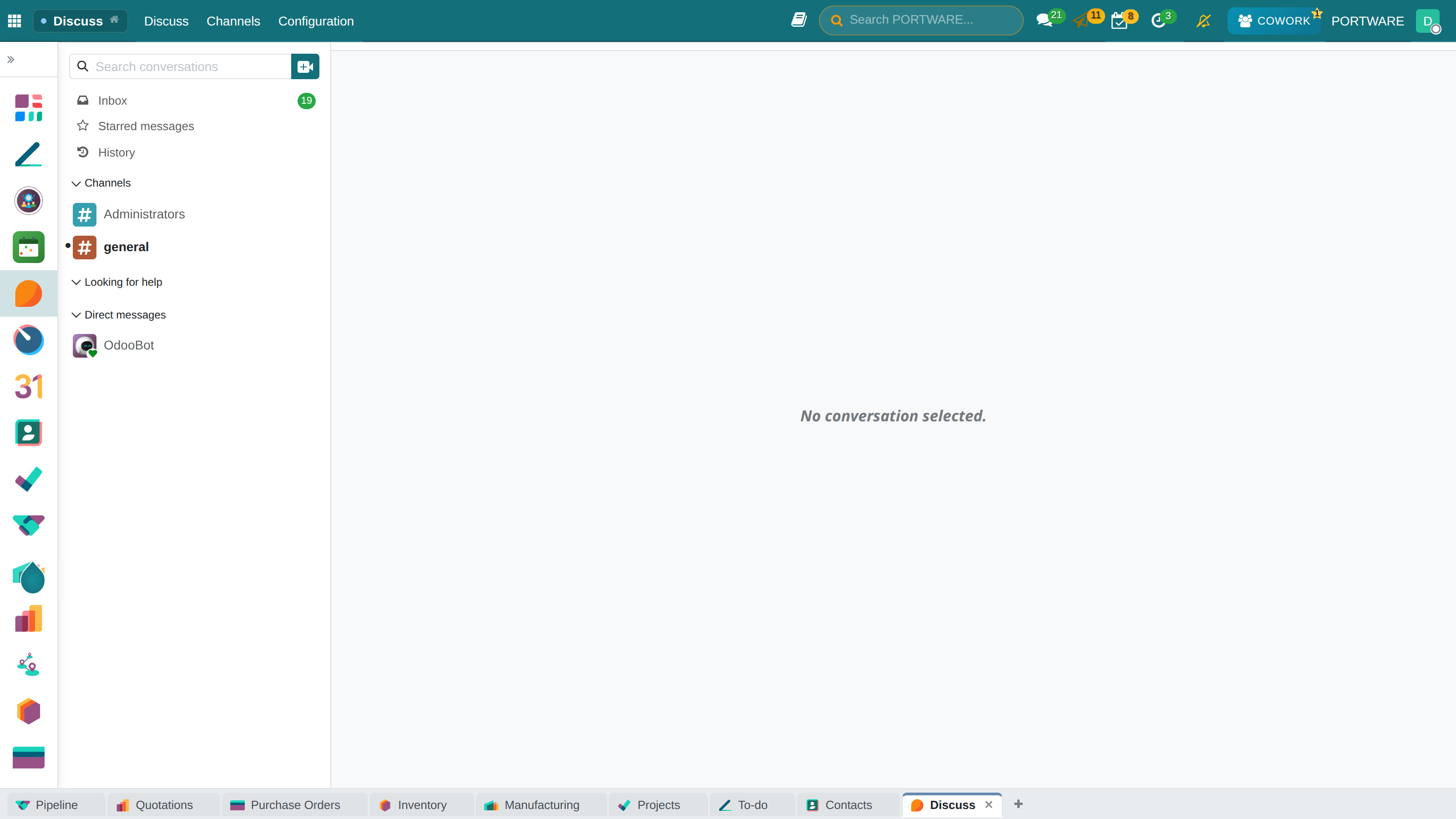
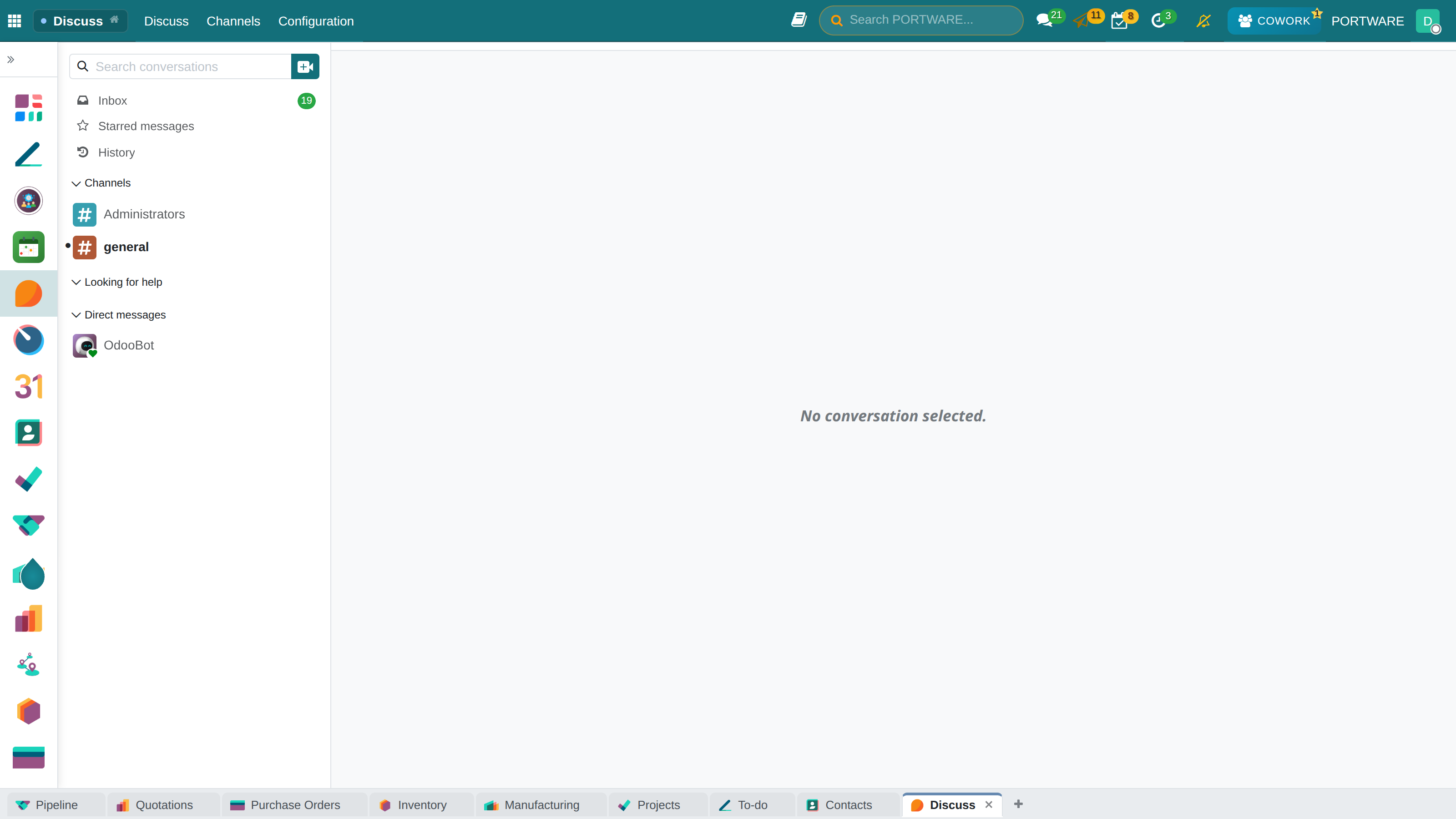
Discuss main screen - team communication and messaging
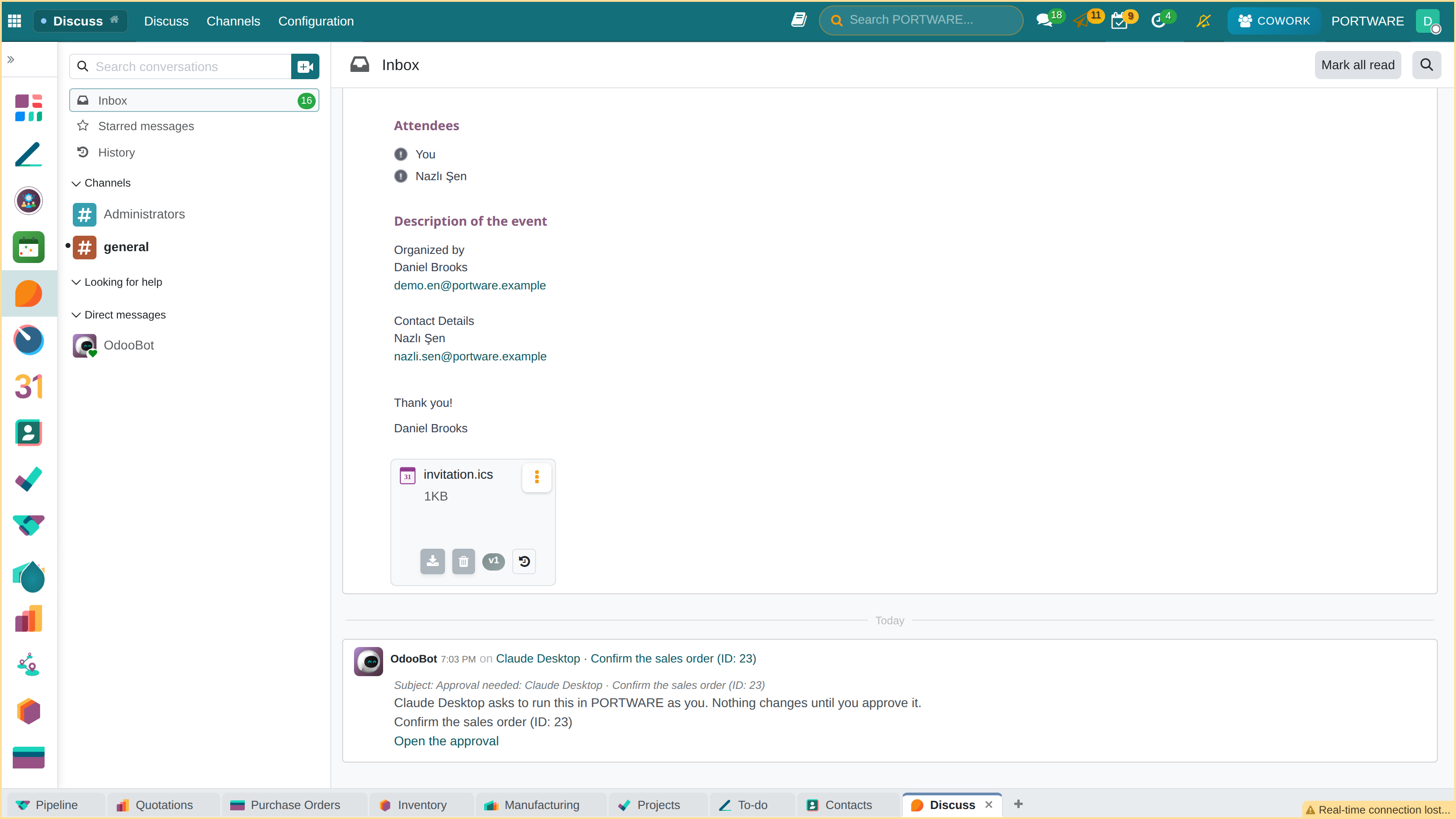
General channel - team-wide chat and sharing
Channels kanban view - visual channel organisation
Channels kanban - detailed channel cards
Channels list - managing every communication channel
Voice and Video Calls
You can start voice or video calls directly from Discuss. No external software is needed; it works in the browser.
Voice/video call settings - microphone and camera configuration
Call settings detail - device selection and test screen
Advanced call settings - audio and video configuration
Announcements
Create company-wide announcements and send them to every employee. Announcements get important news, policy changes and events to everyone at the same time.
Announcement draft - preview before publishing
The new announcement form
Calendar - Appointment and Event Management
What You Will Learn in This Section
- Planning events with Calendar
- Creating meetings and sending invitations
- Calendar views (day, week, month)
- Google/Outlook calendar integration
The Calendar module manages meetings, appointments and events from one central place. Share team calendars, avoid clashes and never miss important dates thanks to reminders.
Creating an Event
To create a new meeting or event:
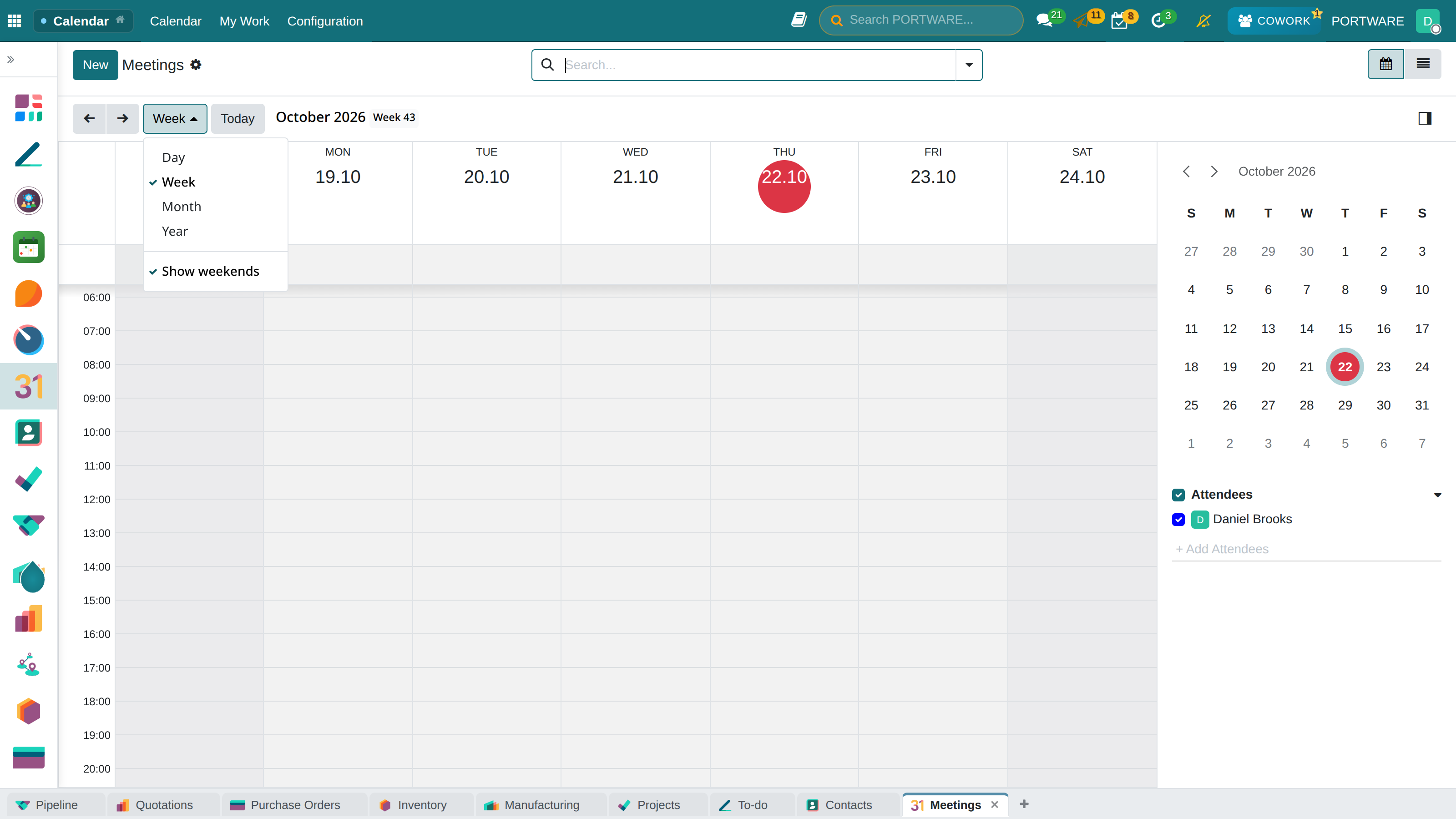
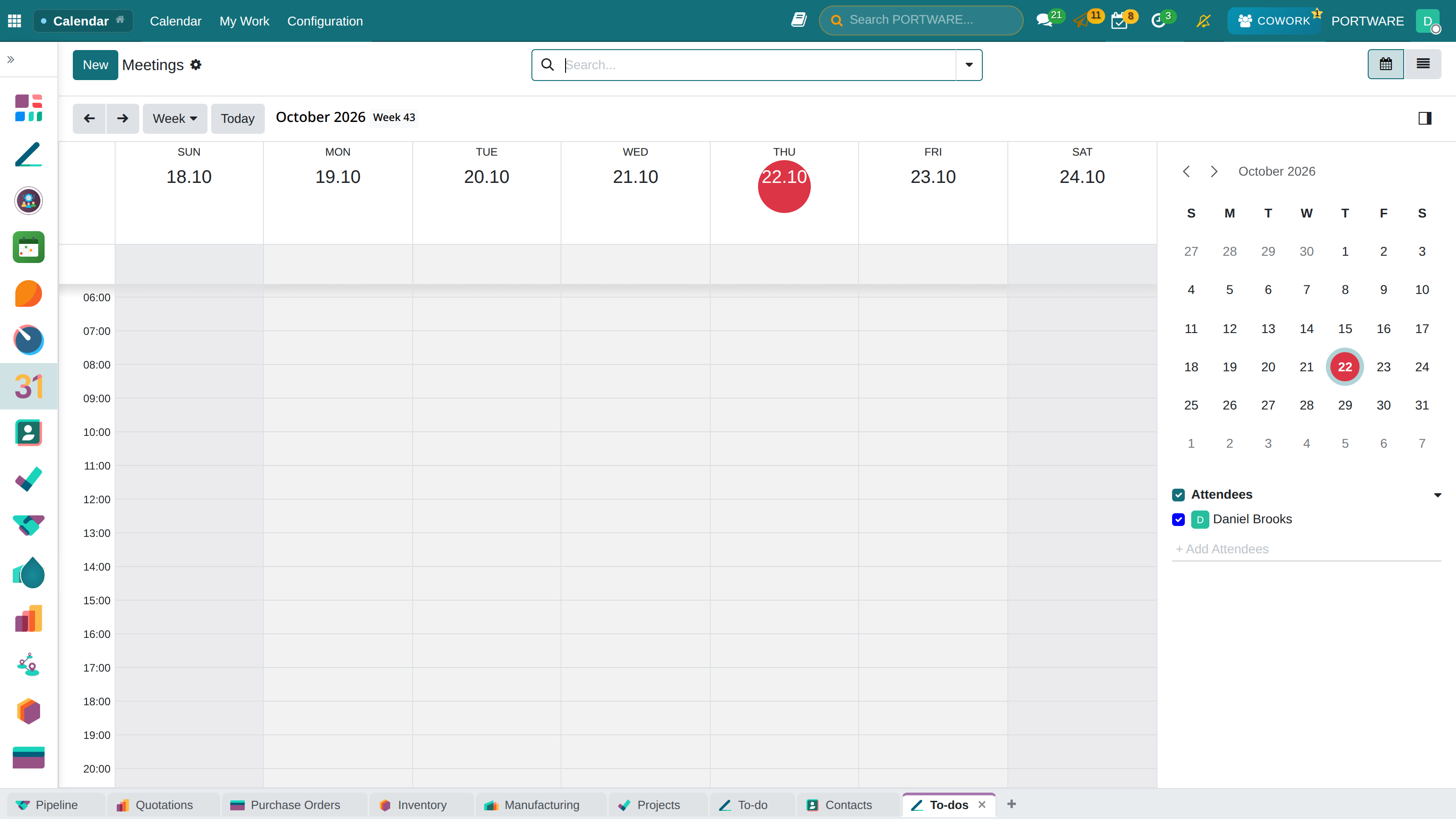
Week view - an overview of all the week's events
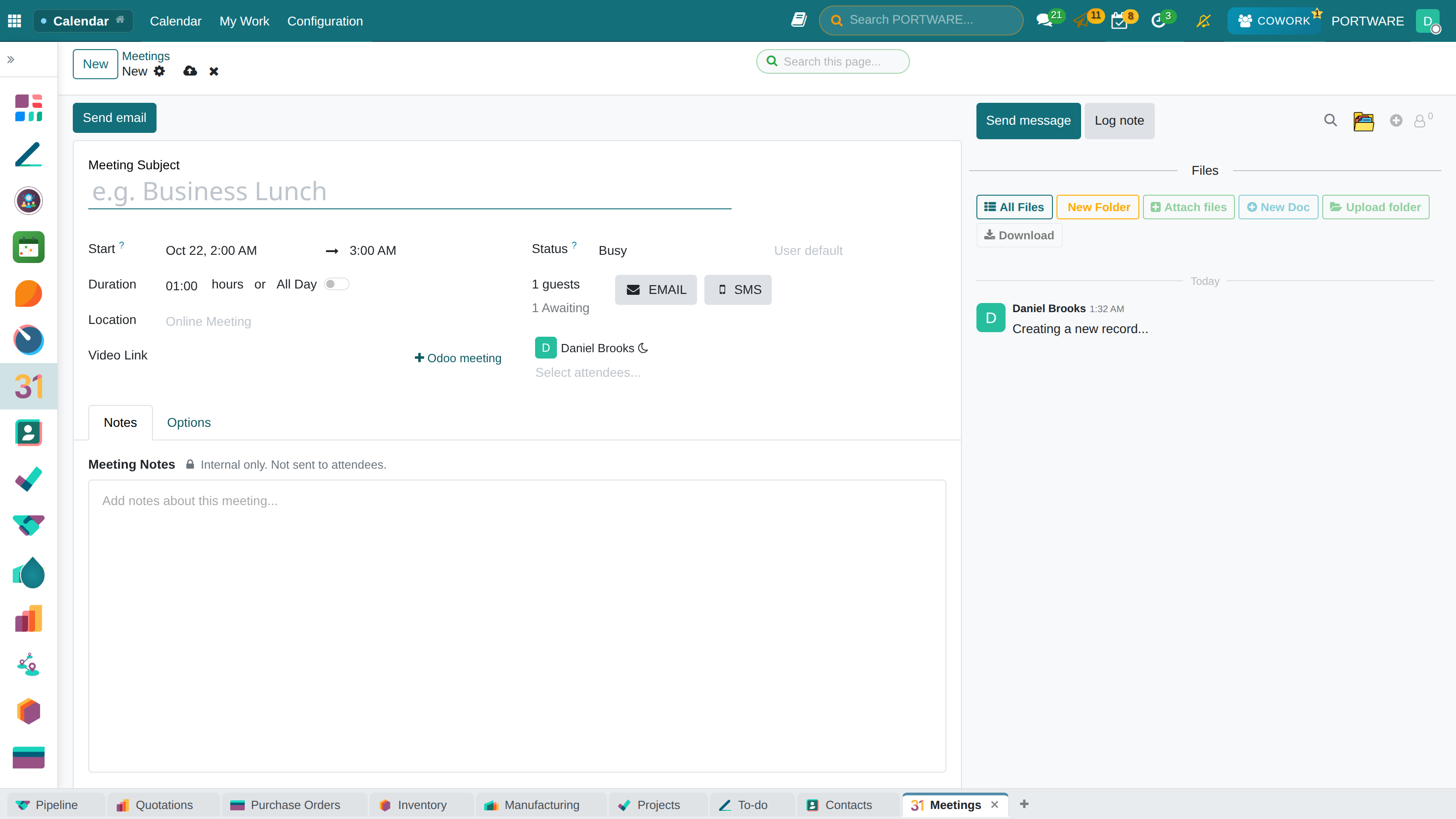
Creating a new event - meeting details and attendees
Meeting agenda - defining agenda items for the event
Public event - meeting settings visible company-wide
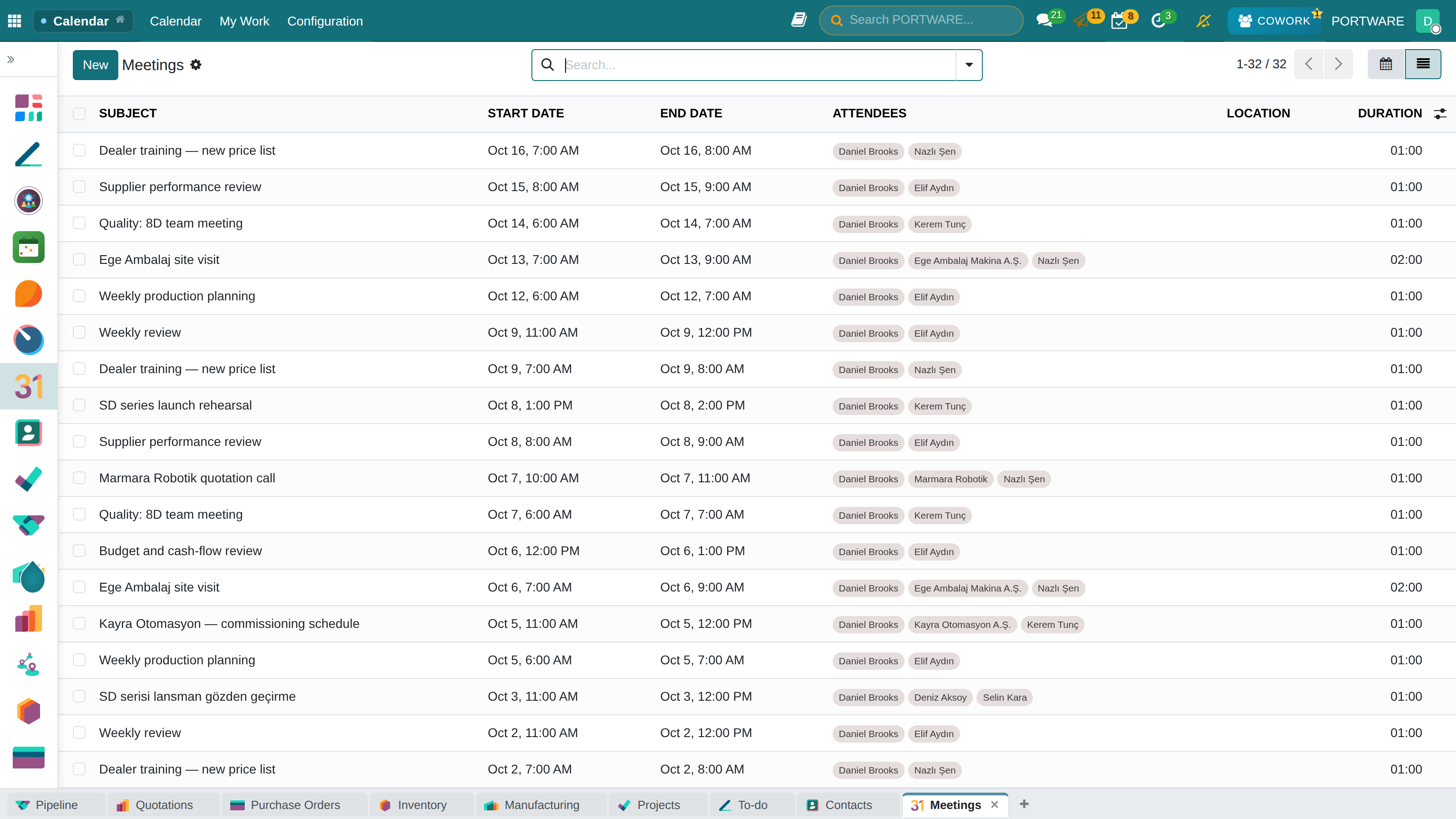
Meetings list - the list view of every event
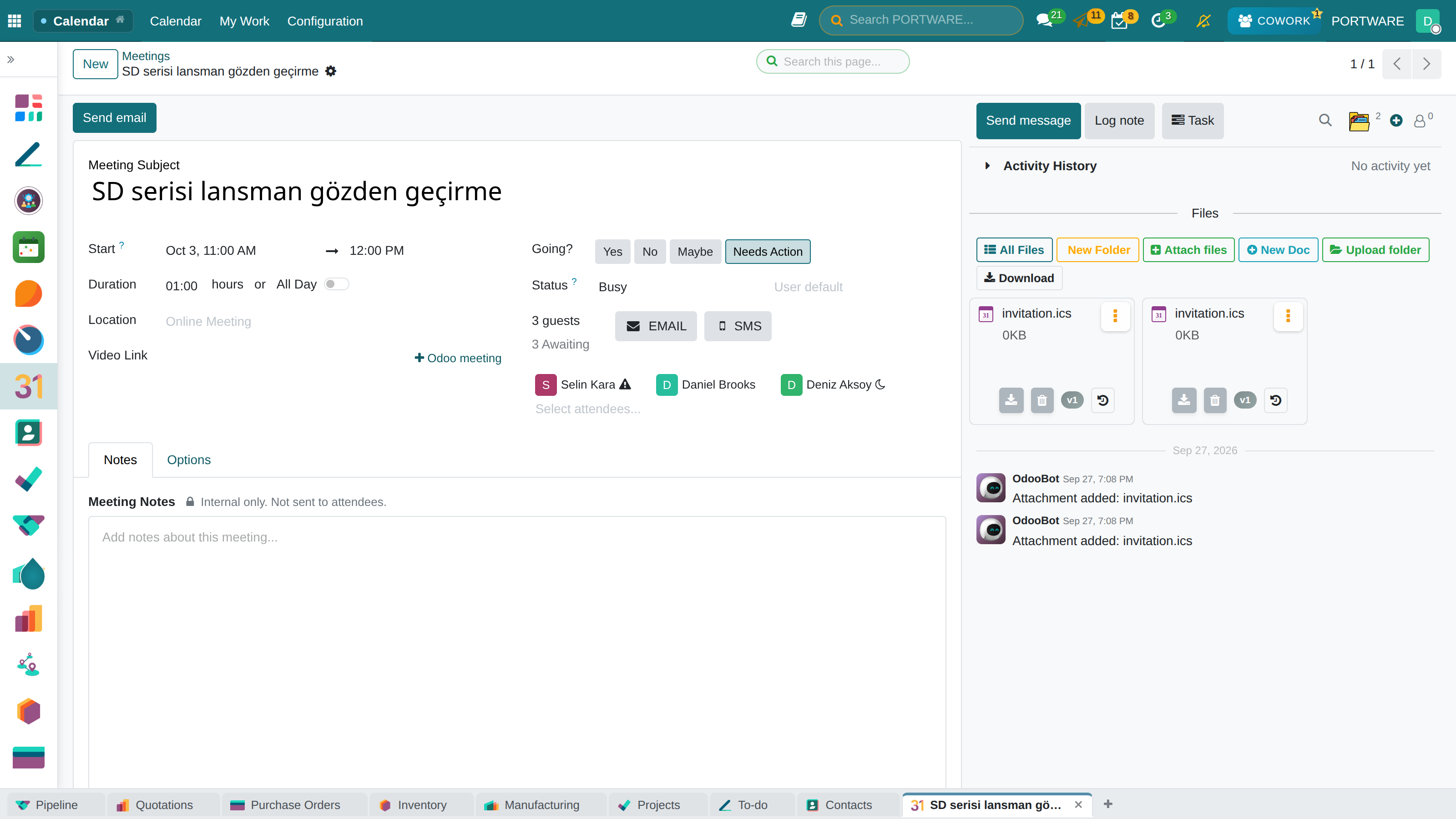
A meeting's form — start, duration, attendees, video link and meeting notes
Calendar Views
| View | Used For |
|---|---|
| Day | Detailed daily planning, hour-by-hour tasks |
| Week | Weekly overview, meeting planning |
| Month | Monthly planning, holidays and important dates |
| List | A chronological event list, with filters |
Kanban view - organise events by drag and drop
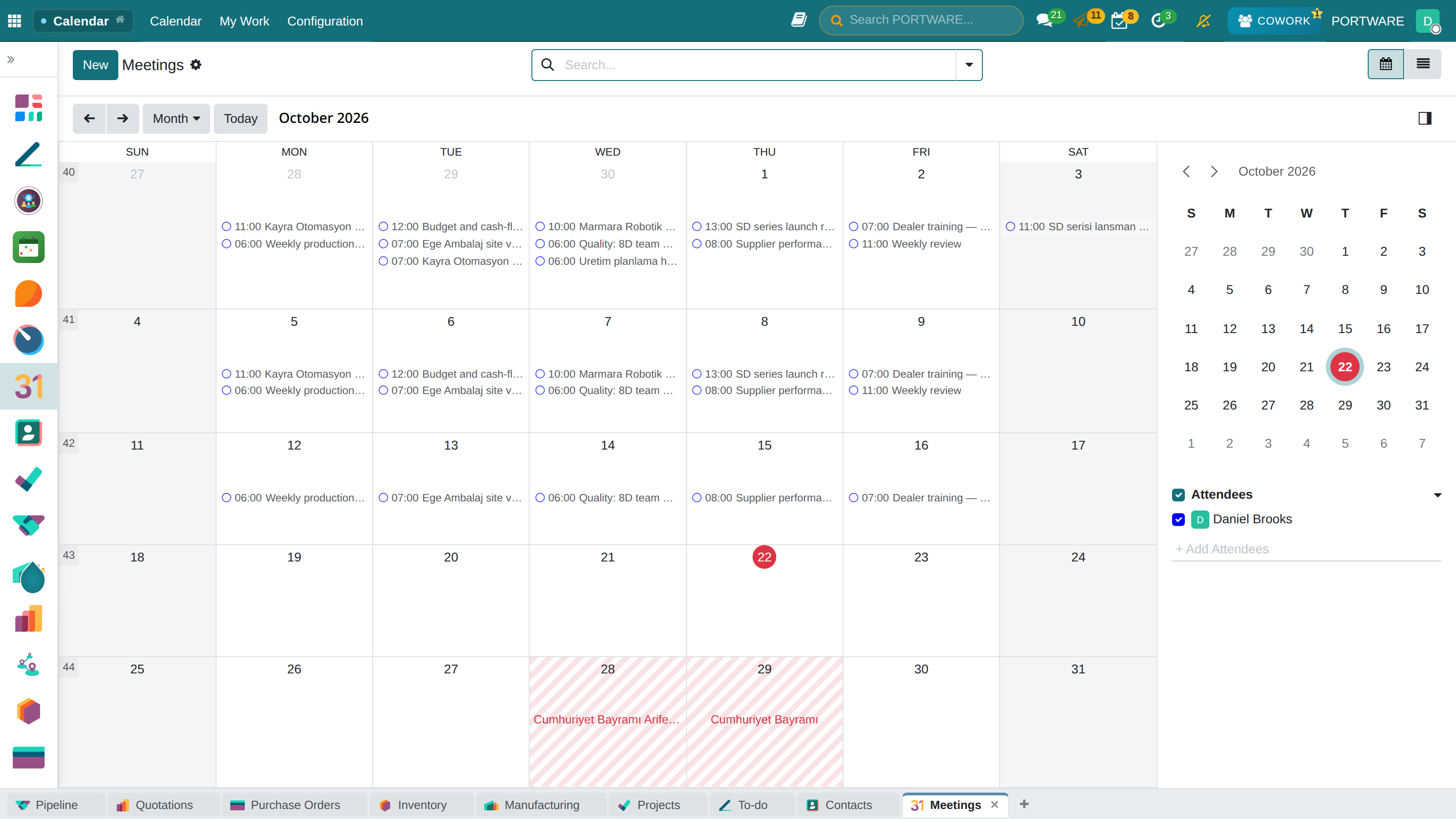
The calendar by month — meetings inside the days, attendee filter on the right
To-Do
What You Will Learn in This Section
- Personal task management
- Kanban and list views
- Prioritising and filtering tasks
- Creating personal stages
To-dos are planned too. The to-do form has Planned Dates, Allocated Time, Workload % and Plan in calendar; the list has a date-range column, and search has the Planned Today, Planned This Week and Unplanned filters. Planned to-dos count on the occupancy screens and are drawn on Calendar › My Work together with tasks, meetings and time off.
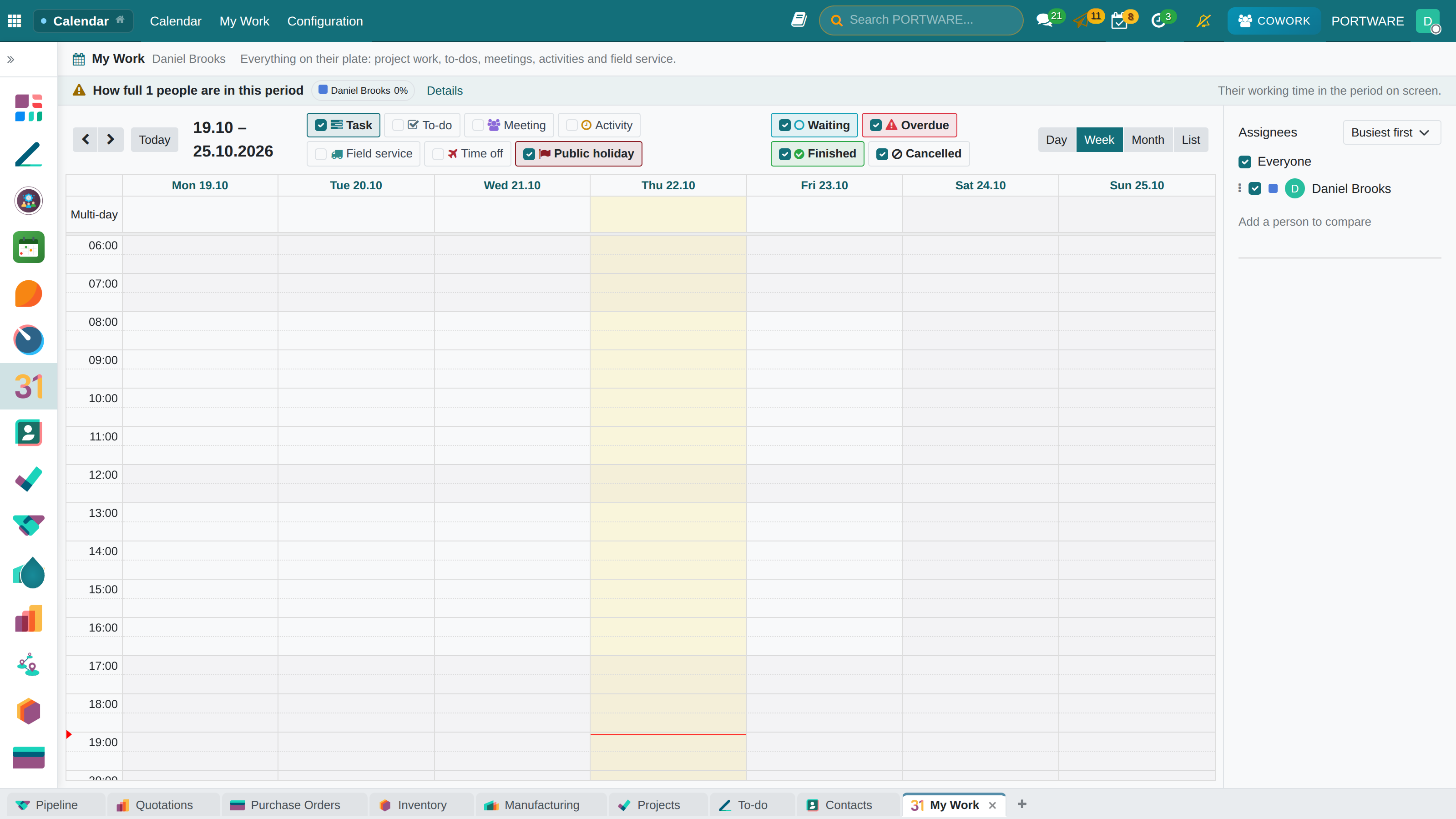
Calendar › My Work — tasks, to-dos, meetings and time off in one calendar
The To-Do module organises your personal tasks. With a simple interface, create tasks, prioritise them and tick them off when done.
Task Views
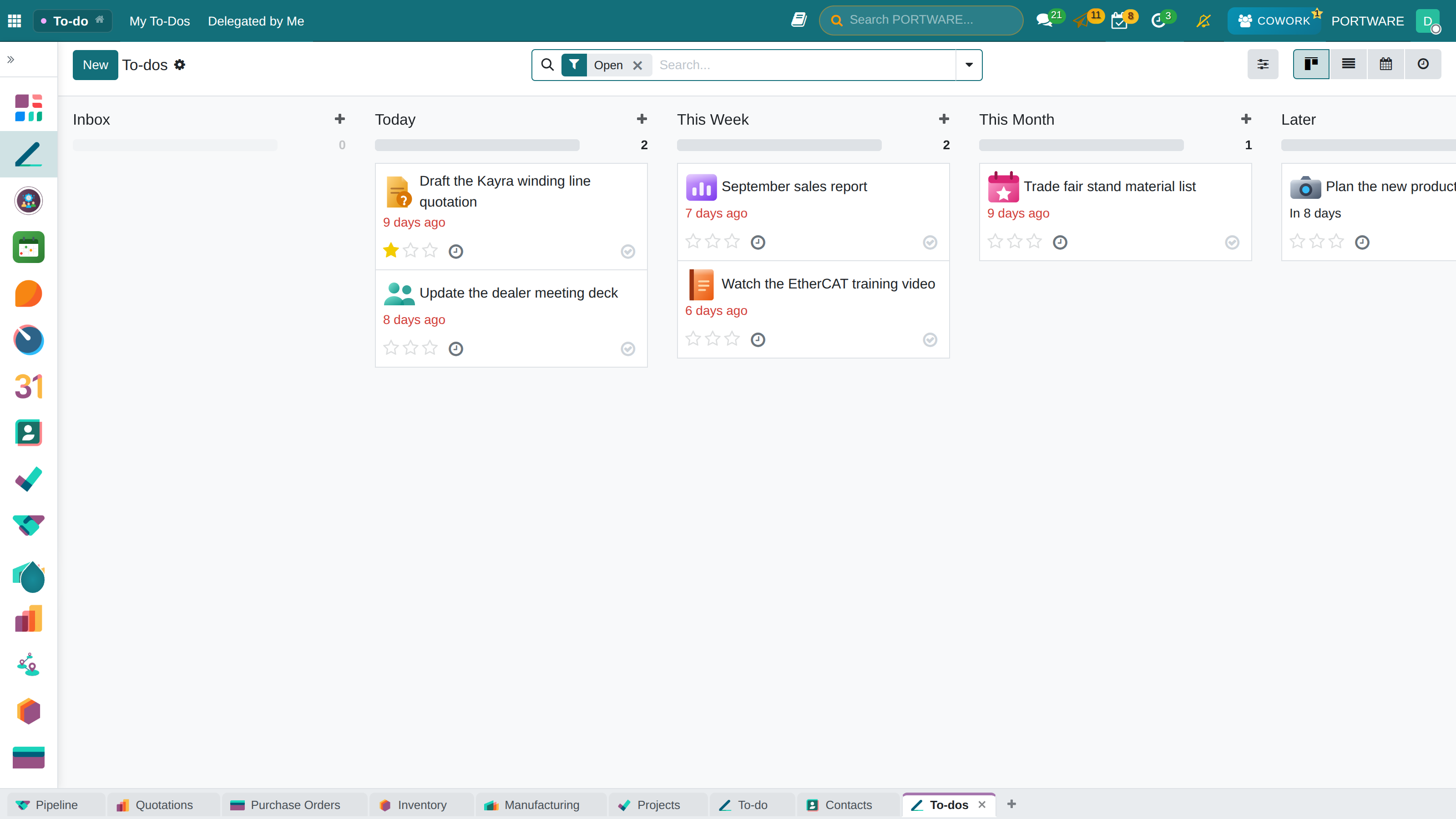
Kanban view - manage tasks by drag and drop
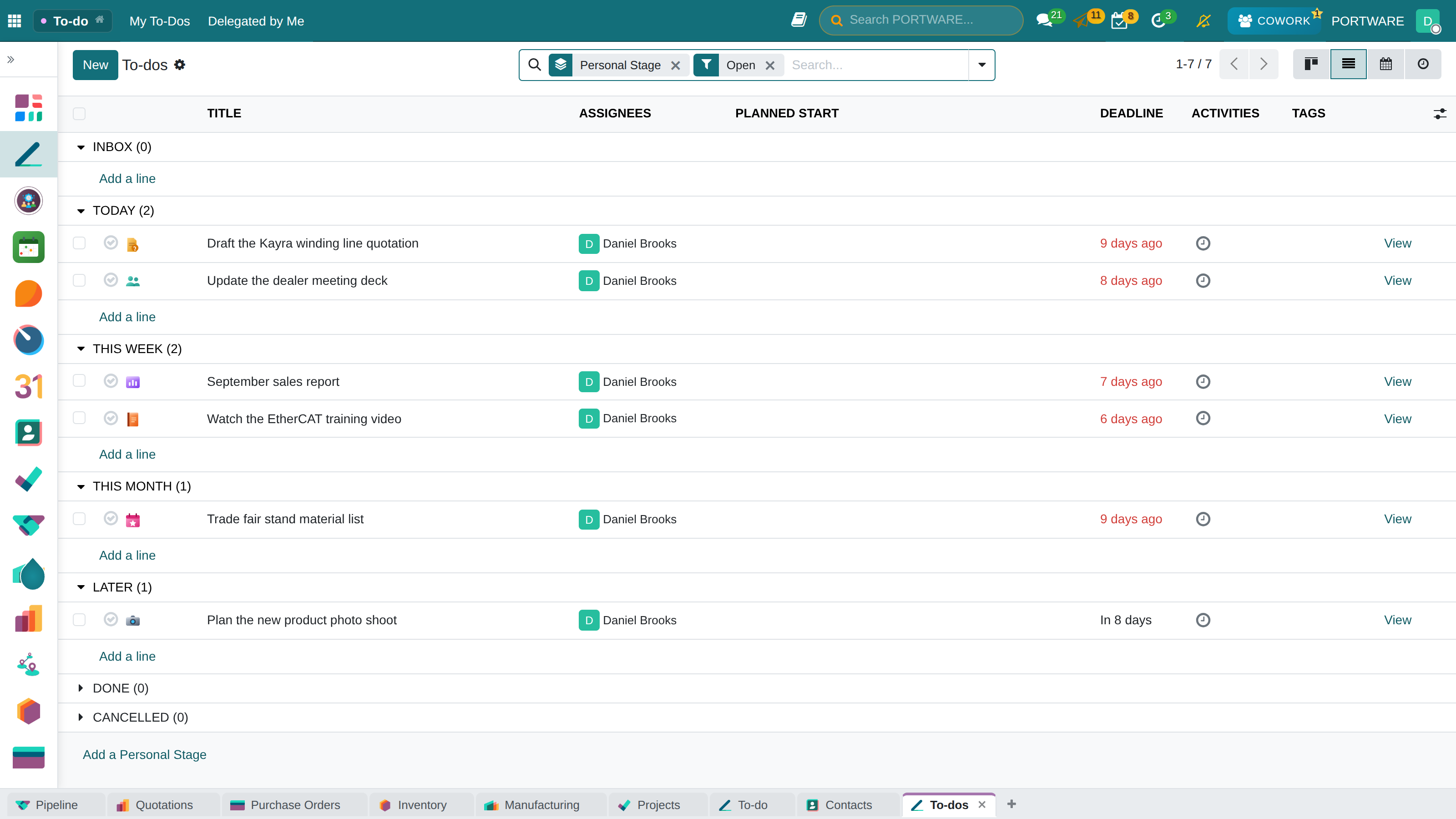
List view - a detailed list of every task
Filtering Tasks
Filter your tasks by status, priority or date. Filters make it easy to find the tasks you need to focus on.
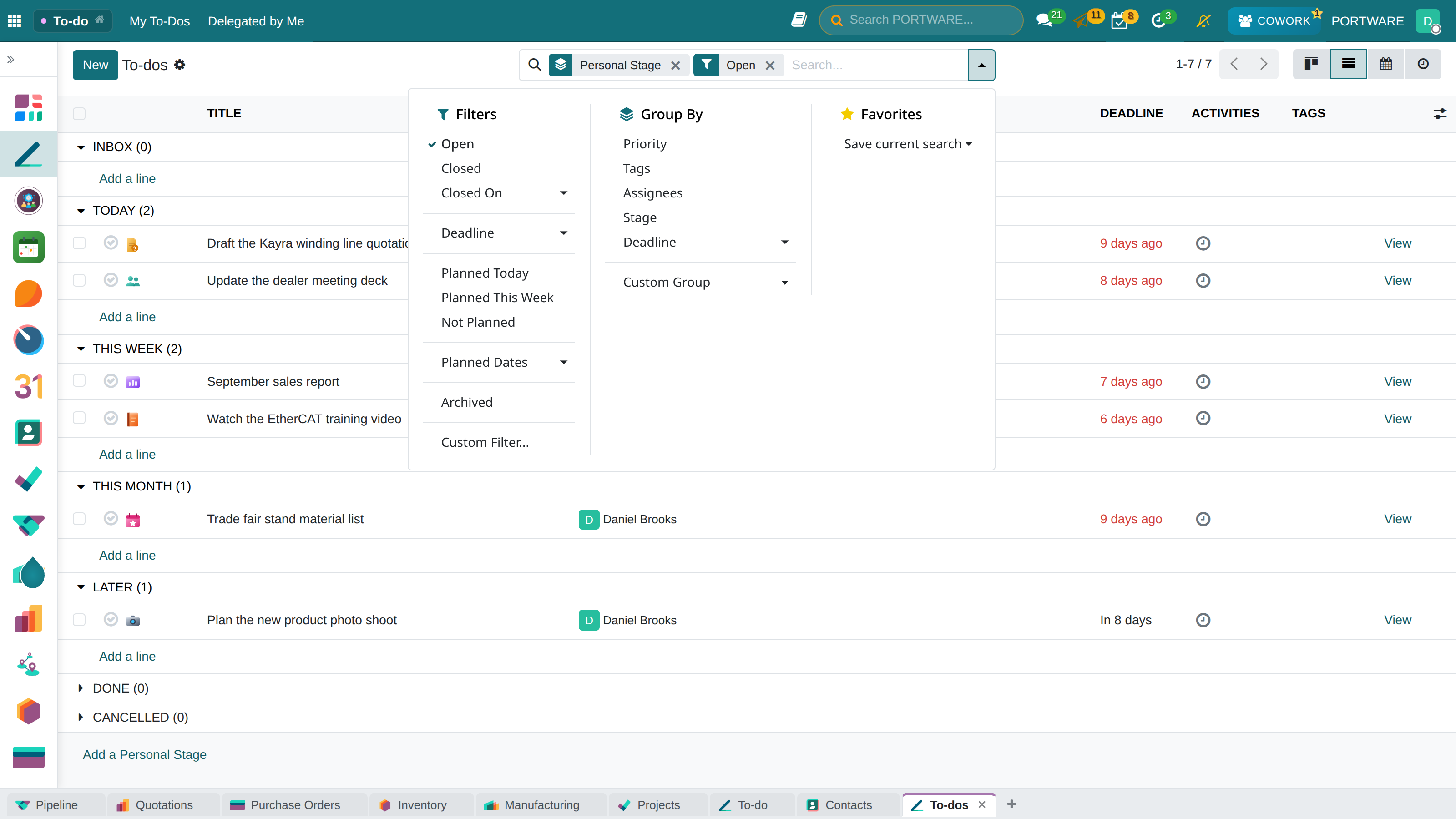
The list grouped by personal stage, with the filter menu — today, this week, unplanned
Personal stages - build your own workflow
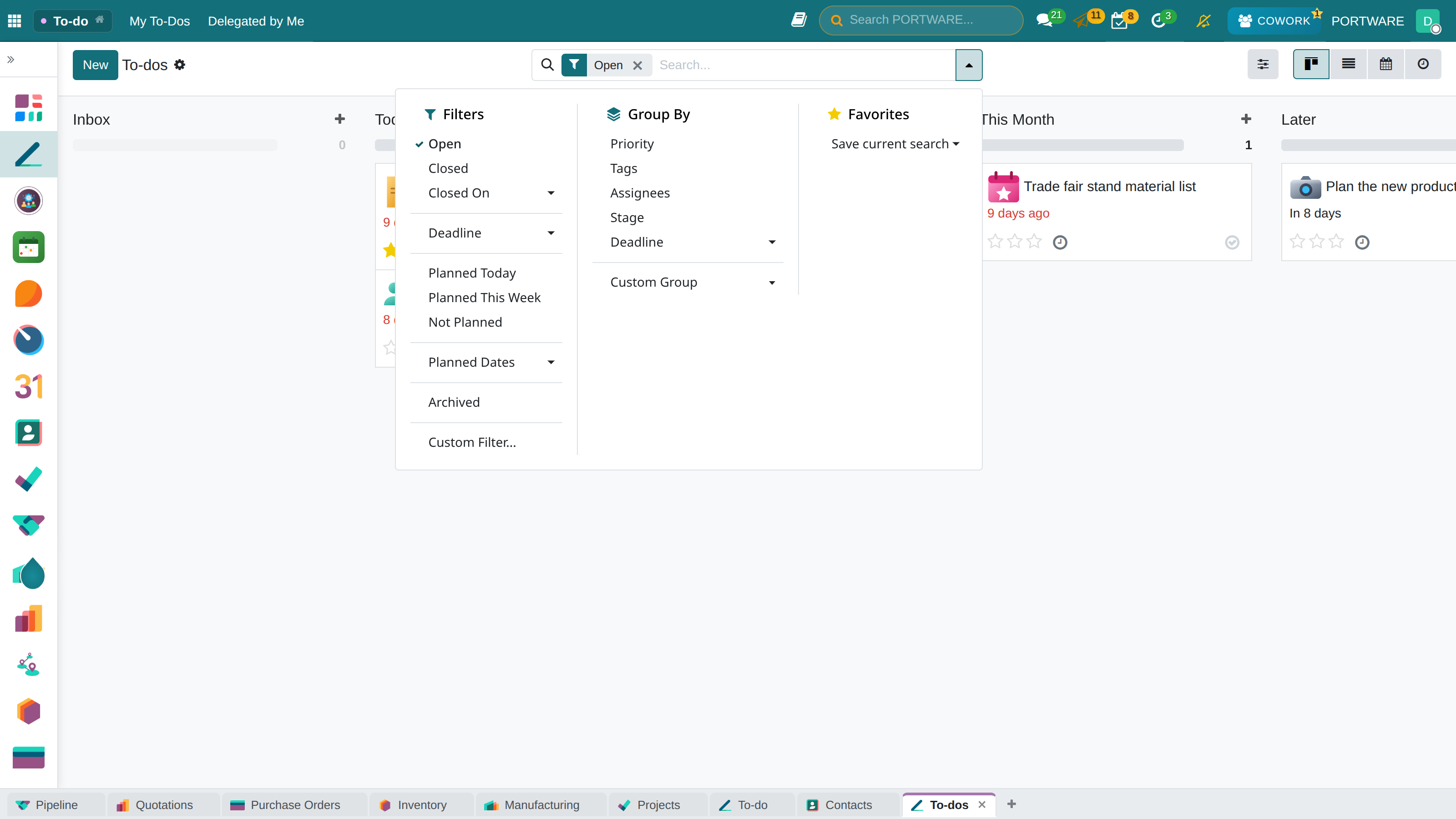
The same filters on the kanban — Inbox, Today, This Week, This Month, Later
Activity Centre
What You Will Learn in This Section
- Following every task with the activity centre
- My Tasks vs All Tasks
- Filtering activities and tracking delays
- Dashboard and list views
The Activity Centre manages every activity and task across PORTWARE from one place. Follow-ups from CRM, project tasks, sales activities and every other business process task can be followed here.
Main View
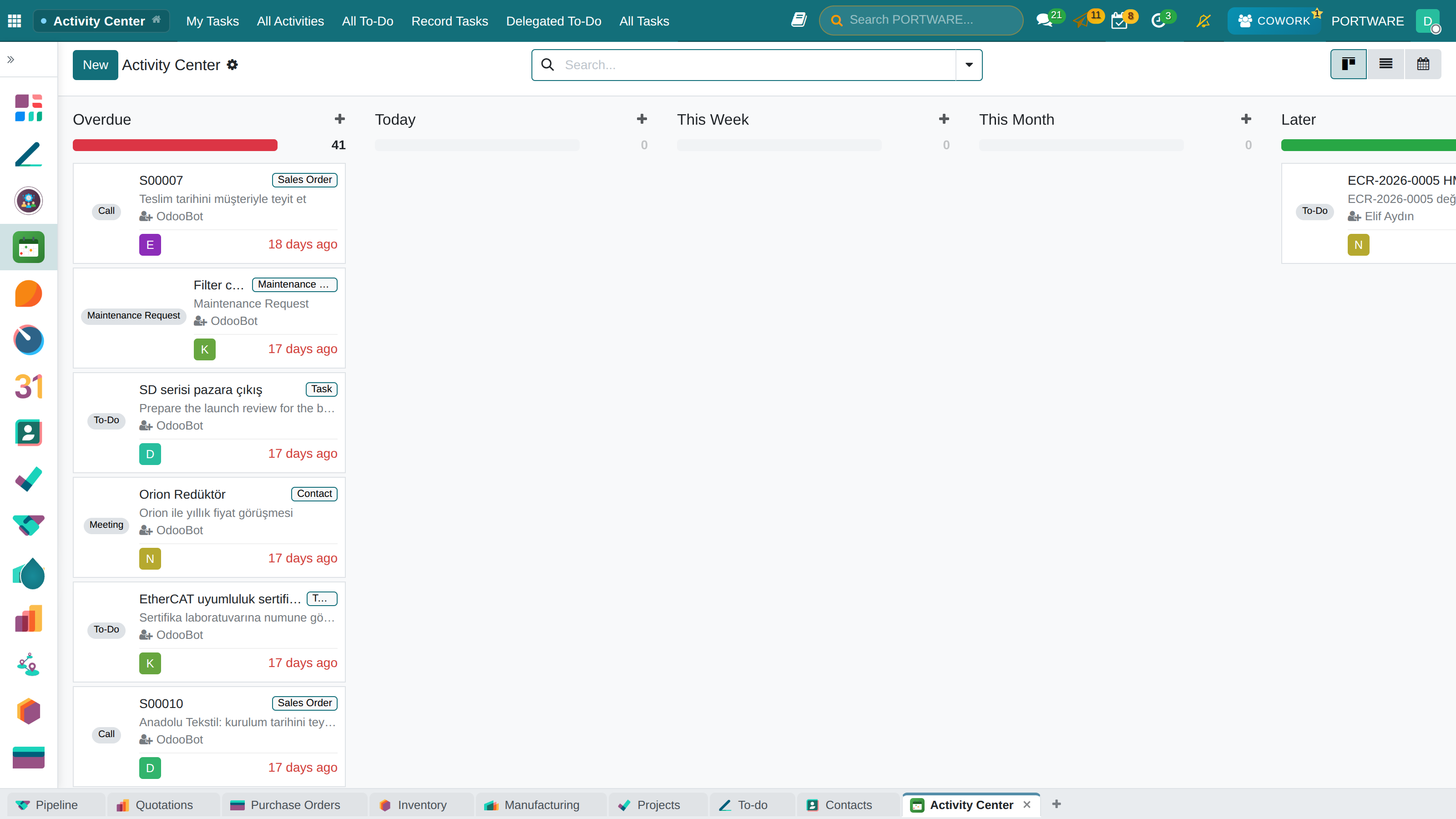
Activity Center — overdue, today, this week, this month and later: every record's activities in time columns
Activity dashboard - summary statistics and quick access
My Tasks
Filter and prioritise the tasks assigned to you. Switch between kanban and list views to work the way you prefer.
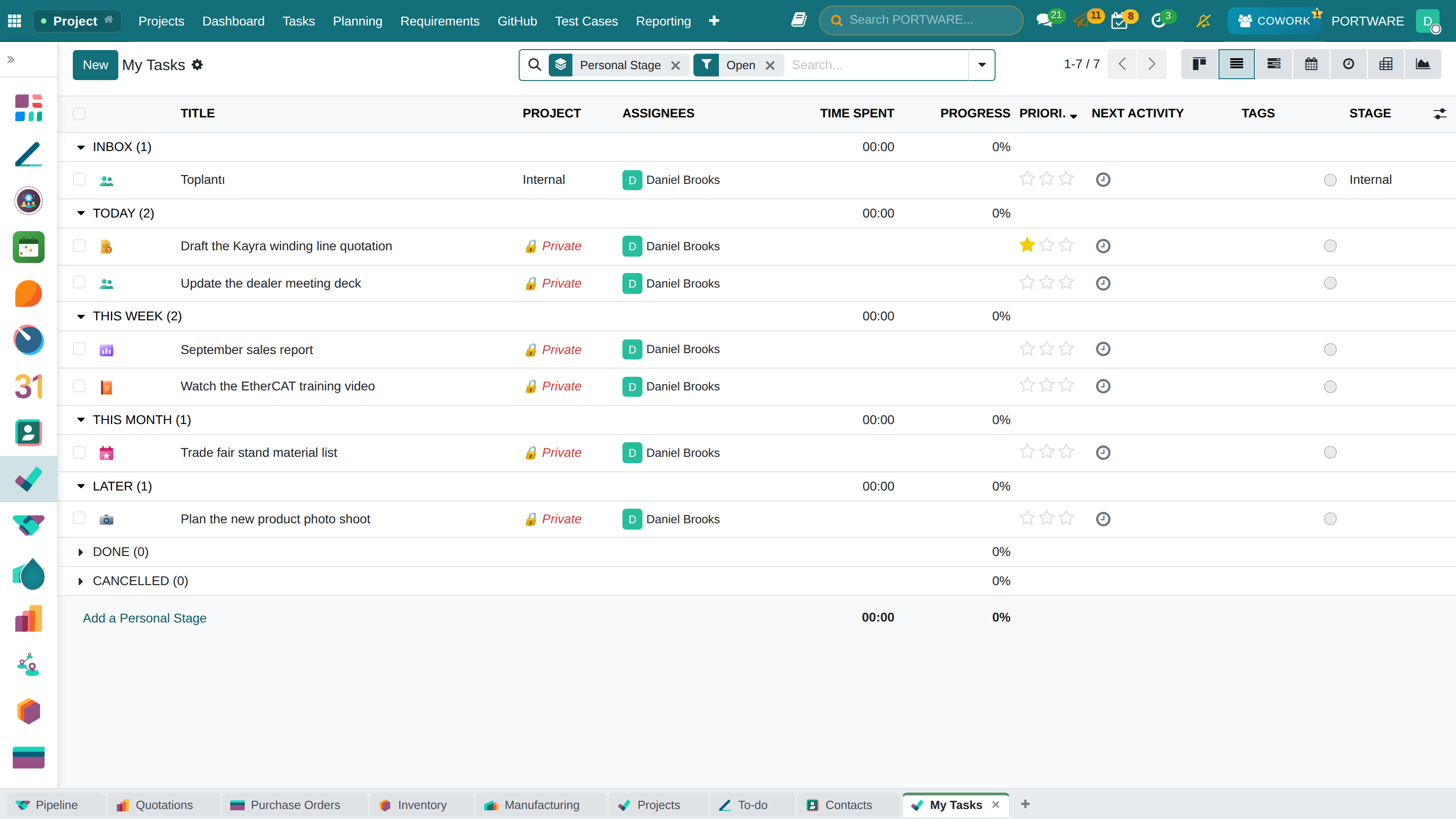
My Tasks - every task assigned to you
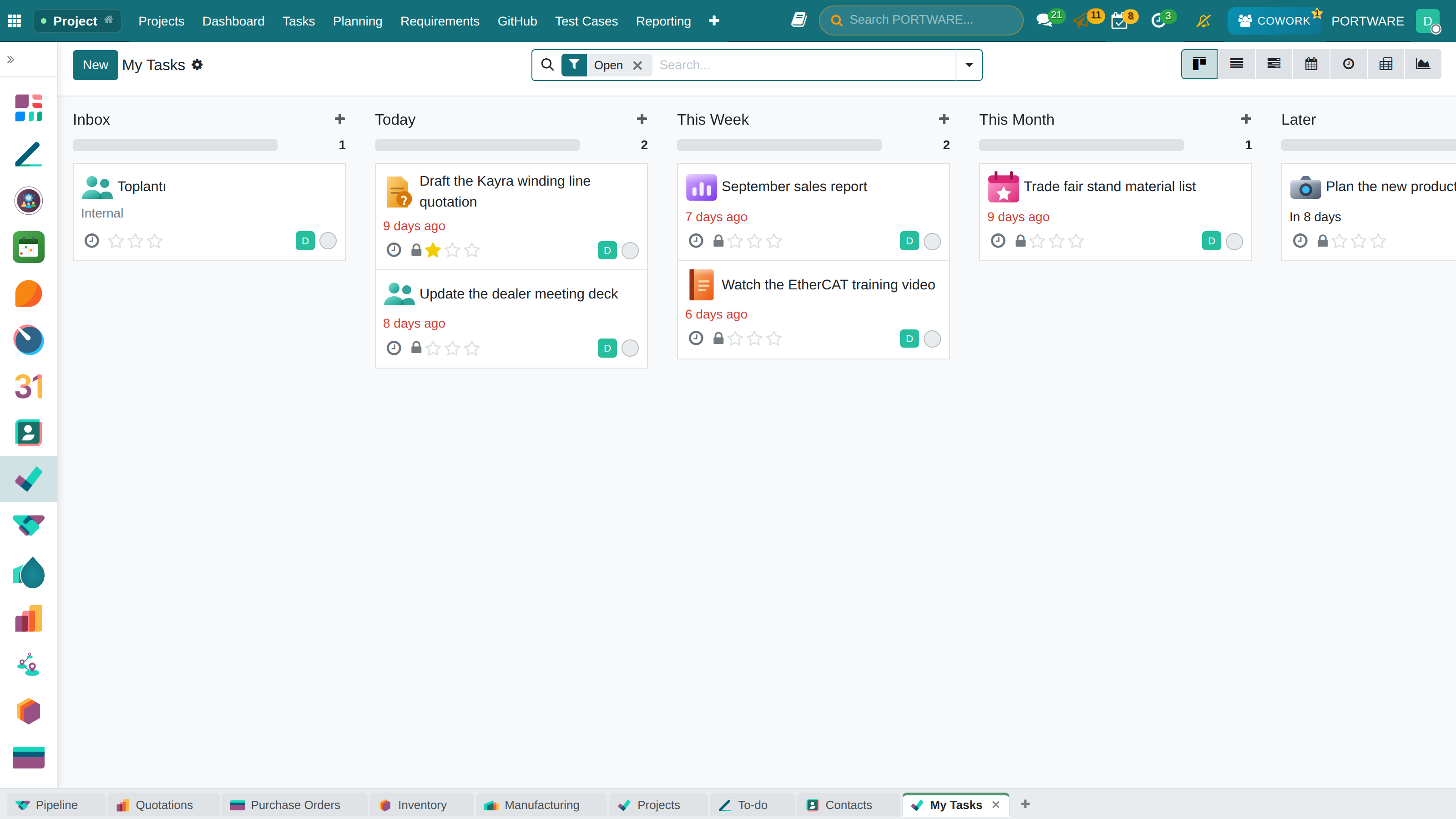
Kanban view - manage tasks by drag and drop
Kanban detail - expand the task cards
Kanban grouping - different grouping options
All Tasks
See every task in the organisation. As a manager, follow the whole team's workload and reassign when needed.
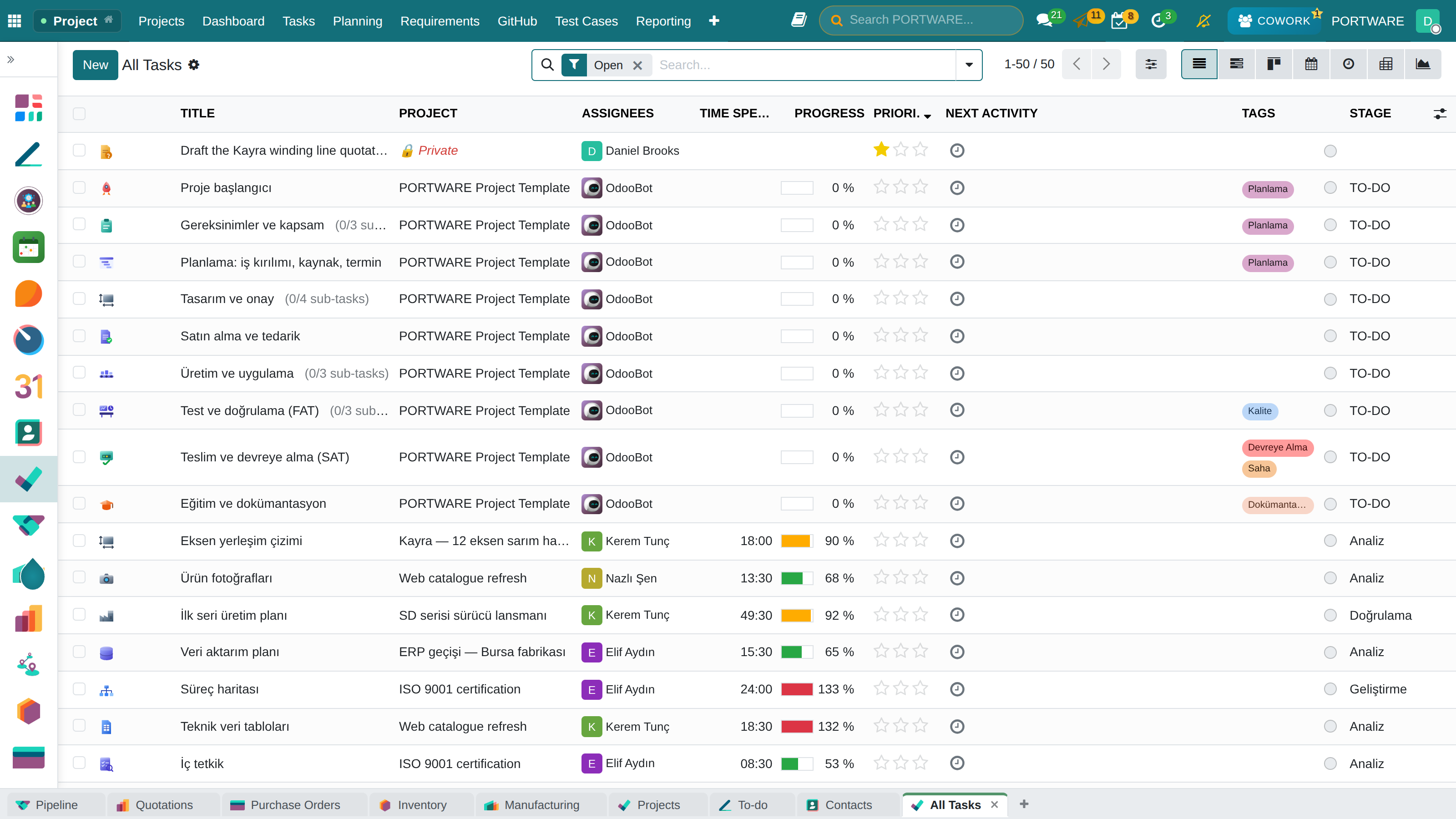
All Tasks - team-wide task tracking
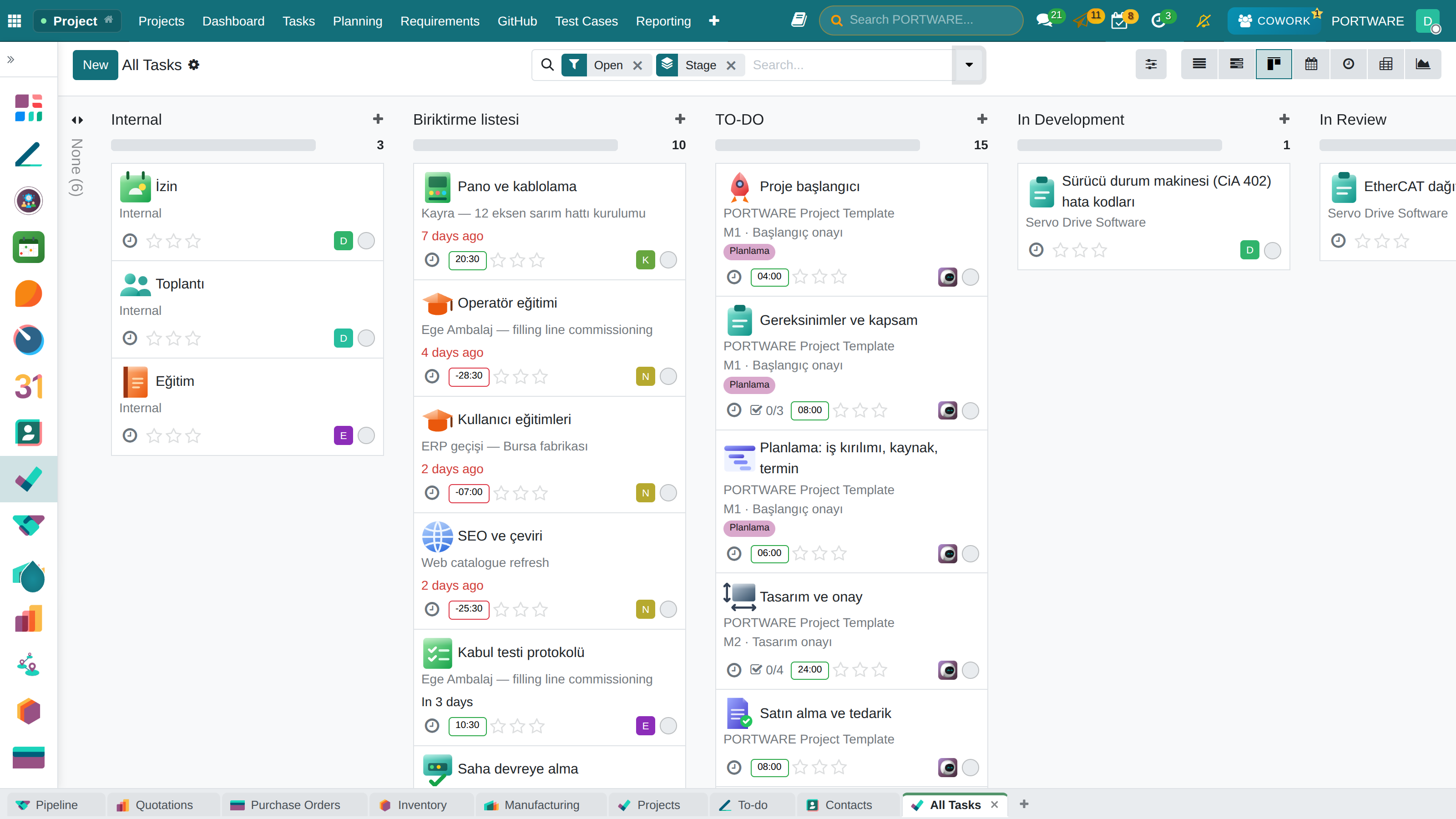
All Tasks on a kanban by stage — to do, review and internal work in columns
All Activities
See CRM follow-ups, sales activities, project tasks and every other business process activity in one list.
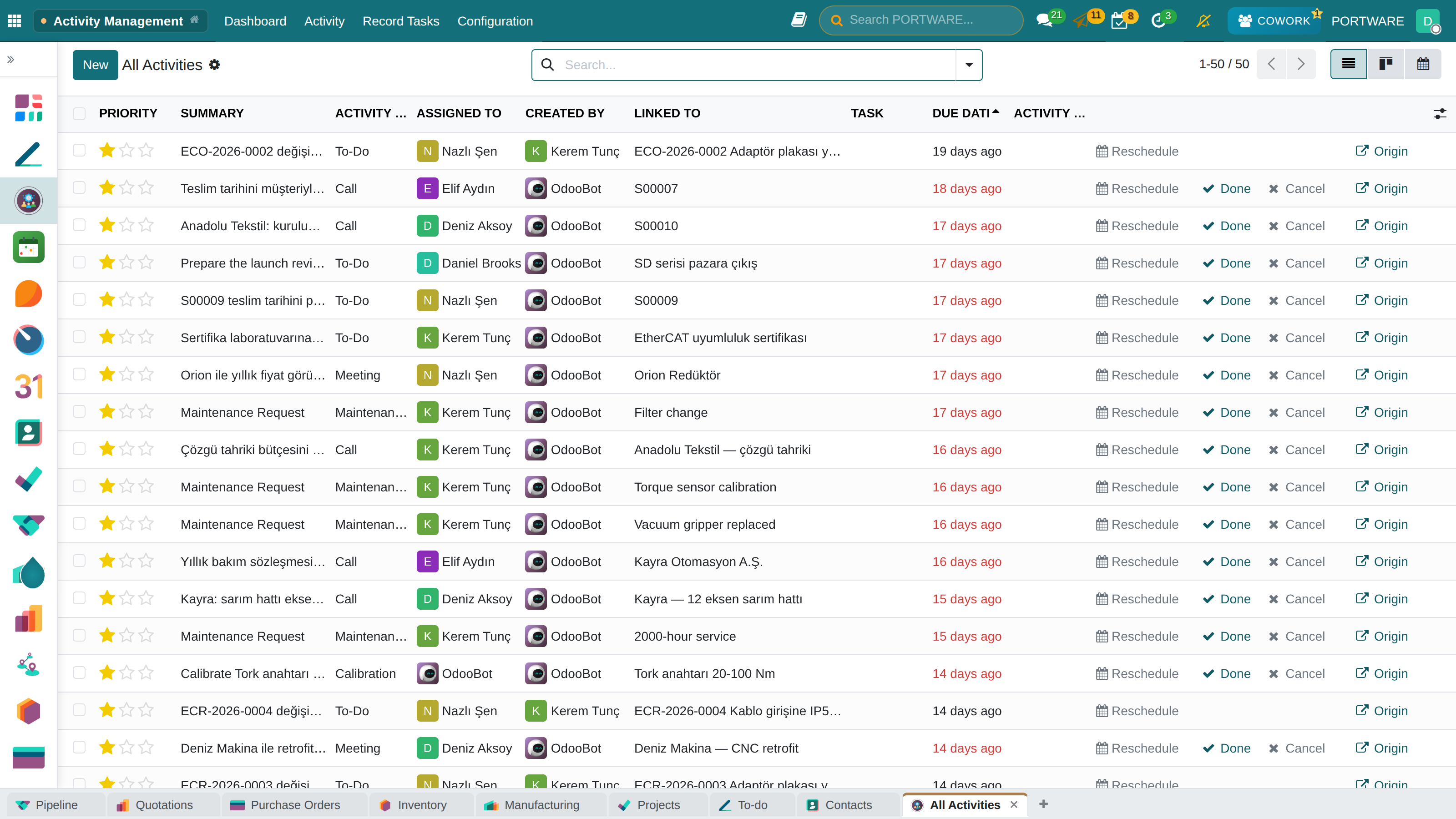
All Activities — CRM, sales, purchasing and project activities in one list, with due date, assignee and linked record
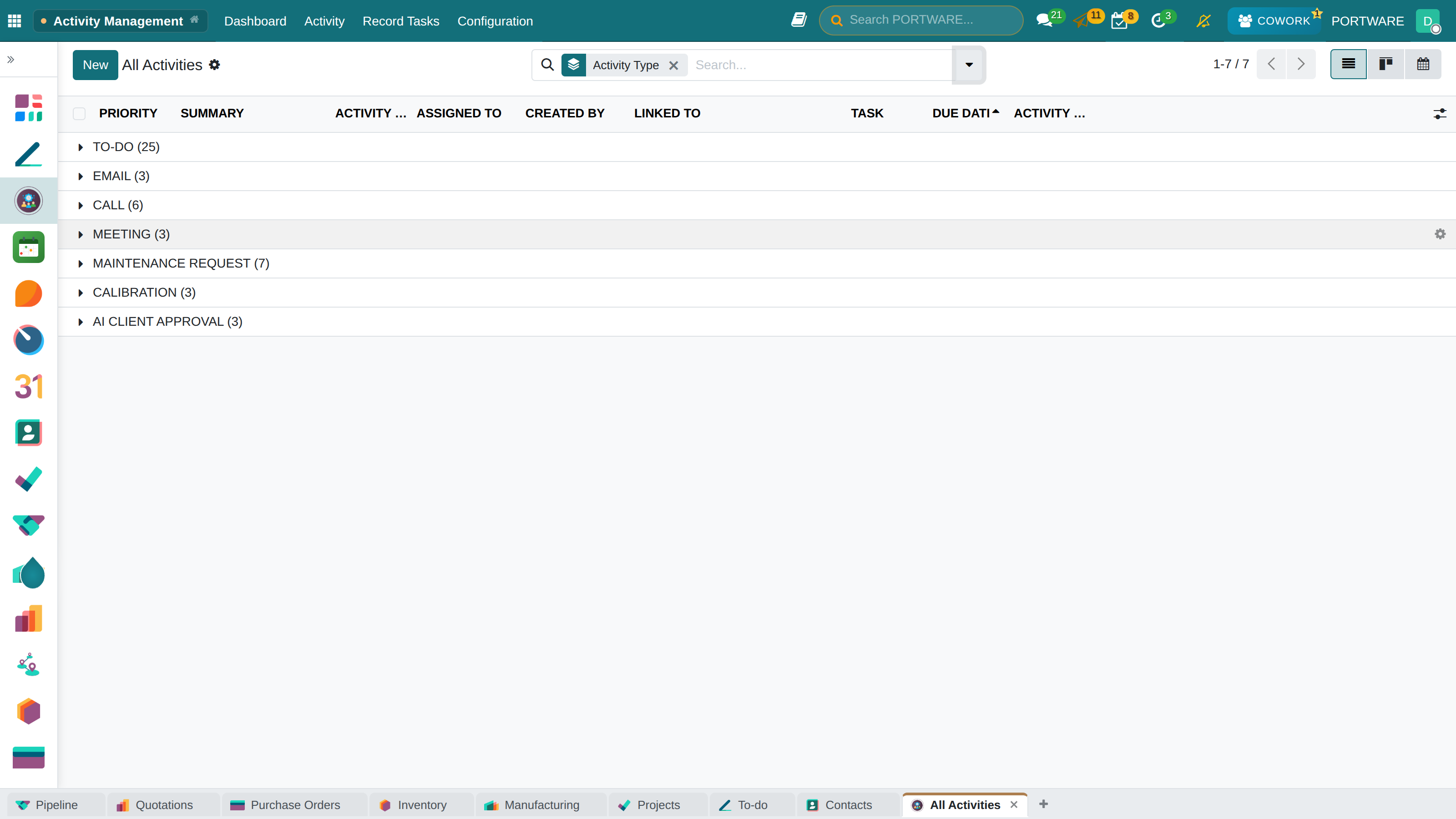
All Activities grouped by activity type — to-do, e-mail, call, meeting, calibration
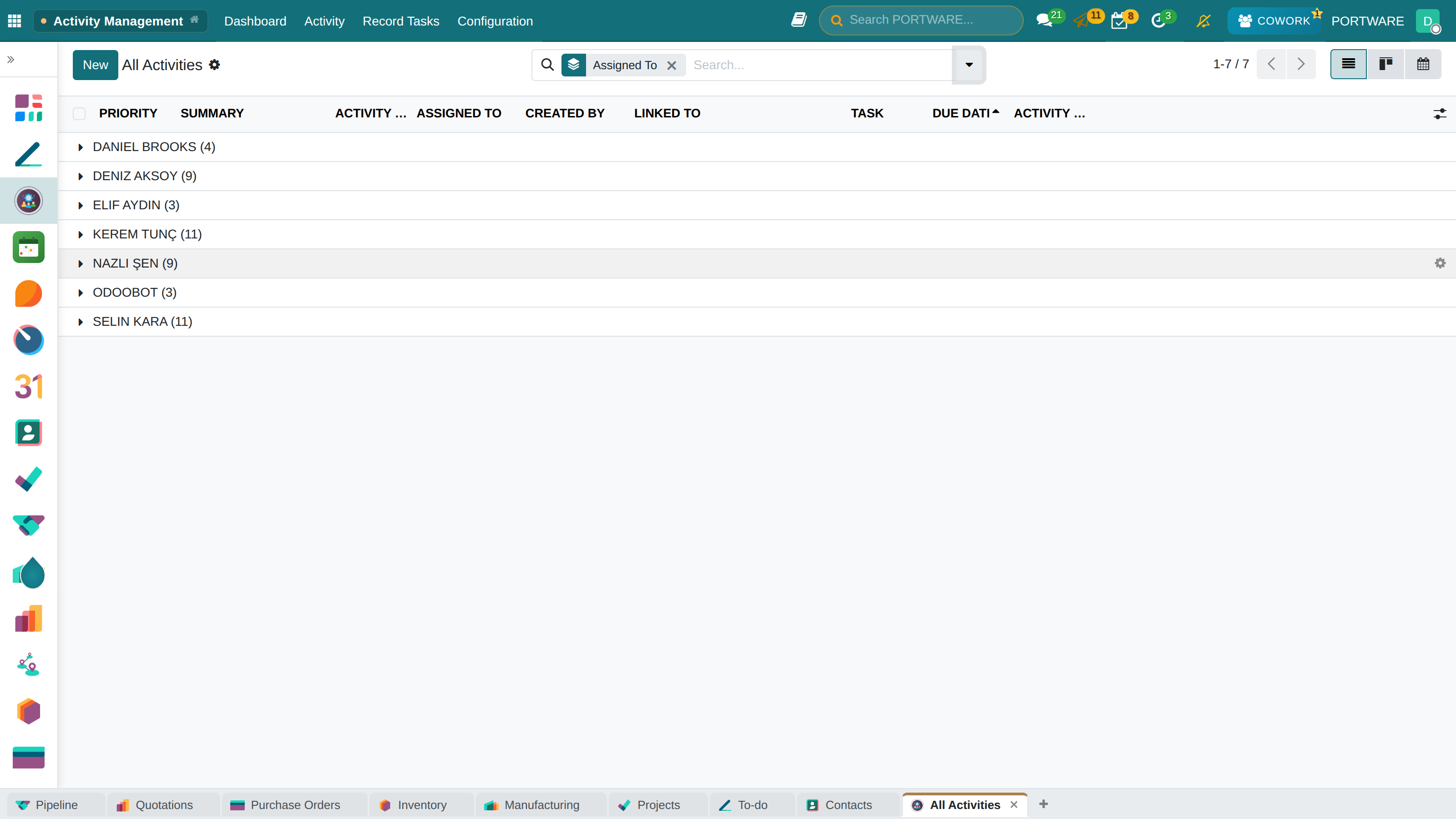
Activities grouped by assignee — who holds how many, at a glance
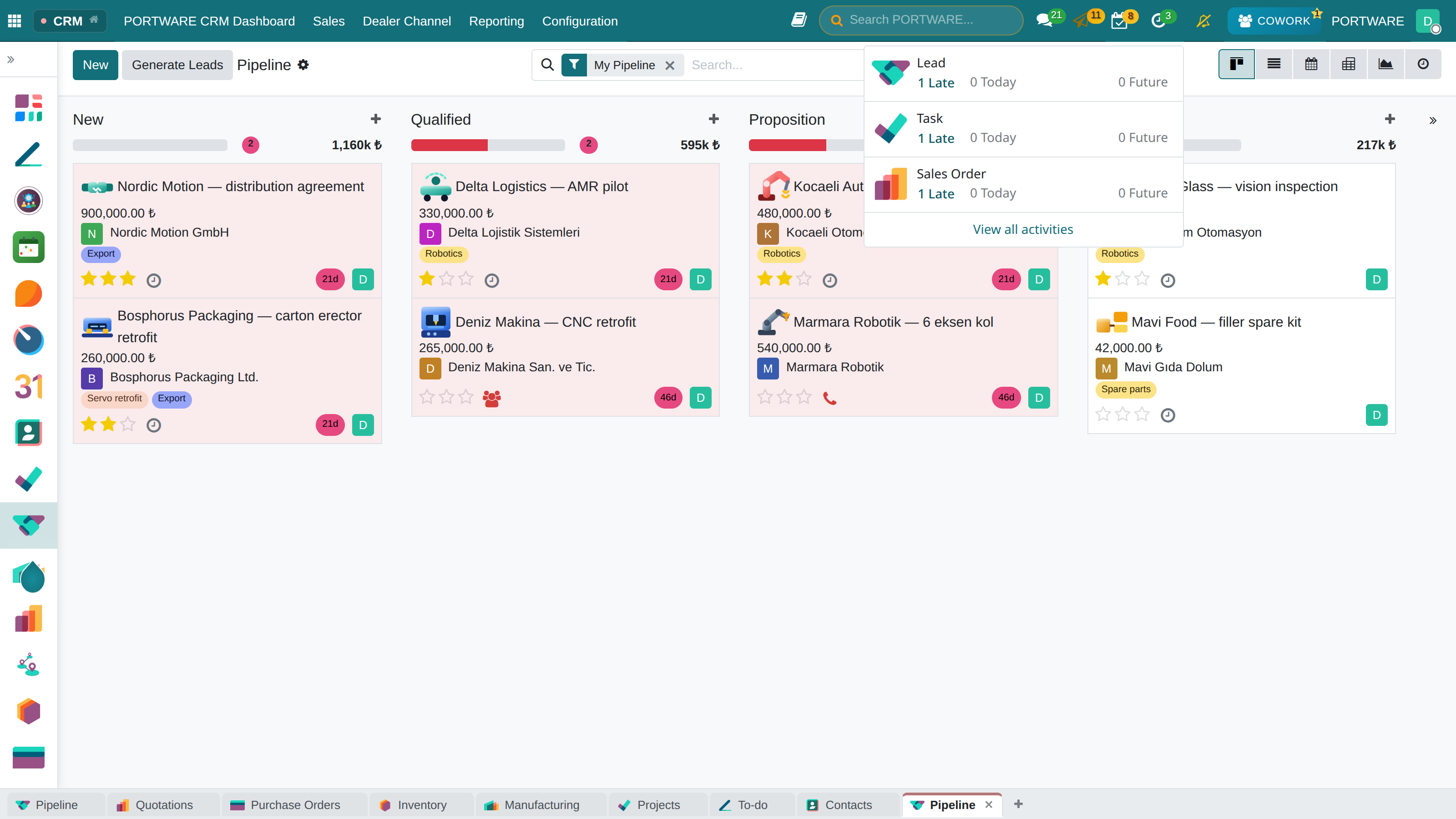
The activity menu in the top bar — overdue, today and upcoming counts per app
Filtering Activities
Filter your activities by date, type, responsibility and status. Spot overdue tasks quickly and prioritise them.
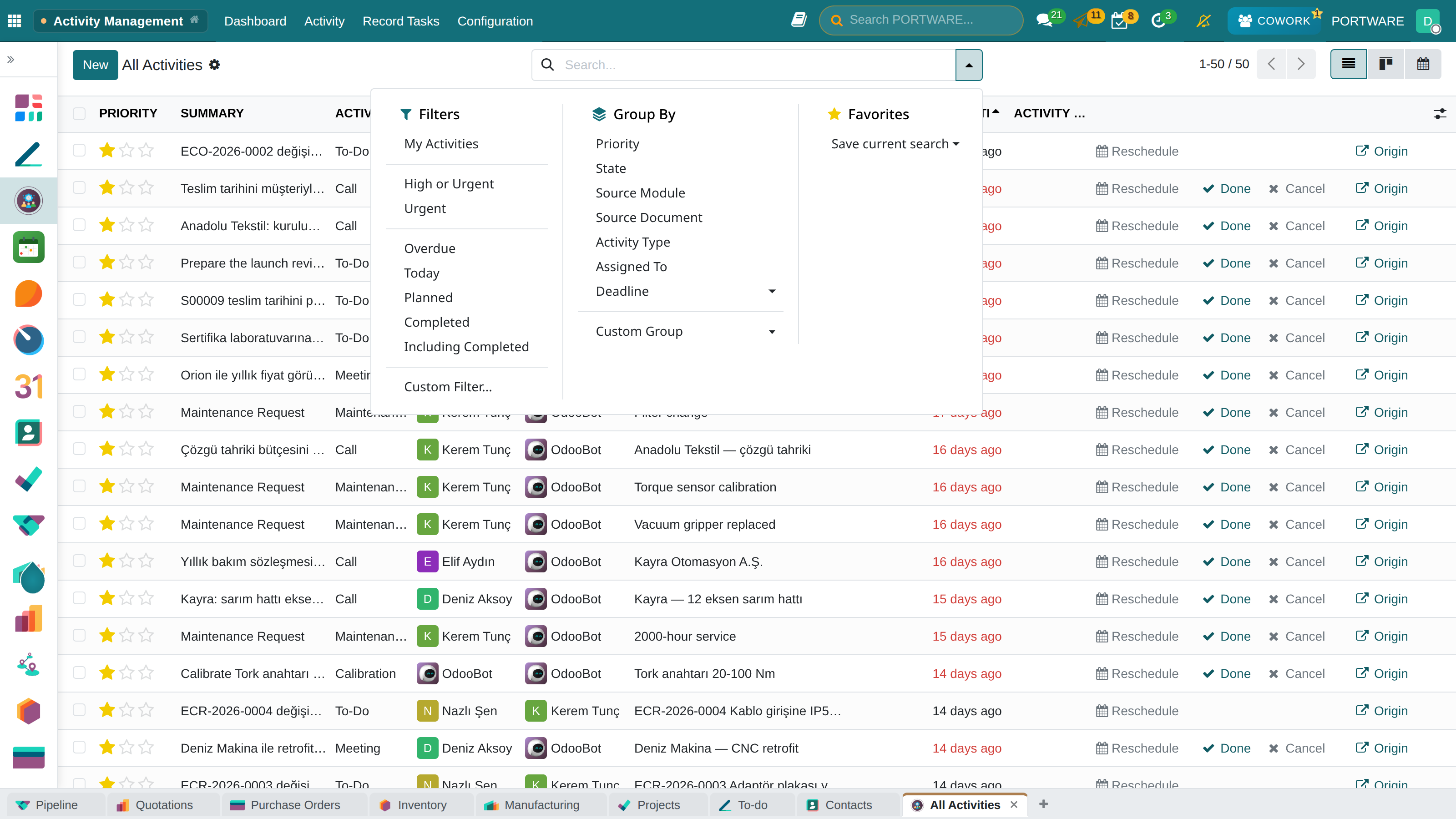
The filter menu — overdue, today, planned, done; grouping by type, source and assignee
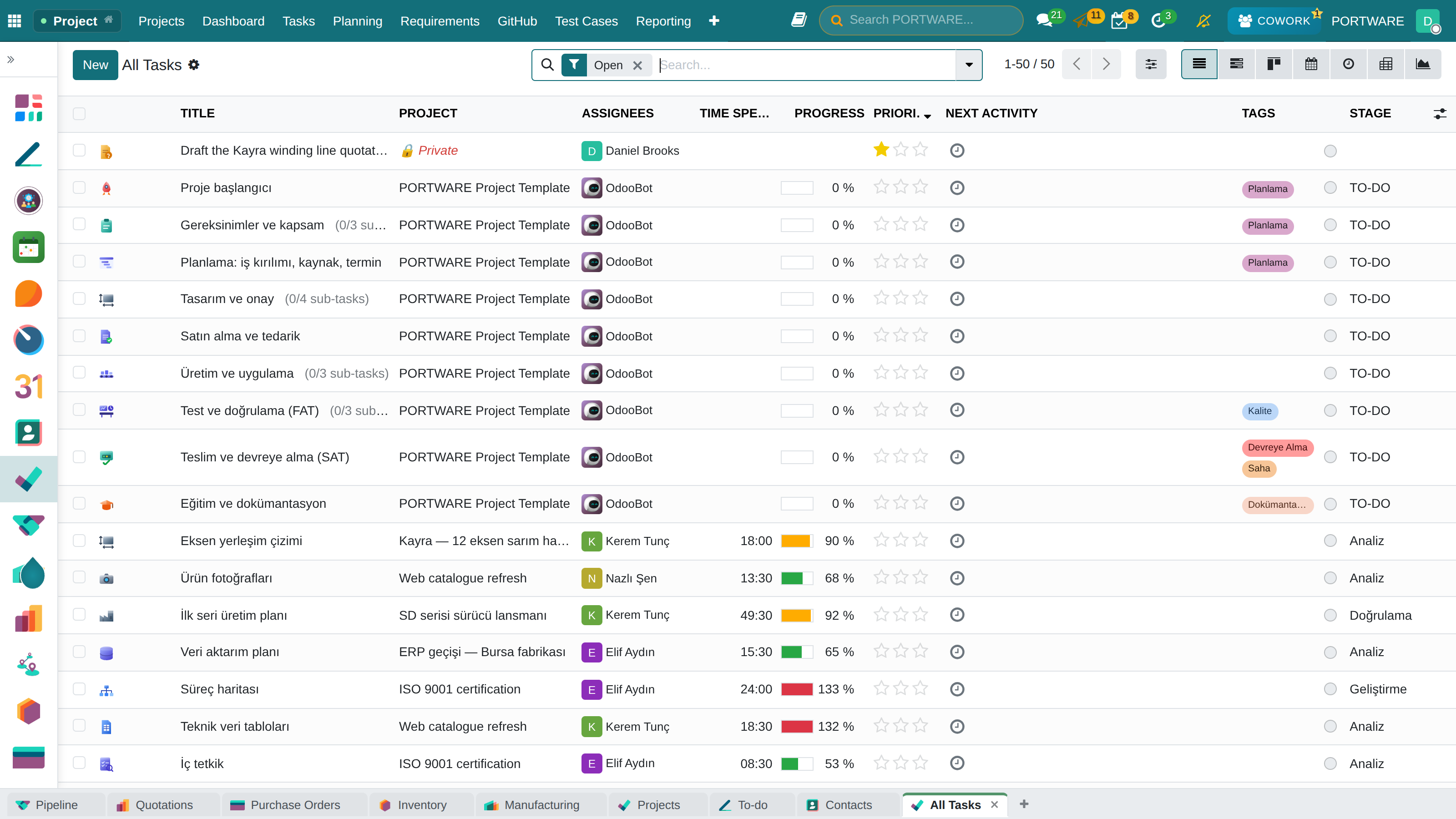
Task filters - filtering tasks by various criteria
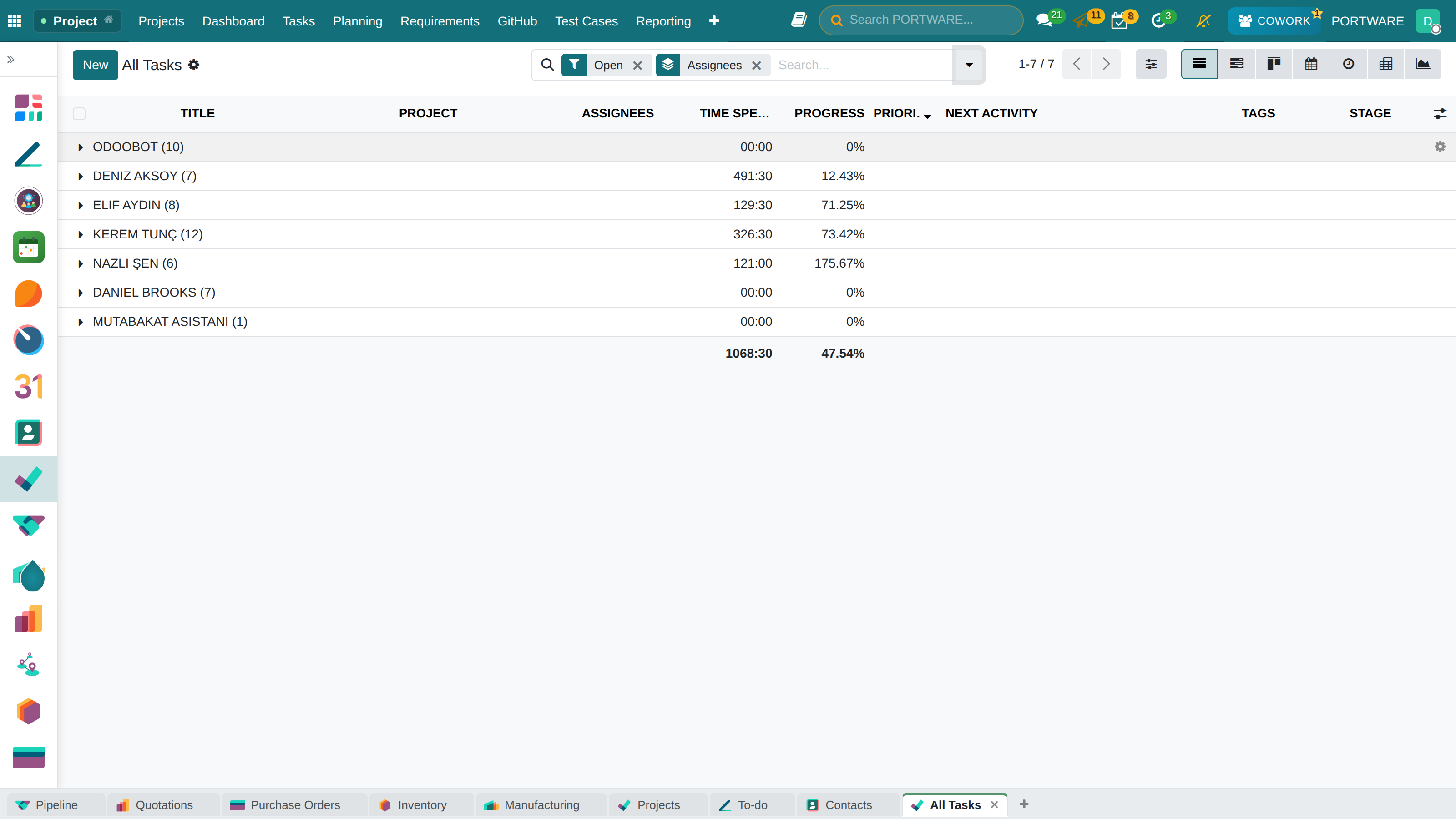
All Tasks grouped by assignee — tasks, hours spent and progress per person
Overdue tasks - filtering activities past their due date
Data Cleaning
What You Will Learn in This Section
- Finding and merging duplicate records
- Completing missing data
- Improving data quality
- Automatic cleaning rules
The Data Cleaning module finds duplicate records in your database, merges them and raises data quality. It is especially useful for customers, products and contacts.
Key Features
- Duplicate detection: finds similar records automatically
- Record merging: merges duplicates into a single record
- Completing missing fields: suggestions to fill empty fields
- Format correction: standardises fields such as phone and e-mail
Data cleaning - finding and merging duplicate records
PORTWARE AI - AI Assistant
What You Will Learn in This Section
- Natural-language queries with PORTWARE AI
- Creating and editing records automatically
- Chat sessions and history
- AI-assisted business process automation
PORTWARE AI is an AI assistant built on OpenAI GPT. By giving commands in natural language you can create records, run queries and speed up your business processes.
What Can You Do with AI?
- Create records: "Create a 5,000 TL quotation for ABC Company"
- Query: "How many new opportunities were opened this month?"
- Report: "How did sales perform last week?"
- Update: "Update the phone number of customer XYZ"
- Search: "List the customers in Istanbul"
AI chat sessions - the list of past conversations
Session detail - the interaction and replies from the AI
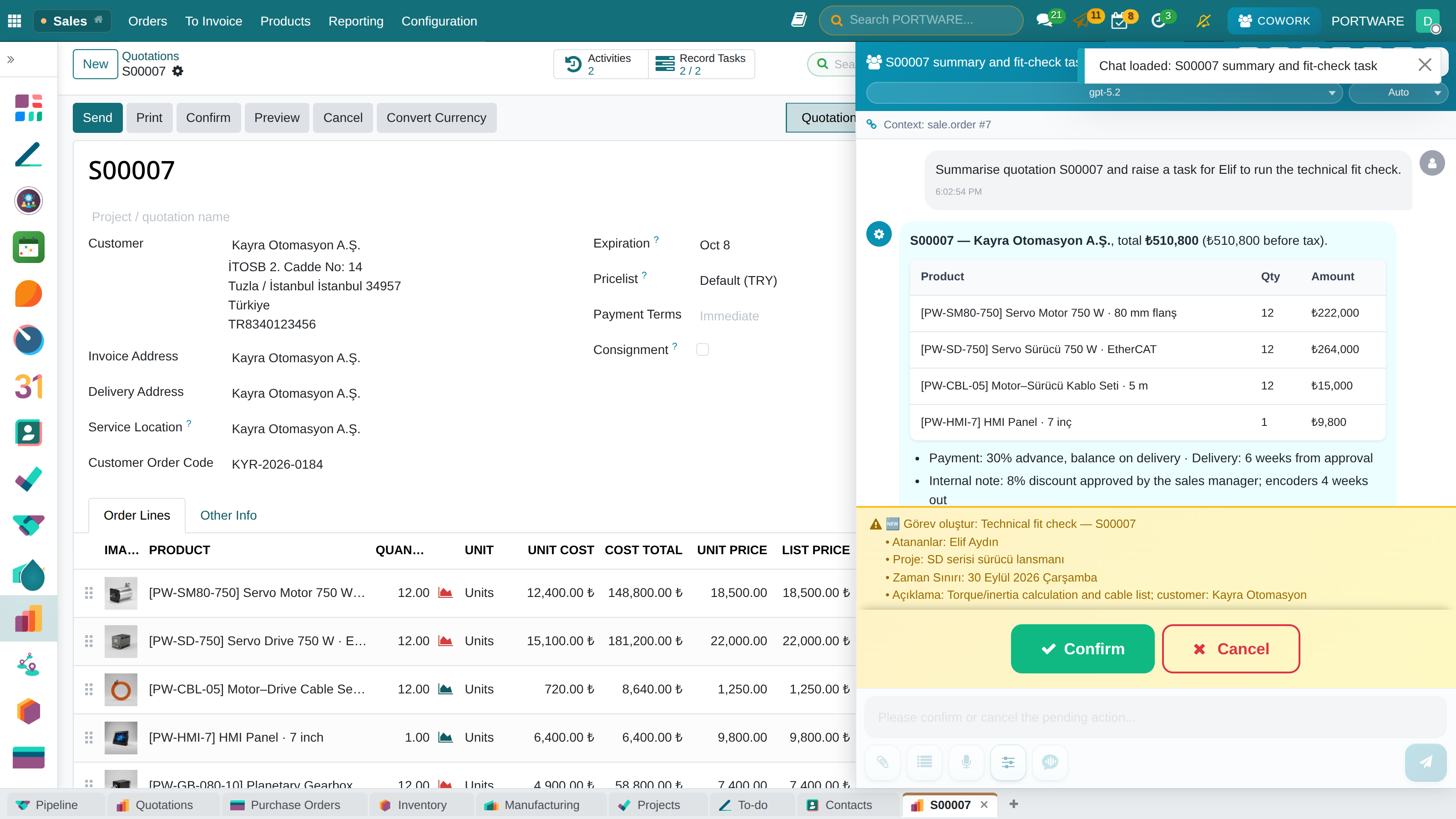
Cowork summarises the quotation and puts the task to you — Approve writes it, Cancel changes nothing
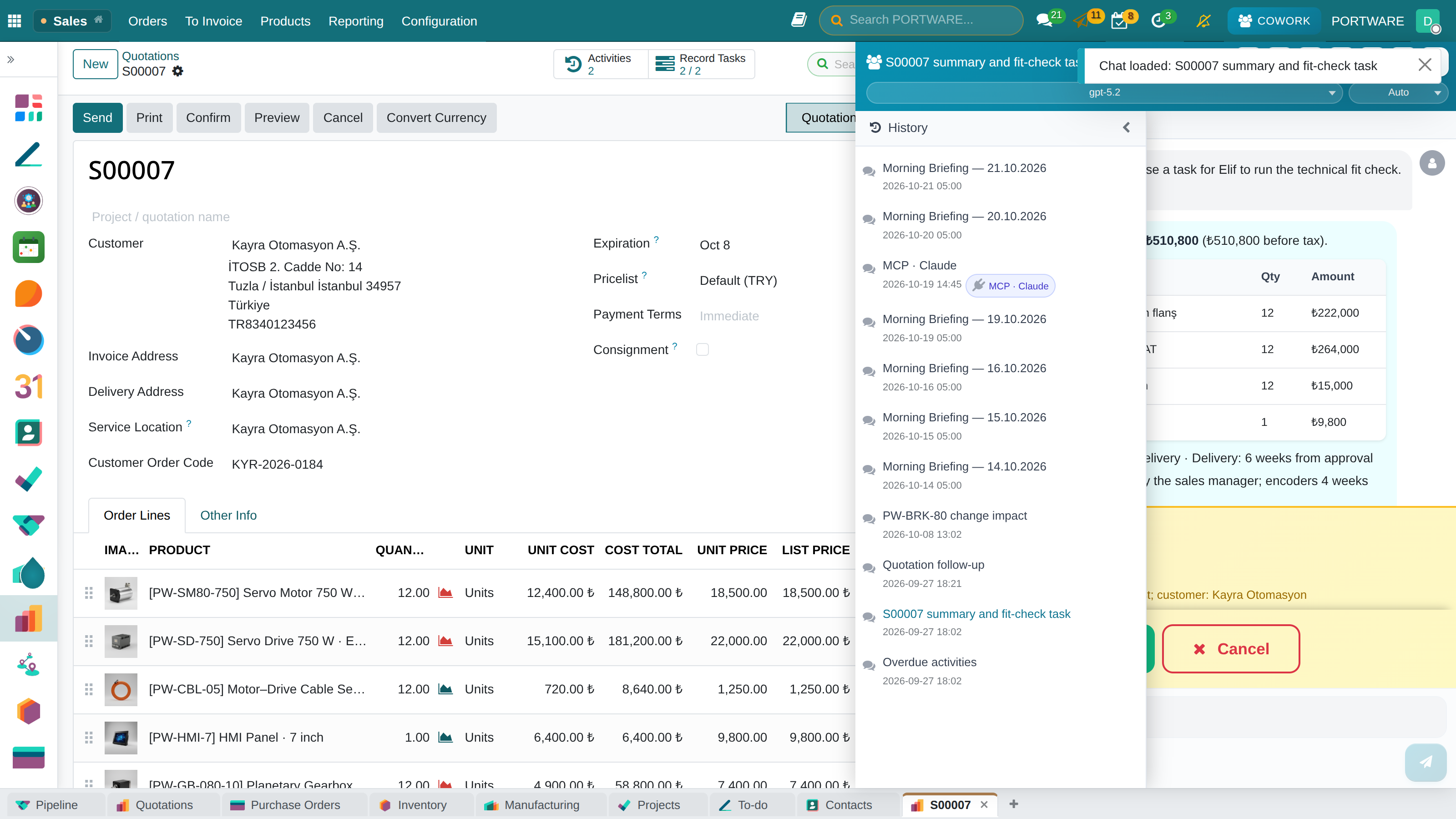
Chat history — earlier conversations with their dates; pick one to continue where it stopped
Frequently Asked Questions
What is the difference between SOTION and the commercial Knowledge app?
Knowledge is a module exclusive to the paid commercial edition. SOTION is PORTWARE's own advanced, Notion-like knowledge management system, with the variable system ({{...}}), select properties ([[...]]) and richer organisation features.
How many people can work in PORTWARE Office at the same time?
In theory PORTWARE Office has no limit, but in practice 10-15 people editing at once gives the best performance. 100+ people can view, but synchronisation may slow down as the number of active editors grows.
Can I export SODRAW diagrams?
Yes, you can export SODRAW diagrams as PNG, SVG or PDF. You can also copy a diagram and paste it into other applications.
Can I make SOTION pages accessible from outside?
SOTION pages are currently open to PORTWARE users. A share-link feature for outside access is being developed. As an alternative, you can export the content as PDF.
Do all Excel formulas work in PORTWARE Office?
PORTWARE Office supports more than 400 Excel formulas. The core formulas (SUM, VLOOKUP, IF, DATE, etc.) are fully compatible. Some advanced or Excel-specific formulas may be limited. Macros (VBA) are not supported.
Can I write formulas with exTable?
No, exTable is an advanced editing tool for HTML tables and has no formula engine. For tables that need calculation we recommend PORTWARE Office (Excel).
How long is version history kept?
PORTWARE Office keeps the last 10 versions automatically; older versions are cleaned up automatically. To archive critical documents, we recommend saving important versions separately.
Can I use it on mobile devices?
SOTION and PORTWARE Office work in mobile browsers, but the best experience is on desktop browsers. SODRAW supports viewing on mobile devices; a desktop is recommended for editing.
Best Practices
Organising SOTION
- Keep the hierarchy to 3-4 levels (deep structures get confusing)
- Give each workspace a single purpose
- Make page names descriptive and consistent
- Use emoji icons consistently (📘 procedure, 📋 checklist)
- Group variables with a prefix
Collaborating in PORTWARE Office
- Keep track changes on
- Tag people in comments with @mention
- Fast mode for active collaboration, Strict mode for independent work
- There is NO need to put versions (v1, v2) in document names
- Back up important documents regularly
SODRAW Diagrams
- Keep them simple - more than 10-15 shapes looks cluttered
- Use colours consistently (green: approve, red: reject)
- Make the direction of arrows clear
- Split complex processes into sub-diagrams
- Add note boxes
Security & Access
- Keep sensitive documents in the "Private" area
- Review access regularly
- Share exported files securely
- Set up an approval flow for critical content
- Archive before deleting