Dashboard Suite
Dashboard Suite, PORTWARE
- A dashboard for every departmentReady dashboards for CRM, inventory, accounting and HR.
- Dashboards without codeAdd your own indicators by drag and drop.
- Live dataDashboards read the records; nothing is copied for a report.
Overview
Dashboard Suite is a comprehensive collection of modules that gives PORTWARE powerful visualisation and analytics. With these modules you visualise your business data with charts, tables and KPI indicators and make fast, effective decisions.
Dashboards let you understand your data at a glance. Instead of paging through reports, you see the important metrics instantly and follow the trends.
Dashboard Gallery
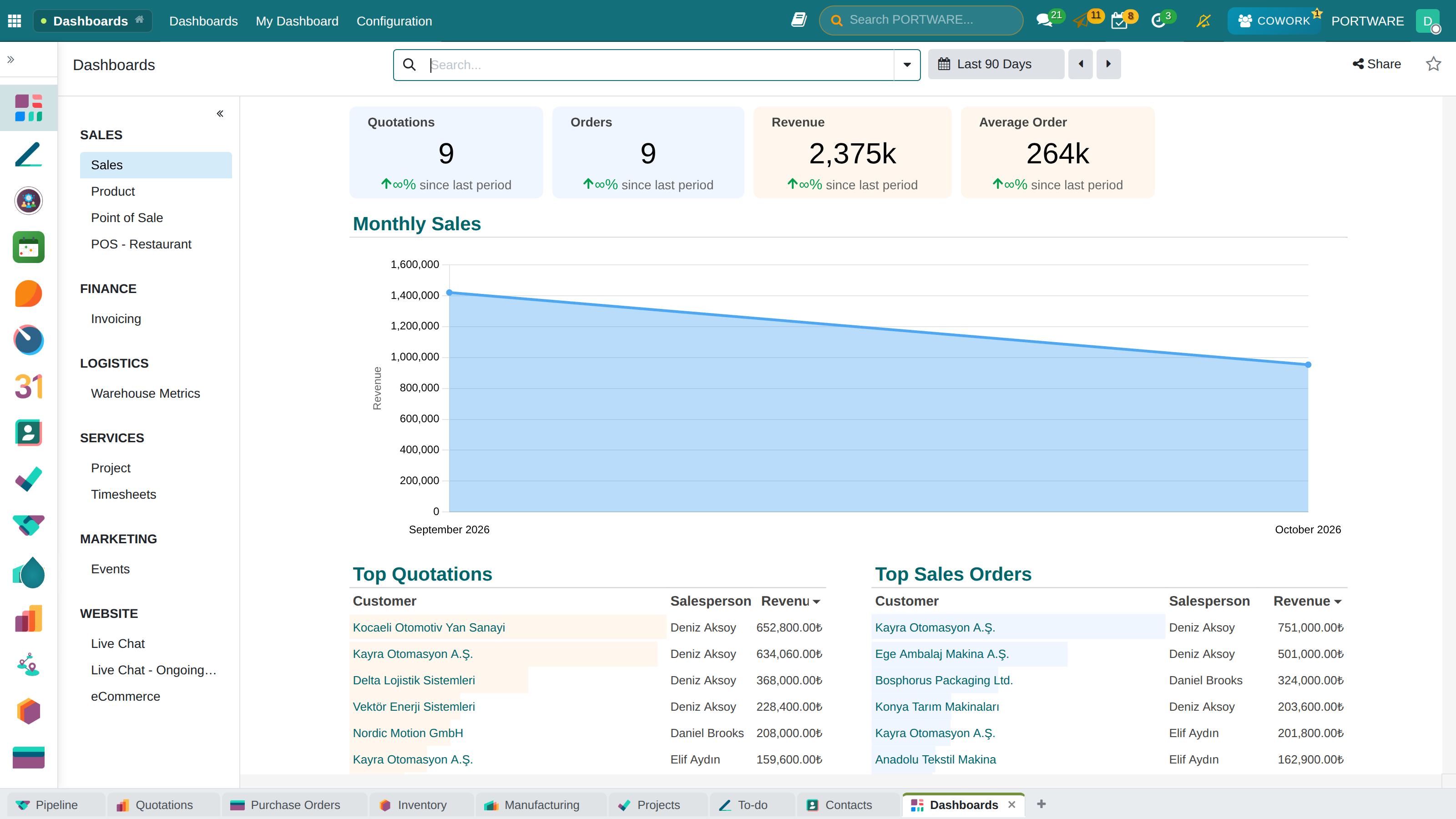
PORTWARE Dashboard - Main View
PORTWARE Dashboard - Dark Theme
Module List
Dashboard Apps
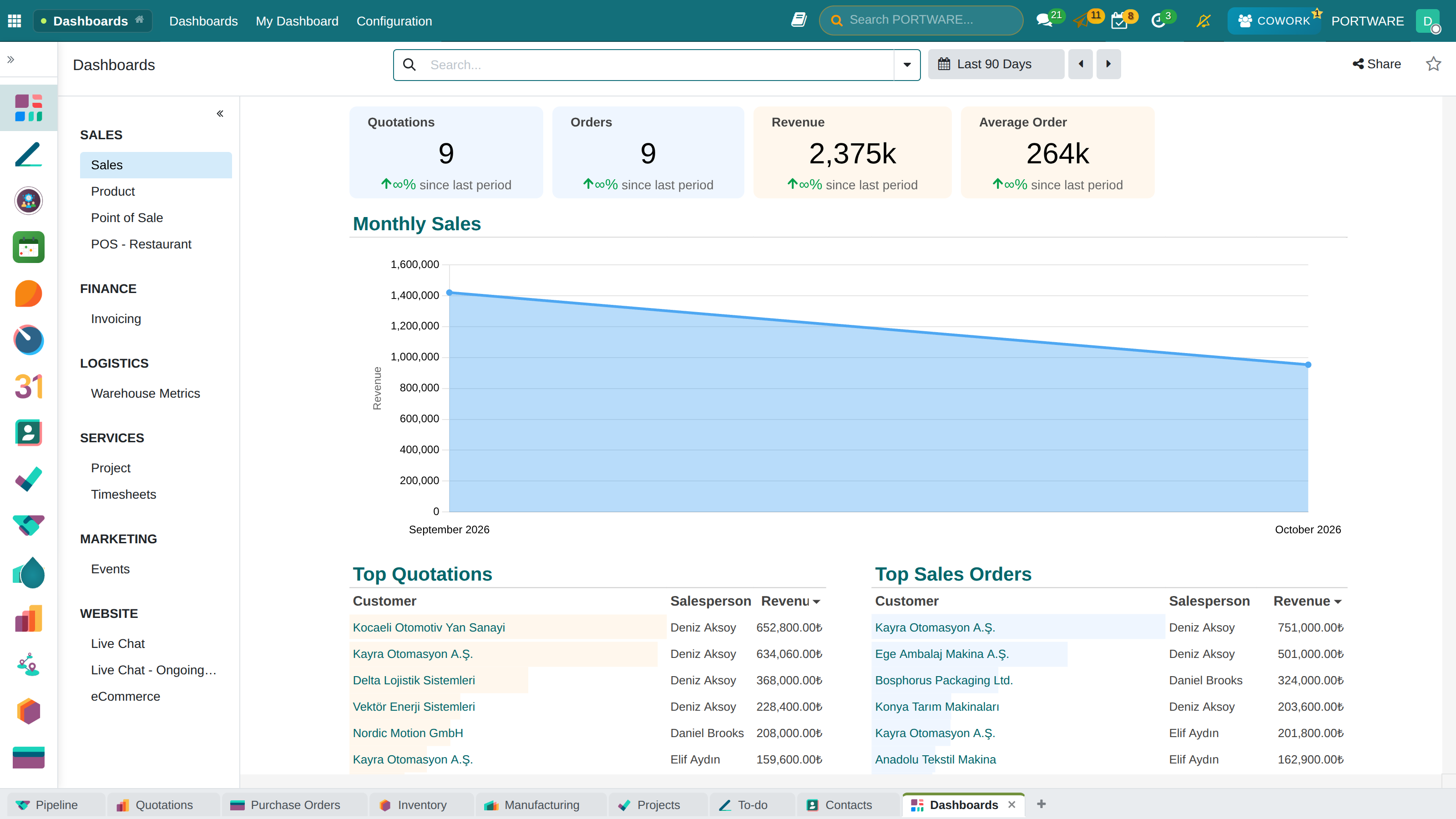
Apps Grid
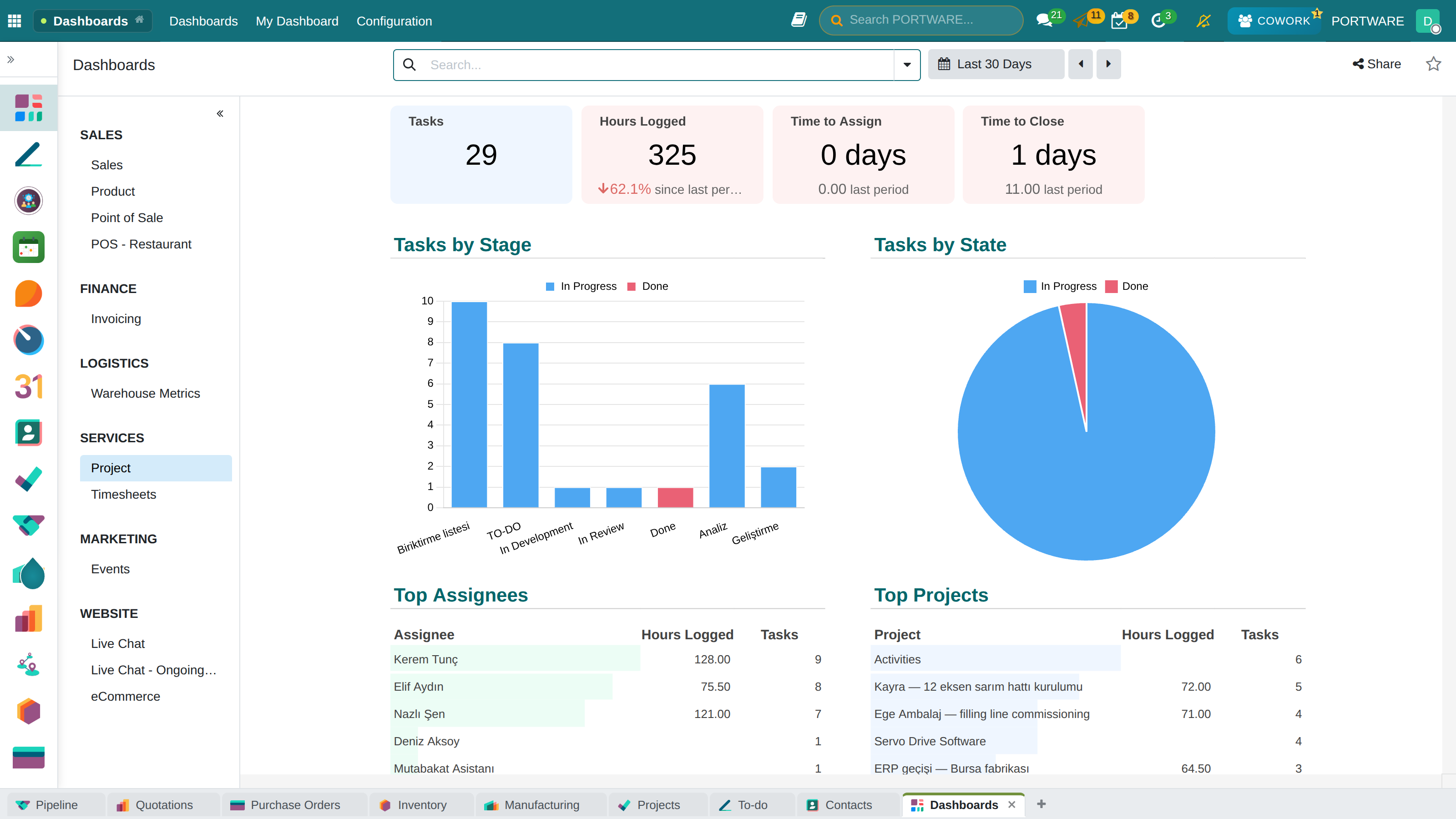
Dashboards › Project — tasks by stage and state, top time loggers, projects
Apps Grid 3
Apps Grid 4
Apps Grid 5
14 ready dashboards, smart insights and each user's own pages; click to filter, view by, a widget library; a live Excel, presentation, e-mail and Cowork.
Opens the Finance dashboard: revenue, receivables/payables, ageing, income and expenses, cash and bank.
Sales team performance, lead conversion rates, the opportunity funnel and activity tracking.
Stock status, warehouse moves, products running out and dead stock analysis.
PORTWARE Dashboards
PORTWARE Dashboards replaced the old Dynamic Dashboard module. It comes with 14 ready dashboards for every area (activities, point of sale and quality included); every user builds pages of their own by opening a blank page, copying a dashboard as their own or importing a definition exported from another database; KPIs show their change against the previous period or last year, a trend line and a target. Every default dashboard opens with smart insights from the live data (risks, warnings, good news and suggestions); the reader turns the page to their own question with click to filter, + Filter and view by; the Excel export links back to the live page and the records. The odoo_accounting_dashboard and hrms_dashboard menus were removed; both opened pages that are here. Chart, table, pivot and gauge widgets read from any model with the user's rights; every figure opens the records behind it.
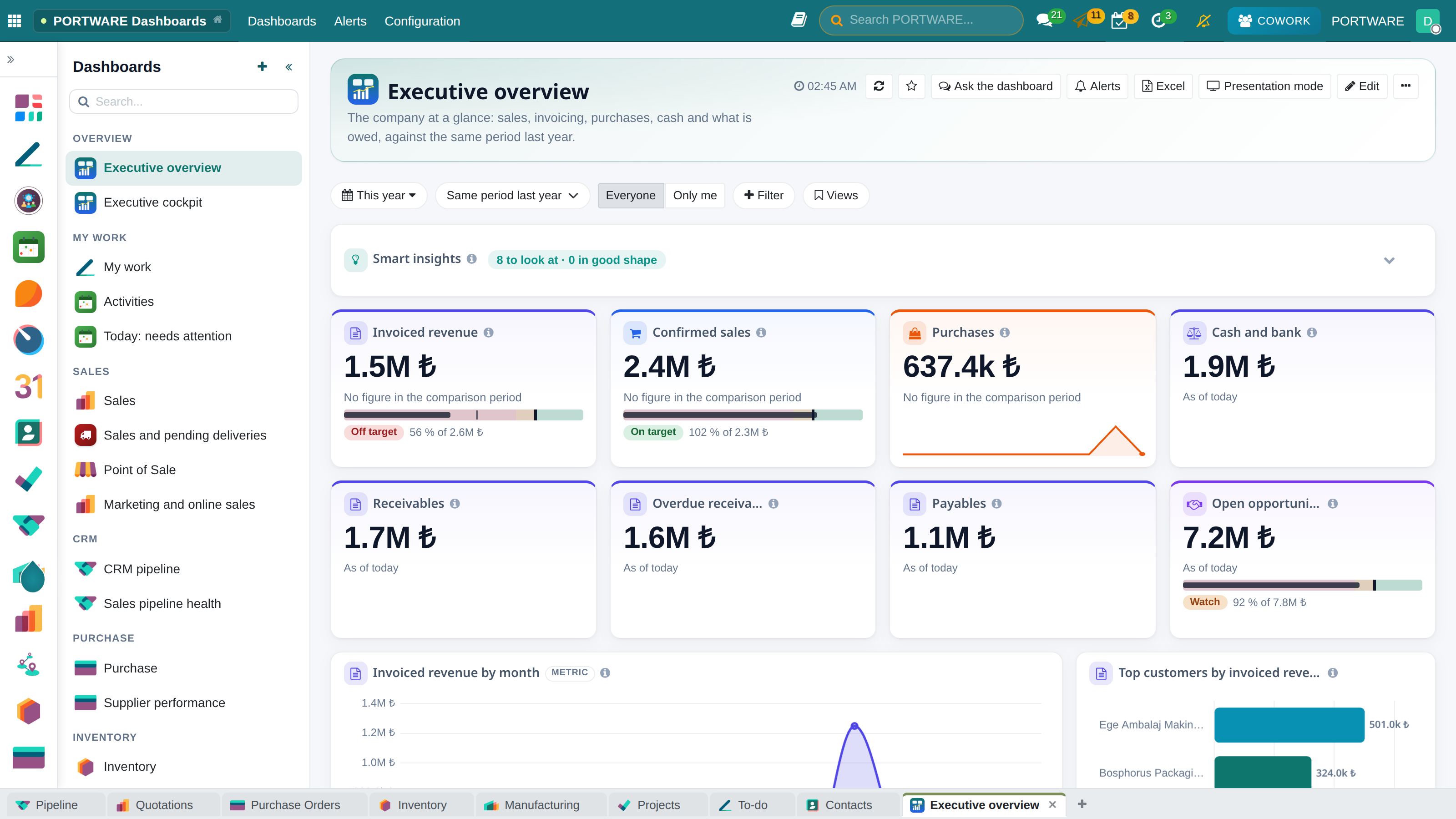
PORTWARE Dashboards - Executive overview
- Drag and drop and corner resizing in edit mode; a widget editor with a live preview.
- Add to dashboard in the gear menu of every list, graph and pivot view.
- Excel export with editable charts, printing, presentation mode, e-mail subscriptions.
- PORTWARE Cowork builds, reads and exports dashboards from a sentence.
User guide: PORTWARE Dashboards.
Accounting Dashboard
The odoo_accounting_dashboard menu now opens the Finance dashboard of PORTWARE Dashboards: invoiced revenue, vendor bills, receivables and payables, cash and bank, income and expenses by month, receivables and payables by age, overdue invoices and a product category × month revenue pivot. Figures come from posted entries only, with the user's company selection.
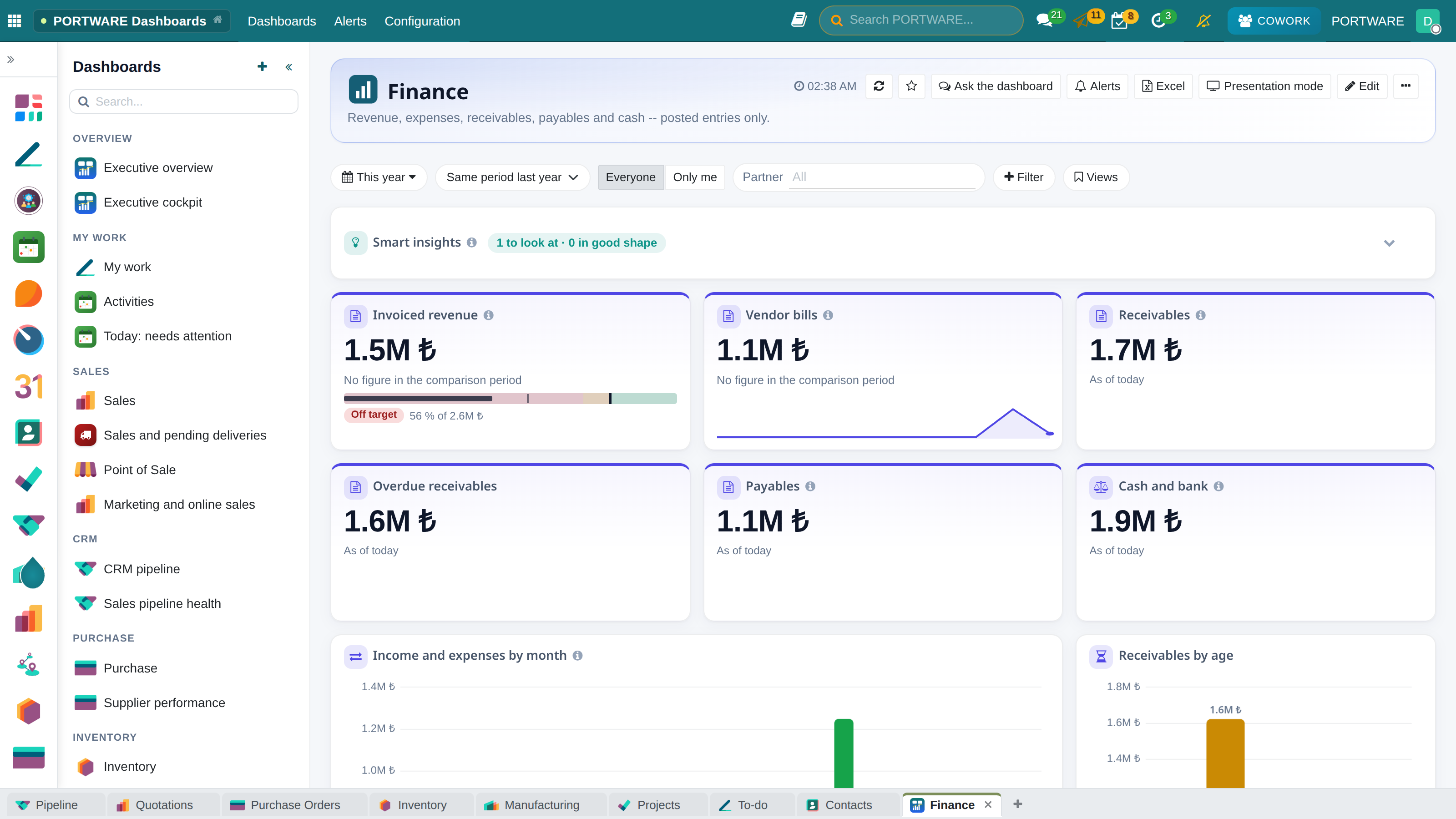
Finance dashboard
Definitions of the figures: Accounting Dashboard.
CRM Dashboard
The CRM Dashboard visualises your sales team's performance and the sales funnel. Leads, opportunities, win rates and activity tracking on one screen.
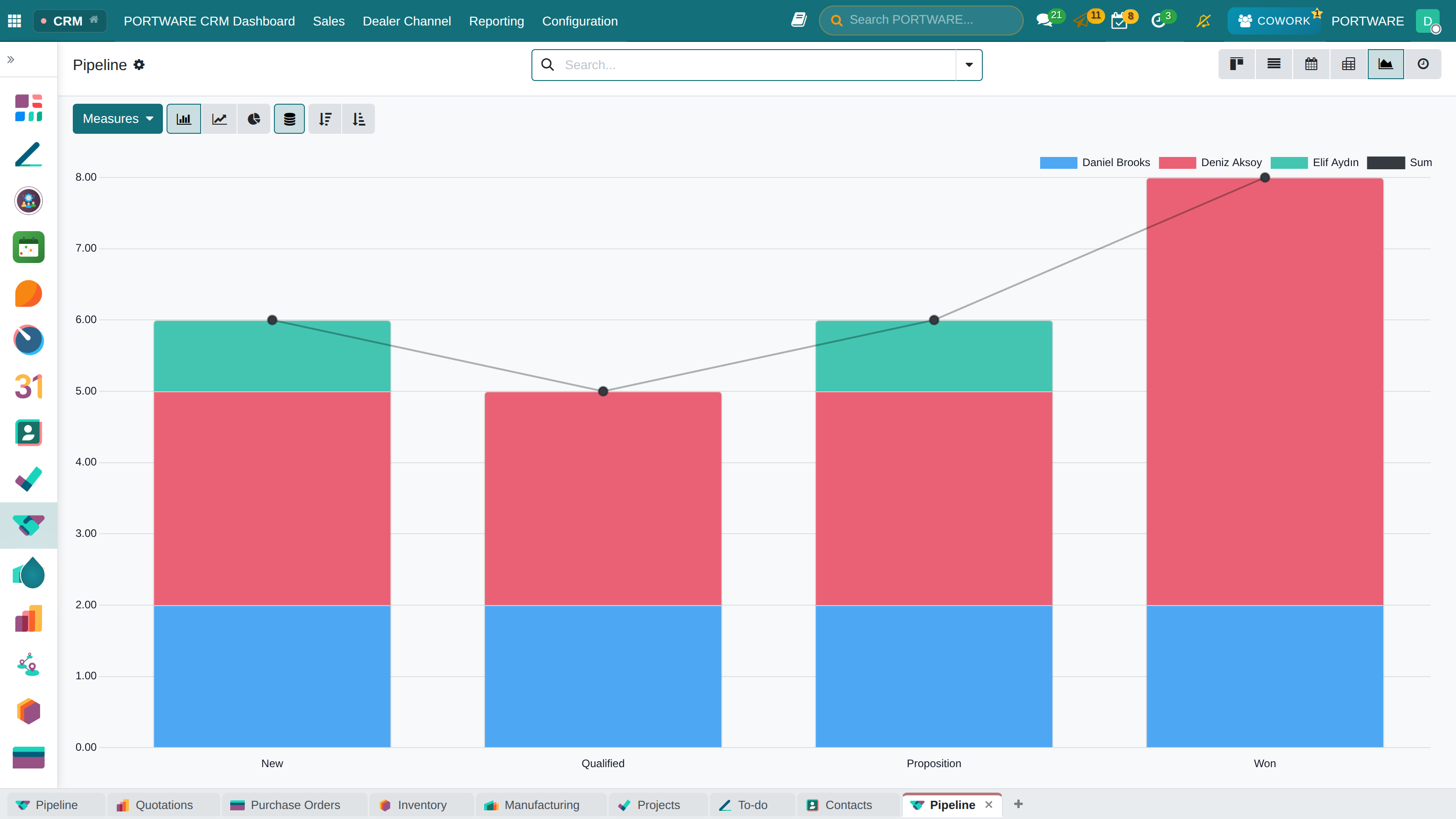
The CRM report — opportunities by stage and salesperson, stacked chart
Key Metrics
Visualisations
| Chart | Description | Data Source |
|---|---|---|
| Sales Funnel | Leads by stage (New → Qualified → Proposition → Won) | crm.stage |
| Monthly Lead Breakdown | Leads received over the last 12 months (pie chart) | crm.lead.create_date |
| Activity Types | Activities done, by type | mail.activity |
| Campaign Performance | Leads by UTM campaign | utm.campaign |
| Source Analysis | By website, referral and advertising sources | utm.source |
| Lost Opportunities | Monthly trend of lost opportunities | crm.lead (lost=True) |
| Top Salespeople | Salespeople with the highest expected revenue | crm.lead.user_id |
| Country Map | Opportunities and revenue by country | crm.lead.country_id |
Period Filters
All the data on the dashboard can be refreshed with these period filters:
Stock Dashboard
The Inventory Dashboard visualises your warehouse and stock operations. Raise warehouse efficiency with stock levels, moves, products running out and dead stock analysis.
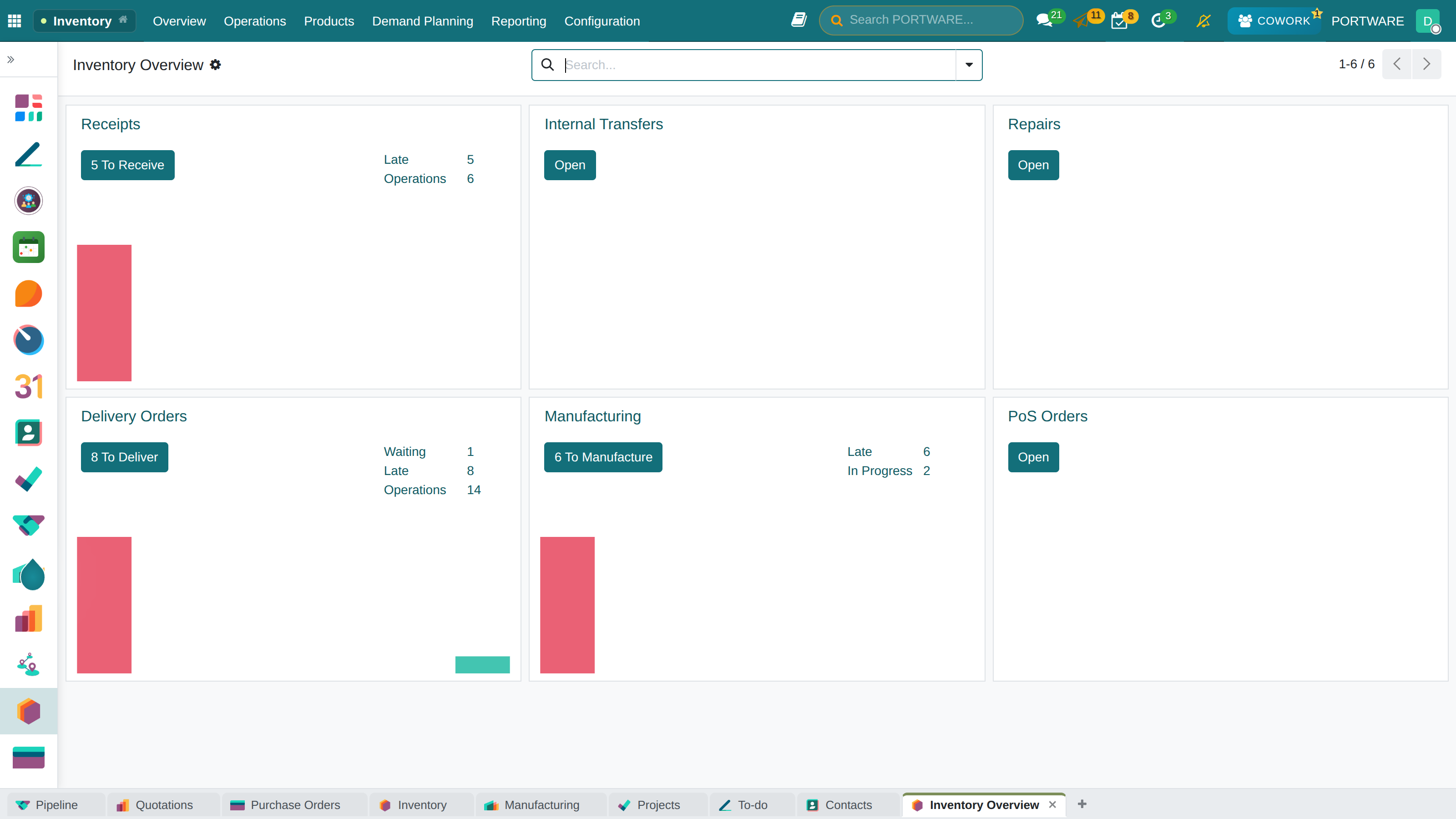
Stock dashboard - analysis of warehouse and stock operations
Key Metrics
Configuration Settings
Stock dashboard settings are configured in Inventory → Settings → Dashboard:
| Setting | Default | Description |
|---|---|---|
| Show Out-of-Stock | On | Shows products below their minimum stock level |
| Out-of-Stock Threshold | 0 | Products below this value are shown as warnings |
| Show Dead Stock | On | Shows products that have not moved for a long time |
| Dead Stock Threshold | 90 days | Products without movement for this long count as dead stock |
| Dead Stock Period | Month | The calculation unit: day, week or month |
Operation Type Monitoring
The dashboard monitors these operation states live:
Sidebar Navigation
The PORTWARE Dashboard modules offer sidebar navigation panels for easy access. With them you switch between dashboards quickly and reach different views.
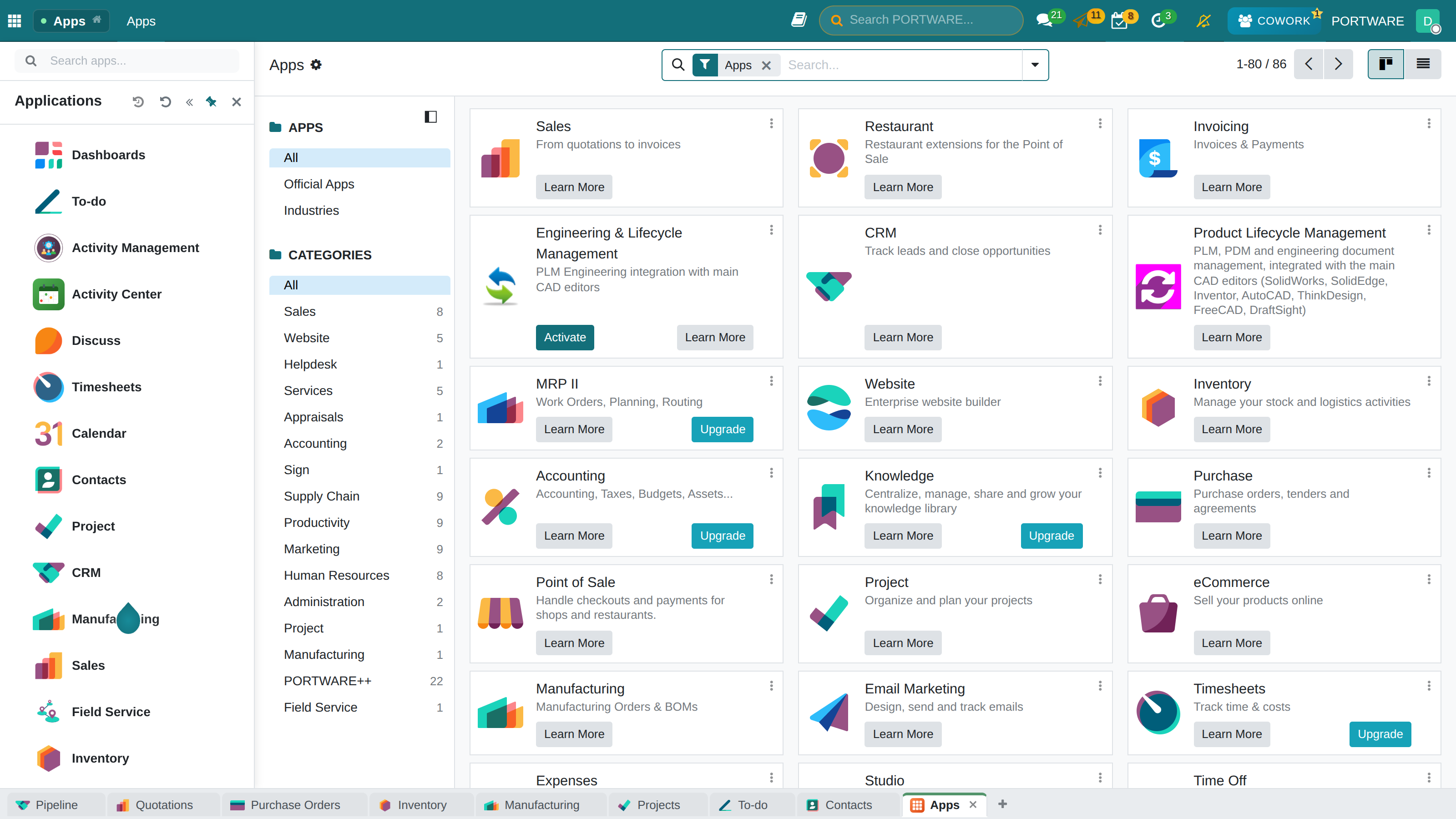
Main Menu
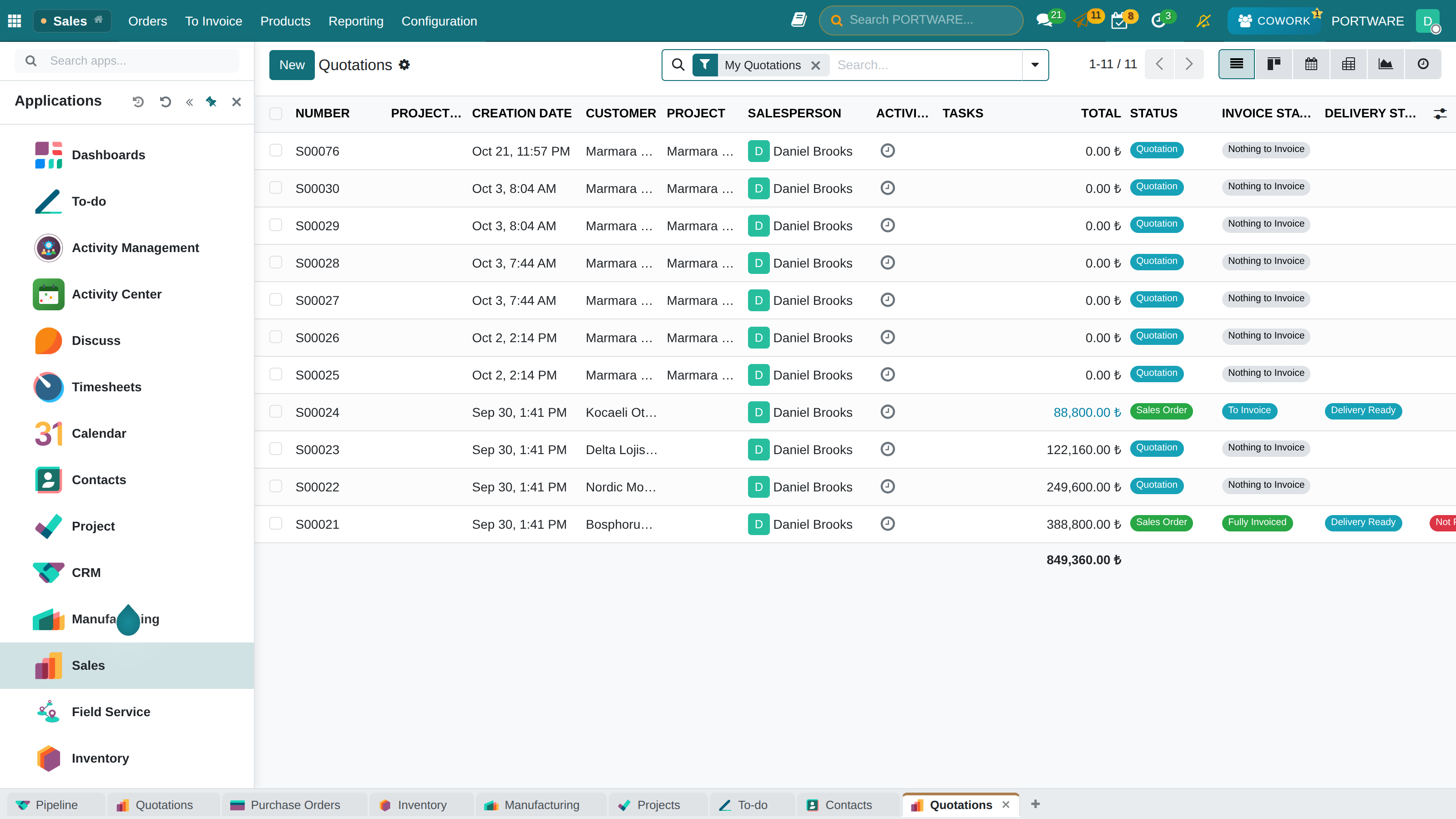
Apps on the left rail, tabs along the bottom — one click from Quotations to any other app
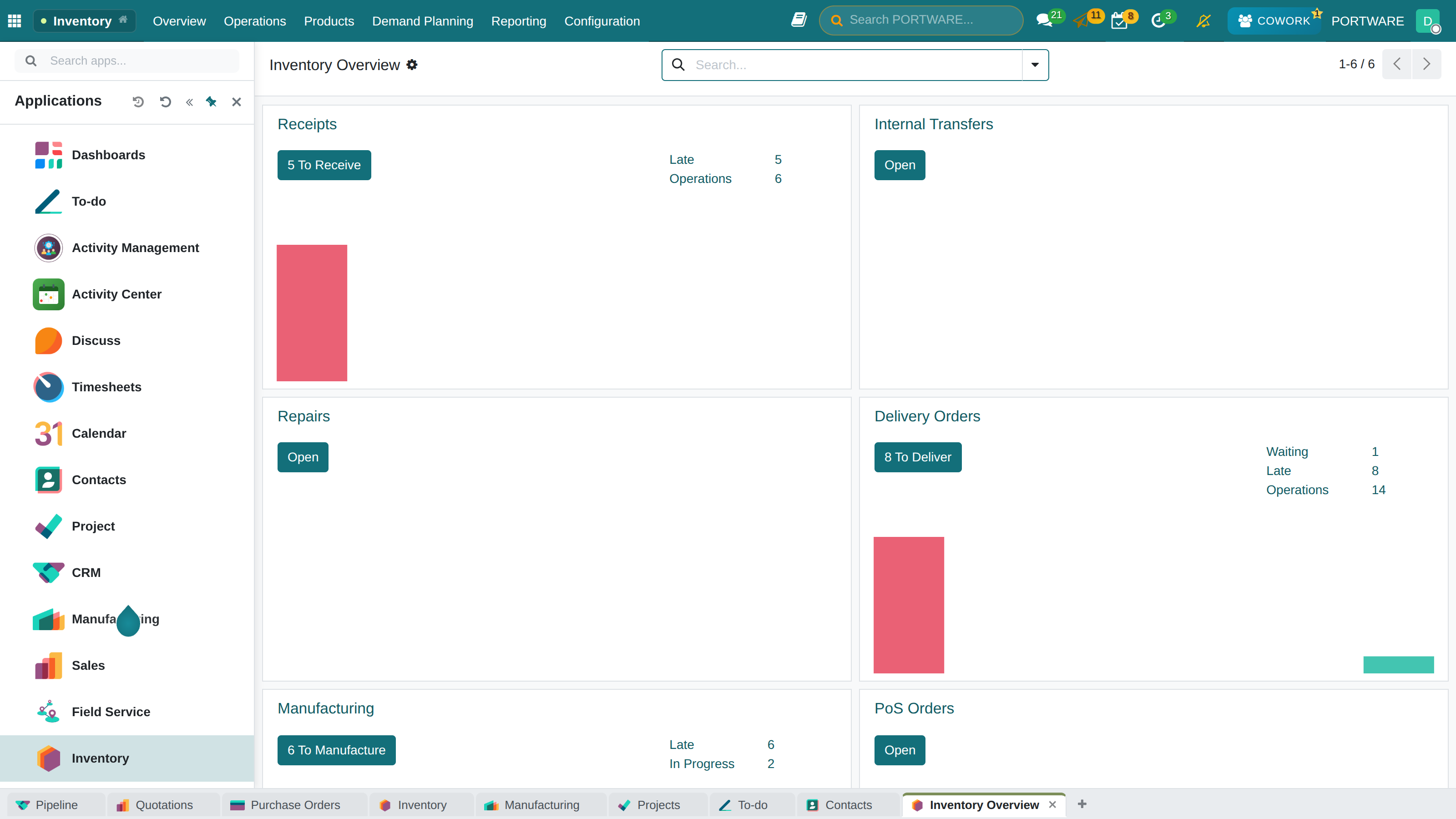
Filter Options
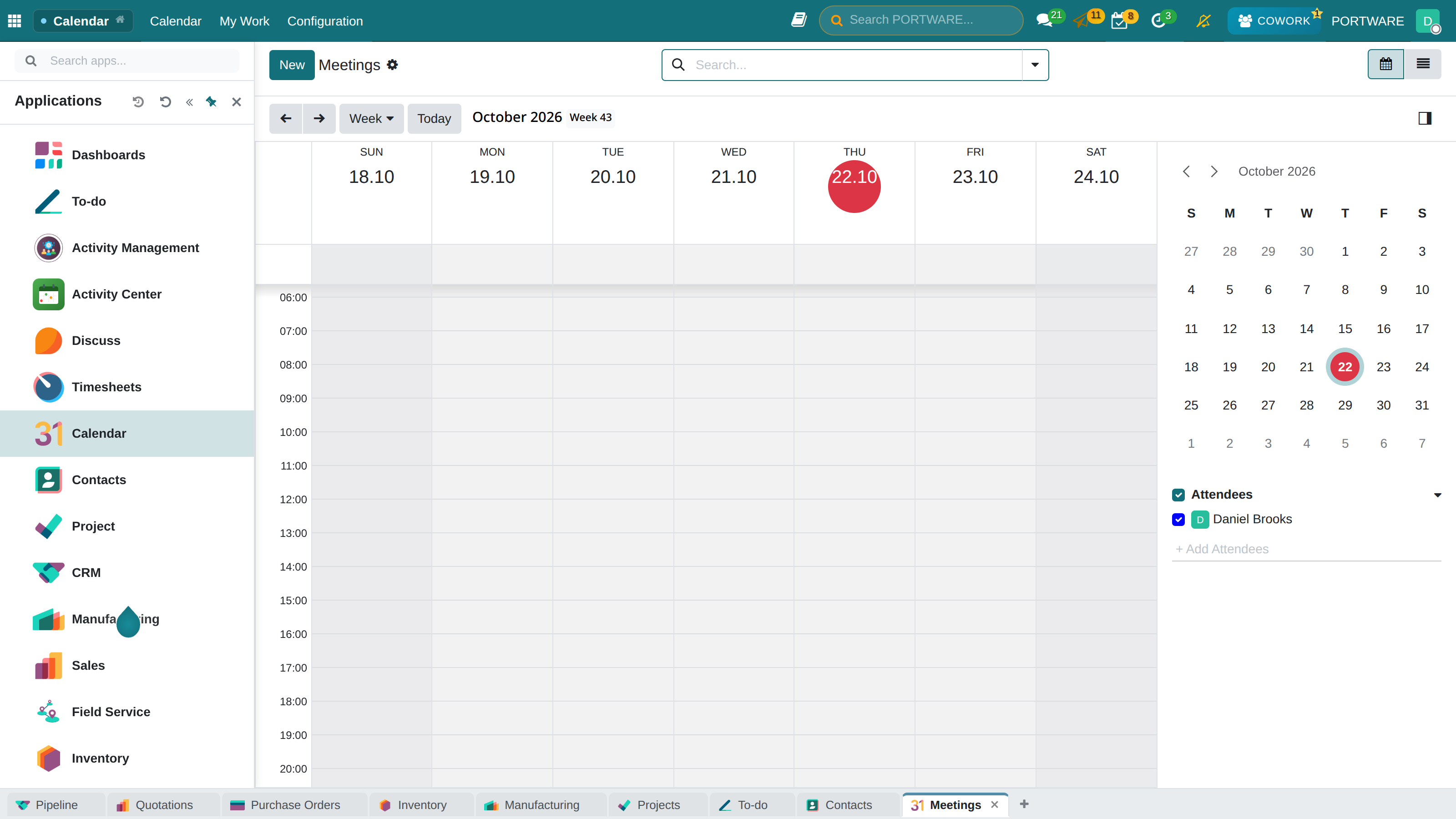
The same rail stays in place on the Calendar — whatever the screen, the apps are on the left
Module Comparison
| Feature | Dynamic | Accounting | CRM | Stock |
|---|---|---|---|---|
| Module Type | Framework | Dedicated | Dedicated | Dedicated |
| Customisability | Very High | Low | Low | Medium |
| Drag and Drop | ||||
| Theme Support | ||||
| PDF Export | ||||
| Role-Based View | ||||
| Period Filters | Date Range | Month/Year | Week/Month/Quarter/Year | Configurable |
| Chart Types | 6 | 4 | 8+ | 4 |
| Licence | AGPL-3 | LGPL-3 | AGPL-3 | LGPL-3 |