VI · Projects and planning · Chapter 26
Timeline, planning and load
The planned window, whose hours and how many, planning on the calendar, My Work, the Timeline, team load and flow reports.
Chapter 24 explained that capacity is a division. This chapter shows how you build the numerator and the denominator of that division in PORTWARE.
The project screens — a map
The project side is more a set of screens than a list of features, and knowing where each screen comes from saves time when you are looking for something. The table below shows the screens and the chapter that covers them.
| Screen | Where | Chapter |
|---|---|---|
| The planned window, Workload % and Split Workload on the task form | task form | this chapter |
| Plan on calendar (the planner) | task and to-do form | this chapter |
| My Work | Calendar › My Work | this chapter |
| Timeline (a real gantt view type) | Project › Planning | this chapter |
| Team Load | Project › Planning | this chapter |
| Team Calendar and Load Calendar | Project › Planning | this chapter |
| Project Health, People Analysis, Project Portfolio, Task Status | Project › Reporting | this chapter |
| Flow Summary, Ageing Work, Time in Stage, Estimate vs Actual | Project › Reporting | this chapter |
| Backlog board | from the project form | 25 |
| Swimlane board | from the project form | 25 |
| Cumulative flow | from the project form | 25 |
| Sprint form, velocity and burndown chart | Project › Sprints | 25 |
| Stage-Gate | project form | 25 |
| Release, Component, Typed link | project and task form | 25 |
What was missing first: the planned window
In the standard core a task has a deadline but no time window. So the question "when must it finish" has an answer, but "when is it being worked on" does not.
Since capacity is a division, the numerator itself cannot be built without a window. That is why two fields were added to tasks: Planned Start and Planned End.
When a window is derived by the system this is marked separately (Dates Estimated). A commitment confirmed by a person and an inference made by the system are not the same thing, and the screens do not mix them up.
If there is a scheduling conflict, a warning and an action that fixes it appear on the task.
The plan on the task form: whose hours and how many
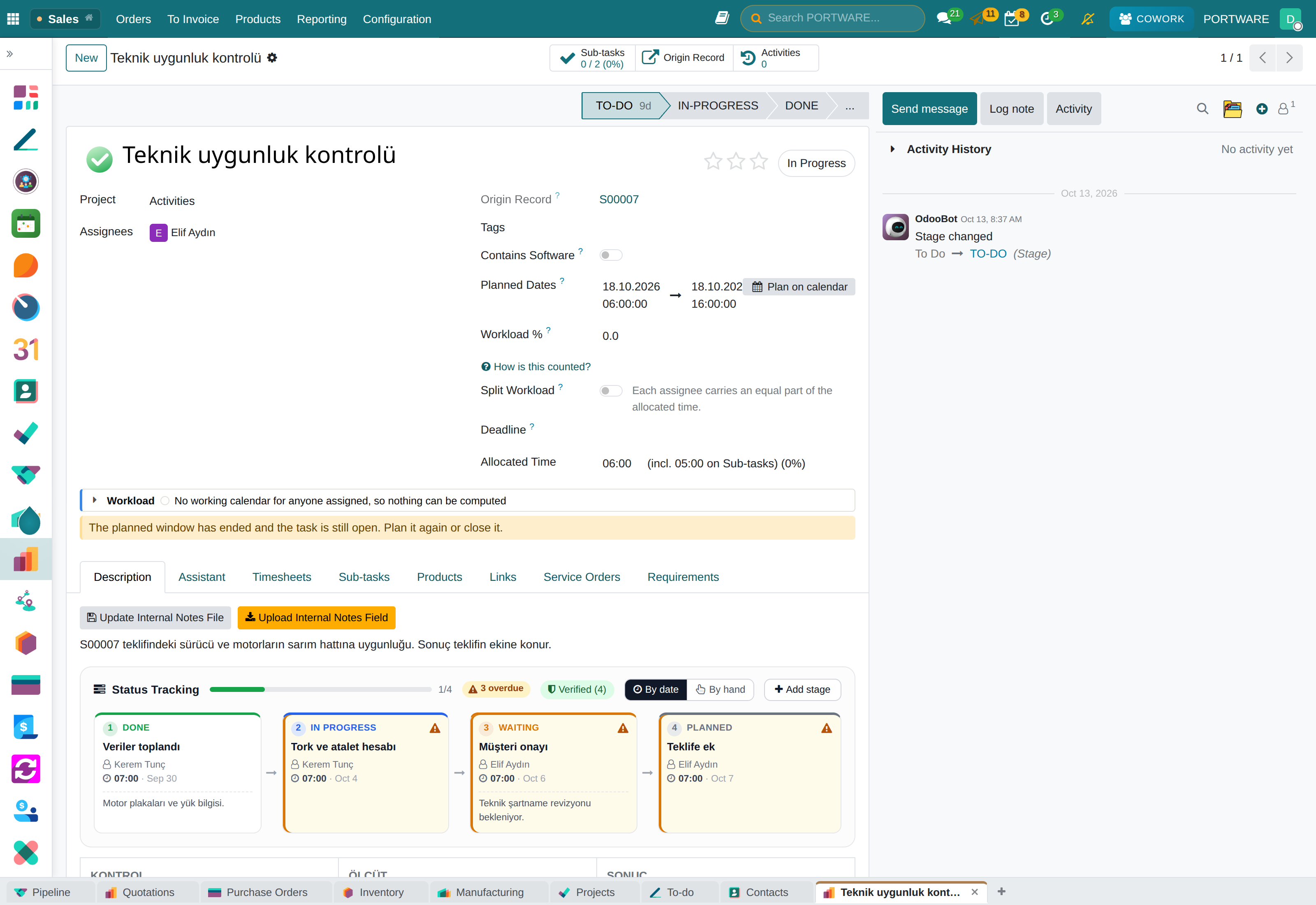
The planning rows of the task form answer one question: how much of whose time does this work take, in this range?
- Planned Dates is always a range. Picking a day picks the assignees' working hours that day (for example 08:00–18:00); an hour typed by hand is kept.
- If the deadline is empty the planned end is used, and it stays marked in yellow until a person confirms or changes it. A deadline is a promise; it does not move by itself even if the planned dates move.
- Workload % is the ratio of the allocated hours to the assignees' working hours in this range: 8 hours in a 45-hour week is 18%. You type the percentage or the hours and the other computes itself. Do not confuse it with the progress percentage drawn next to the standard Allocated Time.
- Split Workload opens one row per assignee: hours, or a percentage of that person's range. Allocated Time is the total of these rows, and every screen uses the same calculation.
Warnings appear by themselves: when the hours do not fit the range (with the Spread the range to the hours button), when the deadline is before the planned end, and when the range has passed while the task is still open. Task hours are not spread over leave and public holidays; the load screens deduct those days from capacity.
The Subtasks tab opens as a list, cards or a timeline; subtask cards are marked with a badge and carry a Parent Task link. Task lists have planned and deadline columns and the Planned Today, Planned This Week, Due This Week and Unplanned filters.
Plan on calendar
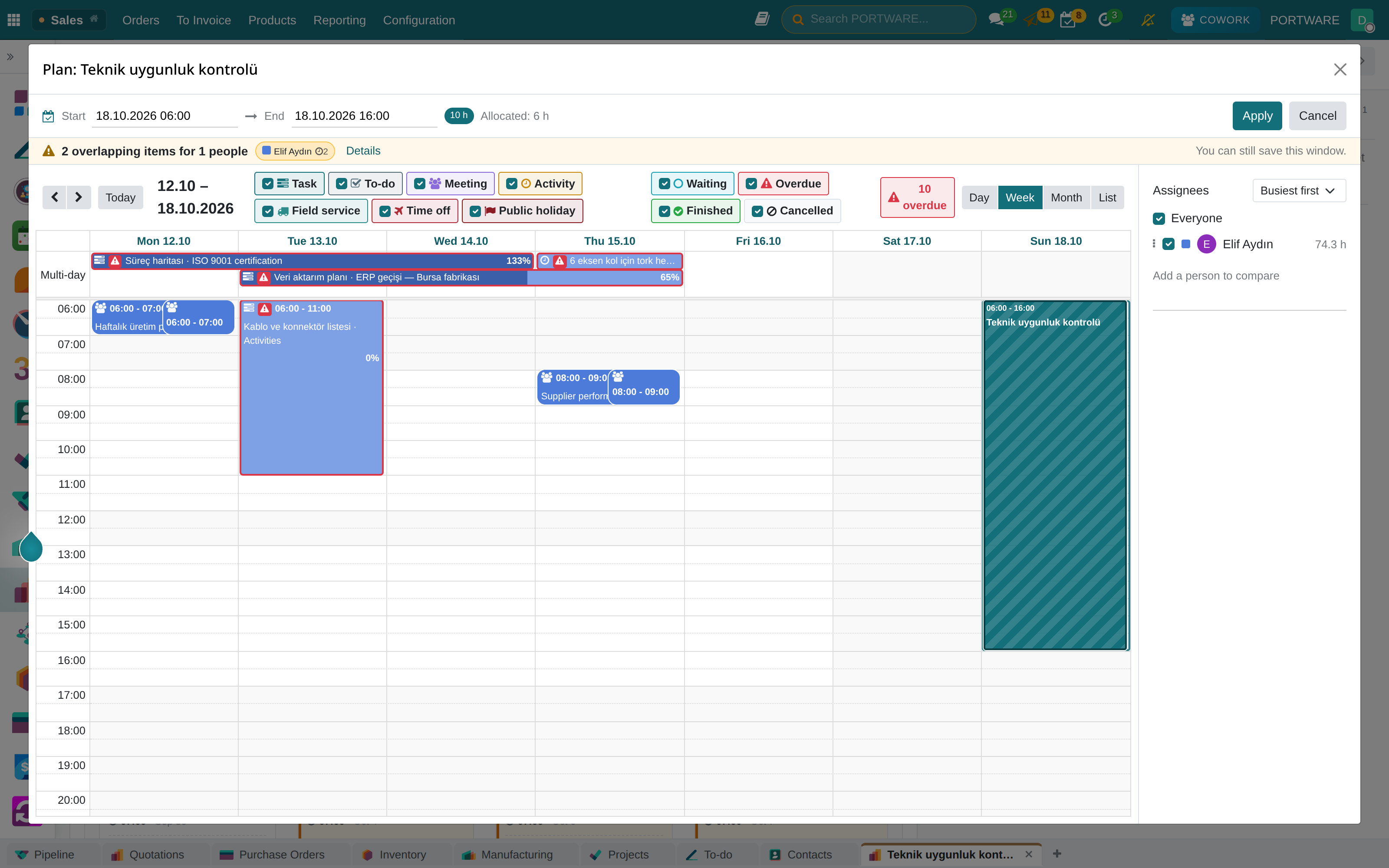
Plan on calendar, next to the Planned Dates row, opens a calendar showing the assignees' other work. You paint a range onto free time, drag and stretch the task itself, or type the dates into the boxes at the top; Apply writes the range to the form.
- On the right the assignees are switched on and off one by one; any person can be added for comparison.
- The top bar says how much load the painted range brings per person.
- Conflict has two levels: orange, something else is written in the same hours; red, the assignee has no free working time left in this range. The person badges carry each one's percentage; in red the task's own block turns red too. A conflict does not block saving — the decision is the person's.
- Leave and public holidays are drawn on the calendar; the week shows every working hour.
To-dos are planned the same way: Planned Dates, Allocated Time, Workload % and the planner on the To-Do form; a range column in the list. The planner draws to-dos as a kind of their own, in a layer that can be switched on and off separately.
My Work
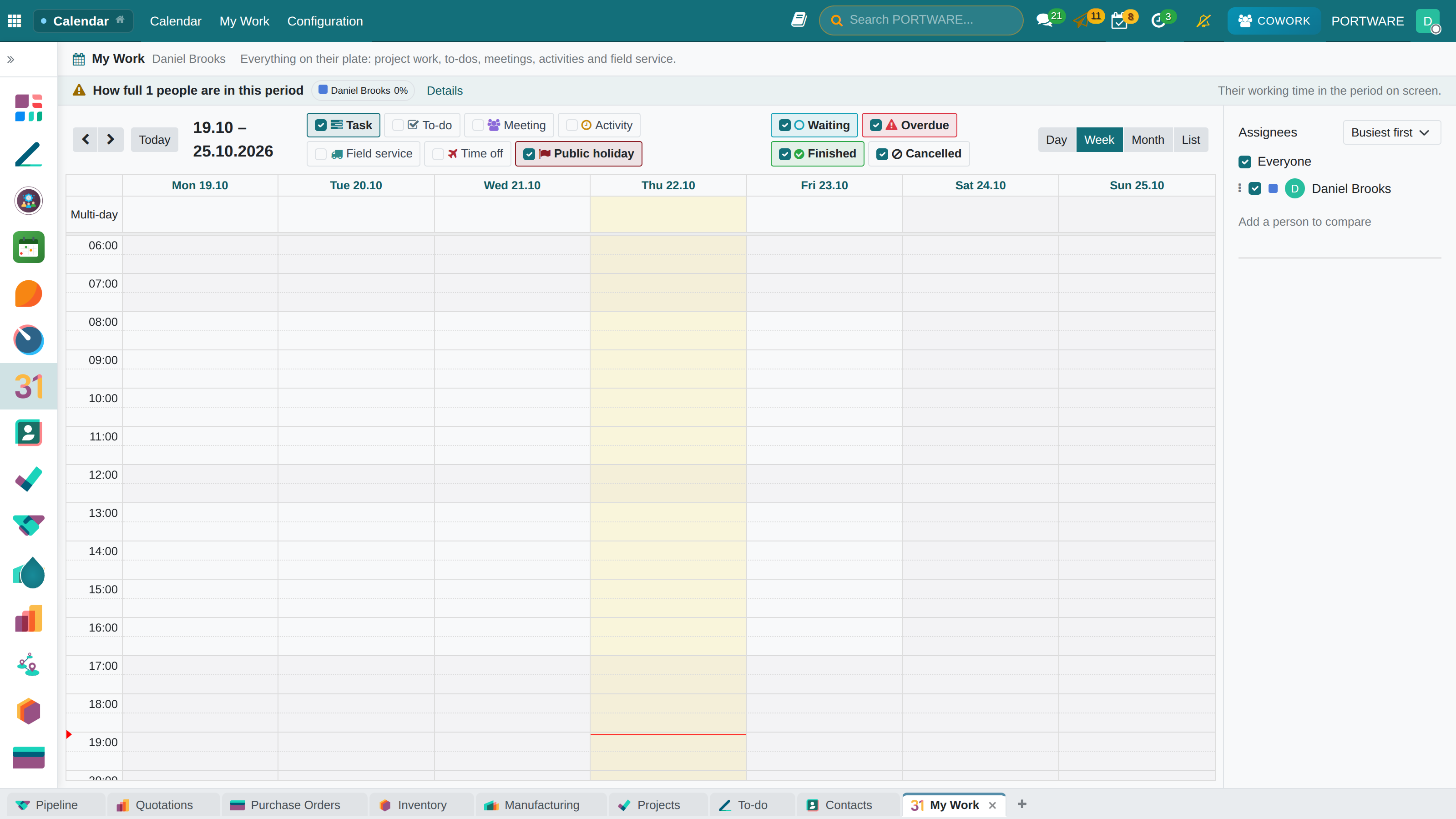
Calendar › My Work opens the planner's screen to everyone — for your own work and read-only: tasks assigned to you, to-dos, meetings, activities and leave in the same calendar, with multi-day work shown on each of its days. Done and Pending are filtered separately; the tooltip explains where the load piling up on a day comes from. There are day and list views too.
Timeline
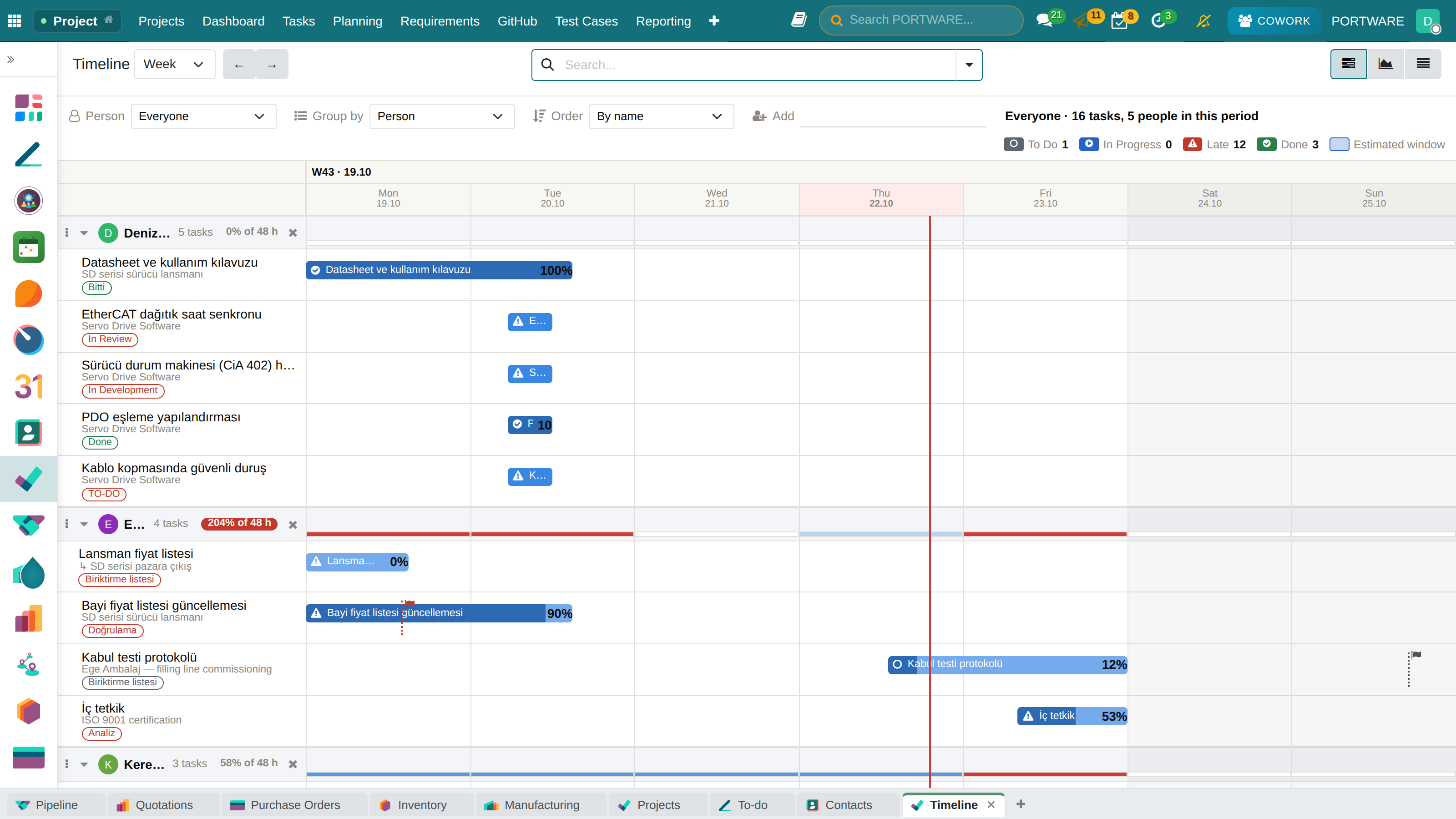
Project › Planning › Timeline.
The open-source core has no view type called "gantt". Here, instead of a client add-on, a real view type was added; in practice this means search, filters, grouping, favourites and clicking to open a record all come from the framework as they are, and are not rewritten by hand.
On the screen:
- The time axis has two bands: a coarse one for orientation (week / month) and a fine one for reading bars (day / week). Labels are printed in the session's own language.
- Bars are drawn from the planned window, not from the deadline. A bar drawn from a window the system derived is shown hatched — so that nobody mistakes an estimate for a commitment.
- Rows have two lines: the task, and where it sits. A parent task shows its project, a subtask shows its parent task, indented.
- There are Main Tasks / Subtasks filters, and they work not only here but in every task view.
Team load
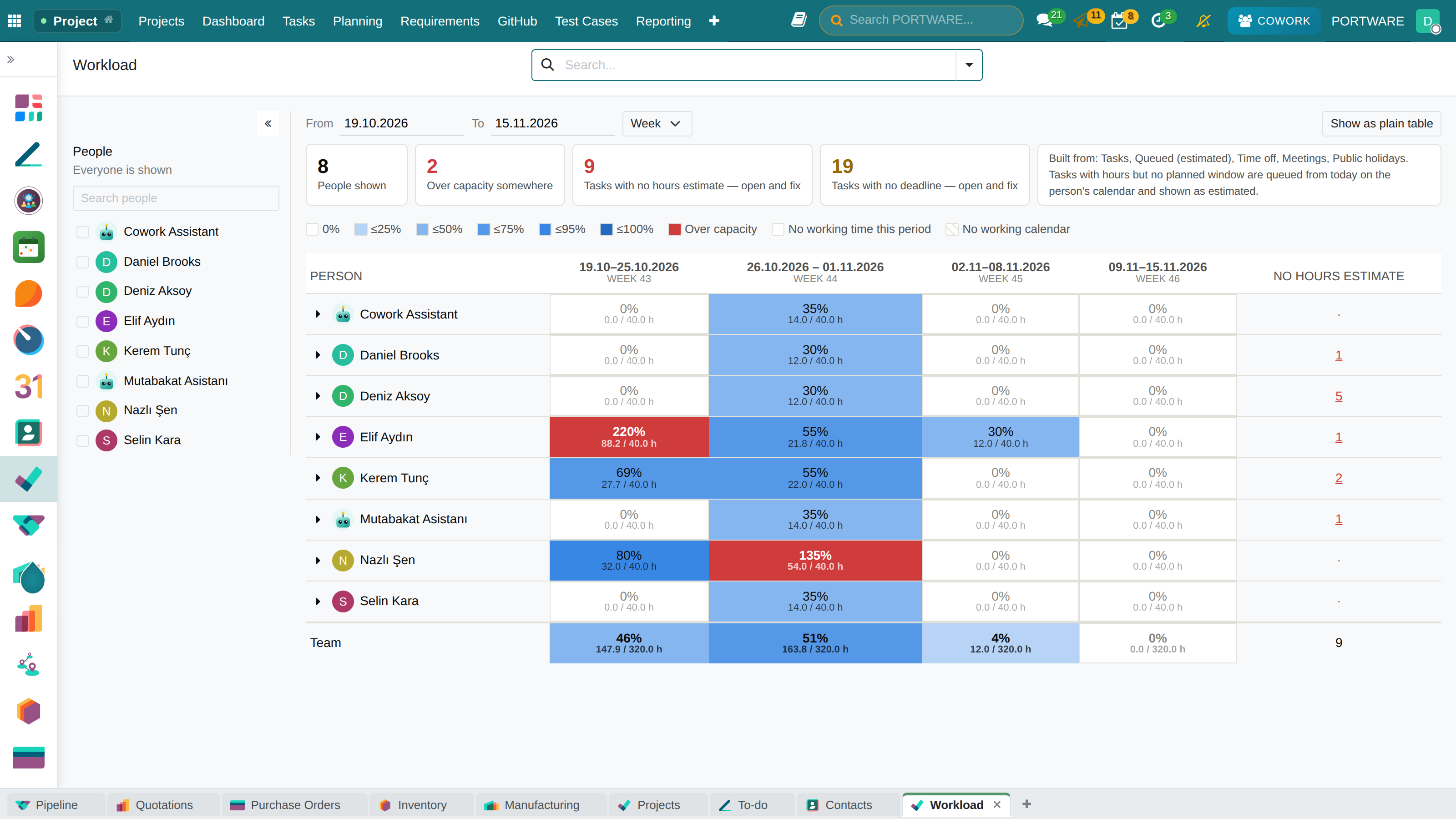
Project › Planning › Team Load. It answers one question: how full is this person this week?
The figure is a division. The denominator is the person's contractual hours, read from their own working calendar. The numerator is summed from four sources, and the screen shows them separately:
- The planned hours of tasks
- Meetings in the calendar
- Approved leave
- Public holidays
A warning never blocks an assignment. Who does the work is a human decision; the system's job is to make sure that decision is taken with the figures in view.
Work that cannot be counted
The rule from chapter 24 becomes a screen here. There are two kinds of task that cannot enter the calculation, and neither is silently mixed into the average — they are shown with their count:
- A task with no planned window.
- A task with a window but no allocated hours.
The sentence "this many tasks carry no planned window" is a button: it opens exactly those tasks; the list is editable in place and starts with the two missing fields.
Access — deliberately narrow
Seeing team load needs a separate access group, and this group is not given to everyone.
The reason: in most companies most internal users are in the project manager group. Deriving load access from being a project manager would make it meaningless and would expose everyone's leave and meeting density to everyone else.
This is a privacy decision, not a one-line technical task. Who sees it is the company's decision.
Team Calendar — what the load is made of
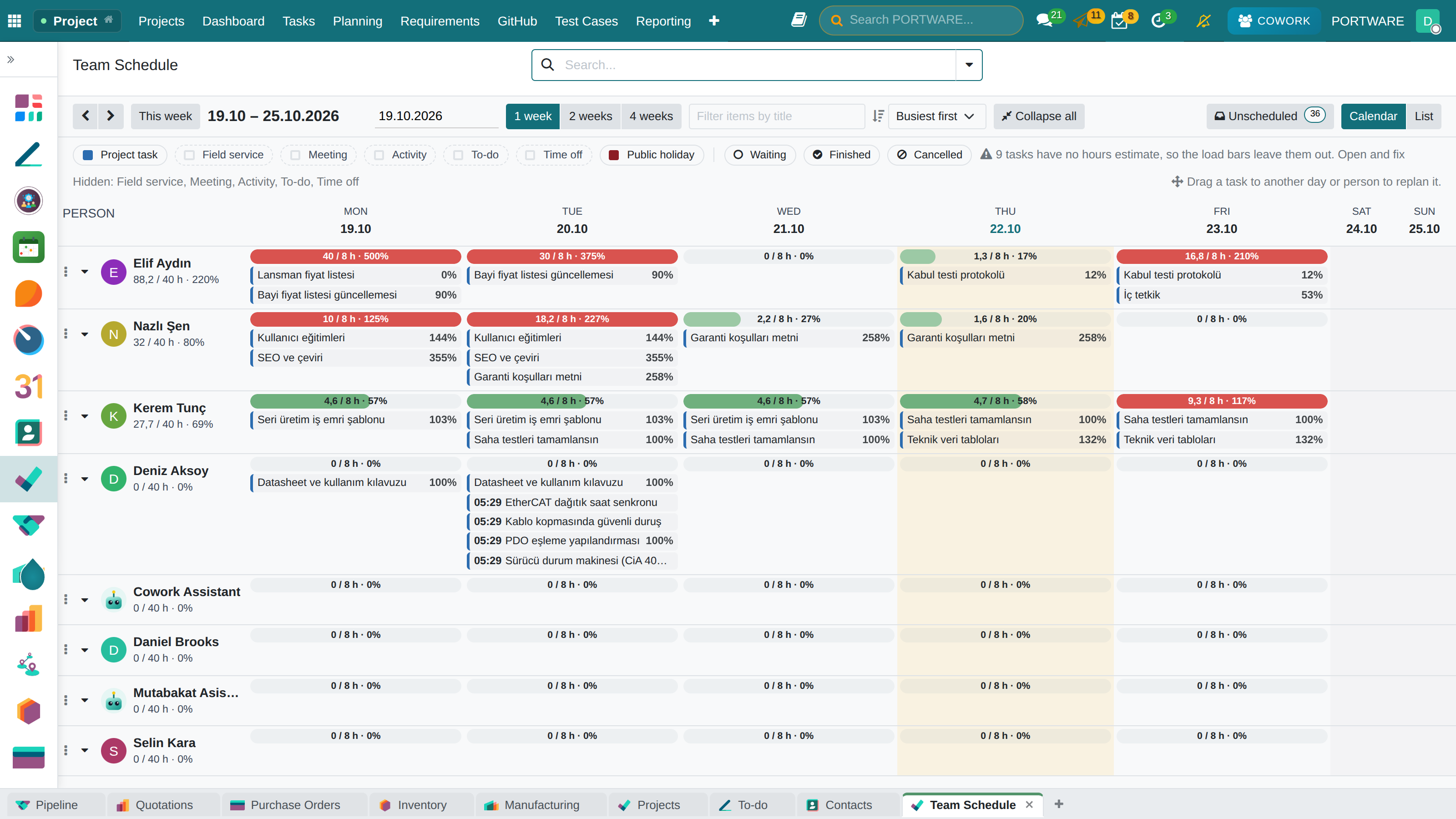
Project › Planning › Team Calendar. Team load answers "how full"; the Team Calendar answers "full of what". Two days of field service and one day of meetings is a different week from four days on one project at the same percentage — and the decision "can I give this person work" is made by looking at the second.
In each person's row, in one place: project tasks, to-dos, meetings, activities, field service orders, approved leave and public holidays. The colour gives the kind; the legend comes from the server.
- Sorting: Busiest first, Most work, By name or My order (by dragging the handle). Every row folds; there is Collapse / Expand all, and the choice is remembered in the browser.
- Filters: Pending, Done, Cancelled; and a text filter on the title.
- Rescheduling: just drag a task to another day or person. Work spread over several days is not drawn on days the person does not work.
- A source that cannot be seen is named. A source the viewer has no read access to (for example field service) does not silently stay empty; the screen says "this kind cannot be seen", because the planner has to know about the hole in the picture.
Public holidays on every calendar
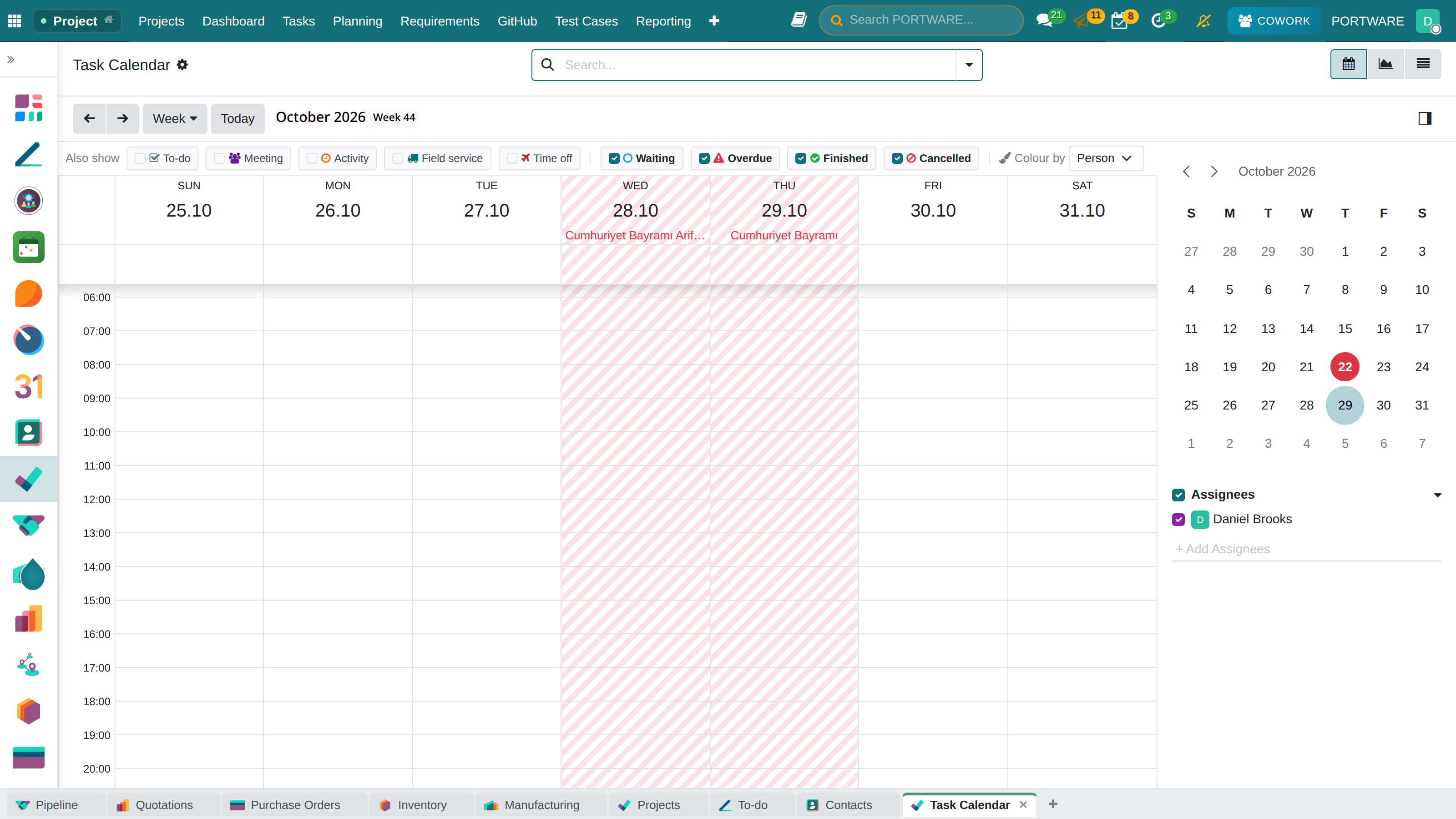
Every calendar view — the Time Off board, the Calendar application, the timesheet and task calendars — reads the public holidays of the visible range:
- the day cell takes its own colour; a half day (an eve) is shown striped,
- in the month view the holiday's name is written in the cell, in the week and day views under the column header; it also sits as a tooltip on every marked cell,
- days are cut in the time zone the calendar is drawn in; a holiday never appears split into two half days.
The planning calculation knows about holidays too: work flows around holiday and leave days, and bars are not hatched across weekends and holidays but cut there.
Other planning screens
- Task Calendar — Project › Planning. Colour by person, project or state; a summary of the period's tasks and allocated hours; to-dos, meetings, activities, field service and leave in the same calendar if wanted.
- Workload — when a source row (Tasks, Meetings, Leave…) is opened, the items behind it appear column by column with their hours.
- Timeline in every project — the Timeline is one of every project's views: with stage, state and deadline.
- Progress with one definition — every bar states its progress by the same definition; to-dos have the same workload tools as tasks.
Reporting: project health and people analysis
A manager brings two questions to reporting: which projects are in trouble and who is carrying what. Both are under Project › Reporting.
Project Health
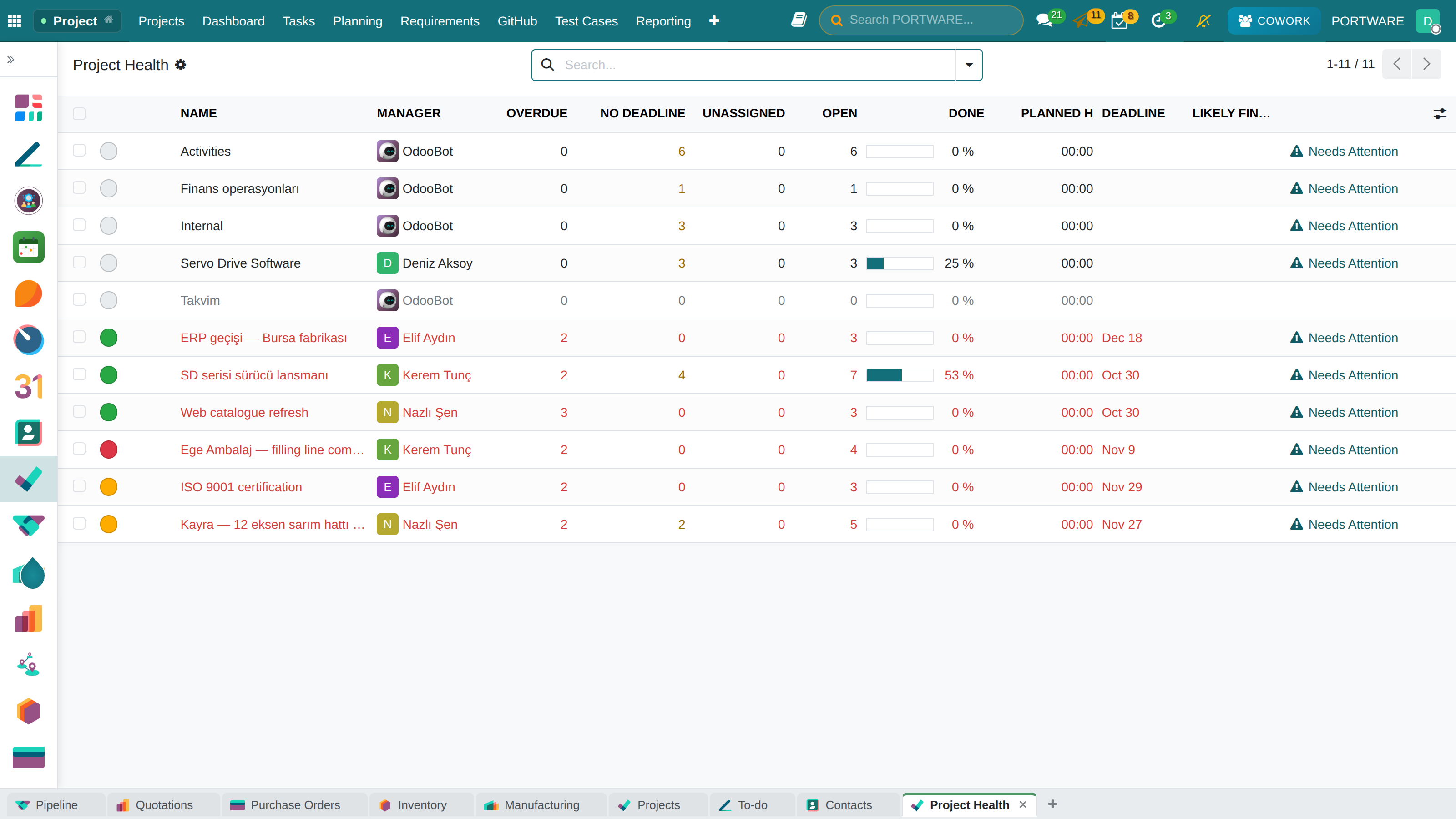
The columns are in the order a manager reads them: state, manager, overdue, open, completed (a progress bar), next milestone, planned and remaining hours, deadline. A row with overdue work or a missed milestone is red, an empty project is faded.
This is not a copy of the daily project list but a separate list: so as not to clutter the screen where people open and edit projects with eight analytical columns.
The query runs with the caller's own access — nobody is told how many tasks of a private project they cannot see are overdue.
People Analysis
The people-facing form of the same task analysis report: assignees in the rows, state in the columns. The measures are the number of tasks, days left to the deadline and working days elapsed until closing.
Project Portfolio and Task Status
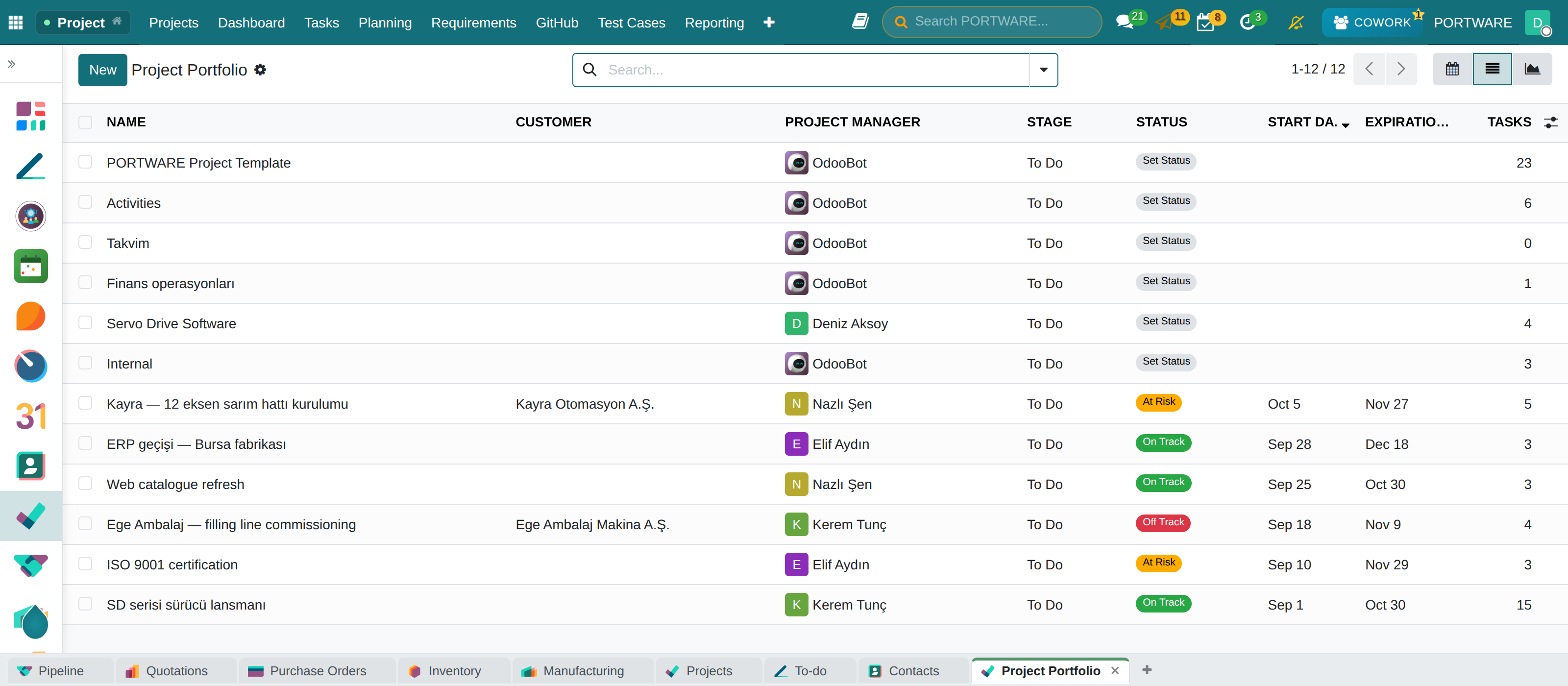
Project Portfolio puts projects side by side with progress and delay; Task Status counts tasks by stage and state. Both are standard core reports: pivot, graph, grouping and export come from the framework.
Flow reports: where work waits
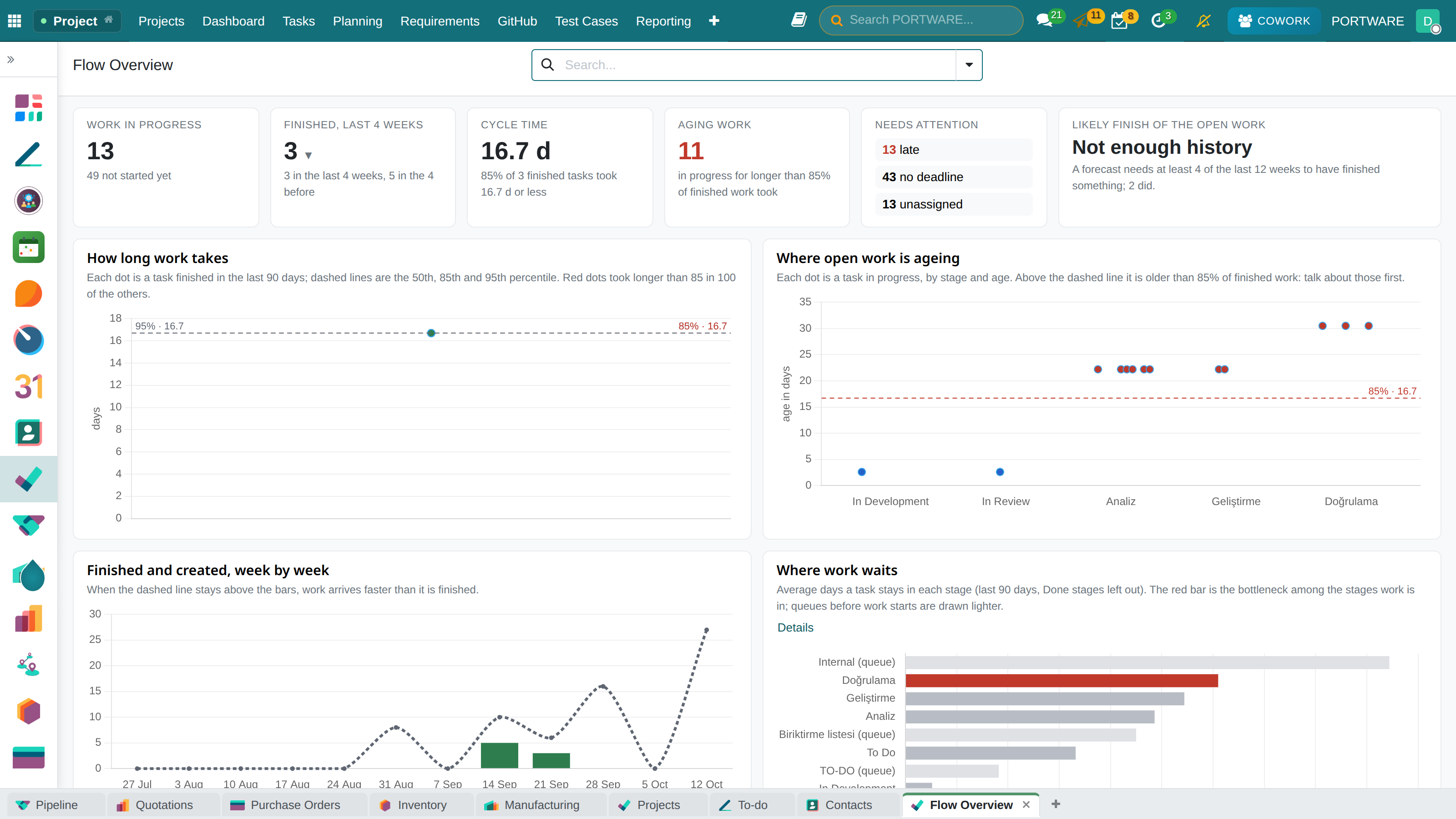
They answer the questions the team asks every week from data that is already in the database (the Kanban Guide's four flow measures):
- Flow Summary — work in progress (WIP), work finished per week, cycle time and work item age. Durations are given as percentiles; an average would hide the long tail.
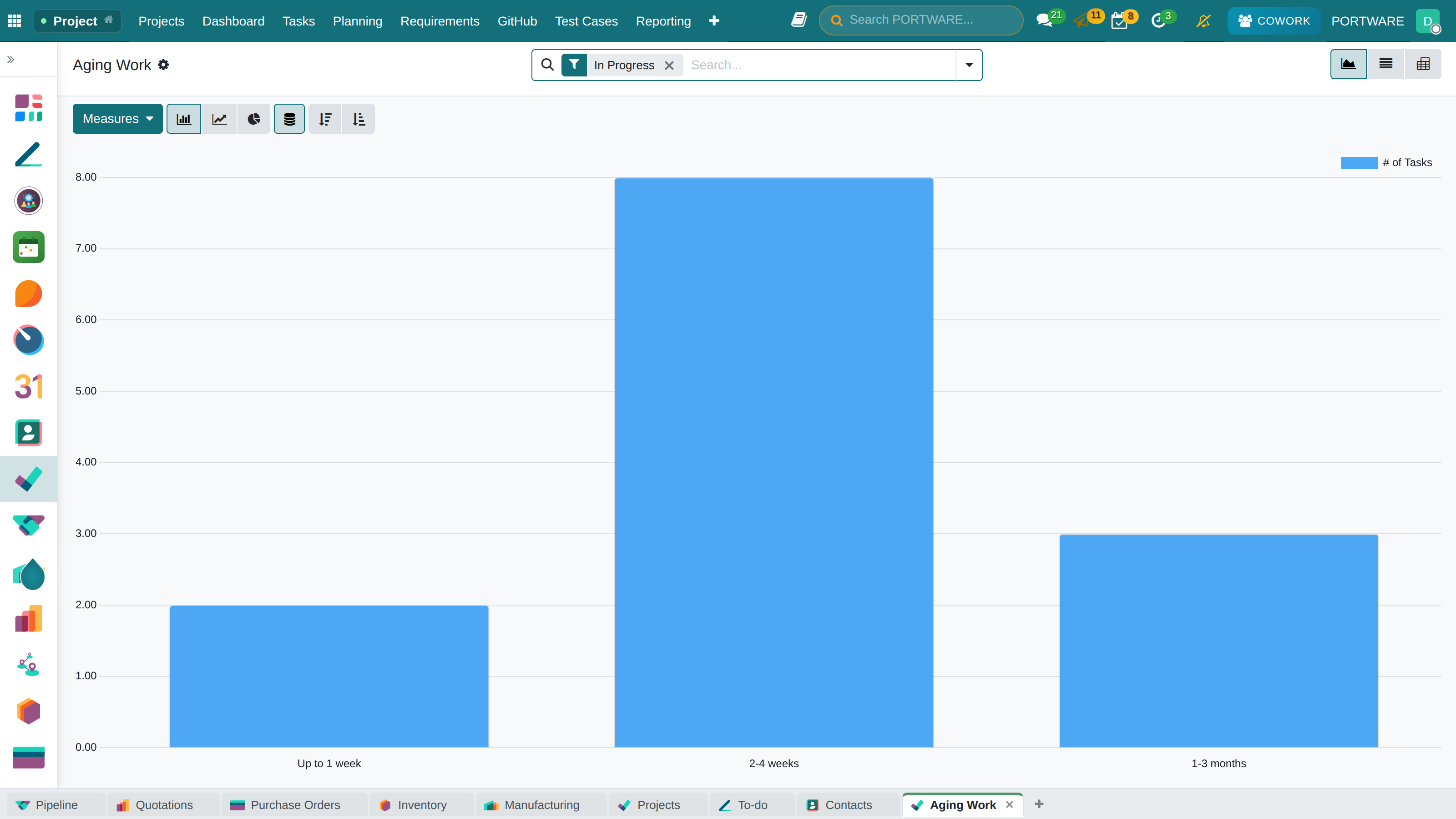
- Ageing Work — items that have been open longer than 85% of the items finished so far: a leading indicator of stuck work.
- Time in Stage — the stage in which work waits longest; rebuilt from each task's own stage history.
- Estimate vs Actual — estimated hours against hours written to timesheets; by project and work item type, never as a ranking of people.
- Completion forecast — the Flow Summary also gives when the open work will finish as a probability (Monte Carlo over the team's own weekly output); if history is insufficient, it says so plainly.
For good results
- Capacity figures speak with data: without the planned window and allocated hours, the load screens speak correctly but emptily.
- Team load access is deliberately narrow; who sees it is a management decision.
Summary of this chapter
- The planned window was the missing piece that made the numerator of capacity possible.
- The window fits the working calendar; for someone with no calendar the system does not guess.
- The Timeline is a real view type; a derived window is drawn hatched; a drag is anchored to the next working moment.
- Load shows the four sources separately, builds the team total from hours and states the work it cannot count with its count.
- The task form says whose hours and how many: Workload %, Split Workload; a parent task's hours cover its subtasks.
- Plan on calendar shows conflict at two levels but does not block it; My Work gives the same picture to everyone for their own work.
- The flow reports say where work waits, with percentiles and probability.
- Project Health and People Analysis answer the manager's two questions separately.