IX · Administration · Chapter 31
Security and the access model
The difference between access rights and record rules, common traps, outward-facing endpoints and password discipline.
Two layers
The key to understanding access is to separate two layers.
| What it asks | Scope | |
|---|---|---|
| Access right | "Can you read/write this model?" | The whole model |
| Record rule | "Can you see this record?" | Individual records |
A user can read the sales order model (access right) but see only their own team's orders (record rule).
That is why the question "can this user write to this record" is asked of the record itself, not of the model. A right at model level proves nothing about a single record; when auditing access, make sure what you measure is what you are asking.
Roles
Users are assigned to groups; groups determine both access rights and menu visibility.
Creating a user and giving a role
Bringing a new employee into the system takes four steps:
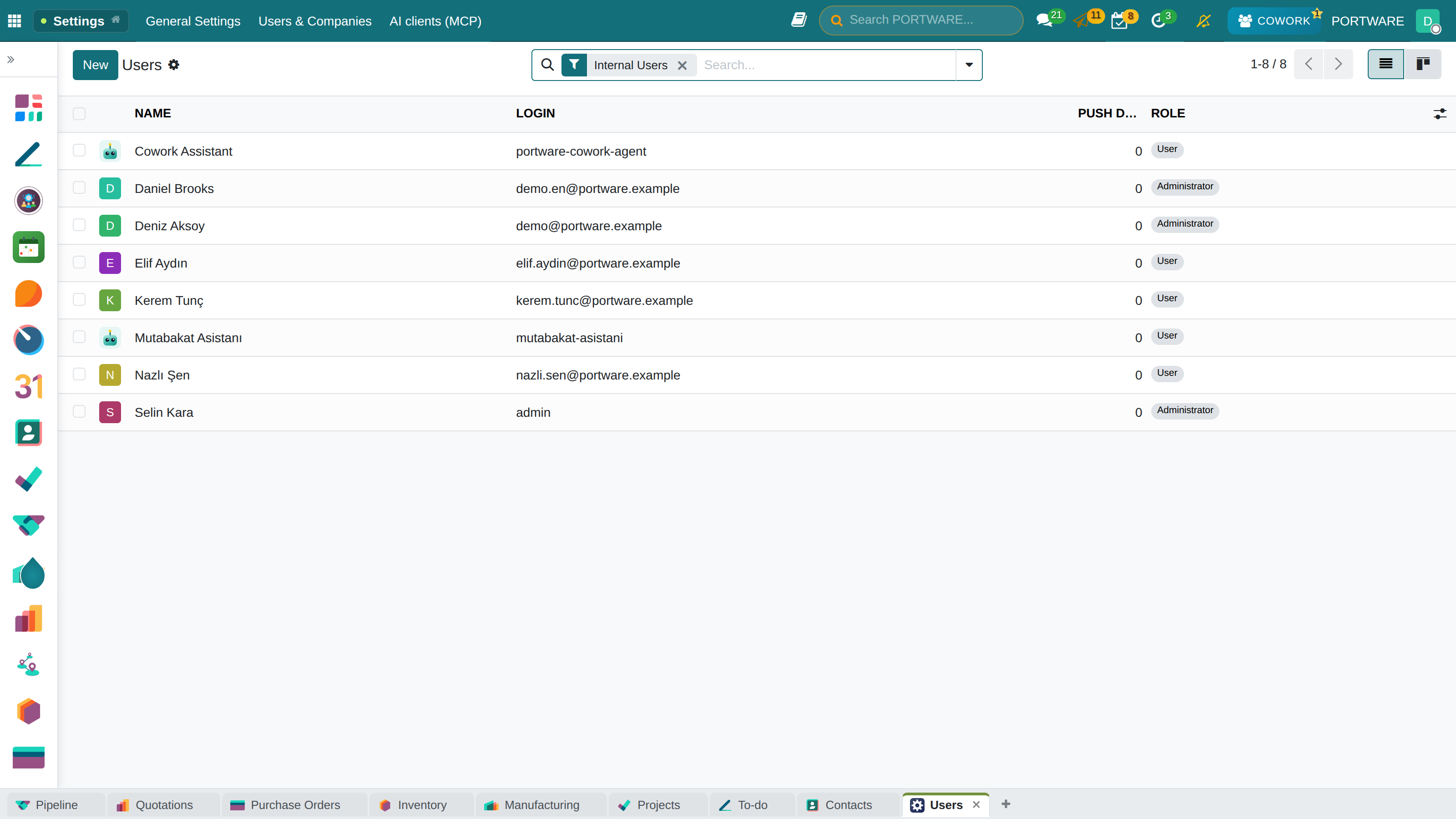
- Open Settings → Users & Companies → Users and press New. The list shows everyone in the system with their login and last connection.
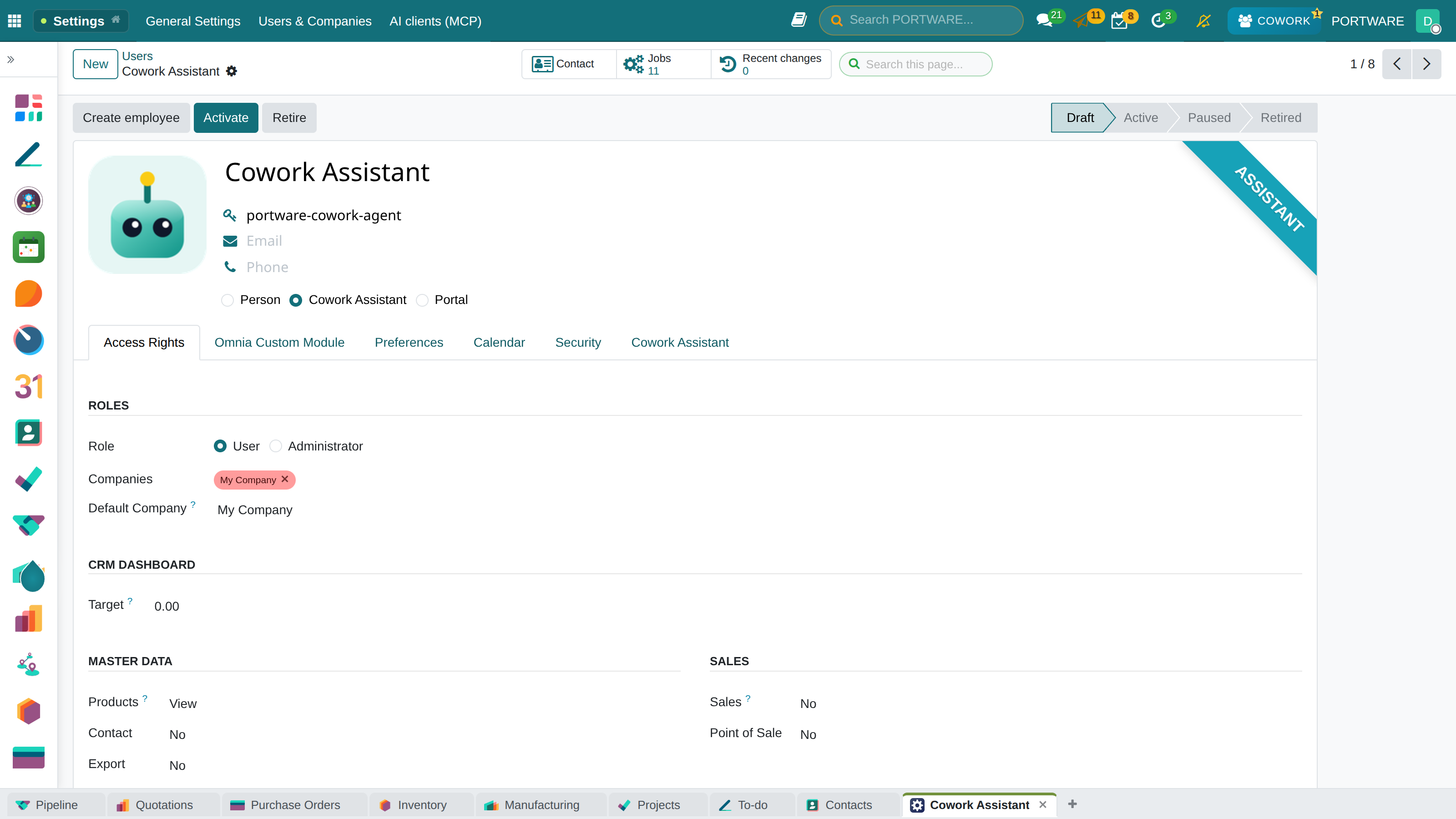
- Type the name and the sign-in email. For a customer or a dealer outside the company choose the Portal role; that person sees only the records shared with them.
- On the Access Rights tab choose a level for each application: empty (no access), User (their own records) or Administrator (every record and the settings).
- Save and press Send an invitation email; the person sets their own password.
Passwords
- Initial passwords must be changed the moment they are handed to the person.
- Shared accounts are not used; the answer to "who did what" is lost in a shared account.
- A user who leaves is archived, not deleted (chapter 3).
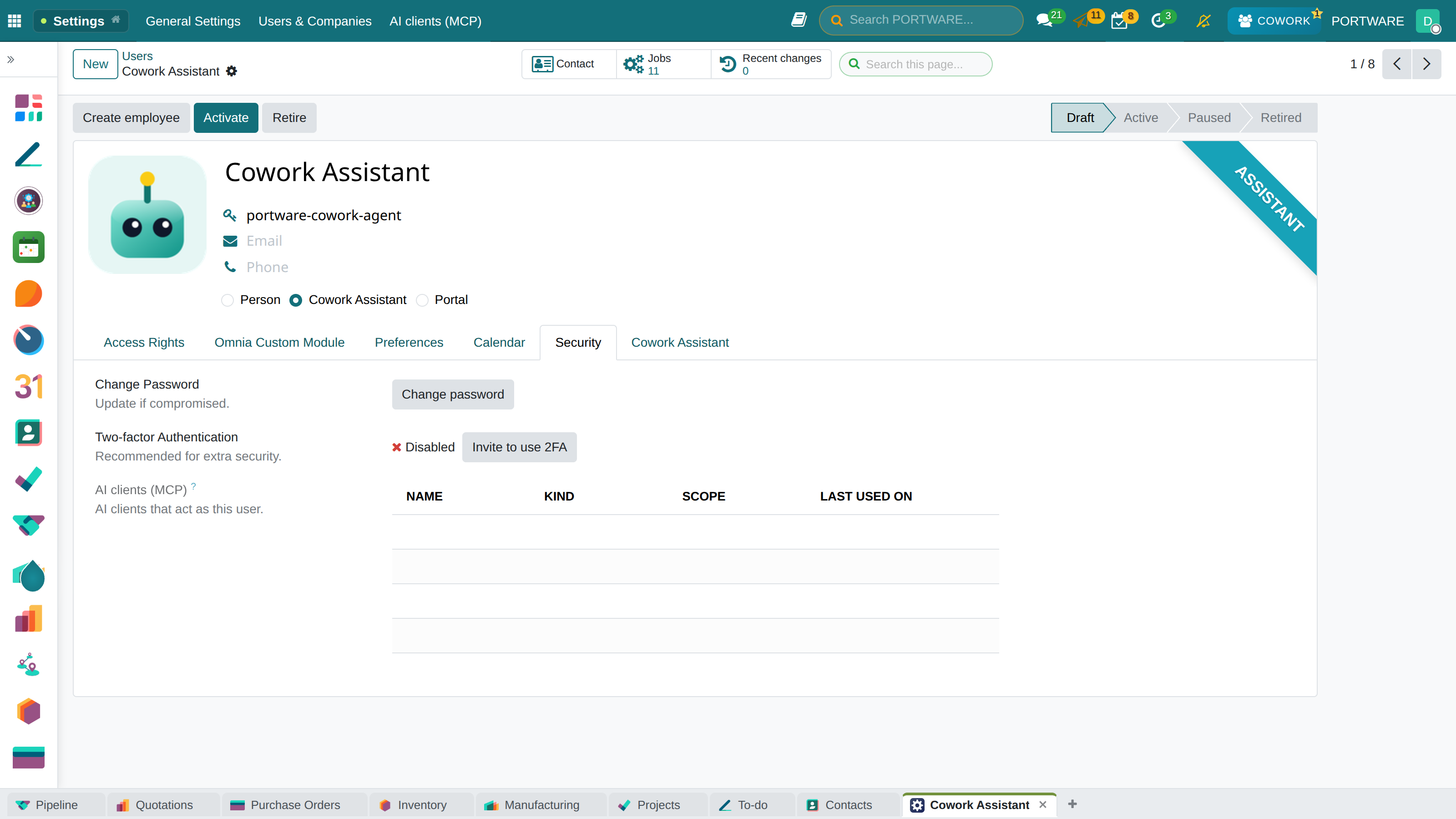
Two-step verification. Every user can protect their own account with a second step: click your name at the top right, open My Preferences → Security, enable Two-factor Authentication and scan the code with the authenticator app on your phone. From then on, signing in asks for the six-digit code on the phone as well as the password. For accounts with administrator rights treat this step as mandatory, not optional.
Information going out
Three gates:
- E-mail — passes human approval (chapter 30).
- Website — personal addresses and prices are not published (chapter 27).
- The AI's access to the outside network — passes through a single controlled gate (chapter 13).
User monitoring
There is a monitoring layer that shows who did what and how much time they spent on screens, and it is password-protected.
Audit trail
What the system keeps a record of:
| What | Where |
|---|---|
| Field changes | The record's chatter |
| Activity life cycle | The activity log (chapter 5) |
| Document versions | The revision log (chapter 9) |
| AI turns and their cost | The usage log (chapter 12) |
| Status-tracking items | The sealed log (chapter 10) |
What these logs have in common is that they are append-only: a written row is not deleted. A log's value comes from the fact that it cannot be overwritten.