II · Daily work · Chapter 5
Assigning and following work
Activities, tasks raised from records, the Activity Center, the permanent activity ledger, handover, priority and the always-visible agenda.
In the system work exists in three different forms, and keeping them apart makes both conversation and reporting easier.
| What it is | Where it lives | |
|---|---|---|
| Activity | A dated job for a person, to be done on a record | On the record itself |
| Task | Work belonging to a project that passes through stages | In the Project application |
| To-do | A personal note tied to nobody | In the To-Do application |
The activity is used most because it is tied to a record: the job "call about this quotation" sits on that quotation. Everyone who goes to the record sees the job.
Opening an activity
It is opened with Schedule activity below the form. You set three things: the type (call, e-mail, meeting, to-do…), the due date and the person responsible. You can also leave a note — this note is the only explanation the person doing the job will read, so do not leave it empty.
Raising a task from a record
An activity is a reminder; once a job is to be split into sub-tasks, pass through stages or have hours logged against it, it is a task. So that the two are not confused, the conversation stream has a separate Task button next to Activity.
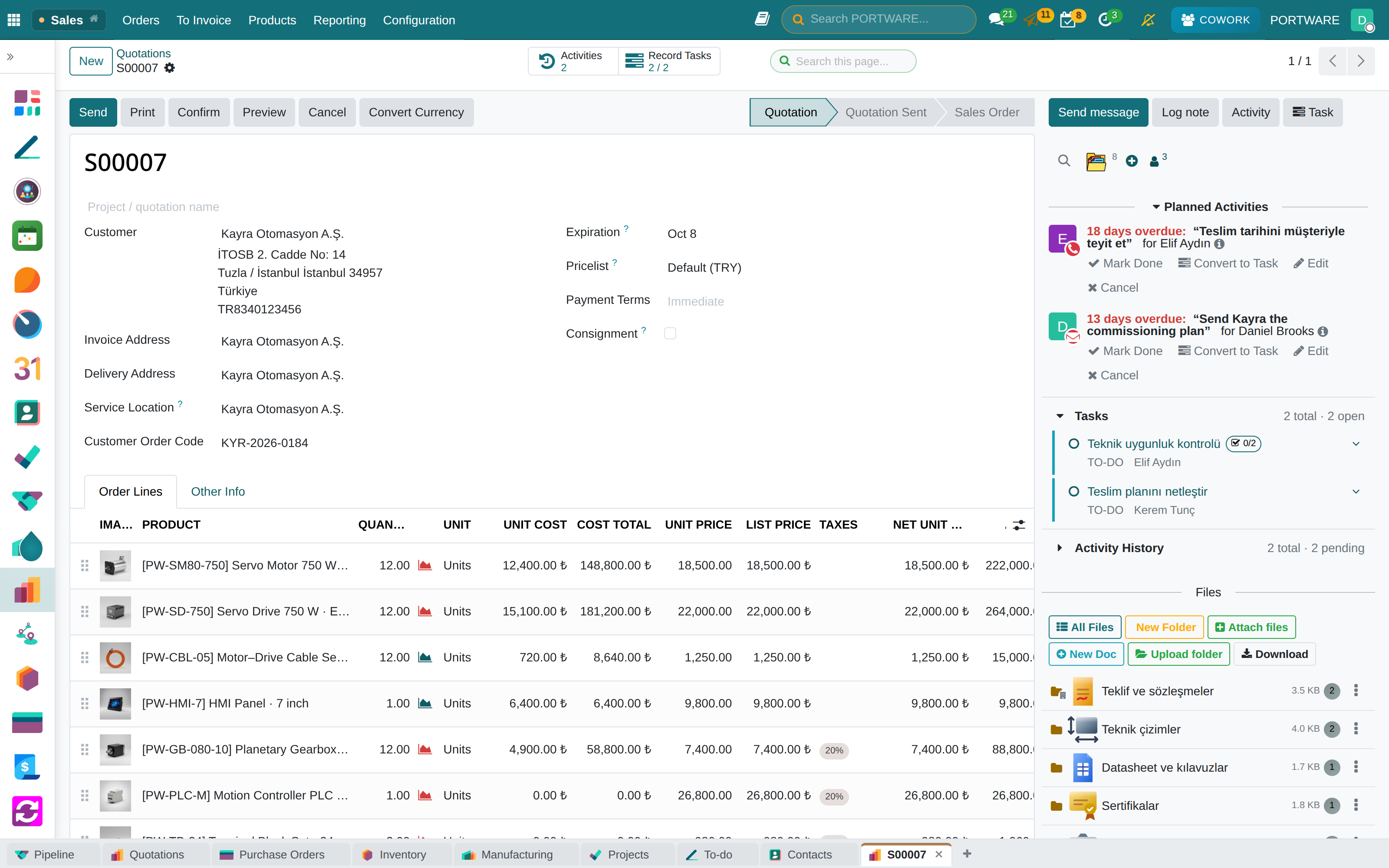
- The Task button opens a small task window for that record: title, what needs to be done, assignees, Planned Dates and sub-tasks. The task is written to the Activities project and carries the record's customer on its own. Save closes the window, Save and Open goes to the task's full form.
- Plan on calendar next to the planned date opens a calendar that shows the assignees' other work on those days (chapter 26). The planner does not save the task; Apply writes the dates back into the window, Cancel changes nothing.
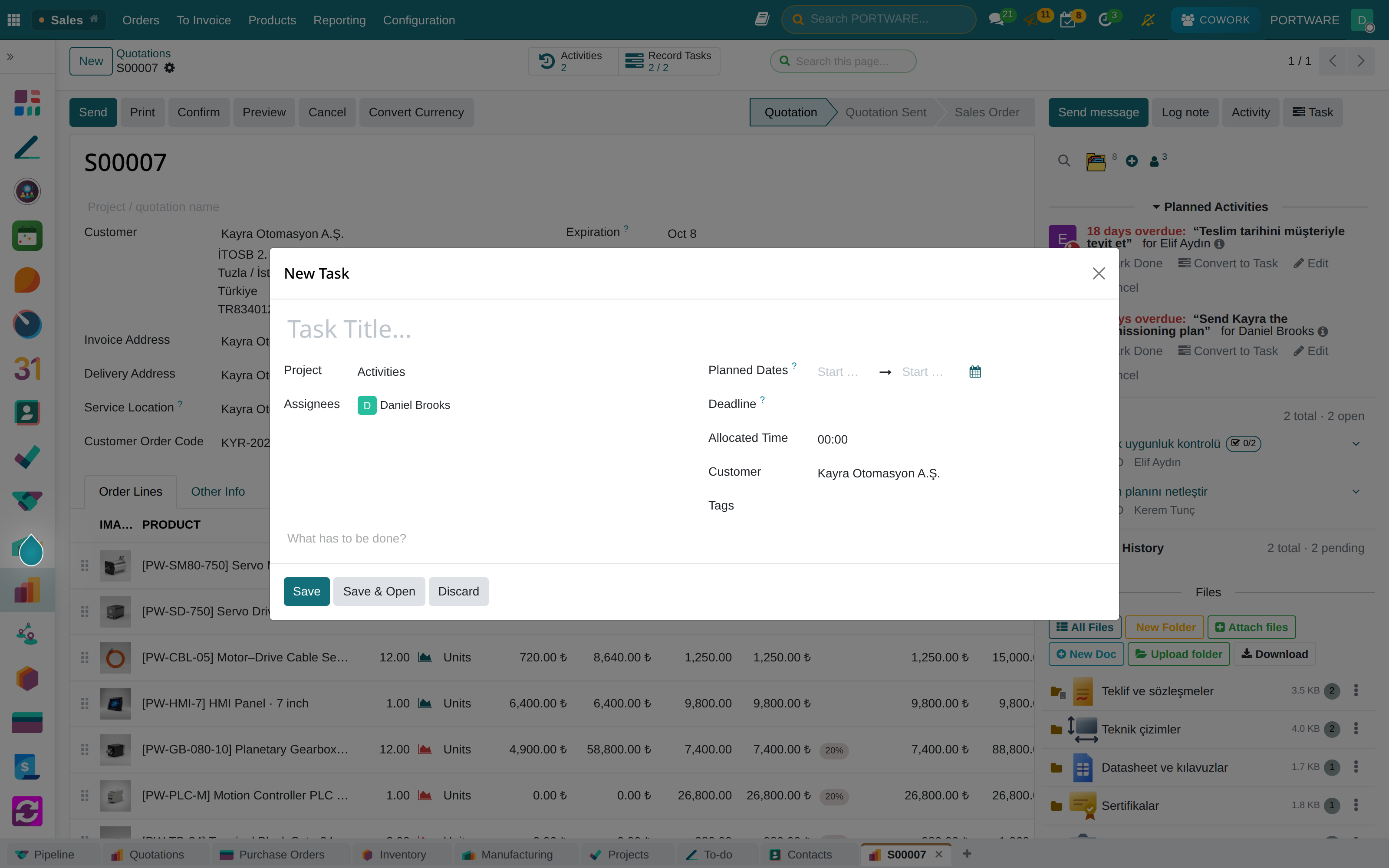
- An activity that is already scheduled can become a task too: Convert to Task on the activity turns it — together with all its siblings if it was opened for several people — into one task and closes the activity as "converted". The ledger records which task it became.
- In the conversation stream the record's tasks are listed under the Tasks heading, separately from the activity history; from there you add sub-tasks, mark a task done or reopen it.
- Every form on which a task can be raised has a Record Tasks button (open / total) at the top right; activity lists have a Tasks column too.
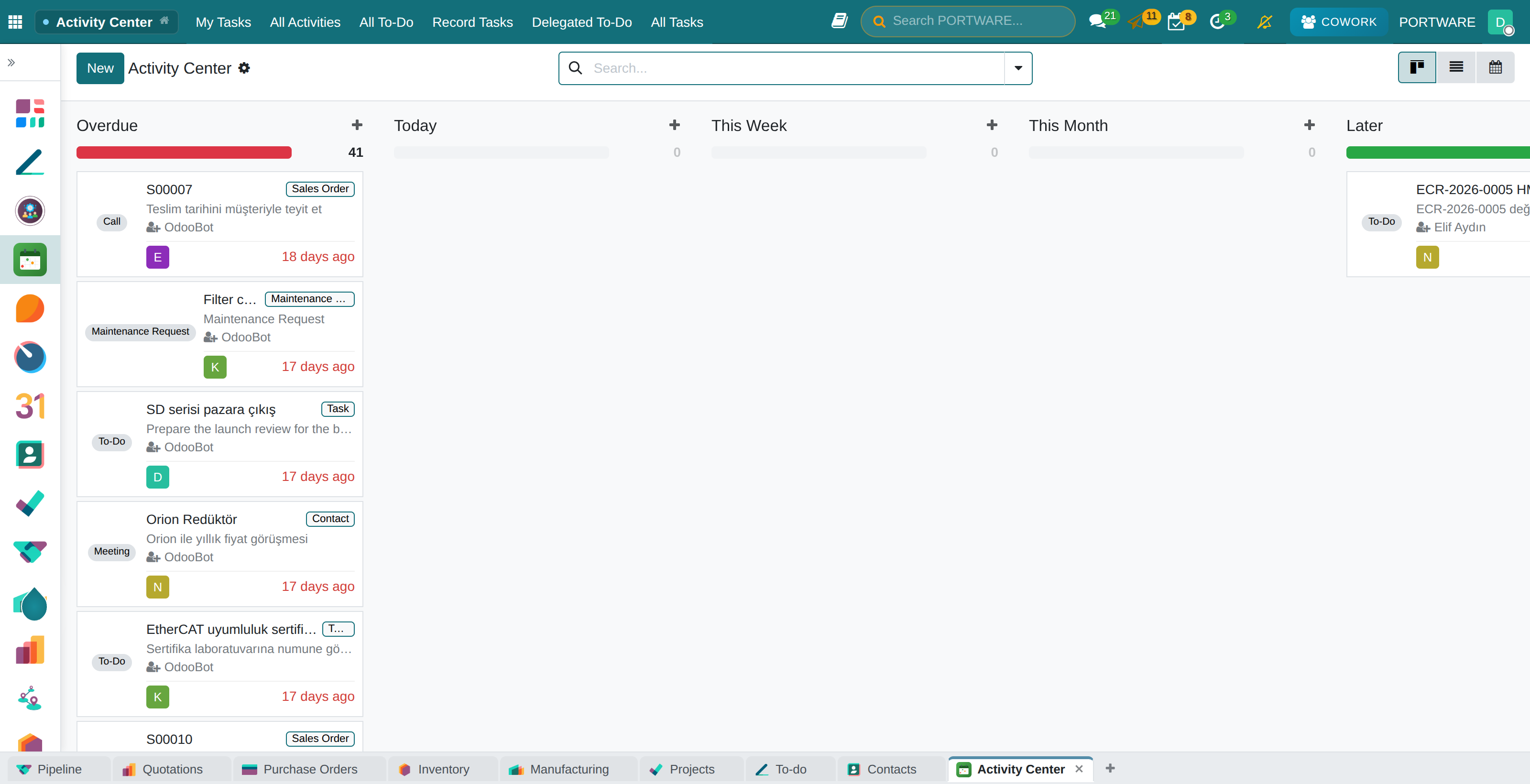
The Activity Center
An application of its own that gathers activities scattered across different applications on one screen. Cards are grouped by time automatically:
- Overdue (red column)
- Today
- This week
- This month
- Later
- No due date
Clicking a card opens the record the activity is attached to. There are calendar and list views too, and a My Tasks screen that shows your tasks from all projects in one place.
Handing over
If an activity is not yours or has to pass to someone else, it can be handed over directly from the edit box. The handover is not silent: it leaves a trace on the record, so who the work passed from and to can be seen later.
What happens when it is done
When you close an activity you write what you did and, if you like, enter the hours you spent — split over as many days as the work really took. These hours become timesheet lines.
The person who opened the activity is informed when it is completed, cancelled or handed over. This small detail matters: the person who asked for the work does not have to reopen the record again and again to learn the result.
A completed activity and a cancelled one both stay visible: every step of an activity's life is mirrored into a permanent ledger that outlives the activity itself. Even a cancelled job appears as "planned on this date, cancelled for this reason".
The agenda
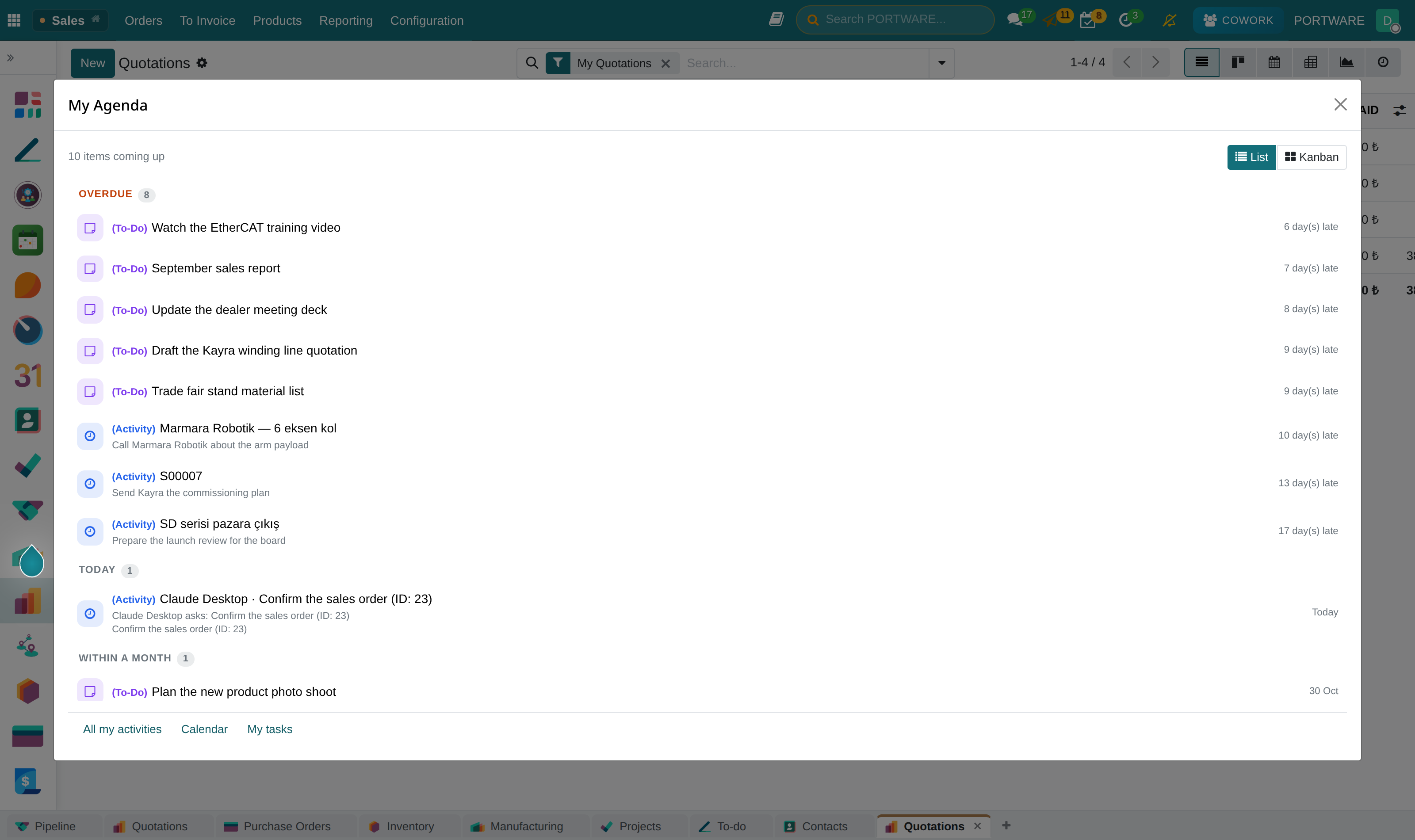
The agenda is a single, always-visible surface: upcoming meetings, activities, tasks and to-dos in one list, in order. Reminders need no separate setup.
The point is this: not having to open four different applications to see your day.
Morning routine
- Situation
- At the start of the day the user wants to see what is waiting and what is late.
- What was done
- The agenda was opened; two overdue activities, today's meeting and two tasks due this week appeared in one list. One of the overdue items was clicked, the related quotation opened, the call was made and the activity was closed with the time spent.
- Result
- The sales manager who had opened the activity got a notification; the time spent went into the timesheet; the ledger kept how the job was closed.
Meetings
A meeting is a calendar record, but the moment it sends an invitation it leaves the system. So two details matter:
- The links inside the invitation must work; an attendee must be able to see the meeting without signing in.
- A meeting has two separate note fields and different people read them: one is the description that goes with the invitation, the other is an internal note. Watch which one you write in.
The meeting itself can be recorded and transcribed; chapter 29 describes the meeting assistant.
Not missing notifications
In the messages menu you can reach the history even when nothing is unread: the History filter in the menu lists the notifications and messages you have already read, in time order. An empty inbox does not mean there has been no conversation.